Read time: 11 minutes
If you’ve ever managed or are still working on Microsoft SQL Server, you might encounter the error ” MDF is not a primary database file. (Microsoft SQL Server error 5171). When this error occurs, SQL Server may refuse to attach the database. As a result, you may be unable to access its tables, records, stored procedures, and other database objects through that database instance.
To get rid of this error and continue working smoothly again, we’re here to help you. In this article, we will help you understand what SQL Server error 5171 is, why it occurs, and how you can fix it on your own respectively.
“MDF Is Not a Primary Database File” Error 5171: What Does It Mean?
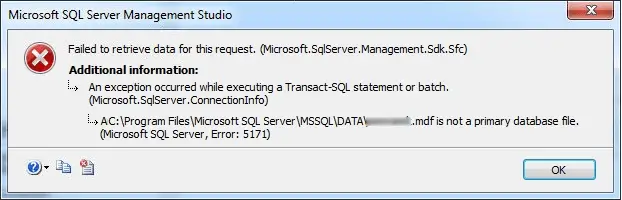 ‘MDF is not a primary database file. (Microsoft SQL Server error 5171)’ is primarily a file-recognition and database-attachment error that signals that the file selected as the primary data file does not meet SQL Server’s requirements.
An MDF file is the primary data file of a SQL Server database. It contains essential database structures and data, including tables, indexes, and other database objects. SQL Server uses its internal metadata to identify the database and locate its associated files. Besides that, a SQL Server database may also contain secondary data files (.ndf) and transaction log files (.ldf).
Common Causes and Triggers of Microsoft SQL Server Error 5171
Reasons for ‘MDF is not a primary database file. (Microsoft SQL Server error 5171)’, are as follows:
- Selecting a secondary data file (LDF or NDF) rather than the primary file MDF
- Storage failures, interrupted file operations, or other file-system problems
- Incomplete or incorrectly copied files SQL Server fails to read and displays SQL error 5171
- Missing or mismatched database files, transaction logs, or FILESTREAM components
- Corruption in the MDF file’s internal structures or metadata
- Incorrect file permissions or other database configuration
How to Resolve “MDF is Not a Primary Database File” SQL Error 5171?
Here are a few methods by which you can effectively fix Microsoft SQL Server error 5171. Follow each method to find the one that works for your issue.
Method 1: Select and Add the Correct MDF File
If you selected the wrong database file and are facing Microsoft SQL Server error 5171, you must choose the actual primary data file to fix error 5171. Here are the steps to follow:
- Open the folder containing the SQL Server database files and look for the available .mdf, .ndf, and .ldf files.
- Confirm which file is the primary data file. Do not identify it by its extension alone.
- Open Microsoft SQL Server Management Studio (SSMS) and connect to the correct SQL Server.
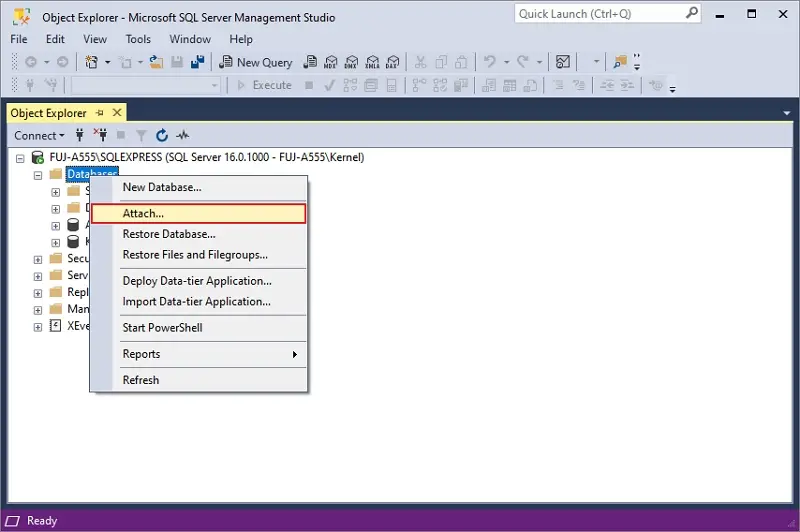
- Right-click Databases and tap on Attach.
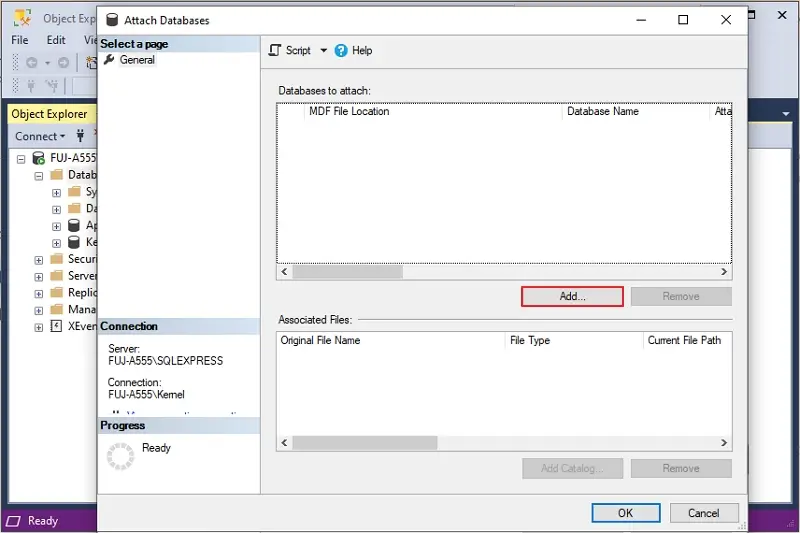
- Click Add and browse to load the correct primary MDF file.
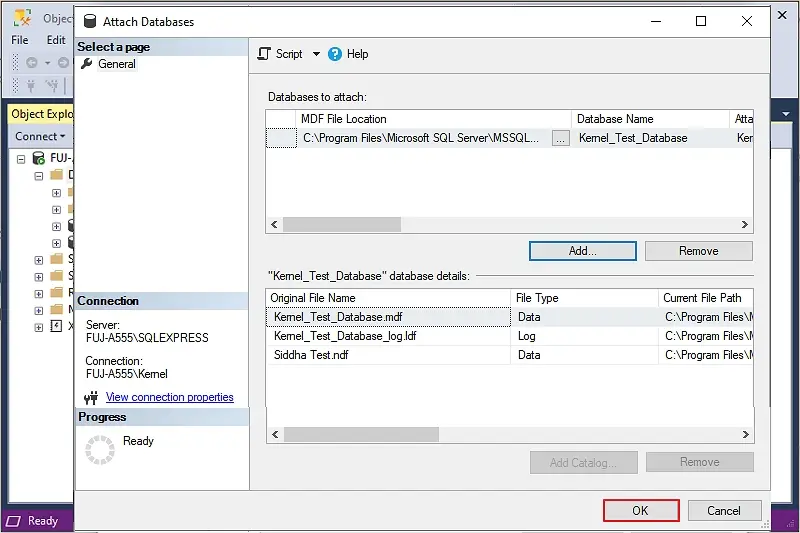
- Choose the primary database file and check that any required secondary data files are available. Click OK.
- Once your primary database is added, click OK.
If the error persists, continue to the next method.
CREATE DATABASE [YourDatabaseName]
ON (FILENAME = ‘C:\Program Files\Microsoft SQL
Server\MSSQL11.MSSQLSERVER\MSSQL\DATA\YourDatabase.mdf’)
FOR ATTACH;
Don’t use sp_attach_db because it is deprecated by Microsoft and scheduled for future removal. You must use CREATE DATABASE … FOR ATTACH as Microsoft recommends.
Method 2: Check the Database Files and Their Locations
Missing files or incorrect file paths can prevent SQL Server from attaching a database. You may encounter the MS SQL Server 5171 error. For resolution:
- Go to MDF file location and check that the associated transaction log file (.ldf) and any secondary data files (.ndf) are available.
- Confirm that these associated files belong to the same database.
- If the database was moved, verify that the files are stored at the expected locations.
- In SSMS, open the database attachment dialog and check the file paths listed for the database.
- Correct the paths if the files have been moved and update them.
Once you have followed all steps above and verified as guided, attempt to attach the database again.
Method 3: Verify SQL Server File Permissions
SQL Server must have the necessary permissions to access the database files. Here are the steps to verify SQL Server file permissions:
- Identify the Windows account under which the SQL Server Database Engine service runs.
- Navigate to the folder containing the MDF and associated database files.
- Right-click the folder and select Properties, then go to the Security tab.
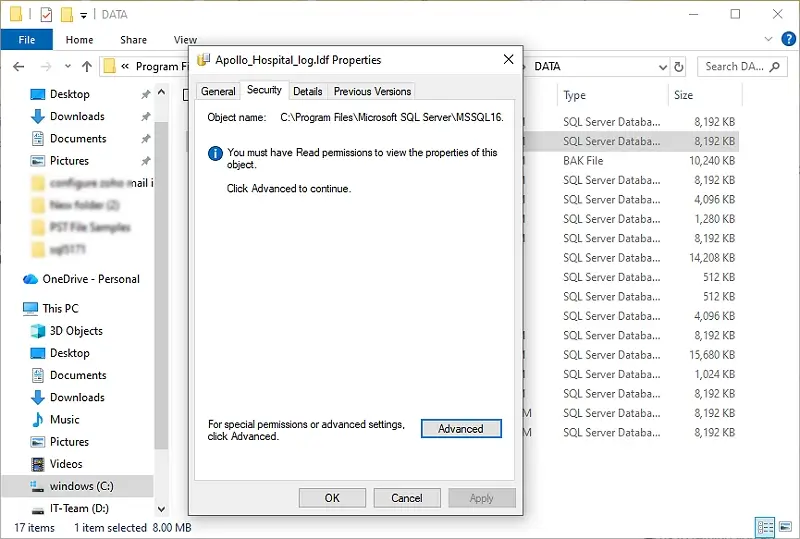
- Check whether the SQL Server service account has the required permissions to access the files.
C:\Program Files\Microsoft SQL
Server\MSSQL16.SQLEXPRESS\MSSQL\DATA
If permissions are missing, ask your database admin to grant the appropriate access. After that, try to attach the database again.
Method 4: Review the SQL Server Error Log
The error log related to database files may contain additional information explaining why the attachment failed. Here are the steps to follow to create error log:
- Open SQL Server Management Studio and connect to the SQL Server.
- Expand the Management folder, then SQL Server Logs, and open the current log.
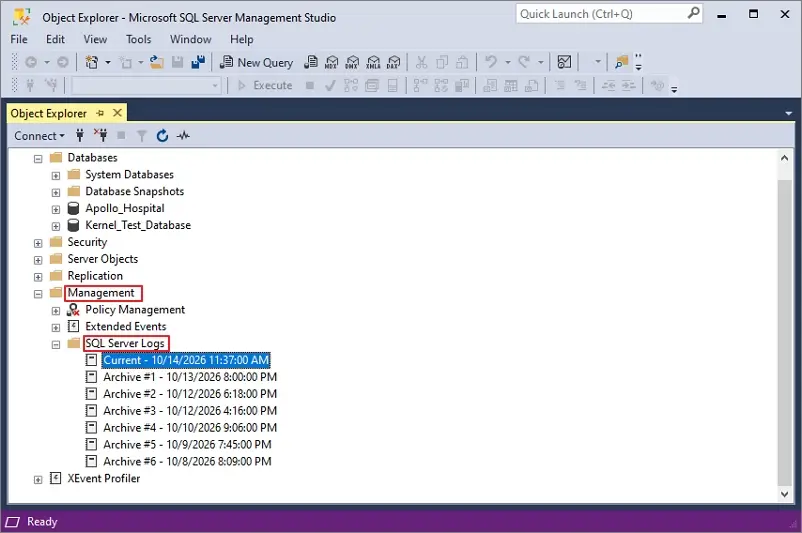
- Check for related errors mentioning invalid database files, missing files, access problems, or file corruption.
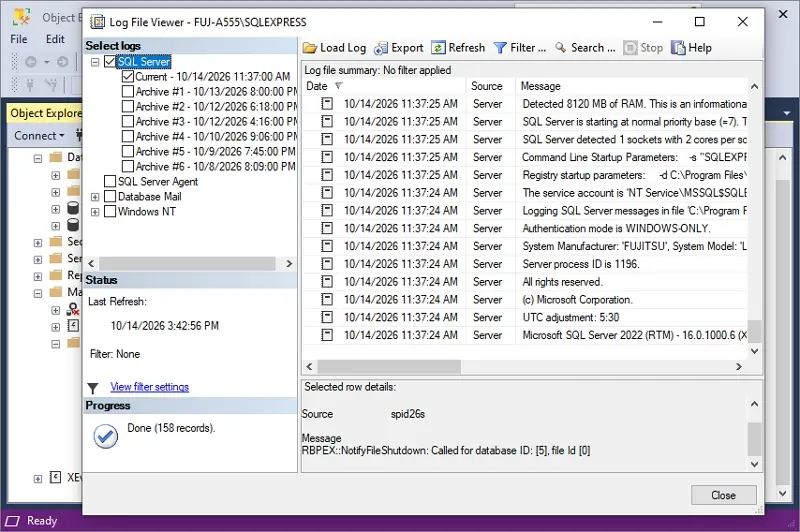
- Use those messages to determine the next troubleshooting step.
You can also review the Windows Application event log if the SQL Server logs do not provide enough information.
Method 5: Restore the Database from a Backup File (.bak)
If the MDF file cannot be attached because it is damaged or incomplete, restoring a valid database backup may be the safest solution. Here is how to restore a database from backup file:
- Locate a recent, usable SQL Server backup file (.bak).
- Open Microsoft SQL Server Management Studio (SSMS) and connect to the target SQL Server instance.
- Right-click Databases and select Restore Database.
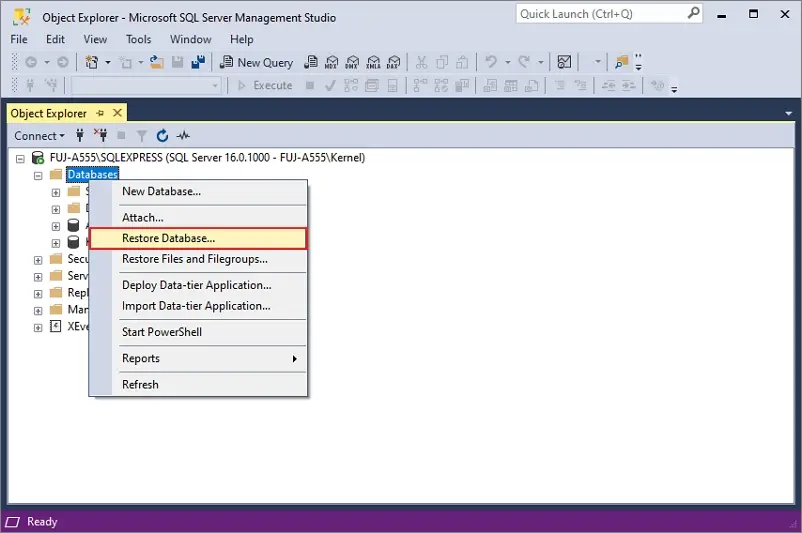
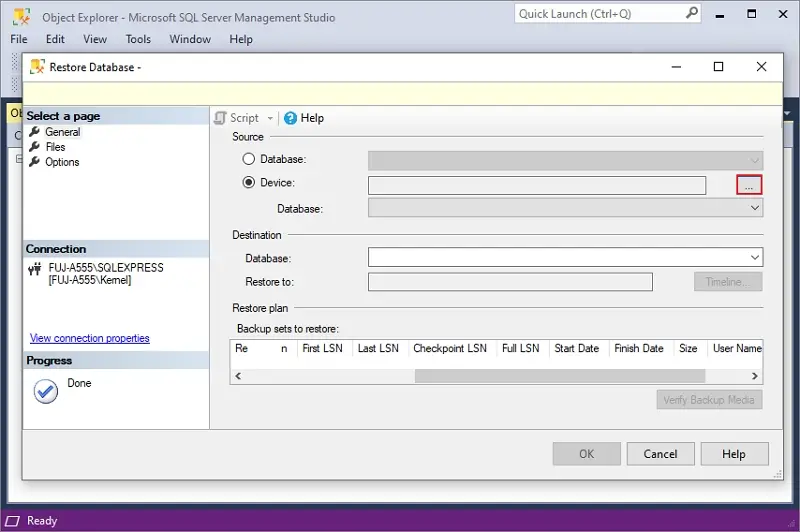
- Select Device as the backup source and click the dots.
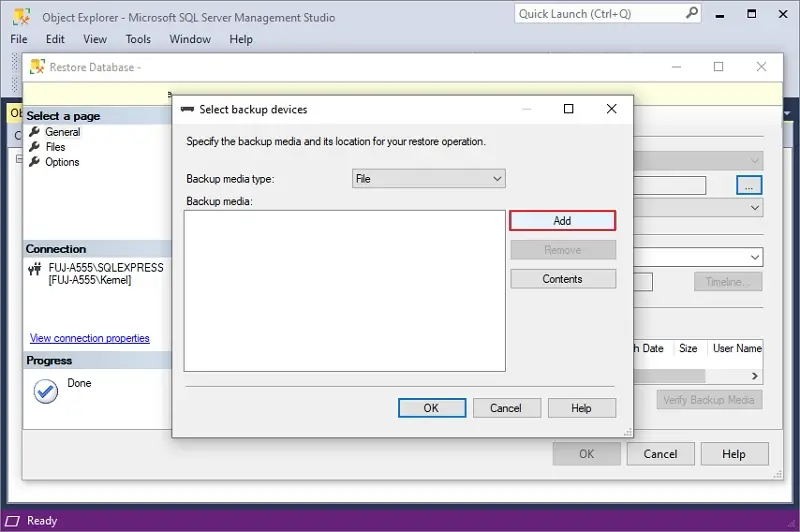
- Click Add to select the .bak file.
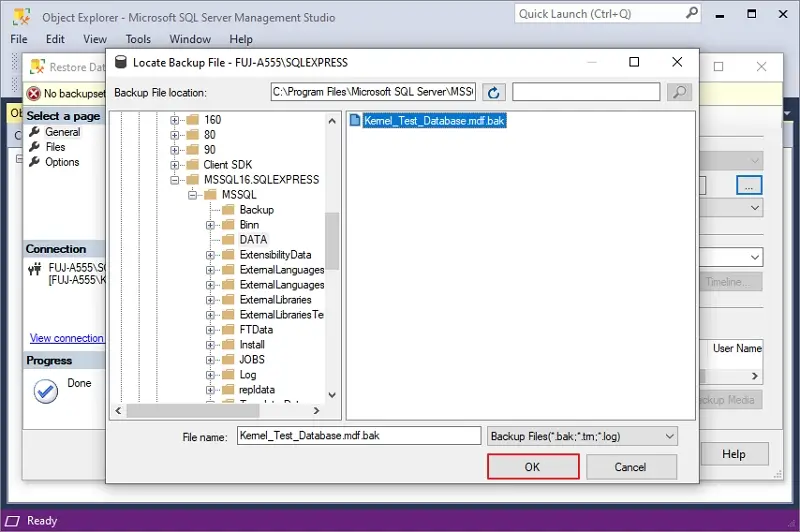
- Browse and select the appropriate backup file. Click OK.
- Verify the database name and backup details, destination file paths, and recovery options. Click OK.
The restoration process will start. Once done, verify that the database is accessible and its required data is present.
Method 6: Check the Database for Corruption
SQL database file might be corrupted. If the database is accessible, run SQL Server’s built-in consistency check to identify logical and physical corruption. Follow these steps:
- Open Microsoft SQL Server Management Studio (SSMS) and connect to the SQL Server instance.
- Open a New query window and input the following command:
DBCC CHECKDB (‘YourDatabaseName’)
WITH NO_INFOMSGS, ALL_ERRORMSGS;
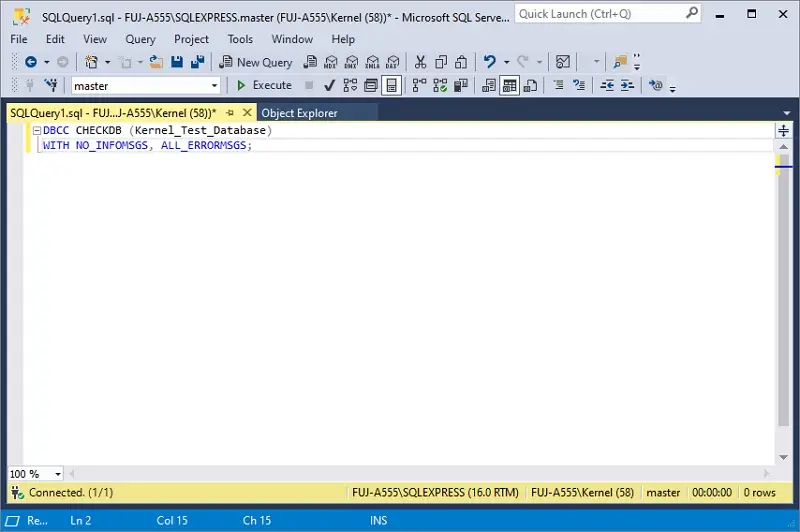
After that, tap on the Execute button and review the results for reported consistency errors. If errors are reported, preserve the database files and perform and repair corrupt SQL databases.
After that, tap on the Execute button and review the results for reported consistency errors. If errors are reported, preserve the database files and perform and repair corrupt SQL databases.
What if the MDF File Remains Inaccessible?
If the MDF file is confirmed to be damaged or corrupted and no usable backup exists, a specialized SQL Database Recovery tool may be an option to get database file data again. Kernel SQL Recovery is helpful in repairing corrupted, damaged, or offline SQL database files. You can preview and recover the tables, records, views, stored procedures, keys, and other supported objects effectively with no hassle. Even if something goes wrong with your multiple primary database files and their associated NDF files, you can add and repair all of them at once.
Conclusion
Now you know how to fix SQL Server Error 5171: MDF is not a primary database file error. Start by verifying the primary MDF file and checking the associated database files. If these steps do not resolve the issue, review the SQL Server logs and investigate file corruption. Always preserve the original files and prioritize a verified backup before attempting to recover a corrupt MDF file in SQL server. If your primary database file is corrupted, repair it immediately and regain access to your data effectively.
Frequently Asked Questions
A. Yes, in many cases. If the wrong file was selected or the required files are available at the correct locations, correcting the issue may resolve the error without data loss.
A. Sometimes, yes, but it depends on the database’s condition and SQL Server’s ability to recover it successfully.
A. No. Renaming a secondary data file does not convert it into a primary database file.
A. Restoring a valid SQL Server backup is generally the safest option. If the backup file or the primary database file gets corrupted, you can use a specialized SQL recovery tool.