Read time: 12 minutes
Slack stores critical business chats, files, project discussions, and team decisions. Many organizations export Slack messages to maintain compliance records, secure business communication, prepare for migration, or create offline backups. In this guide, you will learn simple methods to export Slack messages, channels, direct messages, and attachments with complete data accuracy. We will also explain a professional method to simplify large-scale Slack backup tasks.
Why Export Messages from Slack?
Slack messages are essential for individuals and organizations. However, exporting Slack messages is crucial for various reasons, such as:
- Some industries require businesses to save chat records by law, especially for audits and legal checks.
- Backing up messages prevents losing important conversations if someone accidentally deletes them or if there’s a security breach.
- When employees leave the company, exporting their chats makes sure no critical information is lost.
- Saving meaningful discussions helps teams refer back to important ideas and decisions later.
- If switching to a different messaging platform, having exported chats makes the transition smoother.
- Keeping chat records helps resolve disagreements by providing proof of what was discussed.
- Reviewing past team conversations can reveal ways to improve communication and productivity.
- Following company IT policies means regularly backing up Slack data to avoid disruptions.
- New team members can learn faster by reading past conversations and getting up to speed.
- Storing project-related chats creates a helpful record of progress, decisions, and next steps.
What Data Can You Export from Slack?
Before you start the export process, it is important to understand what type of Slack data you can save:
- Public channel messages
- Private channel conversations
- Slack Direct Messages (paid plans only)
- Shared files and attachments
- User activity records
- Workspace metadata
- Group chat conversations
What to Do Before Initiating a Successful Slack Messages Backup
Before exporting Slack messages, follow these essential steps to make sure a smooth Slack backup process:
- Check Admin Permissions: Make sure to permit all the permissions in the Workspace Owners/Admins account.
- Review Slack’s Export Policy: Free vs. paid plans have different export capabilities. Check all the data export policies before exporting messages from Slack.
- Prepare source and destination: Make sure to recheck all the Direct Messages and Channels in both the source and destination.
- Inform Team Members: Ensure compliance with privacy laws, like GDPR and HIPAA.
- Create small patches: Select the necessary user’s data and create small data patches for a seamless export process.
- Perform an export test: Run a Slack messages export with a small data patch.
To export messages from Slack, you need to run the Slack built-in Import/Export method. Now, let’s understand the process to execute it.
Export Slack Messages with Built-in Import/Export Tool
Slack’s built-in Import/Export tool allows admins to backup and export Slack Chat History easily. With this feature, you can export messages, files, and user info from public channels (all plans) and private conversations (paid plans only).
The tool creates downloadable files in JSON format, ideal for compliance, migration, or data backups. Now, go through the step-by-step guide to export messages from Slack.
Step 1: Download and install Slack desktop tool.
Step 2: Enter Slack credentials and log in to your account.
Step 3: Click on your Workspace Name > Tool & Settings > Workspace Settings.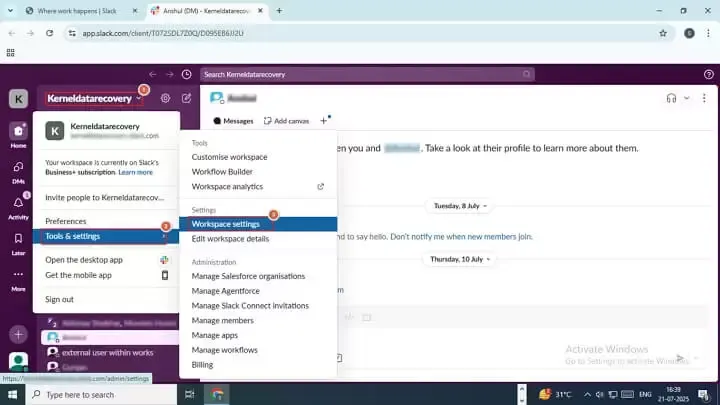
Step 4: The software will redirect you to the Settings & Permissions wizard, select Import/Export data tool.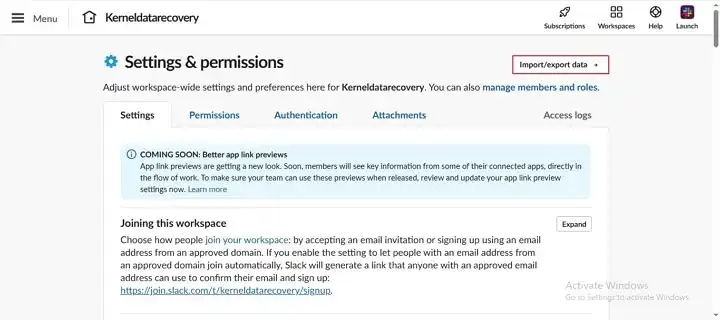
Step 5: Select Export, and Export Date Range to backup data according to a specific date. Click Start Export.
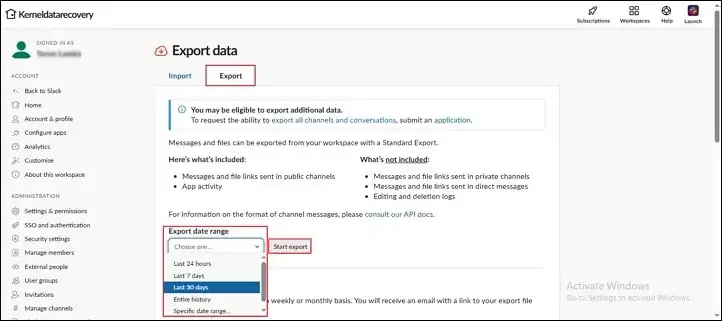
Step 6: Slack will start exporting messages in a zip file.
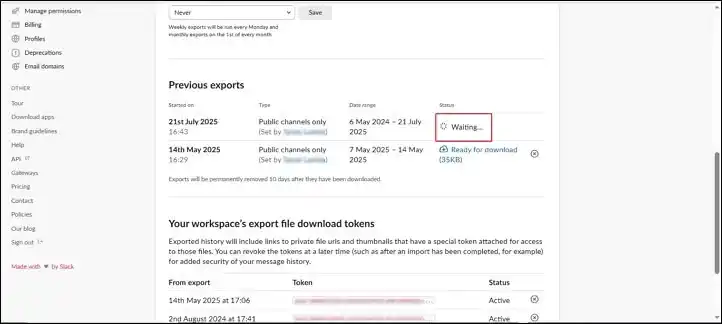
Step 7: Once the data export is done, click on the Ready for Download option and download the exported file on your local computer.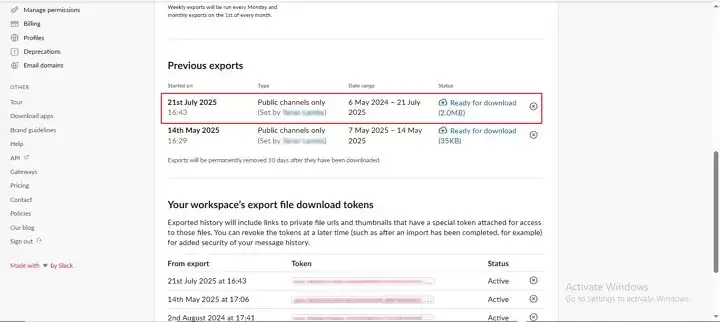
Drawbacks of the Slack Import/Export tool
By following the above step-by-step guide, you can export Slack messages without any hassle. However, the method comes with certain limitations that you must be aware of. These drawbacks are as follows:
- Only workspace admins can use the export feature, whereas regular team members can’t access it.
- Free Slack plans only let you export public channels, not private messages or DMs.
- JSON export format creates readability challenges for non-technical users.
- No option to export Slack chats user-wise for better control.
- No advanced filter to save only required Slack conversations.
- Large Slack exports may consume significant admin time.
- Any files shared in conversations might expire and disappear from your export process.
- You can’t search through your exported messages easily like you can in Slack.
So, to avoid these limitations and make sure 100% error-free procedure to export Slack messages, you must utilize an automated Slack Chat Export tool.
Automated Way to Backup Slack Messages (Highly Recommended)
Kernel Slack Chat Export provides a faster and more organized way to export Slack conversations without technical complexity. The Slack Chat Export Tool helps administrators export direct messages, public channels, private channels, and attachments into readable formats like PDF and HTML. It also supports bulk Slack user export with complete chat structure and metadata preservation.
Whether you need backups for compliance, knowledge retention, or team transitions, the software provides you a best way to preserve Slack data with just a few clicks. Its intuitive interface and advanced features make it ideal for businesses of all sizes looking for a reliable way to secure their important communications.
Key features of this professional software
- Easily export Slack Direct Messages, MPDMs, Channels, and Private and Public Channels with their files.
- Migrate Slack User Permissions along with user, metadata, settings, and many more.
- Save exported Slack data in HTML and PDF file formats.
- Preserve formatting like emojis, timestamps, and attachments.
- Advanced Search feature to find specific users among multiple users.
- Date filter to export messages from Slack for selected dates.
- It has a user-friendly interface and backs up Slack messages with zero data loss.
Step-by-Step Guide to Backup Slack Messages
Here’s the detailed stepwise guide to instantly export Slack messages with complete integrity using our feature-rich software:
Step 1: Download Kernel Slack Chat Export software and install it.
Step 2: Open the software and click on Next to proceed.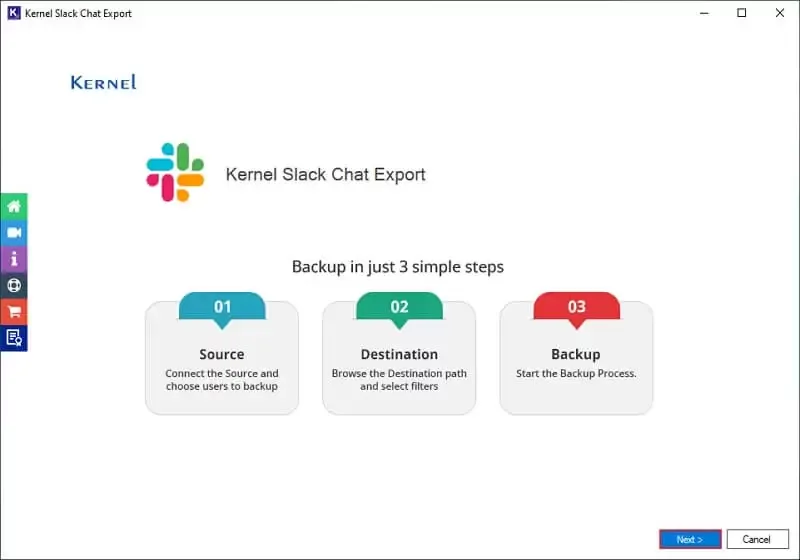
Step 3: Download a sample CSV file by clicking on Export CSV.
Click Import CSV option to add that CSV file.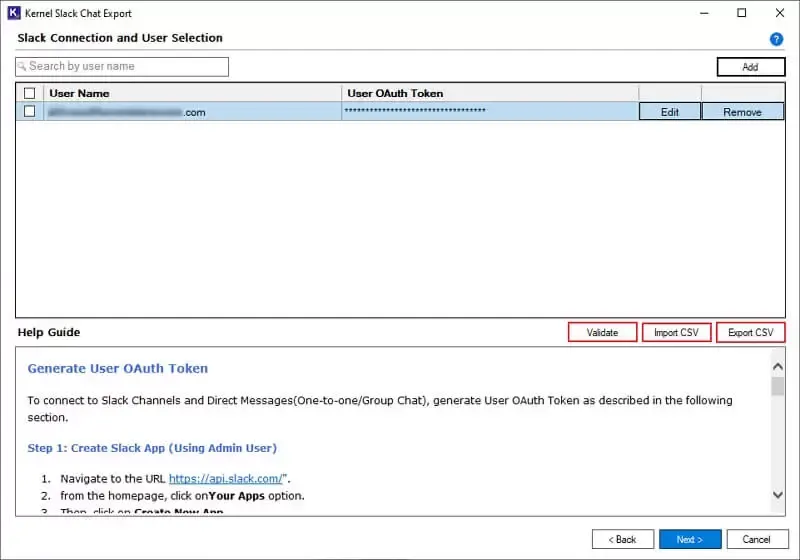
Step 4: In the following window, browse CSV file from your local storage and click Open.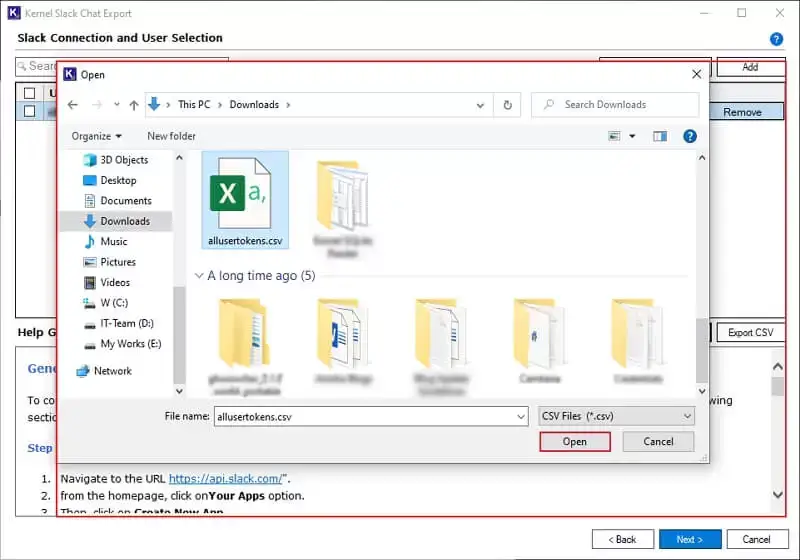
Step 5: The toll will start importing all the users from CSV file and pop up a CSV is imported and validated successfully message. Click OK.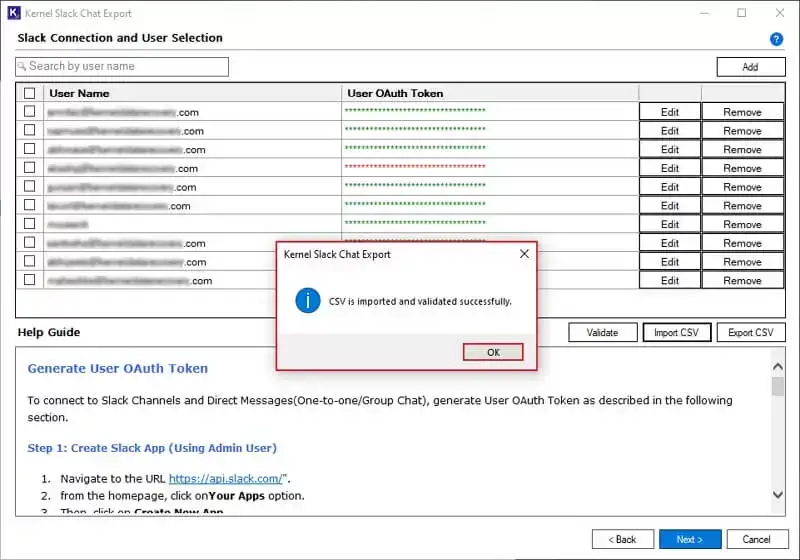
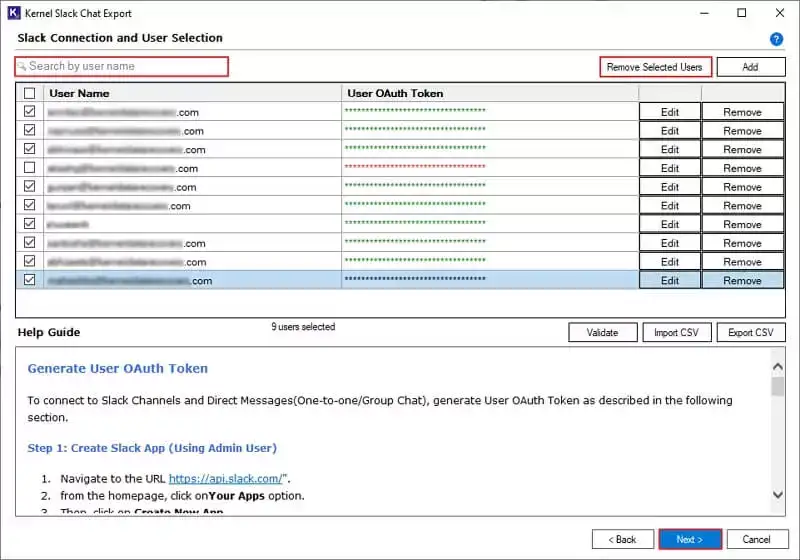
Step 6: In the next window, choose essential Slack users. Use Search feature to find specific users from multiple ones. Click Next to export messages from Slack.
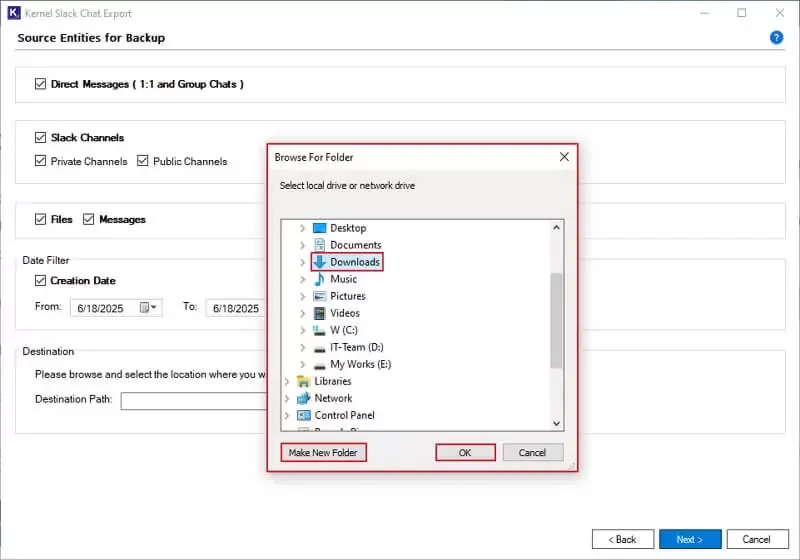
Step 7: Select Direct Messages and Channels accordingly from the Source Entities for Backup window. Tick the Files and Messages option to back up Slack messages or attachments.
Additionally, you can apply Date Filter to backup specific data from Slack data as per defined dates. Click on Browse to choose backup file saving location.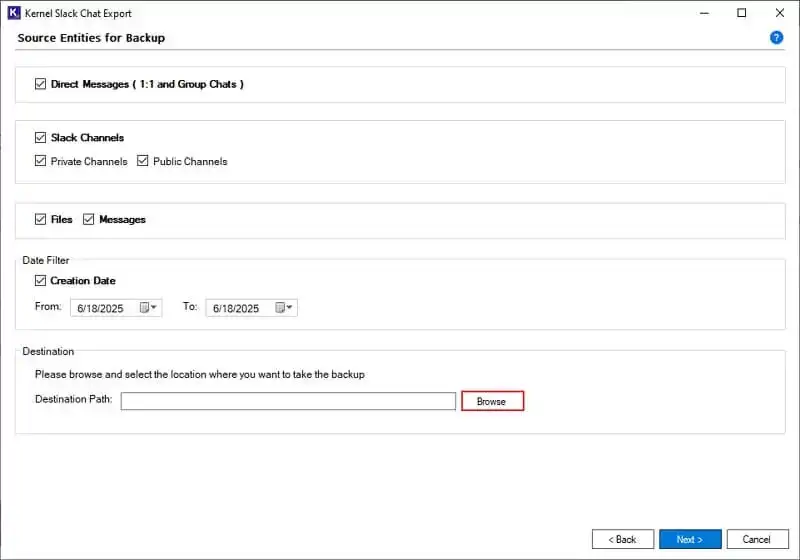
Step 8: Choose the specific drive or folder from your system. After, that click OK.
Step 9: Now, click on Next to save and backup Slack messages.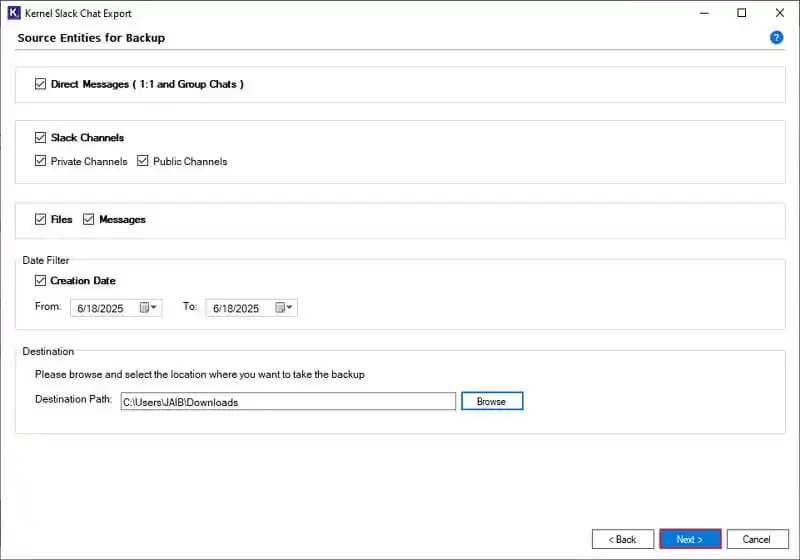
Step 10: The software will start exporting Slack messages and once completed, it will display a “Backup is completed” message. Click OK.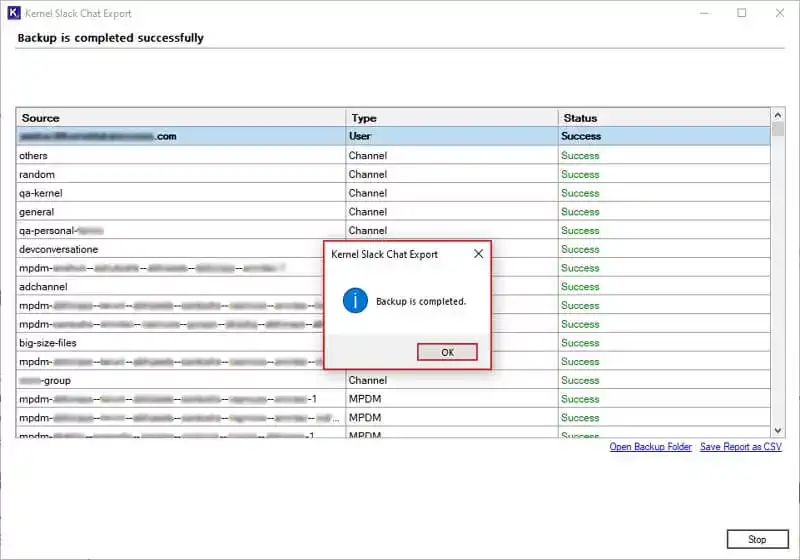
Step 11: Download a detailed backup report by clicking on Save Report to CSV.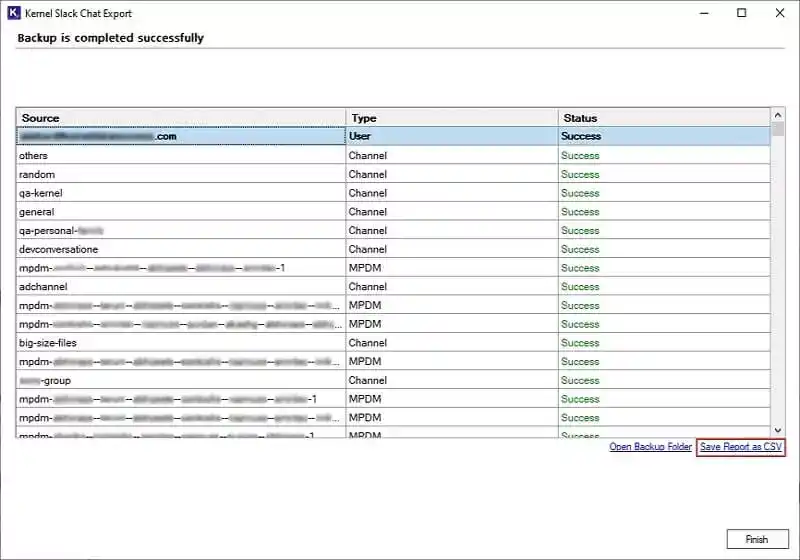
Step 12: Provide a saving location and click on Save.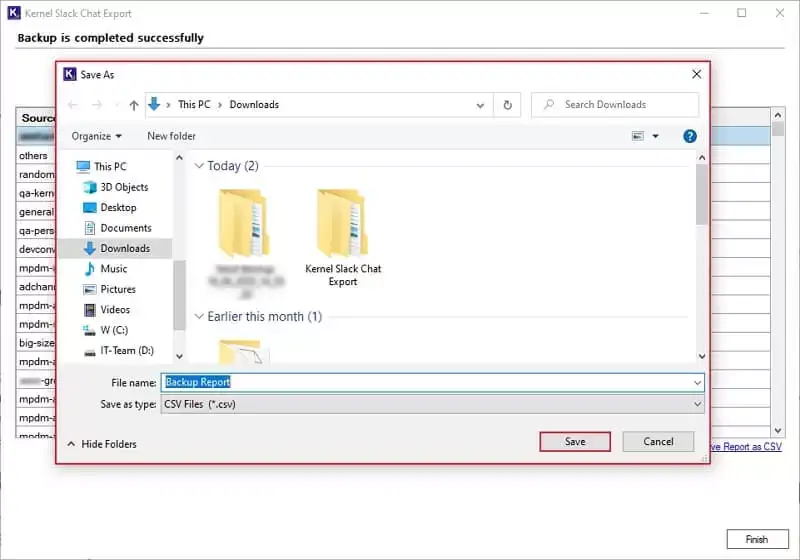
Step 13: Once report is saved, you will get a “Saved Successfully” message, click OK.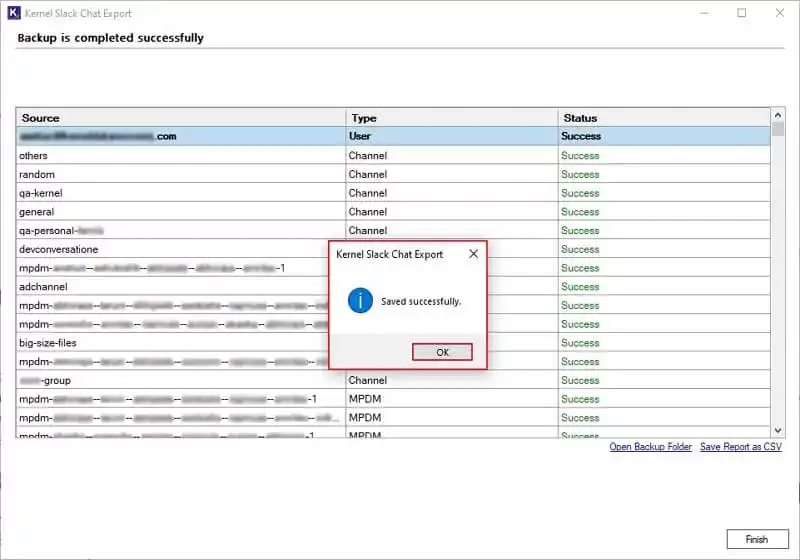
Step 14: Finally, click Open Backup Folder to access backed-up Slack data directly.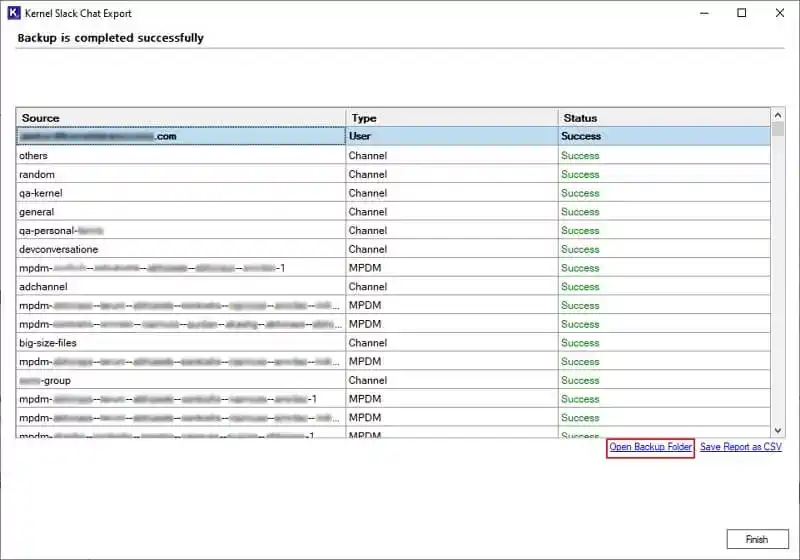
Step 15: You will be redirected to the exported data directly.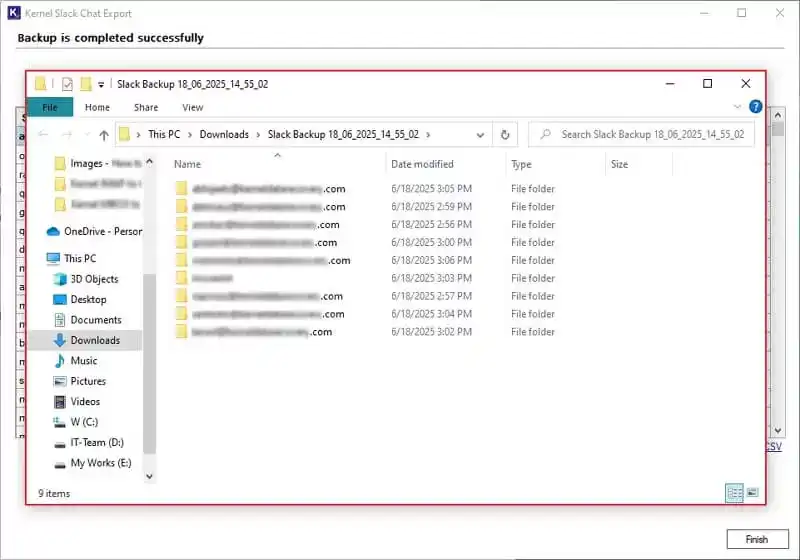
Author’s Verdict
Exporting Slack messages helps organizations secure business communication, maintain compliance records, and prepare for migration scenarios. While Slack’s native export feature works for basic tasks, it comes with multiple restrictions for large organizations. Kernel Slack Chat Export simplifies the process with advanced filters, readable output formats, and bulk export support for complete Slack data protection.
Frequently asked questions
Answer. Only with paid plans (Plus or Enterprise), you can export Slack Direct Messages and Private Channels. Free plans restrict exports to public channels.
Answer. Slack’s native export tool mainly saves data in JSON or ZIP format. To export Slack messages directly into readable PDF or HTML formats, you can use a professional Slack export solution like Kernel Slack Chat Export.
Answer. Slack’s built-in Import/Export tool will back up Slack messages in JSON file format.
Answer. No, you must manually export slack messages or use or reliable Slack chat backup tool.
Answer. Yes, but manual exports require separate downloads and need technical skills. At the same time, the Kernel tool includes attachments without any major technical assistance.
Answer. Yes, the Slack Chat Export software offers User OAuth token access, which secures your users’ data with end-to-end encryption.