Read time: 6 minutes
The approach of erasing, removing, or deleting data permanently from your device’s storage is known as data wiping. In wiping, we overwrite (replacing the original data with random characters to make it impossible to recover it again) the storage device, be it laptops, mobile phones, computers, etc. Once you have successfully wiped the data from hard drive, it becomes irrecoverable, which provides extra security to the confidential and sensitive data.
Although data wiping from a drive is not an easy task, it comes with many hindrances and other threats. This detailed write-up is going to make the task easy for you.
What is the significance of data wiping from drive?
Erasure of confidential and sensitive data is important for big business firms. It safeguards their secrets and crucial information from breaches. If you get the tricks to remove data from hard drive permanently, then you can easily perform it.
Here the importance of data wiping is listed. Let’s have a look at it:
- Data protection: By wiping the data permanently, you can protect your crucial data files from theft and data loss.
- Legal conformity: Every organization needs to keep the record till a certain period. After completion of time, you can wipe hard drives data.
- Extra storage space: Deleting unnecessary old files which you don’t need anymore gives you extra space to store updated information or new files.
- Environment friendly: You can use the storage device again if you securely wipe hard drive data instead of destroying it. Doing this will save nature by taking care of waste management.
Methods to securely wipe hard drive data
Make sure to move your crucial data out of the hard drives because once you are done with the methods below, no tool will be able to recover that data. If you are done taking care of it, let’s start with the most effective hard drive wipes methods:
Method 1. Reset the system
When you want everything gone like it’s never existed and get a fresh new feel, you should use the reset this PC feature of Windows. It will wipe your hard drive and reset Windows. Steps to do it are:
Step 1: On your Windows system, go to Windows Settings and select System > Recovery.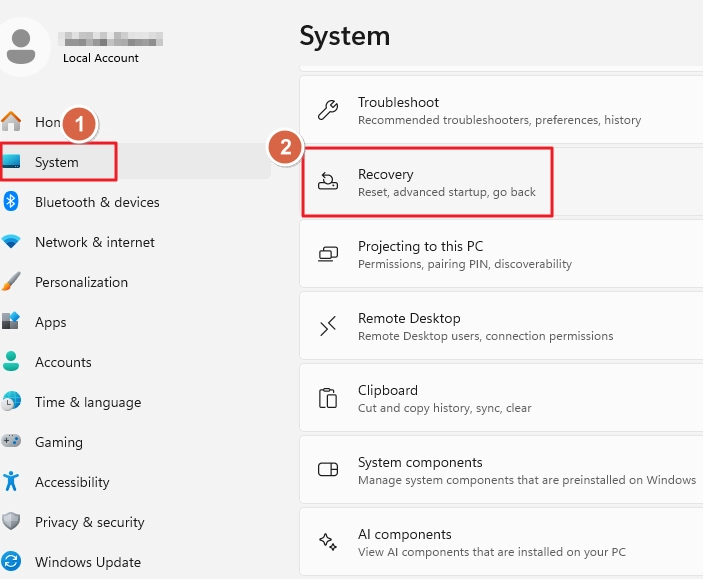
Step 2: Click the Reset PC button.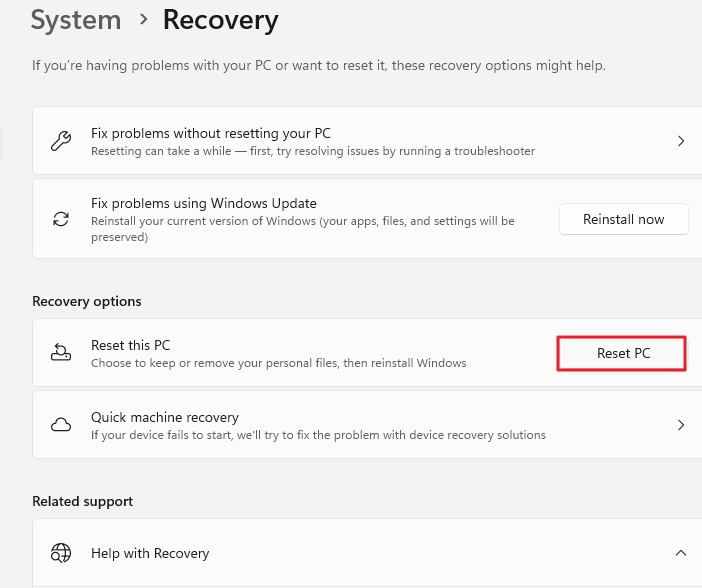
Step 3: Select Remove everything option.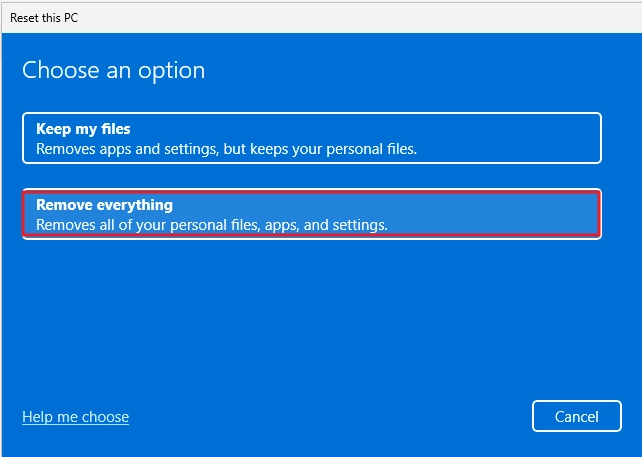
Step 4: Now choose the Local Reinstall option and proceed.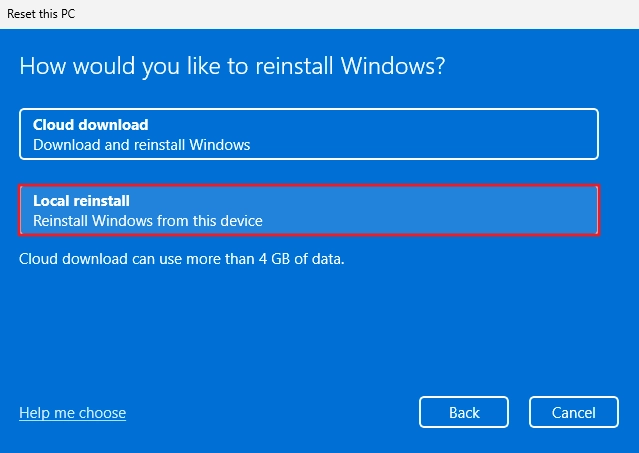
Step 5: Click Change settings.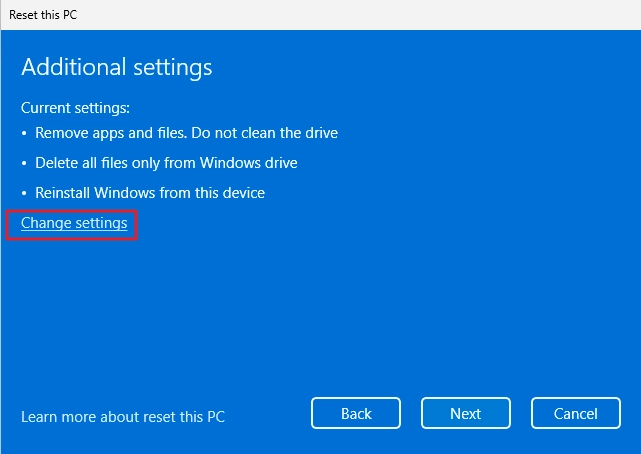
Step 6: Enable the first 2 options and click Confirm.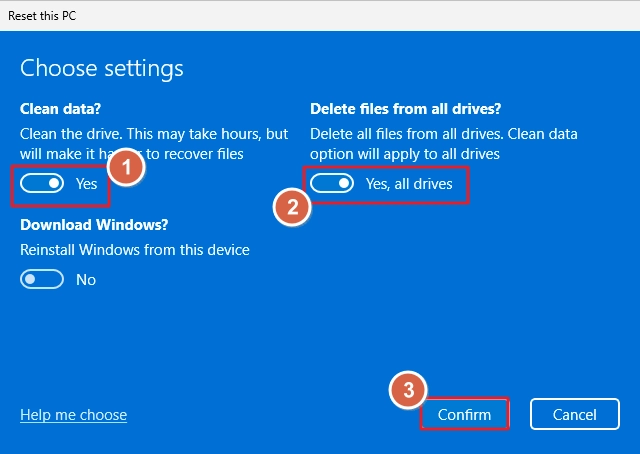
Step 7: Click Next.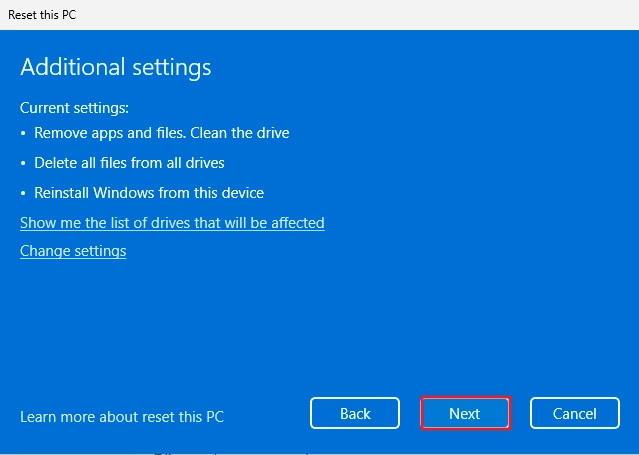
Step 8: Click the Reset button to begin hard drive wipe operation.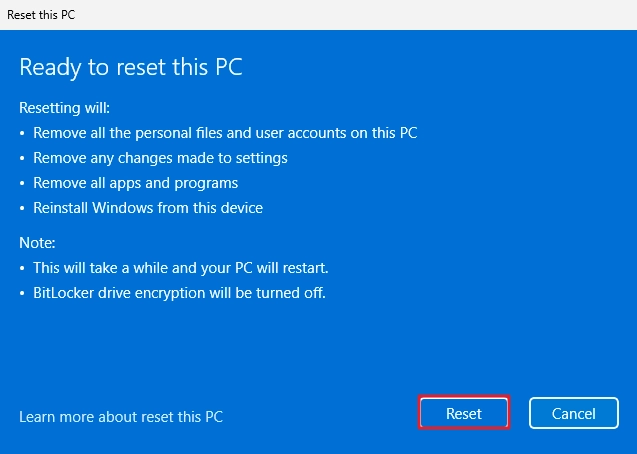
Method 2. Utilize Microsoft’s SDelete utility
SDelete means Secure Delete, it is a command-line utility that permits you to securely delete single or multiple files/folders to free up some storage space. By using this utility, you can perform data wiping from a drive. Here is the working process of how this utility works:
Step 1: Download SDelete from Microsoft website.
Step 2: Extract the downloaded file and move the contents to the Program Files folder in the drive where your OS is installed.
Step 3: In the search bar type Edit the system environment variables and click on it.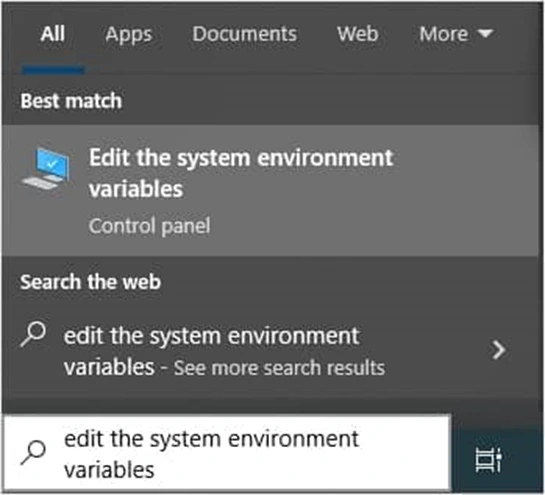
Step 4: Now, click on the Environment variables button.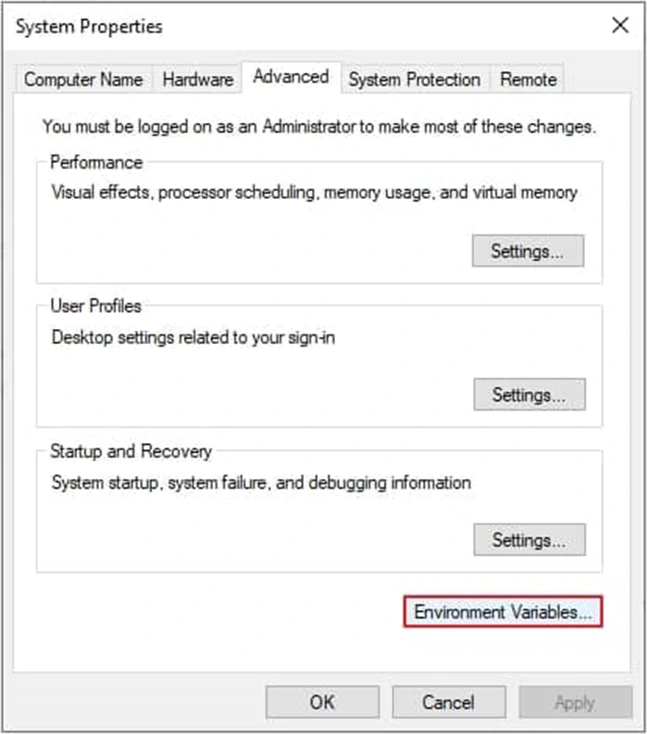
Step 5: Double-click on the Path option.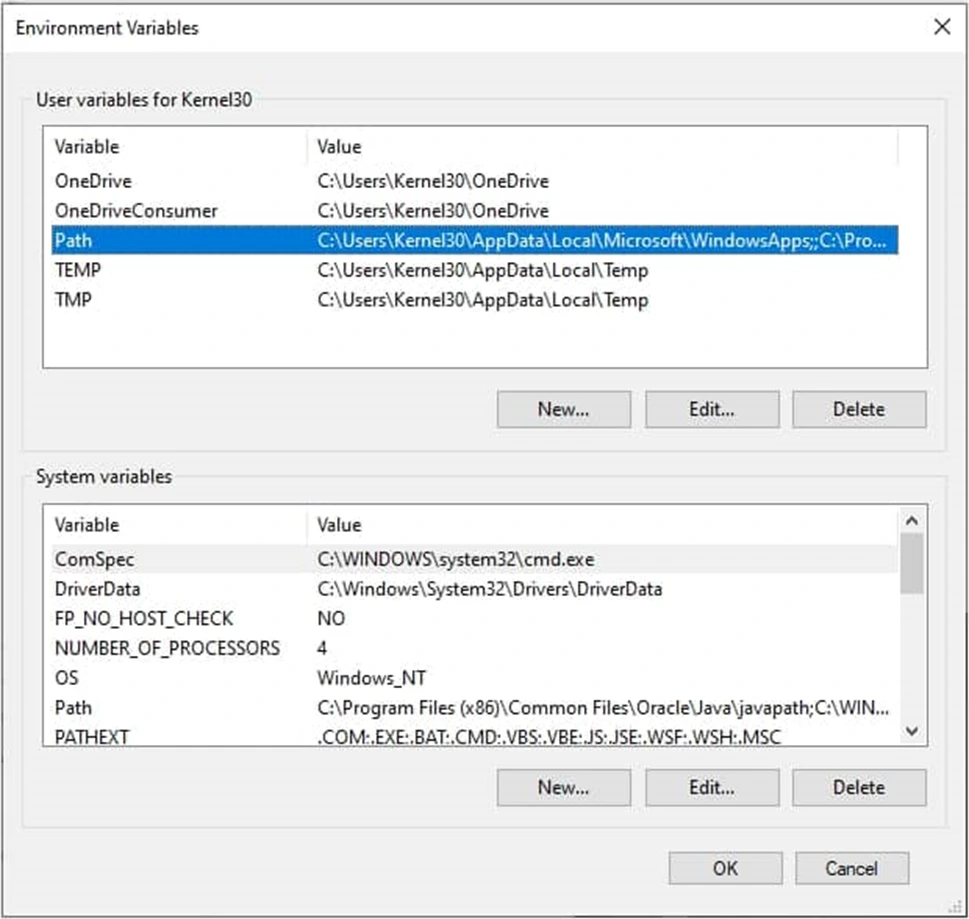
Step 6: Now, press the New option, then click the Browse button. Go to the location where SDelete files are located. Select the folder and click OK.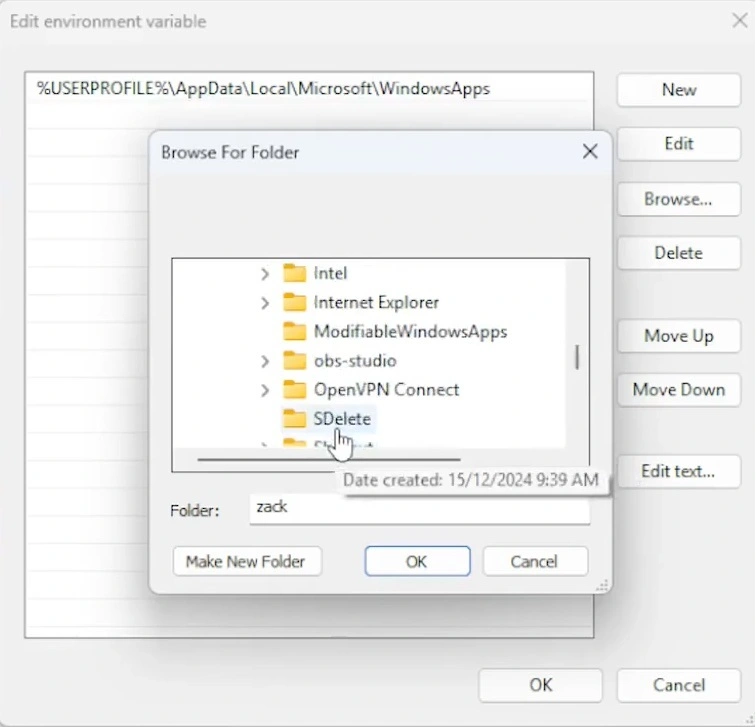
Step 7: Open command prompt and type SDelete, then press Enter.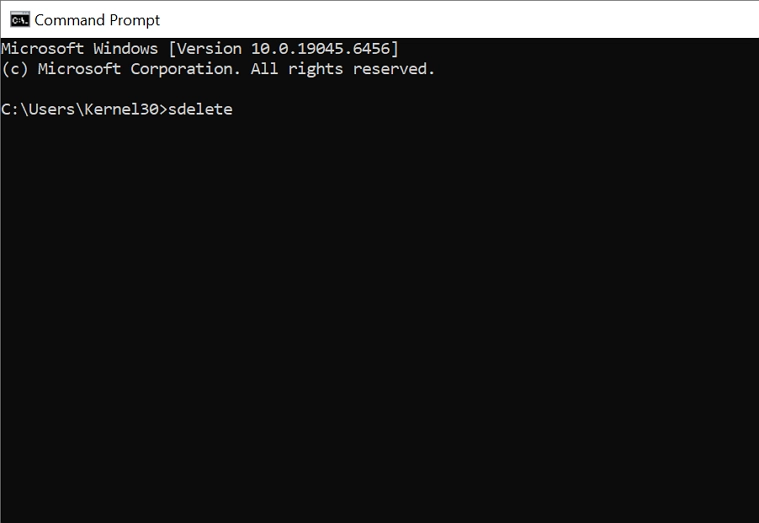
Step 8: When you run the SDelete command for the first time, it will ask you to agree to its terms. Click Agree to continue.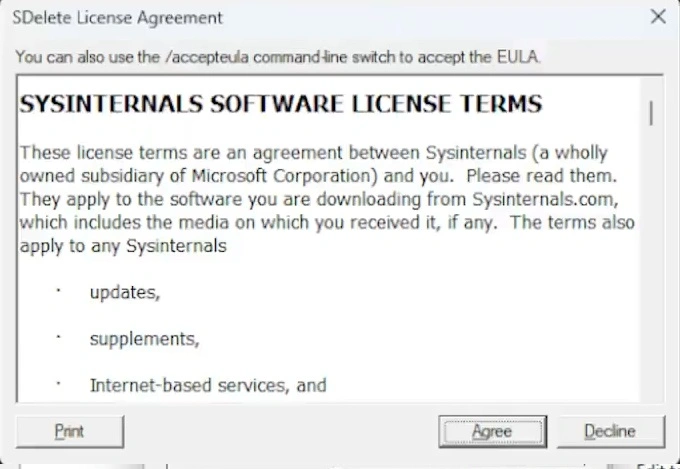
Step 9: Now, enter this command to wipe the data:
Note: Cross check the drive that contains data to wipe-out before executing the process. Once the necessary data is deleted, it can’t be recovered.
Method 3. Use cipher to wipe the drive
If you have already deleted or formatted the drive but need more surety, use “cipher” command. This will rewrite the empty spaces left after file deletion, leaving no room to get back data.
- Open the command prompt as administrator.
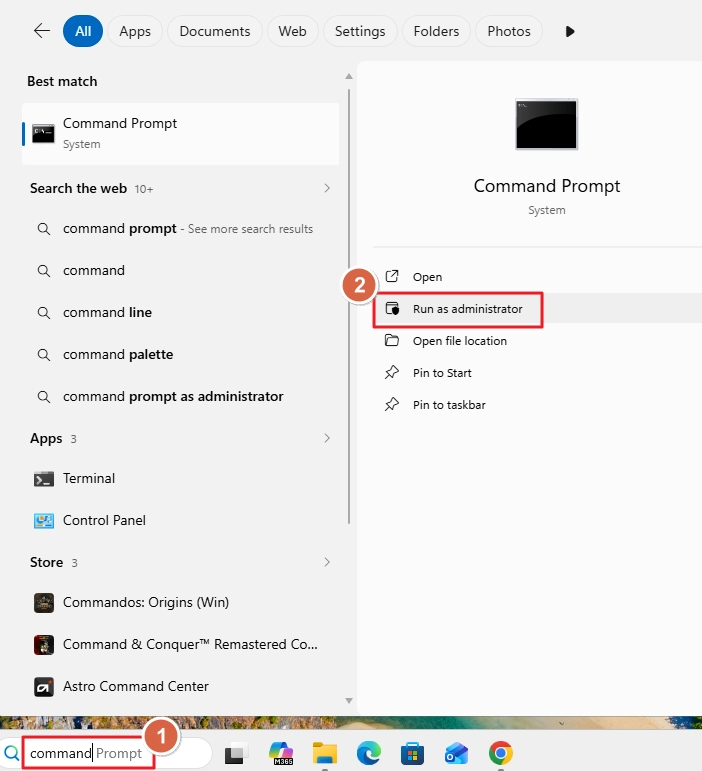
- Enter the command and press Enter:
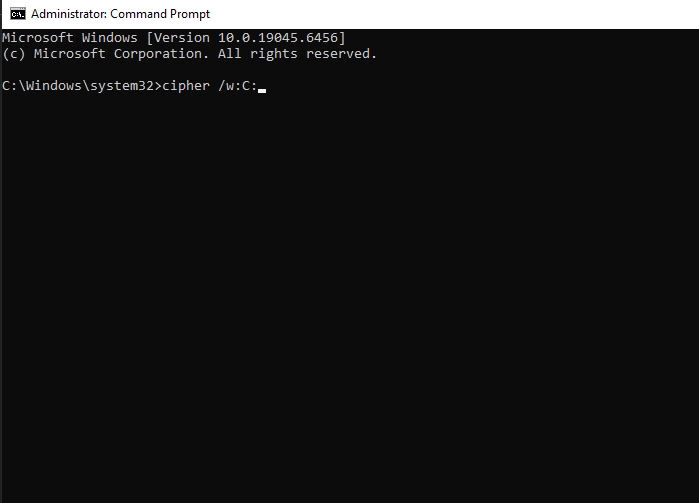
To purge multiple disks, you can run the above command to wipe hard drives one by one. The command is also helpful in scenarios when you want to wipe hard drive without deleting Windows.
Method 4. Securely wipe hard drive using DiskPart
Diskpart is another command-line tool that comes with Windows. You can use it to wipe hard drives (internal as well as external) with these steps:
Step 1: Launch the command prompt as admin. Input “diskpart” and press Enter.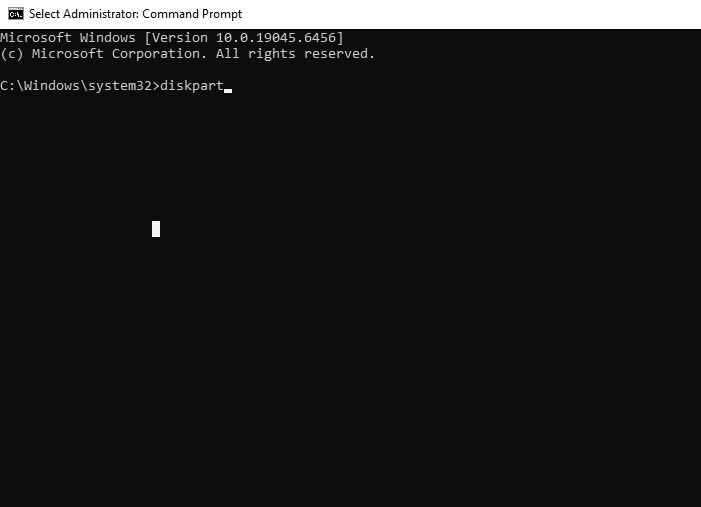
Step 2: Type “list disk” and press Enter. It will list all the drives currently connected to your system.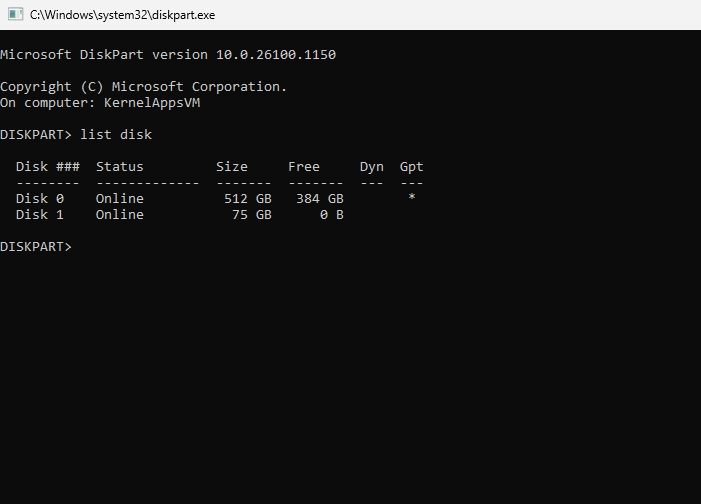
Step 3: Type “select disk <disk-number>” and press Enter to select the disk you want to wipe.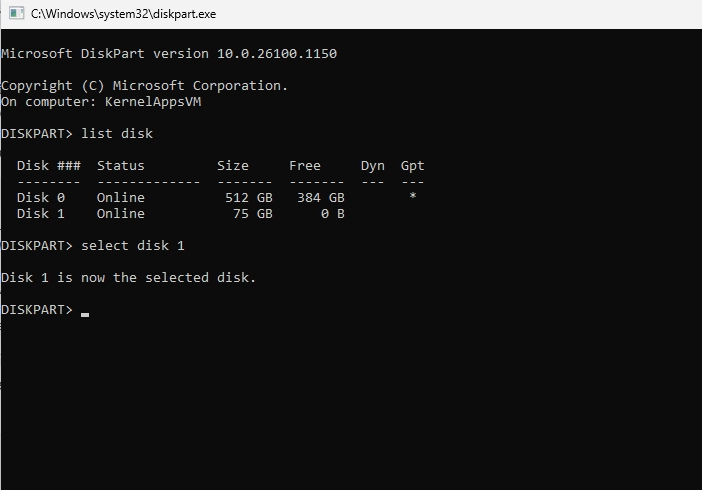
Step 4: Type “clean all” and press Enter.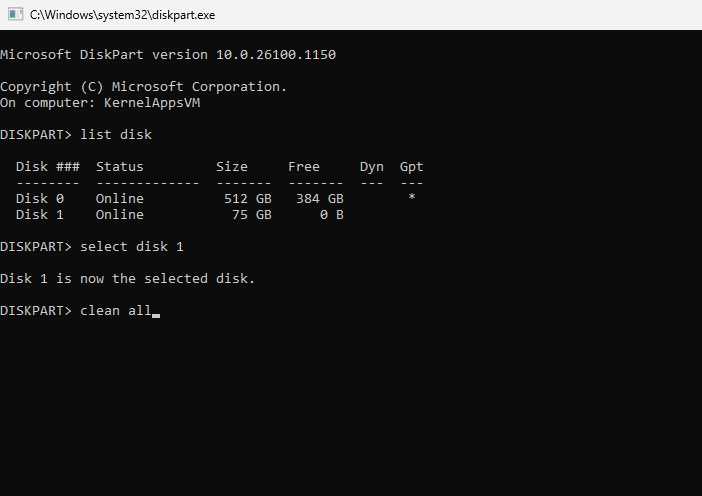
Don’t panic if you don’t see progress bars. It is just how the process works. Once the data wiping is finished, you will see a success message.
Method 5. Utilize a specialized file shredder software
Another approach is getting help from an advanced file shredder tool. If you want to securely wipe the data with zero chance of recovery in a single operation, professional help is needed.
The Kernel File Shredder is embedded with multiple file shredding algorithms that allow you to shred any file, folder, disk, system hidden files, etc. It is one of the best software to wipe hard drive securely including all the files and other content with full safety measures to make it irrecoverable. The tool offers various features such as password protection, different data wiping algorithms, compatible with all Windows versions and many more. You can even generate a log file to save the records of the operation’s information. This is an intelligent tool that wipes data permanently with a few easy steps.
Let’s see how the software works:
Step 1: Download, install, and launch the Kernel File Shredder.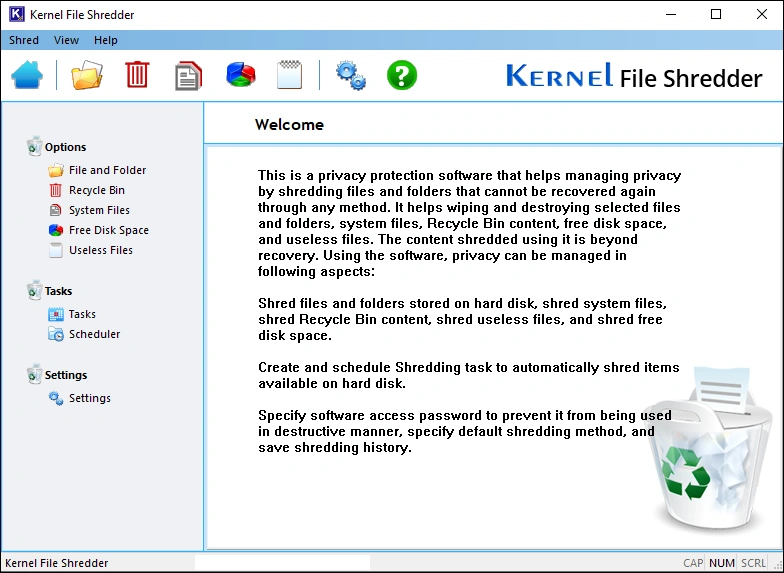
Step 2: To add files, click on File and Folder option (from left panel), then click on Add Files/Folders button and select all the files or folders you wish to shred.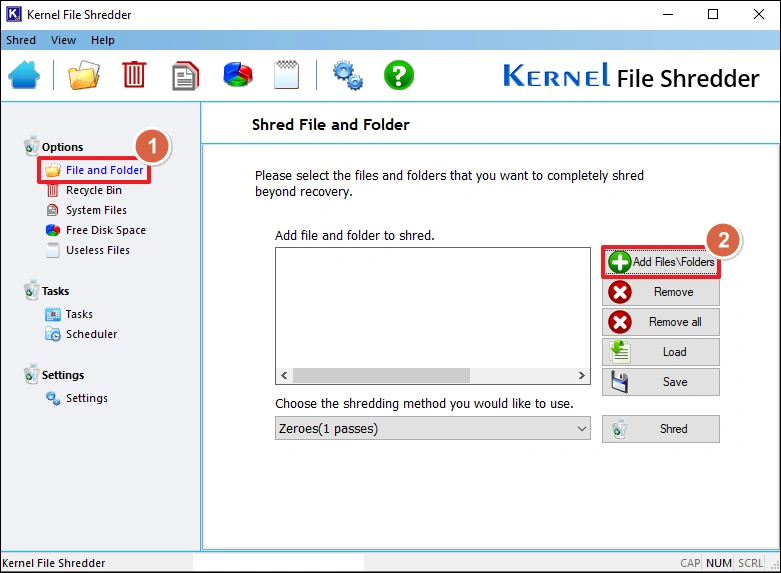
Step 3: Now, select the shredding method and then click on Shred button .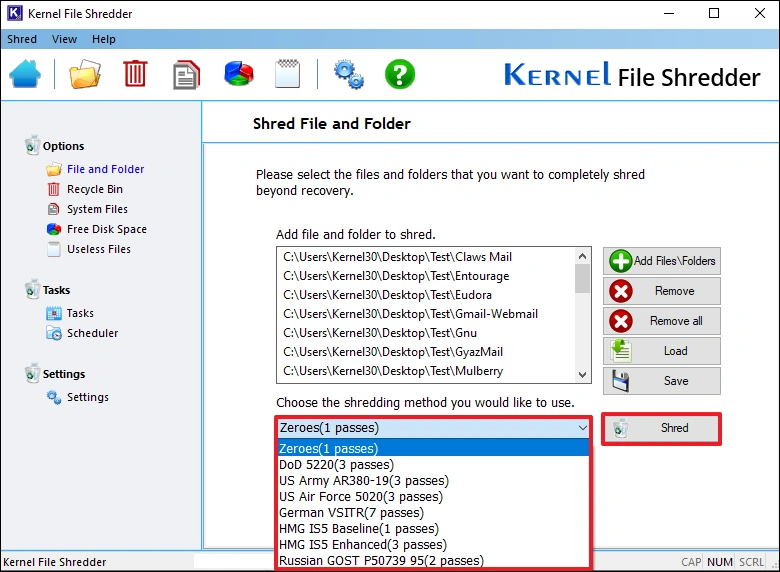
Step 4: The software will show a warning message to get your permission to wipe data permanently. Click on the Yes button to securely wipe hard drive.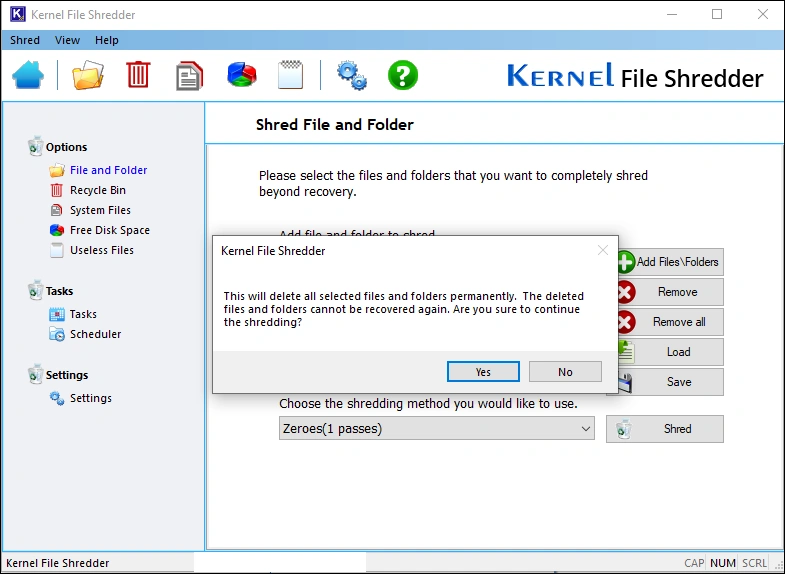
Step 5: Once the process is completed, a success message will pop up on your screen.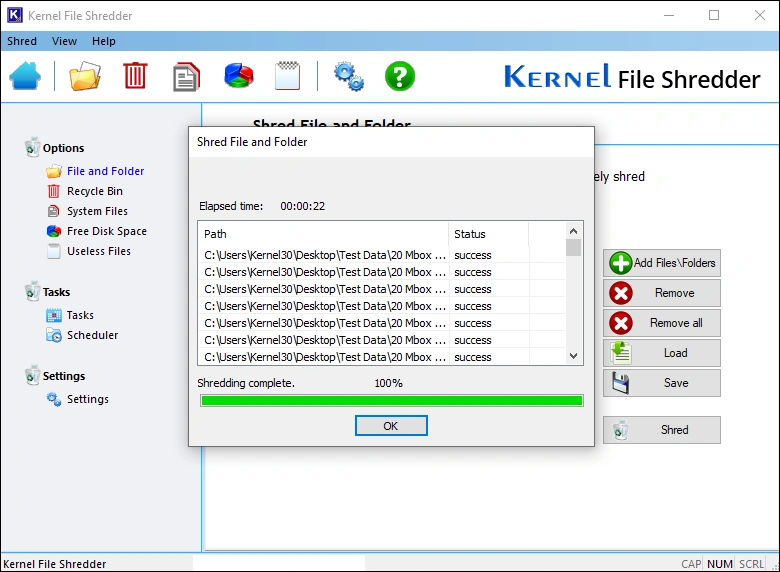
Manual methods vs professional file shredder tool
Check out this table to find out why IT employees and organizations use special file shredding software.
| Feature | Manual Methods | Third-Party Tools |
|---|---|---|
| Ease of Use | Complex command lines and multiple step process. | Simple user interface (GUI). |
| Risk Level | High risk of accidental deletion. | Low risk with built-in safeguards. |
| Security Standard | Basic single-pass overwriting. | Military-grade algorithms (e.g., DoD). |
| Automation | Completely manual execution. | Supports scheduled automatic wipes. |
| Verification | No proof; manual check needed. | Auto-generate logs with detailed shredding information. |
| Time & Tracking | Slower; lacks progress bars. | Fast with real-time progress tracking. |
| Cost | 100% Free. | 30-day free trial period/Paid. |
Conclusion
Wiping crucial data is needed to safeguard it from any manipulation and theft. Use any method given above to securely wipe hard drives. But make sure to backup important data. When you run ‘SDelete,’ ‘cipher’ or ‘diskpart’ commands always open the command prompt as administrator to prevent incomplete formatting due to access rights issues.
If your work involves wiping the same drive again and again after a specific time period, then I suggest making use of the Kernel File Shredder tool. It comes with a scheduler that helps you to automate file deletion. Moreover, you can even delete files permanently from Windows recycle bin or the Windows system files with the tool.
Frequently Asked Questions
A. When you delete a file or folder from your system, Windows only removes the pointers to your files. Anyone can recover it with data recovery tools. But a secure wipe of hard drive deletes the data and then overwrites the space to make it unrecoverable.
A. SSD hardware is different than hard drive. You should use the file erasure tools developed specifically for your SSD by the manufacturers. But if you have to use one of the methods given above, use the Reset PC method to wipe SSD.
A. The goal of destroying CUI is to make the information unreadable and irrecoverable. You can only use methods accepted by the NARA to destroy data marked as CUI.