

EML files store individual email messages along with their content, headers, and attachments. If you need to use an attachment separately from its email, you can save it to your computer and access it anytime without opening the original message.
With various ways you can extract attachments from EML files easily. Mainly, the choice of approach depends upon how many EML files you need to process. We’ve given some practical ways to extract attachments from EML files.
Why Extract Attachments from EML Files?
There are many reasons, like easier access and editing, better storage management, crucial attachment data safety, etc., to extract attachments from EML files. Each user has a different reason to extract attachments from EML files. Maybe someone needs to access attachments with no internet or without any email client dependencies, while others may need them for legal or forensic purposes.
Mainly, attachment extraction from EML files depends on the specific user and their need. Whatever the reason is, the process to extract and save attachments from EML files should be standardized so that the quality and attachment file integrity remain intact.
Extract Attachments From EML Files using Desktop Mail Client
To extract attachments from EML files manually, you may need to have (Mozilla Thunderbird or Outlook). However, with these desktop email clients, the only free and manual way to extract attachments from your EML files is to save each attachment file individually. Follow the steps below to execute this procedure in Mozilla Thunderbird:
- Open Thunderbird, create a new folder, and drag and drop all your EML files there.
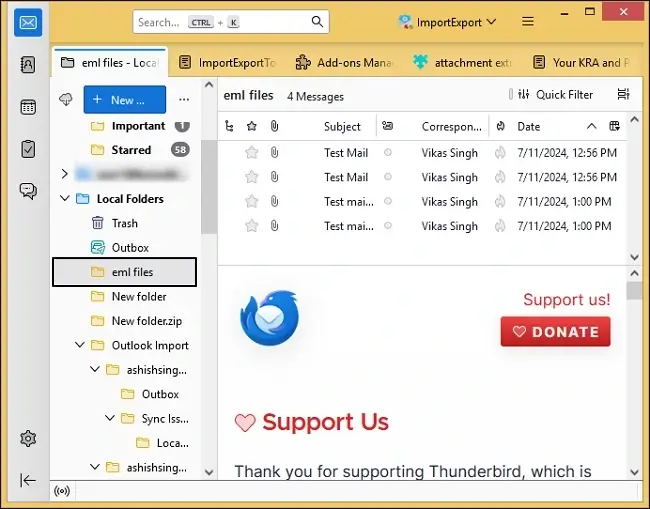
- Open each email message one by one and choose Save As to download the attachment file to your preferred location.
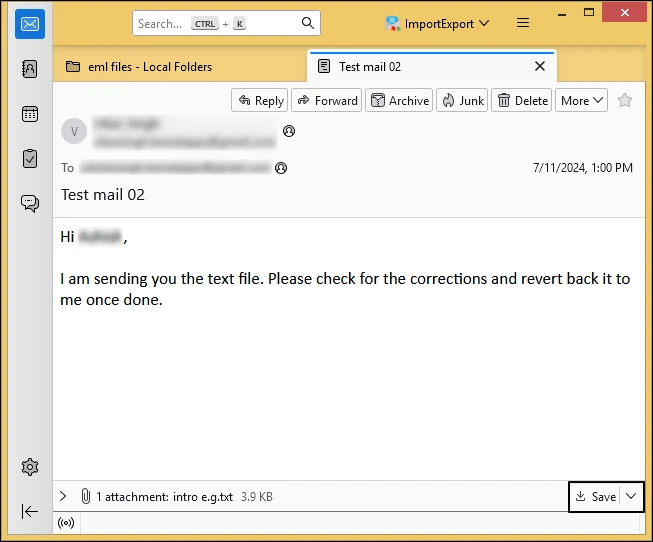
As easy as this method is, it’s not possible to extract attachments from EML files in bulk in one go with this method. Downloading attachment files from each email individually is a very lengthy and time-consuming task. Moreover, Thunderbird often experiences synchronization issues and sudden crashes, which can lead to data loss and corruption.
Extract and Save Attachments from EML Files Using Python Script
If you’ve multiple EML files and you want to extract their attachments in bulk for free, a Python script can be an option. It has a built-in email module that can read an EML file, identify its attachment parts, and save them to a separate folder. However, only users with strong technical skills can perform this. Here are the steps to follow:
- Download and install Python on your computer. During installation, select Add Python to PATH so that you can run Python commands from Command Prompt.
- Create a folder (input folder) and place all the EML files you want to process in it.
- Create a file named extract_attachments.py and add a script that uses Python’s email module to parse the EML files. The script should open each EML file, identify parts marked as attachments, decode them, and save them to an output folder. A basic script can look like this:
from email import policy
from email.parser import BytesParser
input_folder = “EML_Files”
output_folder = “Attachments”
os.makedirs(output_folder, exist_ok=True)
for filename in os.listdir(input_folder):
if filename.lower().endswith(“.eml”):
file_path = os.path.join(input_folder, filename)
with open(file_path, “rb”) as file:
message = BytesParser(policy=policy.default).parse(file)
for part in message.walk():
if part.get_content_disposition() == “attachment”:
filename = part.get_filename()
if filename:
output_path = os.path.join(output_folder, filename)
with open(output_path, “wb”) as attachment:
attachment.write(part.get_payload(decode=True))
print(“Attachments extracted successfully.”)
- Now open Command Prompt, navigate to the folder containing the above script, and run:
It will process the EML files available in the folder and save the extracted attachments in the Attachments folder. Once extraction is completed, verify the attachments.
It will process the EML files available in the folder and save the extracted attachments in the Attachments folder. Once extraction is completed, verify the attachments.
Extract Attachments from Multiple EML Files at Once
When attachments need to be extracted from many EML files at once, an EML converter utility can automate the repetitive steps. For example, Kernel EML Converter provides an option to extract attachments from selected EML files. The process is useful when the requirement is specifically to extract attachments rather than manually opening and saving them one at a time. Now, let’s look at the steps to extract attachments from EML files using this tool. Here’s how to do it:
Step 1. Download and install the Kernel EML Converter tool on your system (Windows or Mac).
Step 2: Launch the tool and click on Add Source.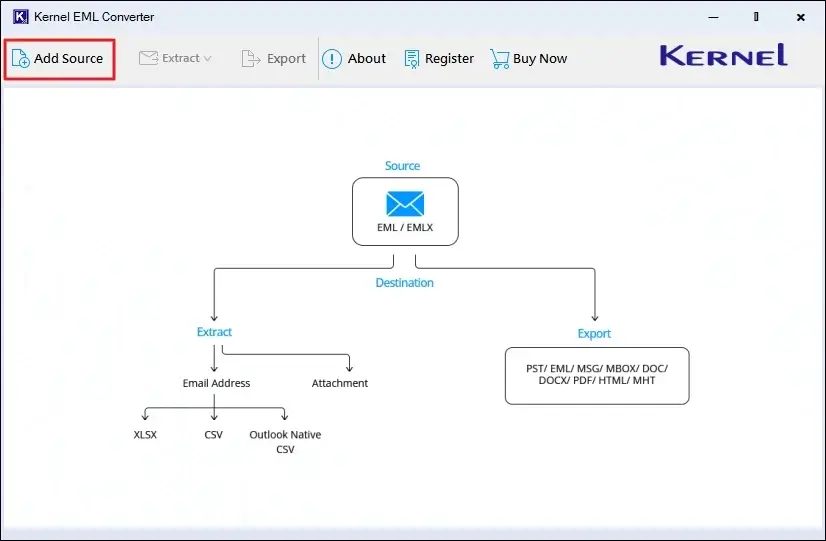
Step 2: Select the Source File Type as EML, browse all the EML files on your system, and click Add Files.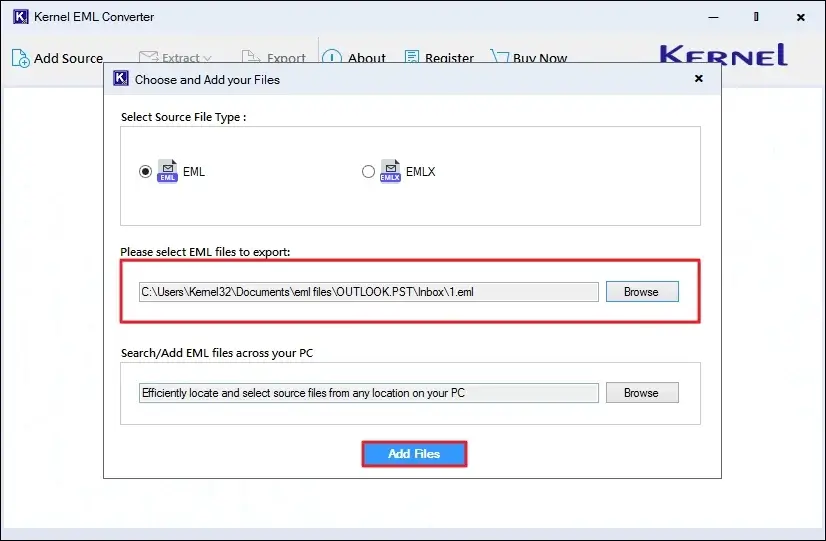
Step 4: Your EML files will be listed and ready for preview. Preview the whole email if you want, or click Extract Attachments directly.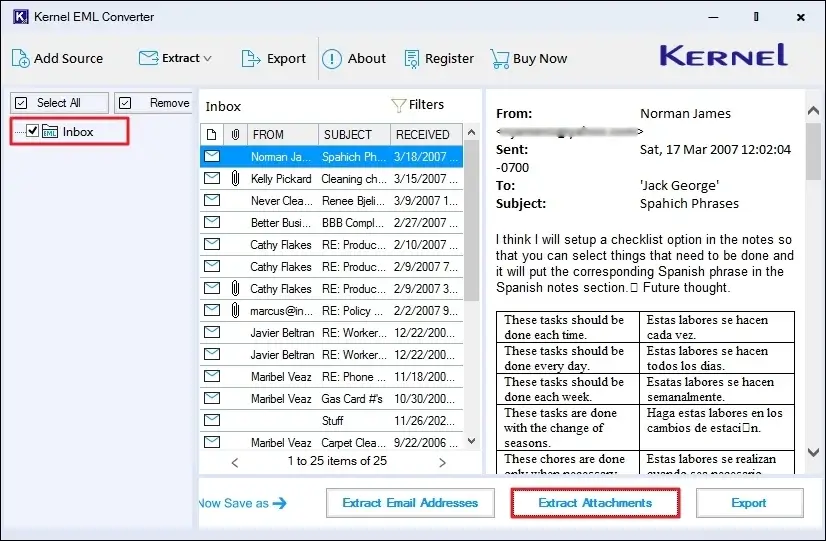
Step 5: In the Extract Attachments wizard, select a saving location, apply required filters, and click Save.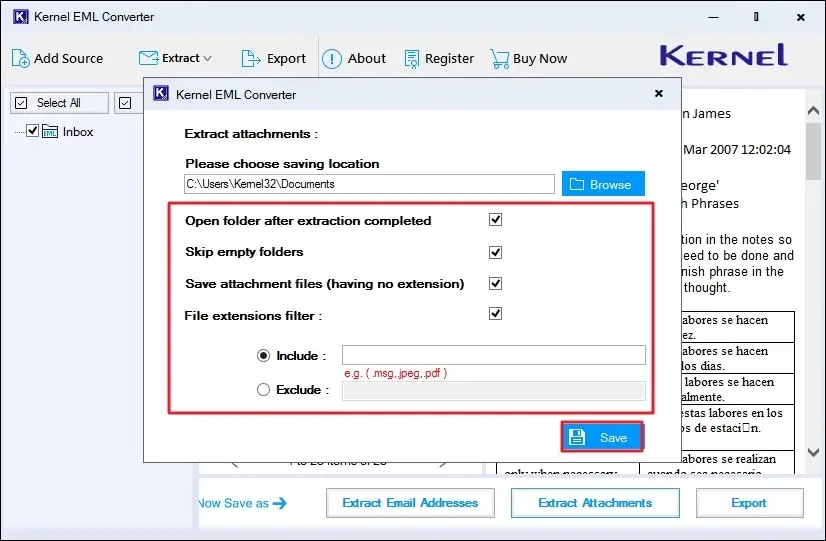
Step 6: After a successful extraction process, the tool will show the Extraction Completed message. Click Done.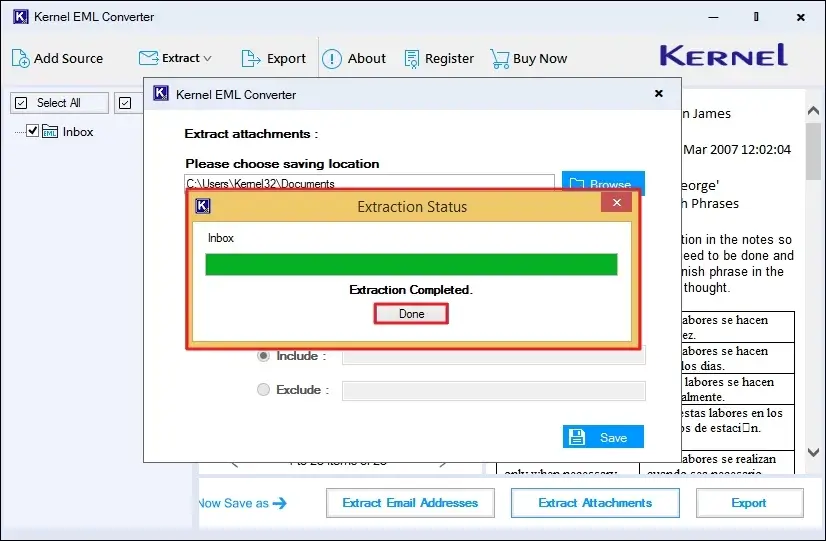
Manual Extraction vs. Automated Extraction
Here is a comparison of both methods (manual and automated) that can help you make a choice as per the need.
|
Factor |
Manual extraction |
Automated extraction |
|
Number of EML files |
Suitable for a small number |
Better suited for a few and bulk EML files |
|
Process |
Save attachments one by one |
Process multiple messages at once |
|
Setup |
Usually requires an email client and internet |
Requires only a standalone application with no internet |
|
Control |
Directly select individual attachments |
Provides filtering and batch options |
|
Time required |
Increases with the number of emails |
Can reduce repetitive manual drag-and-drop & saving process |
Benefits of Extracting Attachments from EML Files
Once you extract attachments from EML files, the following benefits you will experience:
- You can easily access the shared documents without needing to access the email client.
- With no internet connection, you can view attachments in a few clicks.
- You can save extracted important attachments to a different location to keep copies.
- Easier to share the attachment directly instead of forwarding the entire email.
Key Takeaways
The manual process to extract attachments from the EML file is simple when you have only a few files. But if you’ve bulk EML file or want a quicker and more direct solution, an EML converter can be an ideal way over Python scripts. However, the appropriate method depends on the number of EML files, number of attachments, quickness, ease of use, etc. With an EML converter, you can also convert EML to PST for easier data accessibility in Outlook.
Frequently Asked Questions
A. Yes, you can use Python script or a software that explicitly supports bulk EML attachments to extract attachments from multiple EML files at once.
A. Yes, you can extract EML attachments on macOS using Apple Mail or on Linux using Mozilla Thunderbird. The manual process remains the same: drag and drop the EML file into the email client.
A. Of course, you can extract EML attachments without opening each email. For that, you need a dedicated EML extractor tool or Python scripts.
A. No, extracting attachments from the EML files doesn’t modify the original EML file.
A. No, Thunderbird doesn’t provide the functionality to extract bulk EML attachments. For such capability, opt for an EML converter tool with high-end features.