Among the vast user base of Outlook, many of them want to back up their Outlook PST data in a TXT file due to its lightweight nature and broad accessibility. So, if you are the one who also wants to access your PST data without Outlook installed or needs to open emails on multiple devices or platforms, you must convert PST to TXT.
But you can find yourself in trouble when trapped with unreliable PST to TXT conversion methods. Therefore, we have prepared a simple guide including all reasons and effective methods to convert Outlook PST to TXT file.
Why Convert PST to TXT Format?
Here are some common reasons that compel users to export PST to text file format:
- Wide accessibility: TXT files are accessible on any device without Outlook.
- Archiving Purpose: Smaller file size makes TXT ideal for long-term storage.
- Easy readability: Emails saved as plain text are easy to read and search.
- Advanced portability: TXT files can be easily transferred, uploaded, or shared.
Now that you understand the most significant reasons, let’s get to how to convert Outlook data file (.pst) to text file.
Two Methods to Convert PST to TXT Format
There are different reliable methods to save PST emails as TXT files. Go through each and choose the one that suits you:
Method 1. Convert PST to TXT Using Microsoft Outlook (Free)
If you have Outlook installed on your system, you can manually convert PST email to TXT for free. Here are the steps to follow:
Step 1. Open Microsoft Outlook (Classic) go to your PST file, and select the email which you want to convert.
Step 2. Once the email is opened, click on File, then tap on Save As.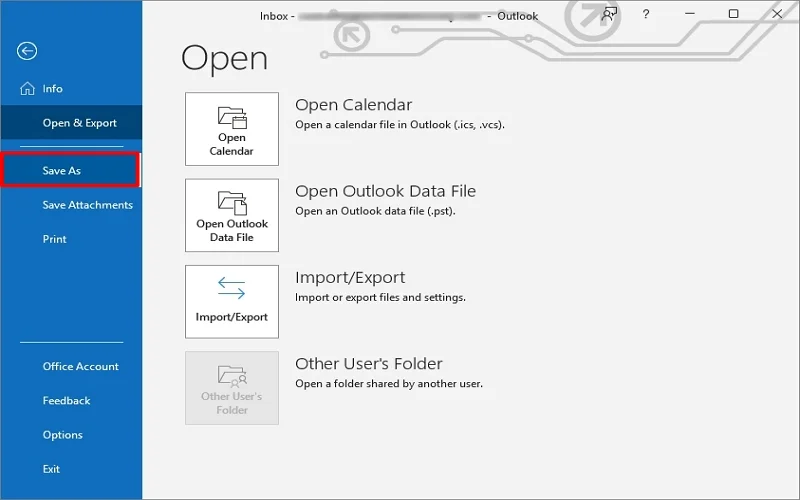
Step 3. Rename your email if you want, and choose Text Only (.txt) in Save as Type. Click Save.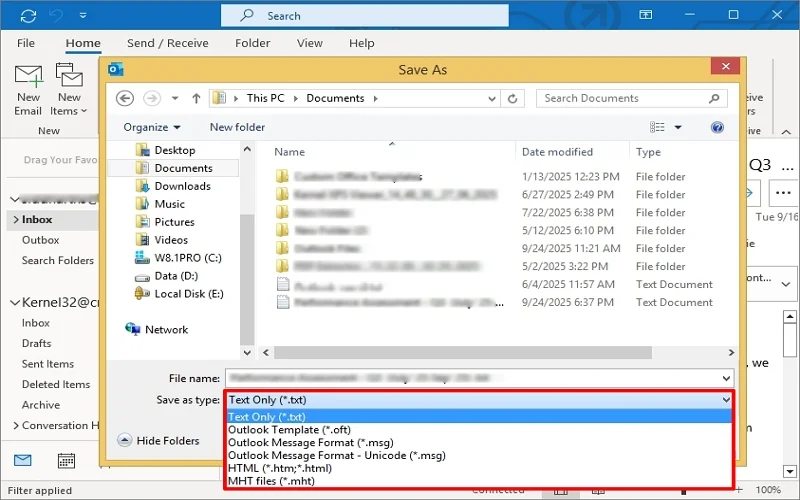
Your PST email will be saved in TXT at the preferred location.
Limitations of using Outlook to convert Outlook emails to TXT:
- Time-consuming for bulk export PST to text file.
- Requires Outlook to be installed on the system.
- Allows converting each email to TXT one by one.
- No batch conversion option (only one by one).
- Chance of missing important emails.
Method 2. Convert PST to TXT in Bulk Without Outlook
If you don’t have Outlook or want to convert entire PST emails or bulk PST emails into TXT files at once in less time, the best option is to use a reliable PST to TXT Converter.
Kernel PST Converter allows you to convert Outlook Data File (.pst) to text files in one go. You can even convert PST to TXT without Outlook installed on your system. Moreover, you can add any Outlook PST file (corrupted/healthy, damaged) and get the email data in the desired format like TXT, PST, MBOX, MSG, EML, PDF, DOCX, HTML, etc.
Step-by-Step Process to Convert PST to TXT Format
Here is how to convert PST file to TXT format in a few easy steps. Go through these and save PST emails as TXT file:
- Download, install, and launch the PST Converter tool.
- Click Add File and select your PST file, which you want to convert. Click Next.
Note: You can also add multiple PST files to the tool.
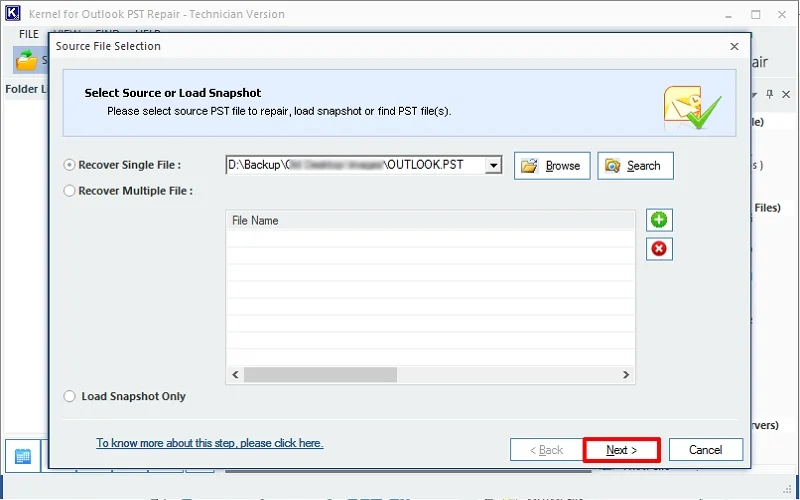
(A PST mailbox item preview will be generated.)
- Preview the mailbox items, including emails, folders, attachments, etc.
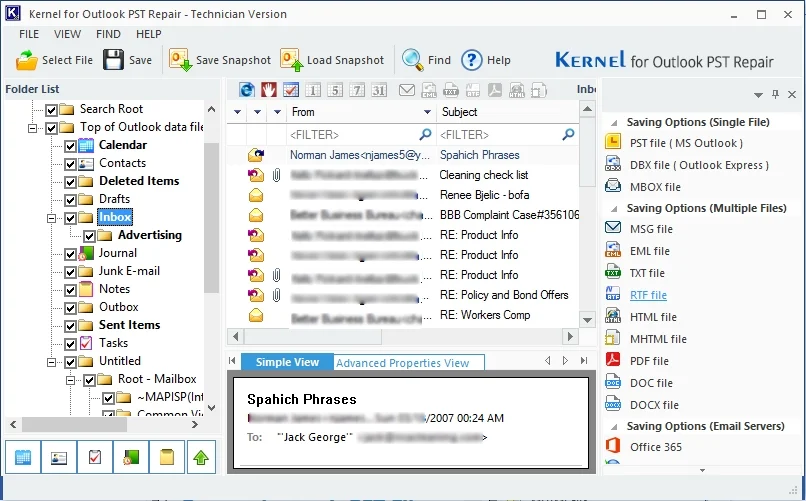
(You can tap on Find Message to read specific messages on From, To, Subject, etc.)
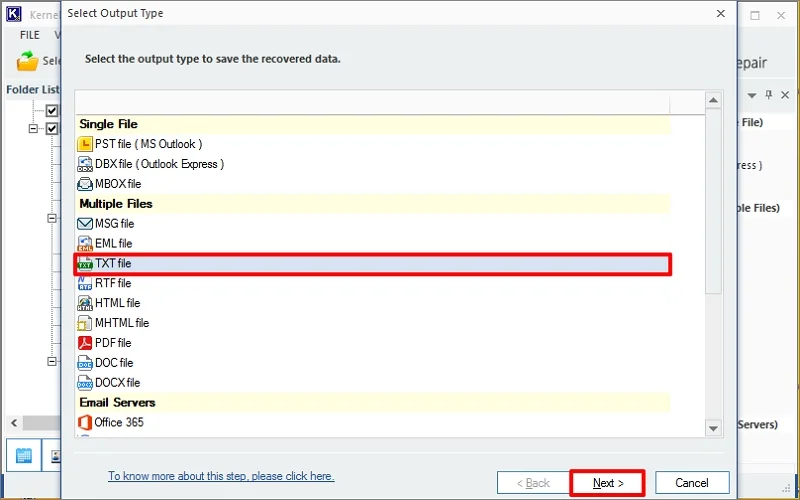
- Now, click Save and select TXT as the saving format. Click Next.
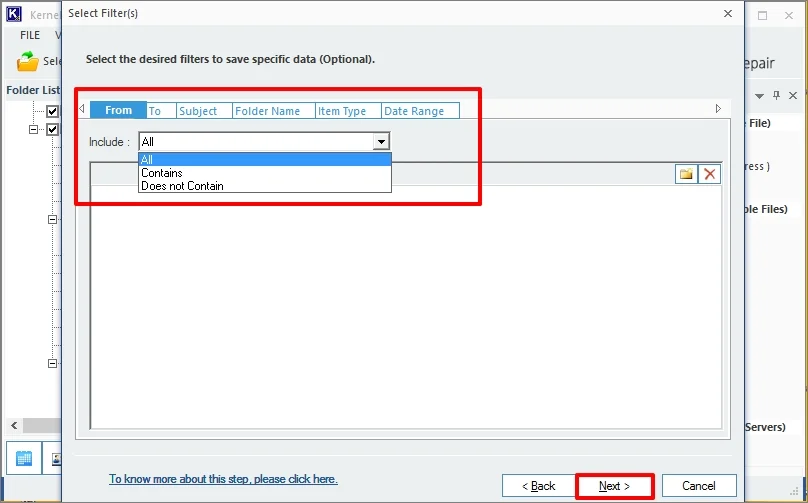
- Apply the required filters (From, To, Subject, Folder Name, Item Type, Date Range). Click Next.
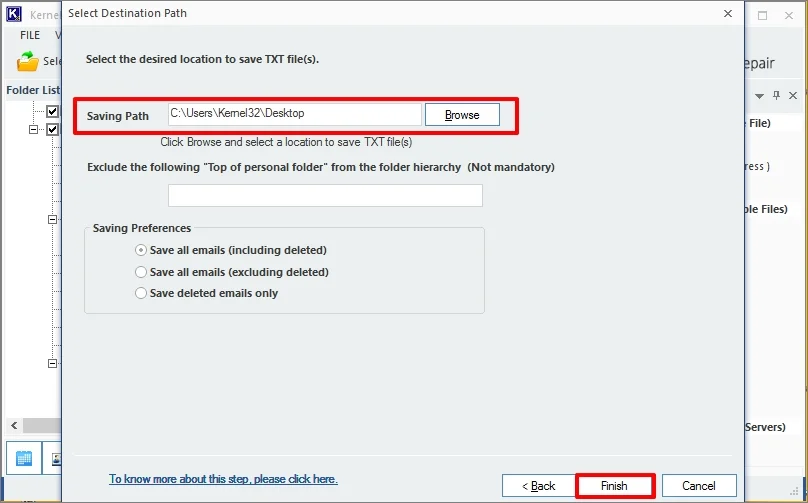
- Click Browse and select the destination path. Choose the options from the Preferences. Click Finish.
- The tool will start converting PST to TXT. Wait for the process to complete.
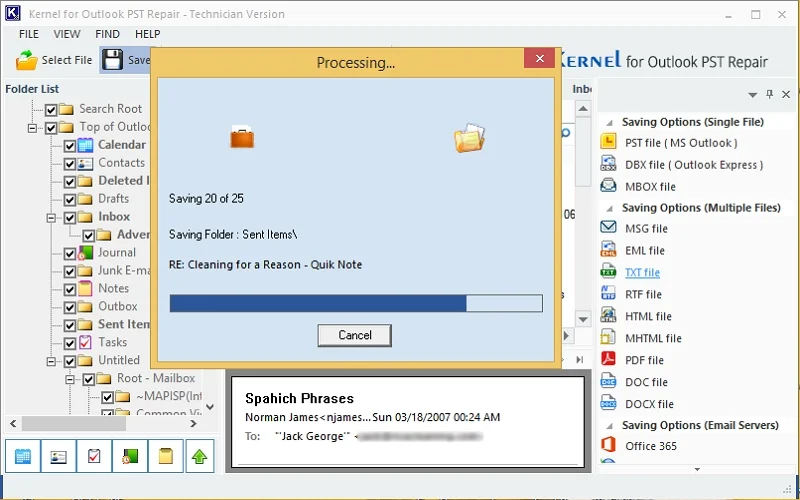
- Your PST emails will be saved as TXT files at the provided location.
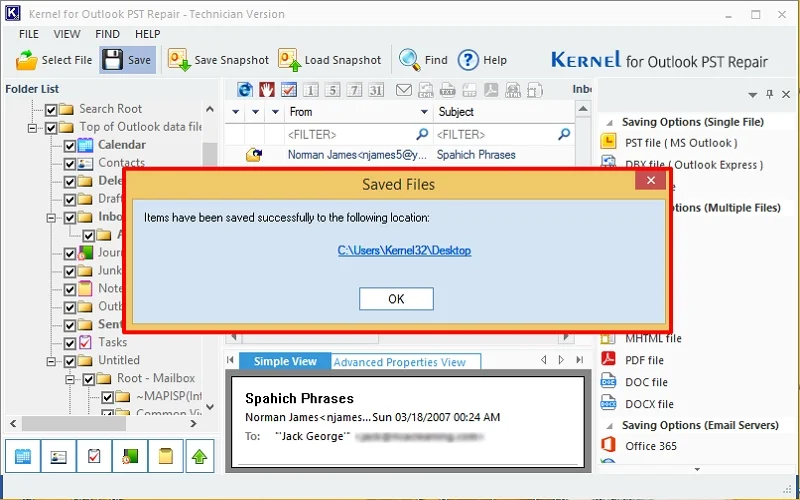
After a successful PST to TXT conversion, you can now share, open, or access your email accordingly.
Conclusion
PST to TXT conversion makes your emails more accessible, portable, and easier to manage across devices. Now you know the most effective methods to convert Outlook PST to TXT file with or without Outlook. If you need to convert few individual files or perform bulk export, selecting the approach that is best suited with your requirements will help in keeping your email data readily available.
People Also Ask
A. Yes, you can definitely convert PST to TXT without Outlook. For the same, you’ll have to use a professional PST to TXT Converter tool that works independently of Outlook.
A. Yes. TXT format only saves the plain text content of emails. If you want to preserve attachments, you should save PST to PDF, EML, or MSG.
A. Yes, you can effectively convert PST to TXT manually with the help of Microsoft Outlook. However, this method is unreliable because it comes with certain limitations and risks.
A. The manual method works effectively but is time-consuming and unreliable for bulk conversion. Besides, the PST to TXT Converter tool is faster, more reliable, and the most recommended method to convert Outlook PST to a TXT file.