

Read time: 7 min
An EML file is a dedicated email file format, while a DOC is a general, universally used editable document format from Microsoft. Both are built and used for different purposes, but still, every now and then, the need arises to convert EML to Word.
You must be wondering why do the conversion, why take risk of data distortion, and what problem does it solve? In the upcoming sections, you will find a detailed answer to these questions. While answering your queries, we will also discuss the best methods to convert EML to Word (DOC or DOCX) using native and advanced tools.
Without further delay, let’s start. We will begin by understanding the most common reasons why you have to convert EML to DOC.
What are the Reasons to Convert EML to Word?
From personal circumstances to professional office urgency, a lot of factors can lead you to such a conversion. A few of them are:
- Increase Accessibility: Unlike the EML, DOC files are a universal document file format. Almost every device, be it an iPhone, an Android, or a computer, supports it.
- Enable Edit: When you convert EML to Word, you can edit the email content as per your requirement. Doc files are easy to modify and share.
- Easy to Analyze: Various file scanning tools support Microsoft Word files. Therefore, data engineers often need an EML to DOCX converter.
- Add Protection: If your email contains confidential data, then a .doc file is a must, because you can easily password-protect it using the Word application.
Methods to Convert EML to Word – Top Solutions
We will discuss the most reliable ways to help you with EML to DOC/DOCX conversion.
Method 1: Convert EML with Word
Yes, it is possible. We can actually use the Word application to convert your EML files into a Word-supported DOC file. It’s a very simple process, just follow these steps:
Step 1: Go to the location where the EML file is stored, right-click on it.
Step 2: Select Open with option and click on Choose another program.
Step 3: Now, search for and find Word application in the list and double-click on it.
Step 4: Wait for the Word application to automatically open the EML file.
Step 5: To save the EML to DOC, click on the File tab in the menu.
Step 6: Click on the Save As and select the Browse option.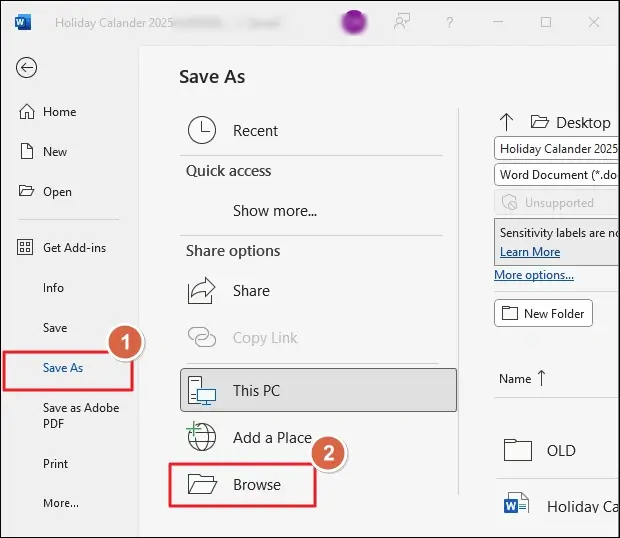
Step 7: Choose where to save the converted file and give it a suitable name.
Step 8: Click and expand the dropdown for Save as type and choose the Word Document(*.doc) option. Finally, click Save to convert EML to Word.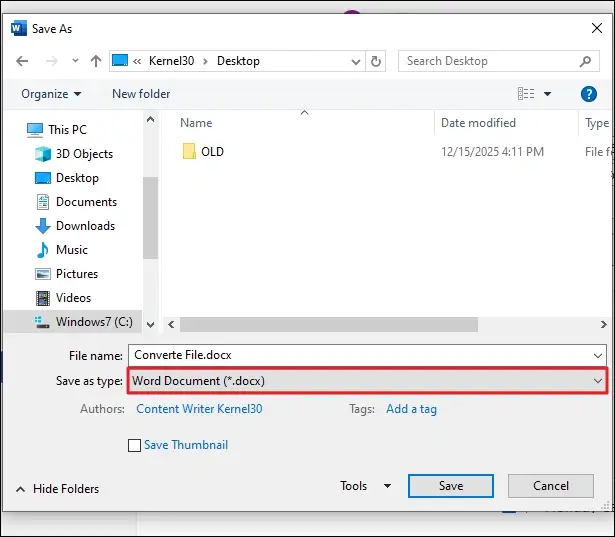
Drawbacks of the method:
- An email file contains more than just the message, and Word application is not developed to process it correctly. Therefore, when we directly open the EML in Word, we get a lot of rubbish text along with the original message.
- You have to manually edit and remove all the extra useless words before you can save the file.
- The text formatting is inconsistent; you may not like the final result.
Method 2: Use an Online EML to DOC Converter Tool
Another way to save your emails in the .doc format is to use websites with online tools that support EML as input and DOC/DOCX as output. This is also a simple and easy task to do; you can do it like this:
Step 1: Open your favorite internet browser and search for an online EML to DOC converter.
Step 2: Open any website, prefer the one from the top 3 search results.
Step 3: Upload your EML files to the website and convert them to Word file.
Step 4: Download the converted files and open them in your MS Word application.
Drawbacks of the method:
- The number one negative point of this method is the data security. Since the method involves uploading EML files to the website server, the risk of data leaks or copies is high in this method.
- It could be free or paid, depending on the website you pick.
- You can only use this method when you have a stable internet, not for offline use.
Method 3: A Professional EML Converter Tool – Recommended Solution
The free method (Word) doesn’t give desired results; the online method has a risk factor, so what is the safest method to convert EML to Word? My suggestion to you is to use a dedicated converter tool for EML files, like the Kernel EML Converter tool. This EML converter convert all EML and EMLX files with no size limits. You can add, preview, and convert as many EML files as you want in a single operation. The best part is, it can convert EML to PST, PDF, MBOX and 6 more file formats with zero data loss.
Quick steps to use this EML to DOCX converter:
Step 1: Download, Install and open the tool. Click on Add Source button.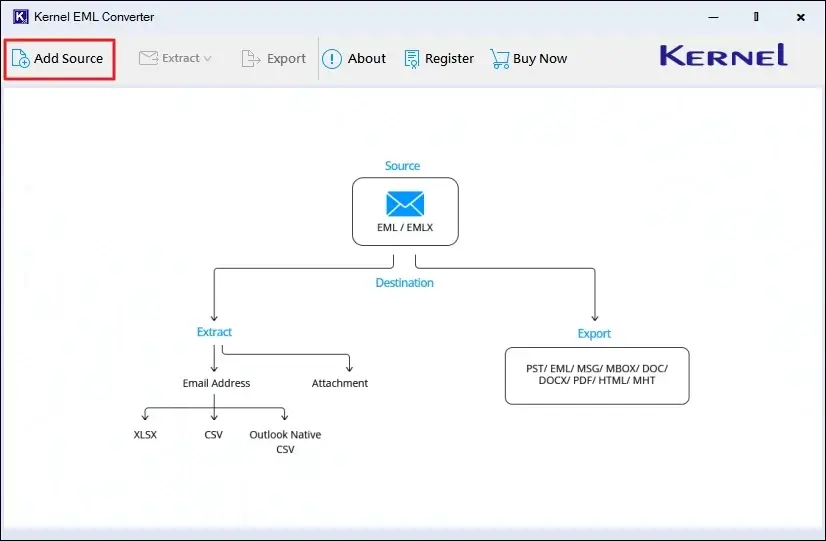
Step 2: Choose the file type (EML/EMLX) and click Browse to add the files you want to convert.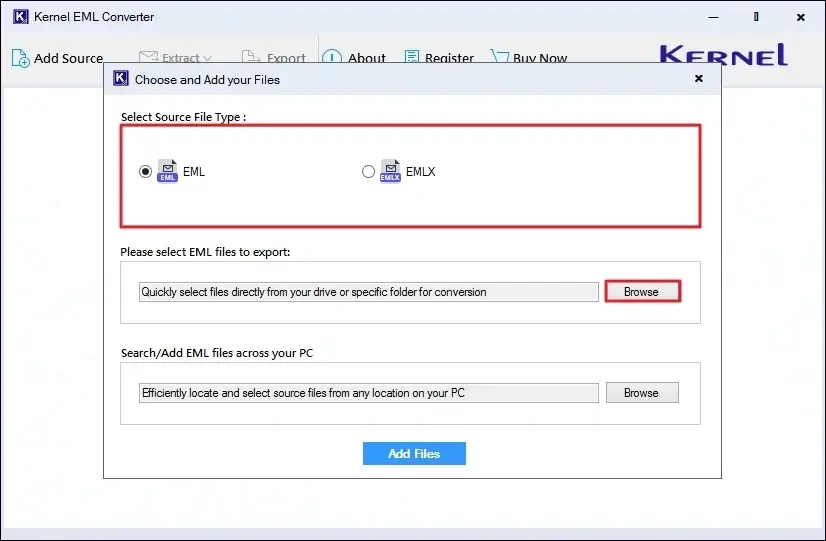
Step 3: Select all the files you want to add as source and click Open. Then click on Add Files button.
Step 4: Select the folder and click Export.
Note: To convert a single EML, right-click on it and choose Export.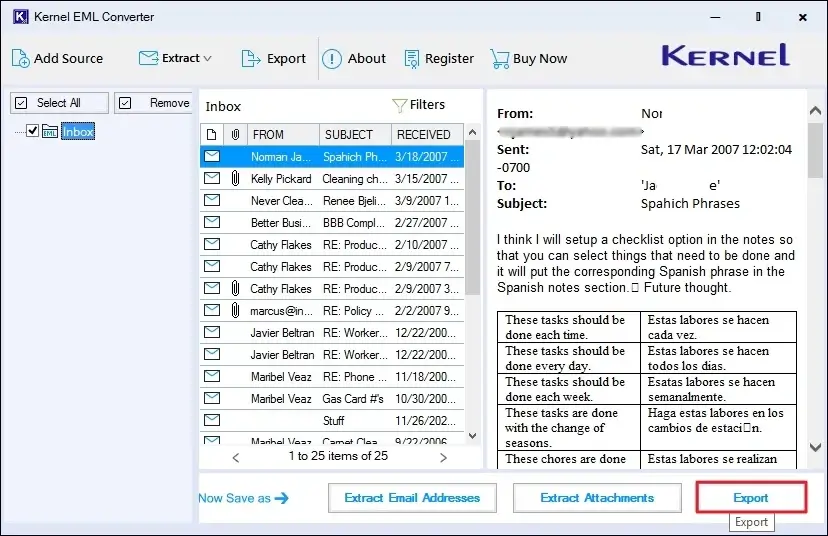
Step 5: Select the output type as DOC and define other options as per your requirement. Then, click Browse and choose where to save the output files.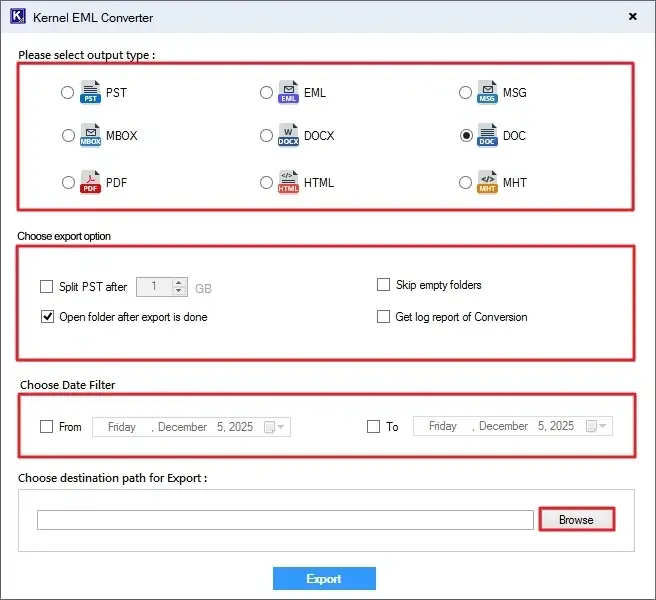
Step 6: Click Export to start EML to DOC conversion. When the process is finished, you will get the “Export Completed” message.
Conclusion
Multiple methods exist to convert EML to Word. However, I suggest not using Word for conversion; the output file is hard to read with lots of useless information. If data confidentiality is not an issue and you always have a stable network connection, online EML to DOC converter will work for you.
For precise and error-free conversion with minimal work, you must use the professional tool. You can convert EML files into 9 different file formats and can even extract attachments and email addresses separately.
FAQs
A. An EML file is an email file format used and supported by several email clients to save a single email. It contains an email header, message body, and attachments. The EML file is compliant with an email standard and has .eml or .emlx as an extension.
The Word file is a universally accepted document format used for writing and storing information in simple text formats. It contains user-created text, images, tables, etc. You can find the Word file with a .doc or .docx file extension.
A. The online converters have data security risks; only use them to convert EML to DOC if data confidentiality is not your concern. Also, many online converters don’t support bulk conversion, making it extremely time-consuming.
For a stress-free and quick conversion process, you should use a dedicated offline EML converter. Even the email server admins prefer to use professional email conversion tools
A. The latest Outlook version doesn’t support importing EML files. You can drag & drop EML files in Outlook to open them, but a better way would be to convert EML to PST and then import the PST to Outlook