 (4.9/5) 549 Reviews
Free SQL MDF Viewer Tool to Read MDF/NDF File Content
A reliable viewer software that shows the previews of MDF and NDF files without requiring SQL Server. It scans corrupt, damaged, and orphaned databases and enlists all the tables and other data for preview.
Free Download software and view multiple MDF/NDF files.- Generate previews from corrupt MDF files and all types of SQL Server databases.
- Open MDF/NDF files with all the folders in their original hierarchy.
- Access data from full-sized database files.
HOW TO View MDF file data?
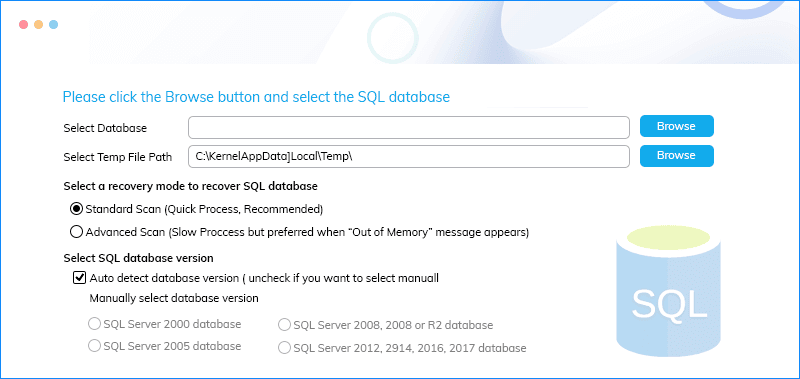
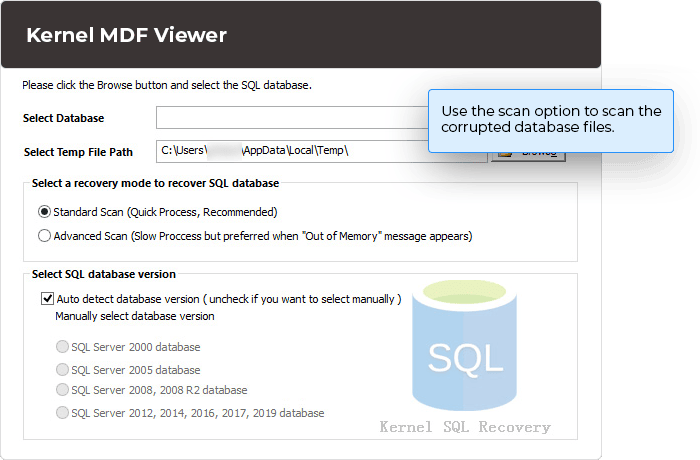
View all the important data in the MDF file in three simple steps. You only need to upload the database for scanning, and the tool will show the saved information after scanning.
Explore software’s key capabilities
The software comes with several impactful features that allow you to preview the data of the MDF or NDF files efficiently.

View MDF files
Easily retrieve data from all types of SQL Server database files, whether healthy or corrupt and make it available for preview. All sorts of MDF files can be viewed with this tool for any query and other purposes.

Open MDF files
Open MDF files without accessing any SQL Server version using this software. It saves time and eliminates the need for SQL Server to access its database files (MDF/NDF).

Complete content preview
Preview entire SQL database objects with this software. It allows you to view MDF file contents, including tables, views, indexes, checks, rules, triggers, primary keys, unique keys, stored procedures, foreign keys, default values, and user data types.

Selection of SQL Server
Use the software to select between two database selection modes – Automatic and Manual database. You can select either of the options for your SQL Server database addition. The manual selection enables you to add your preferred SQL Server along with the file directly.

Preview all sorts of files
Preview all types of SQL Server database files, whether large-sized or with any corruption. It even recovers deleted records and extremely corrupted MDF files from the SQL Server database.

Read MDF files
Once the MDF file data is opened with this free MDF Viewer software, all its content is available for preview. With a click on the required file items, users can read its content well with a clear and wide preview section.

Display UNICODE characters
Free MDF Viewer tool shows compatibility with database files having UNICODE characters. Users can view such MDF/NDF files data easily with any size of database files with complete integrity.

Complete preview of procedures
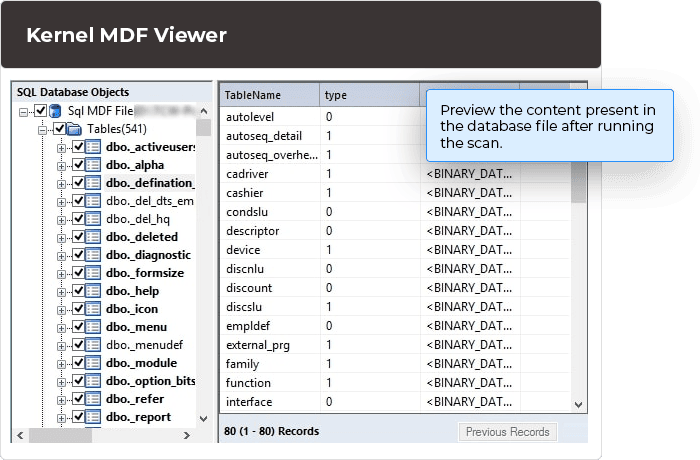
The software enables you to check the information saved in folders like tables, procedures, indexes, triggers, functions, etc. It will also show the number of files saved in each folder.

Correct preview of tables
The preview mode for tables shows the correct columns saved in the database. The columns in the table will show the data as per their data type. The tool shows each kind of data type information.

Wide range support
This software supports all versions including Windows 365/11/10/8.1/8/7/Vista/XP/2000, SQL Server 2019/ 2017/ 2016/ 2014/ 2012/ 2008 R2/ 2008/ 2005/ 2000, & Windows Server 2019/ 2016/ 2012 R2/ 2012/ 2008 R2/ 2008/ 2003 R2/ 2003.
| Software Features | Freeware |
Home License |
Corporate License |
|---|---|---|---|
| View MDF files |  |
|
|
| No file size issue | |
|
|
| Also display NDF files to read | |
|
|
| Supports all Windows and SQL Server versions | |
|
|
| Recovers corrupt MDF files | |
|
|
| Retrieves deleted records and backup files | |
|
|
| Automatic and Manual selection of SQL database version | |
|
|
| Saves selected data items only | |
|
|
| Save data in another SQL Server version | |
|
|
| Saving via Windows and Server Authentication | |
|
|
| Save recovered data as SQL script in Batch file | |
|
|
| Free Download | Upgrade $299 | Upgrade $499 |
Frequently asked questions
Follow these steps to view healthy and corrupted MDF database file content free of cost via the Kernel MDF Viewer tool.
- Launch the free MDF Viewer tool on your system.
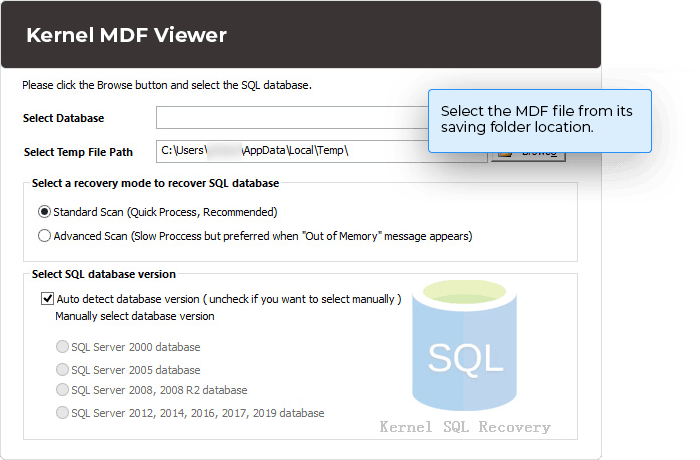
- Browse and add the SQL database file from the system, choose the recovery mode, and select the SQL Server version.
- Expand the retrieved SQL database objects to check complete content.
- Click on the database objects to view its detailed preview for free.
No. With this Free MDF Viewer, you can only view or read recovered data from SQL Server database files. To save the required data, you need to purchase the full version of Kernel for SQL Database Recovery tool.
After browsing and adding the MDF file, you need to select the SQL database version with 2 options- auto-detect database version or manually select the database version. As the name suggests, you can automatically select or manually enter database versions.
Two saving options are there. First, you can save the data on the running SQL Server database or create a new database and save it there. Or, you can save the data at the system location as a SQL script as a Batch file and later add it to your Server database using SQL Server Management Studio.
To copy the recovered objects from the saved SQL script to the new database created on SQL Server, perform the following steps.
- Launch SQL Server Management Studio.
- Then create a new database.
- After that, double-click on commit.bat. Or run the command prompt. Change the path to the recovered folder (cd Path Name)
- Run this syntax. >commit.bat servername newcreateddatabase sqlserverusername sqlserverpassword and press Enter key.
- All tables will be copied to the newly created database.
Software Prerequisites & recommendations
 About Software
Version: 21.1
License Type: Free
 Version Support
MS SQL Server: 2019, 2017, 2016, 2014, 2012, 2008 R2, 2008, 2005, 2000
System Requirements
Hard Disk: 50 MB of disk space
Memory: 64 MB RAM(Greater than 64 MB is Recommended)
Processor: Intel® Pentium Processor compatible (x86, x64) or equivalent
Operating System: Windows 365, 11, 10, 8.1, 8, 7, Vista, later Windows Server 2022, 2019, 2016, 2012, 2008 R2, 2008, 2003 R2, 2003
 Installation Guide
 User Manual
What customers say about Kernel MDF Viewer
 (4.9/5) 549 Reviews
Great product with excellent features, I got this "Corporate License" at discounted price. I highly recommend this product.
