 (4.9/5) 452 Reviews
IMAP to Office 365 migration tool to migrate IMAP mailboxes
Migrate mailboxes from Gmail, Yahoo, Zoho Mail, GoDaddy, Amazon, and other IMAP Server accounts to Office 365 with ease. The software allows you to transfer single/multiple users' mailboxes concurrently from the same or different tenants. Run the migration task immediately or schedule it for later to minimize downtime.
Download the trial version and migrate 10 items per folder free.- Migrate IMAP mail server data to Office 365 with complete integrity.
- Bulk IMAP to Office 365 email migration through CSV authentication.
- Migrate IMAP emails, labels, metadata, and flags in the original hierarchy.
- Move IMAP email data to Office 365 Mailbox, Archive Mailbox, Shared Mailbox, and Public Folder.
- Advanced filters for selective IMAP to Office 365 data migration.
- Separate module to transfer IMAP data to Office 365 Groups.
- Incremental migration to transfer only newly added data.
- Generate and download a detailed migration report in a CSV file.
- Transfer IMAP emails to On-Premises Exchange or Hosted Exchange Server.
- Free trial version to migrate 10 items per folder for free.
- Added the new IMAP to Office 365 Pro module.

- Supports batch email migration from all sources.
- Schedule migration tasks to run the job automatically at a user-specific time.
- Now supports offline OST, PST, EML, and MSG files in source.
Top use cases for Kernel IMAP to Office 365 migration tool

Migrate to Office 365 Mailboxes, Groups, or Public folders
Simplify your IMAP to Office 365 migration by migrating data from IMAP to Office 365 mailboxes, Archive mailbox, Shared mailbox, Public Folder, or Office 365 Groups. Our tool transfers everything securely while keeping all your folders and data organized for an error-free migration experience.

Centralized email management
Access data from multiple IMAP servers, such as Gmail, Yahoo, Outlook.com/Hotmail, G Suite, AOL.com, GoDaddy, and Amazon WorkMail, in Office 365. Get all mailboxes in one place in Office 365’s mailboxes, shared mailboxes, Archive mailboxes, Office 365 Groups, or Public Folders.

Support Exchange Online and Hybrid Exchange
Effortlessly migrate emails from all IMAP accounts to Exchange Online or Hybrid environments with full version compatibility. Our tool provides secure and precise data transfer using the latest or older Exchange setups. Experience instant transitions without technical hurdles with 100% migration accuracy across all Exchange platforms.
HOW TO Migrate IMAP Email to Office 365?
Follow the given steps for a smooth IMAP migration:
IMAP to Office 365 - Where We Migrate Data?
Explore all the specific destinations where our IMAP email to O365 software migrates from the source without data loss.
| Components | |
|---|---|
| Mailbox | Move IMAP data to the Office 365 mailbox effortlessly. Transfer all the IMAP data, including Primary emails, sent items, drafts, trash, spam, and other folders securely. Keep IMAP data intact and easy to access. |
| Archive Mailbox | Transfer all the emails, attachments, contacts, calendars, appointments, notes, and more with metadata and mail addresses to Archive mailbox of Office 365. Move all the older data and manage space in Office 365. |
| Shared Mailbox | Migrate IMAP data to Office 365 shared mailbox with the permissions and metadata. Access all the IMAP data in Shared Mailbox with the shared members (who have access to the mailbox) of the organization. |
| Public Folder | Move all IMAP Servers data to the public folder of Office. Check out all the IMAP emails in Public Folder where everyone can access emails with all the general information and news. |
| Office 365 Groups | Migrate 20+ IMAP Servers mailboxes to Office 365 Groups. Save all the mailboxes data to Office 365 selected Groups and share essential data with the group members. |
IMAP to Office 365 Migration Software - Key Capabilities
Explore the major functionalities of IMAP to Microsoft 365 migration tool to execute a precise and secure migration of all IMAP server data.

IMAP mailbox migration
Migrate mailboxes of different IMAP mail servers to Microsoft 365 and Exchange Server. This IMAP Server to Office 365 utility supports all IMAP email account migrations to hosted and On-premises Exchange deployments.

Bulk mailbox migration with CSV
The IMAP emails to Office 365 Migration software offers bulk IMAP mailboxes migration using advanced CSV authentication. Simply add bulk users in source & destination to migrate unlimited IMAP mailboxes without data loss.

Migrate IMAP email account to Office 365 Groups
Transfer all the IMAP emails to Microsoft Office 365 Groups. The software retrieves all the Office 365 Groups and offers a hassle-free mail migration to Office 365 Groups with all the files and folders intact.

Migrate to Archive mailbox or Public folder
The IMAP server to Office 365 software can easily migrate IMAP server to Office 365’s Archive Mailbox and Public Folder. The software has a separate module to simplify mailbox selection and ensure an effortless IMAP email to O365 migration.

Filters for precise IMAP to Office 365 migration
Equipped with advanced filters for selective data migration. Apply multiple filters from date range, folder type, exclude deleted folder, exclude empty folders, skip previously migrated items, and more for precise IMAP emails to Office 365 migration.

Avoid data duplicity with incremental migration
Skip already migrated items with the incremental migration option of the IMAP to Office 365 Migrator tool. Transfer only newly added data to Microsoft Office 365 and eliminate data duplication in the destination.

Support all IMAP servers
The software supports a wide range of IMAP web-based email servers such as Gmail, Yahoo Mail, AOL.com, Outlook.com, GoDaddy, Rackspace, Lotus Notes, GroupWise, Office 365, etc. It ensures an effortless transition from all IMAP servers to Office 365 without hassle.

Migrate large-sized IMAP mailboxes
The IMAP to Office 365 Migrator tool can easily migrate unlimited large-sized IMAP mailboxes with complete data integrity. There is no such file size limitation in the software. Add unlimited mailboxes and migrate IMAP Mail to Office 365 securely.

IMAP to IMAP mailbox migration
Transfer emails from one IMAP account to another using the IMAP to IMAP migration. Add any IMAP email client or server, such as Zoho, Yahoo, and Gmail, as a source and target using a straightforward process. The tool is designed to be user-friendly for both technical and non-technical users.

IMAP to Google Workspace migration
With our IMAP to Office 365 migration tool, one can migrate mailboxes from over 20+ IMAP servers to Google Workspace by connecting the source and destination accounts. The tool ensures effective migration while retaining the mailbox and folder hierarchy between both accounts.

Free IMAP to Office 365 Migrator
The Kernel IMAP to Office 365 tool has a free trial version. You can download and test the tool for your migration requirements for free with a few limitations. To remove the restriction, upgrade to the licensed version of the software and enjoy an unlimited IMAP to Office 365 mailbox migration.

Generate migration summary report
Track the real-time process with the migration summary report and save the migration information in a CSV file for future reference. The report includes details such as Source mailbox login ID, Folders exported, Migration Status, Item Count, etc.
IMAP to Office 365 Pro: Advanced Capabilities
Extend your email migration scope with the pro version of the Kernel IMAP to Office 365 tool.

Migrate Offline Files to Office 365
The IMAP to Office 365 Pro allows you to transfer emails from OST, PST, MSG, EML to Office 365 along with IMAP migration. Every email is migrated with original metadata, and even the read/unread status is preserved.

Schedule Migration
The pro version of the IMAP email to Office 365 tool offers a scheduling feature to run the migration at your specified time and date automatically, every day, week, or month. A separate report is generated for each transfer job that you can view or download.

Item Type Filtration
The IMAP to Office 365 Migration Pro comes with an item type filter. You can filter out and transfer data according to item type, such as email, tasks, calendar, and contacts. Select all or one when you migrate IMAP to Office 365.

Batch IMAP Migration
Create multiple migration jobs and run them all together. The IMAP to Microsoft 365 software pro version utilizes multi-threading for handling batch IMAP migration between different sources and destinations.

Quick Migration Configuration
The tool allows you to save your account's credentials. It helps you to instantly connect the tool to source and destination when configuring IMAP server to Office 365 migration jobs. Save login details for single/multiple accounts.

Advance Migration Controlling
The software provides in-built options to control the email transfer. Start, Pause, Refresh, or Stop any import IMAP to Office 365 or any other migration job as per your need. You can even view the live folder and item count migration during transfer.
Understand the step-by-step IMAP to Office 365 migration using a free method and an automated solution
Quick Method to Migrate IMAP to Office 365 mailboxes Using Outlook Application
- Step 1: Setup IMAP Account in Outlook:
Add the IMAP account (abc.imap.com) to your Outlook client. Enter IMAP email server account credentials, including email address and password. - Step 2: Sync Data:
Outlook will start syncing the IMAP account’s data with Outlook. Syncing the IMAP account according to its mailbox data size will take time. - Step 3: Add Office 365 Account to Outlook:
Set up the Microsoft 365 account within the same Outlook client. Then, enter the Office 365 credentials, including email address and password, into Outlook. - Step 4: Manual Copy or Move:
Once both accounts are set up and synchronized in Outlook, you can manually select specific emails from the IMAP account and move or copy the emails to the Microsoft 365 account. You can move multiple emails into a folder. You can also use the drag-and-drop option to move files from one folder to another in Outlook. - Step 5: Sync to Server:
After moving or copying the IMAP emails into the Microsoft 365 account, connect your Outlook client with the Exchange Server so it will sync data to the Server.
Limitations of migrating IMAP to Office 365 using the free method
As you know that free method can migrate IMAP mails to Office 365, but while IMAP to Office 365 mailboxes migration, things will not go as you want. Many users face data loss, corruption, and multiple errors in the destination Office 365. Also, this free method will not migrate metadata, properties, or more to the destination.
How to migrate IMAP to Office 365 using a professional tool?
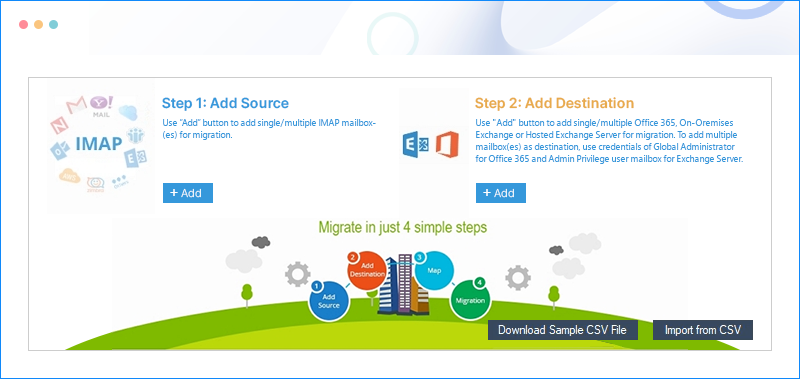
- Step 1: Run Kernel IMAP to Office 365 software and click on IMAP to Office 365 tile.
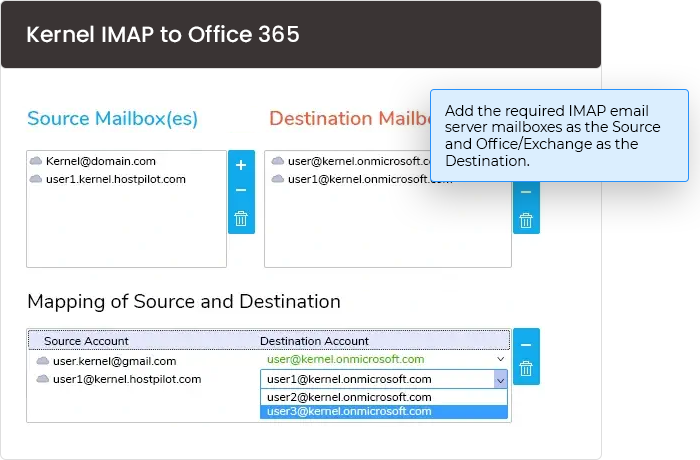
- Step 2: Add source IMAP mailbox and destination Office 365 account.
- Step 3: Select Single/Multiple Mailbox and map source with destination.
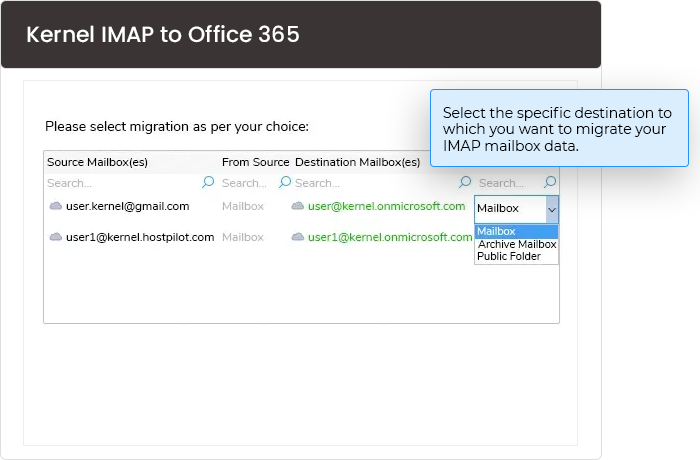
- Step 4: Select migration type - Mailbox, Archive Mailbox, and Public Folder.
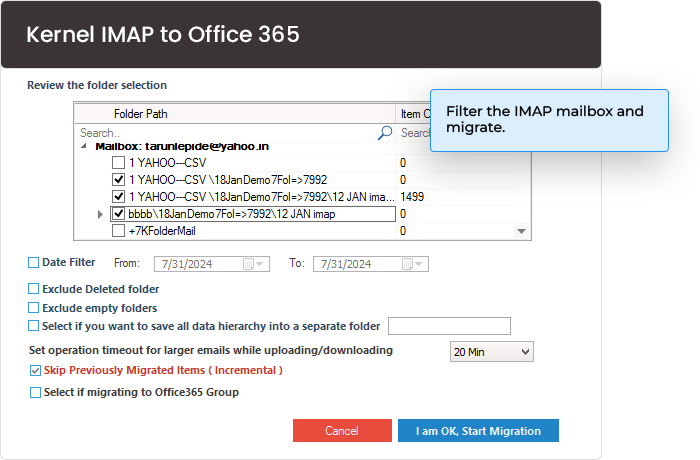
- Step 5: Apply filters for selective data migration to destination Office 365.
- Step 6: Finally, click "I'm OK, Start Migration" to start the migration process.
- Step 7: Generate and download a detailed migration report in a CSV file.
IMAP to Office 365 FAQs
- Tenant ID – Tenant ID is mentioned in the Overview section of the Active Directory of your application.
- Client ID – Client ID is accessible in the overview section also.
- Client Secret Key – Client Secret Value is mentioned in the Certificates & Secrets section.
Note: You can easily create Modern Authentication credential by following the on-screen instructions.
The free version of the software has different limitations, depending on the migration type and versions.
Standard Versions: 10 items per folder
Pro Version:
- For online-to-online migration: 100 items per folder
- For offline to online migration: 50 items/folder for OST & PST and 50 files/migration for EML and MSG.
- Step 1: Launch the IMAP email to O365 tool.
- Step 2: Click on Download Sample CSV File option on the software’s home screen.
- Step 3: Open the CSV file on your system and enter the necessary credentials in it.
- Step 4: Now, click Import from CSV file on the software’s homepage.
- Step 5: In the following window, select the CSV file.
- Step 6: The software will automatically add those mapped users.
- Step 7: Now, you can easily initiate IMAP to Office 365 migration.
Thus, the complex migration of multiple mailboxes gets easier with CSV files.
- Step 1: Login to your Gmail account with your User ID and password details.
- Step 2: Click the gear-shaped icon Settings on the right-most side of the main screen.
- Step 3: Select the tab Forwarding and POP/IMAP.
- Step 4: If you scroll down the list, you will find the IMAP Access option. Click it.
- Step 5: Check Status: It could be IMAP is enabled or disabled.
- Step 6: Choose your priority by clicking on Enable IMAP or Disable IMAP options.
- Step 7: If IMAP is enabled, you can easily migrate IMAP Server Gmail to Office 365 within 3-4 steps.
The IMAP to Office 365 tool can migrate multiple IMAP mailboxes to Office 365 simultaneously. It also allows users to migrate different IMAP email servers to Office and Exchange destinations.
For example - If you want to save your Gmail account and Outlook.com account mailboxes to the cloud, you can add them with credentials or use a CSV file for direct addition for migration. Similarly, you can migrate as many different IMAP email servers; all you need are the login details of respective email servers and the destination.
- With IMAP configuration in the email server, you can simultaneously access your email from several devices. With the POP3 protocol, you can access mail on a single device.
- IMAP configuration requires an internet connection to access emails, whereas there is no need for internet connectivity for POP3 protocols (but required for sending and receiving emails).
- IMAP provides a faster overview of emails (only headers are downloaded) as compared to POP3-configured emails.
- IMAP relates to two-way communication, while POP3 provides one-way communication for email servers.
The IMAP to Office 365 migration tool provides users with a Free Trial before purchasing, where you can go through a general overview of all the smart features, along with some data migration (10 items per folder). Once the user is satisfied with all the running features of the tool, they can buy the tool as per their wish for unlimited, swift migration. Considering the tool's reliable and secure programming, there are very few chances of migration errors.
Once the users are satisfied with all the running features of the tool, they can buy the tool as per their wish for unlimited, swift migration.
Taking tool’s reliable and secured programming into consideration, there are very less chances of errors in migration. However, users can ask for any issue to our support team, which is available 24*7 hours. The support team may ask for the file in which the issue is being faced.
Our company will integrate a refund policy on this software purchase if the issue persists. The users can avail of a full refund for the purchased tool, if they face issues in migration and disruption in function even after taking help from support. For a refund, write a mail to sales@nucleustechnologies.com regarding the refund of the tool, mentioning the issue in detail.
Note: Cases in which no refund or partial refund is available
- Case 1 - The user denies sending the file with the issue for inspection even after signing the NDA (Non-Disclosure Agreement) as the issue remains hidden.
- Case 2 – The user has purchased the tool but does not want to use it in the future.
- Case 3 – Without trying the Demo version, the user has found that his system OS is incompatible with the software.
- Case 4 – A partial refund facility is available if a different tool has been bought than the required one.
Synchronizing IMAP folders manually will take a lot of time and include the risk of data loss. The method you mentioned becomes lengthy as you need to convert IMAP mailbox data to PST and then import IMAP to Office 365.
When you try to migrate emails directly from IMAP to Office 365, there are chances of errors in creating a new Outlook profile for each user.
So, an easier way to migrate IMAP to Office 365 is using an affordable IMAP to Office 365 tool. You just need the login details, server name, and port number to migrate your IMAP mailboxes. The migration is performed in just a few steps. The software costs less than other migration tools and performs with full efficiency.
IMAP to Office 365 Migration Software Prerequisites & recommendations
 About Software
Version: 25.0
Release Date: July 2024
License Type: As per no. of mailboxes
 Version Support
Office 365 (Microsoft 365): All plans, including Office 365 (Microsoft 365) Enterprise E1, E3, E5 & Exchange Online Plan 1, 2, Microsoft 365 Business Premium, Office 365 A1, Office 365 A3, Office 365 A5, Office 365 F1, and Office 365 Business Essentials.
IMAP Email Server: All IMAP servers, including Gmail, Microsoft Exchange Server, Zimbra, Dovecot, Courier Mail, Outlook/Hotmail, Yahoo Mail, Proton Mail, Bluehost, GMX Mail, Yandex Mail, FastMail, Mail.ru, Apple Mail Server, iCloud Mail, AOL Mail, Cyrus IMAP, MailEnable, hMailServer, Mail-in-a-Box, Apache James, Citadel, Kolab Groupware, MDaemon Email Server, Modoboa, Zentyal, Zoho Mail, Company IMAP Account, etc.
 System Requirements
Hard Disk: 500 MB of disk space
Memory: 128 MB Minimum
Processor: Intel® Pentium Processor compatible (x86, x64) or equivalent
Operating System: Windows 365, 11, 10, 8.1, and older versions.
Windows Server 2022, 2019, 2016, 2012, 2008 R2/2008, 2003, R2/2003
 Installation guide
 How to use
What customers say about Kernel IMAP to Office 365 Migration Tool
 (4.9/5) 452 Reviews
Successfully transferring all historical data from Yahoo Mail to my new Office 365 account brings me satisfaction. I am pleased with the software's process and reassured by the fact that all my data remains secure throughout the migration.