How to Divide Large Data into Multiple Excel Files?
 Written By: Sarthak Poswal
  Updated On October 15, 2026 Written By: Sarthak Poswal Updated On October 15, 2026
 Quick Answer: You can divide a large Excel file using the VBA script, Excel Power Query editor, or direct copy and paste. Additionally, a simpler solution is to use a professional Excel splitter tool.
An oversized Excel file slows down Excel, is hard to share, and gets trimmed when exceeding the Excel row limit. Splitting is the most obvious way to solve it. You can divide large Excel file into multiple files based on rows, columns, and the number of individual worksheets an Excel file has.
Moving further in this blog, we will discuss different methods to split large Excel files using the Excel built-in tools and professional Excel splitter software. But before that, let us see what it means to divide a large Excel file.
Dividing an Excel file means separating the records and saving them in different Excel files. This helps to solve issues created by a large Excel file. You can divide an Excel file based on:
Splitting the Excel files serves multiple benefits, like small Excel files are easy to share and do not crash the Excel application. In the next section, we will discuss the methods to divide large Excel file into multiple files.
There are three working manual methods to divide large Excel files. Let’s view them one by one.
This is the simplest method right now that requires no technical knowledge and is most suitable for someone who needs to break a few thousand rows into smaller data sets. The steps for splitting Excel rows with copy/paste are:
Step 1: Open the Excel file that you want to split.
Step 2: Copy a specific number of rows from the Excel file and paste the rows into a new blank Excel sheet.
For example, if your Excel file has 1000 rows and you want to divide it into 2 Excel files, each having 500 unique rows, then copy from row 1 to row 500 and save the data in a new black sheet. Similarly, copy row 501 to row 1000 and save the data to another new blank sheet. You can use this approach to either divide Excel by row or by column.
If your Excel files have more than 100 thousand rows, manually dividing them will take a very long time. A faster way to divide rows based on number of rows is given on a Microsoft tech community discussion thread, where they used a VBA script, as shown in the steps below:
Step 1: Open the Excel file and press Alt + F11.
Step 2: Click Insert and select the Module option.
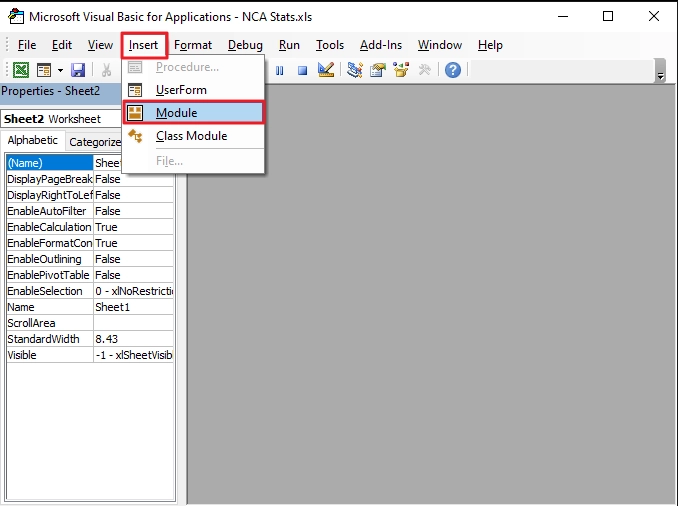
Step 3: A box will pop up. Paste the following script into the box.
Sub SplitByRows()
Dim ws As Worksheet, NewWb As Workbook
Dim LastRow As Long, SplitSize As Long
Dim i As Long, FileCount As Long
Dim FilePath As String
Set ws = ActiveSheet
LastRow = ws.Cells(ws.Rows.Count, 1).End(xlUp).Row
SplitSize = 500
FilePath = ThisWorkbook.Path
Application.ScreenUpdating = False
For i = 2 To LastRow Step SplitSize - 1
FileCount = FileCount + 1
Set NewWb = Workbooks.Add
ws.Rows(1).Copy NewWb.Sheets(1).Rows(1)
If i + SplitSize - 2 <= LastRow Then
ws.Rows(i & ":" & (i + SplitSize - 2)).Copy NewWb.Sheets(1).Rows(2)
Else
ws.Rows(i & ":" & LastRow).Copy NewWb.Sheets(1).Rows(2)
End If
NewWb.SaveAs FileName:=FilePath & Application.PathSeparator & "Split_" & FileCount & ".xlsx"
NewWb.Close
Next i
Application.ScreenUpdating = True
MsgBox "Done! Created " & FileCount & " files."
End Sub
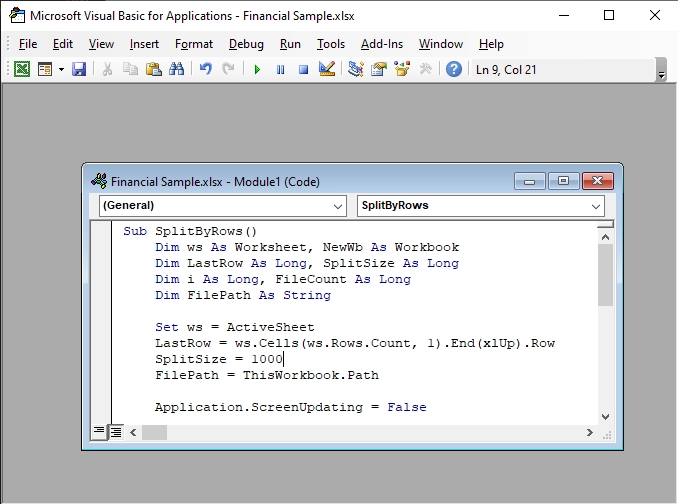
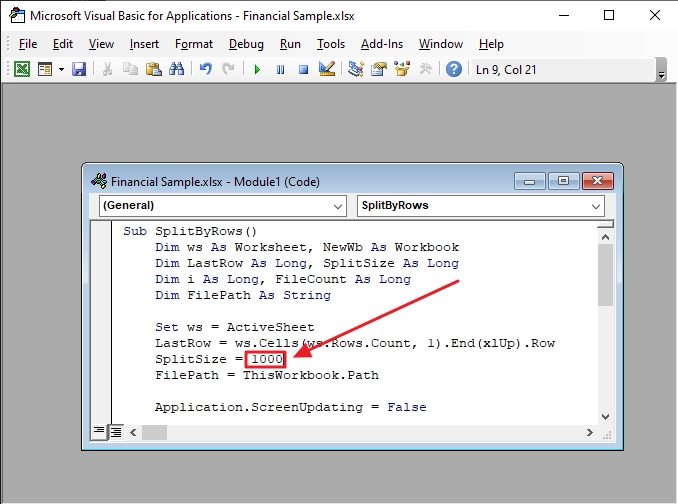
Step 4: Edit the value for “SplitSize” as per your requirement. This is the value for the number of rows based on which the split will occur.
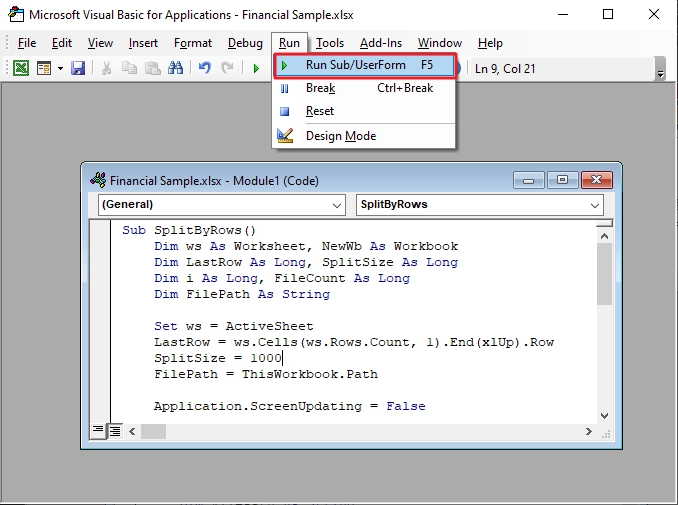
Step 5: To run the script, click Run and select Run Sub/UserForm F5.
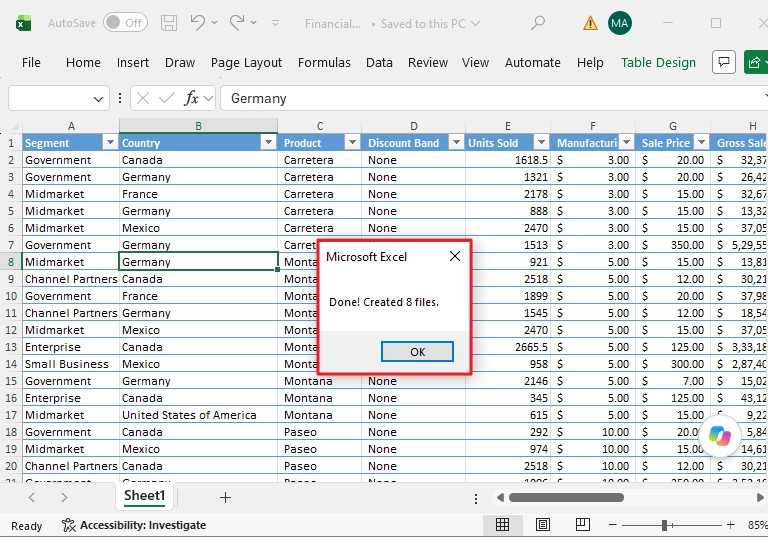
Step 6: The current Microsoft Visual Basic for Applications window will close, and the script will be executed in the background. Do not perform any action until the script is executed completely. When the operation is successful, you will receive a pop up specifying the number of new smaller Excel files created.
If you have a large Excel workbook that has multiple sheets and you want to create a new Excel file for each of those worksheets, you can do it manually or with a VBA script. Like, if a single Excel file has 5 sheets, you can create 5 separate Excel files for each sheet.
If you prefer manual approach, follow these steps:
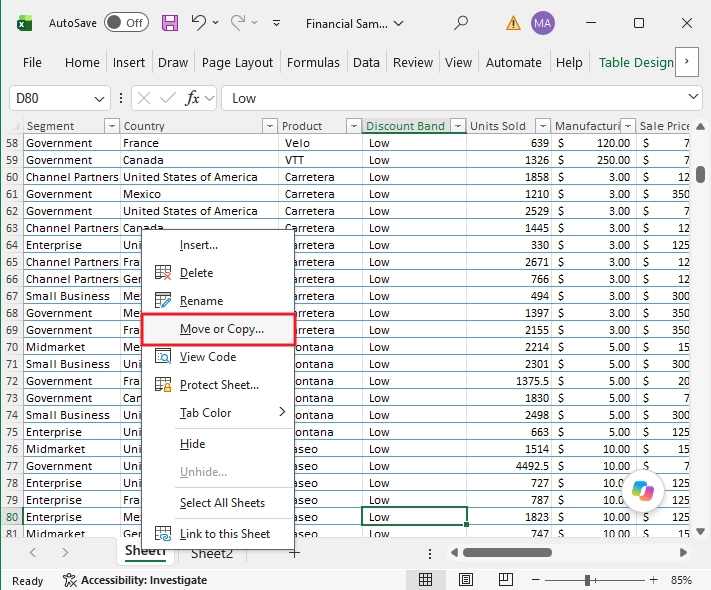
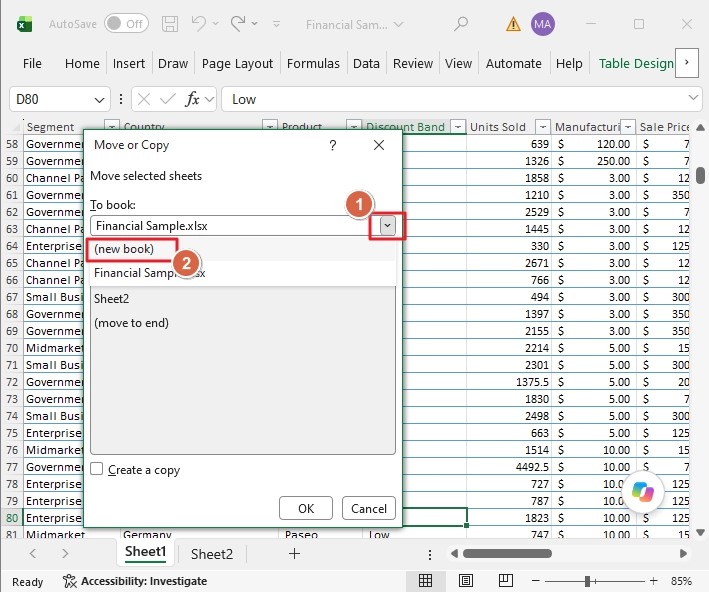
If there are multiple sheets in your Excel file, you can use the Microsoft Visual Basic script in Excel to split large Excel file into multiple files. For this, open the Excel file (if not open) and press Alt + F11. Then, click Insert > Module and paste the following script:
Sub SplitEachWorksheet()
' Define variables
Dim FPath As String
Dim NewWorkbook As Workbook
Dim CurrentWorksheet As Worksheet
' Set the file path to the location of the current workbook
FPath = Application.ActiveWorkbook.Path
' Add a backslash to the end of the path if it doesn't already have one
If Right(FPath, 1) <> "\" Then
FPath = FPath & "\"
End If
' Turn off screen updating and alerts for faster and smoother operation
Application.ScreenUpdating = False
Application.DisplayAlerts = False
' Loop through each worksheet in the active workbook
For Each CurrentWorksheet In ActiveWorkbook.Sheets
' Copy the current worksheet to a new workbook
CurrentWorksheet.Copy
Set NewWorkbook = ActiveWorkbook
' Save the new workbook with the sheet name as the filename and .xlsx format
NewWorkbook.SaveAs Filename:=FPath & CurrentWorksheet.Name & ".xlsx", FileFormat:=xlOpenXMLWorkbook
' Close the new workbook
NewWorkbook.Close SaveChanges:=False
Next CurrentWorksheet
' Turn alerts and screen updating back on
Application.DisplayAlerts = True
Application.ScreenUpdating = True
' Confirmation message
MsgBox "All worksheets have been successfully split into separate files in the folder: " & FPath
End Sub
After pasting the script, click Run > Run Sub/UserForm F5 or simply press the F5 button to run the script.
Note: Make sure the folder where the large Excel file is stored does not have other Excel files. Because running the above script may overwrite existing Excel files.
If your requirement is to divide the Excel file based on different parameters, like creating a separate Excel file based on a specific column or a value, performing mathematical calculations, and then saving the analysis in a different Excel file, you can use Excel Power Query.
But these are highly advanced tools; only use them if you are technically skilled in them. And make sure to create a copy of the original Excel file before you run any operation on the dataset.
The manual methods we discussed above are free and work for most of the cases. However, some users may face the following problems when trying to divide large Excel file into multiple files, such as:
In addition to the above issues, using the manual methods, you can only use one instance of Excel to open and split a single Excel file. For splitting multiple files, you have to either do it one by one. Or open multiple instances of Excel for each Excel file that you want to divide.
If you have multiple large Excel sheets or you do not want the hassle of running complex scripts in Microsoft Excel, then a dedicated Excel splitting tool can help. You can use the Kernel Excel Splitter. It can accurately split large Excel file into multiple files.
The tool allows you to divide Excel files based on rows, file size, or the number of sheets in the file. Split single or multiple large Excel sheets at once without Excel. Every row is saved with original formatting, and you can choose which row will be the header in every new Excel file.
It depends on your requirements. For a single Excel file with a few thousand rows, manual copy/paste is the simplest solution. To split an Excel file based on the sheets it has, run the VBA script, and power users can try the Power Query. Remember, you must have an active Microsoft Office subscription to use Excel to divide large Excel file into multiple files.
Moreover, the fastest and easiest way to divide multiple large Excel files is to use the Kernel Excel Splitter tool. You can download the trial version and test the tool for free.
A: You can split an Excel file based on rows and columns in the Microsoft Excel desktop version using the VBA scripts.
A: Open the Excel file, copy rows, and paste them into a new blank Excel sheet. This is the easiest method to create multiple smaller Excel files.
A: No. VBA is only available in the offline version of Microsoft Excel.