 (4.9/5) 455 Reviews
Google Workspace Backup Tool for Reliable Backup and Restore

Backup and restore your critical Google Workspace data, including Gmail, Contacts, Calendar, Drive, and Groups, with the Kernel G Suite Backup Tool. This Backup software ensures secure data protection, easy recovery, and reliable performance.
- Export G Suite mailboxes to PST, MSG, EML, PDF, DOC, DOCX, MHT, or HTML formats.
- Backup Google contacts, Google Drive, Shared Drive, Google Groups, Gmail, and Calendar.
- Incremental Workspace backup to skip previously migrated items and transfer newly added data.
- Offers advanced Filter options, such as Date Filter, Item Type Filter, and more for selective data backup.
- Backup multiple Google Workspace users' mailboxes using batches of CSV file.

- Backup all users Google Chats to PDF and HTML file formats.
- Backup Google Docs and Google Sheets from the Google Workspace user.
- Display the real-time backup process on software dashboard.
- Import PST to Google Workspace account with Kernel Google Workspace Backup and Restore (formerly G Suite backup).
- Restore PST to Google Groups of the selected Google Workspace mailbox.
- No need for Outlook installation on the system to restore PST files.

Why do we need to backup Google Workspace emails?
Google Workspace provides a retention period to recover data from deleted files. However, their built-in tools cannot restore accidentally or permanently deleted Google Workspace data. Google Workspace backup files are essential to prevent user's data in below scenarios:
Accidental deletion or overwriting
When multiple users work on a project simultaneously, the chances of overwriting and accidental deletion increase. Sometimes, the original file gets deleted mistakenly, or someone overwrites the crucial data. In such a scenario, backup Google Workspace emails and prevent data from accidental deletion or overwriting.
Cyber, malware, or ransomware attacks
Many business organizations often lose their important Google Workspace mailbox data due to cyber-attacks, malware, or ransomware attacks. To safeguard organizations' data from ransomware attacks and encrypt the data needs lots of money. Instead of consuming money, take a backup at a safe location.
Unauthorized access or internal threats
If an unauthorized user accesses the Google Workspace admin account or any employee leaks internal information, this will compromise data confidentiality. Additionally, the organization may lose control of the Google Workspace account. Thus, a backup is needed to recover data from Google Workspace.
SaaS outages and technical issues
Technical issues or SaaS outages hamper the workflow due to a lack of accessibility. Moreover, an outage can cause some severe issues, such as a chance of data loss when regaining the connection. At this time, only the G Suite backup and restore tool can help you protect business-critical data.
Creating backup or data loss during migration
When performing the data migration for a merger or acquisition of a business organization, the risk of data loss increases by 2X because of source and destination permissions. Creating a backup of old data is necessary for every organization to avoid data loss and fulfill legal compliances.
Employee leaving the organization
When an employee leaves the organization, the respective user account needs to migrate their data into a safer place and perform deletion. However, before migration and deletion of the account, all the crucial data from Google Workspace must be backed up to the local or network drive of the system.
Key Features of Kernel Google Workspace Backup and Restore Software
Explore all the major capabilities of the software to meet your backup and restore needs with ease:

Backup Google Workspace data
Backup critical Google Workspace data and its associated apps, including Google Mail, contacts, calendars, Google Drive files/folders, and Appointments with ease.

Backup multiple accounts using CSV
Backup multiple mailboxes using advanced CSV Authentication feature. Export a sample CSV file, enter all mailbox credentials in a manner, and import that CSV in the tool for a hassle-free backup process.

Save G Suite backup in different formats
The Google Workspace backup tool allows users to save Google Workspace emails as PST files. As well as backup G Suite data in other various formats, such as PDF, EML, DOC, DOCX, HTML, MHTML, MSG, etc.

Backup Multiple Domains
Back up multiple domains from a Google Workspace Admin account with ease. Our G Suite Backup tool supports backup of Primary Domain, Secondary Domains, and Domain Aliases from the Google Workspace Admin account, and helps users to manage and secure their large-scale business data efficiently.

Backup for Personal Google accounts
Create secure backups for personal Google accounts with ease. Our Google Workspace Backup tool offers a dedicated option to save Gmail mailboxes, Groups, Drive data, and many more in your system. Get quick access to your personal Google account whenever needed.

Backup Google Groups
Extract and save the Google Groups entire data with its users, permissions, settings, metadata, and more in the original hierarchy. Admins can use the Kernel Google Workspace Restore and Backup software to backup multiple Google Groups in PST and other formats.

Split large mailboxes
Split large-sized Google Workspace mailboxes into multiple smaller PST files, such as 1 GB, 2 GB, 3 GB, and many more. This utility allows users to manage their Google Workspace mailboxes into smaller ones to define sizes and make them more manageable.

Incremental data backup and restore
Utilize the Skip Previously Migrated Email (Incremental) option to save additional new data in the destination. Supports migration of recently added data items only and skips already migrated items.

Backup Google Chats to PDF or HTML
Backup Google Chats from G Suite users to local or NAS storage. Save direct chats (1:1 chats & groups), and spaces with chat history, messages, etc., in PDF or HTML file formats. Additionally, the tool backup Chat attachments in separate folders within each user's folder.

Backup Google Sheets to local/NAS storage
Export Google Sheets to local drive or network attached storage maintaining the cell formatting, formulas, & structure. Backup spreadsheets from G Suite user to Office supported spreadsheet formats to a separate folder within the selected Google Workspace user.

Backup Google Docs to a local or NAS drive
Select users from the added G Suite account to backup Google docs to local or NAS drive for easy offline access. Effortlessly export all Google Docs files to Office and open Office supported documents, preserving content, original formatting, and data integrity.

Run multiple backup tasks
Run multiple backup instances simultaneously with the Kernel G Suite Backup software without overlapping the running backup process. Boost productivity by easily running numerous backup cycles without wasting any time.

Advanced filters for selective backup
With the Filter feature, backup critical Google Workspace data from a large-sized mailbox with ease. Choose from various filter options, such as date range, data types, and skip previously migrated emails for email backup.

No Outlook required for PST files restoration
The restore module of the software provides fastest restoration for large-sized PST files. The G Suite Backup tool supports PST files from all versions of Outlook, and there is no need for Outlook to be pre-installed in the user’s system.

Import OST to Google Workspace mailboxes
Transfer all data from single or multiple OST to Gmail. Import the OST files to the software and map them with a Google Workspace account. Then, it will automatically save OST file data to the selective Workspace account.

Restore PST files to G Suite or Google Workspace mailboxes
Transfer an unlimited number of user mailboxes present in PST files to Google Workspace accounts. Restore selective PST to G Suite and save their data in specific accounts. After migration, Access mailbox content in Gmail application with ease.

Suitable filters for quick restoration
Restore selective data of OST or PST files using the Filters feature. Specify process by selecting different filters from item type filters, date filters, exclude empty folders, exclude deleted folders, skip previously migrated items and others.

Restore selective PST files to specific user
Map multiple OST and PST files with selective destination Google Workspace users for selective data restoration. The software has high-end functionalities that deliver accurate PST file restoration with folders intact.

Generate backup and restore report
Generate and download a detailed backup and restore summary report in a CSV file in the local system. The summary report contains all the essential information, such as file name, folder name, status, item count, remarks, and log details.

Restore PST files in Google Groups
Equipped with advanced algorithms, the Google Workspace Backup & Restore software can easily Import PST file data to Google Group. Users can easily select specific Google Groups and initiate a hassle-free restoration process.

Backup 10 items per folder with trial version
The trial version of G Suite backup tool allows free backup of 10 items per folder from Google account and 5 documents per Google Drive account. Upgrade your software license to backup the entire mailbox.
Why Choose Our G Suite Backup Tool
Google Workspace limits recovery options, and hence, once the data is permanently deleted, it’s gone. This is why it is always a wise choice to rely on reliable Google Workspace backup tool to protect business-critical data. The software provides the following benefits:

Meet Compliance Requirements
Increase the organization's data retention capabilities to meet legal and industrial compliance standards and allow users to store data for selected periods depending on industry regulations.

Zero downtime backup
Taking more time can increase your worries and money for your business data. Our first priority is providing zero downtime where users can backup their confidential data in the meantime without any hassle.

Security Features
We provide 100 % accurate results without single data loss. Connect your Workspace account securely by using superlative credentials, such as Account Login Email ID, Service Account Email, and P12 path.

Cost-effective for small businesses
Many small businesses cannot afford expensive products for their businesses. But we offer Google Workspace backup tool at affordable prices to fulfill their business requirements.
Google Workspace data backup steps
Kernel Google Workspace Backup and Restore has a simple GUI for backing up the G Suite mailbox data. Protect business-critical data with Google Workspace Backup using the simple procedures:
Add G Suite Account
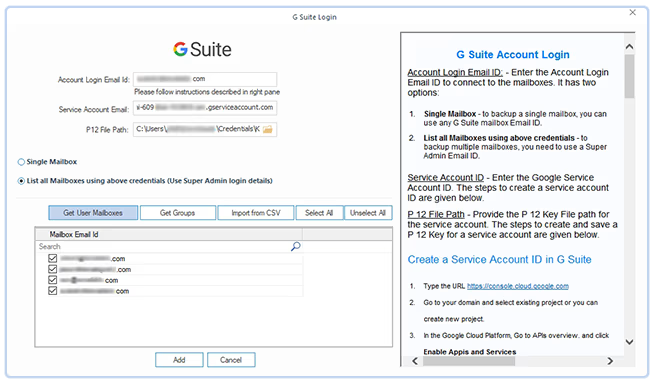
After launching the Google Workspace, users need to add a G Suite account to initiate a Google Workspace data backup. There are three steps to add a G Suite account with this software.
- Enter G Suite Credentials: In the login wizard, enter Google Workspace credentials such as Account Login Email ID, Service Account Email, and P 12 File Path.
- Get User Mailboxes: It will start retrieving all the user mailboxes associated with the super admin credentials and show them in the user's section.
- Add users mailboxes: Once you have all the G Suite users for the selected account, Use the tick mark to select and add necessary users to initiate a backup process.
Filters for selective backup
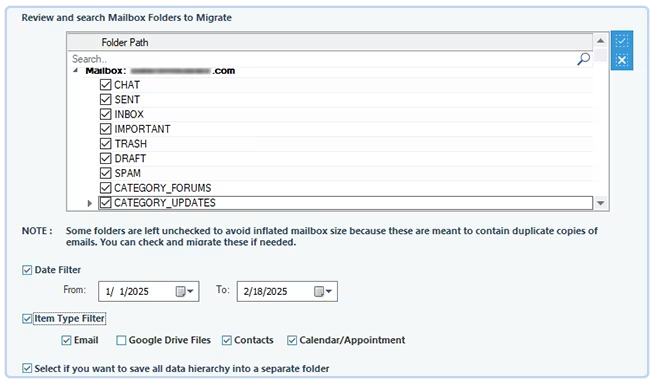
The software has multiple filters that offer a wide range of options to backup selective data from Google Workspace. Here are some prime filters to specify the backup process.
- Review and folder selection: The software will retrieve all the folders from selected G Suite account and show them in Review section. Users can easily verify their G Suite data and select necessary folders for backup.
- Offers multiple filters: Users have various filters, such as Date Filter, Item Type Filter, and Save all data hierarchy into a separate folder to backup selective data from Google Workspace.
- Take incremental backup: To backup incremental data, users must check Skip Previously Migrated Emails option. It will backup only the newly added data from the G Suite account at the destination.
Select Output format and backup
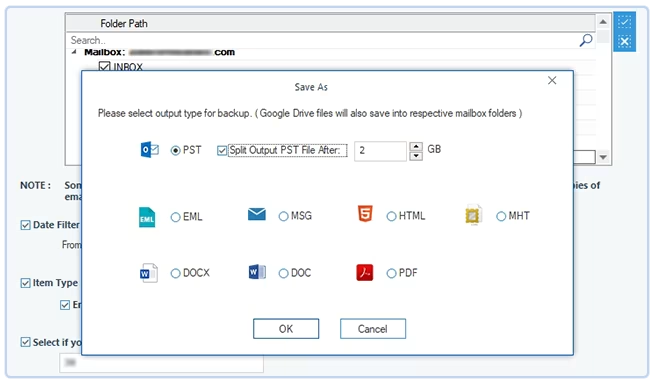
The Google Workspace Backup software has an advanced Save As wizard that allows users to backup critical Google Workspace data in the desired format. Check out all the prominent features of this wizard:
- Save Google Drives in the Mailbox: The software ensures all users' Google Drive links to the respective mailboxes in the original hierarchy. Users will get their source Google Drive links intact with folders in the destination.
- Different output formats: The software offers different output formats for data backup, such as PST, EML, MSG, HTML, MHT, DOCX, and PDF. Select the desired format and save G Suite data on the system's local drive.
- Split output PST file after: It will allow users to divide their large-sized mailboxes while backing up in PST files. Users can easily divide their PST files into different sizes, such as 1 GB, 2 GB, 3 GB, etc., accordingly.
What can you backup and restore with our software?
Check out all the Workspace elements that our tool backup and restore from Workspace account:
 Backup Google emails
Backup Google Workspace emails and folders, including Inbox, Sent, Trash, Draft, Spam, and more, while retaining its complete structure, metadata, and email status such that the read unread status.
 Backup Google contacts
Your Google Workspace contacts are precious for your business, and this G Suite backup software protects data by saving them in various formats, including PST. Choose the Contact folder for a selective Google Contacts backup using an Item Type Filter option.
 Backup Google Calendar/Appointments
Save the complete Google Workspace upcoming meetings and appointments using the G Suite Backup tool. It saves all the essential data, including date, description, and member details. Simply select Calendar/Appointments and backup them in the original hierarchy.
 Backup Google Drive data
Regular backups of all Google Drive data, including docs, files, folders, drive links, and their properties, should be taken to avoid overcrowding of data. Safeguard your Google Drive data with this G Suite Backup software.
 Restore Outlook emails
Restore active or inactive Outlook account’s PST files in the Google Workspace accounts. The software has no size or number limitation and restores large-sized mailboxes to multiple Workspace accounts.
 Restore Contacts
Outlook address books store the sender's essential contacts in the PST files. The software restores all the contacts from the address books and skips other content in the selective Google Workspace account.
 Restore Calendar
Equipped with advanced filters, this software allows users to restore appointments to Google Workspace accounts. The software restores all the calendar’s appointments with its data, such as sending and receiver’s users, topics, dates, and many more.
Frequently asked questions about Google Workspace backup tool
- Step 1: Launch the G Suite backup tool and click on +Add to add G Suite mailboxes.
- Step 2: Enter the required login details - User Login Email ID, Service Account Email ID, & P12 file Path. Choose between Single or Multiple mailboxes.
- Step 3: It will list the mailboxes in the Source list. Click on the Set Filter and Migrate option.
- Step 4: The software will show all the folders available in the account.
- Step 5: Select desired filters and choose folders. Click on I am OK, Start Migration.
- Step 6: Select the output type from available formats- PST, MSG, EML, PDF, DOC, DOCX, HTML, and MHT. Click on OK.
- Step 7: Now, select the destination path and press "OK."
- Step 8: The migration process will be completed shortly.
With this process you can easily backup G Suite emails and protect business-critical data with Google Workspace Backup tool.
- Take quick and accurate backups of multiple users simultaneously.
- Provide various filters to help users migrate only the important data.
- Configure and schedule the backup for a later time, avoiding downtime.
- Export mailboxes to multiple formats and make them accessible on different platforms.
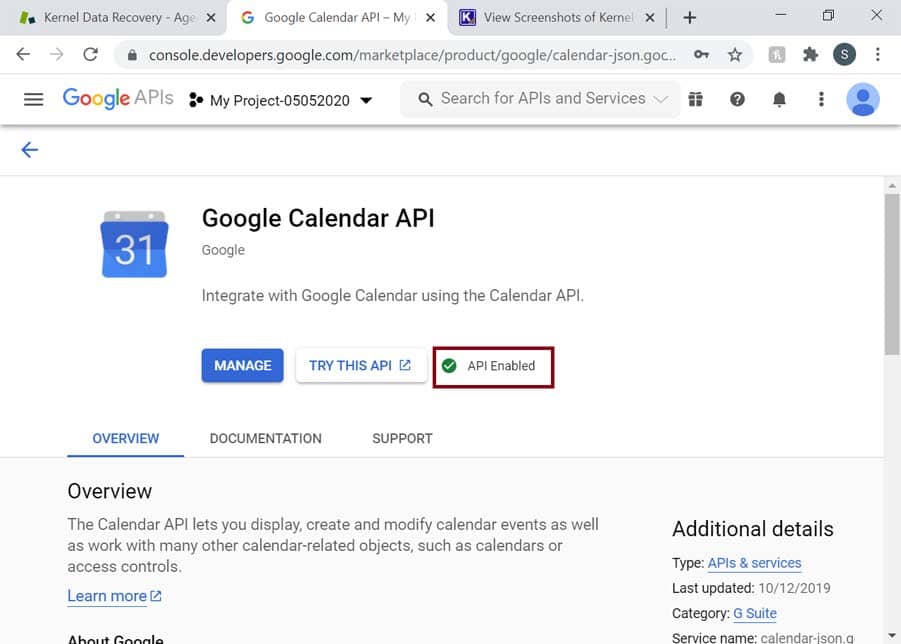
- Go to go to - https://console.developers.google.com.
- Go to your domain and ensure the new/existing project has the required API enabled.
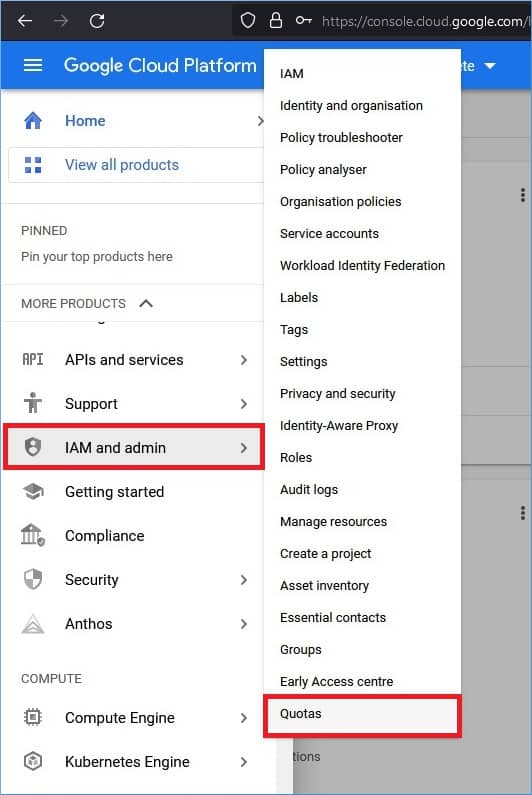
- Log in to the Google cloud platform using the URL – https://console.cloud.google.com
- In the IAM and admin category, click on Quotas.
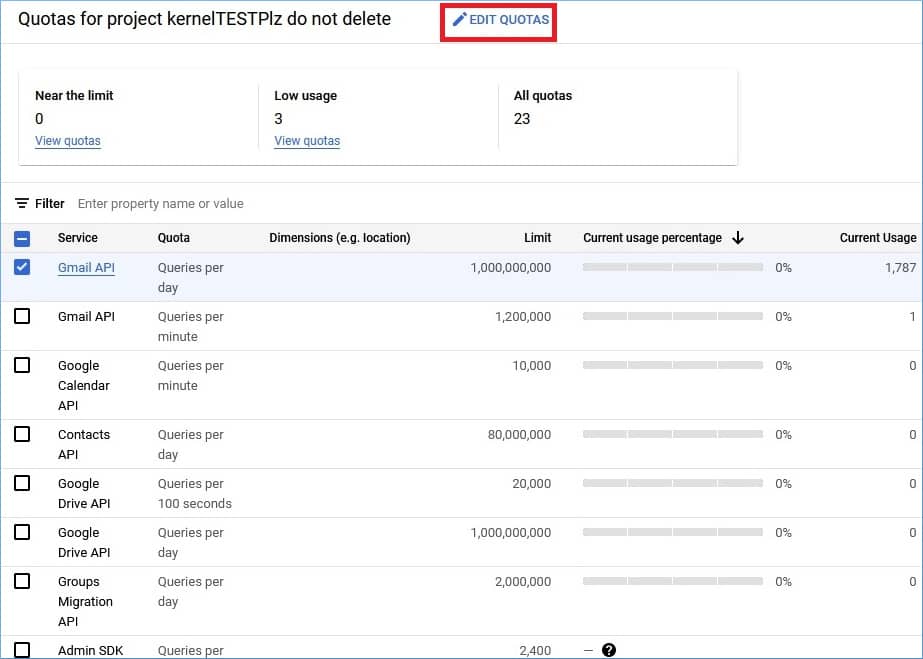
- Choose the API whose limit you want to increase. Then, choose the Edit Quotas option.
- Input a new limit and click the Submit Request option.
Similarly, you can change the quota limit of other APIs too.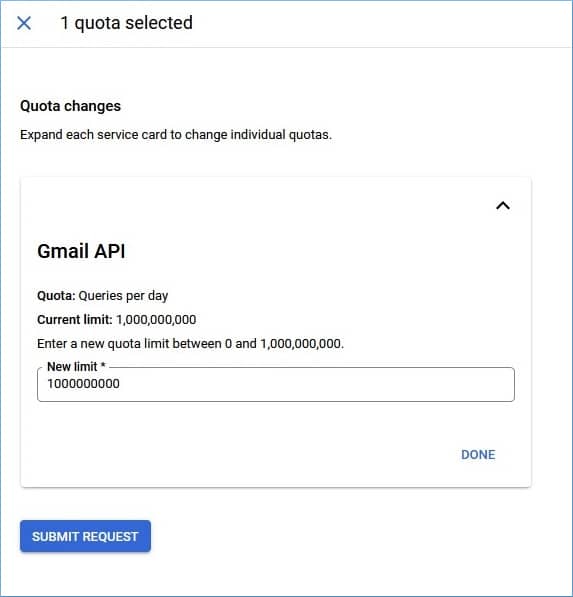
P12 keys come with a certificate in the form of a PKCS#12 bundle, whereas JSON keys can obtain the certificate from Google's SDK website. This is the primary distinction between P12 and JSON keys. A JSON Web Token (JWT) is signed with the certificate and sent to Google's OAuth 2.0 servers to request an access token. After that, API requests are authorized using the access token.
Kernel Google Workspace Backup and Restore video tutorial
Watch the video tutorial to understand how Kernel Google Workspace Backup and Restore works.

Google Workspace backup software Prerequisites & recommendations

 Version Support
Google Workspace: All plans and subscriptions for Google Workspace, Business, Enterprise, Essentials, Frontline, Individual, and Education.
Outlook PST File: 2019, 2016, 2013, 2010, 2007, 2003, 2002, 2000, 98 and 97
 System Requirements
Hard Disk: 500 MB of disk space
Memory: 128 MB Minimum
Processor: Intel® Pentium Processor compatible (x86, x64) or equivalent
Operating System: Windows 365, 11, 10, 8.1, 8, 7, Vista, XP, 2000, 98, NT, 95 (FAT 16, FAT 32, NTFS, NTFS5)
Windows Server 2022, 2019, 2016, 2012, 2008 R2, 2008, 2003 R2, 2003
 Installation Guide
 How to use
What customers say about Kernel Google Workspace Backup and Restore
 (4.9/5) 455 Reviews
Kernel G Suite Backup proves to be an outstanding tool, efficiently splitting my sizable PST files and simplifying the entire process for me. The software's excellent user interface further enhances its usability, providing a seamless and user-friendly experience.
