Read time: 9 minutes
Many Windows users have repeatedly reported that they face error messages like “Unknown Hard Error” while working on intensive applications or during Windows Update processes. Typically, the main scenarios that follow the error pop-up on the user’s screen are:
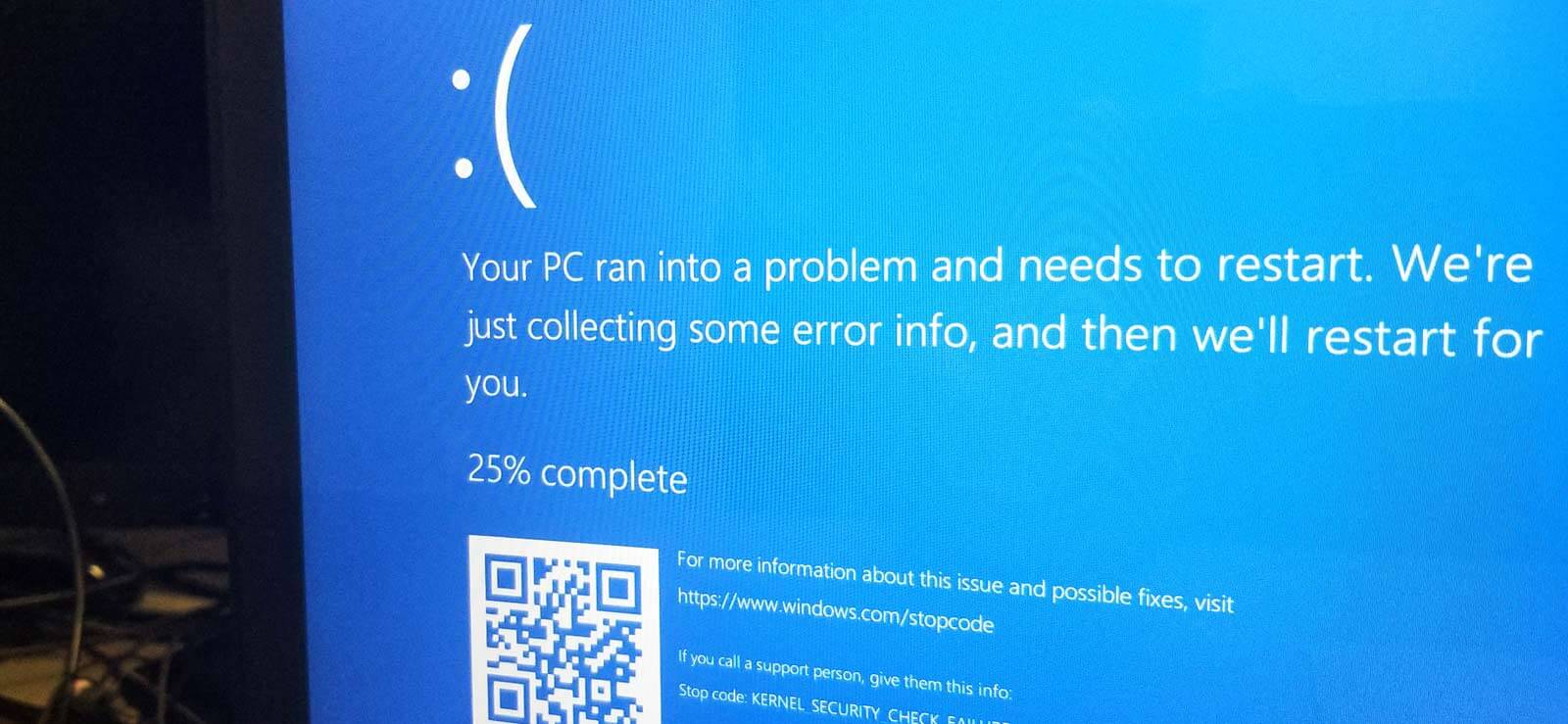
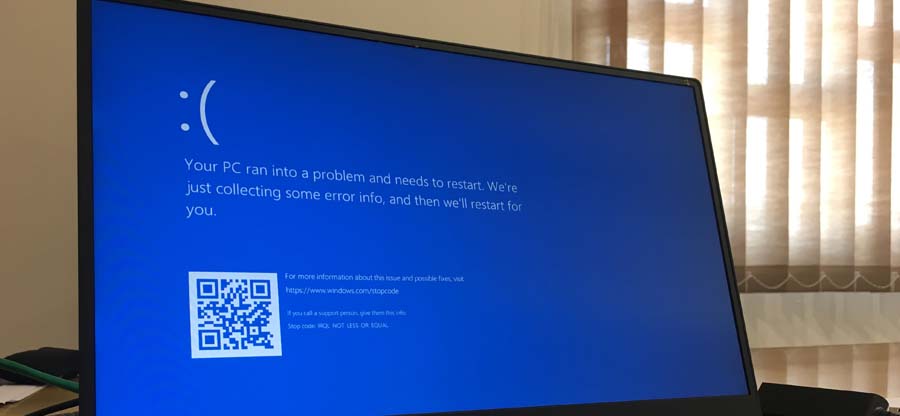
- The entire screen turns either black or blue, leaving no room for anything to function (commonly known as BSoD – Blue Screen of Death).
- System crashes, and the Taskbar freezes.
- Shortcut icons, including the system default icons such as My Computer, Networks, and Recycle bin, suddenly disappear.
This error can sometimes pop up on Windows 11, 10, and 8 platforms with a process name attached to it at the top. For instance, the “Unknown Hard Error” message shown below also includes the name of the process causing the issue, i.e., sihost.exe. Other instances can be explorer.exe, ctfmon.exe, etc.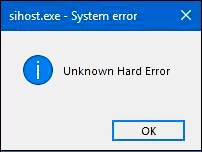
Note: If an error pops up with a process name, you can manually locate the process and terminate the same via the Taskbar menu options. All you have to do is – Select the process and click on the End Process button.
Before you try to solve the issue and regain access to your Windows machine, it’s quite necessary that you know what is an unknown hard error and the exact reason behind it. Though the culprit is sometimes hard to find, if you manage to find out the exact cause, you will be able to resolve it quickly.
Common Causes of Unknown Hard Errors on Windows All Versions
An unknown hard error on Windows PC appears as a warning message signifying issue with the efficiency of your operating system in data processing. Many factors are directly related to the “Unknown Hard Error.”
- Corrupted system files.
- Windows Registry error due to a recent update or installation.
- Bad sectors on the hard drive.
- Corrupt or faulty device drivers.
- Virus Intrusions & malware.
Symptoms and Indicators of Unknown Hard Errors
Here is how to identify the unknown hard error on your PC:
- Black or blue screen: Your system’s screen will appear black or blue, resulting in the Blue screen of Death followed by a forced shutdown.
- Icons disappearing: System icons on your desktop, like Recycle Bin, may disappear suddenly from the screen.
- Settings inaccessibility: You can have issues in accessing Windows Settings, often complemented by error messages like “access denied”.
- Error messages: You might see warning messages in a pop-up, saying “Unknown Hard Error” immediately after you boot your system.
- Program failures: Games or apps that require heavy system resources show restrictions during launch.
Methods to Fix “Unknown Hard Error” on Windows 11 and Older Version
If you are currently working on a Windows 11, 10, or 8 machine, it is highly recommended that you either switch to the Safe Mode or login via the Administrative account. There are consecutive steps that must be carried out one after another in order to ensure that each configuration and system settings are made favorable for the user to gain back the system access after encountering the “Unknown Hard Error” message on their screen.
Solution 1: Perform a Clean Boot
In case any third-party application or any startup service is causing the issue, a clean boot process is helpful to diagnose the faulty application or service.
Follow the step-by-step guide to fix Unknown Hard Error on Windows machine:
Step 1: Press Win + R and launch the Run Command dialog box.
Step 2: Type “msconfig” and hit Enter.
Step 3: In the System Configuration dialog box, go to the Services tab.
Step 4: Check the Hide all Microsoft services check box and click on the Disable all button.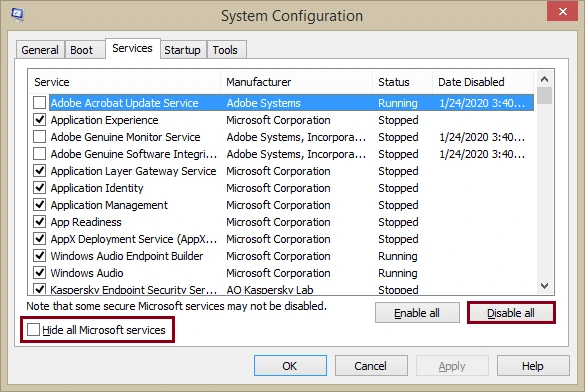
Step 5: Now, right-click on the Taskbar and select Start Task Manager.
Step 6: In the Task Manager dialog box, go to the Startup tab.
Step 7: Select individual programs that have either low or medium Startup impact and click the Disable button.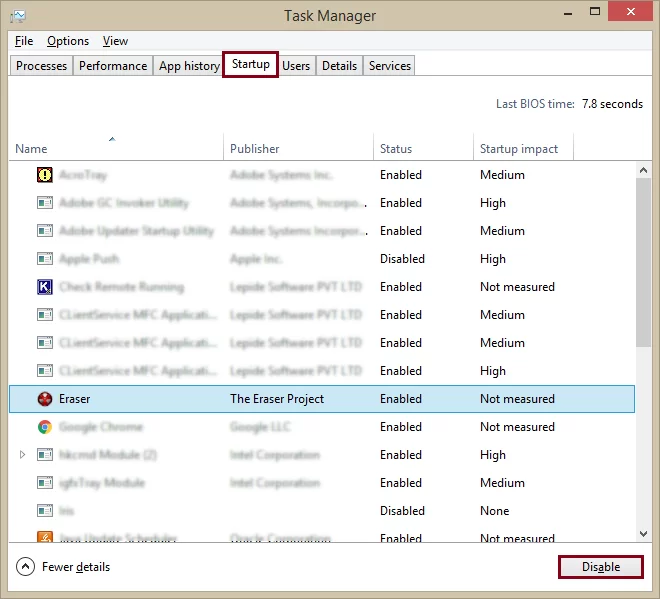
Step 8: Reboot your system.
Solution 2: Perform an SFC scan
Sometimes, the corrupt system files are also a root cause of bugs and errors. Checking and repairing corrupted system files can also help you resolve the hard error. Execute the scan/scannow command on the Command Prompt window to scan the local drives for all possible damaged or corrupt system files. The command not only scans the drives for errors but also fix the corruption issues residing in the system files.
To run an SFC scan using the Command prompt, follow the given basic troubleshooting steps for unknown hard errors.
Step 1: Go to the Startup menu and click on the search box.
Step 2: Type “Command Prompt” and hit Enter.
Step 3: Right-click on the Command Prompt link and select Run as administrator.
Step 4: Type “sfc/scannow” and hit Enter.
Step 5: Wait until the scan process is completed.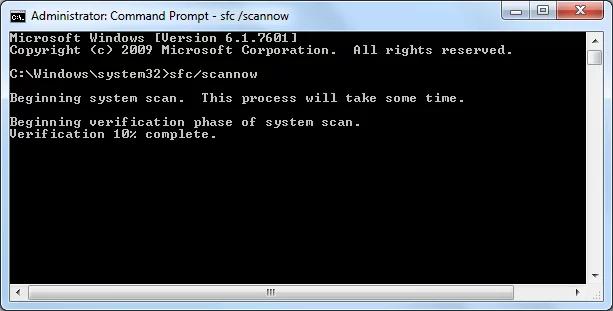
Once the command gets executed, it will show all the corrupt system files that are found during the scan process. In case the scan doesn’t detect any corrupt system files, it will display a message saying, “Windows Resource Protection did not find any integrity violations.”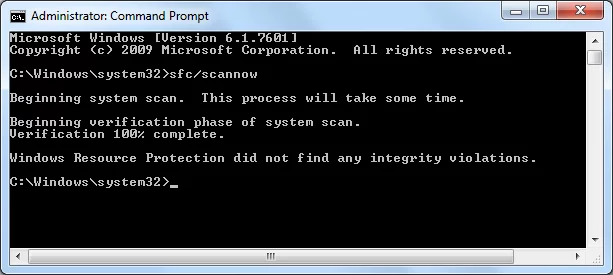
Solution 3: Run CHKDSK to fix damaged or bad sectors on hard drives
Bad sectors on hard drives are also responsible for the “Unknown Hard Error.” Run Command Prompt as an administrator and execute the Check Disk command to scan the drives for damages and corruption issues.
Follow the steps to run CHKDSK using the Command Prompt’s command console.
Step 1: Go to the Start menu and click on the search text box.
Step 2: Type “Command Prompt” and hit Enter.
Step 3: Right-click on the Command Prompt link and select Run as administrator.
Step 4: Type “chkdsk /f /r” in the command console and hit Enter.
Upon execution, it will repair all the defective hard drives that are causing the issue.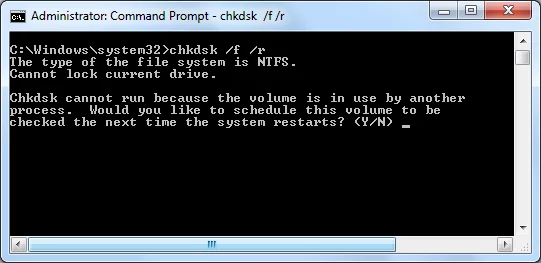
Note: The syntax for CHKDSK can be changed according to the partitions on your system.
Solution 4: Check for any recent software changes
If you have recently installed an application on your Windows machine and soon after that you started facing the “Unknown Hard Error,” you can try re-installing the software. If the error persists, it is suggested to uninstall the software through the Control Panel settings.
Solution 5: Update outdated or faulty drivers
Consider updating all outdated device drivers on your system. Sometimes, incompatible or obsolete Windows drivers affect the working of specific applications, which in turn degrades the entire workflow. In case the outdated driver is associated with an app you are trying to launch on your Windows machine, it can result in error messages like the “Unknown Hard Error.”
If anything doesn’t seem to be working and you are still getting error messages, try using third-party software to get your data back. Inaccessible drives can be repaired using an efficient data recovery tool.
Solution 6: Expert-recommended Window Data Recovery tool to recover Windows data files
Kernel for Windows Data Recovery Tool is a prominent tool to recover lost, corrupted, or permanently deleted data from your local as well as external hard drives, even if they are inaccessible or corrupted for any reason. The tool also helps users to recover deleted files from windows 10 platform. If the process to resolve error with any of the methods explained, involve data loss or inaccessibility, use the tool to restore it effortlessly.
Download the software, choose a mode to scan, specify the affected drive, and recover all the data. Moreover, you can download the trial version free, which can later be upgraded after purchasing the licensed version.
Conclusion
The unknown hard error is the most annoying while doing some work on your system. This article covers all the possible methods to fix the Windows unknown hard error. Occasionally, you can lose your data while applying the methods mentioned above. However, if these methods cannot work, you can try a third-party reliable tool to recover your essential data within a few minutes. With Kernel Windows Data Recovery, it is easy to recover data from Windows partitions as well as from removable devices like SD cards, USB flash drives, and others.
Frequently Asked Questions
A. To diagnose unknown hard errors on Windows PC, run a System File Check (sfc/ scannow) and DISM scan in the command prompt. You can also run a drive health check by running CHKDSK to identify and troubleshoot any existing physical drive errors.
A. To fix an unknown hard error on Windows with the Safe mode enabled, go to Settings, click on Update & Security > Recovery > Restart now.
Now, go to Troubleshoot, click Advanced options and then Startup Settings. Click Restart and then F4 or 4 to enter into Safe mode.
A. To maintain the health of your Windows PC, make sure to run a weekly antivirus scan, follow best practices for keeping windows updated, free up disk space, uninstall unused software, and turn off irrelevant or unnecessary app alerts.
A. Using System Restore to Resolve Unknown Hard Error simply means reverting your system to a previous state that was working before the error occurred. For this, you need to create a system restore point and select the date and time of the state to which you want to restore it.