Read time: 11 minutes
Yahoo and Gmail are both reliable email communication platforms. However, from the security point of view, Google offers a more secure framework. Yahoo’s history of data breaches and the frequency of advertisements it displays compel users to transfer emails from Yahoo to Gmail. Other than security, Google’s interface and G Suite application integration offer a better overall experience to users.
Migrating from Yahoo to Gmail is a simple process when you know the correct way. In this blog, you will find the most popular methods to move Yahoo mails to Gmail with complete emails and attachments. For the transfer, we will use Google’s built-in functionalities, a third-party email client, and an advanced IMAP migration tool. Before you start moving to Gmail, make sure to backup Yahoo mail data to avoid permanent data loss.
Why User Transfer Emails from Yahoo to Gmail?
Check out the top reasons to move your Yahoo mails to Gmail:
- Gmail and Yahoo have friendly interfaces, but Gmail is more convenient and popular than Yahoo Mail.
- Yahoo Mail’s free version shows more ads than Google’s free version.
- Gmail supports significantly more languages in comparison to Yahoo, making it more versatile.
- In Gmail, using Google Chat, one can instantly message an online contact. However, Yahoo has no dedicated chat application.
- Google AI integration is more developed and easier to use than Yahoo’s AI features.
- Google’s mobile application is easier to use and reliable, helping users to access Google’s services without PC.
Best Methods to Move Emails from Yahoo to Gmail
Although Yahoo is constantly upgrading its performance and service experience, many users are still choosing to transfer emails from Yahoo to Gmail. Luckily, this data transfer is completely free using the methods given below:
Method 1: Import Yahoo Email to Gmail
Google allows users to directly import emails from Yahoo to Gmail without the need for any third-party application. The steps to import Yahoo are:
Step 1: Log in to the Gmail account and click on the settings icon.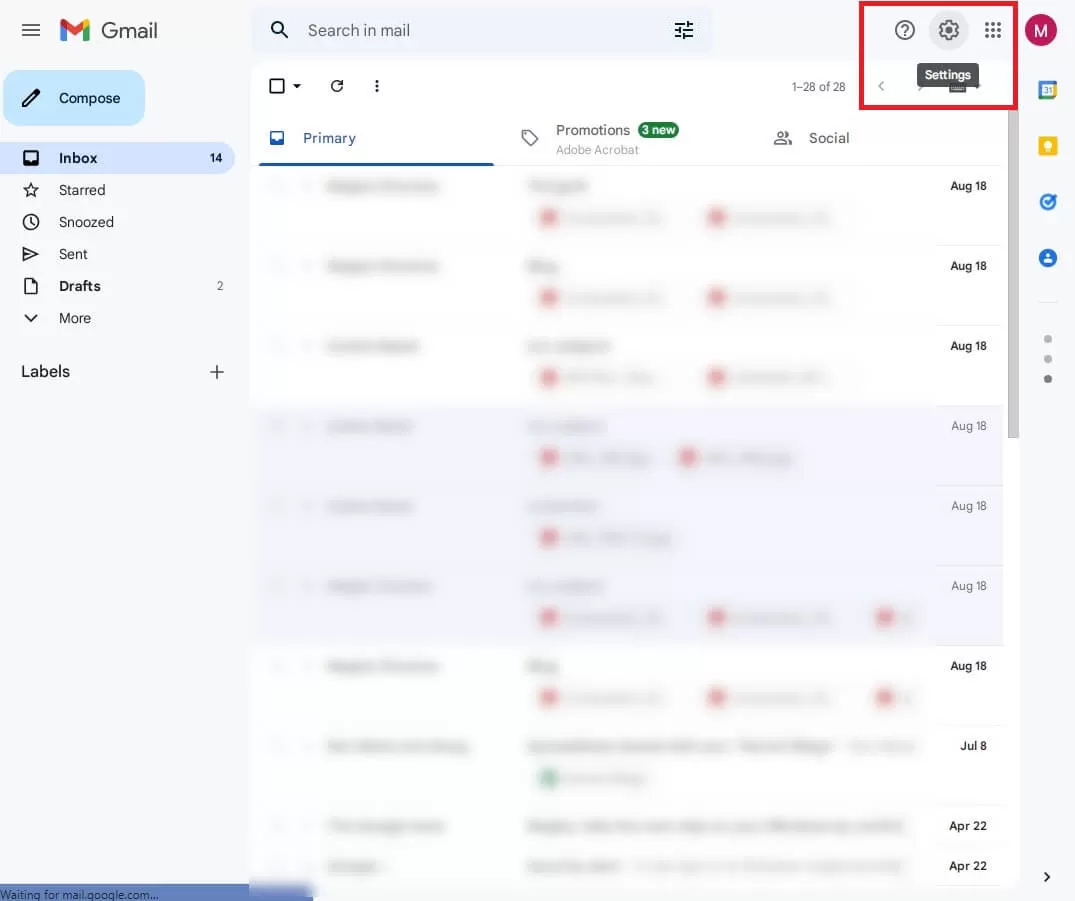
Step 2: Next, click on See all settings.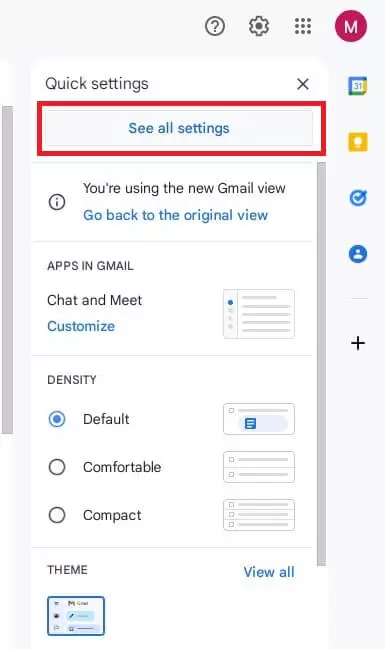
Step 3: Go to the Accounts and Import section in the setting window.
Step 4: Here, click on Import mail and contacts.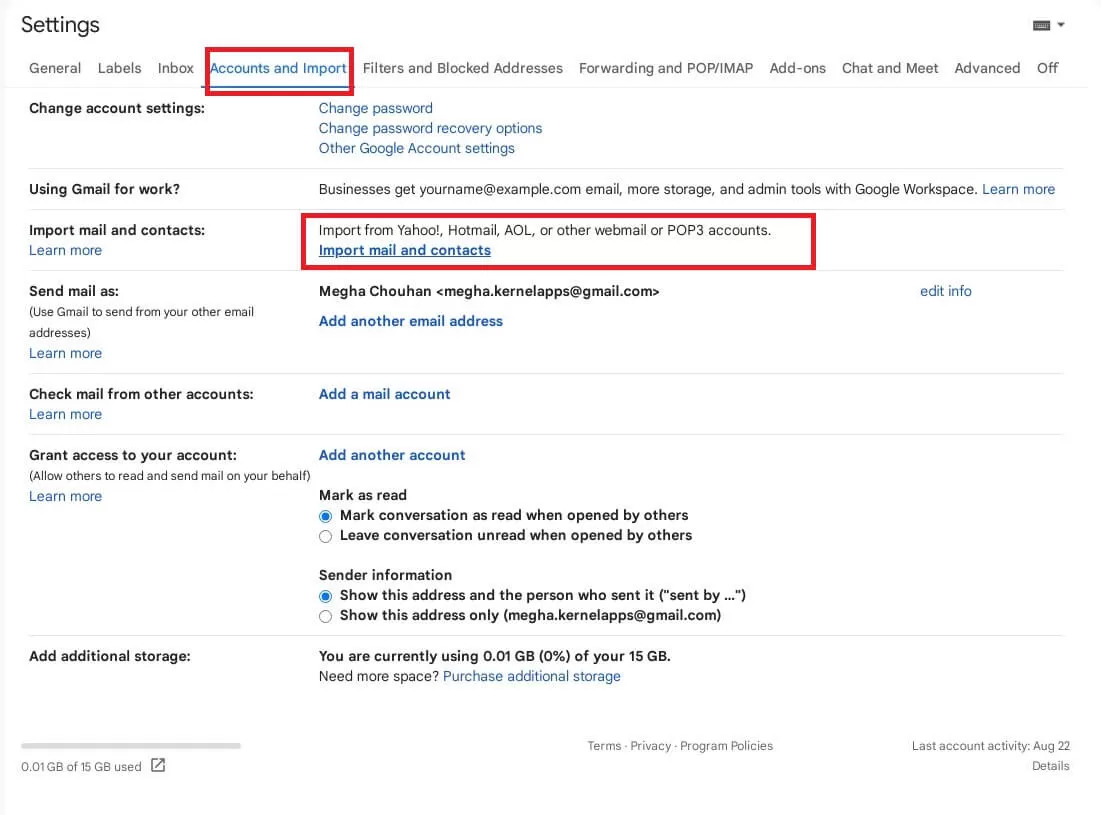
Step 5: Next, a window will appear. Here, type your Yahoo mail address and click on the Continue button.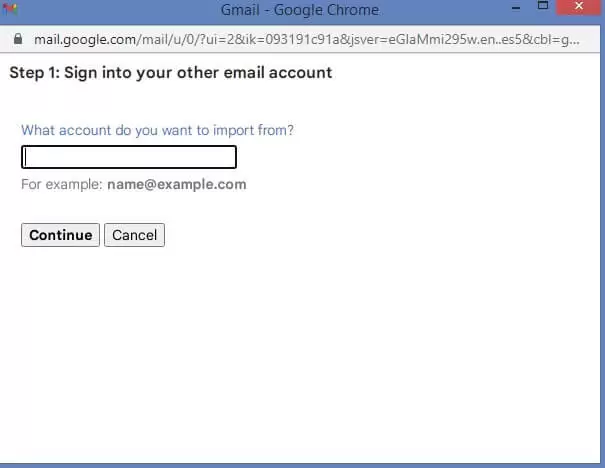
Step 6: Sign in to your Yahoo account and then click Agree on the permission window.
Step 7: Select the import options according to your requirement and Start import button to begin importing Yahoo Email to Gmail.
Gmail will create a new label for your Yahoo emails. You can view all the imported emails under this label. However, depending upon the mailbox size, it could take days to import all the messages.
Note: Emails may not appear instantly in your Gmail account. It can take up to 2 days for the messages to appear.
Method 2: Forward Yahoo Email to Gmail
Another method you can try is email forwarding. This will enable Yahoo Mail to automatically send all the incoming emails to target Google account. However, you cannot transfer emails from Yahoo to Gmail that are currently present in Yahoo Mail using this method. Steps to forward emails are:
Step 1: Go to your Yahoo Mail account and click on Settings button and select Settings option. 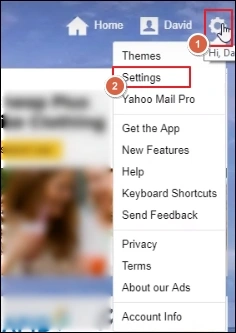
Step 2: Click Accounts option from left pane and select the mailbox account that you want to move from Yahoo mails to Gmail. 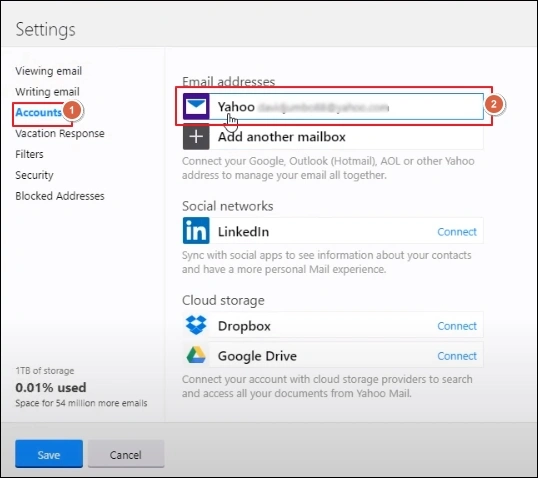
Step 3: Enter the Gmail email address in the Access your Yahoo Mail elsewhere section and click Verify. 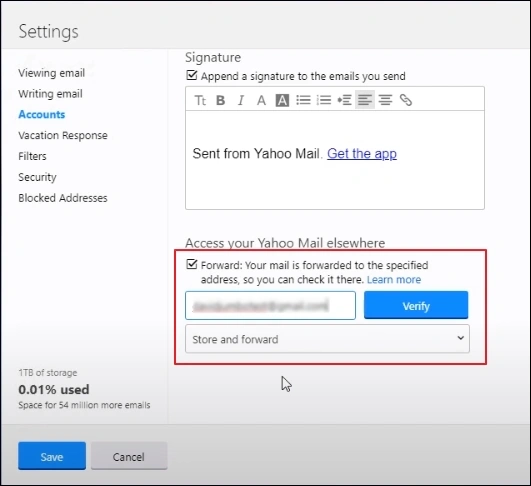
Step 4: Sign in to the target Google account. Open the verification link from Yahoo and verify the email address.
Step 5: Return to Yahoo and save the changes.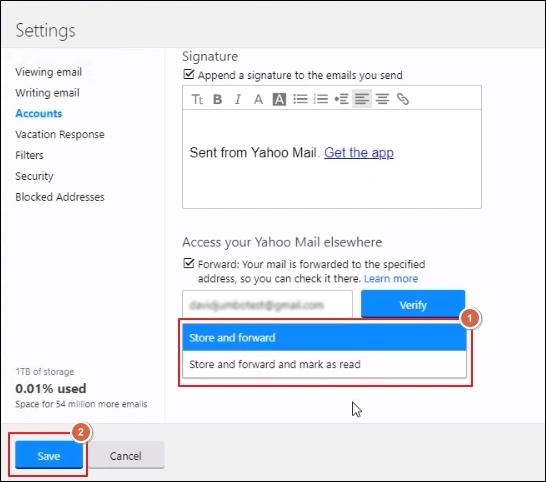
Method 3: Migrate Email using an Email Client
You can add your Gmail and Yahoo accounts to a third-party email client like Outlook or Thunderbird. Mirror folders from Yahoo into Gmail and move the emails from one folder (Yahoo) to another (Gmail). I use it when I need to transfer single mailbox data between Gmail and Yahoo, as this method allows me to retain the folder structure of Yahoo in Gmail.
I personally use Outlook for this transfer. You can choose any email client you like. Use these IMAP settings for Gmail and Yahoo to configure the accounts.
|
IMAP Setting for GMAIL |
IMAP Settings for Yahoo Mail |
|
Incoming Mail (IMAP) Server
|
Incoming Mail (IMAP) Server Settings
|
|
Outgoing Mail (SMTP) Server
|
Outgoing Mail (SMTP) Server Settings
|
Note: If you use MFA, create an app password to avoid login errors.
Step 1: Add both Gmail and Yahoo to the email client of your choice.
Step 2: Create the source mailbox folders (Yahoo) in the Gmail mailbox folder in the email client.
Note: This step is optional. But I recommend doing it if you want to maintain the source folder hierarchy in Gmail.
Step 3: Copy the emails from your Yahoo Mail folder and paste them into the new folders you created in Gmail.
Step 4: Wait for the Gmail to auto-sync the emails between your email client and the Gmail’s server.
Method 4: Move Emails with an IMAP Migration Tool
When you need to move multiple Yahoo Mail mailboxes to Gmail, you need a professional IMAP migration tool. The native methods are not reliable for large-scale email transfer. Use a tool that offers fast, accurate, and complete data transfer while retaining the source folder structure.
I have personally used and carried out multiple email migrations between different IMAP servers using the Kernel Migration for IMAP tool. Steps to import Yahoo Mail to Gmail are:
Step 1: Download and open the tool. Select the IMAP-to-IMAP option.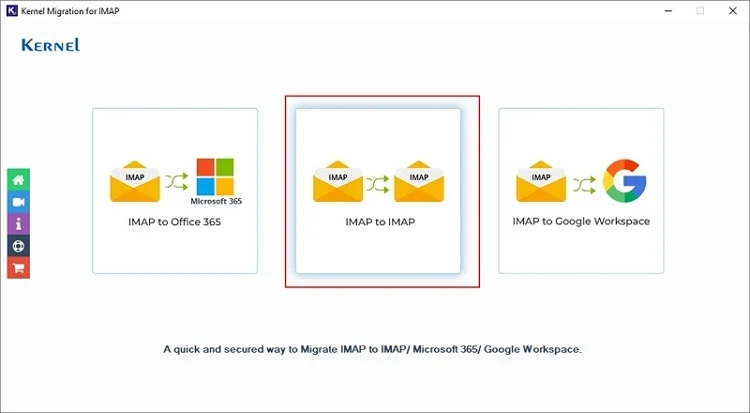
Step 2: Click on the Add button in Step 1: Add Source section and add your Yahoo account.
Note: For connection, use the IMAP settings given above for Yahoo Mail.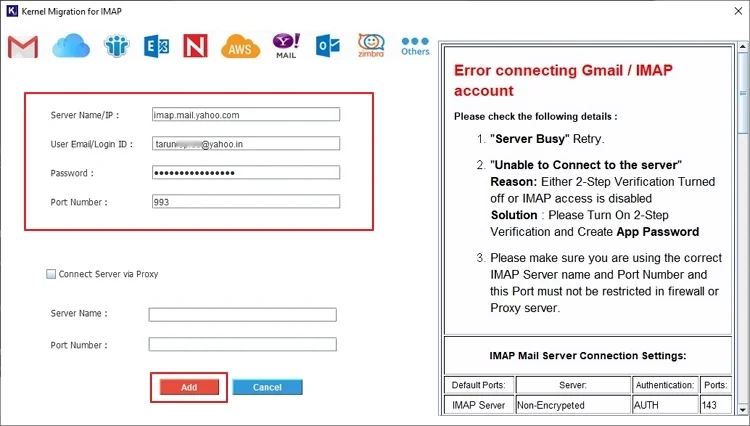
Step 3: Similarly, click on the Add button in Step 2: Add Destination section and add your Gmail account with the IMAP settings given above for Gmail.
Step 4: After adding both source & destination accounts, map the mailboxes, and click on the Set Filter and Migrate button.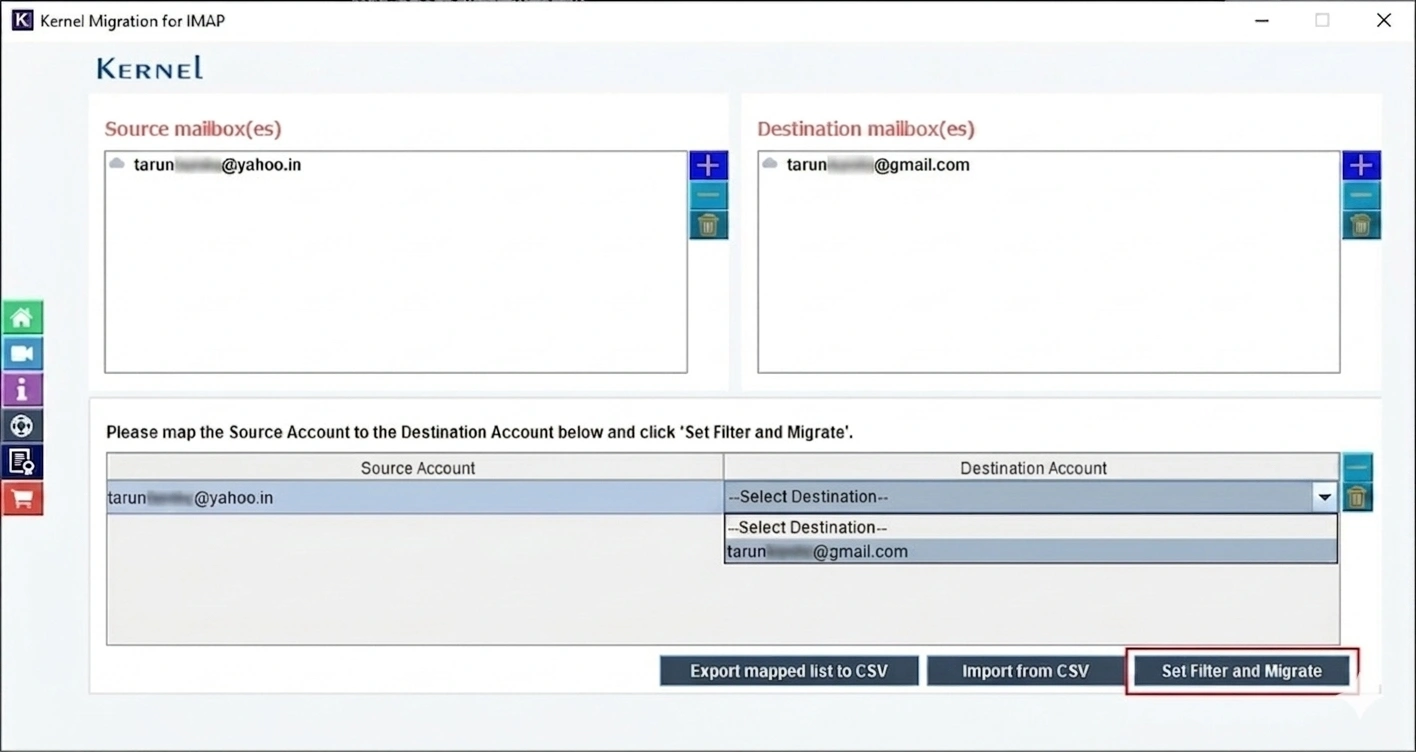
Step 5: Apply filters as per you need and click Start Migration.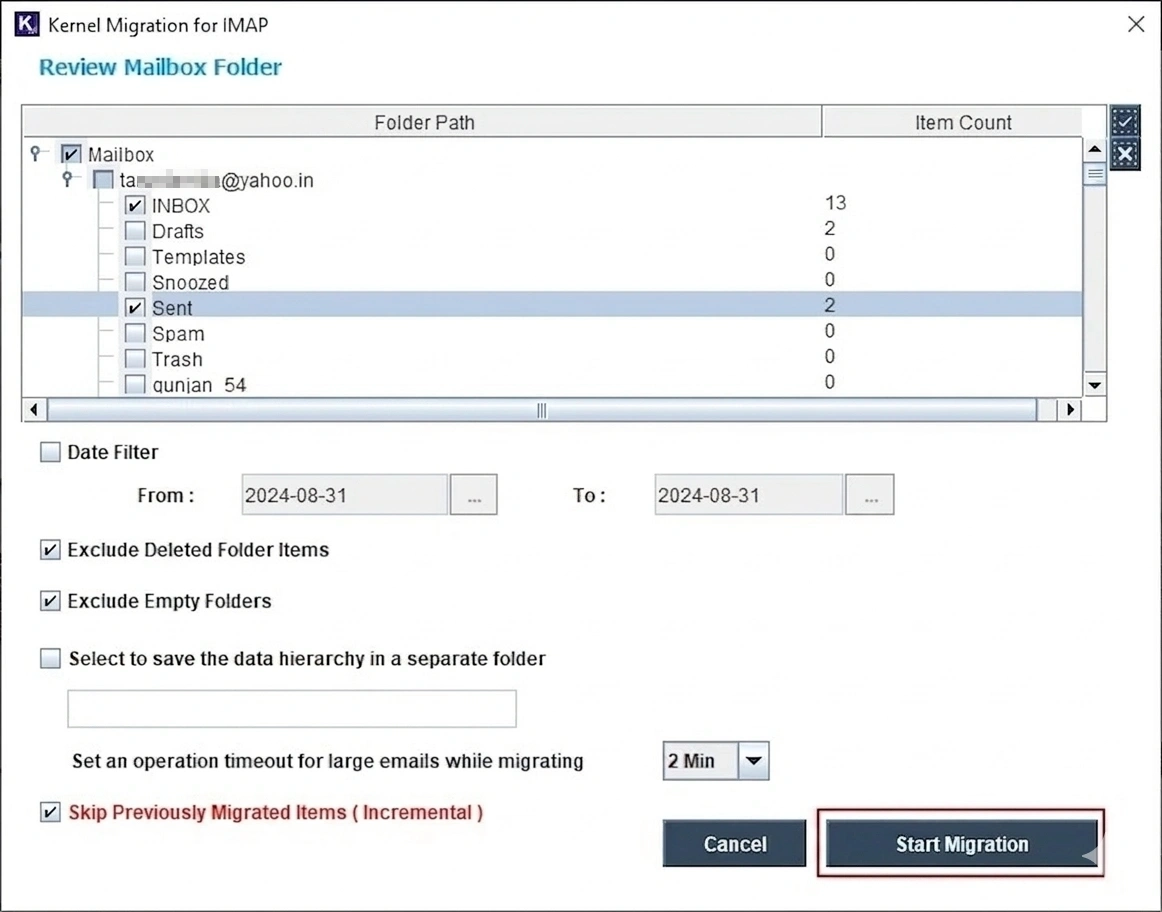
Step 6: The tool will begin to import Yahoo Mail to Gmail. The status of migration will turn Completed when the transfer is complete.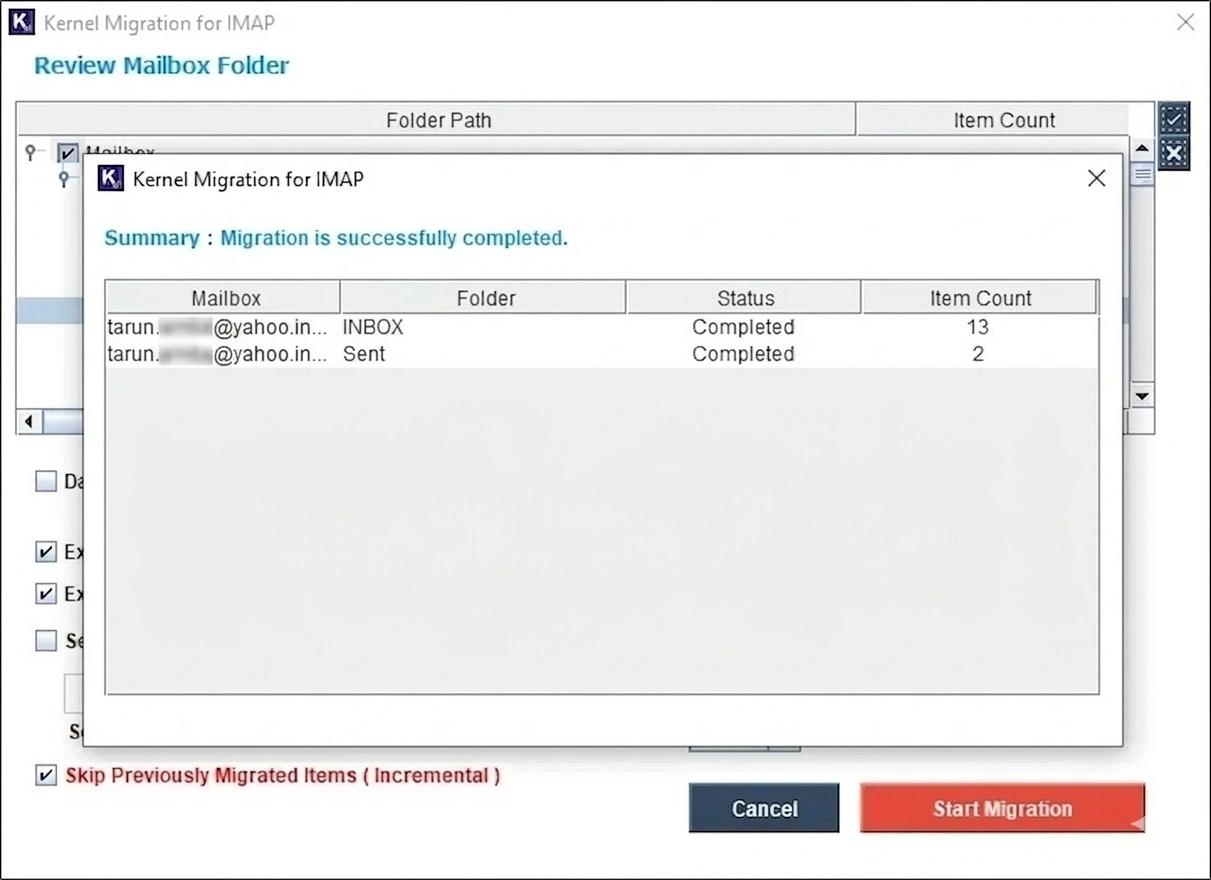
Comparison of Methods to Transfer Yahoo Mail to Gmail
Check out this table to quickly know which method you should go for.
|
Parameter |
Method 1: Import Tool |
Method 2: Email Forwarding |
Method 3: Email Client |
Method 4: IMAP Migration Tool |
|
Primary Purpose |
Migrating existing emails & contacts |
Redirecting future incoming emails |
Manual migration via drag-and-drop |
Professional and bulk data migration |
|
Technical Effort |
Low (Native UI settings) |
Low (Simple verification) |
High (Manual configuration) |
Medium (Software installation) |
|
Existing Email Transfer |
Yes |
No (New emails only) |
Yes |
Yes |
|
Future Email Transfer |
Yes (For 30 days only) |
Yes (Indefinitely) |
No (Requires manual sync) |
No (One-time migration) |
|
Attachment Support |
Yes |
Yes (Indefinitely) |
Yes |
Yes |
|
Bulk Account Migration |
No (One account at a time) |
No (Manual setup per account) |
No (Individual handling) |
Yes (Multiple mailboxes supported) |
|
Folder Hierarchy |
Created under a new label |
N/A (Direct to Inbox) |
Retained (If manually mapped) |
Retained (Automated mapping) |
|
Data Filtering |
None (Imports everything) |
None (Forwards everything) |
Manual selection |
Advanced (Date/Folder filters) |
|
Speed |
Slow (Can take up to 2 days) |
Instant (Per email) |
Manual (Depends on upload speed) |
Fast (Server-to-server) |
|
Reliability |
Medium (Occasional sync delays) |
High (For new emails) |
Medium (Risk of sync errors) |
High (Professional grade) |
What’s Next After You Import Yahoo Mail to Gmail?
You are done importing emails. Now, do this to prevent errors while accessing Yahoo emails from the Gmail platform.
- Compare the number of emails in Yahoo with that of Gmail to make sure all emails are moved.
- Open hyperlinks and attachments to check if you can access them without issue.
- Check the folder structure (if you used Method 3 and Method 4).
- If you are going to use Gmail’s new address to send email, notify all your contacts.
- Delete the app-specific password you created to login to Yahoo and Gmail.
Conclusion
Now you know the simplest methods to transfer emails from Yahoo to Gmail. Choose any method you find most suitable or use both in combination (first import, then enable email forwarding). Make sure to back up your Yahoo emails before you try any method. For a single mailbox transfer, I personally suggest using method 3, as it also helps to preserve folder structure. But for multiple mailbox migration, using Kernel Migration for IMAP is without a doubt your best choice. The tool even offers a free trial version.
Frequently Asked Questions
A. Go to Gmail, click Settings > All Settings.
Click on the Accounts and Import tab.
Add your Yahoo email address in Send mail as.
Verify the email and click on make default button.
A. First export contacts from Yahoo:
1. Click the Contacts tab in Yahoo Mail. Click the More options icon and select the Export to CSV file option.
2. Provide a saving location and click Save.
Then, import the contacts CSV to Gmail.