Read time: 8 minutes
Summary: I had 80 GB of mailbox data within my AOL account, and I planned to forward it all to my Gmail mailbox, which was my primary email account. Follow the article to see all the methods and solutions that I used for AOL Mail to Gmail transition. It will provide you with information on how to avoid errors and forward emails with minimum hassle. Moreover, check out IMAP Migration tool for direct AOL Mail to Gmail migration.
AOL, just like major email communication apps, used to support automatic forwarding of emails; however, this feature is no longer supported. The feature was phased out to minimize email spamming and phishing attacks. The repercussions of this decision are quite noticeable and are causing inconvenience to the users.
Users are experiencing issues, such as missed messages, updates or appointments, hacked or intruded sensitive data, and an increase in the number of non-delivery reports. This explains why users are actively looking for ways that can help them forward AOL Mail to Gmail.
Quick Tips to Avoid Issues When Forwarding AOL Mail to Gmail
- Authentication issue: Don’t use your primary password, as Gmail often rejects AOL login. Create a unique 16-character password to connect AOL in Gmail.
- POP timeout: The import utility of Gmail can cause connection errors, so use POP3 account with the correct server settings.
- Missing data: Manual solution carries the risk of missing historical data and large attachments, so use IMAP backup tool to secure your data.
- Spam messages: Emails forwarded are sent to Gmail’s spam folder. Skip using AOL’s internal email forwarding rules.
- Missing contacts: Forwarding AOL to Gmail transfers emails but not contacts, so manually export your AOL contacts and import them to Gmail.
Comparing AOL and Gmail: Features and Benefits
Before we find out the ways for AOL Mail to Gmail migration, let’s be familiar with the differences between the two platforms:
| Factors | AOL Mail | Gmail |
|---|---|---|
| User interface | Classic UI | Dynamic and engaging UI |
| Storage | Limited | 15 GB across Google Workspace |
| Folder organization | General folder arrangement | Use labels to organize |
| Use labels to organize | Basic security and privacy | Advanced data protection with the two-factor authentication |
| Offline access | Not supported | Supported |
How to Switch from AOL to Gmail?
Here are the two different options that you can use to forward AOL mail to Gmail. Follow the process step-by-step to get required results:
Using Gmail’s Import Mail and Contacts
The Import mail and contacts option of Gmail allows you to move email messages and contacts (address book) from other email platforms to Gmail. Here is the process:
- Go to your browser and login to your Gmail account.
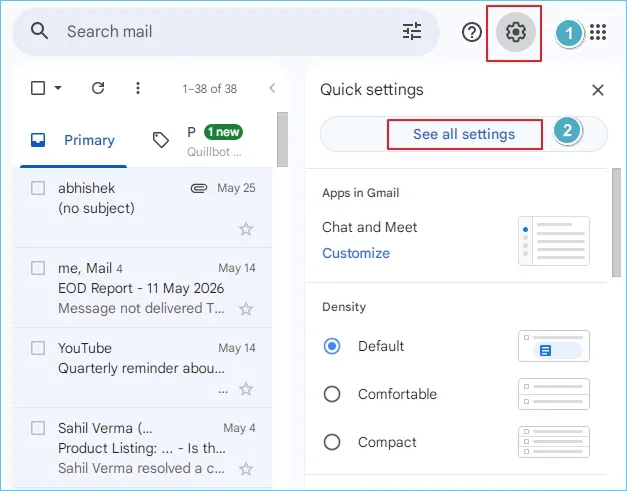
- Tap on the Gear icon from the top-right corner and click See all Settings.
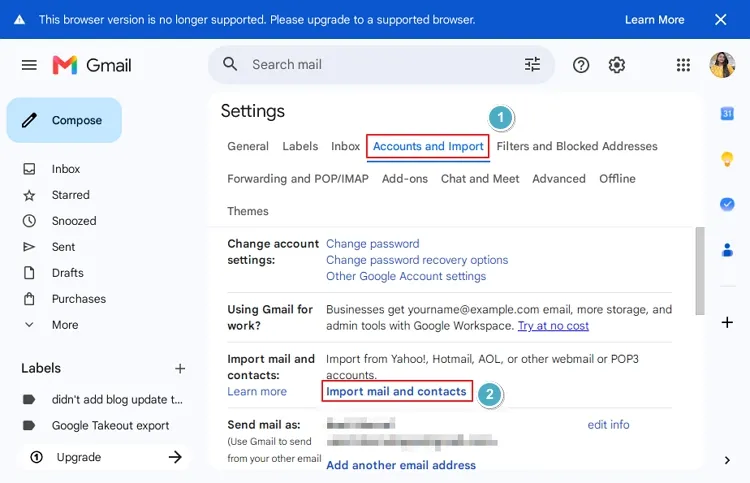
- Go to the Accounts and Import tab > Import mail and contacts.
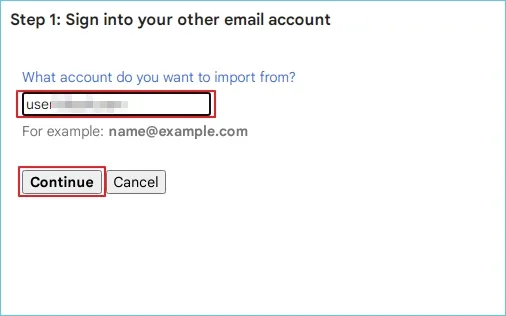
- Enter your AOL Mail email address and click Continue.
- In the next screen, enter the password and again hit Continue.
- Select the Import options and click Start Import. Click OK to finish.
It will migrate AOL to Gmail account, but it can even take several days to complete, especially when there’s a large dataset on the queue.
Using IMAP settings for AOL and Gmail syncing
Another common method that most users consider to forward AOL Mail to Gmail is using the IMAP server settings to synchronize AOL emails with Gmail.
- Open your AOL account and go to Settings to enable IMAP settings.
- Now go to Gmail account, Gear icon > See all Settings.
- Click on the Accounts and Import tab and select Add another email address.
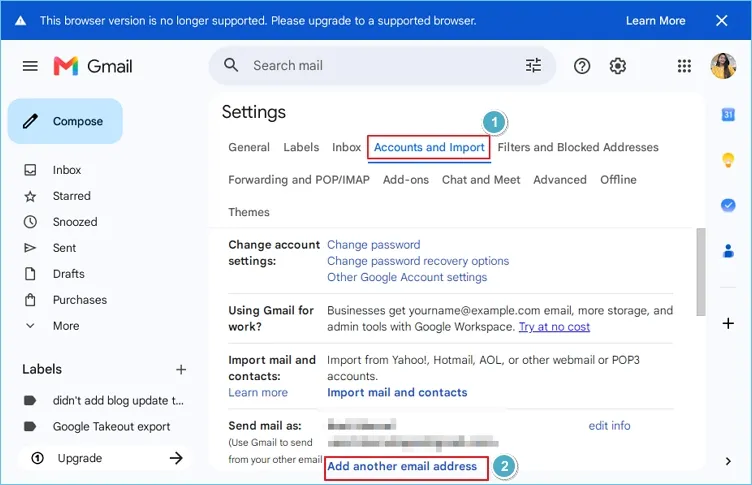
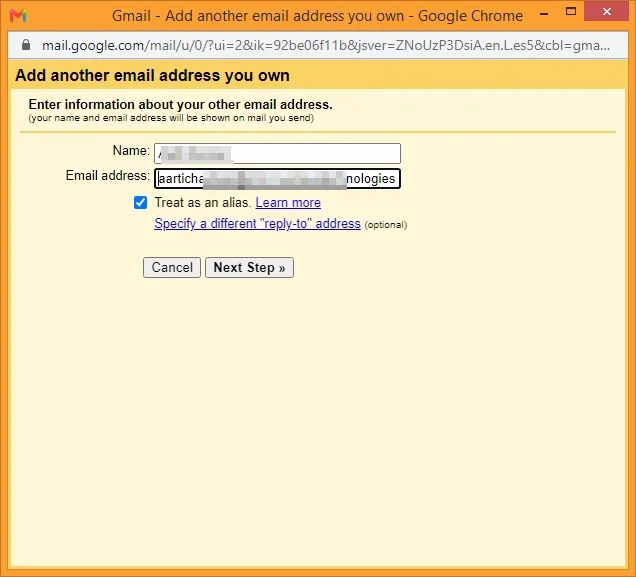
- Enter the AOL account’s email address and select IMAP.
- Enter the server settings (incoming and outgoing).
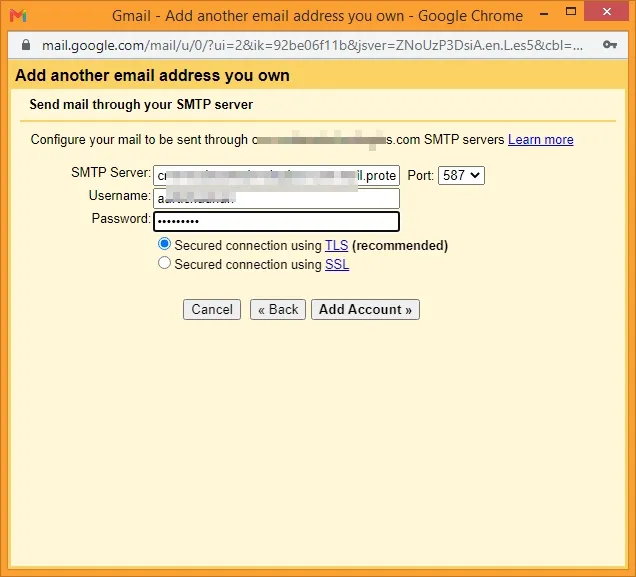
- Save and permit Gmail to sync data with the AOL account.
What is the Best Way to Export AOL Emails to Gmail?
When we set up email forwarding, the first thing to understand is that it will only send new email messages to Gmail. Another issue with the manual processes is that the solutions are a bit confusing and need you to begin from scratch if anything goes wrong.
In such situations, Kernel Migration for IMAP tool seems to be the most efficient solution. This is because it will help you switch from AOL to Gmail with minimum hassles. Use the IMAP Migration tool to directly migrate AOL emails with all key attributes to Gmail. It offers multiple export options to make sure users can migrate mailboxes according to their requirements.
Steps to export AOL emails to Gmail
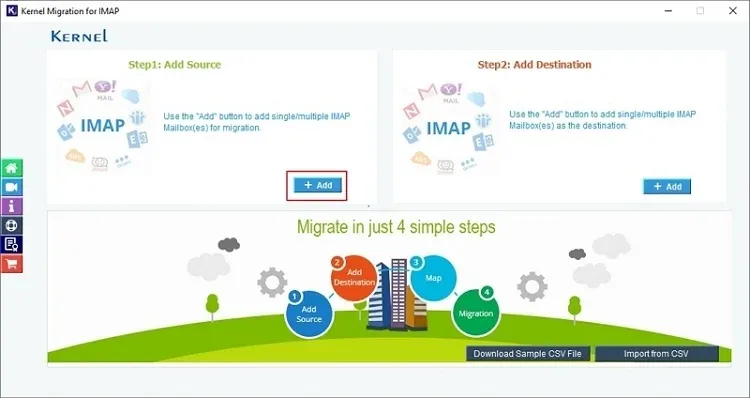
- Launch the IMAP migration tool and click on the IMAP to IMAP tab.
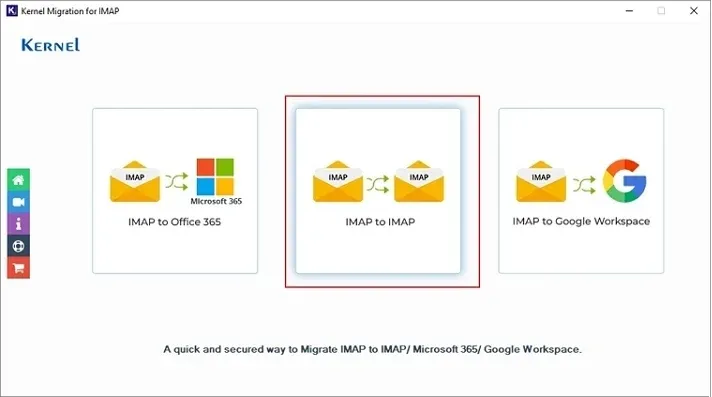
- Click Add in the source pane to connect the AOL Mail account.
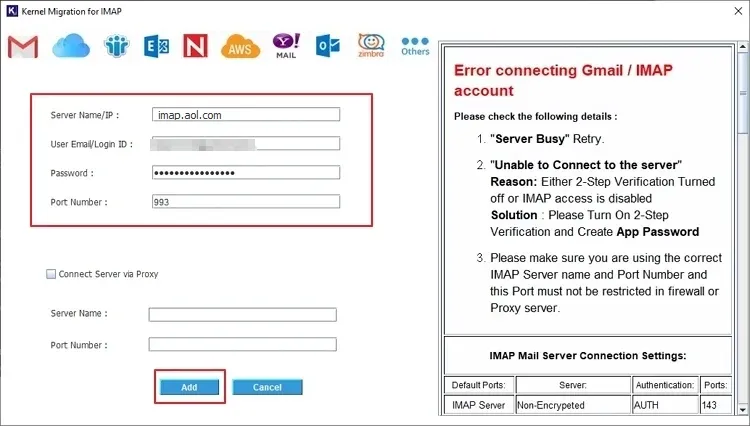
- Enter the required credentials to login AOL mailbox. Click Add.
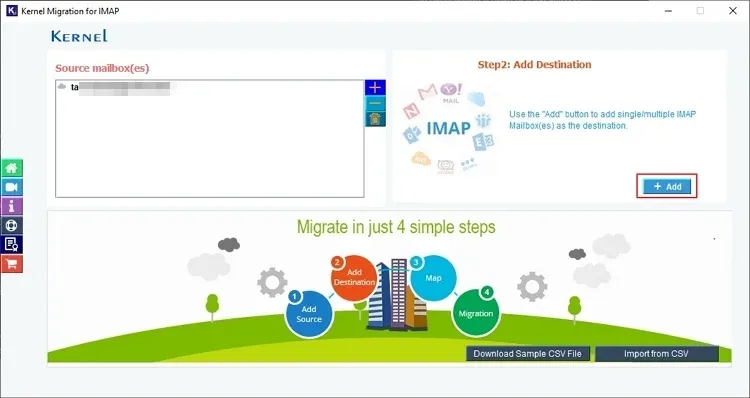
- Similarly, click on Add in the destination pane and enter credentials to connect Gmail mailbox.
- Proceed ahead, map the source account with the target account and select
Set Filter and Migrate. 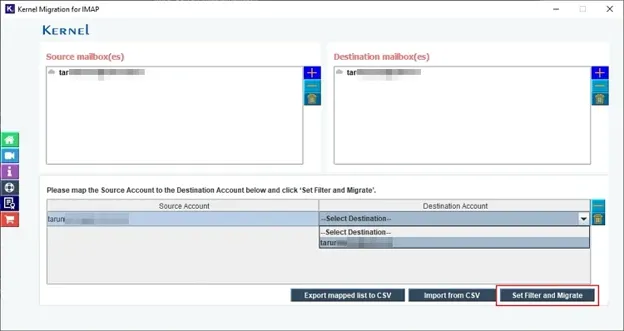
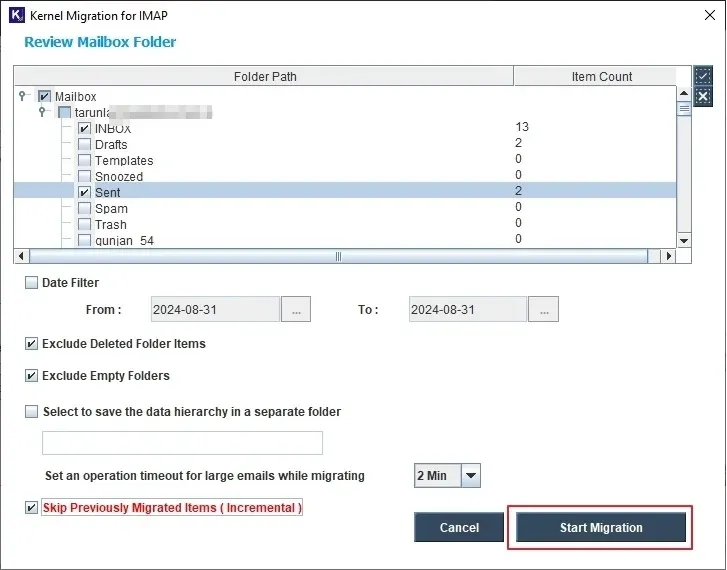
- Apply the data filters as required and click Start Migration.
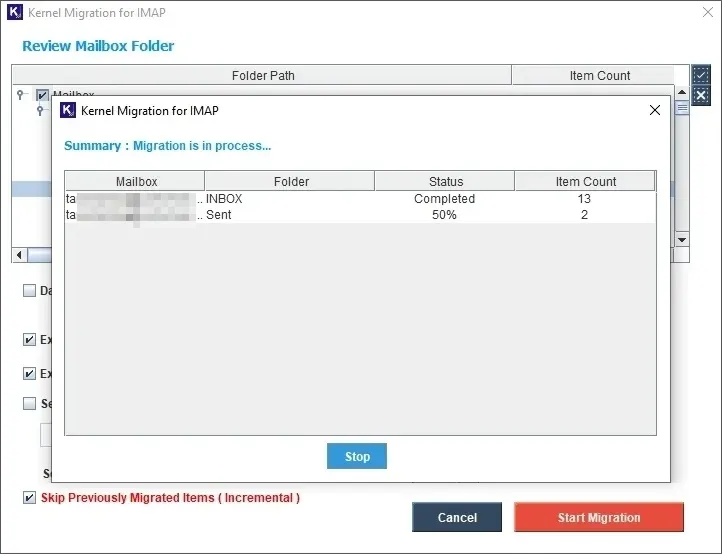
- AOL Mail to Gmail migration process will begin, showing the real time status.
Conclusion
Forwarding AOL Mail to Gmail is practically not possible, but you can transfer the emails using the manual solutions explained above. However, each time you do this, you’ll have to transfer the mailbox entirely or delete older data from the source, which is again a time-taking task. To avoid this, use an IMAP Migration solution that helps you migrate IMAP mailboxes (AOL) to another IMAP server (Gmail). It will help in direct mailbox transfer and eliminate the need for any email client to move emails.
Frequently Asked Questions
A. Here is a brief process to transfer contacts from an AOL account:
1. Login to AOL and go to Contacts > Gear icon.
2. Select Export and CSV file as an output file.
3. Click Export to download the file.
4. Go to Gmail and then Contacts.
5. Tap on Import and select File to add the CSV file.
6. Browse the file locally and click Import.
A. Even though transfer or forwarding of emails is free, most users prefer to avoid it because:
1. No support for selective forwarding
2. Importing data can consume a lot of time
3. Forwarding can transfer future messages only
4. Need an active AOL account and an efficient network