Read time: 8 minutes
User Query: “I am working with Google Workspace (majorly Gmail, Docs, Sheets, Photos, and Drive) for more than 10 years. Just like others, I’ve also been using Google Takeout to export data from Google Workspace components. But this export method often shows issues like multiple zip files for large archives, taking too long to give download link, etc.Do you know of any Google Takeout alternative solution that can help me export data?”
Google Takeout is a service within Google Workspace that allows you to export data from G Suite components within a single archive file (.zip or .tgz file). This feature helps with data archive, backup, or even moving your emails, documents, photos, etc., to your computer. However, the process to do this is quite complex as you need to takeout data from different components. It further includes extraction of data from the resultant archive file, again requiring a complicated process to follow.
If you’re here on this article, this means you have used Google Takeout service and are probably looking for some good alternatives.
Why did Google Takeout service fail?
Before we look at alternatives, let’s look at the reasons that explain the gaps this utility is unable to fill:
- Can’t handle large data volumes: Handling large data files or multiple files can often be overwhelming, which results in errors during export.
- Web browser errors: When there are issues with the browser extensions, cache data, and outdated browser version, there can be blockages in data downloads.
- Issues with the server: Temporary connection errors or Google Server ongoing maintenance can cause the service to dysfunction.
- Data export restrictions: There are several limitations on daily and weekly export limits, as well as the validity of the download links, which is 7 days.
- Network connectivity issues: Unstable internet connection can interrupt large transfers via Google Takeout.
What is the need to search for Google Takeout alternative?
There are multiple situations where users need to look for a reliable Google Takeout alternative to back up data from G Suite account.
Allow full backup only
Google Takeout permits you to download only the full data backup and there is no provision for incremental or delta pass exports. There is no support to eliminate redundancy of data from the storage. However, you can rely on a professional Google Workspace Backup & Restore tool to backup Google Workspace files and folders incrementally and in their actual structure.
No support for cloud transfer
You cannot move or import the data file exported from G Suite using this utility. It will require you to download and then convert the archive file to another format compatible with the required email client. It explains why you need to find a suitable alternative.
Run the process manually
As this tool doesn’t support any automation, you need to perform the entire process manually. It requires you to manually set up a backup process each time you need to export the data.
Time-consuming process
It is important to remember that using Google Takeout involves a slow and time-consuming export process. This impacts the productivity of the business, especially when you need to export a massive data volume.
Alternatives to Google Takeout service
Common alternatives to using this data export service include Google Vault, manual download of files from the Google service, email forwarding, and use of a professional data export software. Let’s check out these solutions one by one:
Download files from Google Drive
If you want to export data from Google Drive, you can follow the given steps to download the files directly:
Step 1: Launch Google Drive on your browser and log in using your account credentials.
Step 2: Select the files and folders you want to export from the drive.
Step 3: Right-click and then select Download to begin the zip file/folder download. 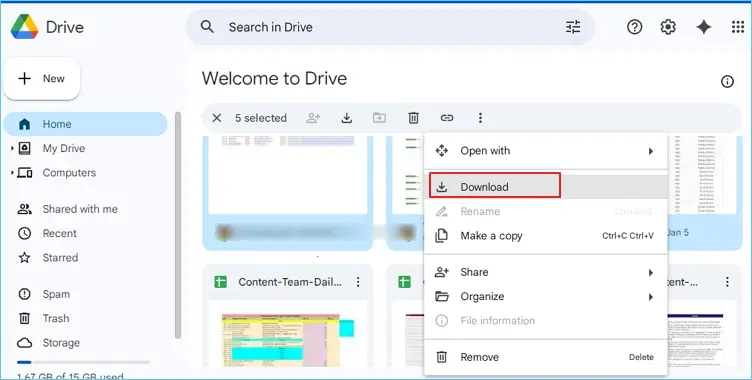
Note: You can also download a single file or folder from the drive as required.
The file will be downloaded to your computer, you can extract the files from the zipped file and then save them to the desired location on your storage.
Using Google Vault to export data
Google Vault is an eDiscovery tool for the Google Workspace administrators that helps with data retention, search, and export from Gmail, Drive, and other G Suite components. It is, however, important to understand that this utility is not for general users to back up their data. It is available in selective subscription plans, such as Google Workspace Business Plus, Enterprise, and Education.
Data exported using Google Vault is exported in file formats that are generally not compatible to use as they are in the email clients. You’ll need to convert these resultant files to the file format suitable to your email application.
Forward Gmail email messages to export them
Sometimes, administrators forward users’ emails to other email accounts to backup data. Follow the steps provided to forward emails:
Step 1: Open Gmail on your browser and login using your credentials.
Step 2: From the mailbox folders containing the desired emails, open the email to backup.
Step 3: Click on three dots, then Forward and enter the email address you want to forward the email to. 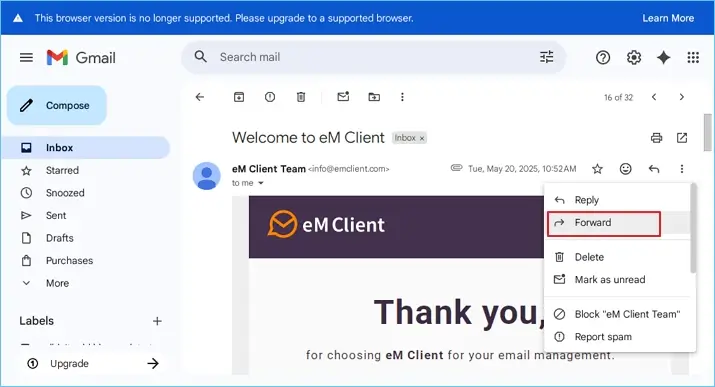
Step 4: Once done, click the Send button to finish forwarding.
Export contacts from Google account
If you need to extract contacts from Gmail account, follow these steps:
Step 1: Open your web browser and visit https://contacts.google.com/.
Step 2: Sign in to your Gmail account and select contacts to export. Click on the three dots (?).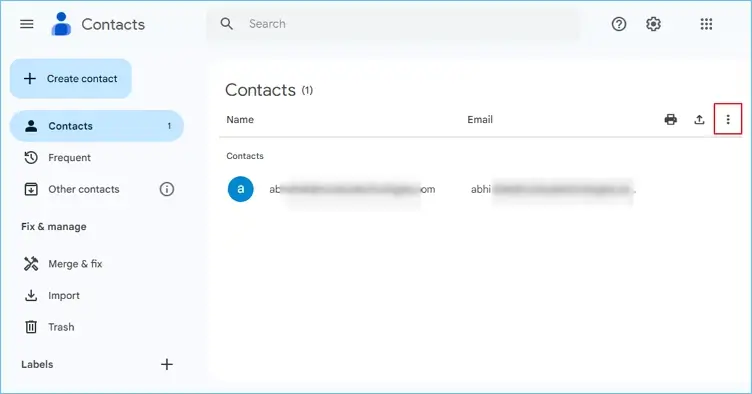
Step 3: Select the Export option from the list.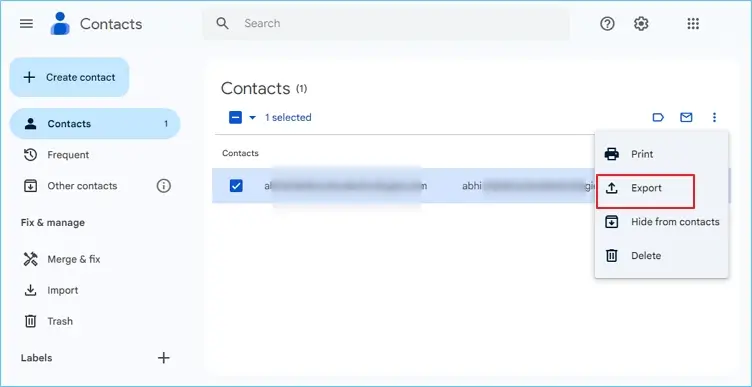
Step 4: Choose the format to Export as Google CSV, CSV for Outlook only or vCard.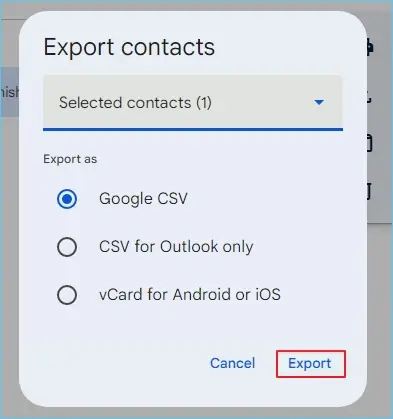
Step 5: After that, click Export to finish.
Switch to a professional tool to export Google data
After using all the available Google Takeout alternatives, it is clear that relying on any one of them can’t help you fulfill the goal of exporting the entire data. These methods won’t help you download the complete Google Workspace backup.
To end your search for the best Google Takeout alternative, use Kernel Google Workspace Export tool. It helps you export entire data from your G Suite accounts, including Gmail, Docs, Sheets, Drive, Contacts, etc. The tool is known widely for its advanced features, which include:
- Export G Suite data to PST and other file formats.
- Easy folder selection, Date and item filter to export specific data.
- Use split PST feature to manage large resultant mailboxes.
- Efficiently export data from Google Groups with permissions, metadata, etc.
- Simplified bulk data export using a pre-mapped CSV file.
- Allows running multiple migration instances in one go.
Bottom line
With this article, you can understand that using manual methods is not going to help you in securing data from your Google components. Relying on these native approaches means running different processes for different services. Therefore, we recommend the Kernel Google Workspace Export tool, which is widely known for its simple UI and advanced automated backups. It is one of the best alternatives to Google Takeout method to export data without any hassles.
Frequently Asked Questions
Answer: Here are some limitations of Google Takeout to consider:
1. You cannot use it to export Shared with me documents.
2. Exporting accounts with large amount of data can take days and even weeks.
3. Email data is exported within the MBOX files and requires another app to import for access.
Answer: No, Google Vault is probably not the best choice as a substitute to Google Takeout utility. It is primarily designed to retain data and eDiscovery rather than saving regular backups. Moreover, it works only in selective Google Workspace plans (Business and Enterprise).
Answer: If we talk about backing up using manual solutions, no, there is no provision that can help you export data from both services at once. However, if you use Kernel Google Workspace Export software, you can backup emails, calendars, photos, drive, and other data in one migration process.