Read time 3 minutes
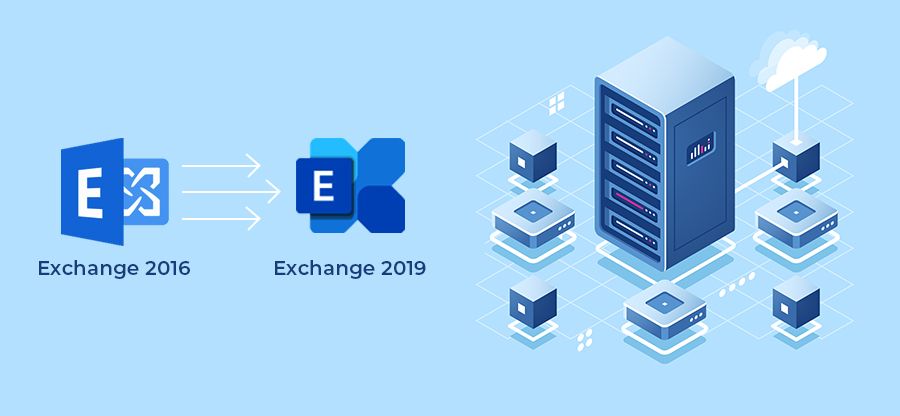
After taking care of all the Exchange 2019 installation pre-requisites, the next big thing is to configure the environment. When you are upgrading your existing Exchange Server 2016 version to the advanced 2019 version, you need to make sure your hardware is ready for the update. Both 2016 and 2019 have different hardware requirements, and your system must meet them without fail. Let’s see the step-by-step process to prepare the environment.
Exchange 2016 to 2019 Migration Guides
- Part 1: Important Points to Consider before Installing Exchange Server 2019
- Part 2: Prepare the Environment for Exchange Server 2019 Installation
- Part 3: Exchange Server 2019 – The Complete Installation Process
- Part 4: Configure Exchange Server 2019 Post the Successful Installation
- Part 5: Exchange 2016 to 2019 Migration Step-by-step Guide
Before you proceed with these steps, make sure to check the metrics like server roles, certificates, DNS, supported clients, and other things. We have covered the complete list of the key things in our Exchange 2019 installation Part 1.
Steps to Configure Environment for Exchange 2019
Execute the following steps one after another to make your environment compatible with the 2019 Exchange Server.
1st Step – Prepare the environment
Before you install the Exchange Server, you need to ensure a given set of prerequisites involving hardware, software, .NET frameworks, and supported platforms. You must ensure that all the elements fulfill the requirement of installation.
Network and Directory Server
| Components | Requirements |
| Active Directory Forests | Windows Server 2012 R2 or later |
| DNS Namespace | Contiguous, Non-Contiguous, Single label domains, Disjoint. |
| Active Directory Site | The Active Directory Site should have a writeable domain controller. Also, after you install the Exchange Server 2019, then you cannot delete the Active Directory Site. |
| Domain Controller | Windows Server 2022 Standard, Windows Server 2019 Standard, Windows Server 2016 Standard, Windows Server 2012 R2 Standard |
| IPv6 | All the Exchange Server versions since 2013 support IPv6, but IPv4 should also be installed. |
Hardware
| Processor | Intel 64-bit processor (EM64T), AMD 64-bit processor. |
| Memory | Minimum 128 GB for Mailbox, minimum 64 GB for Edge Transport. |
| Disk Space | Minimum 30 GB of free space |
| Screen Resolution | 1024*768 |
| File System | NTFS |
Operating System
| Exchange Components | Requirement |
| Mailbox and Edge Transport | Windows Server 2022 or 2019 Standard/Data Center |
| Management Tools | Windows Server 2022/2019 Standard/Data Center or Windows 10/11 (64-bit) |
Outlook Clients
- Outlook 2013
- Outlook 2016
- Outlook 2016 for Mac
- Outlook 2019
- Outlook 2021
- Outlook for Mac for Office 365
- Microsoft Office 365
2nd Step – Prepare the Active Directory
Before installing the Exchange Server 2019, the first step you should complete is preparing the Active Directory.
If your organization is not a large one, and there is no separate team dedicated to the Active Directory management, then you can directly use the setup wizard. Make sure that the account which you are using is a member of the Schema Admin and Enterprise Admin Security groups.
If your organization is not a large one, and there is no separate team dedicated to the Active Directory management, then you can directly use the setup wizard. Make sure that the account you are using is a member of the Schema Admin and Enterprise Admin Security groups.
-
- Install the .NET framework (4.7.2 or 4.7.1).
- Install Visual C++ Redistributable Packages for Visual Studio.
- Install Unified Communications Managed API.
- Reboot the computer system.
- Run Windows Powershell as an Administrator and input the following command –
Install-WindowsFeature RSAT-ADDS
- Run the following command –
Install-WindowsFeature NET-Framework-45-Features, RPC-over-HTTP-proxy, RSAT-Clustering, RSAT-Clustering-CmdInterface, RSAT-Clustering-Mgmt, RSAT-Clustering-PowerShell, Web-Mgmt-Console, WAS-Process-Model, Web-Asp-Net45, Web-Basic-Auth, Web-Client-Auth, Web-Digest-Auth, Web-Dir-Browsing, Web-Dyn-Compression, Web-Http-Errors, Web-Http-Logging, Web-Http-Redirect, Web-Http-Tracing, Web-ISAPI-Ext, Web-ISAPI-Filter, Web-Lgcy-Mgmt-Console, Web-Metabase, Web-Mgmt-Console, Web-Mgmt-Service, Web-Net-Ext45, Web-Request-Monitor, Web-Server, Web-Stat-Compression, Web-Static-Content, Web-Windows-Auth, Web-WMI, Windows-Identity-Foundation, RSAT-ADDS
This command will install the server prerequisites. After this, go to the official Microsoft website and download the Exchange Server 2019 latest cumulative update version. Then,
- Now, mount the Exchange Server 2019 installation Media.
- Start the command prompt and change the directory to the Exchange installation media path.
- Run the command –
Setup.exe /PrepareSchema /IAcceptExchangeServerLicenseTerms
- Run the following command –
Setup.exe /PrepareAD /OrganizationName:”<organization name>” /IAcceptExchangeServerLicenseTerms
- Run the command –
Setup.exe /PrepareAllDomains /IAcceptExchangeServerLicenseTerms
The command will enable the Active Directory Domain for Exchange Server 2019.
What’s Next?
This is the complete procedure for preparing the Active Directory and Domain for Exchange Server 2019. Please read our next article to see the procedure of installing the Exchange Server 2019.
Frequently Asked Questions
Ans. Yes, you have to. Exchange Server 2019 needs the Active Directory to store specific information (like mailbox permissions and email addresses). Preparing the AD in advance to make sure the environment is ready to handle the new changes.
Ans. Hardware requirements for testing are different than the real-world use case.
Requirement for testing: Ram: 32 GB, CPU cores: 2-4, Disk Space: 30GB, and File System: NTFS
Enterprise-Level Requirement: Ram: 128GB, CPU cores: upto 48 , Disk Space 100GB+, and File System: ReFS.