Read time: 9 minutes
Summary: Do you know Gmail has introduced smart features? Google’s smart features simplifies user’s daily tasks, such as email organization, smart replies to emails, smart compose emails, keeping track of events, appointments, and reservations, etc. Learning about these features in detail will help you understand whether you should enable these smart features on Gmail or not. You can also get the professional Gmail email backup solution to keep your emails safe.
When you have a hectic schedule where you have to attend back-to-back meetings and reply to hundreds of email messages, you can feel really overwhelmed. Well, you can manage your tasks efficiently with the Smart Features of Gmail and minimize mistakes, improve productivity, and cut down the typing time.
Scroll down to check out the features that make Gmail not just an email platform, but your smart assistant.
How do Smart Features in Gmail benefit users?
Using Smart features brings a lot of benefits to the table, as mentioned below:
Time saving: With features like Smart Compose and Smart Reply, Gmail users get to save a lot of time as Gmail provides quick 1-click responses like “Thank you,” “Acknowledged,” etc. It allows them to draft emails and respond to them quickly.
Better email organization: Email organization feature in Gmail is made simpler with email categorization, nudges help you make sure not to miss any email follow-up, and snooze emails for later to address them at your convenience.
Avoid errors: When writing emails, there are times when you can make spelling or grammar errors. Smart features catch errors so that you don’t make mistakes while drafting them. If you’re emailing the wrong person, Gmail will send you alerts.
What are the key smart features in Gmail?
Find the list of features introduced in Gmail to help simplify users’ tasks:
Compose and reply email
Creating or replying to emails often seems a bit of a task. Gmail’s new smart features like Smart Compose, Help me write, and Smart Reply use smart technology to help users save their time. These features write complete emails for them and give quick replied addressing the primary subject of the email.
How to turn on Smart Compose on your PC?
With the availability in English, Spanish, French, Italian, and Portuguese, Smart Compose can write emails faster. Here are a few steps to direct you how you can enable Smart Compose feature in Gmail:
- Open Gmail on your PC and click on Gear icon (settings) > All Settings.
- Go to General and then “Smart Compose.”
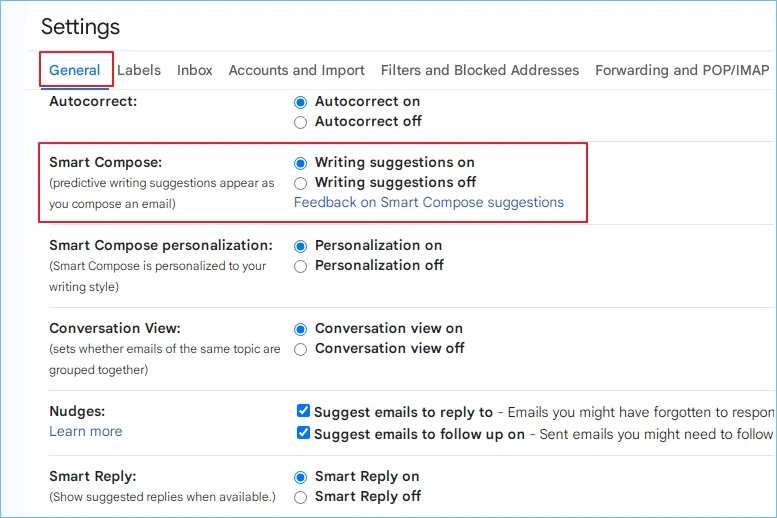
- Select Writing suggestions on or Writing suggestions off (as required).
Note: Similarly, you can turn on Smart Reply using the same steps as mentioned above.
Gmail offers suggestions according to your writing style. Turn on or off Smart Compose personalization using options Personalization on or Personalization off.
Instant overview with “Summary Cards”
Summary Cards in Gmail provide users with real-time updates and action buttons (like set a reminder for bill payments). These snippets are placed on the top of your emails to help users find what they’re exactly looking for.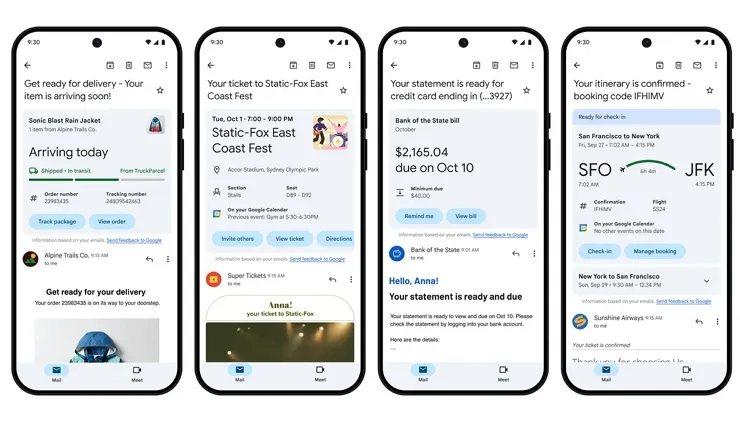
Note: Gmail is going to introduce these Summary Cards in other places too, like a “Happening Soon” section within Inbox and Gmail Search.
The soon to be introduced updates in these Summary Cards will be for the 4 categories: Purchases, Events, Bills, and Travel. Here’s how these Summary cards organize information:
- Provide clearly visible summaries mentioning the essential information to help you avoid scrolling through multiple emails.
- These cards will direct you towards a call-to-action like “Check-in,” “Remind me,” “Track Delivery,” etc., so that you don’t have to dig in to find one lost link.
- Gives you regular updates about any upcoming event, deadline, or product delivery coming up, so that you don’t miss out on anything important.
Email categorization or automatic email filtering
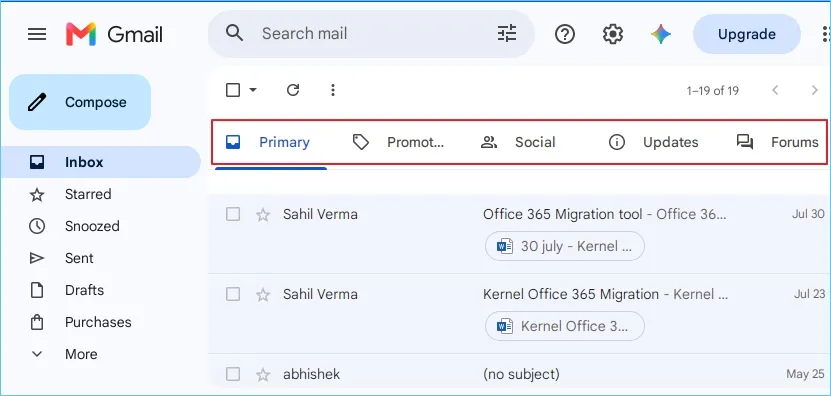
With this simple feature, you can organize your emails into categories in your Gmail mailbox to remove clutter and keep emails that actually seem important in a systematic manner. Gmail tab uses a classification system to identify where to land an email based on a set of factors. It automatically sorts your emails into the following types:
- Primary: The Primary tab is the one that receives email from the people you know, personally or professionally. It contains all the important emails. Moreover, when an email (from any category) is starred, it is always visible in the primary tab.
- Social: As the name suggests, it has all the social media networks and media-sharing site notifications. It generally receives alerts and notifications from Facebook, YouTube, LinkedIn, and others. It helps keeping the primary emails tab sorted and not sending any unnecessary notifications in the main inbox.
- Promotions: All the promotional emails, including marketing, deals, special offers, sales, and discounts, land straight to the Promotions tab in Gmail mailbox. Gmail identifies the commercialized email pattern and traces the bulk mail sending footprints and sends the message to this category. This smart sorting technique of Gmail also makes sure that no important offers should go to spam or junk folder.
- Updates: You can find bills, statements, reminders, receipts, automated confirmations, and other transactional or automated emails in Updates section.
- Forums: The confirmation messages from the conversations you started on forums, discussion boards, mailing lists, and other online groups, appear in the Forum tab. This way you can have these messages managed in a separate section, which helps minimize confusion.
How to turn on email categorization in Gmail?
Follow the steps provided to learn how you can apply categories in Gmail mailbox:
- Open Gmail and go to the Gear icon (settings) next to the search box.
- From Quick Settings, scroll down to Inbox Type.
- Here, tap on the Default radio button and then click on Customize.
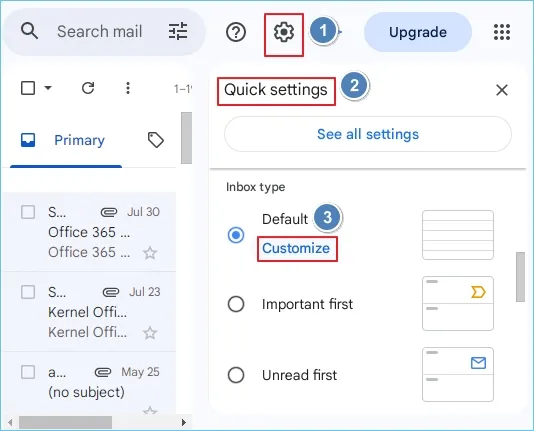
- You can now select tabs to enable from the given categories.
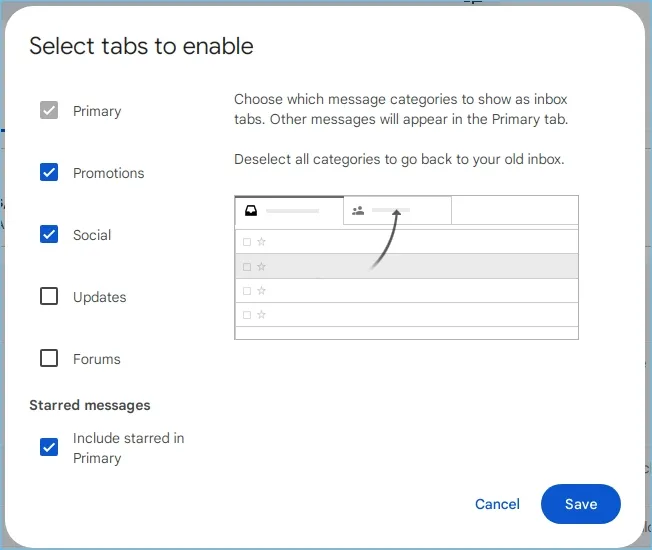
- Click Save to finish and view all the tabs aligned in the inbox.
Manage events with Calendar Sync
In Gmail, emails related to flights, hotel/ restaurant reservations, or movie ticket bookings are added directly to the calendar events. Simply open the calendar to view details (Address of the venue, reference number, and link to the source email) about the booked event and manage your events in Gmail.
You can also delete the calendar event to stop receiving the notifications on your email. Events on Gmail calendar are automatically updated regularly, which means any changes made to the reservations are instantly updated in the calendar in real-time.
How to turn on events from Gmail?
Follow the steps below to enable calendar sync in Gmail:
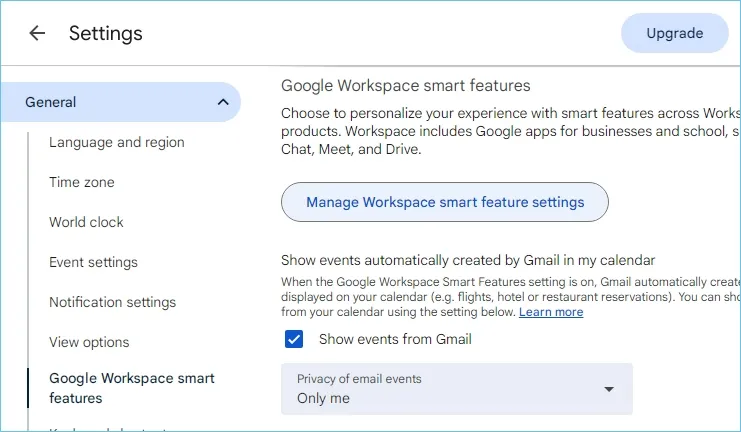
- Open Google Calendar in Gmail and click Settings > Settings.
- Go to the General tab and click Google workspace smart features.
- Mark the checkbox Show events from Gmail.
- Adjust the Privacy of email events using the dropdown.
Why do many users turn off Smart features on Gmail?
Many users have disabled these smart features from their account, which is particularly to protect their data privacy, data tracking, and ads targeting their account based on their behavior. Here are the explained reasons for the move:
- Google’s algorithm reads the email messages of users to strengthen their smart features, which put people’s privacy on the edge.
- Google collects personal details from the emails to create user profiles.
- Smart tools analyze user behavior through their Inbox and show promotions based on the messages.
- Many users do not trust these tech companies for the privacy of their data.
Apart from this, there is a huge risk to data when it is on the cloud. For Gmail users, major risks to their data involves the risk of accidental deletion and cyber breaches. This explains why most of the users are now turning off these settings from their Gmail.
Smart approach: Preventing emails against permanent deletion
Experts usually prefer to keep a safe copy of their mailbox data to their local drive. It is a smart way to avoid any disaster that can cost you your whole mailbox. This will provide you complete control of your information.
While there are several manual solutions available to help you save your emails, we suggest you Kernel Gmail Backup tool, which is an efficient way to backup Gmail emails to computer. The tool provides a simple interface to easily access and download all the emails to PST, EML, or other file formats to the desired location on your PC.
Final thoughts: Following a safer path
Gmail smart features are generally considered safe from external threats. However, this doesn’t change the fact that it uses the data from its users to improve its features and empower its automated systems. Turning off these smart features means zero access to automated email categorization, event updates, and predictive email writing. Even though choosing to turn on or off these capabilities is completely your decision, taking backup of Gmail emails is a safer practice to avoid losing email data. For smooth backup with minimum downtime, use recommended Gmail Backup tool that saves emails with their attachments and metadata.
Frequently Asked Questions
A. To turn off the updates, follow the steps below:
1. Go to the Settings icon (gear) and go to Inbox type.
2. Select Default radio button and click Customize.
3. Uncheck Updates checkbox and click Save to turn off the tab.
A. To delete the event, go to Calendar in your Gmail and click on the event. Click on the Bin icon and select Yes on the confirmation pop up.
A. Many users turn off the Smart features on Gmail. If you want to do so, here are the steps:
1. Go to Gmail and click Settings
2. Select See All Settings > General > Smart Features
3. Uncheck Turn on smart features in Gmail, Chat, and Meet
4. Select Turn-off and reload and dones