Working with hundreds and thousands of photos in OneDrive can be exhausting if you need to download, move, delete, or share them. Fortunately, Microsoft makes it extremely easy to select all photos in OneDrive in just a few clicks.
In this guide, we will discuss all the possible ways to select multiple photos in OneDrive on the web & PC.
Why Do You Need to Select All Photos in OneDrive?
The need to select all pictures in OneDrive may vary from user to user and their specific needs. Here are some common scenarios in which users need to select all photos in OneDrive:
- To download them all at once from OneDrive to PC
- To move or copy them all to another folder
- To transfer OneDrive files to another account
- To delete them all from OneDrive
- To share them all with someone via email
- To manage and organize your OneDrive library
How to Select all Photos in OneDrive Gallery? (On The Web)
Below are some easy methods described to select all photos in OneDrive online. You can use any of these to easily manage your OneDrive images.
Method 1. Selection Box and Scroll
This is one of the most basic and simple methods which can be used to select all photos in OneDrive gallery. Here is how you can perform it:
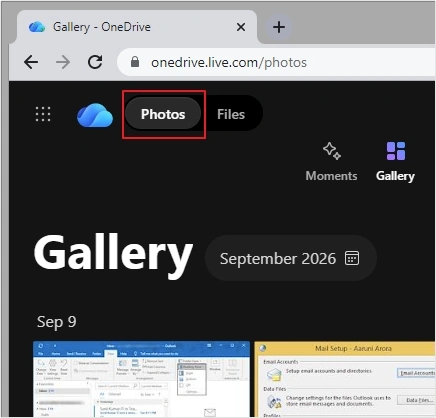
- Login your OneDrive account on the web and click on the Photos option located at the top left corner of the screen.
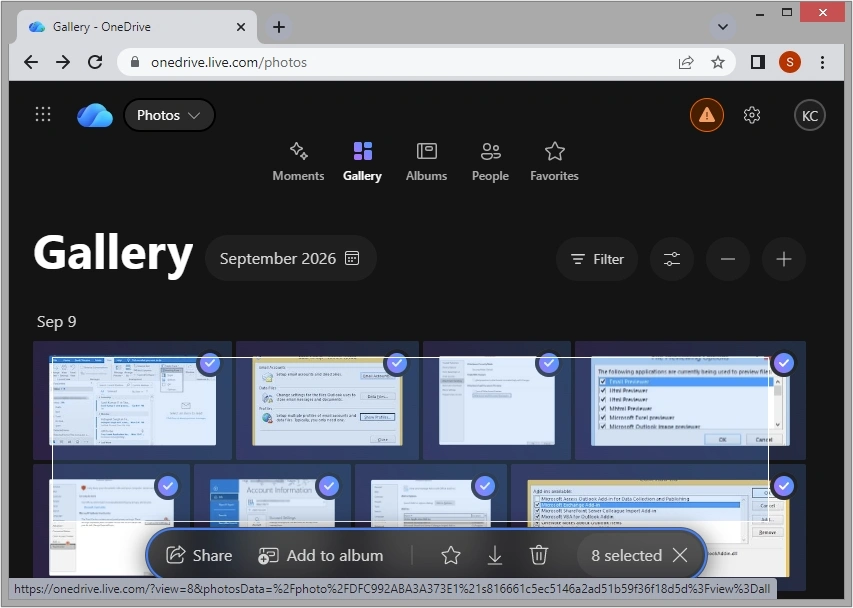
- Now, click on the first photo and make sure you don’t release the mouse.
- Then, drag down the mouse cursor to the very end, or use the mouse scroller or press the End key on your keyboard to select all photos in OneDrive app.
Note: You may see a transparent blue selection box over the selected photos.
Method 2. Shift + Click
The Shift + Click is one of the fastest methods among all to select multiple photos in OneDrive. It can be done with these steps:
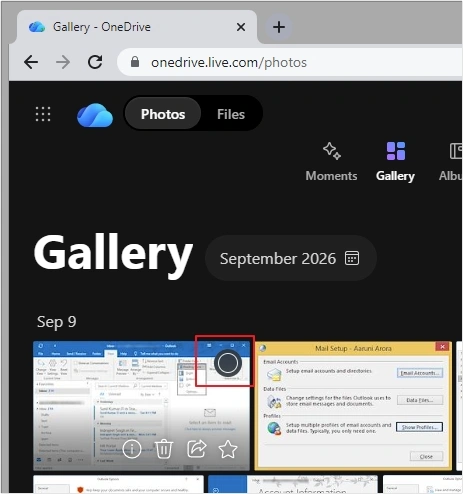
- Open the OneDrive gallery and select the first photo that appears by hovering the mouse cursor over the photo and clicking the circle.
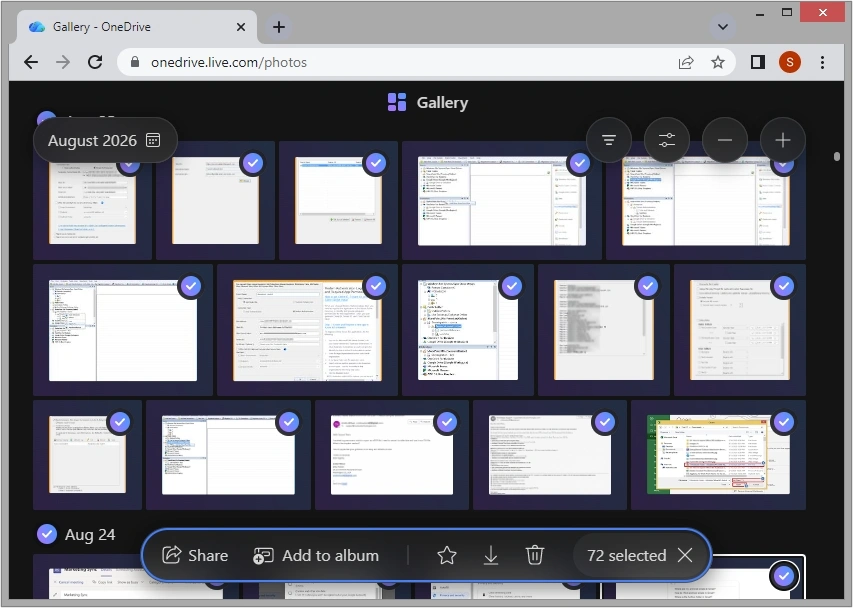
- Now, move down to the end of the photos gallery and select the last photo.
Note: Make sure you don’t release the Shift key on your keyboard.
Method 3. Date Groups Selection
This method requires enabling a specific setting in OneDrive, i.e., setting the Date option to Inline to select multiple photos. Here is how to do it:
- Click on the Gallery layout option located on the right side of your screen, then see if the Inline option is enabled under the Date
Note: If the Inline option is not enabled, then enable it.
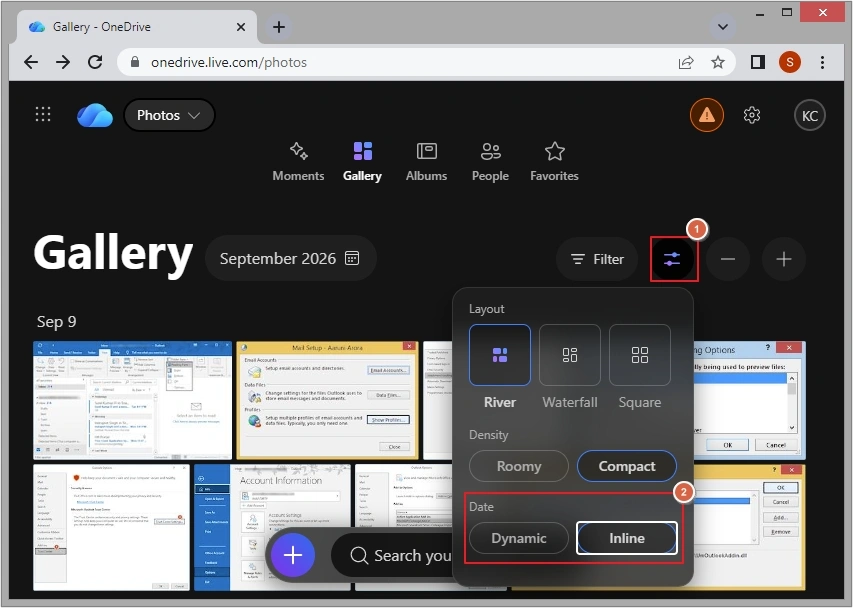
- Now, hover your mouse over the date mentioned and select the circle that appears.
Note: We have selected “Sep 9”.
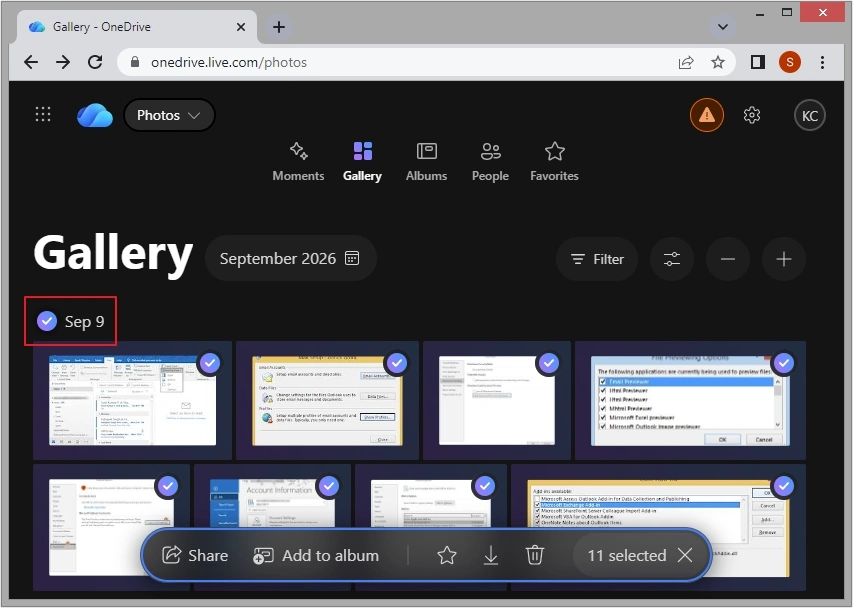
- Repeat this until you have selected all the required photos or you reach the end.
How to Select Multiple Photos in OneDrive File? (On The Web)
Other than OneDrive gallery, photos are also stored in OneDrive Files. You can easily select multiple pictures there too by following the below steps:
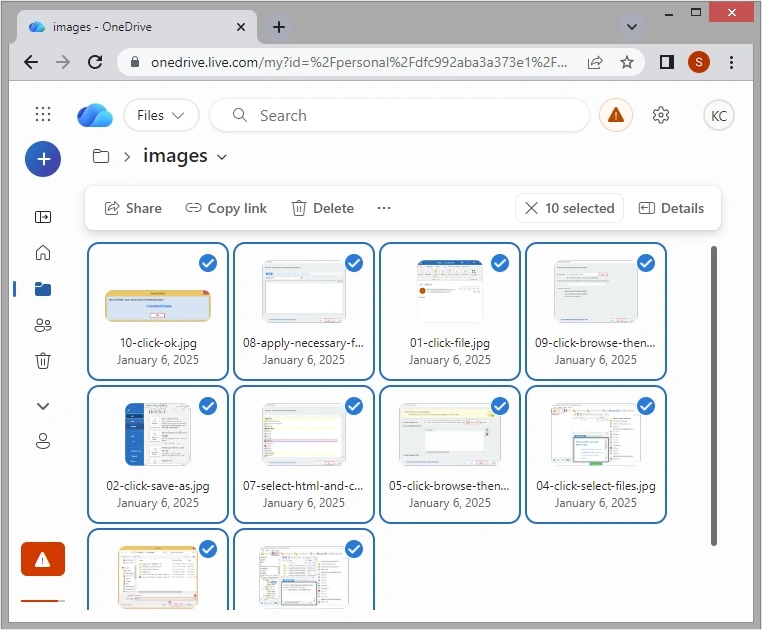
- Switch to the Files tab, then go to My files and navigate to the folder where photos are stored.
- Simply press Ctrl+A keys on your keyboard and all your photos will be selected.
How to Select all Photos in OneDrive? (On PC & Laptops)
In some scenarios, users may need to free up space on OneDrive local storage, and for that reason, they need to select photos in OneDrive and move them to the cloud storage. Here are the steps to select all your photos in OneDrive on a computer or laptop:
Note: Make sure OneDrive Files on Demand is enabled to access OneDrive data through File Explorer.
- Navigate to your OneDrive folder in File Explorer.
- Open the folder containing your photos and press Ctrl+A keys.
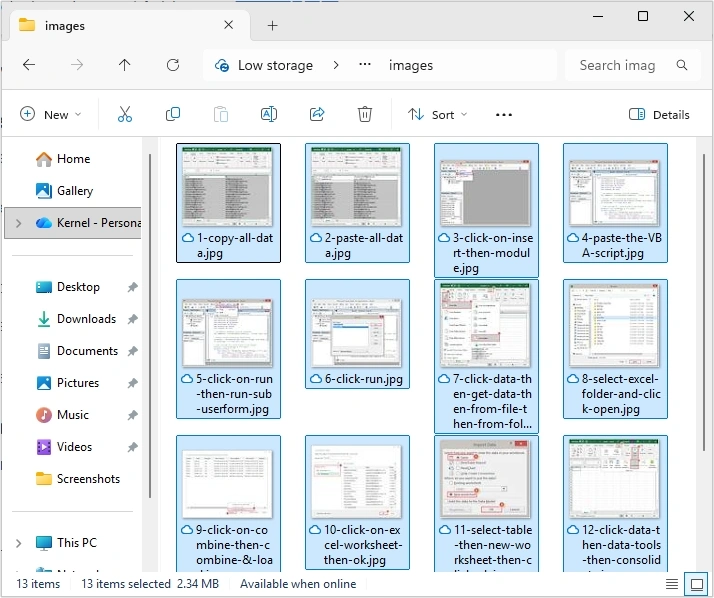
And just like that, you have selected all your photos in OneDrive for PC or laptop.
Why Manual Methods Fall Short to Select all Photos in OneDrive?
Selecting all photos in OneDrive using Ctrl+A or Shift+Click is perfect when you have 100-200 photos to choose from. However, if you have thousands of photos in OneDrive and want to migrate them to another account, manual methods will not suffice. Below are some reasons why selecting all photos manually fails:
- Infinite scroll issue
- Download and ZIP limit
- Higher chances of data loss
- Corrupted folder structure issue
- Time consuming
- Unstable OneDrive sync
What to Do When You Cannot Select All Photos in OneDrive for Migration?
One of the common reasons why users need to select all photos in OneDrive albums is to migrate them to another account or service as a backup. As we have outlined in the previous section, trying to do that using the built-in tools may lead to frustration due to infinite scrolling, browser freezes, and poor metadata retention.
Yet, if you really need to select all pictures in OneDrive and move them somewhere, the easiest way is not to use the native Ctrl + A function or Shift + click.
Instead, consider turning to a specialized migration tool that can help you achieve your goals without additional efforts. Kernel OneDrive Migration software is designed to address the need to transfer all your photos from OneDrive to another account or cloud storage without spending hours on the task.
Last Say
Selecting all photos in OneDrive is easy if you know a few tricks and have a few hundred photos. However, as we saw, manual methods fall short when you are dealing with a large photo library. But if you need to migrate or backup OneDrive photos to another OneDrive, a dedicated tool would be a perfect solution.
Frequently Asked Questions
The easiest way to select all photos in OneDrive web is selecting the first photo, then pressing the Shift key on the keyboard and going down to the very end of the photo gallery to select the last photo.
Yes, you can select all photos in OneDrive online from a specific date or event by enabling the Inline option.
To select all photos in OneDrive on a Windows PC, just open the photos folder and press the Ctrl+A keys on your keyboard.