Read time: 8 minutes
Is your OneDrive full or about to fill up? Or are you seeing a message saying “You’re running low on storage”? It is because your cloud storage (5GB for free accounts) is consumed by files, large attachments, hidden trash, version history, or an unemptied recycle bin. This isn’t a situation to panic; you just need to free up your OneDrive storage space, and you are good to go.
Let’s move forward and see how to free up space on OneDrive from cloud and local systems.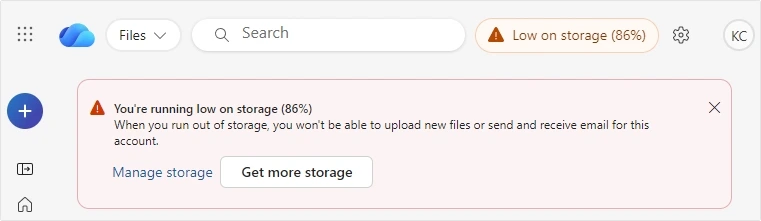
How To Free Up Space On OneDrive from Cloud and Local System?
OneDrive offers 5 GB storage space for free accounts, and 1 TB space for Personal and Business subscription accounts. Over time, OneDrive storage can fill up, and you won’t be able to save new files and other data. You can easily free up space on OneDrive in multiple ways. Let’s discuss each of them stepwise:
OneDrive Free Up Space On Cloud
There are four ways that you can use to free up space on OneDrive. They are as follows:
Remove Unnecessary Data
- Launch any browser and login your OneDrive account.
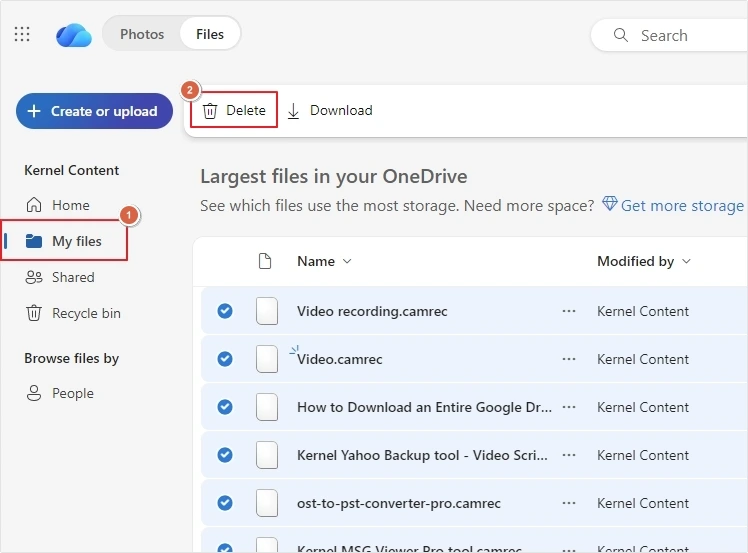
- Go to My files and select the files, folders, and attachments you want to remove, then click on the Delete
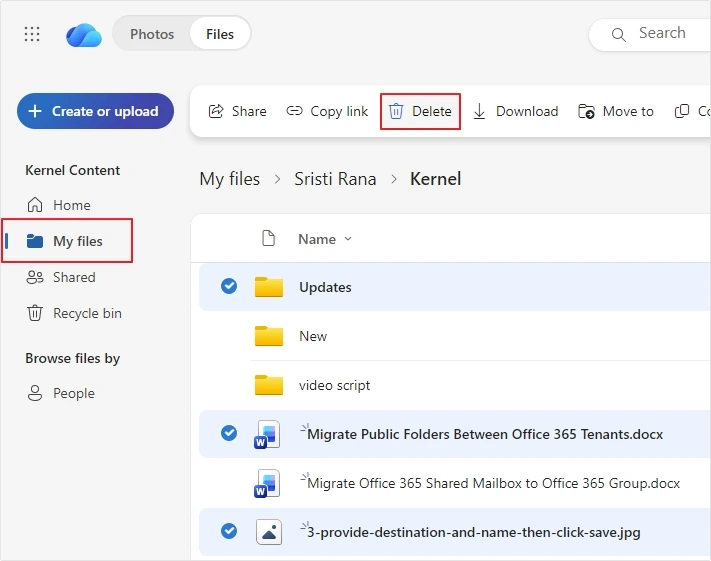
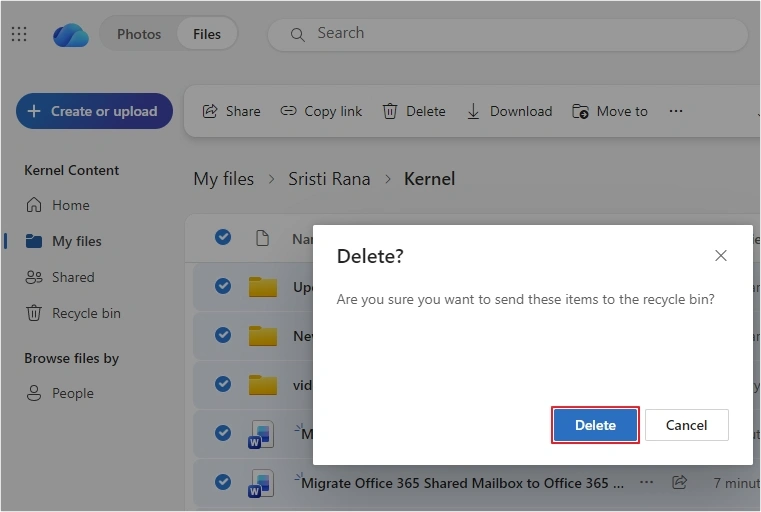
- You will receive a confirmation message, click Delete.
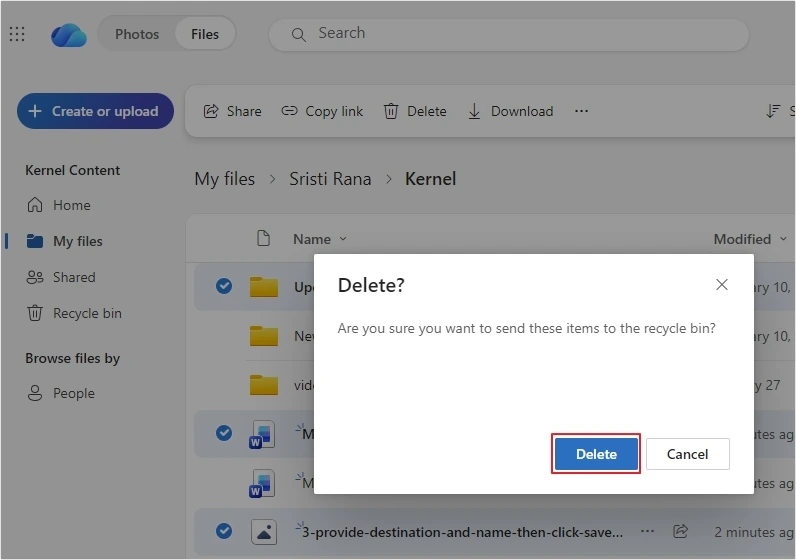
All your selected data will be deleted from your OneDrive cloud account.
Remove Data From Recycle Bin
The files and folders you delete will be moved to the Recycle Bin and stay there until somebody deletes them permanently or after the retention period is over (30 days for free accounts and 93 days for school and work accounts). Here is how to permanently delete files from Recycle Bin:
Deleting selective files:
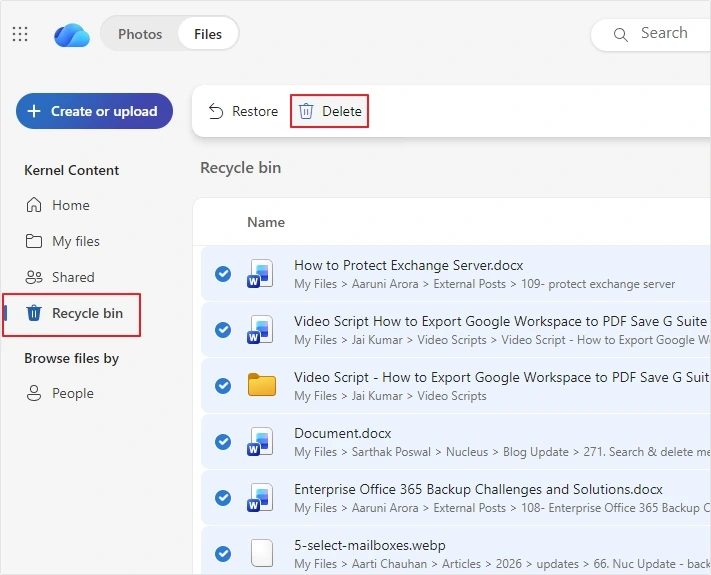
- In OneDrive, go to the Recycle bin and select all the data you want to delete permanently.
- Once selected, click on the Delete
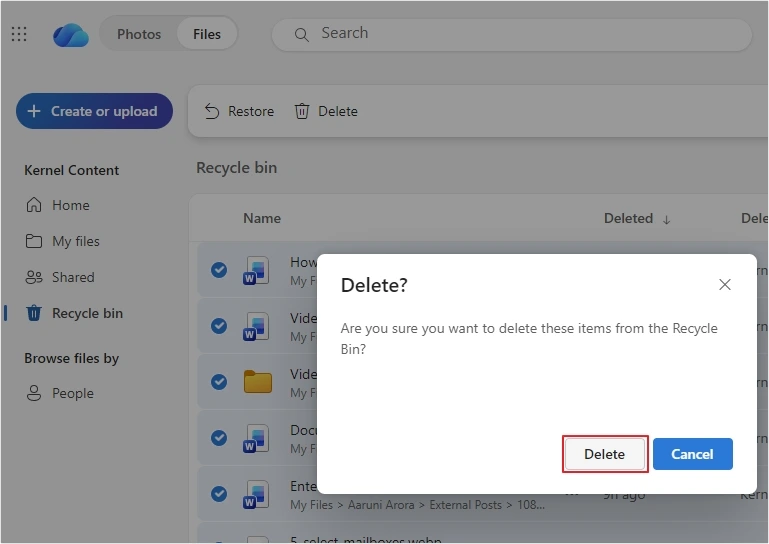
- Click on the Delete button to remove files permanently.
Emptying entire bin:
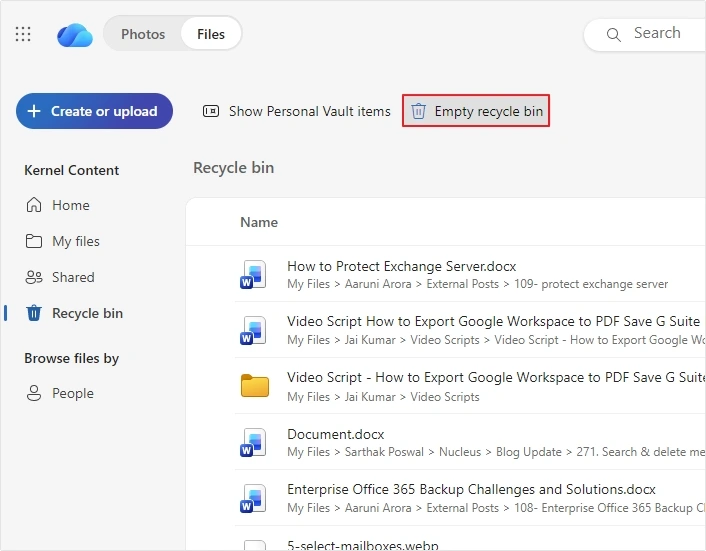
- Click on the Empty recycle bin option, then click Yes to delete all the data.
Delete Large Files & Attachments
Sometimes we don’t know which file is occupying most of the space in OneDrive. To know that and remove them, follow the steps below:
- Click on the Gear icon and select Settings.
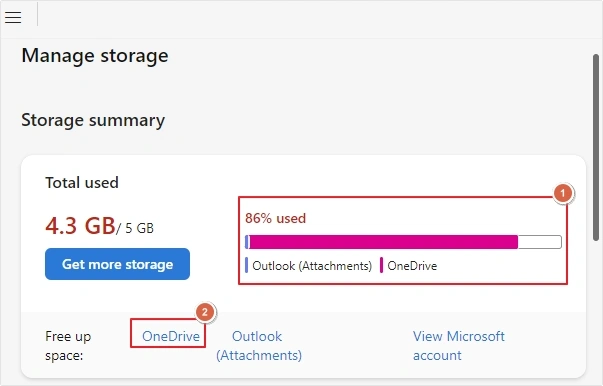
- In the Storage summary, see which file is occupying the most space.
- Then, click on the required option next to Free up space.
- You will be redirected to all the large files in your OneDrive.
- Select the required files and click Delete.
All the large attachments and files stored in your OneDrive will be deleted.
Download Files to Local System and Delete them From Cloud
Many users have this query: “How to free up space on OneDrive without deleting files”. And the solution is to download and backup cloud data on your computer from OneDrive and later delete it from the cloud. Here is how to do it:
- Go to My files and select the data to download.
- Click on the Download The files will start downloading on your system.
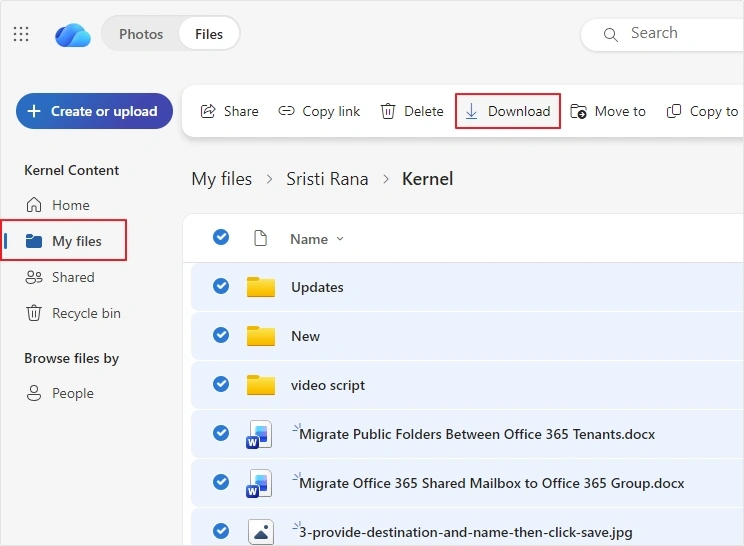
- Once all the files are downloaded, you can delete them from OneDrive cloud to free up space.
Free Up Space On Local System
There are two ways to free up space on OneDrive from local storage. Here are the steps for both:
- Free Up Space with Files-On Demand Feature
- From your taskbar or menu bar, click on the OneDrive cloud icon.
- Now, click on the Gear icon and select Settings.
- Go to the Sync and backup and click on Advanced Settings, then look for Files On-Demand.
- Select Save space and download files as you use them to activate Files-On Demand.
- Now, click on the OneDrive folder and select the data you want to remove from the local system.
- Right-click on the files and select the Free up Disk Space option.
- The local copies will be removed from the local system and moved to the cloud.
- Cut-Off OneDrive connection from PC
OneDrive Files-On Demand feature lets users free up OneDrive space from the local system. Here are the steps to do it:
Another method is to disconnect OneDrive from your local system. Use the below steps to do so:
- Right-click on the OneDrive icon in the taskbar and select Settings
- Go to the Account tab and select Unlink this PC and confirm it by clicking Unlink account to remove all local files.
Free Up Space On OneDrive Without Deleting Files
A secure and reliable way to free up OneDrive space is to back up all the data using Kernel OneDrive Backup tool on a local drive or external hard drive. You can backup bulk OneDrive data from multiple users with this tool in a single operation. Use filter options like Date Filter, File Filter, Incremental Backup, Include Version History, Include Sub-Sites, and more to back up selective data.
After backing up all the data, save a detailed process report in a CSV file for future reference. Further, the demo version allows you to backup 5 items per folder from your OneDrive account up to 20 MB.
Ending Lines
Managing OneDrive storage requires balancing cloud storage and local disk space. You can easily free up space on OneDrive from cloud and local systems by removing old versions, duplicate or large files, items from the Recycle bin, etc. These methods work for both personal and business OneDrive accounts.
Frequently Asked Questions
Free up space on OneDrive means making storage space to keep new files and attachments on the local system or cloud.
To free up space on OneDrive Cloud storage, remove large or unnecessary files and attachments from My files, and empty the Recycle Bin.
If your OneDrive is not freeing up space, then it could be due to OneDrive Files On Demand not working issue. Make sure all the settings are configured properly and try to enable Files-On Demand again.
The Files-On Demand feature lets OneDrive free up space automatically by removing file copies from the local system and moving them to the cloud.