Read time: 6 minutes
Administrators may need to grant OneDrive access to another user when an employee leaves the company or requires assistance with managing their files. When you give OneDrive access to another user, they can easily view, edit, and manage files directly from OneDrive. The Access feature is applicable to both personal OneDrive and OneDrive for Business.
This article talks about all the necessary information and methods to grant OneDrive access to another user.
OneDrive Share Vs Grant Access: Know the Difference
Take a look at the difference between OneDrive share and granting access:
| Basis | Sharing | Grant Access |
|---|---|---|
| Mechanism | Generates a unique URL (link) that grants access when clicked. | Needs to add the user’s name or email address to the permission list. |
| Access Method | Recipients must click on the link to access the file. | The file automatically appears in the recipient’s shared tab. |
| Password Protection | Can need a password to access the file. | No password protection. |
| External sharing | Can be shared to external guests even without having a guest account. | External users need to have a guest account in your tenant. |
| Removing access | Delete the link to cut off the access instantly. | Needs to remove the user from the access list. |
| Management UI | Managed with Manage Access > Links tab. | Managed with Manage Access > People tab. |
How to Grant OneDrive Access to Another User?
There are three methods to share OneDrive access to another user. We will discuss each in detail for clear understanding:
Method 1: Grant OneDrive Access to Another User with Microsoft 365 Admin Center
- Log in to your Office 365 account with administrator credentials.
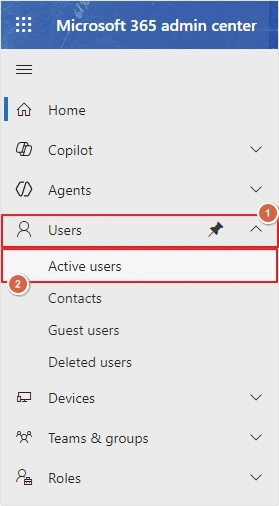
- Click on the Show all option from the left side navigation pane.
- Now, click on Users from the available options and select Active User.
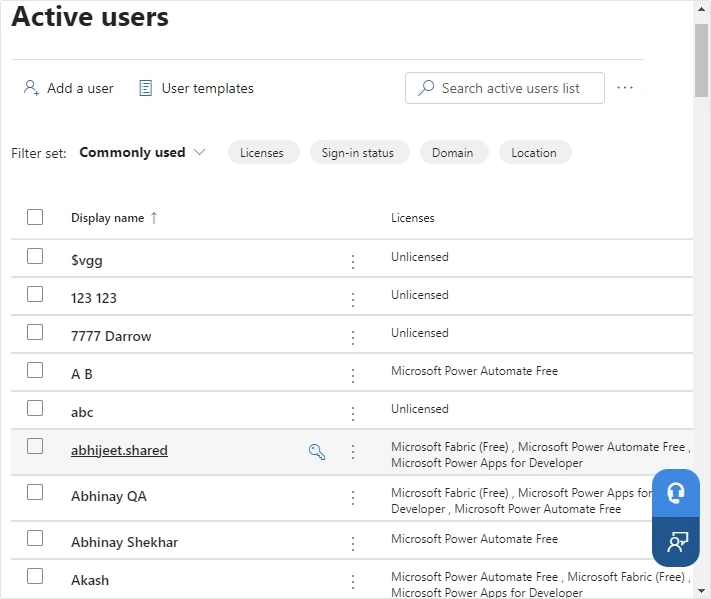
- You will be able to see the list of all Active Users.
- Click on the required user to provide OneDrive access to another user.
- Here, click on the OneDrive option, then click Create link to files.
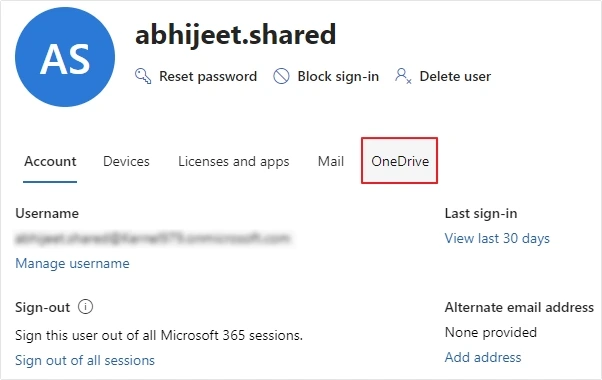
- Click on the generated link to access the user’s OneDrive.
- Click on the Gear icon located at the top-right corner, then click OneDrive settings.
- Click on More settings, then click Site collection administrators under Users and Permissions.
- Enter the name and email address of the user you want to give access to.
- Wait for the system to verify the user and click OK.
- Now, copy the previously generated link and send it to the granted user.
Method 2: Give OneDrive Access to Another User with SharePoint Admin Center
- Open SharePoint Admin Center on your browser.
Note: You can even access it from Microsoft 365 Admin Center by clicking on Show all >SharePoint.
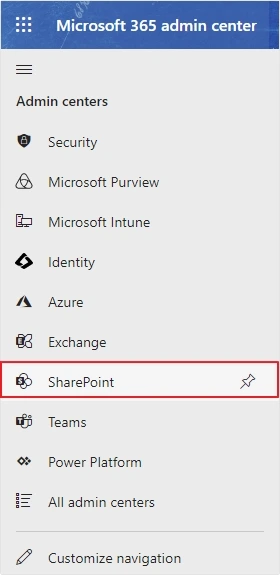
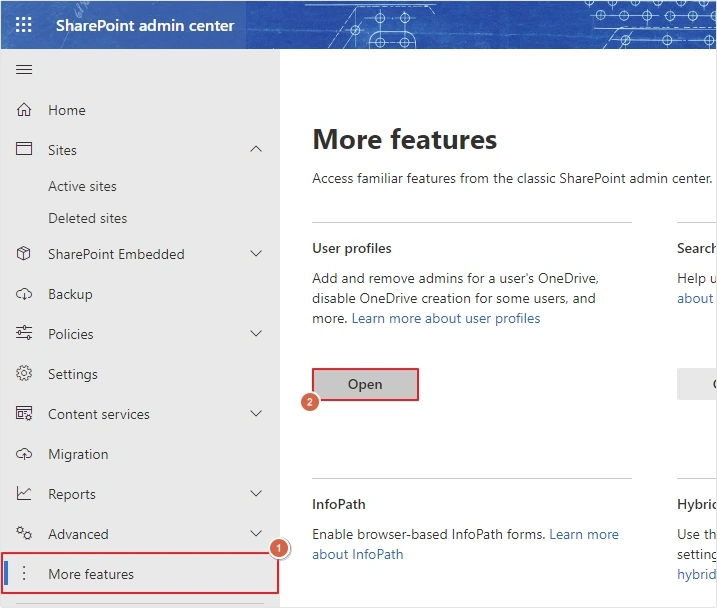
- Click on the More features option, then click Open under User Profiles.
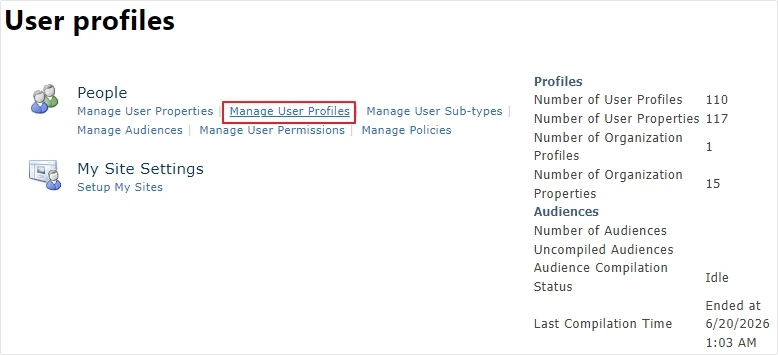
- Under People, click on Manage User Profiles.
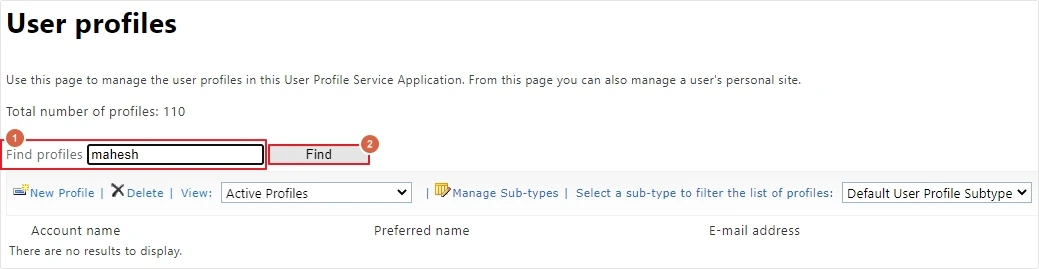
- Enter the user name or email address in Find profiles dialogue box and click Find.
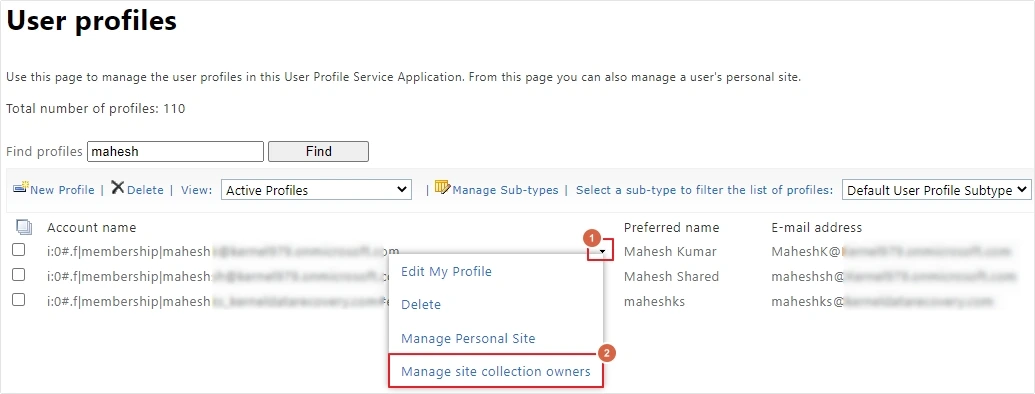
- Click on the dropdown arrow next to the user name and select Manage site collection owners.
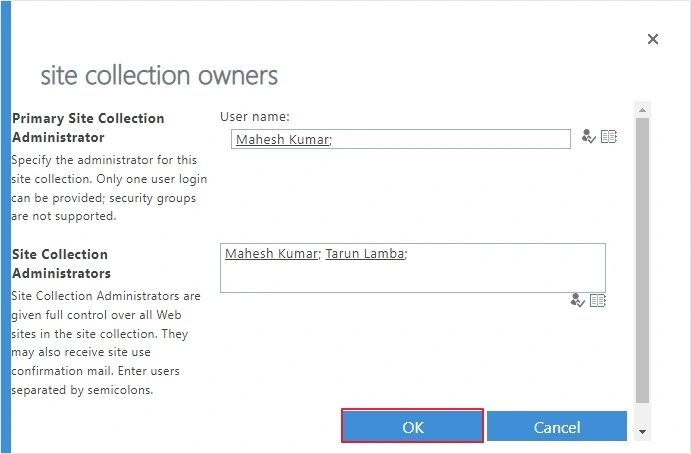
- Enter the new user name in Site Collection Administrators dialogue box, verify the name, and click OK.
Method 3: Give OneDrive Access to Another User with PowerShell Commands
You can give full OneDrive access to another user using PowerShell commands. But make sure you have proper knowledge of using it; if not, then avoid performing this method.
Install PowerShell Module: Make sure you have the required module installed on your system. If you don’t have it, then install it with the following commands.
Install-Module -Name Microsoft.Online.SharePoint.PowerShell -Force
Connect to your SharePoint Admin Center: Connect to SharePoint Online using Powershell command given below.
Connect-SPOService -Url “https://yourdomain-admin.sharepoint.com”
Run the Command: Make the required user a Site Collection Admin of someone’s OneDrive. For this, use the following command.
Set-SPOUser -Site “https://sharepoint.com” -LoginName “recipientuser@yourdomain.com” -IsSiteCollectionAdmin $true
Remove Access: If you want to remove the permissions later, you can remove them safely with this command.
Remove-SPOUser -Site “https://sharepoint.com” -LoginName “recipientuser@yourdomain.com”
Give OneDrive Access to Another User for Emergency Case
Microsoft lets you invite your trusted contacts to access your files and folders in case of emergency. But it only gives your read-only access. Here is how you can do it:
- Log in to OneDrive account on your browser.
- Click on the Gear icon on the top left corner and click Settings.
- Now, click on Digital Legacy, then enter the email address of the required user and click Invite.
Share OneDrive Access to Another User (Personal Account)
If you do not have an admin account, then also you can give OneDrive access to another user. It is a simple process with minimal steps, which are as follows:
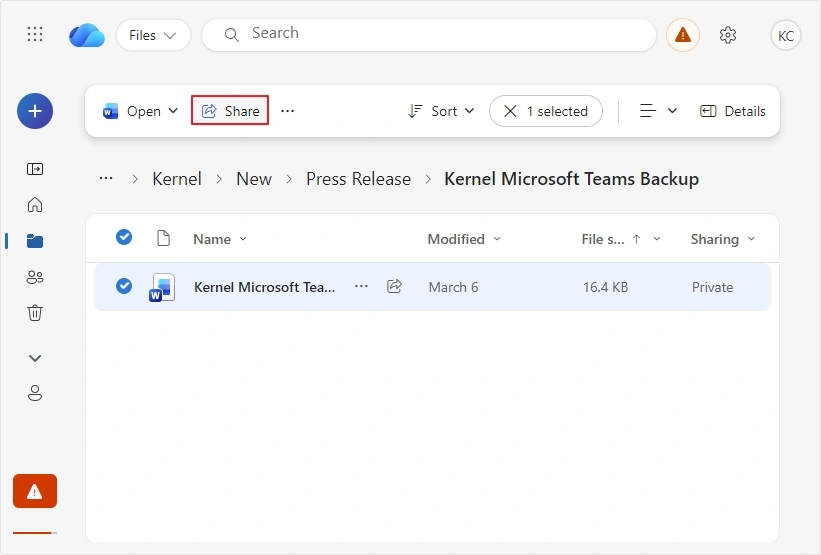
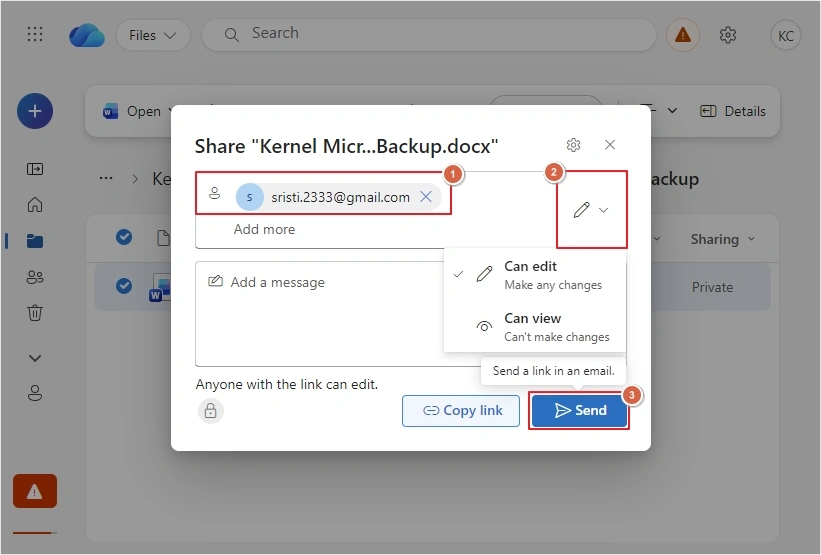
- In OneDrive, select the file you want to send, then click on the Share
- Enter the email address of the recipient, then click on the dropdown list to edit access permissions and click Send.
When Shared Access Is Not Enough
If you wish to move files, folders, permissions or full user account data apart from just giving access, use Kernel OneDrive Migrator. This tool can help with migrating OneDrive data securely between Microsoft 365 tenants or user accounts.
The software preserves the original folder structure and relevant permissions. With full support for bulk migration and auto-mapping, the tool becomes a go-to-option at times of employee transition, mergers and firm restructuring.
Final Say
To give OneDrive access to another user in Microsoft 365 is simple if you use built-in Share features and set the right permission level. From the above assistance, use Microsoft 365 Admin Center, SharePoint Admin Center, or PowerShell commands. With our expert guidance, you can collaborate securely in OneDrive without losing any control of your files.