Read time: 5 minutes
If you are working with shared folders, team libraries, or files from other people, OneDrive “Add Shortcut to My Files” is the feature you need. Instead of downloading ‘copies’ or finding it through ‘Shared’, a shortcut puts that folder directly inside your OneDrive.
To add shortcut to OneDrive, open OneDrive on the web and go to the Shared tab, from there, select the desired folder and click Add Shortcut to My Files. But do you know what adding shortcuts to OneDrive means?
What Does Add Shortcut to OneDrive Actually Mean?
Adding a shortcut creates a virtual link to your shared folders directly into your personal “My Files”. All your work folders from the Teams channel, the company site, or a colleague’s OneDrive will appear in one organized location. Unlike the legacy “Sync” button, shortcuts follow your account to any device you log in to.
It doesn’t take up extra space on your hard drive unless you open or download the file. Further, if you no longer need the shortcut, you can delete it using the Remove shortcut option.
How to Add Shortcut to OneDrive Folders?
You can easily add a shortcut to OneDrive using OneDrive.live.com and desktop application. We will see the step-by-step process for each:
Add Shortcut to My Files OneDrive Web
The following are the detailed steps to add shortcut to your OneDrive shared folders:
- Log into your OneDrive account on the web.
- From the left pane, go to the Shared tab.
- Select the folder you want and click on Add shortcut to My files.
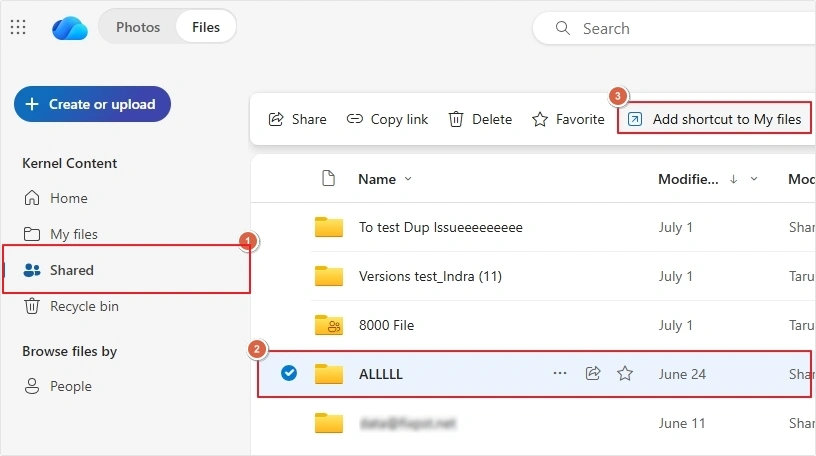
This will create a shortcut to your folder in the My Files tab.
Add Shortcut to OneDrive Desktop Application
You can also create a OneDrive shortcut using the desktop application. Here are the steps to do it:
- Log into the OneDrive application on your system and select the desired folder.
- Right-click on it >Show more options >Create shortcut.
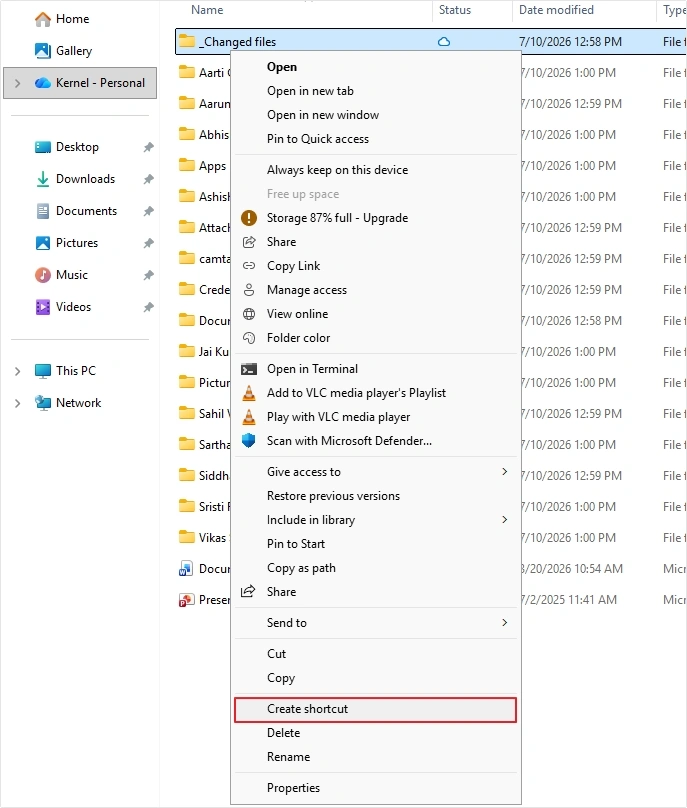
This will create a shortcut inside your OneDrive folder in File Explorer.
Note: If you want to create a desktop shortcut of OneDrive folder, then you can do it with below-mentioned steps:
- Right-click on the folder, then click Show more options.
- Click Send to, then select Desktop (create shortcut).
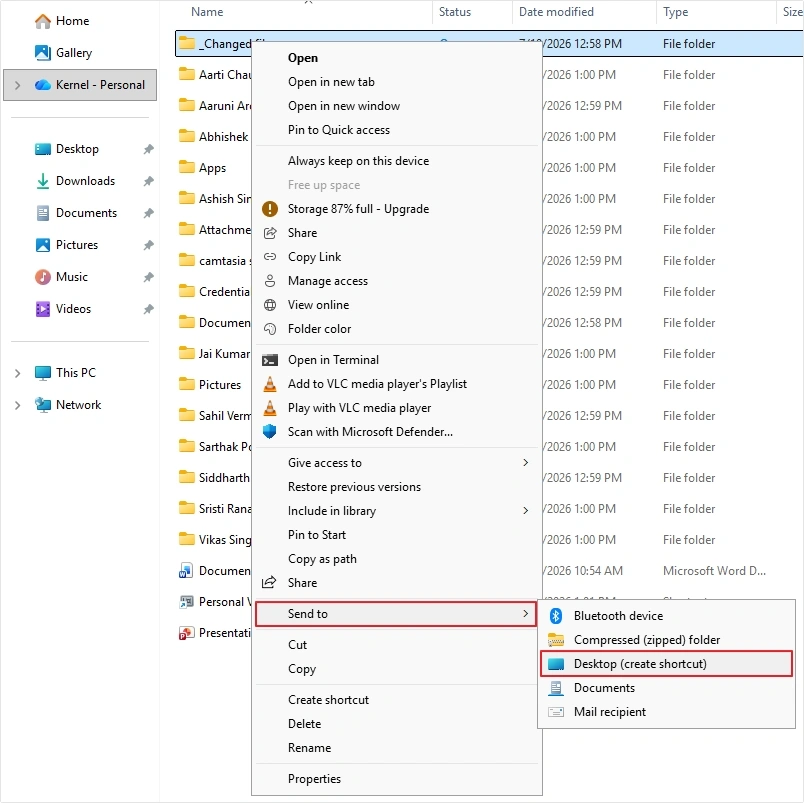
In this way, a shortcut link to the OneDrive folder will be added to your desktop.
Important Settings you Must Know before Adding OneDrive Shortcut
Following are the important settings that every user should be aware of before they add shortcut to OneDrive:
- By default, your synced shortcut uses OneDrive Files On Demand.
- You can rename the shortcut you created in OneDrive.
- You can drag the shortcut into subfolders inside your OneDrive to organize everything.
- If you add a shortcut to your work laptop, it will automatically appear in your OneDrive on your home computer and mobile devices.
- If the owner give OneDrive access to another user, then only they can access it. If they remove you, the shortcut shows “Access Denied”.
Common Roadblocks When Shortcuts Don’t Sync Properly
Here are the most common failures that users actually face when adding a shortcut to OneDrive:
- “You already have a shortcut/sync for this library” issue.
- Invalid Request error without any clear cause.
- Nothing happens when you click on the shortcut.
- Multiple shortcuts are created for a single folder.
- “We can’t add the shortcut” error.
- Shortcut not appearing in File Explorer.
- Shortcut syncing is slow.
All these issues are related to syncing and can consume so much of your time and hamper your workflow. If you repeatedly encounter such issues, moving your data to another OneDrive account will be beneficial. In that scenario, you will need a tool. Kernel OneDrive Migration can directly configure your account and transfer data securely.
Final Say
Adding a shortcut to OneDrive is the simplest way to unify all your work files. Instead of managing files in multiple places, shortcuts bring everything into one single OneDrive folder. Further, every user must backup OneDrive data to prevent facing loss due to syncing issues or some other errors.
Frequently Asked Questions
“Add Shortcut to OneDrive not showing” could possibly be happening because of syncing issues, or the folder you are attempting to add lacks editing permissions.
No, OneDrive allows shortcuts to folders and document libraries only.
Technically, there is no limit to adding shortcuts in OneDrive.