Read time: 6 minutes
If you have enabled OneDrive Known Folder Move and expected your data and picture folders to automatically sync to cloud, but nothing happens, you have probably run into the “OneDrive Known Folder Move Not Working” issue.
When Known Folder Move (KFM) fails, all your files stay on your local system, and you get different error codes. The problem usually is not with OneDrive itself; it is a mix of storage limits, file name issues, old Group Policies, etc.
What is OneDrive Known Folder Move (KFM) and Why it Matters?
OneDrive KFM is a feature which allows businesses and individuals to automatically redirect or sync Windows default folders. This means your Desktop, Pictures, and Documents will be synced to the cloud. It preserves familiar file paths that make your data easily accessible across multiple devices without changing your computing habits. It matters because:
- It can securely backup Windows folders to OneDrive in the background without requiring you to manually save them to a specific OneDrive folder.
- If your local computer crashes or gets infected with ransomware, all your data will be safely stored in the cloud.
- You can easily access, edit, or share your files from a laptop, tablet, or mobile app from anywhere.
- You can easily switch to a new PC, as when you log into your OneDrive, all your data will automatically be synced to Desktop, Documents, and Pictures.
Common Reasons Behind OneDrive Known Folder Move Not Working
There can be numerous reasons behind OneDrive Known Folder Move not working problem. Some of the most common reasons are listed below:
- Legacy Folder Redirection GPO still active
- Conflicting or overlapping GPOs
- Permissions issues on policy application
- Incorrect registry key paths or values
- Exceeding the file count limit
- OneDrive Files On-Demand not working
- Unsupported file types
- Outdated OneDrive sync client build
- Network connectivity issues
- Obsolete Windows version
How to Fix OneDrive Known Folder Move Not Working Issue?
There are a few methods available that you can use to fix the OneDrive Known Folder Move not working issue on your system. We have tried and tested each method and will discuss them with detailed steps. Choose any method which suits your requirements the best from the following:
Method 1. Re-Enable OneDrive Known Folder Move
If OneDrive KFM fails to work properly, then you can try to re-enable it. Here are the steps to do it:
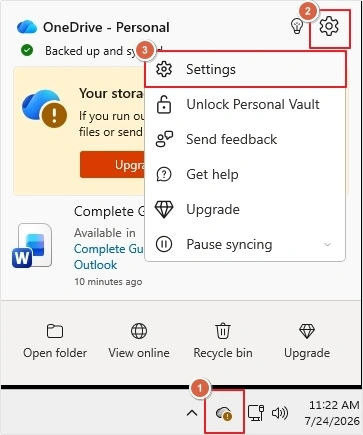
- Click on the OneDrive icon from the taskbar.
- Click on the Gear icon, then select Settings.
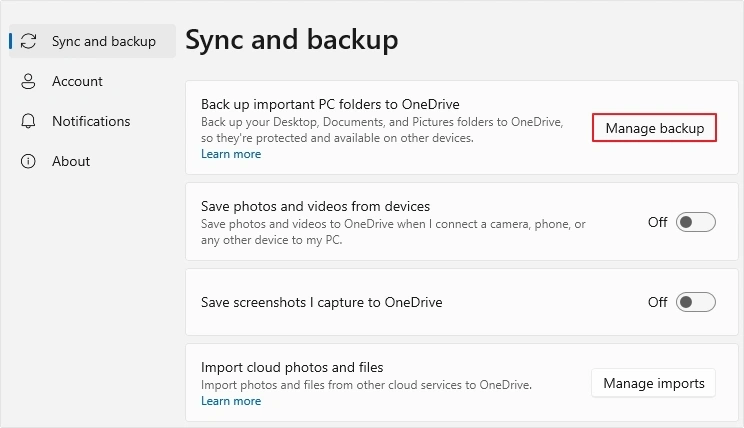
- In the Sync and backup pane, click on the Manage backup
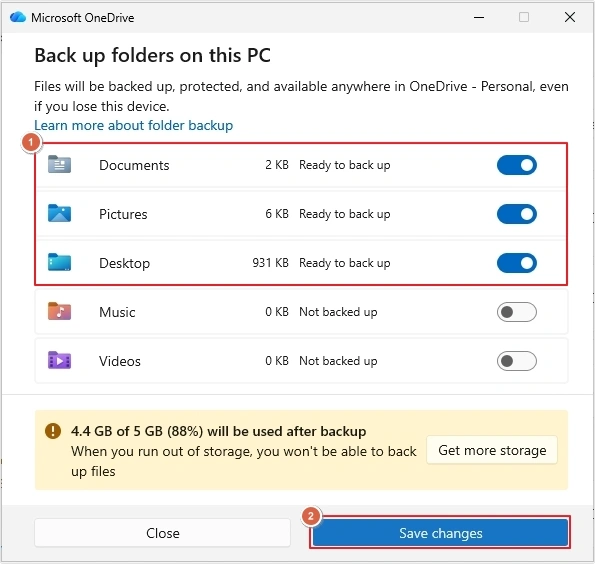
- Enable the Desktop, Pictures, and Desktop option, then click on Save Changes.
Method 2. Remove Folder Redirection
If your OneDrive Known Folder Move silent not working issue persists, then you can remove or disable folder redirection settings. Below are the steps to do it:
- Open Group Policy Management or Local Group Policy Editor by searching msc in the Run wizard.
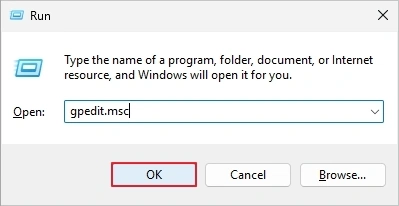
- Go to Computer Configuration >Administrative Templates >System >Folder Redirection.
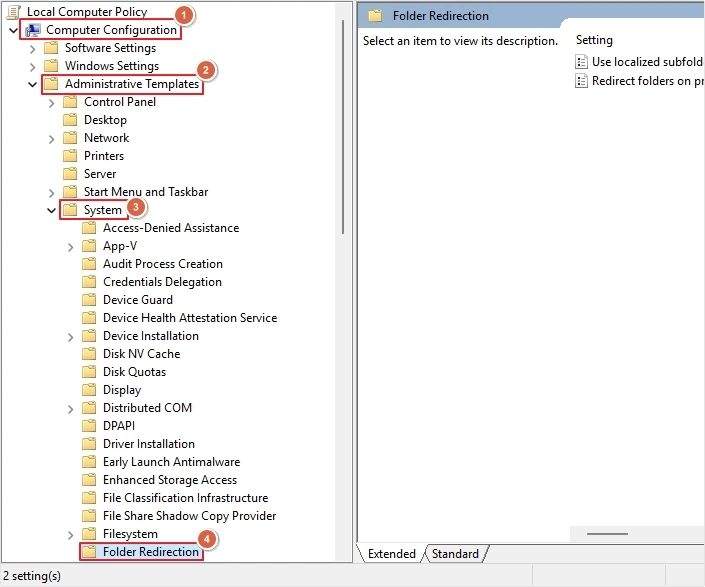
- If Documents, Pictures, or Desktop are redirected here, then disable or remove this policy.
- Restart your system, then sign out and sign in to let the change take effect.
Method 3. Update OneDrive Sync Client
If your OneDrive sync client is outdated, then you need to update it. Older clients only redirect empty folders, while latest ones properly move folders with existing content. Here are the steps for it:
- Right-click on the OneDrive icon in the task bar, then click Settings >About.
- Check your current version details against Microsoft’s latest release.
- If it is outdated, then download the latest OneDrive installer directly from Microsoft and reinstall it on your system.
Method 4. Checking Registry Settings
Clear all conflicting registry entries or domain GUID (Globally Unique Identifier) flags under local policies if deploying in an enterprise environment. Following are the steps to do it:
- Press Windows+R and type regedit, then hit Enter.
- Now, go to HKEY_CURRENT_USER\Software\Microsoft\OneDrive\Accounts\Business1
- Locate the following keys: KfmIsDoneSilentOptIn and SilentBusinessConfigCompleted.
- Set both values to 0 if they are set to 1 and restart OneDrive.
Method 5. Pause OneDrive Files On-Demand Temporarily
If you have enabled OneDrive Files On-Demand feature, then try to turn it off temporarily. Here are the steps for it:
- Right-click on the OneDrive icon, then click Settings.
- In Sync and backup, scroll down and click Advanced settings.
- Click on the Download all files button to temporarily disable Files On-Demand.
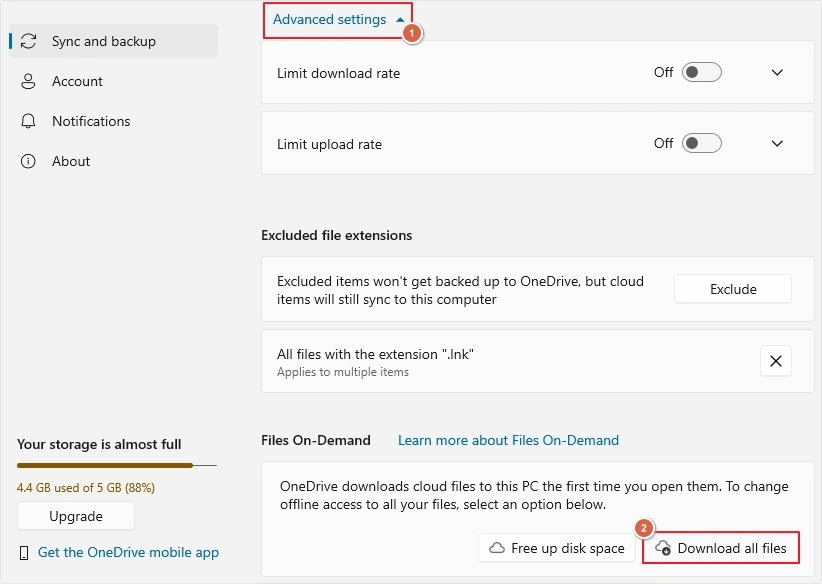
- Now, let the KFM finish the initial folder move with all the files fully downloaded locally.
Known Folder Move Error Codes and What they Mean
There are a few error codes that users might see when OneDrive KFM is not working. Each error indicates different issues. Let’s discuss some most common error codes and what they specifically indicate:
| Error Code | What It Indicates? | How To Fix It? |
|---|---|---|
| 0x80070005 | Group Policy is blocking KFM or outdated OneDrive | Update OneDrive or adjust Group Policy |
| 0x80004005 | Conflicting or duplicate OneDrive account libraries | Identify and remove duplicate UPN-linked libraries via OneDrive support |
| 0x8007016A | Files On-Demand issue | Disable Free-up disk space setting, reset OneDrive, then re-enable Files On-Demand |
| 0x8007018B | File open or in use during operation | Wait for sync, close file or close OneDrive temporarily |
| 0x800701AA | Timeout during cloud operation | Check connection stability, free up local storage, or check server status |
When Known Folder Move Fails, Migrate OneDrive Data Directly
When OneDrive Known Folder Move fails, this could be a symptom of large structural problems like duplicate OneDrive libraries linked to the same account, consolidated or offboarded user accounts, and more. In these situations, waiting for the Known Folder Move to resolve itself isn’t practical, and the main motive shifts from fixing the sync to getting the data where it needs to be.
Kernel OneDrive Migration Tool is designed to help users get out of these situations. This software allows data to directly move from one OneDrive account to another, whether within the same tenant or two entirely different tenants. Users can migrate images, videos, and files along with OneDrive permissions. It also supports running in multiple instances at once for easy bulk migration.
Final Say
OneDrive Known Folder Move is the best way to protect your important Windows folders without thinking about them. But when it fails, it can interrupt your entire workflow. In this guide, we have explained five best ways to fix OneDrive Known Folder Move silent not working issue. You can use these methods and enjoy offline and cloud syncing again. Further, to always keep your OneDrive data safe, having a OneDrive backup on your local system is recommended.
Frequently Asked Questions
No. Windows only supports Known Folder Move for one OneDrive account at a time.
No. It copies them to OneDrive and then redirects the folder. Your local copies still exist.
It could be due to conflicting Folder Redirection, unsupported file types, syncing issues, etc.