Read time: 10 minutes
There you are, sitting at your computer, trying to get some work done, and suddenly you get a prompt for your Outlook password. You try to type it in, but nothing happens. You try again, and still nothing. What’s going on?
It turns out that there is a problem with your Outlook password. But don’t worry – we’re here to help! We’ll show you how to resolve Microsoft Outlook keeps asking for password issue so that you can get back to work.
Outlook Keeps Asking for Password – Common Causes
There are several reasons why Outlook prompting for password continuously. Some of the common reasons for facing Outlook needs password problems are:
- Outlook is configured to prompt for credentials.
- Incorrect Outlook password stored by the Credential Manager.
- Corrupt Outlook profile.
- Bad network connection.
- Antivirus programs cause Outlook errors.
How to fix Outlook keeps asking for password issue?
You can fix the Outlook need password prompt issue using the following manual methods. Just follow these simple methods and quickly come out of this exhausting error.
1. Disable the Outlook prompt settings for login credentials
When the User identification settings are enabled in Outlook (configured with an Exchange account), Outlook keeps asking for credentials. To get rid of the “Outlook prompting for password” problem, you need to disable this setting.
Step 1. Open Outlook, and go to File >> Account Settings >> Account Settings
Step 2. In the Account setting, select the Exchange account and click the Change button.
Step 3. Click More Settings in the new dialogue box.
Step 4. Now, in the Security tab of the Microsoft Exchange dialogue box, uncheck Always prompt for logon credentials.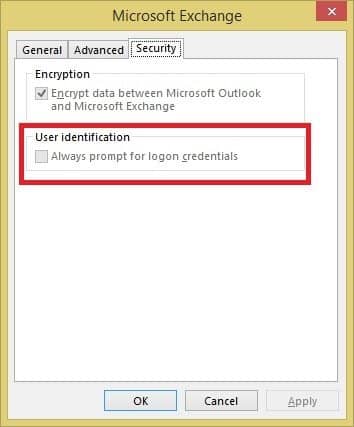
Note: This method is valid for the old/legacy Outlook version that uses basic authentication for login. If your Outlook versions depend on modern authentication login, you might not see the option to disable login prompts.
2. Remove stored credentials from Credential Manager
By removing previously stored credentials from the Credential Manager, you can surely fix the Microsoft Outlook needs password prompt issue:
Step 1. In the Control Panel, click on Credential Manager. Under Windows Credentials, go to Generic Credentials and look for the credential sets that have Outlook in the name.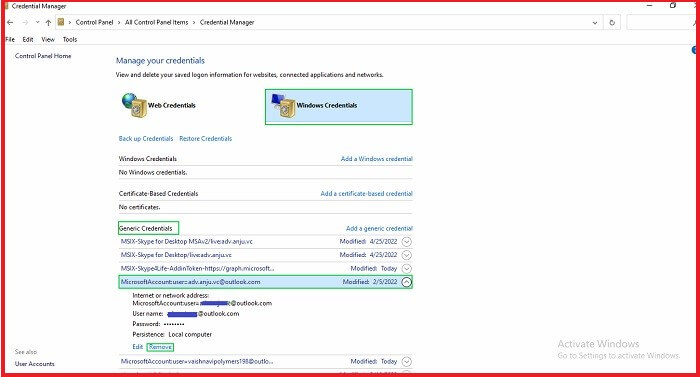
Step 2. Expand the set and click on Remove from Vault.
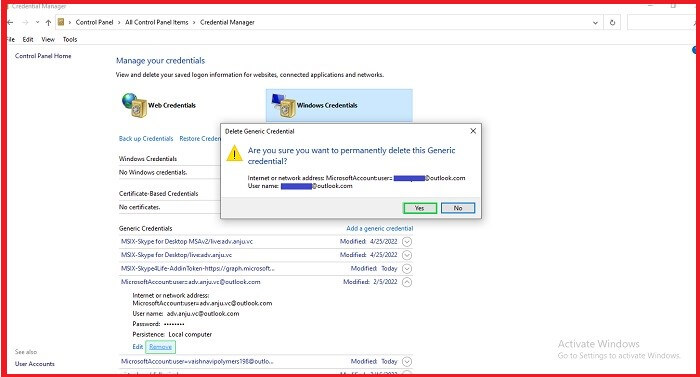
Step 3. Repeat the steps for all credential sets that have Outlook in the name.
3. Clear the cached Outlook passwords
When the login details of your profile, which are saved on Windows, are incorrect, then Outlook tends to prompt you for a password repeatedly. Thus, you need to remove all the credentials which are saved as cached passwords on your system by following steps below.
Step 1. Close Outlook. Go to the Control Panel and open the Credentials Manager.
Step 2. Look out for any credentials related to Outlook.
Step 3. Click to expand and then choose the option Remove from Vault.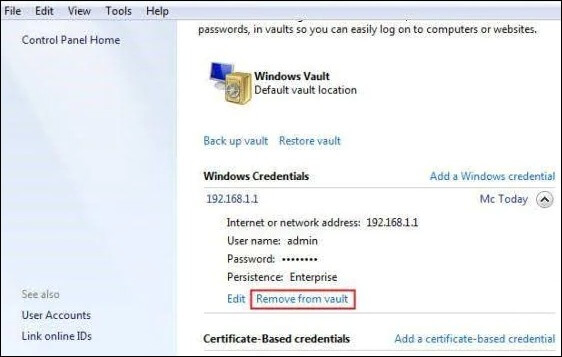
4. Resolve bad network connection
Bad network issues can arise anytime, and this may happen when Outlook can’t connect to the server. A slow or unstable network can lead to the loss of connection to the mail server, due to which, every time you try to connect, Outlook keeps asking for credentials. To solve the “Outlook keeps asking for password” issue, you can try switching to a better connectivity environment and see if it solves your problem.
5. Uncheck the Shared calendars
Sometimes, due to Shared calendars, Outlook credentials get affected. Hence, if you are using a shared calendar, uncheck or deselect it now and see if it fixes the Outlook asking for password problem or not.
6. Disable installed antivirus programs
Sometimes, an installed antivirus interferes with Outlook’s operations, which might cause the “Outlook prompting for password” error. So, you can try to fix the Outlook login prompt issue by disabling the antivirus program temporarily on your system.
7. Create a new Outlook profile to resolve Outlook password prompt issue
If you are repeatedly prompted for your Password in Outlook, your mail profile has likely become corrupted. You can fix the Outlook asking for password issue by repairing the damaged Outlook profile. The simplest way to fix an Outlook profile is to create a new one. The steps to create a profile are:
Step 1. Open Outlook and click File.
Step 2. Click the Account Settings drop-down and then choose Manage Profiles from the list.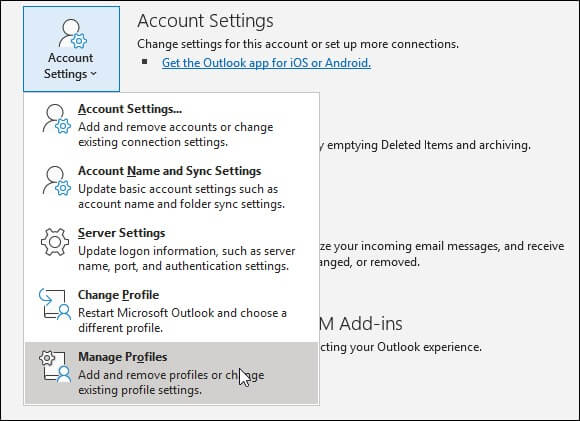
Step 3. In the Mail Setup – Outlook dialog box, click Show Profiles.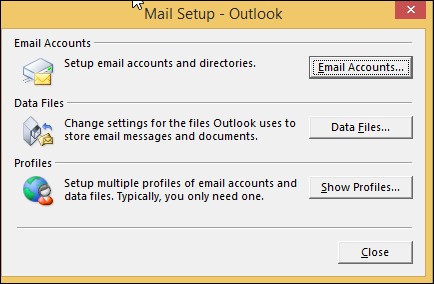
Step 4. Click Add in the Mail dialog box.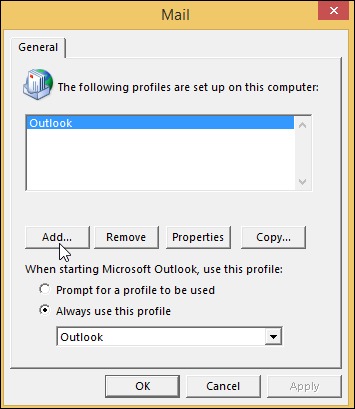
Step 5. Enter a name for your new profile and click OK.
Step 6. Choose Prompt for a profile to be used and click Next.
8. Update Outlook to its latest version
If you are facing the issue of constant Outlook password prompts, then it is most likely because you are using an outdated version of Outlook. In order to resolve “Microsoft Outlook keeps asking for password” issue, you need to update your Outlook version to the latest one. You can do this by following the steps given below:
Step 1. From the Outlook main screen, click on the tab “Office Account” from this menu.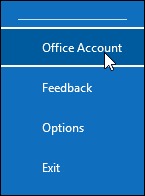
Step 2. On the next screen, select “Update Options” from the left sidebar.
Step 3. Finally, select “Update Now” and follow the prompts to update your Outlook version.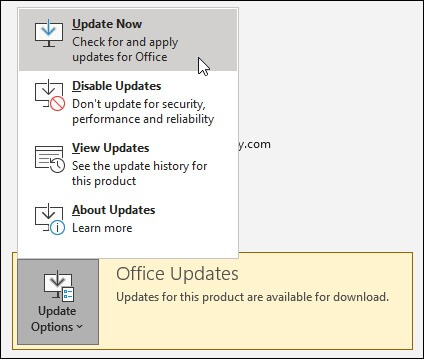
9. Disable Outlook Add-ins
Add-ins in Outlook provide extra functionality, but due to compatibility issues, they often introduce unwanted errors in Outlook. An incompatible add-in could be the reason why does Outlook keeps asking for my password. To check it, we have to open Outlook in safe mode. Follow the steps below:
Step 1. Run the Windows dialog box, type Win + R.
Step 2. Type, Outlook.exe/safe and press enter.
If you do not get the password prompt this time, then an add-in is the culprit. You must find and move the add-in to permanently resolve the Outlook password prompt issue.
10. Using the Microsoft Support and Recovery Assistant
To resolve Outlook password prompt issue that keeps popping up repeatedly, the Microsoft Support and Recovery Assistant (SaRA) can help you troubleshoot and fix the problem. SaRA is a powerful diagnostic tool designed to scan and analyze your Office and Outlook applications for issues that may be causing the password prompt problem.
To utilize SaRA, start by downloading and installing the program. After installation, locate and select Outlook from the main screen of the application, followed by the Outlook keeps asking for my password option. SaRA will run a series of tests on your Outlook application to identify the root cause of the issue and then provide solutions based on the test results.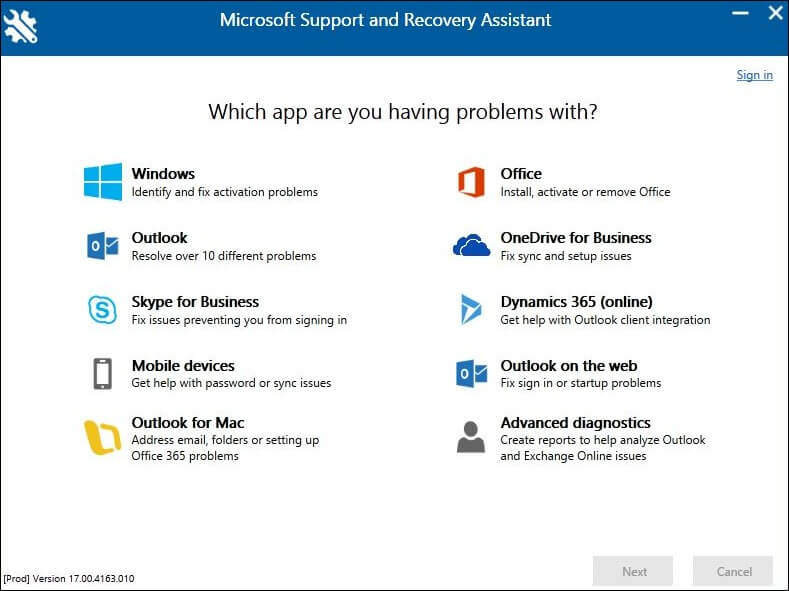
SaRA is a smart and easy-to-use tool tailored to quickly diagnose and resolve a range of Outlook application issues, such as password prompt errors.
11. Reinstall Outlook
One effective solution for this problem is to reinstall the Outlook application. Reinstalling Outlook will result in a fresh installation of the program. When you reconfigure the application with your email, this will remove all the old messy temp files. You won’t have to deal with any lingering glitches or bugs that could be causing the password prompt issue.
After the re-installation process is complete, you’ll need to set up your account and create a new user profile in Outlook. It gives you a fresh start with your email management. You can then enter your login credentials and test if the password prompt issue is resolved.
How to recover the lost or forgotten PST passwords?
The above manual methods will surely help you resolve Outlook password prompt errors. But what if you have forgotten or lost the password of your PST file and are unable to recall it? For the “Outlook keeps asking for password” problem and lost PST password, we have the easiest solution for you, i.e., an automated solution, Kernel Outlook Password Recovery. With the tool, you can recover and remove password from Outlook PST files and set new passwords in a matter of a few clicks.
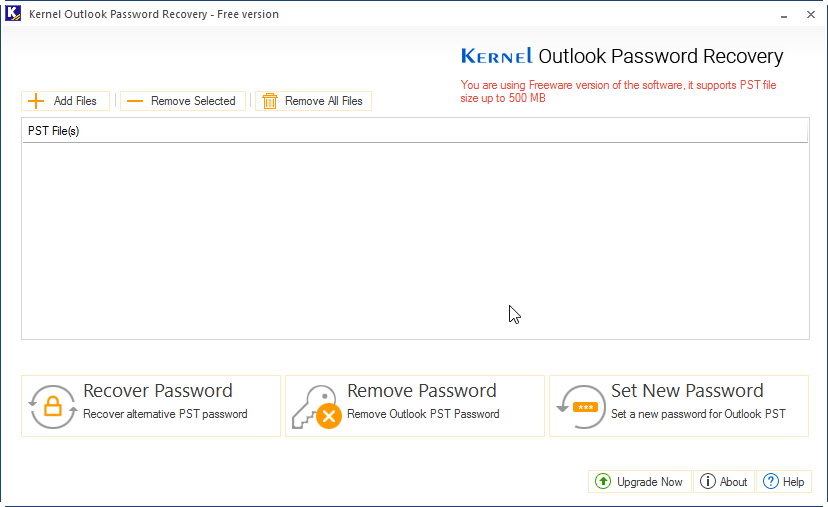
Using this innovative tool, one can easily recover PST passwords as it offers multilingual password recovery with accuracy. Even in circumstances where encryption and intricacy of the password are quite strong, you can easily recover passwords with this easy-to-use tool.
Ending words
The Outlook keeps asking for password issue can cause inconvenience and disruption to daily operations. But there are several solutions available to fix this problem and improve the performance of Outlook. Follow every solution until the issue is fixed. If these solutions do not work, it is recommended to use Kernel for Outlook Password Recovery tool, a reliable and effective solution for recovering Outlook passwords.
With this tool, users can unlock Outlook files and resolve Microsoft Outlook keeps asking for password issue. Remember to always keep your Outlook account secure by using strong passwords and regularly changing them. With these steps, users can ensure a smoother and more productive Outlook experience.
FAQs
A. There may be different reasons for such password prompt messages like if the Administrator has changed the password recently, an incorrect email server settings, bad internet connection, etc.
A. Check if there is a typo in the password and ask the Administrator if they have changed it recently. Also, check if the incorrect email server settings are causing such problems. The last reason will be a disabled email account.
A. You can try a couple of methods. Start by creating a new profile. If that didn’t work, try Outlook or Office repair. Additionally, if the issue is due to a password-protected PST file, remove the password and restart Outlook to resolve Outlook password prompt issue.