Read time: 10 minutes
For millions of Outlook users, email management and personal information management have become complementary to each other. This application has enabled users to get a grip on their hectic work life and maximize their productivity. The day-to-day functioning of your work life gets seriously impacted when Outlook is not syncing.
An “Outlook not syncing” error can lead to productivity loss by disrupting sending and receiving emails, displaying outdated information, etc. However, many users have complained about issues related to Outlook not syncing error on their Windows 10 / 11 system. Follow our lead and learn about the methods to resolve it at the earliest.
Causes Behind the Outlook Not Syncing Issue
The issue of emails not syncing in Outlook, or the interruption in the synchronization between MS Outlook and the Windows system, is a result of several factors. Some of them are as follows:
- Low or no internet connection.
- Working in the Offline mode.
- Incorrect settings.
- Incompatible add-ins and anti-virus software.
- Incorrect configuration of the Outlook profile.
- Interference from the Windows Defender.
- Severely corrupted Outlook PST files.
- Longer duration of email frequency.
Consequences of the Outlook Not Syncing Error
If the Outlook version on your Windows 10 / 11 is not syncing as it should, there are some alarming repercussions:
- To begin with, users will continue to receive error messages, resulting in a constant interruption in the transfer of emails.
- The automatic syncing of the data will also stop.
- All the changes made in the offline mode will not be reflected when the user is back online.
- Overall, all these factors, when combined, will result in a dip in the user’s productivity, which further results in the company’s loss.
How to Resolve Outlook not Syncing Error in Windows OS?
Here are various effective solutions that will help you fix Microsoft Outlook Not Syncing issue in no time.
Method 1. Double-check the Internet Connectivity
If the internet connection is poor, then Outlook will be unable to work at its full capability. Double-check the speed and bandwidth of your Wi-Fi. In addition, you can try to work on Outlook in the web browser. If none of it is working, then it is time to switch to a stronger network. There are many indications that can help you to check if you are working in the Online or Offline mode.
Step 1. Launch the Outlook application and directly open the Send/Receive tab.
Step 2. Click on the Work Offline, which is present on the extreme top right, to reconnect.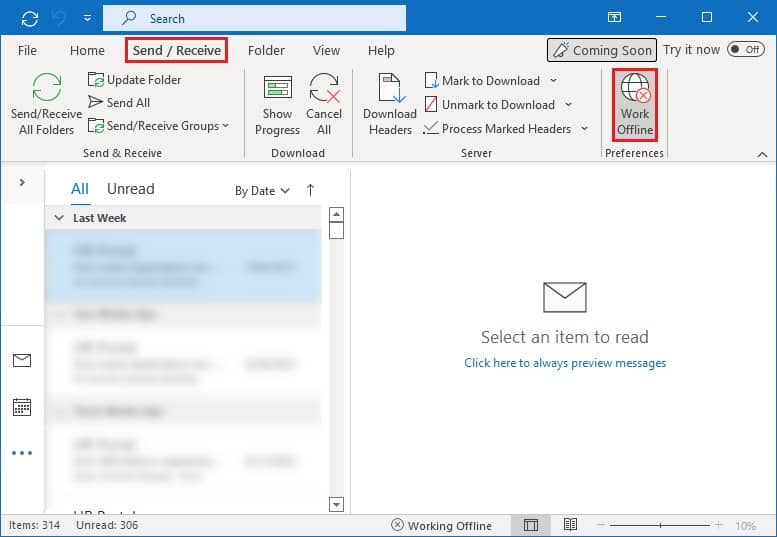
Method 2. Repair MS Outlook Profile
An underlying issue with the Outlook profile can directly result in Outlook not syncing problems. Nevertheless, the Repair facility, which is available in Outlook, can be used to solve this quickly.
Step 1. In the Outlook application, click on the File menu. Tap on Account Settings > Account Settings.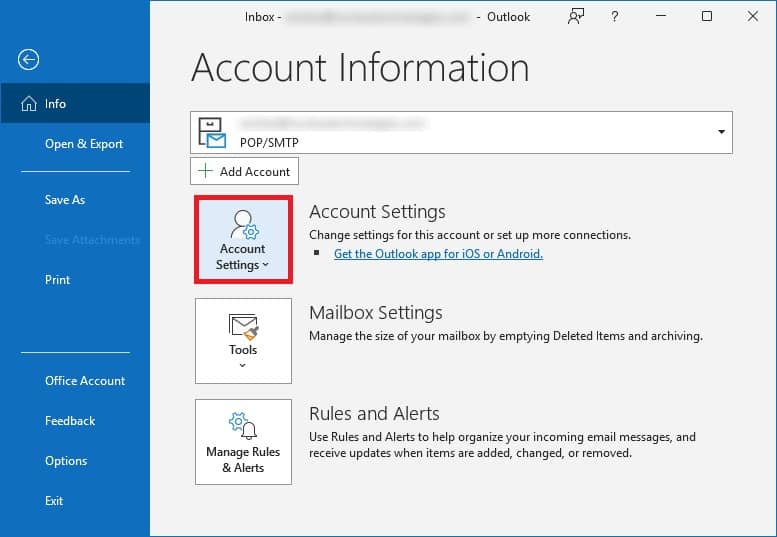
Step 2. The Account Settings window will open. Select the email account having trouble and click on Repair.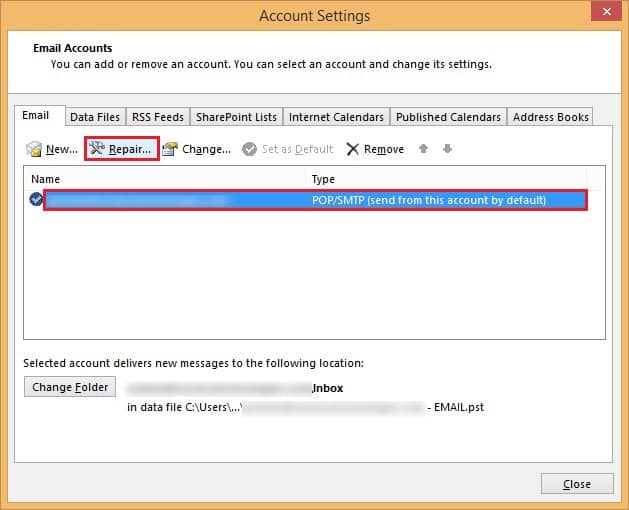
Step 3. The repair process will begin. Once it completes successfully, restart the application.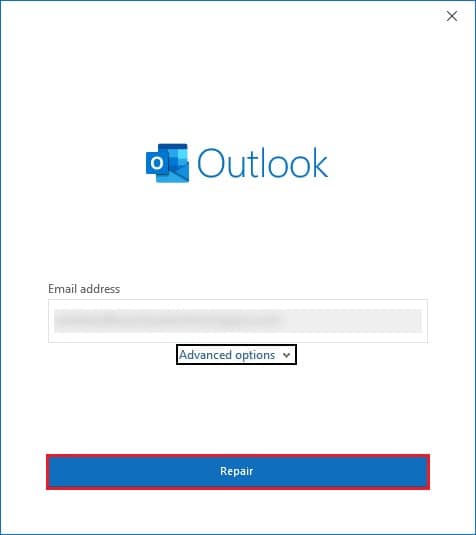
Method 3.Turn off the Windows Defender
Windows Defender Security Center is a protection and security software that is included with your Windows 10 system. There is a major chance that it is identifying certain items as threats and, after that, restricting them. You can turn off the software to check if that is the case.
Step 1. In the Search bar, type Windows Defender Security Center.
Step 2. Select Firewall and network protection.
Step 3. Select the account and disable the software for it.
Restart your PC and open Outlook. Then, check for the Outlook not syncing error.
Method 4. Disable Faulty Extensions and Anti-virus Software
If you have installed an extension or anti-virus program that is not compatible with Outlook, temporarily disable all such add-ins. While the anti-virus program is on hold, avoid opening any unknown links and emails.
Step 1. Open Outlook and straightaway open the File menu.
Step 2. From the left panel, click on Options.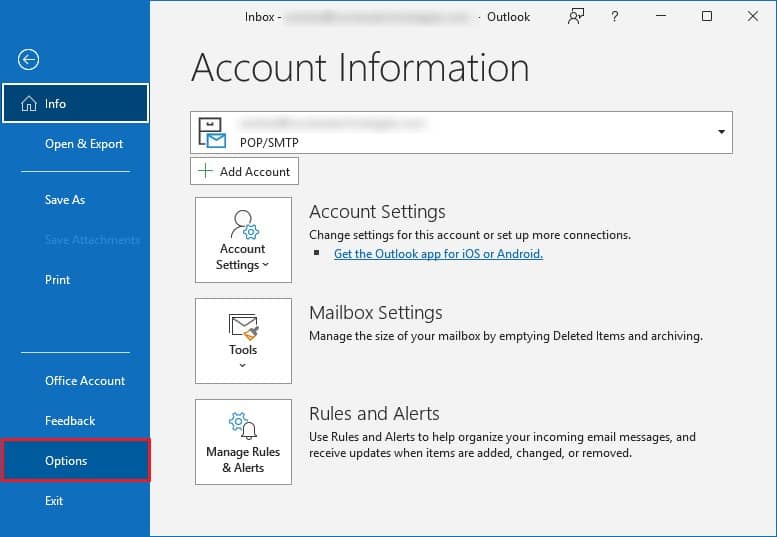
Step 3.Now, go to the Add-ins tab. The Outlook Options window will appear.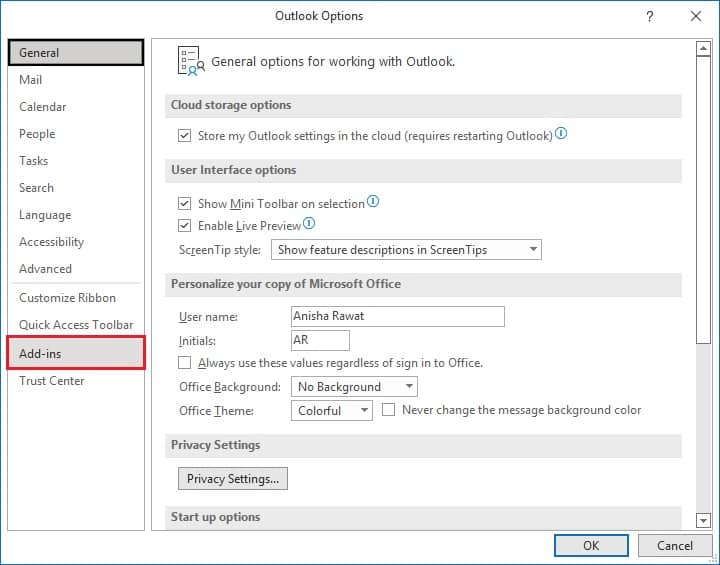
Step 4. To uncheck the extensions, and go to the Manage options, select COM Add-ins. Now, click on Go.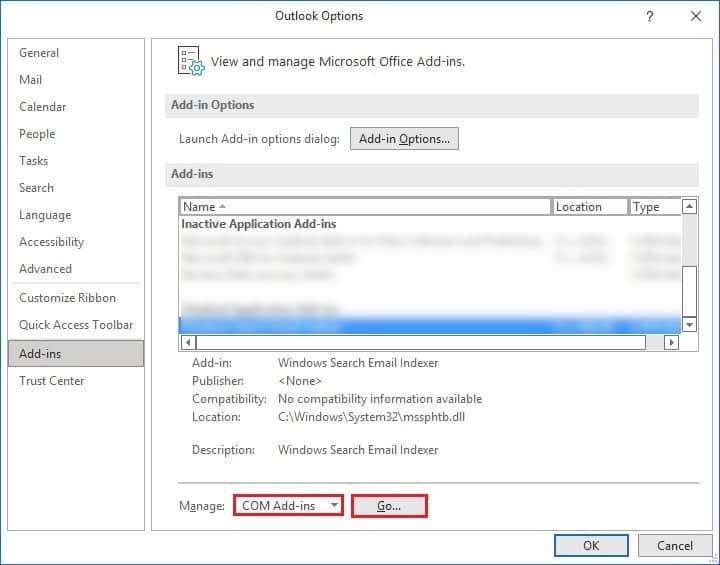
Step 5. Restart the Outlook application and check for the sync error.
Method 5. Repair Microsoft Office
To resolve this, you can opt for the repair of the Office program. Here are the steps to follow:
Step 1. Go to the Control Panel of your system.
Step 2. Select Programs & Features.
Step 3. Locate MS Office from the complete list and right-click on it. Click on Change.
Step 4. Now choose between Quick and Online accordingly. Click Repair and follow the instructions given on the screen.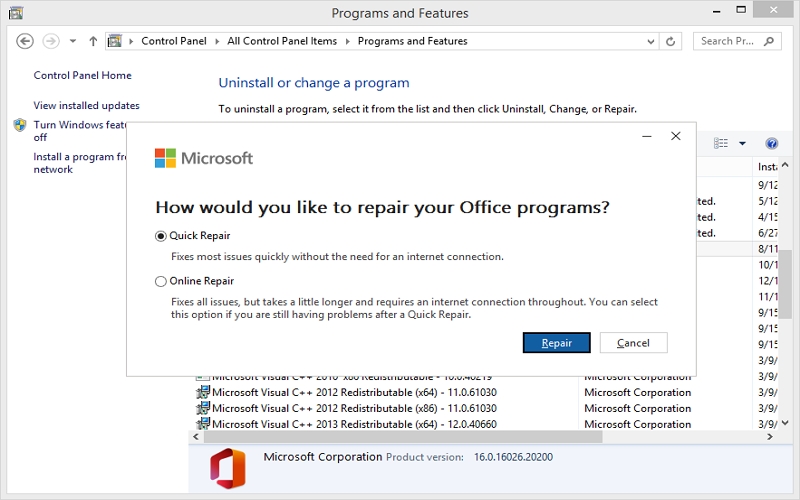
Once your Microsoft gets updated, Open Outlook, configure your account, and look for Outlook not syncing error.
Method 6. Clear Cache Data
Cache files are kept in reserve to enhance your search experience. However, if collected over a long time, they have the power to slow down the platform. In addition, you can also delete Outlook temporary files in Windows 10. It is necessary to remove them all after a while.
Step 1. Close the Outlook program.
Step 2. Press the Windows and R keys together to open the Run dialog box.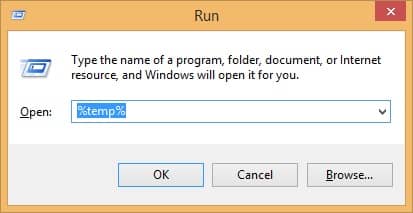
Step 3. Type this command- %localappdata%/Microsoft/Outlook and press OK.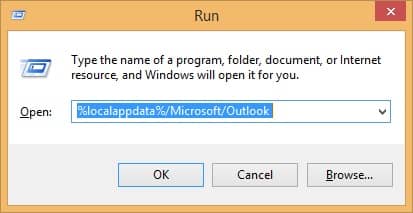
Step 4. Select the files and right-click. Delete them.
Method 7. Change the email sync frequency
The default time for email syncing is set at 30 mins in Outlook. However, it may not be suitable for your communication requirements. You can choose to change it to make the syncing process faster. Here are the steps to follow to fix the Outlook not syncing error:
Step 1. Click on the Send/Receive tab.
Step 2. Click on Sent/Receive Groups and select Define Send/Receive Groups.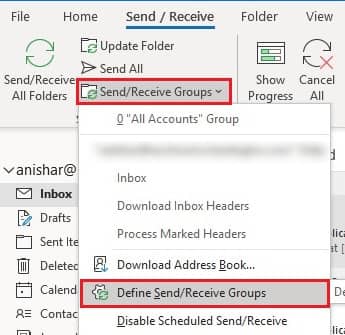
Step 3. You can change the time accordingly.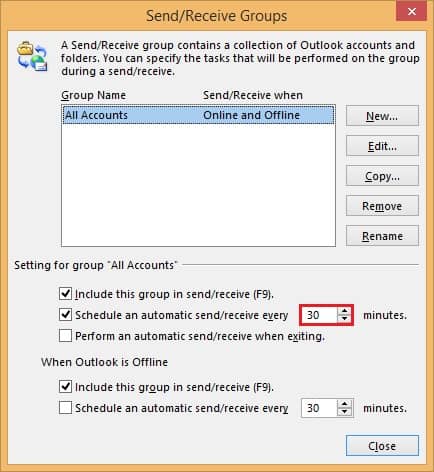
Method 8. Repair Corrupted PST File
One of the main culprits here is a heavily corrupted data file. Outlook saves all the user’s information in a PST format, and once that gets corrupt, it will result in Outlook not syncing errors or even worse. However, you can use ScanPST.exe, a free Microsoft utility, to fix minor issues in the PST file. But when the PST file is severely corrupted, the ScanPST.exe might fail.
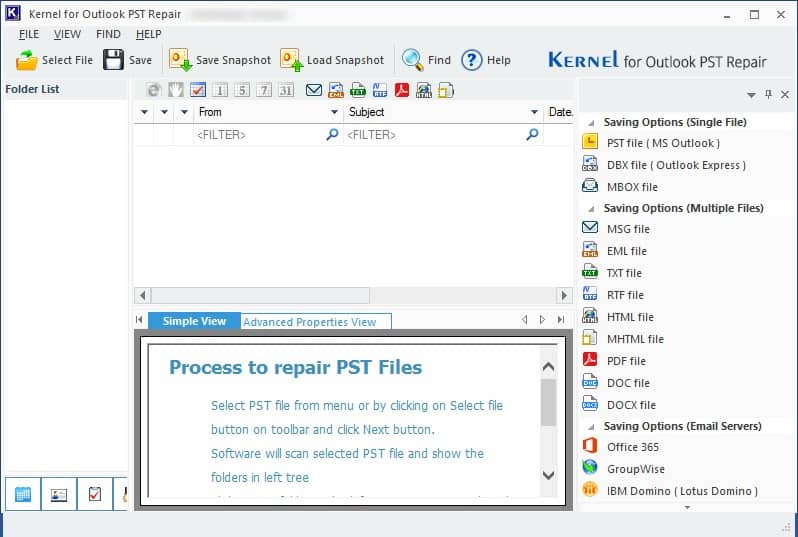
Due to the involvement of sensitive data, you can opt for Kernel for Outlook PST Repair, which is a professional and most reliable tool. It has powerful algorithms that help to repair all-sized PST files, keeping the data hierarchy just like the original one. It is easy to use; even non-technical users can repair a PST file as well. Additionally, if you need to migrate your PST file to different cloud platforms or an IMAP server, this tool makes the process easier and more direct.
Conclusion
Outlook not syncing with Windows 10 / 11 system has become quite a common issue now. But it does have some major consequences that are not beneficial for the organization overall. This error must be resolved on an urgent basis. Since there are many reasons behind it, there are several techniques in the article that can be used to resolve the Outlook not syncing error.
For most of the Outlook errors/issues, the Outlook data file corruption can be the primary reason. If your PST file is corrupted, then use the recommended Outlook PST repair tool instantly to resume the email operations in Outlook. Moreover, if you are planning to move a PST file with some confidential data, this professional tool can make the process easier. Moreover, it offers a free trial version, which you can use today to get hands-on experience. Download now!
Frequently Asked Questions (FAQs)
A. If you are missing important emails or finding that emails are not syncing across your devices, it may be that one or more of your email clients (applications) is configured to POP. To fix this issue, check the settings to ensure they are configured to use IMAP for each email client.
A. To fix Outlook synchronization issues, first check your internet connection and restart Outlook and your computer. If that doesn’t work, try disabling add-ins, clearing the Outlook cache, and forcing a manual sync. Moreover, you can clear offline items for specific folders, run the built-in Outlook repair tool, or remove and re-add your email account.