Read time 5 minutes
Whether using OneDrive Personal or OneDrive for Business with Microsoft 365 subscription, you must remain vigilant about the security of your online data. Microsoft does not take a backup of OneDrive data as it is stored in a secure data center that is protected from almost all hazards. Still, it is not immune to hardware failure, power outages, natural calamities, human errors, hacking attacks, ransomware attacks, operating system errors, etc.
If something terrible happens to OneDrive, prepare to say goodbye to the data if its backup is not taken. Because of this, users, administrators, and company owners all place high importance on taking the backup of OneDrive data. To backup OneDrive data, you require a planned method that you can follow easily.
We will explain the best ways to secure your data using free and professional options in this detailed yet simple step-by-step guide. To backup OneDrive files to external hard drive or the local system.
Method 1: Download specific items from OneDrive
It is possible to backup OneDrive data to your local system through simple download.
- Login to OneDrive and select the data for backup using the checkbox in front of them.
- You can either click the three vertical dots or choose the Download button directly.
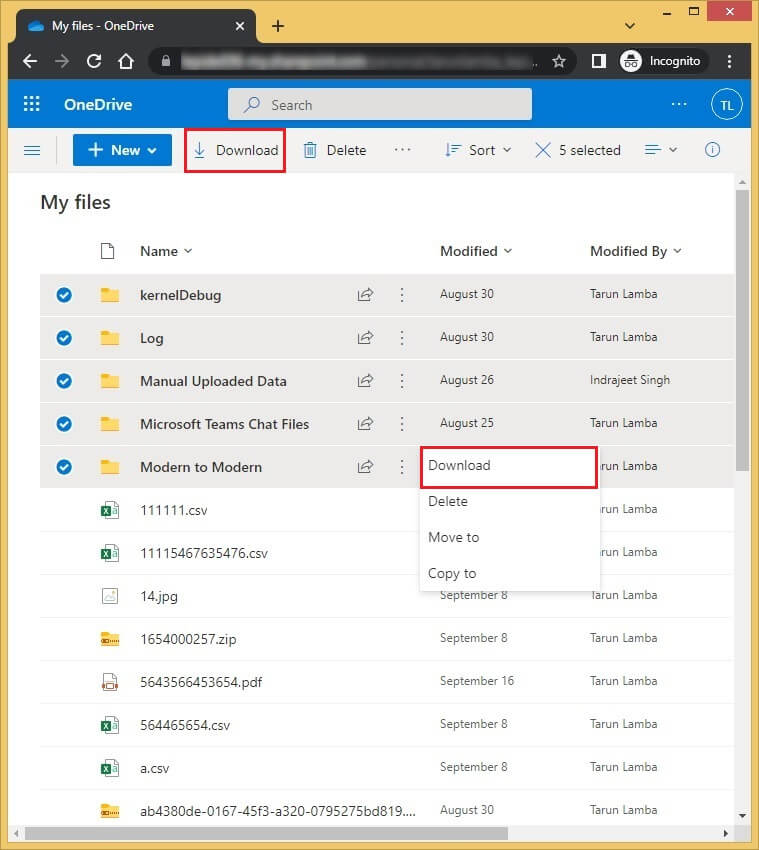
- The data will be downloaded in the ZIP file in the default downloads folder.
Even though it’s not a backup, this procedure could aid in preserving the OneDrive files you’ve chosen. This approach has many drawbacks, including:
- As all actions are manual, there is a lack of regularity.
- A large set of data will take a lot of time to download.
- If something bad happens to the computer or hard disc, backups could be lost.
- If there is a lot of data, OneDrive recovery gets difficult.
- It is suitable for limited-volume data only. Ultimately, you would require to backup OneDrive to external hard drive for further protection.
Method 2: OneDrive Sync for Desktop
With the OneDrive desktop version on the computer, you can synchronize online data directly to your computer. A file or folder you add, modify, or delete in your OneDrive folder also adds, modifies, or deletes the same file or folder on the OneDrive website, and vice versa. Your synced files are accessible while offline and may be accessed with File Explorer. Any modifications you make will automatically sync when you’re online. That way, you do not require to backup OneDrive to external drive as the online data is present on the system automatically.
- If the application is not present on the computer, then you can download it from the given URL –
https://www.microsoft.com/en-in/microsoft-365/onedrive/download - Install the application and register with your email address connected with OneDrive data. Click Sign in.
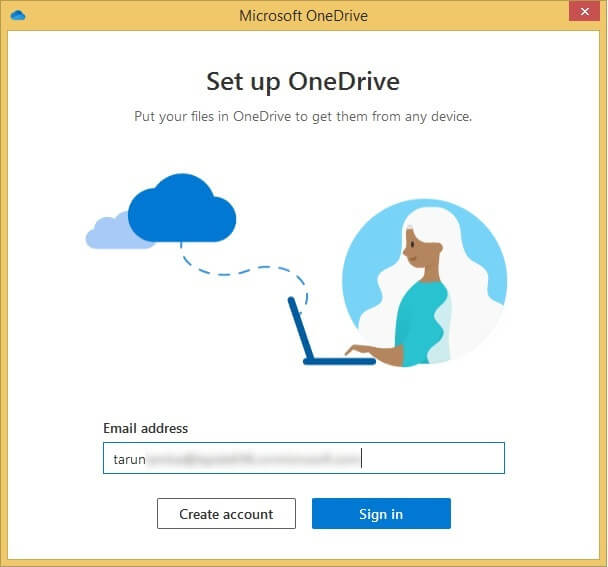
- The wizard will take a little time to install and synchronize all your data. Wait for a little.
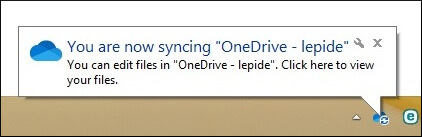
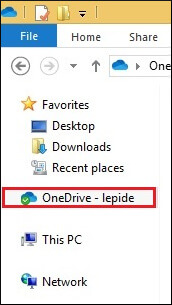
- After successful synchronization, the OneDrive wizard will be available in the app list in the File Explorer preview.
- You risk losing files on both sites if you employ two-sided synchronization and something goes wrong on one side.
- There is a chance that ransomware will infect your OneDrive; if your desktop files are compromised, the synchronization will move compromised data to the cloud and create issues.
- You need a lot of free space on your local disc to back up OneDrive. This is a problem if you need to back up a lot of data.
Method 3: Professionally backup OneDrive data
From the manual and native methods mentioned above, it is clear that these solutions are not a feasible choice to securely store your OneDrive data. To download effortless and structured backup, the best bet would be Kernel OneDrive backup tool. This software is most commonly used to backup OneDrive data to local drive with zero data loss. The process to backup data using this tool is quite simple and involves just a few steps. This user-friendly UI makes it a preferable choice for professionals in all spheres, be it technical or non-technical.
The tool allows saving backup of photos, documents, presentations, spreadsheets, zip files, folders, etc., stored within OneDrive accounts (personal and business). The tool assures that there will be no change in the hierarchy of the tool. Moreover, it supports incremental backup to eliminate data duplicity from the backup.
Conclusion
Solutions like manual download and OneDrive sync are not completely reliable. It is probably because of the chances of data loss, corruption, and incomplete backups. To overcome these limitations, we recommend the Kernel OneDrive backup solution. It will help you preserve your crucial data against threats like cyber breaches, malware intrusion, etc.
With this tool, you can connect your OneDrive for Business account and save complete data on the local or network attached storage. It comes with data filters, scheduling option, and granular plus controlled backup jobs along with several other advantages. Take the free trial today.