Read time: 6 minutes
PST file is a crucial part of Microsoft Outlook. When you set up your Outlook account, it creates a PST file to store mailbox data, and users often set a password to their PST file to secure its data. However, remembering passwords can be difficult and there are situations where you might need to access PST file data, but find yourself locked out due to forgotten password.
As someone who heavily relies on Outlook for organizing and managing my emails, I understand the frustration that comes with constantly being prompted for a password. This issue not only disrupts workflow, but it also leaves our crucial data vulnerable without proper protection.
But there are simple yet effective ways to resolve this ongoing issue. By utilizing the given proven technique to retrieve your password, you can get access to your email and data. In this article, we provide expert insights on how to resolve the Outlook password prompt issue to work efficiently and confidently without any disruptions.
Why do we need to view PST password?
There are several reasons why you might need to view your PST file password:
- The most common reason is forgetting password set for the PST file.
- Need to access an old PST file data with password.
- To repair a corrupted or inaccessible PST file containing password.
- You want to open a password-protected PST file on the new system.
Can you view Outlook passwords? – Best ways
You must know that there is no straightforward way to reveal Outlook password. You can try to reset your password. But if it doesn’t help you out, then we are here. We will provide two manual methods by which you can view PST password. Follow the instructions carefully below.
Note: These methods will only work in some specific conditions. If these conditions fit your situation, then only go for manual methods.
Method 1. View password via Outlook desktop application
If you have more than one PST/OST file opened in your Outlook application, along with the file with a password, then only this method will work:
Step 1. In Outlook, go to File >>Account Settings >> Account Settings.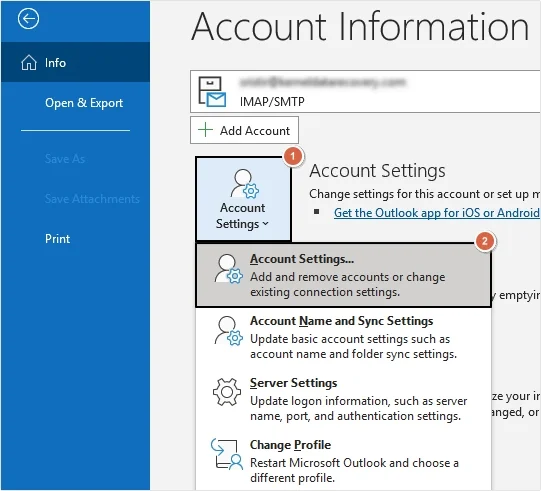
Step 2. Select required Outlook profile and click Repair.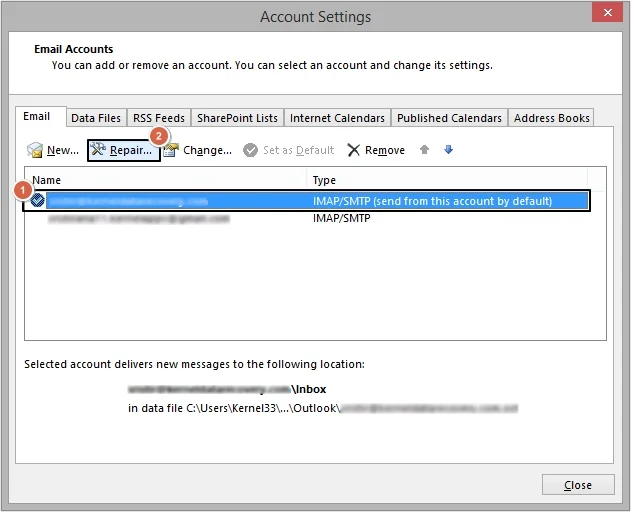
Step 2. Select Let me repair my account manually and click Repair.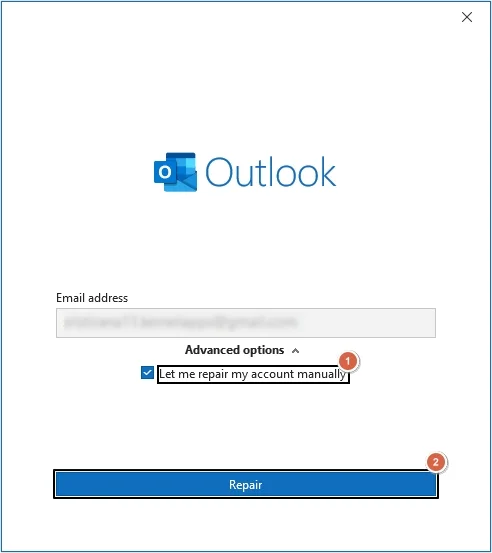
Step 3. Click on the eye button to view password.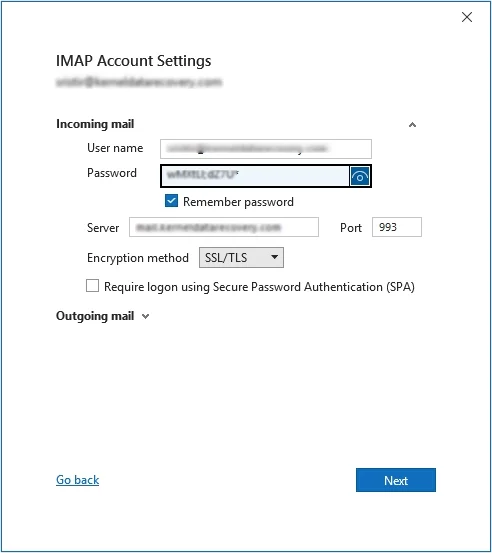
Method 2. View Outlook PST password on Web Browser
If you have ever logged in to your Outlook on web and have saved the password, then this method can help you get your password back:
On Google Chrome:
Step 1. Open Google Chrome, then go to Settings >>Autofill >>Password Manager.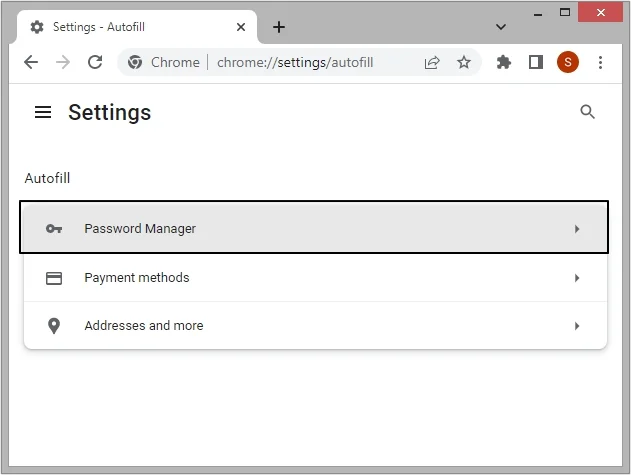
Step 2. Provide credentials of your system and click OK.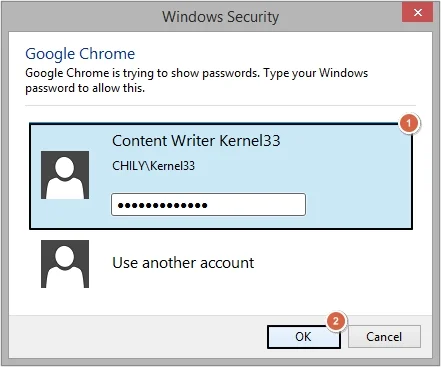
Step 3. Click on eye option to reveal Outlook password.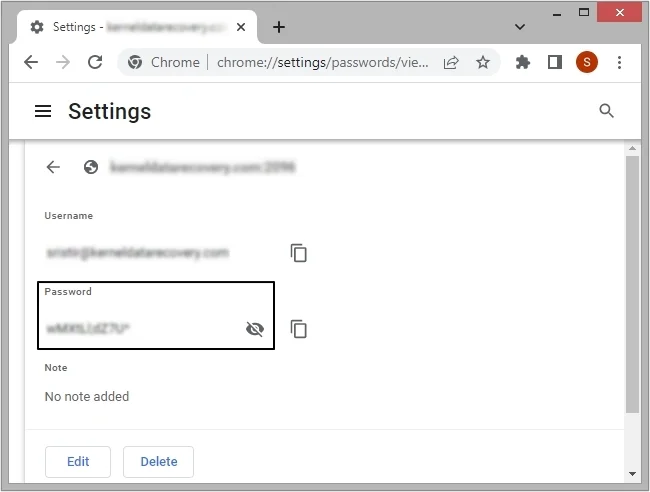
On Microsoft Edge:
Step 1. Open Microsoft Edge, then go to Settings >>Profiles >>Passwords.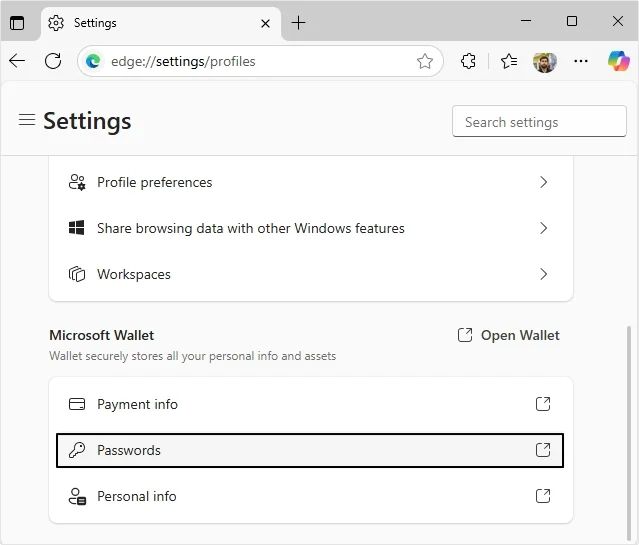
Step 2. Provide credentials of your device and click OK.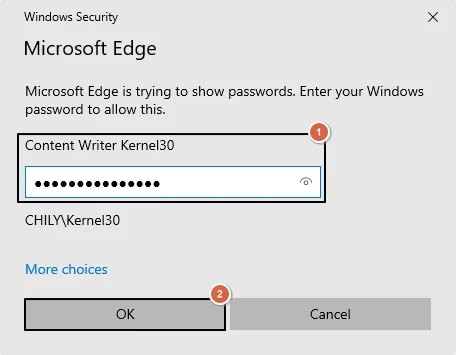
Step 3. Click the eye option to view password.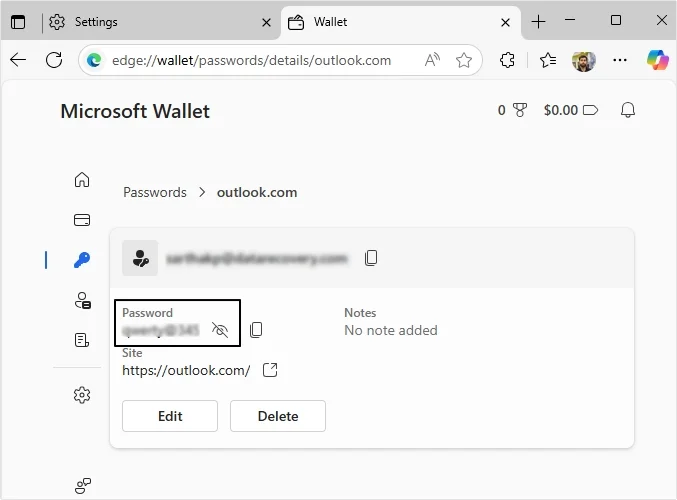
Best Outlook Password Viewer Tool – View Passwords with Ease!
Manual ways to view PST passwords do not guarantee success as they come with various limitations. Moreover, these methods will not work in every case. To overcome such issues, we have the best Outlook PST Password recovery software that will help you to get back and view Outlook PST password. The free version of Kernel Outlook Password Recovery tool allows you to view Outlook PST password for PST file size up to 500 MB. Simply follow the step-by-step process to view Outlook Password and get access to PST file data.
Easy Steps to View Password with Outlook PST Password Viewer:
Step 1. Download Outlook password viewer tool. Open it and click on Add Files option.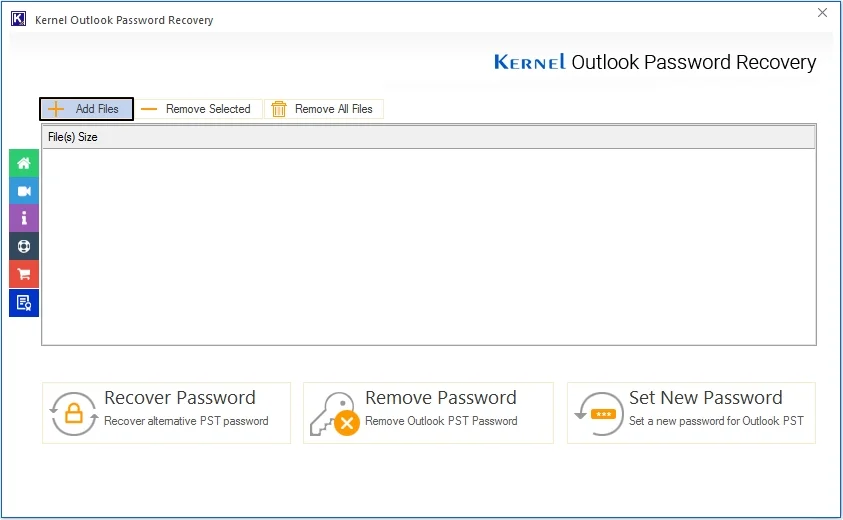
Step 2. Select required files to view passwords and click on Open.
Note: You can add single or multiple PST files at once to recover and view password.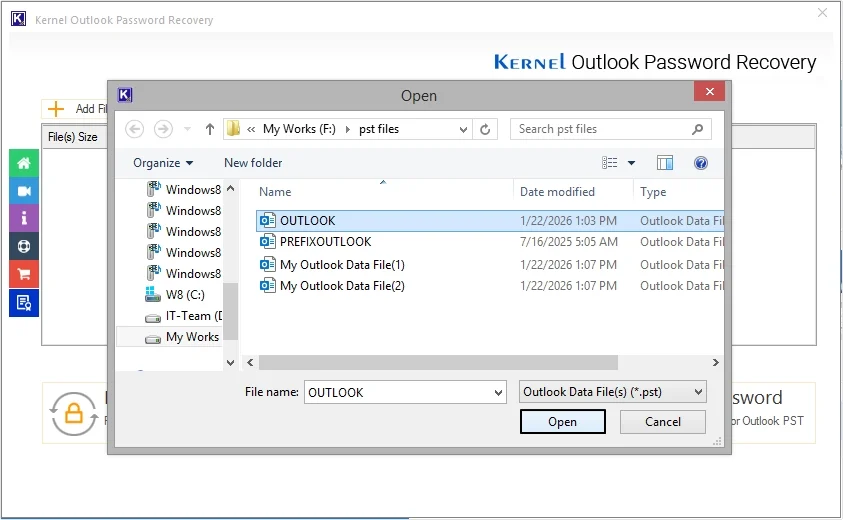
Step 3. Click on Recover Password option.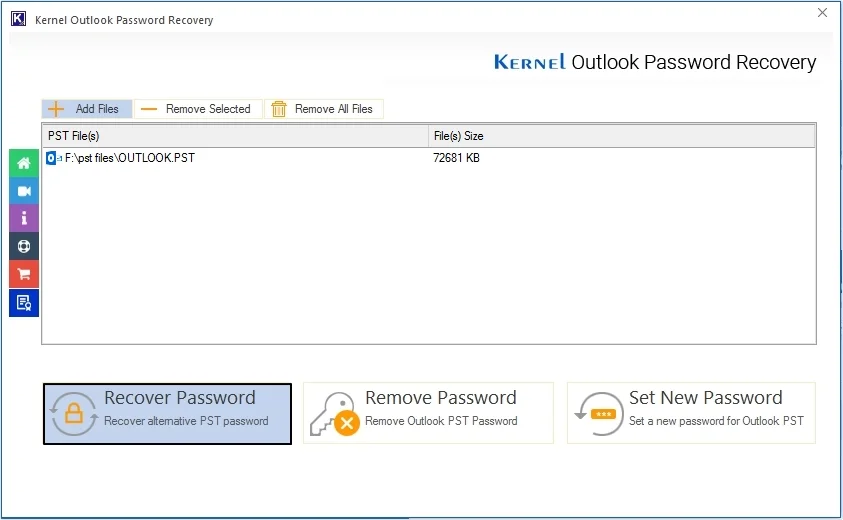
Step 4. The software will recover the password and let you view it in the software pane. After that, click OK.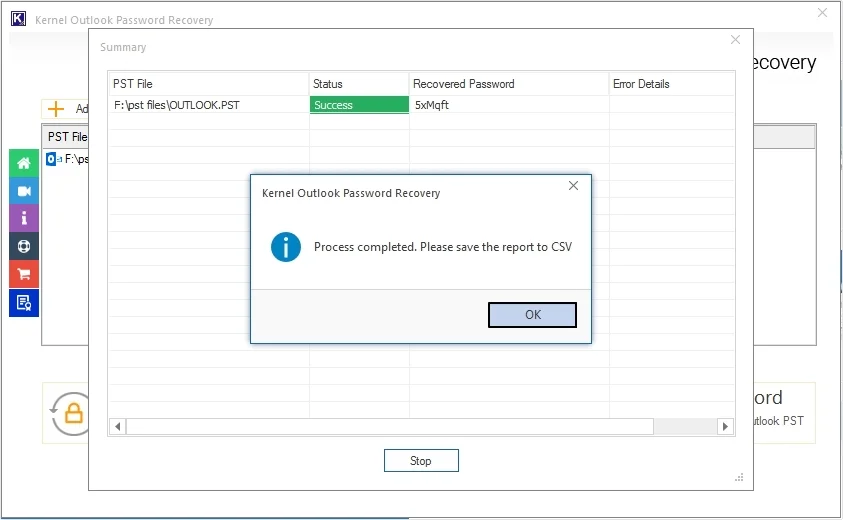
Step 5. Click Save report to CSV to keep progress report.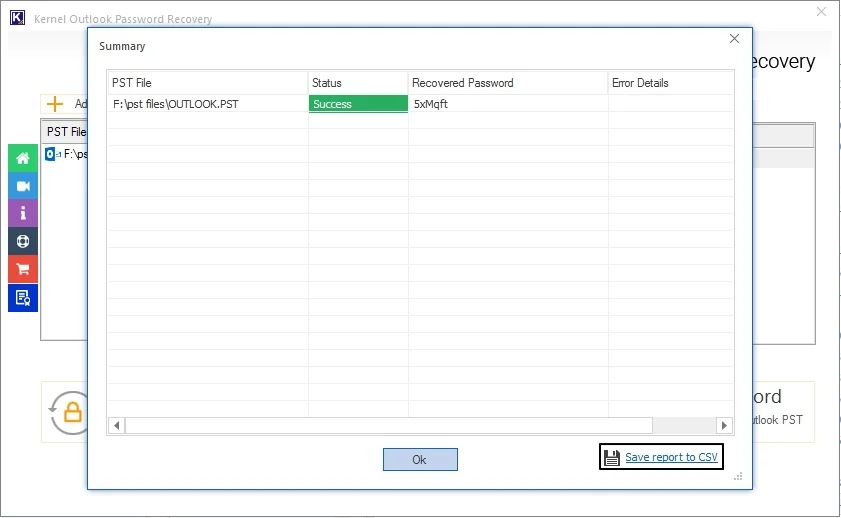
Step 6. Provide destination, file name, and click Save.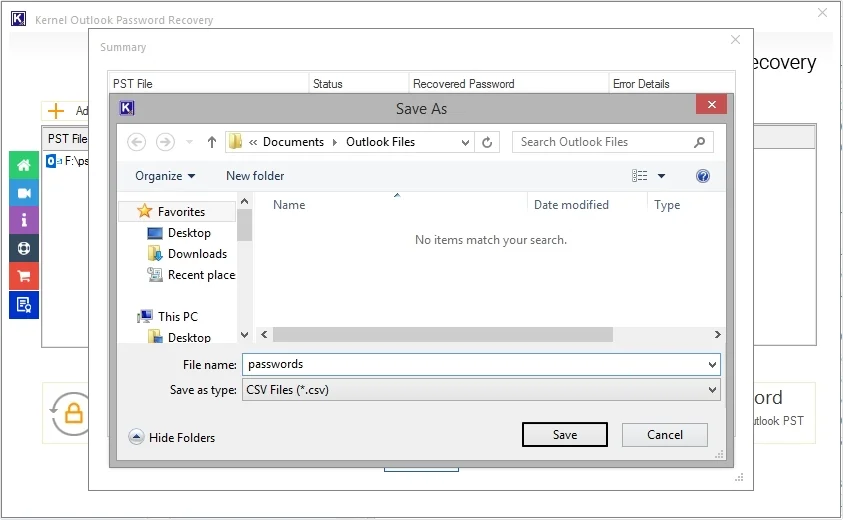
This is the easiest method to recover a password from a PST file via this alternate password Outlook viewer option. Moreover, it even allows you to set a new password for your PST files.
How to change or create PST file password?
You can use Outlook to change or create PST file password. Follow the steps to do so:
Step 1. Open Outlook and go to File >>Account Settings >>Account Settings.
Step 2.Go to Data File tab and select the required PST, then click Settings.
Step 3. Click Change Password, then enter credentials in Old password, New password, and Verify password, then click OK.
Note: If you are creating password for the first time, then leave the Old password dialogue box blank.
In this way, you can change your PST file password easily.
Final words
When you need to access PST file but have forgotten your Outlook PST password, it is very frustrating. You can use the methods listed in this article, or you can use Kernel Outlook Password Recovery tool as an instant solution to view Outlook PST file passwords. This tool is an effective and user-friendly solution to retrieve your lost password and view it within a few clicks. Download the PST password viewer free version and try it today!
Frequently Asked Questions
A. Here are a few troubleshooting steps to fix this issue:
1. To fix the Outlook asking for password issue, go to the File menu and click on Account Settings > Account Settings.
2. Tap on the Change tab & click on More Settings.
3. Go to the Security tab & uncheck the box “Always prompt for logon credentials”.
A. Sign-in will require a CAPTCHA after 10 unsuccessful attempts with an incorrect password. Upon a further ten incorrect password attempts and a successful CAPTCHA attempt, you’ll be locked for the next 15 minutes.
A. No, you cannot directly view Outlook PST password. You need an automated Outlook password viewer tool for this.