Read time: 6 minutes
Your email client does not notify you about new messages? No banners, no sound, no badges, but the email is right there in the app when you open it? This is one of the most common issues: Outlook New email notification not showing on Windows.
The problem is caused not by one, but by several factors. Notifications in the New Outlook are controlled by Windows notification policy, Do Not Disturb settings, account types (Exchange/IMAP), Outlook’s own notification settings, etc. This guide will help you fix the “Notification Not Showing for Outlook New Emails” step by step.
Why Outlook New Email Notification Not Showing? Top Reasons
There could be multiple reasons why Outlook notifications fail to show. Some of the most common reasons are:
- New Outlook relies on Windows Action Center Notifications.
- Outlook notifications are disabled.
- Focus Assist is ON.
- Mail account added as IMAP.
- Outlook is not running in the background.
- Battery saver or power optimizer is ON.
- Outdated New Outlook version.
How to Fix Notification Not Showing For Outlook New Email?
There are a few workarounds that you can try to fix Outlook New email notification not showing issue. Choose any of the methods and see if the email notifications are back:
- Reconnect Email Account in New Outlook.
- Update Outlook Application and Windows System.
- Clear Microsoft Store Cache.
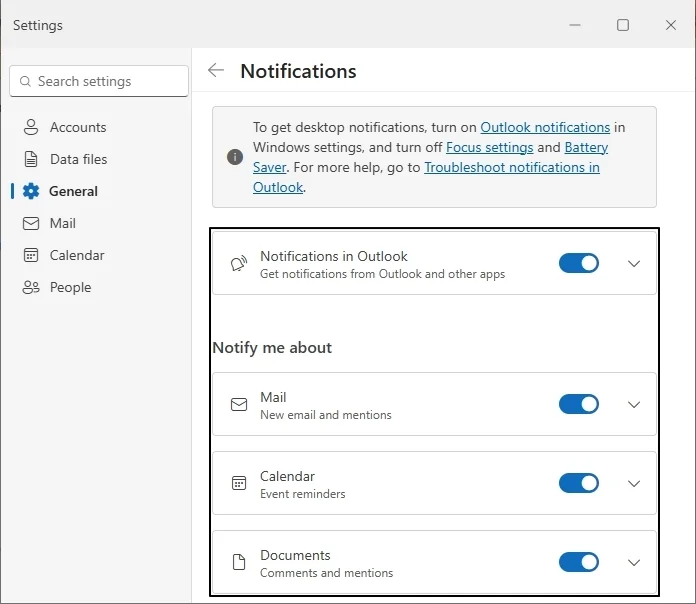
Method 1. Enable Notification In New Outlook
Make sure notifications in New Outlook are enabled. Follow the steps below and verify it:
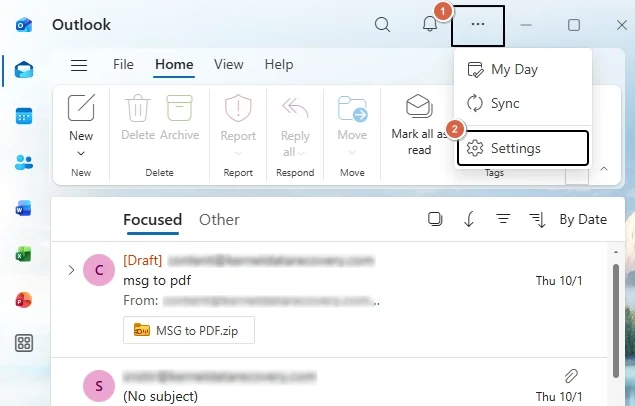
- Open New Outlook and click on the three-dots in the top-right corner, then select Settings from there.
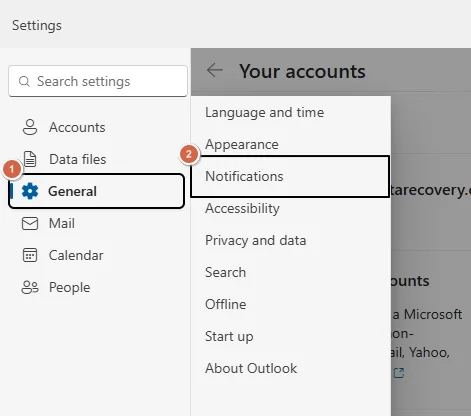
- In Settings, go to General, then click on the Notifications option.
- Enable Notifications in Outlook and Notify me about option.
Method 2. Check Windows Notification Settings
Sometimes, your Windows notifications might be turned off, which is why you are not receiving Outlook New email notifications. Check your Windows notification settings using the following steps and make sure they are enabled:
- Click on the Start button and search Settings, then open it.
- Go to System, then click on Notifications & actions.
- Make sure the main Notifications toggle is set as On.
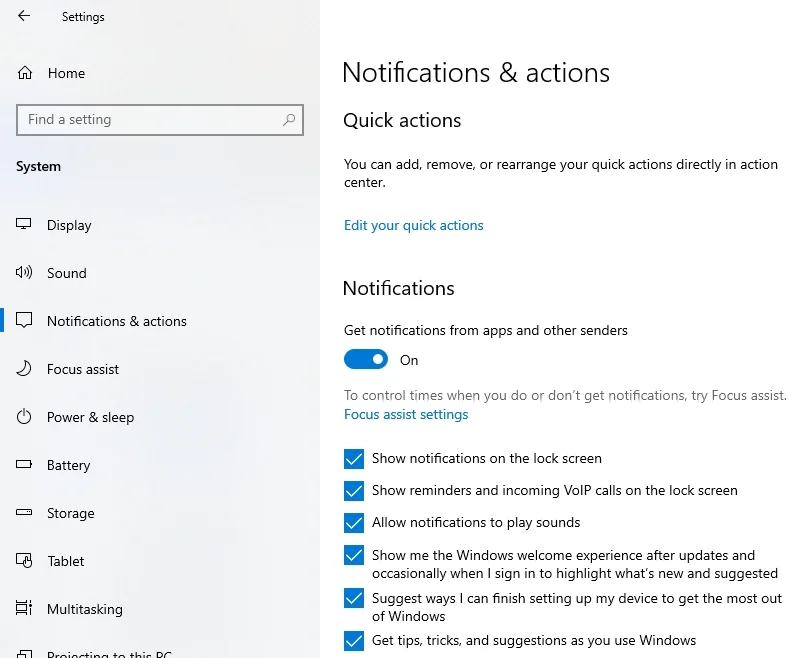
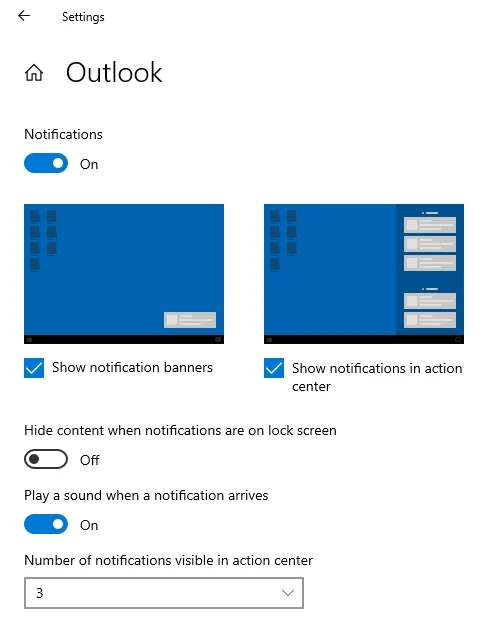
- Now scroll down to locate Outlook and set Notifications to On if turned off.
- Expand it and make sure Show notification banners and Show notifications in action center are also turned on.
Method 3. Disable Do Not Disturb or Focus on Windows
If you use Focus Assist on Windows 11, for instance, then your Outlook notifications might be blocked at a certain time of the day. Similarly, if you have enabled Do Not Disturb, you won’t see any notifications until you disable it. Here is how to fix it:
- Open Windows Settings, then go to System >Notifications & actions.
- Make sure Focus Assist and Do Not Disturb settings are turned off.
Method 4. Check Battery Saver & Power Saver
Sometimes battery and power optimizations can block your New Outlook notifications. Turning them off may resolve this issue:
Disable Power & Sleep:
Open Settings >Power & Sleep check that everything is set correctly.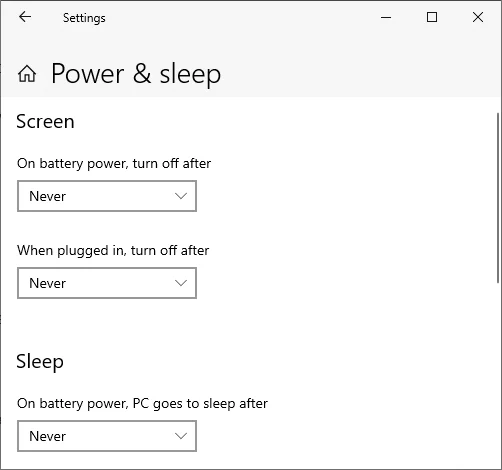
Disable Battery Saver:
In Settings > Battery and turn Off Battery saver.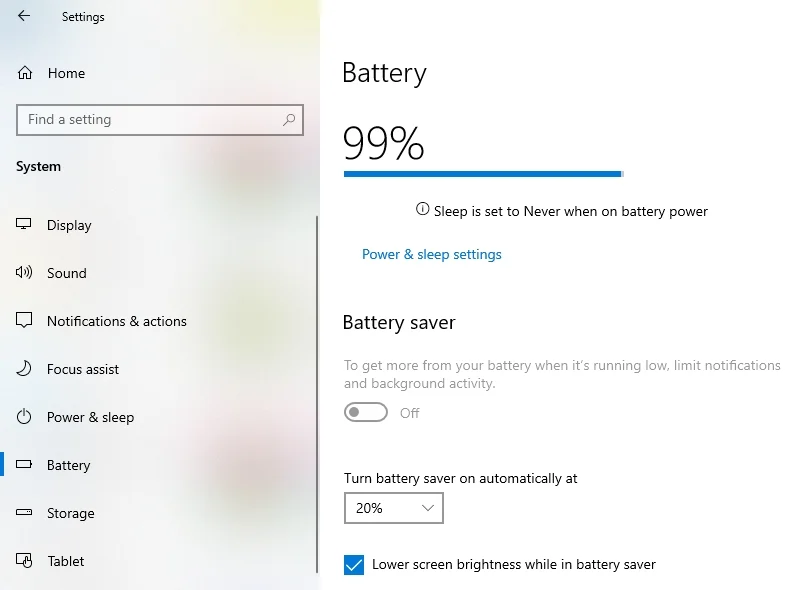
Method 5. Repair & Reset New Outlook Application
In many cases, corrupted app data can stop email notifications. Repairing or resetting the application may help resolve Outlook New email notification not showing issue:
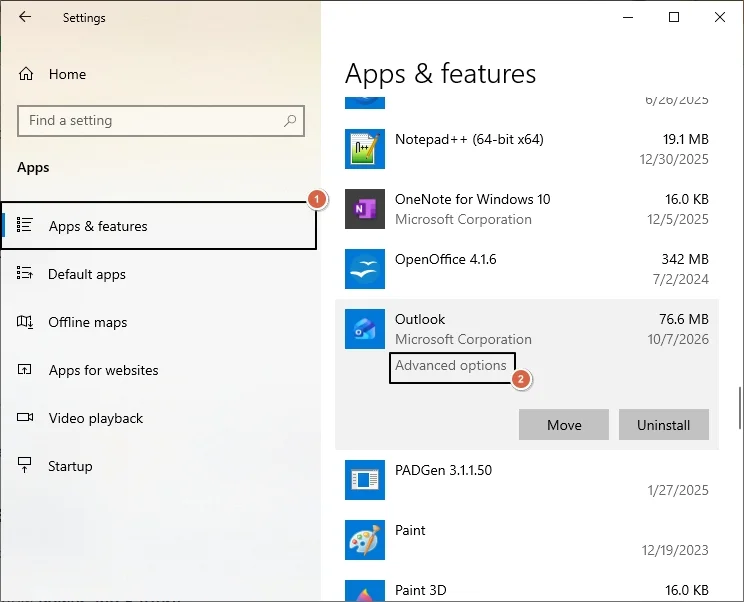
- Open Settings >Apps >Apps & Features then scroll down to Outlook and click Advanced Options.
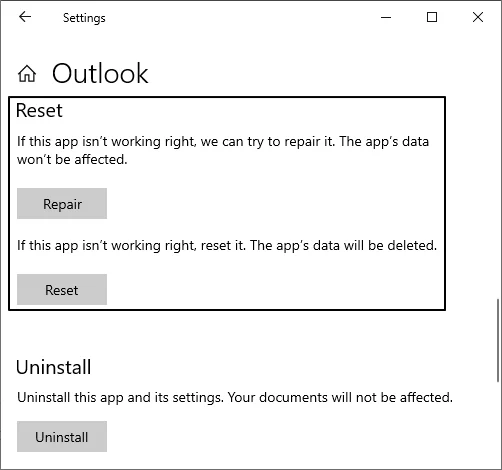
- Click on Repair, if notifications still fail, then click on Reset.
Facing Issues on Classic Outlook? Fix It Quickly
Sometimes, on Classic Outlook, users face the same email notification not showing issue. There are chances that your Outlook Profile or PST file is corrupted, causing crashes and failed email delivery. You need to repair your PST file using an Outlook PST repair tool.
Last Say
The new email notification in New Outlook happens because it relies on Windows notifications, not its own alert like Classic Outlook. Most users can fix it by enabling notifications in both Outlook settings and Windows settings, turning off Focus Assist, and keeping Outlook running in background.
Frequently Asked Questions
Ans. Outlook New email notifications are not showing in Windows 11 due to a disabled app or system settings, active focus mode, or background app restrictions.
Ans. To turn on email notifications in New Outlook, open Settings, then go to General >Notifications. Now make sure all the notification options are enabled.