Read time: 10 minutes
Microsoft OneDrive and Google Drive are the industry titans when it comes to cloud storage services, known for providing high security and advanced features to users for easy and effective data storage. The two are the duopoly partners and can be seen everywhere, in every industry sector, and almost everyone uses them.
Where OneDrive is widely known for integrating well with the Windows environment, its ease of use and friendly interface can be trusted for everyday operations. However, to decide which is the best suitable cloud storage, a clear and straightforward comparison is what you need.
Understanding OneDrive and Google Drive
Before we move ahead to the basic differences between OneDrive vs Google Drive, it is important to understand Google Drive and OneDrive individually.
What is OneDrive?
It’s a cloud storage service included in the Microsoft 365 suite that quickly and conveniently connects you to your files. It allows you to store and protect your data, share it with others, and access it from anywhere on all devices.
Pros
- Real-time collaboration to boost business productivity.
- Integrated with other Office apps, including Word, PowerPoint, Outlook, Excel, etc.
- Supports online and offline working.
Cons
- Lack of third-party app integration.
What is Google Drive?
It is a cloud-based file storage within Google Workspace, which allows users to create, store, upload, edit, and access files using supporting applications like Google Docs, Google Slides, or Google Sheets. Its primary purpose is to centralize the information and make it accessible for teams to collaborate in real-time on all devices from anywhere.
Pros
- Shareability and real-time editing features have taken collaboration to the next level.
- Intuitive and easy-to-use user interface.
Cons
- Upload or copy only 750 GB at maximum for a 24-hour period.
Quick overview: Side by side OneDrive vs Google Drive comparison
Before learning about the differences in detail, let’s draw a side-by-side feature comparison between Google Drive and OneDrive for better understanding.
|
Features |
OneDrive |
Google Drive |
|
Free storage |
Free plan comes with 5 GB of free storage. |
Provides 15 GB free storage, shared across multiple Google Workspace components. |
|
Works for |
Users who are working with Office365 and want well-managed, structured file storage as well as collaboration using Teams or SharePoint. |
Users who work with Google Workspace find it easier to navigate through the components and prefer Google Drive for easy file sharing and fast access to other components |
|
Data security |
With features like data loss prevention, multi-factor authentication, identity management, and advanced threat protection, OneDrive provides strong enterprise security |
Provides strong workspace controls and two-factor authentication; Google Drive keeps your data secured. |
|
Data synchronization |
Synchronize efficiently with the local File Explorer using OneDrive Sync. |
To sync your files and folders with file server, you need to manually download the Google Drive for desktop app. |
|
Upload file size limit |
Maximum file size supported is 250 GB per file |
Maximum size allowed is 5 TB |
|
Paid plans |
Personal plans (100 GB for £1.99/month) |
Personal plans (£1.99/month for 100 GB) |
OneDrive vs Google Drive: A brief comparison
OneDrive and Google Drive offer the same storage and sharing services, but their user interface, pricing, backup, security, and availability are different. Let’s compare both platforms based on these factors one by one.
1. User-interface
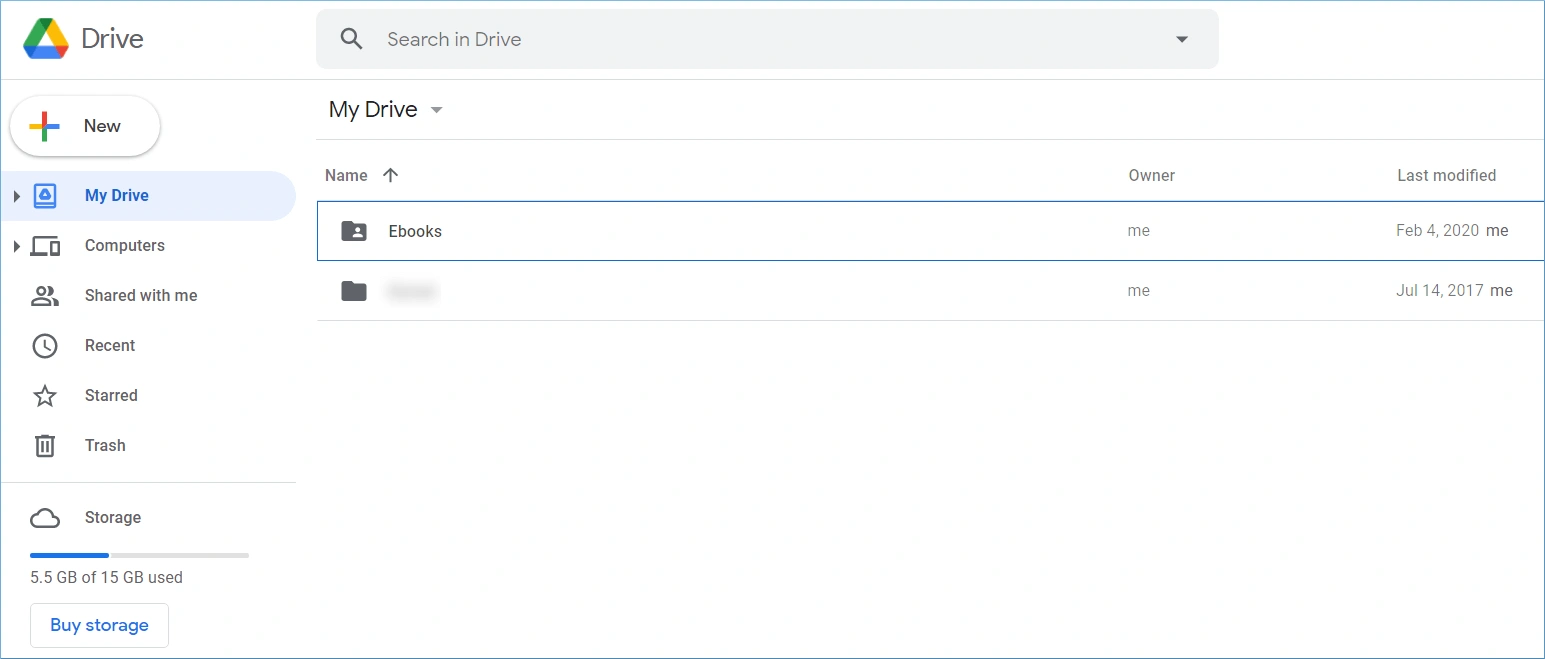
- Google Drive:The user interface of Google Drive is minimal and similar to the Gmail platform, where all the options are present on the left-hand side. There is a New option that is useful for uploading files and folders, and have folders: My Drive, Shared Drive, and Shared with Me to check out the uploaded files. You can check out the recent and starred files. The deleted items will be present in the Trash folder. It will also show the available space and occupied space.
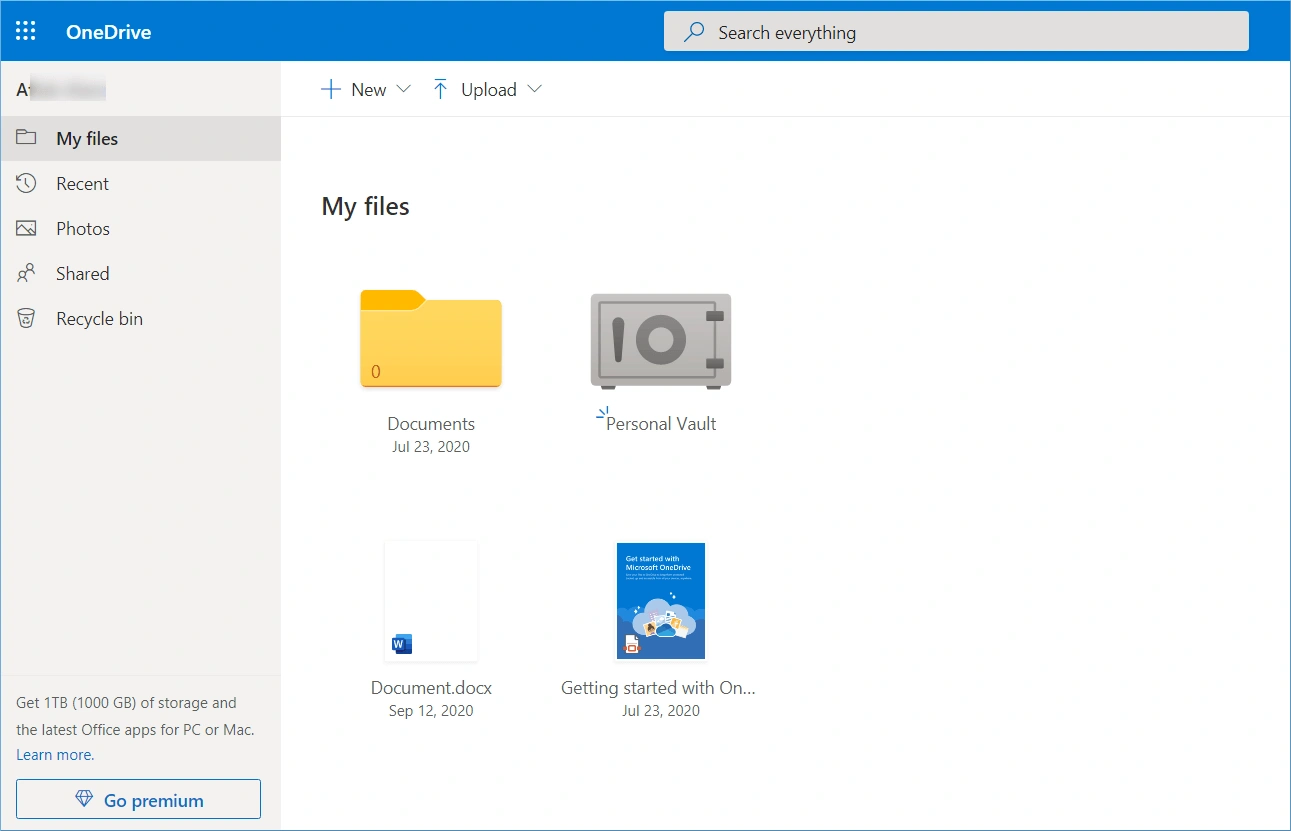
- OneDrive:OneDrive has a more minimal interface where all files are present in the My files option. There is a separate Photos option to check out the images only. Also, there is a special Personal Vault to make the storage more personal. Deleted items will be present in the Recycle Bin.
2. Pricing plans
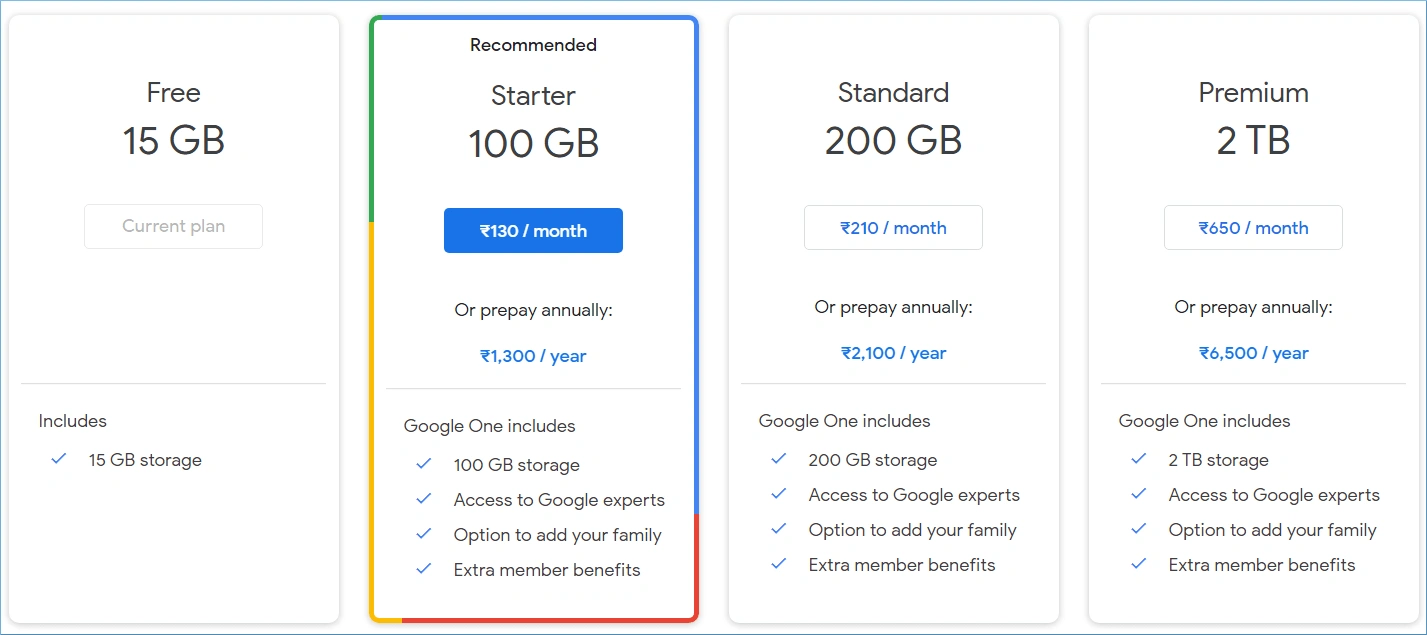
- Google Drive: : It offers 15GB of free space for usage, and to get more storage, you need to purchase Google One plans. When the user chooses to get more storage, the available plans to choose from include 100 GB, 200 GB, and 2 TB. The pricing starts from $1.99, $2.99, and $9.99 per month, respectively. These pricing and subscriptions vary with the change in the region where you are using Google services.
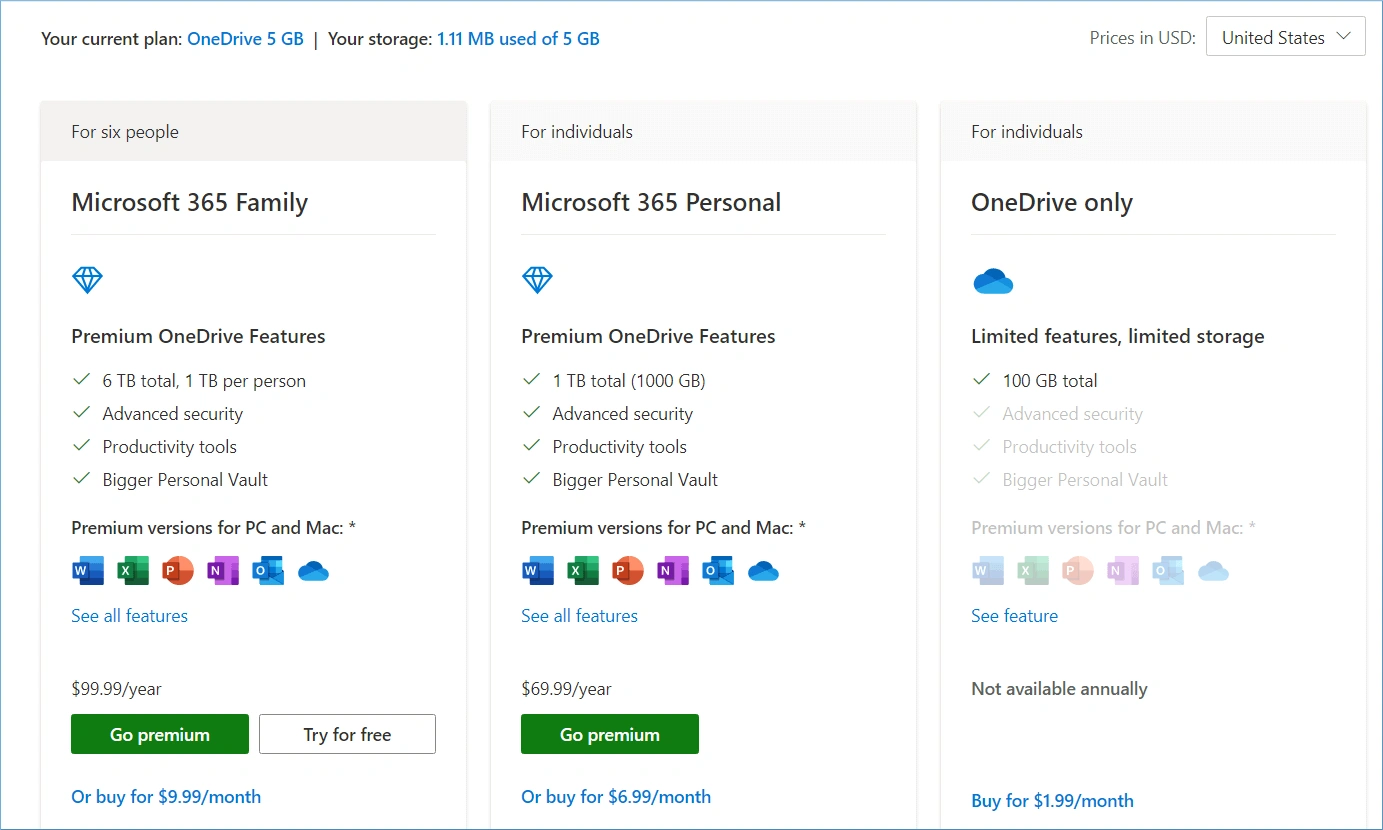
- OneDrive: OneDrive gives 5GB of free space for usage. After that, users can purchase suitable Microsoft 365 plans that suit their requirements. Available OneDrive storage plans, include Microsoft 365 Family, Microsoft 365 Personal, and OneDrive Only. The pricing is $9.99, $6.99, and $1.99 per month, respectively.
3. Security features
Microsoft and Google have the most secure data centers in the world. Both platforms offer some sturdy security features and proper encryption methods to save data.
- Google Drive: Google Cloud secures your data with multiple encryption layers and strong protocols like TLS. Binary Authorization for Borg (BAB) is used to ensure that only authorized entities process the data. Furthermore, Google uses hardware security chips called Titan. These chips provide advanced security features, such as secure key storage.
- OneDrive: OneDrive encrypts each file with AES256 keys for secure content protection. These keys are unique, encrypted, and placed in the Azure Key Vault. There is a minimum chance of penetrating such security. Microsoft also has Virus scanning on download, suspicious activity monitoring, password protection, ransomware detection, and recovery.
4. Desktop availability
The data available on OneDrive and Google Drive is not only accessible through the web browser or mobile apps but also on the Windows desktop.
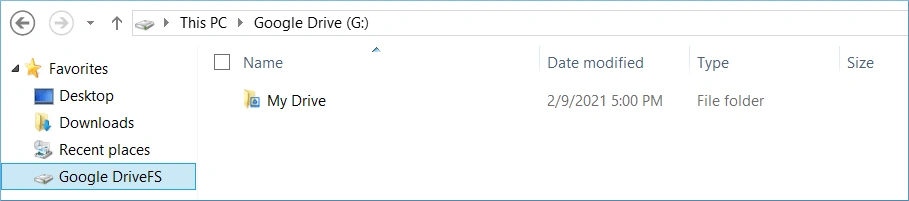
- Google Drive: Google has an application named Google Drive for Desktop that you can install in the computer system to directly access your Google Drive data. The tool’s shortcut is present in the Favorites, and you can use it to check the data.
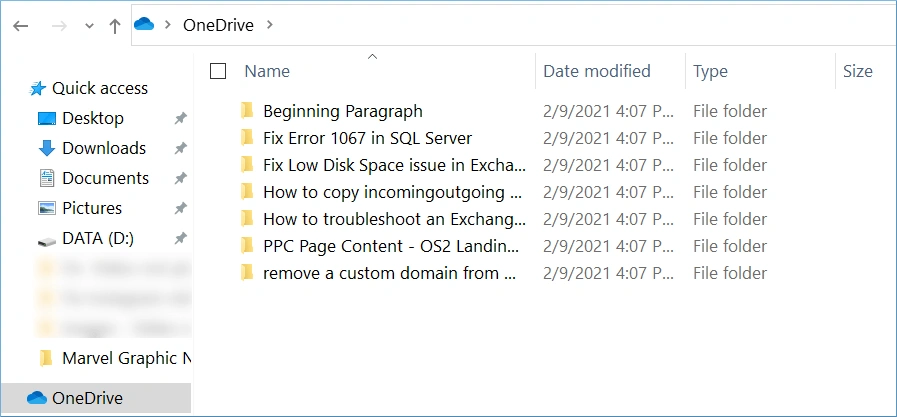
- OneDrive: The modern Operating System like Windows 10 has an inbuilt link for OneDrive. You can add it to the default account and access all the data.
5. Data sharing
OneDrive and Google Drive are not only used to store files but also for file syncing, sharing, and retrieving. There is a sharing option available on both platforms. Users can choose any file or folder and share it with anybody. Sharing is not limited to the same platform accounts, but you can share with any email address.
- Google Drive: Choose any file or folder and right-click on it. Then, choose the Share option. Simply enter the user email address and adjust the access level. This will provide the limited access that you want on your Google Drive data.
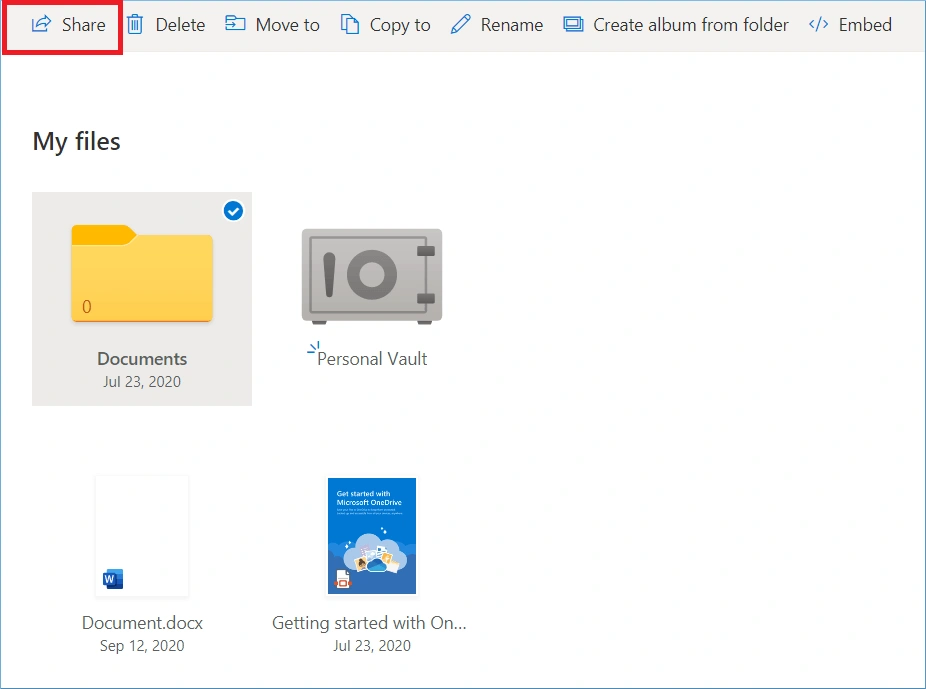
- OneDrive: In OneDrive, when you select any file, then all the options become active. The first one is Share, and you can choose to share the file.
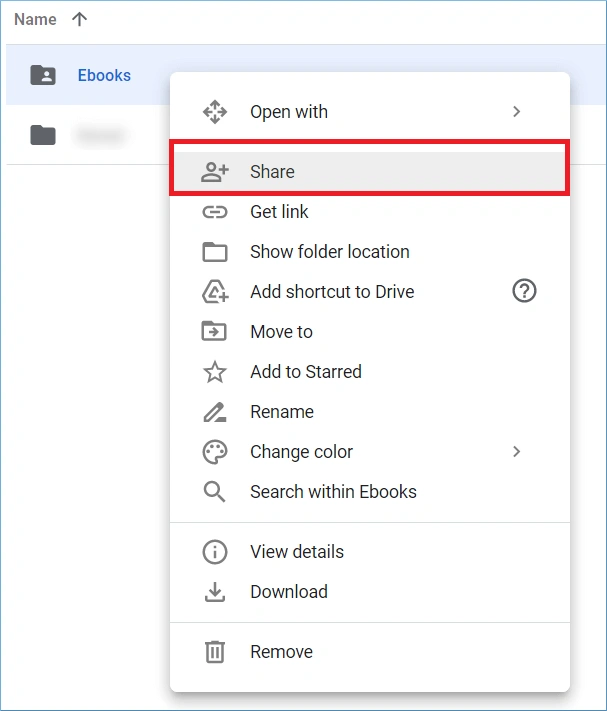
When you share the file and folders with other users, the files remain in the same account, but the user can only access them.If you want to migrate the content completely, you should use professional migration software for secure migration.
6. AI integration
After the launch of ChatGPT every tech giant wants to have their own chat bot. Google & Microsoft are also enhancing their platforms by integrating artificial intelligence in them.
- Google Drive: Google’s AI assistant Gemini empowers the user to enter their prompt and get instant replies related to the file stored online. The functionality can efficiently help users to execute operations like finding a file, analyzing different versions of file and doing file comparisons.
- OneDrive: Microsoft is also giving tough competition with its AI assistant Copilot. The AI bot is helping provide more appropriate search results in the Edge browser. OneDrive, combined with Copilot’s extensive computing and intelligence, makes it easy for users to simplify their daily tasks. They use it to find files or perform creative tasks like generating a document summary and more.
Bottom Line: Who’s the winner?
The choice of storage between OneDrive and Google Drive depends on your requirements. You can consider factors such as cost, storage, security, accessibility, etc., to pick the desired one. However, according to us, you can choose based on the following conclusion:
- Google Drive is a suitable choice if you’re a student who needs free storage and wants to collaborate efficiently on docs.
- For Windows users, OneDrive is the better option as it integrates well with the native Windows File System or File Explorer.
- If you’re a business working with Office 365, using Microsoft OneDrive is a smart and safe alternative.
- Remote teams often find Google Drive to be a quick and easily accessible option because of being a browser-based program.
However, irrespective of the platform choice, you might often need a reliable solution to allow smooth Google Drive and OneDrive migration. Use a professional solution like Kernel Migrator for SharePoint for such migrations. Moreover, it helps you create a pre-mapped CSV file for bulk migration of data.
Frequently Asked Questions
A. Yes, both Google Drive and OneDrive provide offline access to files and folders. You can even sync Google Drive to local storage and OneDrive to your local drive. Any changes that are made in offline mode will automatically synchronize whenever the internet connection is restored.
A. Yes, you can effortlessly sync Google Drive to your personal computer. To do this, download the Google Drive application on your machine, and you can then sync the files and keep them offline as required.
A. 1. Google Drive allows advanced search functionality with features such as auto-suggestions.
2. OneDrive provides basic search features but has better AI-powered tag search for images.