Read time: 12 minutes
Summary: At some point, you must have thought of how to remove old emails from Outlook or Office 365. But removing emails isn’t the solution, you need to properly cleanup your mailbox. For Office 365 mailbox cleanup, you require properly tested methods to prevent data loss. You can set rules, create retention policy and delete emails from specific folder. To know the exact procedure, you can proceed with this detailed guide and get rid of unwanted emails.
A business email account gets a significant number of emails daily. Some of them are useful and some of them just end up in Junk or Deleted folder. To keep the mailbox organized, users should delete old emails from Inbox, Junk/Deleted folder, Sent Items, and other folders. It improves productivity and helps business save their money from buying additional storage. If you are also looking for methods on how to clean up Outlook mailbox in Office 365, follow our expert steps properly for a quick cleanup.
Why Regular Office 365 Mailbox Cleanup is Important?
Regular Office 365 Mailbox cleanup is crucial for every organization, be it small or large. It helps in keeping things organized. Here are some key reasons for regular mailbox cleanup:
- Prevents storage limits which interrupt sending and receiving of emails.
- Old emails can slow down performance that can cause lags and freezes.
- Mailbox cleanup helps in aligning the business with retention policies in Office 365.
- Cleaning up your mailbox can be cost effective as you don’t need to upgrade your storage plans.
- Old, forgotten emails might contain sensitive data, which needs to be cleared if not required anymore.
- Smaller mailbox offers fast search results and thus, it is easy for organizations to look for important emails when needed urgently.
- Let go of all unnecessary emails and create space for new incoming emails without paying extra.
How to Clean up Outlook Mailbox in Office 365?
After trying and testing multiple Office 365 Mailbox cleanup methods, I found some of them that worked for me. Here is the detailed step-by-step process for each method described. Follow them carefully for accurate results.
For Outlook 365
Many users don’t know how to delete old emails in Outlook 365 without data loss. To ease the process for you, we have provided the detailed steps below:
Delete older emails from individual folders
In your mailbox, there are multiple folders, and each folder contains several emails based on their type. The new emails are in Inbox, outgoing emails remain in Sent items, unfinished emails are put in Drafts, bad emails are moved to Junk mail, and older emails move to Archive. You can delete the older emails from these folders using Outlook settings in Outlook on the Web.
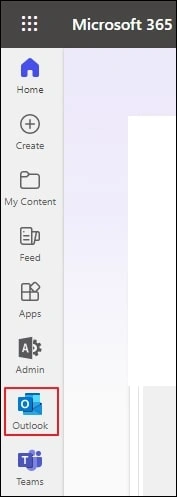
- Log into Office 365 account, then select Outlook from left pane.’
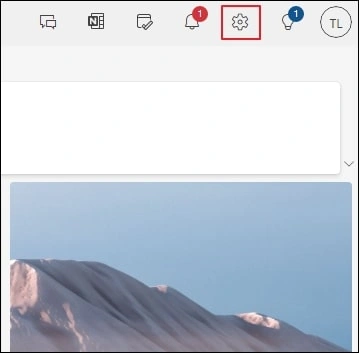
- Click on Settings gear icon.’
- In the General category, go to the Storage option.
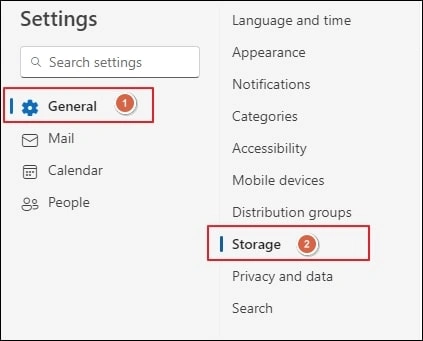
- The list will show various folders and their sizes. You can open the Empty dropdown and select one among the various options- ‘3 months and older’, ‘6 months and older’, and ‘12 months and older‘.’
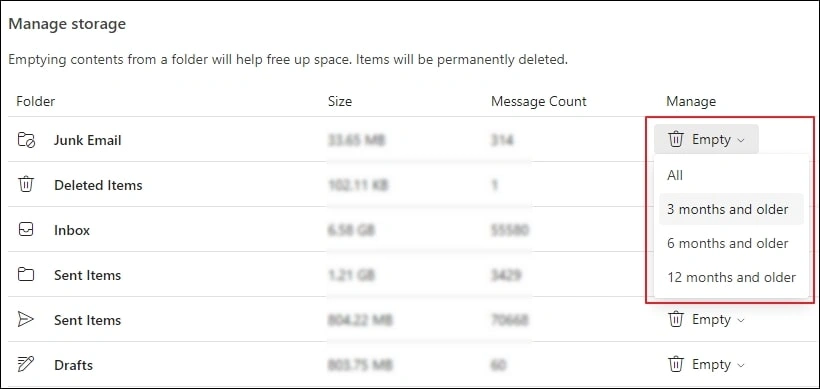
Outlook will remove the emails based on your selection. It is a quick manual method to delete older items, but you must do it separately for each folder. No other filter options are available too.
Create an Auto-Deletion Rule for the Mailbox
To overcome the difficulties of manual selection and deletion, you can create a rule that applies to all messages in the mailbox. When you are ensured that you do not require emails after a date, then creating a rule will delete them and release the storage for further usage. This is a great way where Office 365 deletes emails from all mailboxes automatically. Here are the steps to do so:
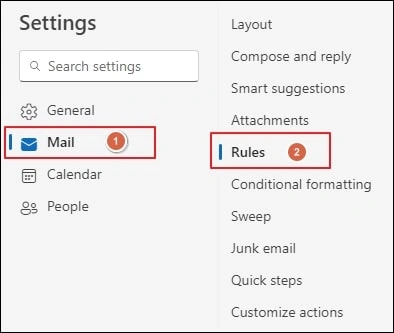
- In the Mail category, go to Rules.
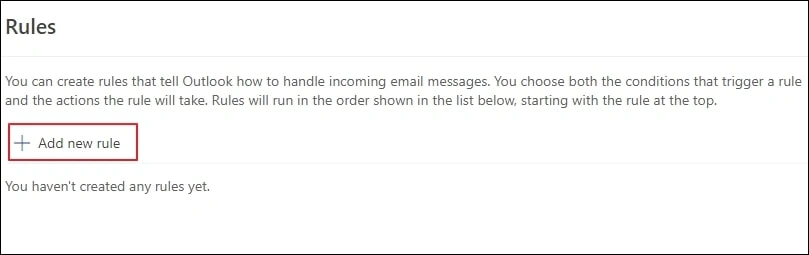
- As you haven’t created any rule, click the Add new rule option.
- Type a new name for the rule. It will be good if the name is meaningful. Apply a condition for deleting the emails.
- In Add an action dropdown list, choose Delete as the desired action.
- Click the checkbox to Run the rule now and click the Save button.
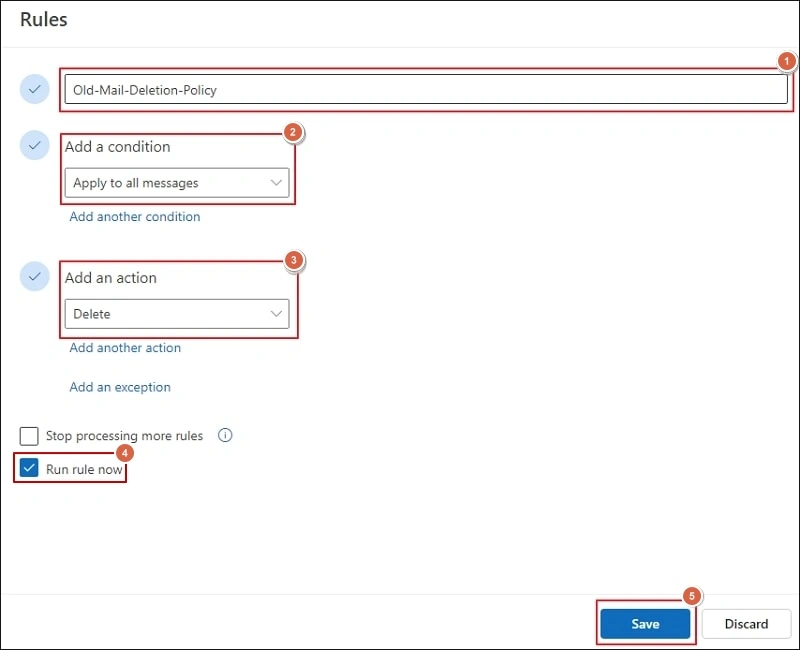
- The new rule is active and will start to work on all folders present in the account’s mailbox.
Delete Older Emails from Outlook 2019/2016
Outlook Desktop application keeps your Office 365 mailbox in a Windows environment and manages email communication. When the size of the mailbox increases, it becomes slower and takes time to open the account. Fortunately, there are great features and techniques to remove older emails conveniently.
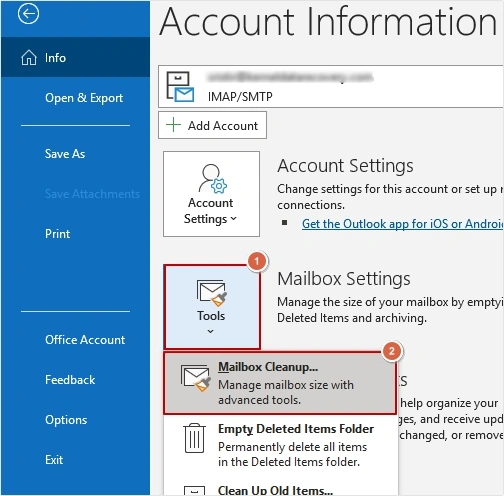
- First, click the File option and go to the Tools category. Open the list and select Mailbox Cleanup.
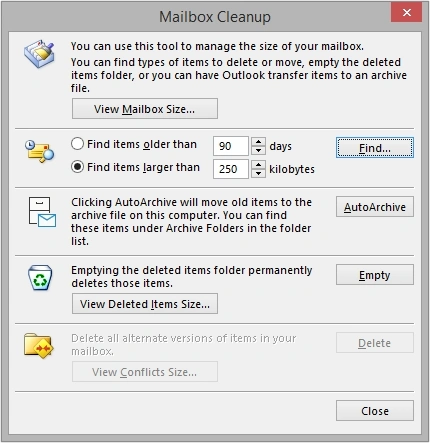
- The Mailbox Cleanup wizard has various settings to Empty, Delete, and AutoArchive emails from the selected account.
For Exchange Online
Create and Implement Retention Policies in Office 365
Through Admin Center, you can create retention policies in Office 365 to delete old emails. It will automate the mailbox cleanup process for you. Here is how to do it:
Create Retention Policy
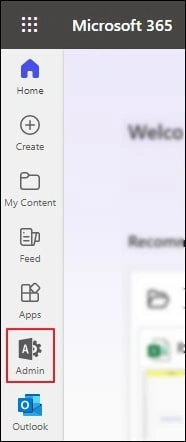
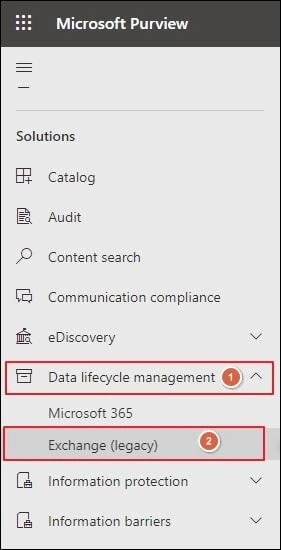
- Click Admin to open Microsoft 365 Admin Center.
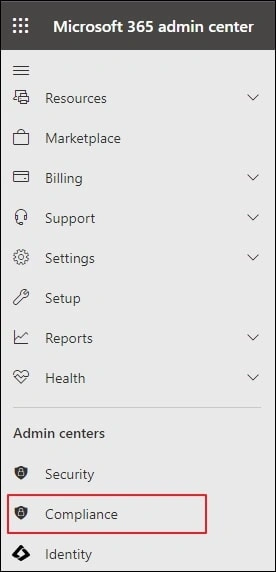
- Click on Compliance.
- Click Data lifecycle management, then Exchange (legacy).
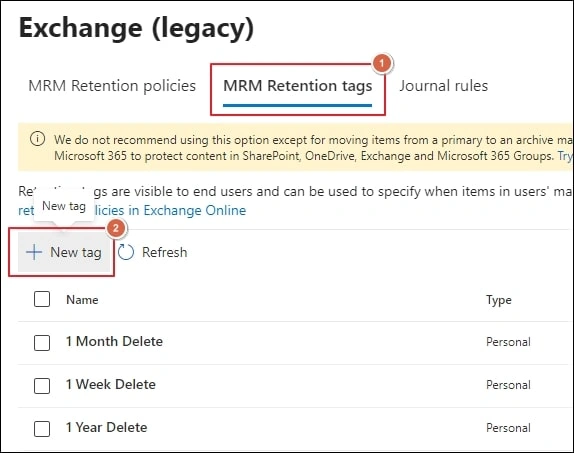
- Go to MRM Retention tags, then click on New tag.
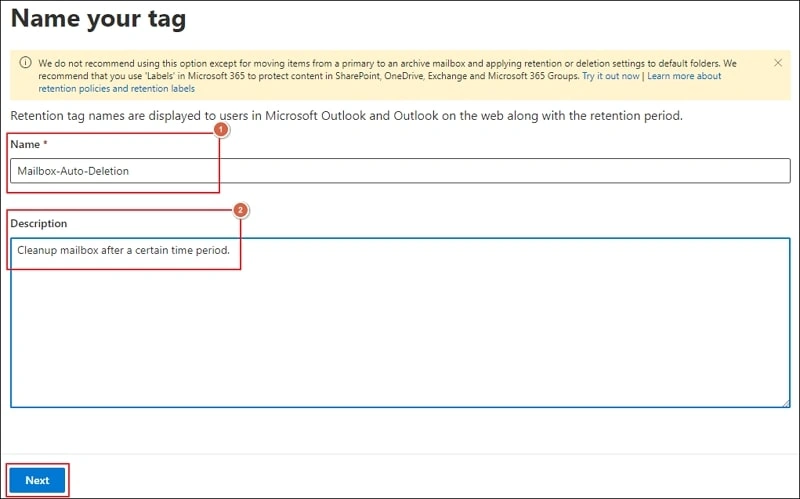
- Provide Name and Description for tag, then click Next.
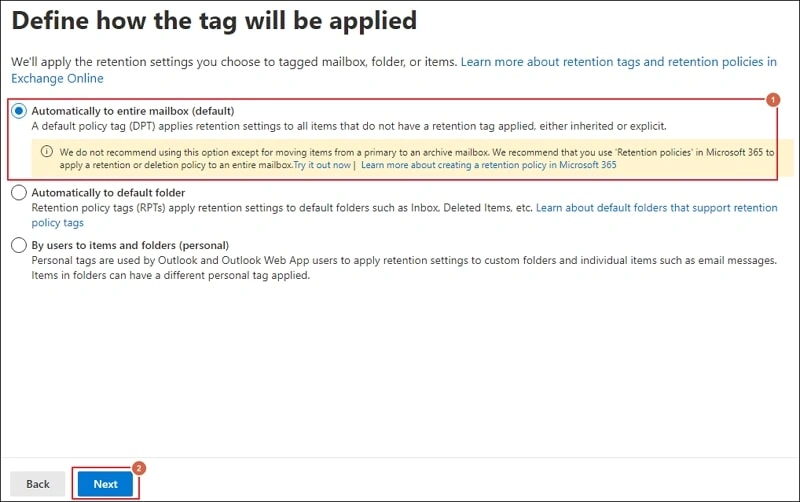
- Define how the tag will be applied by selecting Automatically to entire mailbox (default), then click Next.
- In Retention Period, specify days as required, then in Retention Action, select Delete and allow recovery and click Next.
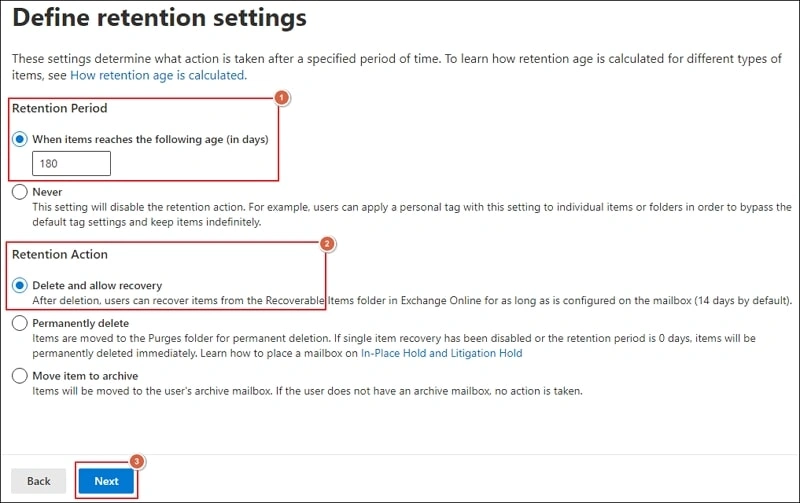
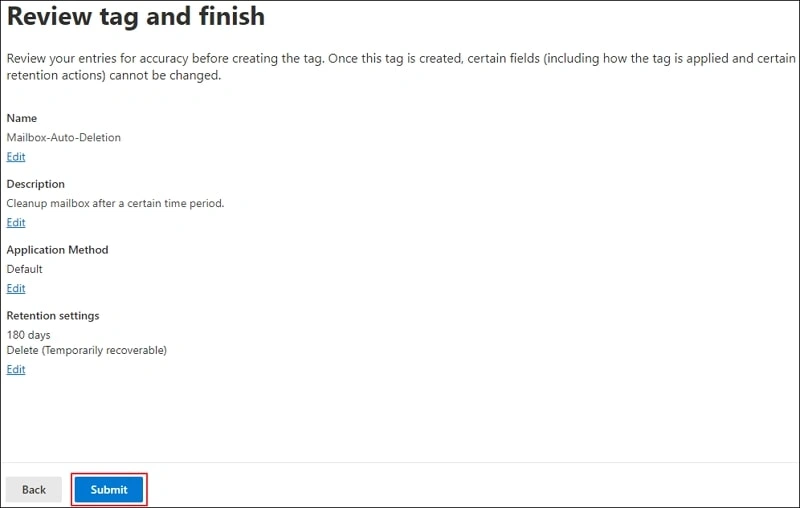
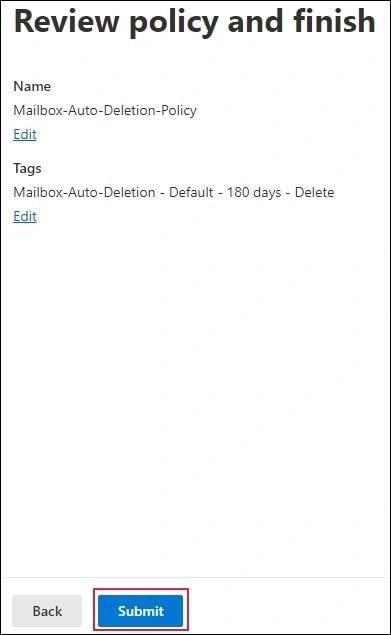
- Review tags and click Submit.
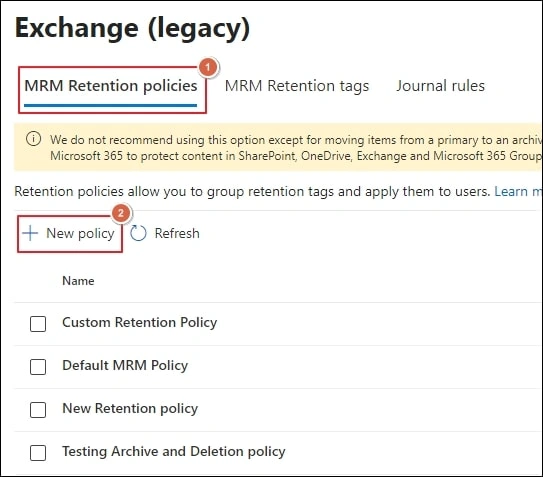
- Then, in MRM Retention policies, click on New policy.
- Provide a Name, click Add tag and select the one created in previous steps, then click Next.
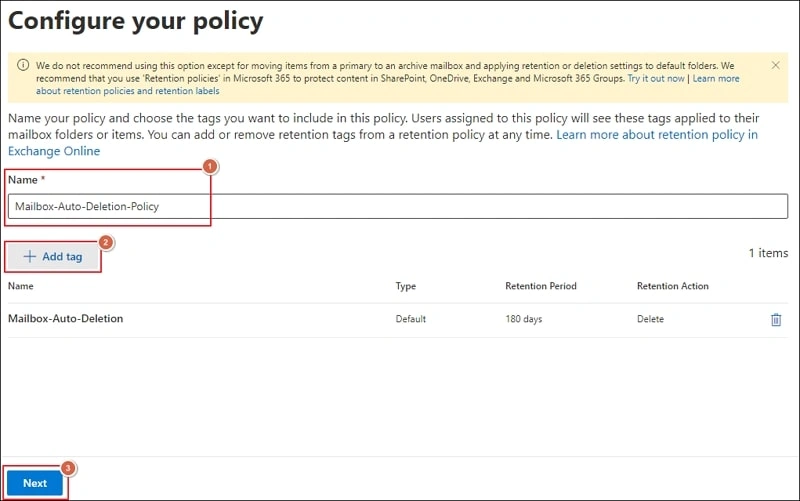
- Check details and click Submit.
Implement Retention Policy
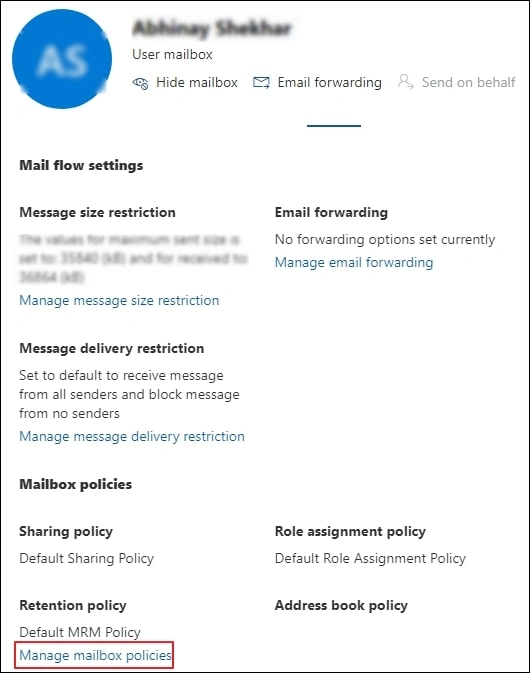
- Click on the desired user mailbox and access Mailbox tab, then proceed Manage mailbox policies.
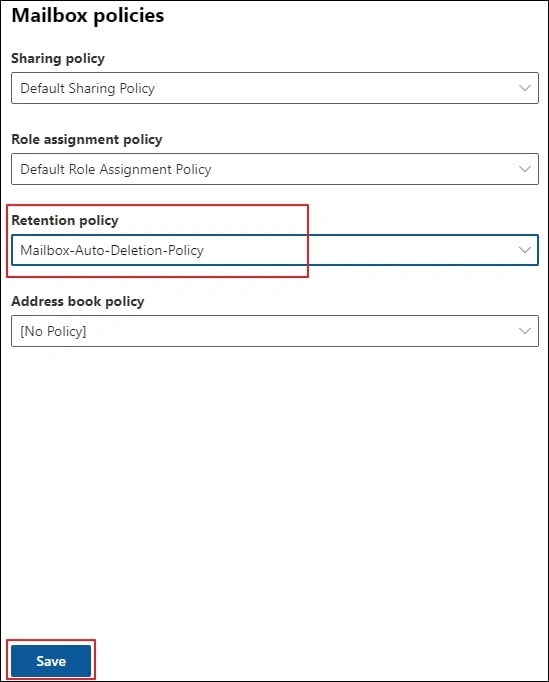
- In Retention policy tab, select the newly created policy and click Save.
Best Office 365 Cleanup Technique for All Organizations
Cleaning up Office 365 mailbox manually is time consuming and puts your sensitive emails at risk. Thus, to keep your data safe from such threats, it is recommended to backup important data using Office 365 Backup tool.
Kernel Office 365 Backup and Restore is a one-stop solution for every business and individual’s need. You can customize data backup and let go of all the unnecessary data using the advanced filters and save only the needed data at your desired location. Perform incremental migration to skip previously migrated data.
Backup Office 365 User Mailbox, Shared Mailbox, Public Folders, Distribution Groups, Office 365 Groups, Archive Mailbox, and other related data within a few simple clicks. Run multiple instances at once to easily backup large mailbox.
Best Practices to Keep Mailbox Clutter Free
You must try the following practices to keep your mailbox lighter and more responsive and there will be no requirement to find for old emails in Office 365 anymore.
- Archive older items – Setup Archive and Deletion Policies for Office 365 Mailboxes and move older emails to an archive folder. Set Outlook to automatically archive items on a regular basis. Whenever you choose, you can manually archive stuff as well. You can choose which items to archive, when to archive them, and where to keep them.
- Empty the Deleted Items folder – If you want to make sure you aren’t keeping messages you don’t need, regularly empty the Deleted Items folder.
- Empty the Junk Email Folder – Clear the Junk Email folder on a regular basis to make room in your mailbox.
- Store attachments outside your mailbox – Attachments can use a large amount of space as they grow over time. Consider saving attachments to a team site, OneDrive, or a folder on your computer.
Conclusion
Office 365 Mailbox cleanup is necessary for every business to stay organized, but only deleting messages isn’t helpful. You can create a secure backup of Office 365 data on your local system and access them whenever needed. Kernel Office 365 Backup and Restore tool is the perfect one for saving Office 365 data in offline files accessible on various platforms. There are ample filtering options to select the critical items of the mailbox. You can download the tool today.
Frequently Asked Questions
Ans. This might be because you haven’t deleted emails from Junk or Deleted folders.
Ans. To delete old emails in Outlook, you can select and delete emails manually, set up AutoArchive, create a rule, or perform Mailbox Cleanup.
Ans. You can delete entire emails from Inbox, Sent, and Deleted folder by right-clicking on the folder, or you can delete bulk emails by Date by typing received:<=YYYY/MM/DD.