Read time: 8 minutes
Google Hangouts, a wonderful messaging application provided by Google, is now a part of the G Suite (Google Workspace). It comprises two applications – Google Chat and Google Meet. The former product is a chatting application, while the latter is for users to connect through video.
Talking about the Google Hangouts Chats, it is a communication medium for Gmail users sharing both personal as well as professional details or information with each other. So, while migrating Gmail mailboxes to the Office 365 destination, some users desire to migrate the information received or shared in the Google Hangouts Chats as well. In this blog, we would try to deliver the best possible solution for migrating G Suite Hangouts Chats to Office 365.
What benefits do you get with Google Chat to Office 365 migration?
Business administrators often switch from Google Chat to Teams in Office 365 because of the centralized platform it provides to collaborate and communicate with the team members. Here are some of the benefits you enjoy when migrating to Microsoft:
- Part of a one-stop solution centralized suite that provides easy access to other integrated components.
- Provides high-end security to data with features, such as data loss prevention and advanced threat protection.
- Teams is great for businesses due to its characteristics like smooth video conferencing, screen sharing, chat, and even more.
- Helps in managing multiple subscriptions and saves investments made on getting multiple Office 365 accounts.
Manual way to migrate G Suite hangouts chats to Office 365
Unfortunately, there are no easy manual ways to migrate G Suite Hangouts Chats to Office 365. However, it is possible to backup google hangouts chats manually in PDF or TXT format (from labels) and in .JSON format using the Google Takeout feature. These files can be stored on the system as a backup.
To use the Google Takeout feature to extract Google Hangouts Chats, go to Google Takeout and sign-in with your account credentials. Next, follow this procedure.
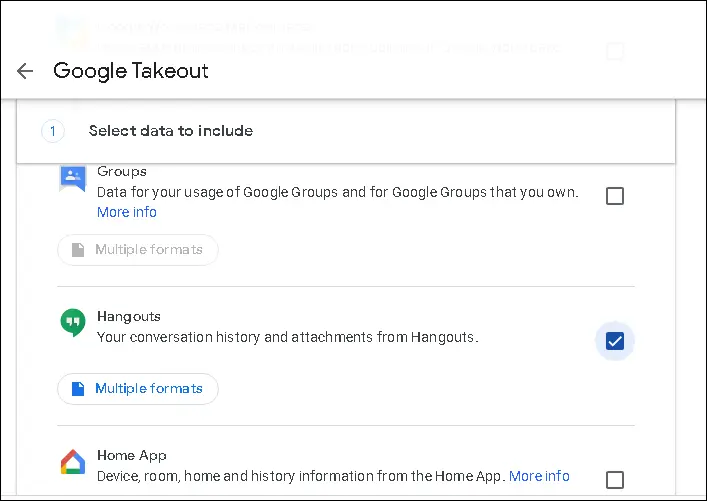
- Under the CREATE A NEW EXPORT section, select the checkbox Deselect All and then select the Hangouts option. Click Next step to continue.
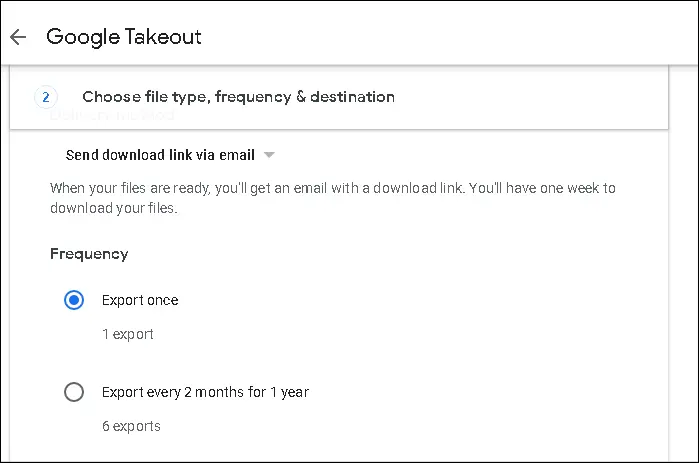
- In the second step, select the Delivery method like Send download link via email, Add to Drive, Add to Dropbox, Add to OneDrive or other, and choose the Export frequency next.
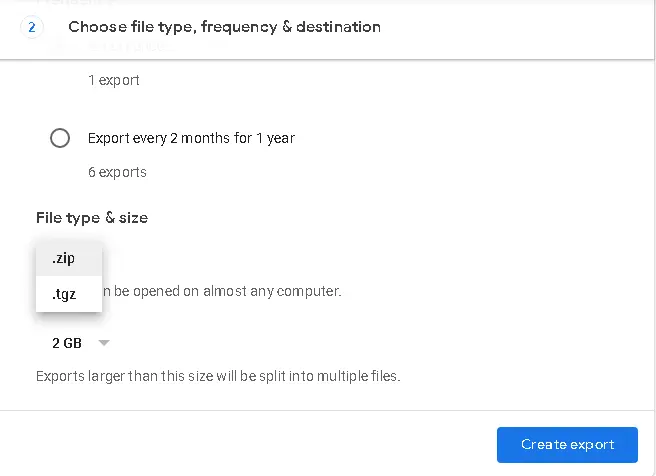
- Select the file type from .zip and .tgz and file size from 1GB to 50GB. Then click the Create export option.
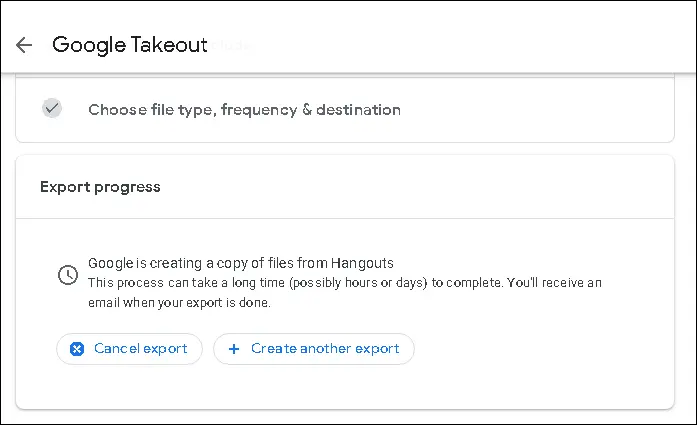
- The export progress will begin.
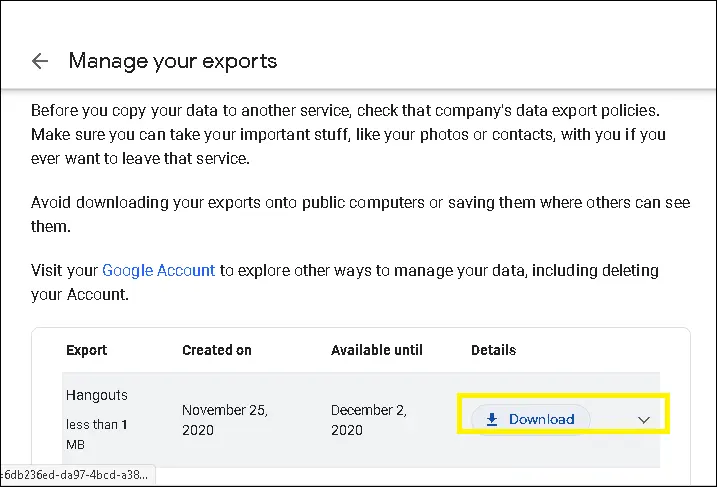
- Once the process is completed, a Download link will appear. Click on this link to download the exported file.
- Confirm the sign-in credentials for download.
- When you extract the .zip file, you will get the exported Hangouts file in .json format.
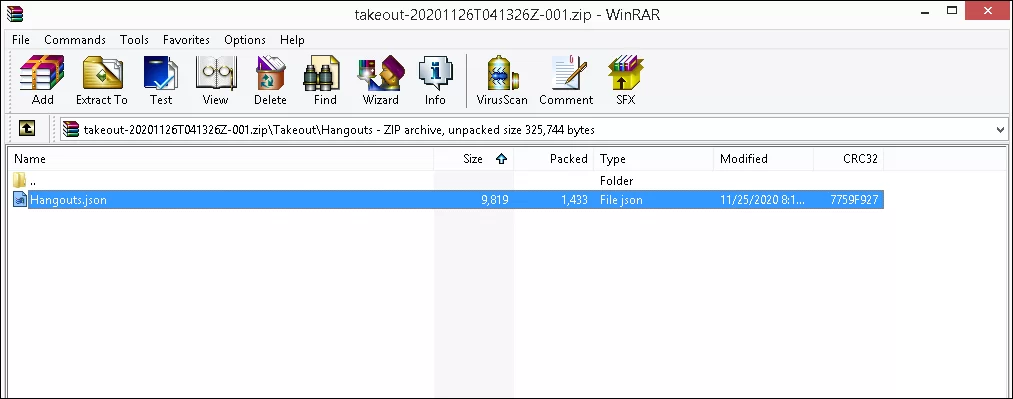
So, the Google Hangouts Chats is backed up in the .JSON format on the system Download folder.
Automated tool to migrate G Suite hangouts chats to Office 365
Direct G Suite Hangouts chats to Office 365 migration is possible if you choose the right third-party tool for the migration. Kernel Google Workspace to Office 365 migration tool is a professional software that allows migrating the Hangouts chats directly along with other G Suite data (Gmail, Contacts, Calendars/Appointments) to the cloud destination. It holds the capacity to move chats from multiple G Suite mailboxes to Office 365 mailboxes in a single go. The tool supports bulk G Suite data migration to Office 365 using a CSV file or a Super Admin account. The interface is quite simple and supports all Microsoft 365 plans. Also, the whole process is secure and involves no data loss risks.
Let us know the working of the G Suite to Office 365 migration tool
Step 1: Run the G Suite to Office 365 migration tool and select Google Chat migration.
Step 2: On the connect Source screen, add the source G Suite account using super admin email address, service account ID and P12 File Path details. Click Next to connect.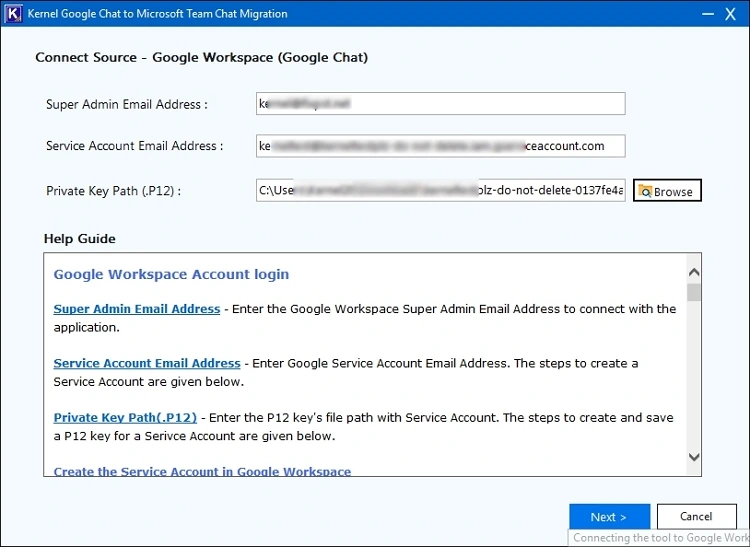
Note: To create the service account ID in G Suite and know the P12 file path, you can take help from the instructions on the right panel on the G Suite Login page.
Step 3: On the Connect Destination screen, provide the Office 365 Global admin account login details, password, Tenant ID, Client ID, and Client Secret. Click Next.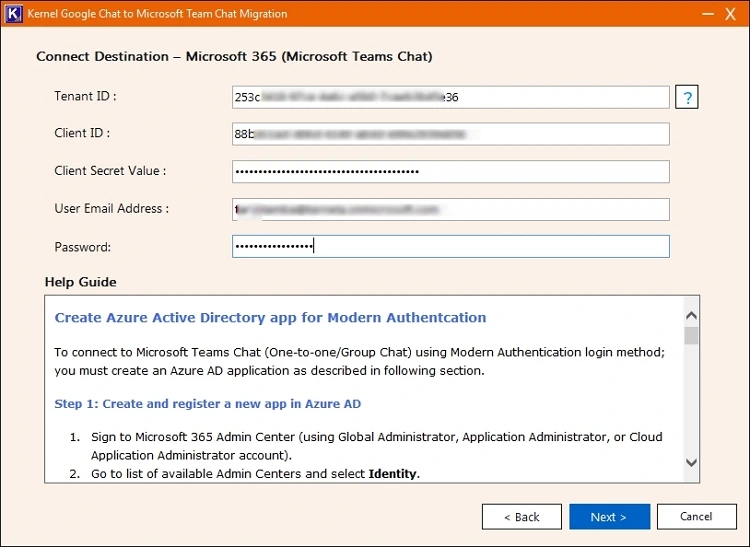
Step 4: Map the source user mailboxes to the desired destination mailboxes using the three dots in the column beside Destination user. Click Next.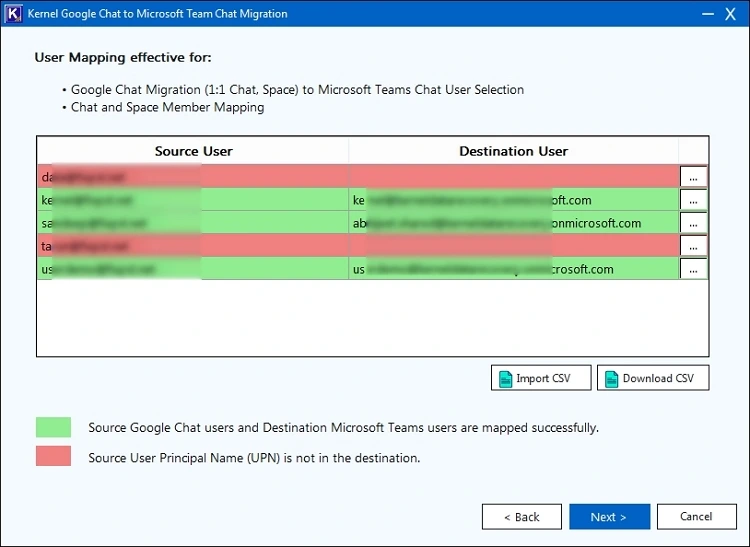
Note: You can also import a pre-mapped CSV file to save your time from manual mapping.
Step 5: From the next screen, select the Google entities you want to migrate from:
- Direct Messages
- Google Spaces
- All organization
- Only selected users
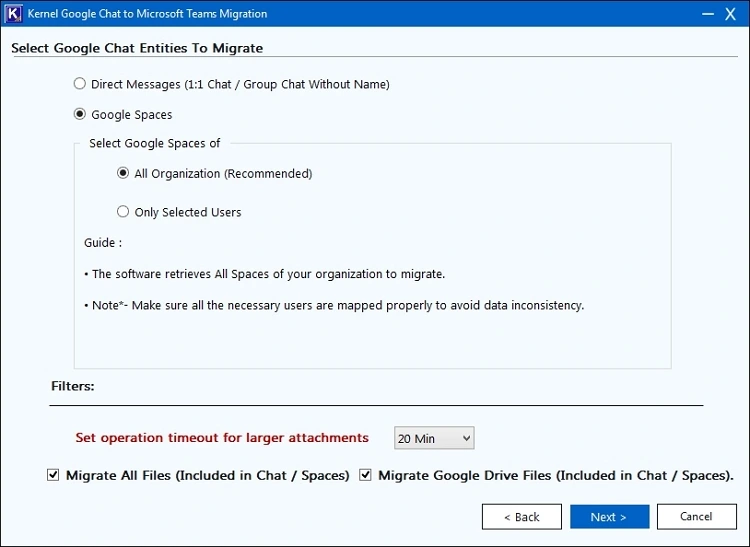
Apply filters and choose all the options that are applicable.
Step 6: Select the desired users from the mapped source and destination list. Click the Next button.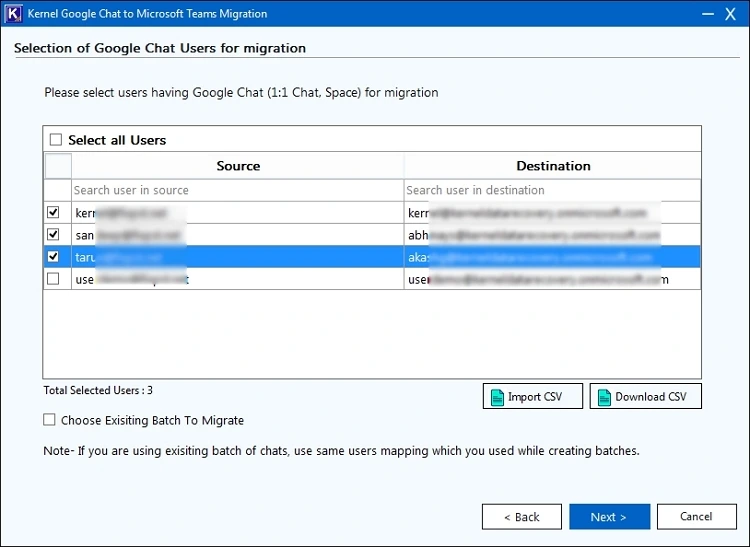
Step 7: Select desired Chats from the Google Chats or spaces for migration to Microsoft Teams Chat.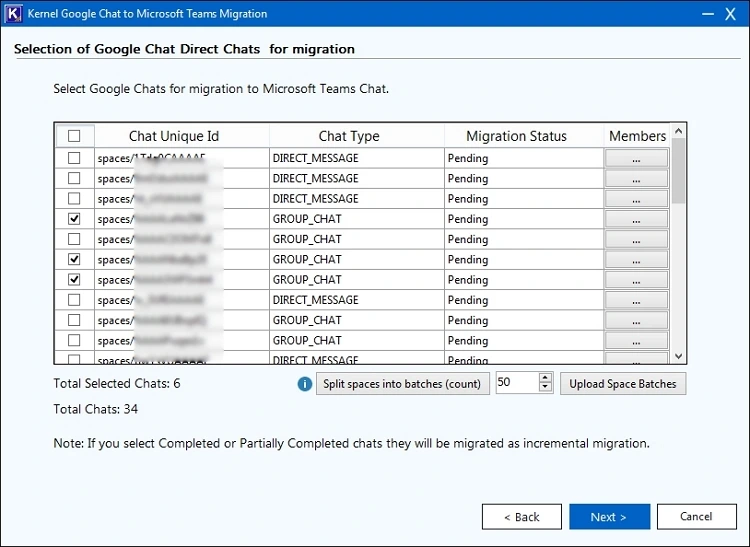
Note: You can split the spaces into multiple batches (when the number is huge) and download them. Upload the batches to run migration in multiple instances at the same time for quick completion.
Step 8: The migration will get started, and you can see the live progress. Wait until the migration is completed.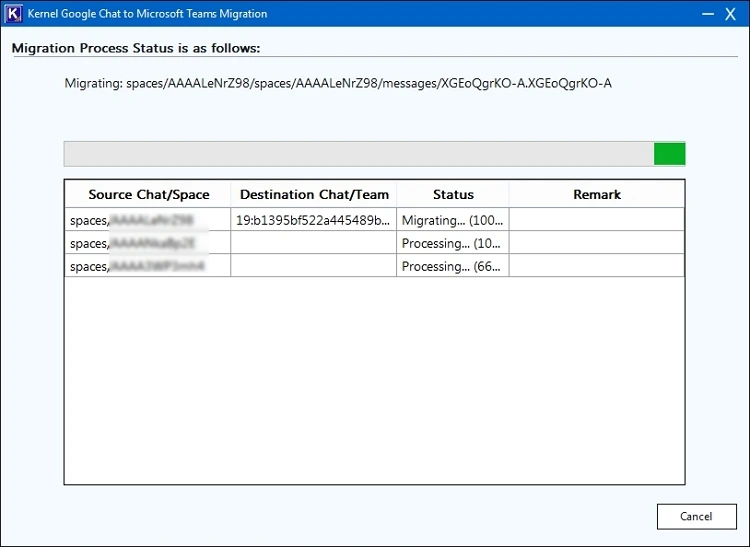
Step 9: Once successfully migrated, users can save the migration report in the CSV file format.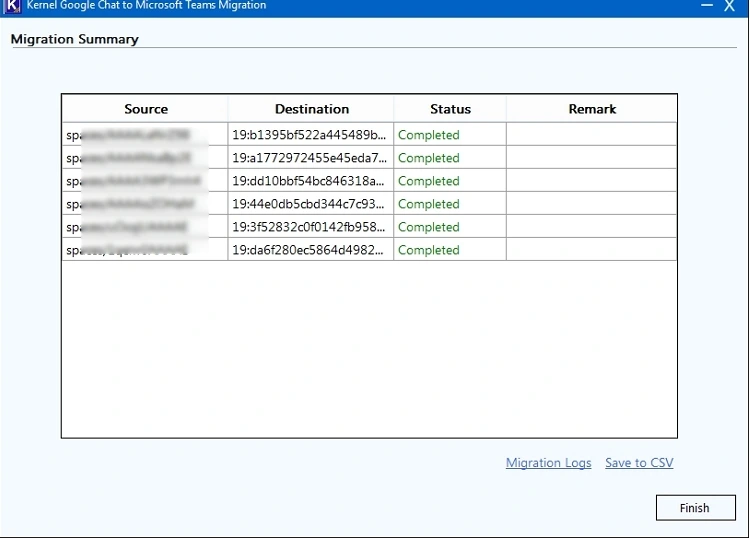
With this process, it is clear that the tool helps in migrating data in the simplest way. With no technical complexities involved, the tool performs a smooth transfer. Using only a few steps, the tool facilitates smooth and efficient G Suite Hangouts Chats to Office 365 migration.
Summary
From the article, you’ve understood that manual migration is not possible from Google Chat. This creates a need to find a reliable and effective Google Hangout Chat to Office 365 migration solution. However, the hunt for the best suitable is quite complex and time-consuming. We suggest using the Kernel Google Workspace to Office 365 migration tool, which is one of the best solutions, rich in features and supporting a user-friendly UI to make the process smooth.