Read time: 12 minutes
Zoho Mail, a web-based email client, is popular for its advanced search features, filters, eDiscovery operations, and more. But this email client is suitable for use in small, micro, or medium businesses only. As the businesses grow, there is a need for migration to a more secure platform suitable for large businesses, i.e., Office 365.
Many Zoho users feel that migrating from Zoho to Office 365 is a complex task. But it is quite an easy reality. This article explains all those steps for Zoho Mail to Office 365 migration, whether you do it with manual or automated approaches. However, understanding the reasons and differences between Zoho Mail and Office 365 is necessary. Let’s begin!
Differences between Zoho Mail and Office 365
Zoho Mail’s features are not limited to email communication, but it can be used as a collaborative service for a business. Let’s check a comparison of Zoho Mail with Office 365, which offers more services and storage.
|
Zoho Mail |
Microsoft 365 |
| The main objective of Zoho Mail is to create emails, send and receive emails, and monitor the mailbox of the user account. | Office 365 covers various services in its subscription. For the email task, there is Outlook. OneDrive provides ample cloud storage; the entire MS Office Suite is present here, and multiple additional applications work differently. |
| Major features are email monitoring, email archiving, data recovery, shared inboxes, routing, spam blocker, whitelisting, blacklisting, etc. | Major features are web development, social networking, online meetings, eDiscovery center, blogs, Wikis, business domain, file sharing, calendar, project-based mailboxes, voice calls, video calls, PC-to-PC calls, and internal and external file sharing. |
| Integration is reached through Zoho CRM, Projects, Docs, Creator, Asana, Zapier, HubSpot CRM, and Cliq. | Integration is scattered with various applications like SharePoint, OneNote, Outlook, Word, Excel, OneDrive, Skype for Business, Bookings, StaffHub, and Invoicing. |
| Customer service is provided through email, phone, and live chat. | Customer service is provided through email, phone, live chat, and tickets. |
Why Migrate Zoho Mail to Office 365?
Office 365 cloud platform has many advantages for its users over other email servers and email clients like Zoho Mail. Some of the common reasons to migrate Zoho Mail to Office 365 are:
- Office 365 is an enterprise-grade suite of applications from Microsoft that can be accessed remotely.
- Integrated with many applications for collaboration, like SharePoint, OneDrive, Yammer, Exchange Online, etc.
- Flexible subscriptions and services to fulfill the needs of all grade businesses and customers.
- Zoho feels difficulties in handling large files, while Office 365 offers more data storage capabilities.
Can We Perform Zoho Mail to Office 365 Migration Manually?
There are no easy methods to migrate Zoho Mail to Office 365 manually. But there is an indirect approach to import Zoho mail to Office 365. It includes exporting the Zoho Mail mailbox folder to .eml files format with the Import/Export option. Here is how to do this:
Method 1. Import Zoho Mail to Office 365 using Zoho Application
The Zoho application can’t directly help migrate to Office 365. You also need an Office 365 account configured in Outlook to do the same. Here are the steps to follow:
Stage 1. Export Zoho Emails to EML Files
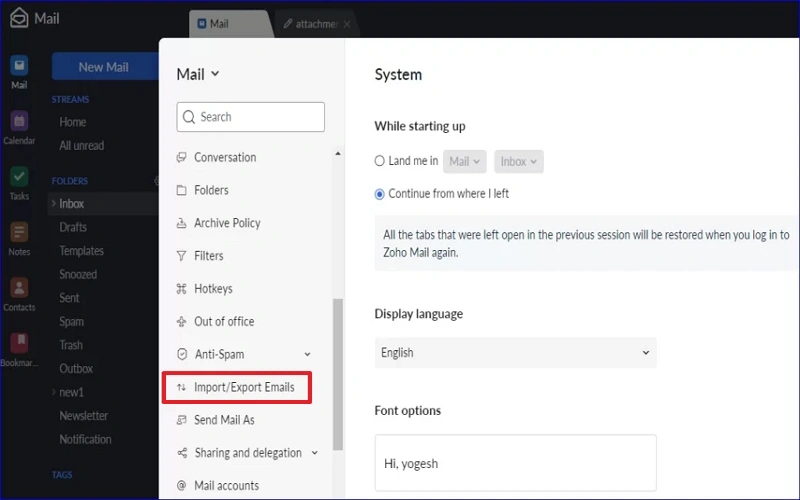
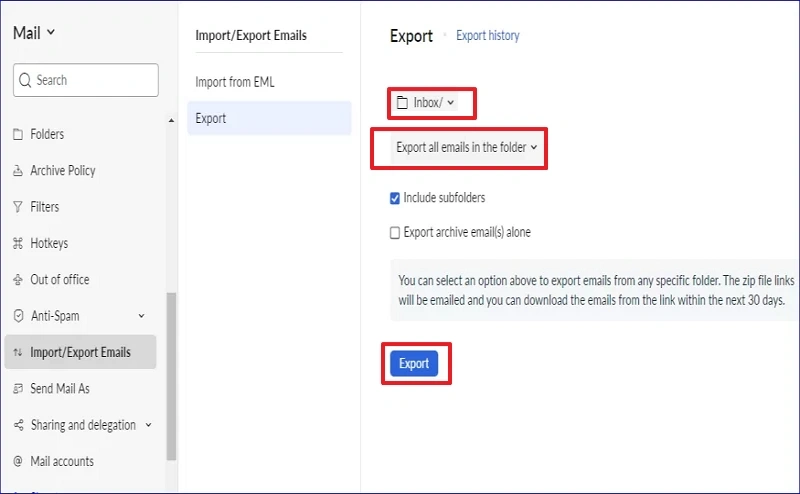
- Log in to your Zoho account in your application. Click on the Settings and tap on Import/Export Emails.
- Go to the Export option, select the folder that you want to migrate to Office 365.
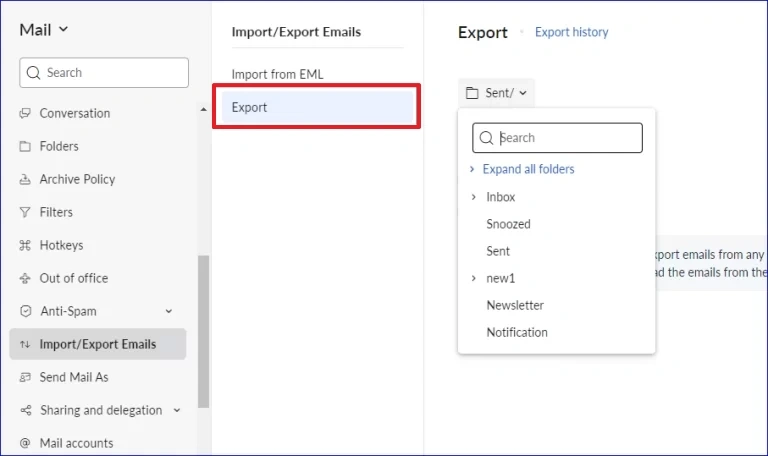
- Once you select the folders, tap on the Export button.
- You will get an email with a downloadable zip link on the same account. Download the zip file.
Note: Make sure to download the zip file before deleting the account. Once you delete the account, the link will also be removed.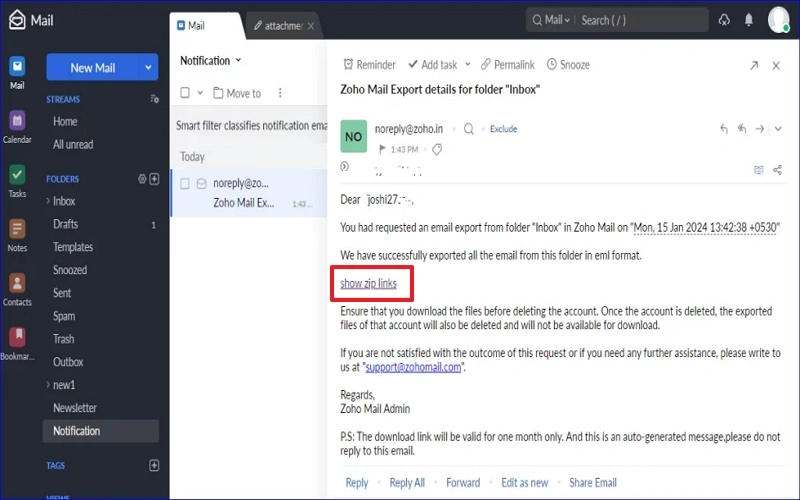
Stage 2. Import Zoho Mail EML file to Office 365
Now open your Outlook and configure your Office 365 account. Unzip the downloaded file and drag and drop each EML file into Outlook.
By doing this, you can effectively migrate Zoho emails to Office 365.
Method 2. Import Zoho Mail to Office 365 using Outlook
Also, you can use the Outlook application for Zoho Mail to Office 365 migration. Here are the steps to follow:
Stage 1. Configure Zoho Account in Outlook
- Open Outlook, go to File, and tap on Add Account.
- Follow the steps to add an account in Outlook effectively.
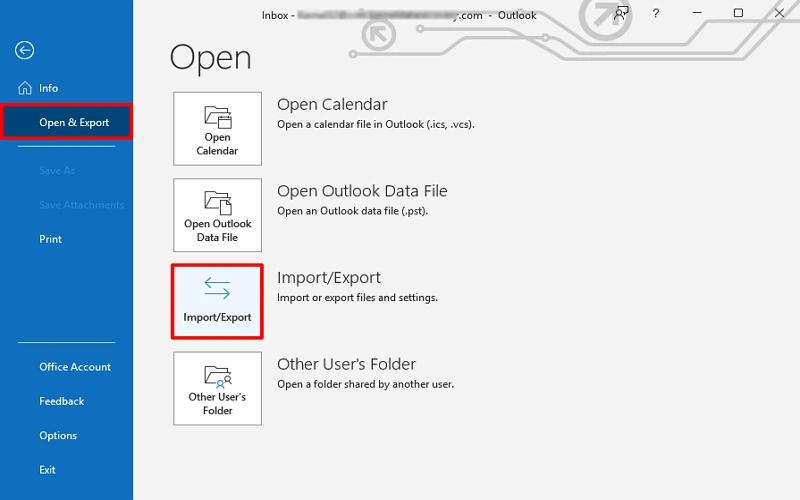
- Once added successfully, tap on File, go to Open & Export. Click Import/Export.
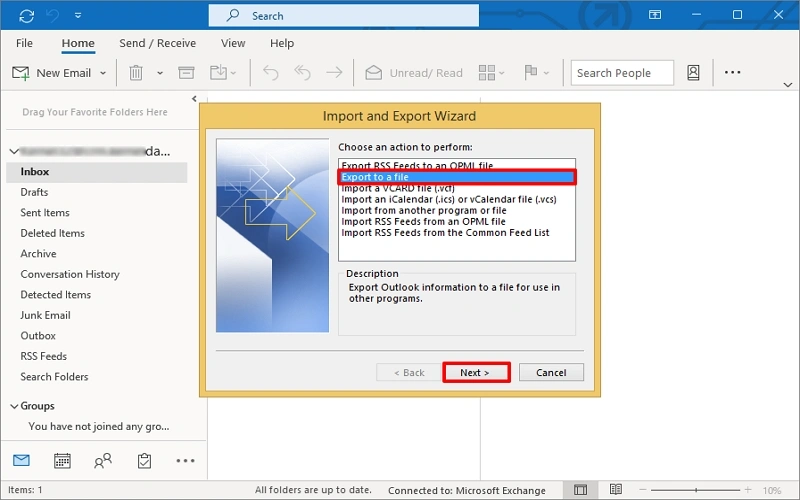
- Choose Export to a file, then click Next.
- Tap on Outlook Data File (.pst). Then click Next.
- Select the Zoho email account to export data locally. Click Next.
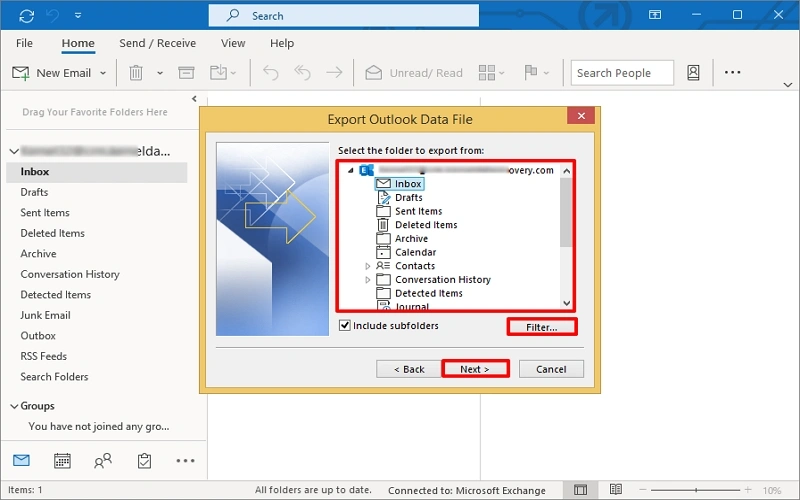
Note: You can also select specific folders to migrate to Office 365. - Tap Browse and provide a location to save the output file. Click Finish. Input the password if asked.
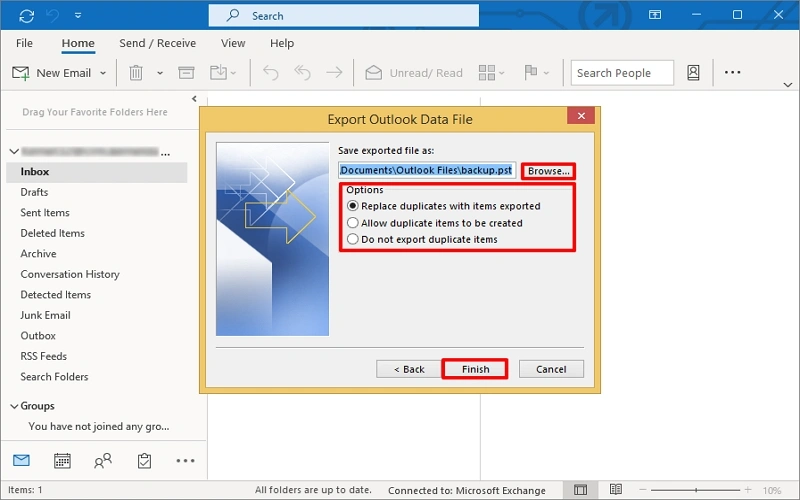
The entire Zoho Mail data will be saved in a PST file.
Stage 2. Transfer All Zoho Emails into Office 365
- After having Zoho mail data in a PST file, open your Outlook and configure your Office 365 account.
- Tap on File, go to Open & Export, and tap on Import/Export option.
- Select Import from another program or file and click Next.
- Choose Outlook Data File (.pst) and tap on Next.
- Browse to the PST file you want to migrate to Office 365, tap Next. Include folders and sub-folders accordingly, and click Finish.
The Zoho Mail emails are now in the Office 365 account.
Drawbacks of Manual Zoho Mail to Office 365 Migration
- No direct export of Zoho Mail to Office 365.
- Exporting manually is time-consuming.
- Chance of losing/forgetting important emails.
- Need proper technical knowledge for effective migration.
Automated IMAP Migration Solution to Migrate Zoho Mail to Office 365
Manual methods for Zoho Mail to Office 365 migration may lead to many issues and may bother you. So, relying on a professional IMAP to Office 365 migration tool is wise. Kernel IMAP to Office 365 migration software accomplishes direct migration of IMAP server data to the cloud destination following a simple process.
It does support migrating data from the Zoho Mail email client to the Office 365 platform. With this tool, users have the choice to move only selective content from the source to the desired Office 365 mailbox, public folder, archive mailbox, group, or shared folder. Unlike any manual solution, the tool process is short and performs precise migration without any errors.
Step-by-Step Process to Migrate Zoho Mail to Exchange On-Premises (Office 365)
Let us look at the working process of the tool to migrate Zoho Mail to Office 365 to get a clear understanding.
Step 1. Download, install, and launch the Kernel IMAP to Office 365 tool. Click Let’s Connect under IMAP to Office 365 tile.
Step 2. Under the Add Source section, click on the Add option to add the Zoho Mail account.
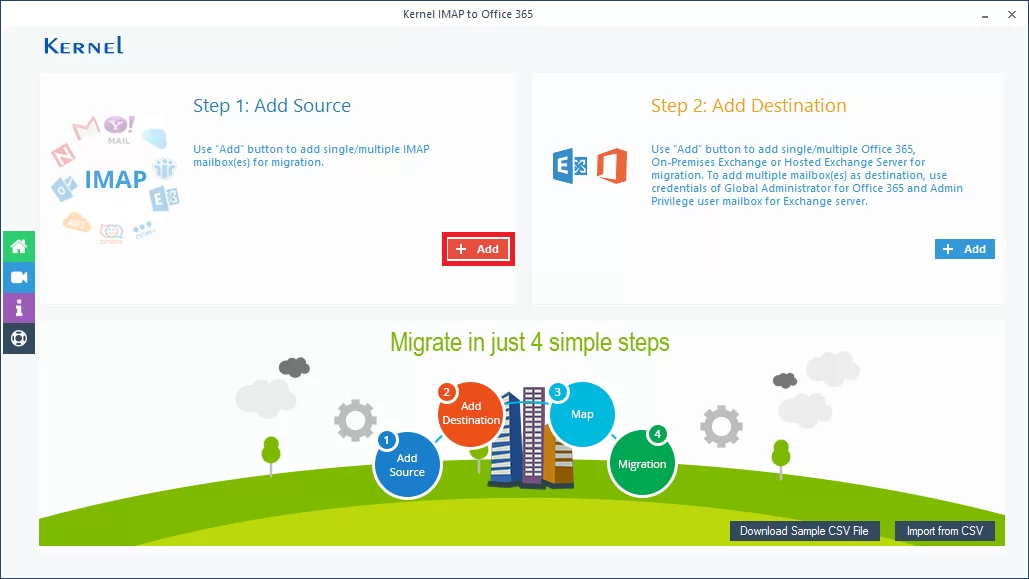
Step 3. Choose Login Types: Use Modern Authentication and Basic Authentication. Click OK.
Step 4. Provide the Zoho Mail account details like server name, user name, and password. Click Add to add this account.
Note: The information about the IMAP server name and port number is available on the right panel of the interface.
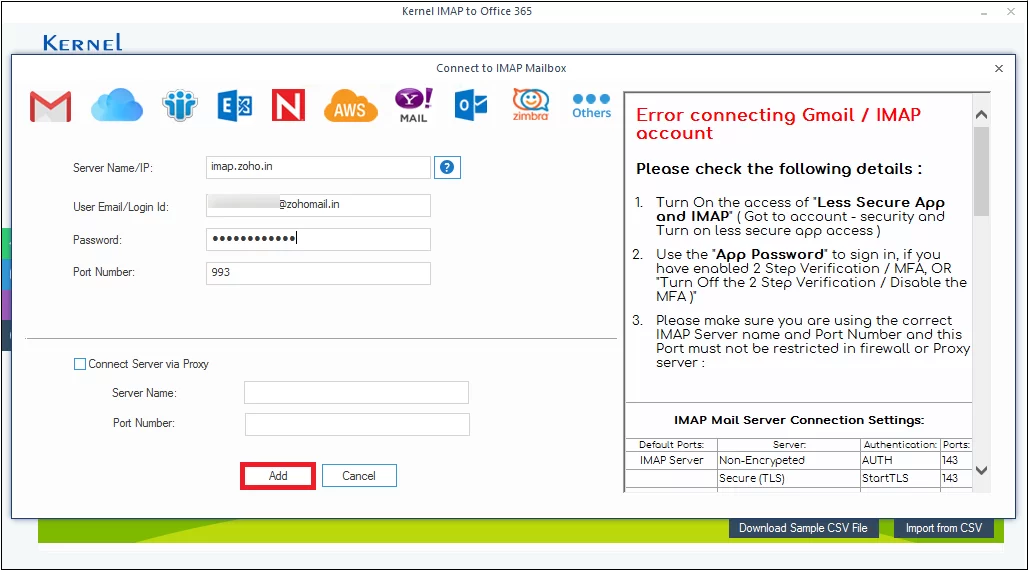
Step 5. Now, you can see that the source Zoho Mail account is added. Under the Add Destination section, click Add to add the Office 365 account as the destination.
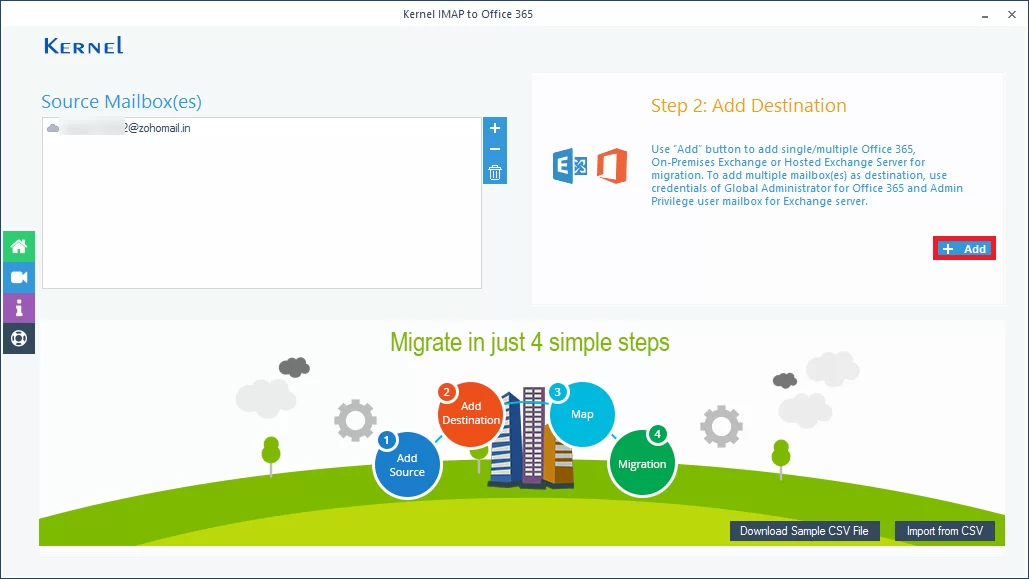
Step 6. Choose Login Types: Use Modern Authentication and Basic Authentication. Click OK.
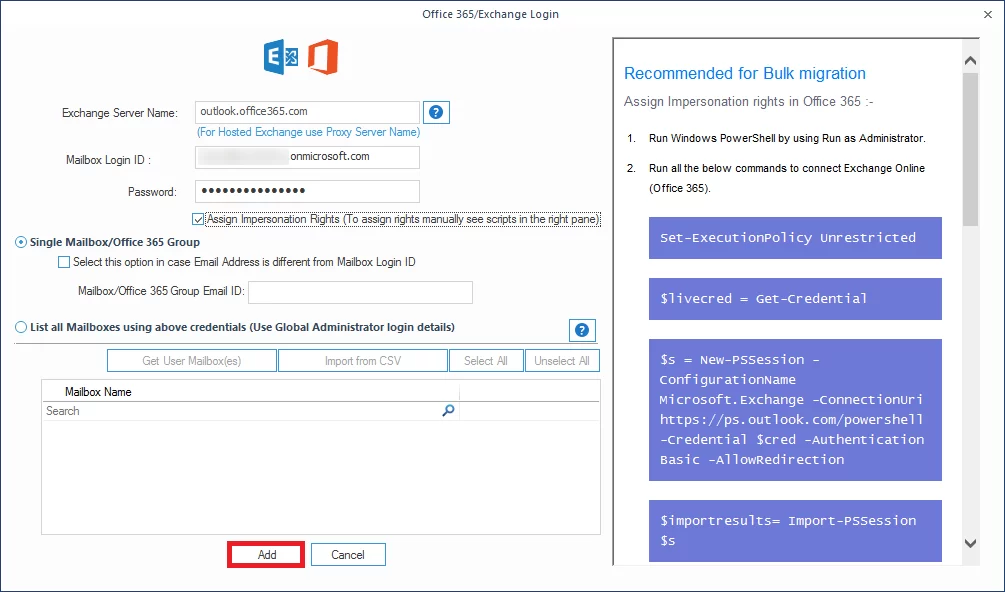
Step 7. Here, provide your Office 365 account login credentials, like mailbox login ID & password, select the checkbox underneath to assign impersonation rights. Click Add to continue.
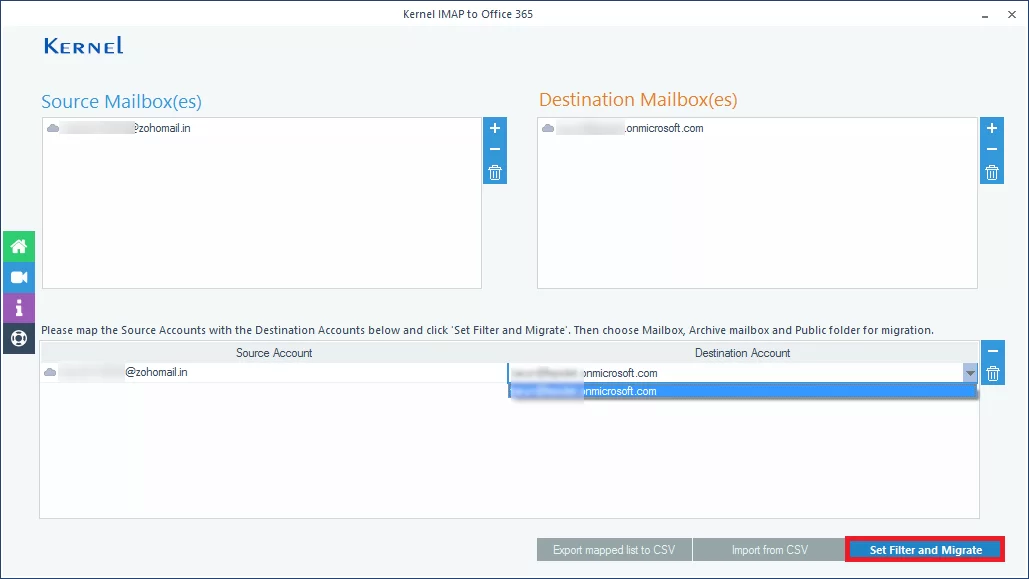
Step 8. Now, both source and destination accounts are added successfully; map the destination account against the source as shown and click Set Filter and Migrate.
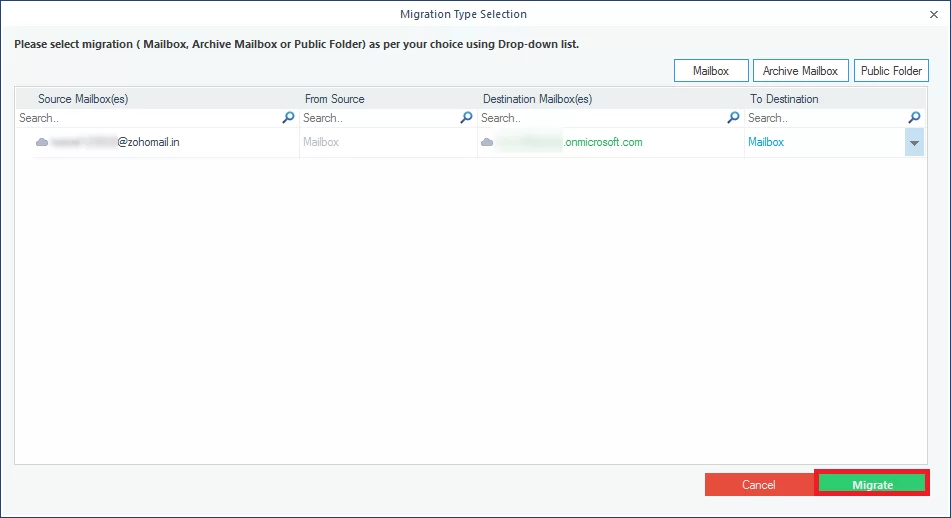
Step 9. Choose the destination Office 365 account folder from – mailbox, archive mailbox, and public folder. Click Migrate.
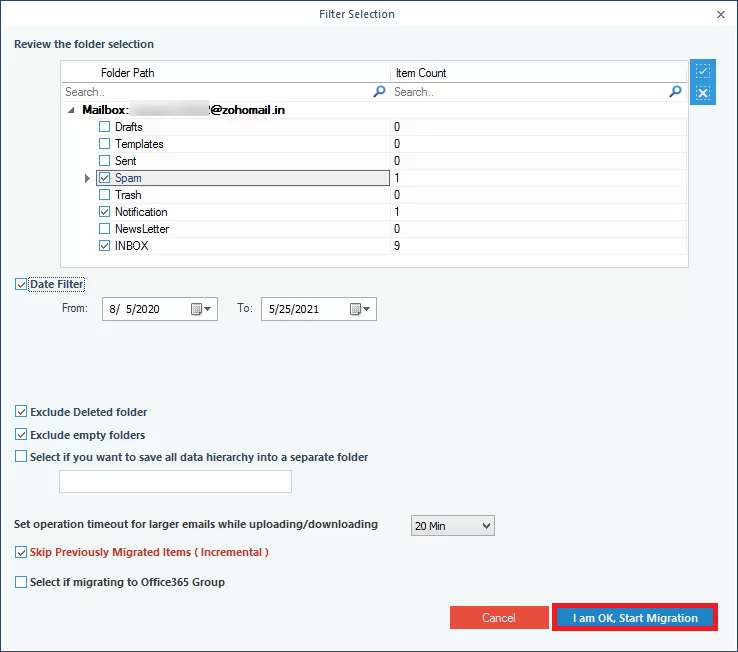
Step 10. Apply the desired filter options like folder selection, date filter, item type filter, folder filter, etc. Click I am OK, Start Migration.
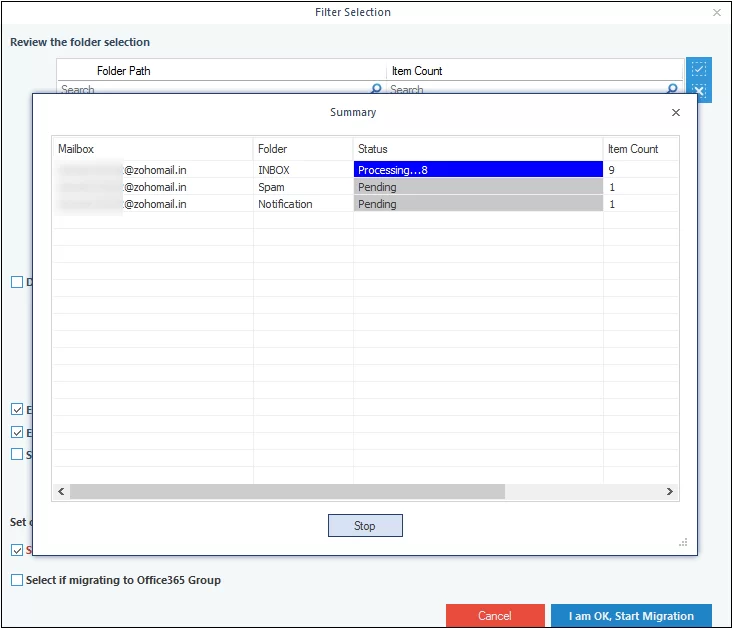
Step 11. The data migration from Zoho Mail to Office 365 account will be started, showing the live progress.
Step 12. Wait for a while. The migration from Zoho Mail to Office 365 will be completed successfully with a confirmation message.
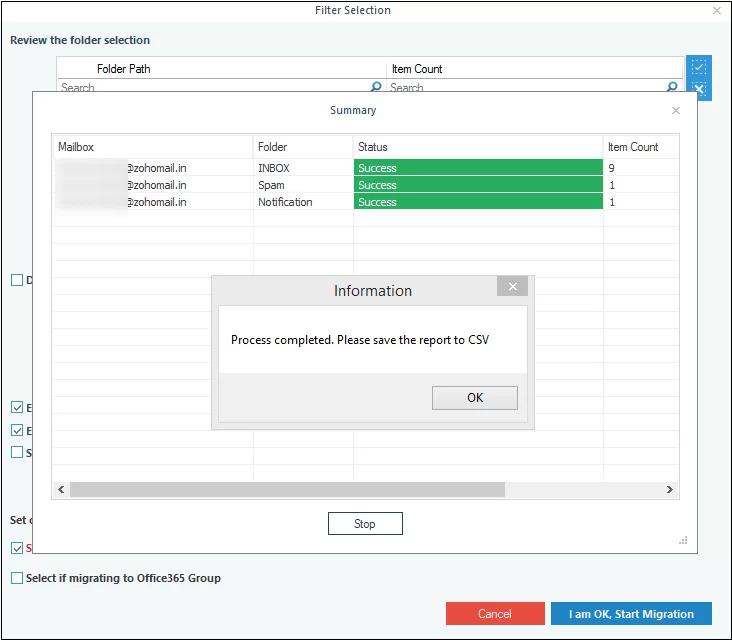
The process is completed. You can save the migration report in the CSV file format with the given option.
So, we have just realized that choosing the Kernel IMAP to Office 365 tool is the best way to move Zoho Mail to Office 365 platform with a range of flexible options. The tool is available as a free trial version for the exploration of its features and functions.
Wrap Up
We hope you now have a better understanding of the differences between Zoho Mail and Office 365, along with the reasons for migration. The mentioned manual methods are workable but come with several drawbacks and limitations as well. If you’re aware of the consequences and these manual methods are suitable for you, then go with them.
Instead, you can opt for the recommended IMAP to Office 365 migration tool. This tool is so easy that even a novice user can migrate Zoho Mail to Office 365 quickly without hassle. Additionally, you can use its trial versions for a smooth hands-on experience. Download now!!
FAQs Related to Zoho Mail to Office 365 Migration
A: No, there are no easy manual ways. Zoho Mail users can export their mailbox folders into .eml file format and then import them to Office 365 accounts through Outlook.
A: The free trial version of the Kernel IMAP to Office 365 tool lets users understand the interface and features of the tool before actually purchasing the full version. Additionally, this version lets users migrate 10 items per folder free to the cloud destination.
A: No, not at all. You are just required to have the login credentials of both accounts along with you to perform the migration using the Kernel IMAP to Office 365 tool.
A: Yes, definitely. It supports the swift migration of almost all IMAP server accounts to Office 365 in a few easy steps.