Read time: 6 minutes
SmarterMail is a well-known email and communication server that helps you identify any major business issues. It is widely used by giant partnerships and venture associations to resolve their communication gaps. It comes with a well-configured UI designed for all devices (computer, laptop, tablet, cell phone, etc.)
However, organizations are now moving to Office 365 from SmarterMail for various reasons. In fact, many users have submitted queries on forums related to SmarterMail to Office 365 migration. And have raised the concern that manually configuring the email transfer from SmarterMail to Office 365 is challenging and requires technical knowledge of protocols, server endpoints, etc.
The task becomes even more demanding when you need to import SmarterMail emails into legacy Exchange versions like Exchange 2007 SP1. Now, going through this process will take a lot of time. To help you with an error-free migration, in this blog, we will discuss the step-by-step process of the migration along with an advanced tool that can automate the complete transfer process.
Why migrate from SmarterMail to Office 365?
Office 365 has been the talk of the show for the past few years, as it offers multiple benefits over other email servers. It is integrated with various applications like Outlook, SharePoint, OneDrive, Teams, and many more. Having access to a hub of multiple practical applications is better than a normal email server.
In other words, Office 365 is the best communication and collaborative platform available out there. It gives you access to your database from anywhere and at any time. Besides, the subscription plans offered by Microsoft for Office 365 are very efficient. They give you the flexibility to choose a plan as per your requirements. Apart from that, Office 365 allows you to migrate your data from other email servers quickly. The primary reasons that compel users to switch from SmarterMail to Office 355 are:
- Offers different plans as per business requirements to help them align their activities properly
- Fosters great collaboration and improves the overall capabilities of the business
- 1 TB of storage space on OneDrive for each user, thus eliminating the need for physical storage space on different devices
- Easy integration with CMS like SharePoint to help users store, organize, share, and access files
- Advanced features for security to help you protect your data and personal information.
Due to these features, the normal email clients want to migrate IMAP emails to Office 365 and use the facilities of Office 365.
Manual way to migrate SmarterMail to Office 365
- First of all, enable IMAP in your SmarterMail to allow Microsoft to export SmarterMail emails during migration.
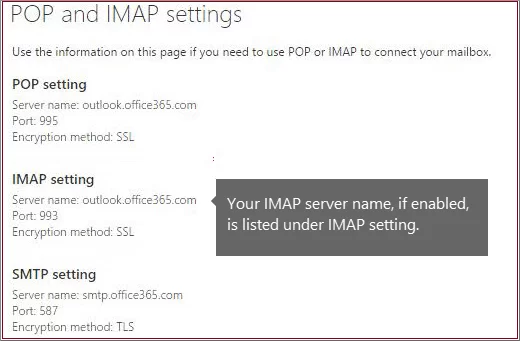
- Create mailboxes and add licenses for each new Office 365 user. Create an endpoint for connecting SmarterMail server while creating different batches to migrate the data.
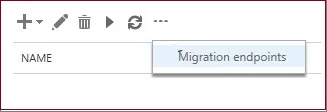
- After migrating the batches, change the MX records to ensure that new emails are being routed to Office 365 mailboxes.
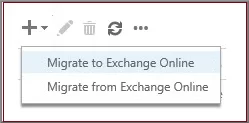
- Once the migration is done, delete the migration batches to stop synchronizing the mailboxes.
Note: You’ll need the server address, username, port, and password details of the SmarterMail accounts and server.
The above method is ideal if you only need to migrate emails from SmarterMail to Office 365 account and can even migrate zoho mail to Office 365 too. But it doesn’t apply to migrating tasks, calendars, or other items.
Advanced solution for SmarterMail to Office 365 migration
Kernel IMAP to Office 365 is an advanced utility specifically designed to help you migrate SmarterMail mailboxes to Office 365. It is ideal for migrating mailboxes from various email clients like Gmail, Yahoo, Amazon WorkMail, and many more. You can select specific mailboxes, map, apply filters, and generate reports for each migration using this IMAP to Microsoft 365 migration software.
Top features of the software are:
- Provides requirement-based migration with advanced filtering options
- Integrated with incremental mailbox migration feature to help you migrate data without creating duplicates
- Allows to migrate from SmarterMail to Office 365 with original folder structure and attributes.
- Quick migration to Office 365 and different versions of Exchange Server
- Offers easy compatibility with all IMAP email clients like Gmail, AOL, Amazon WorkMail, Zimbra, Rackspace, and more
- Retains the hierarchy of the mailboxes while maintaining the tree structure
The tool is available as a trial version that allows you to test and migrate ten emails per folder to Office 365.
Step-by-step process to migrate SmarterMail to Office 365 using our IMAP migration tool:
Step 1: Open the tool and click on the Let’s Connect button on the IMAP to Office 365 tile.
Step 2: Click on the Add button and choose Modern Authentication as the login type. Enter the SmarterMail credentials to connect to the source.
Step 3: After adding the source, add the destination Office 365 account. You can select a single mailbox or add the complete list of mailboxes from the target account.
Step 4: Map the SmarterMail mailbox to the destination user mailbox and click Set Filter and Migrate.
Step 5: Now, choose the Migration type (Mailbox, Archive Mailbox, or Public Folder) and Migrate.
Step 6: Apply the filters and click on the I am OK, Start Migration button to start the data transfer.
Step 7: When the migration is over, you will get a success message. If needed, you can download the migration report by clicking on the button Save report to CSV.
Wrap up
Experience automated workflows, robust security, instant scalability, AI integration, etc., when you migrate SmarterMail to Office 365. If you are familiar with Exchange environment and need to move 1 or 2 mailboxes, you can go with the manual method. But for an effortless bulk SmarterMail to Office 365 migration process, utilize our recommended automated solution.
Frequently Asked Questions
Answer: The manual method will only move your emails to the O365 account. For contacts and calendar data, you should use a dedicated IMAP to Office 365 migration tool.
Answer: Usually, yes. But sometimes, the changes can take around 48 hours to reflect. If you do not receive new emails in your Office 365 account after 48 hours, check out the email configuration, network, or try to logout & login again.