Read time: 10 minutes
For a long time, I’ve been using Rackspace, but now it’s outdated in comparison to Office 365. All my clients moved to Microsoft’s product. Now, I want a reliable solution to migrate Rackspace email to Microsoft 365. After searching multiple times and trying different methods from Google, I lost many emails. Don’t know what to try now?
There are multiple queries like the above on the internet regarding Rackspace to Office 365 migration. That’s why we came up with a reliable guide to provide effective solutions for hassle-free data transfer. But before moving towards the method to migrate from Rackspace to, let’s know about difference between Rackspace and Office 365 and why users choose to migrate to Office 365.
What is Rackspace?
Rackspace is a global cloud services provider that launched in 1998 in San Antonio, Texas. It supports businesses with cloud setup, server management, and IT support. It offers scalable email hosting services so that users and organizations can communicate with their clients seamlessly.
What is Microsoft 365 (formerly Office 365)?
Office 365, now known as Microsoft 365, launched in 2011 as a complete cloud-based productivity platform by Microsoft. It offers powerful tools like Outlook, Word, Excel, PowerPoint, Teams, and OneDrive in one subscription.
Compared to Rackspace Technology, Office 365 delivers a full productivity ecosystem with built-in collaboration, advanced security, AI-powered features, large cloud storage, automatic updates, and seamless integration across devices.
While Rackspace focuses mainly on cloud infrastructure and management, Office 365 provides direct user applications, business communication tools, enterprise-grade compliance, and continuous innovation under one trusted platform.
Why choose Office 365 over Rackspace?
There are several benefits of choosing Office 365 over Rackspace webmail. We’ve given the most common benefits below:
- Complete Ecosystem & Collaboration: Unlike just email hosting, Microsoft 365 includes powerful tools like SharePoint, OneDrive (1TB per user), and Microsoft Teams for real-time collaboration.
- Direct Access to Apps: Subscriptions can include the latest, fully installed Office desktop applications (Word, Excel, PowerPoint) on up to 5 devices per user.
- Advanced Security & Compliance: Microsoft offers superior, built-in advanced threat protection, data loss prevention, and multi-factor authentication (MFA) compared to basic email hosting.
- Scalability and Reliability: As a cloud-native solution, it easily scales users up or down. Microsoft’s infrastructure generally provides higher, more consistent uptime compared to hosted solutions.
- Cost Efficiency: Rackspace often adds significant markups to licenses. Microsoft 365 is usually more cost-effective for the comprehensive, all-in-one suite provided.
- Always Updated: You get the most current versions of applications and security patches immediately, rather than waiting for third-party updates.
Tips to Migrate from Rackspace to Office 365 successfully
There are certain tips that should be kept in mind before trying to migrate Rackspace email to Office 365. These tips include:
- Backup your data: Backup your important Rackspace mailbox data and save it at a safe location of your choice. Make multiple copies of your data to make sure it’s protected and can be recovered easily in case of data loss.
- Segregate data: Move all the data to be migrated to a separate folder and shift all the junk mailbox data to another folder to avoid any clutter or confusion during migration.
- Storage space: Make sure that Office 365 tenant has sufficient storage space to store all the data being migrated from Rackspace mailbox.
- Assign permissions: Have an operating admin account in Rackspace and create an Office 365 global admin account with all the required permissions for a smooth migration.
- Check network connection: Make sure your internet connection is strong and smooth for uninterrupted data migration.
- Unhide mailbox data: Unhide any and all disabled/blocked/hidden mailbox items and make sure they’re visible at the time of migration.
- Select appropriate license plan: Choose the Office 365 license plan that suits you and your organization’s requirements the best. Carefully select the correct Office 365 license before migration.
- Assign roles: Assign roles to the required users before migrating data from Rackspace to avoid any confusion.
- Communicate with users: Tell users about migration beforehand and provide training, if necessary, to avoid any resistance.
Is there a manual way to migrate from Rackspace to Office 365?
There is no direct way to migrate from Rackspace to Office 365, but if you have created your Rackspace account using the IMAP method, then you can make the migration into three parts.
Part 1: Add IMAP-based Rackspace account to Outlook
Outlook allows users to create and add IMAP-based accounts with ease. Thus, you can easily add your Rackspace IMAP account to Outlook and access all your emails in the original hierarchy.
Part 2: Export Rackspace mailbox in a PST file
Now, you can utilize Outlook’s advanced built-in Import/Export feature to export your Rackspace mailbox in a PST file format. It will retrieve and export your entire mailbox in an Outlook PST file.
Part 3: Import PST in Office 365
After exporting your PST, again, use the Import/Export feature and upload PST file to your Office 365 account and get back all your essential emails in the destination.
How Professionals Migrate from Rackspace to Office 365 – Automated Solution
When you decide to migrate to Office 365 from Rackspace, you should understand that it’s not that simple. There is no direct manual method available to do so. The above-discussed process also consists of three different parts with technical steps and doesn’t guarantee successful migration. The only professional way is to migrate Rackspace to Office 365 using a professional IMAP to Office 365.
The tool is designed to migrate mailboxes from all IMAP email servers, including Rackspace to Office 365. It is programmed to support migration to cloud and on-premises Exchange deployments. Also, this tool offers to optimize the IMAP migration. Users can easily log in to Office 365 accounts using direct credentials or Azure Portal IDs and keys. It comes with some highly advanced features like filters, mapping, and report generation, to help you with error-free Rackspace to Office 365 migration.
Quick steps to migrate from Rackspace to Office using the tool:
Step 1. Launch Kernel IMAP to Office 365 tool and click on Let’s Connect under IMAP to Office 365.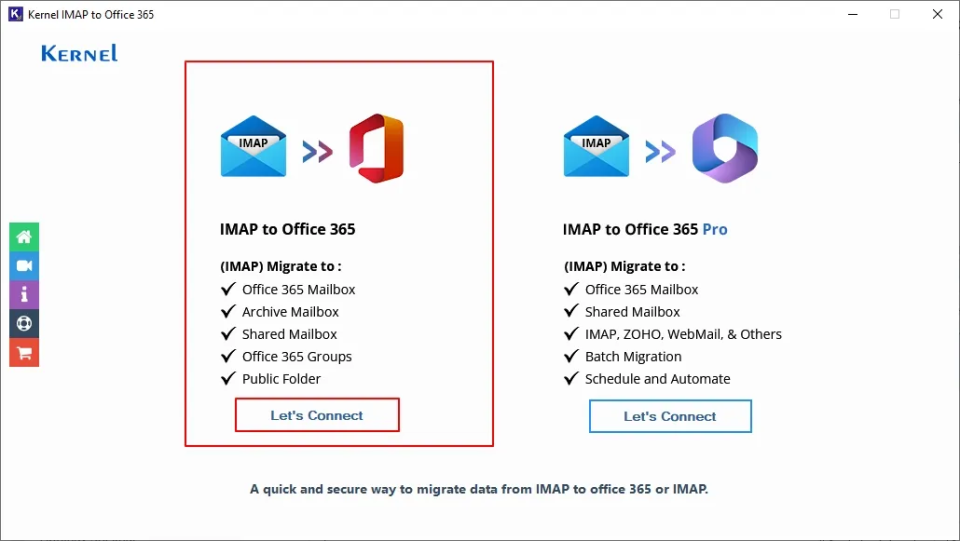
Step 2. Click on Add button to add the source mailboxes (Rackspace) for migration.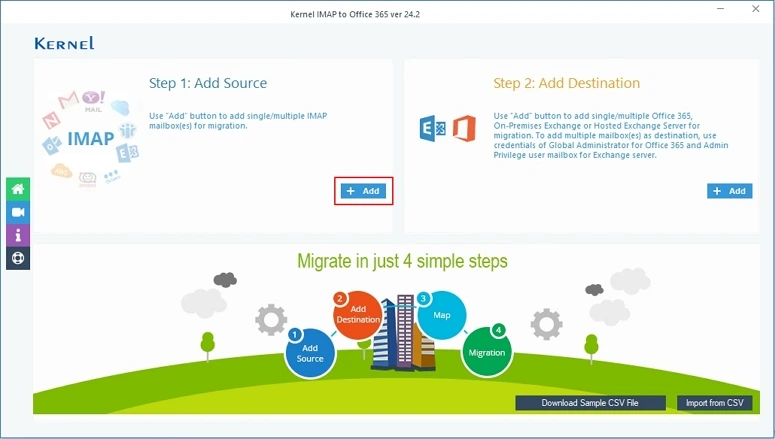
Step 3. Select Use Modern Authentication while login option and click OK.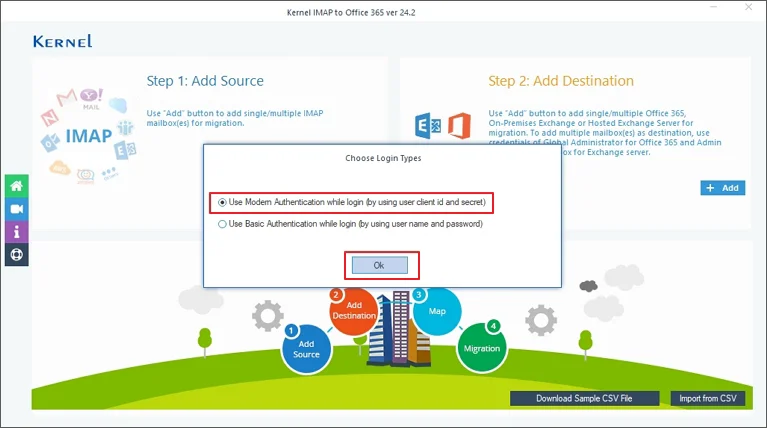
Step 4. Enter details like Server Name, Login ID, Password, and Port Number (993 is default), and click on Add to connect the source mailbox.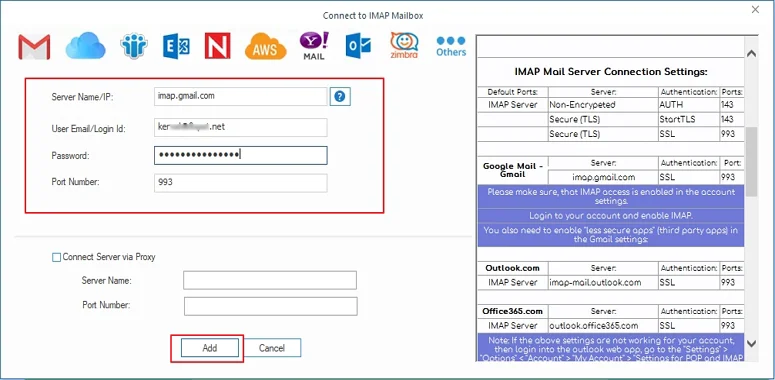
Step 5. Click on Add button to add the destination mailboxes for migration.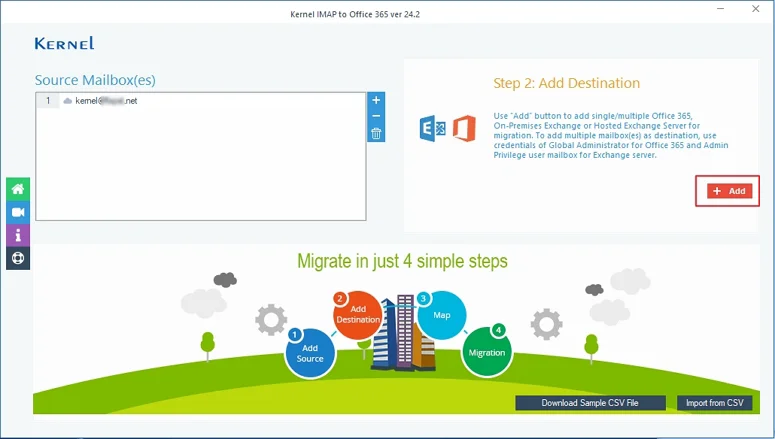
Step 6. Again, choose Use Modern Authentication while login option and click OK to move forward.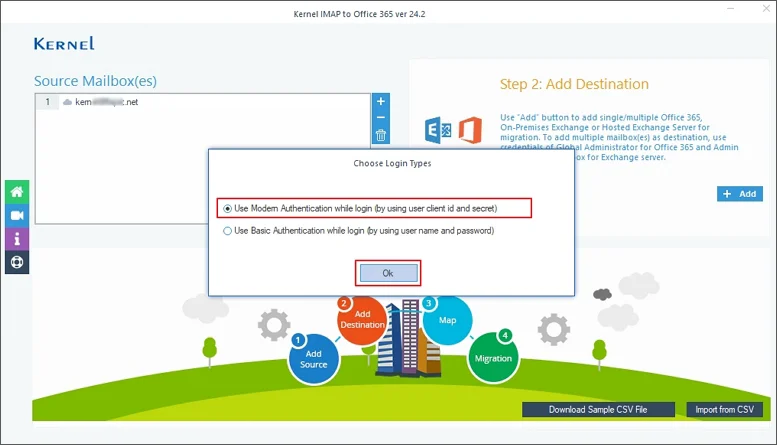
Step 7. Type in the Tenant ID, Client ID, Client Secret Value, and select the List all Mailboxes using above credentials option. Click on Get User Mailboxes option and click on Add to connect the destination mailbox.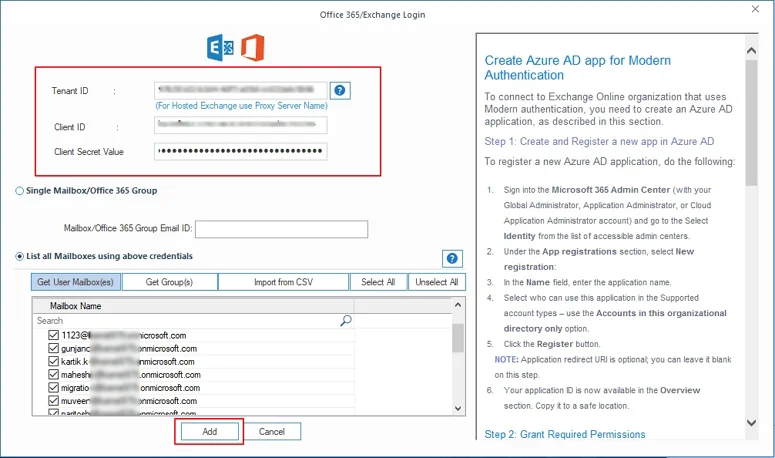
Step 8. Map the Source account with the Destination account and hit the Set Filters and Migrate button to proceed.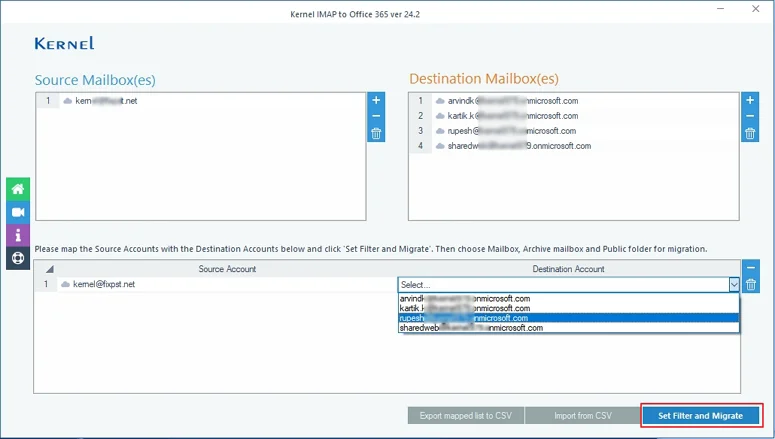
Step 9. Choose the destination mailbox from the dropdown list and click on Migrate.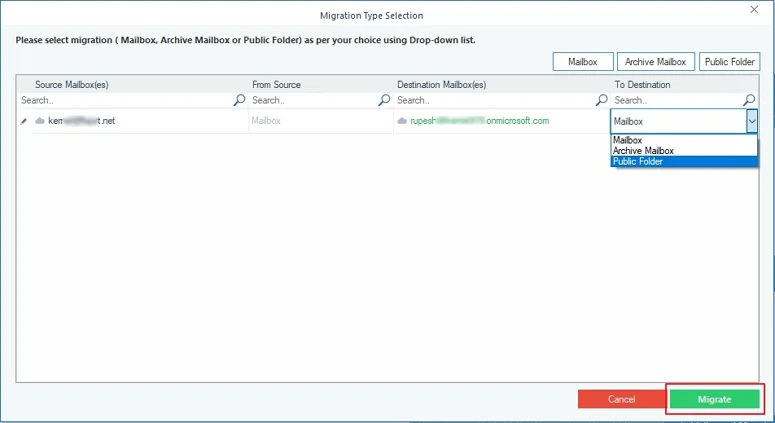
Step 10. Once all mailboxes get enumerated in the tool, apply filters like Date Range, option to Exclude deleted and empty folders, Incremental migration feature, and other filters. Once done, click on I am OK, Start Migration to finally start the migration process.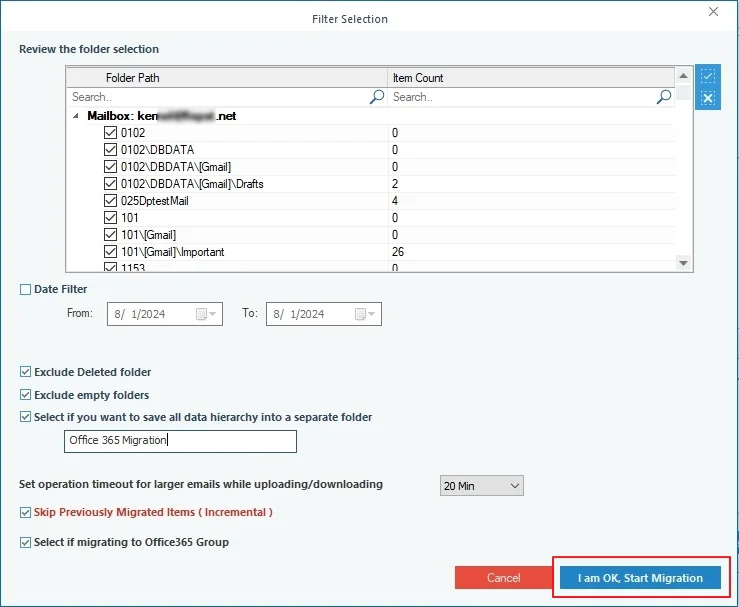
Step 11. The Rackspace to Office 365 migration process will start and wait for it to complete.
Step 12. On completion, a dialogue box will state Process Completed. Click OK.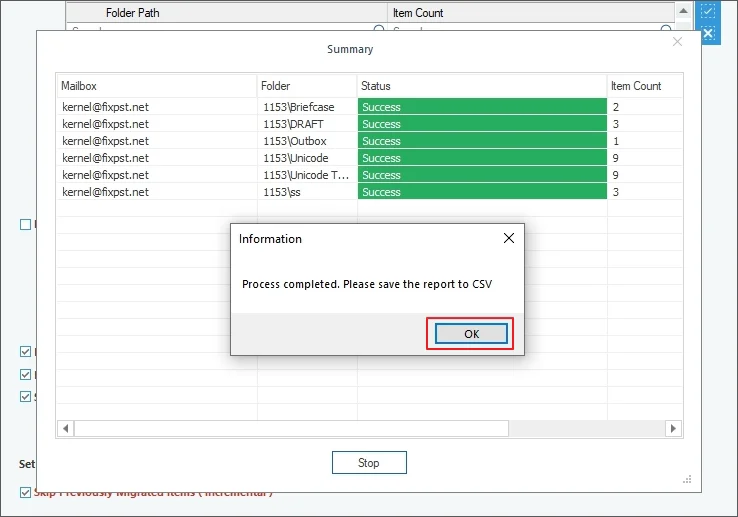
Step 13. Tap on the Save report to CSV option to save report of the migration process and click OK to finish the process.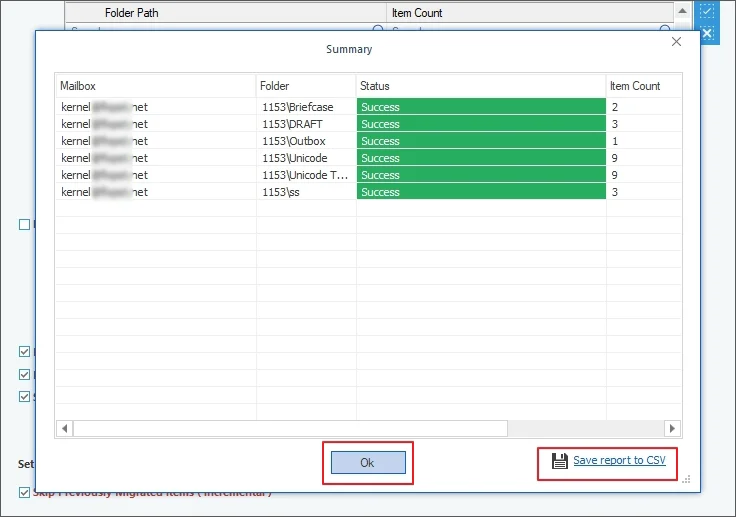
Conclusion
It’s a wise decision to migrate Rackspace email to Microsoft 365, but it requires some planning. This article lists the benefits of shifting from Rackspace and making Office 365 your primary cloud platform. We have provided an automated migration software along with migration tips to easily migrate from Rackspace to Office 365 without any data loss.
Frequently Asked Question
Answer: There is no direct manual way to migrate Rackspace to Office 365. However, if your Rackspace account is IMAP-based, then you can accomplish it by adding your Rackspace account to Outlook and using the Import/Export feature to migrate Rackspace Email to M365.
Answer: Using IMAP manual method, it is difficult. But the Kernel IMAP to Office 365 Migration tool makes it easy with its advanced Filter wizard.