Read time: 10 minutes
When businesses migrate their data from one platform to another, they are migrating their emails, contacts, documents, etc. They do not focus much on calendar entries as they believe they can create these entries manually. But, the manual creation of calendar entries and appointments will take time, and the process is error-prone.
Google Calendar stores important business meeting schedules, appointments, etc., to help users stay updated on their upcoming deadlines and events. Regular G Suite to Office migration often does not include support for these calendar entries. Therefore, you need solutions that help you take care of migrating the entire G Suite calendar to Office 365 (Outlook).
Read this article to find proven solutions to transfer Google Calendar entries to Outlook.
What are the primary reasons for Google Calendar to Office 365 migration?
With so many explanations behind the shift, learn about some common reasons responsible for moving Google Calendar:
- Integration with other Office apps, such as SharePoint, Teams, and Planner, that include business critical data.
- Promotes teamwork and boosts collaboration as well as communication among team members.
- Supports advanced scheduling features that allow efficient management of calendars even on someone else’s behalf with delegated access.
- Outlook allows offline access of the calendars, making it easy for you draft meeting invites even with no internet connectivity.
- Due to the advanced security of Office 365, its calendars are preferred inorganizations with data governance requirements.
How to migrate G Suite Calendar to Office 365?
For migrating the Calendar from G Suite to Office 365, you can follow the manual procedure given below:
Export Calendar from G Suite (Google Workspace)
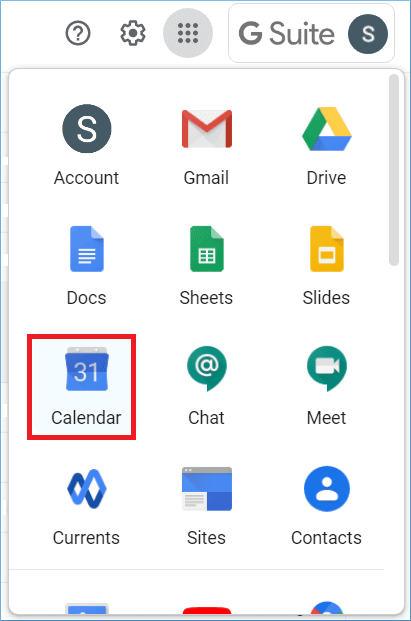
- Login to your G Suite/Google Workspace account and go to the Google Calendar app.
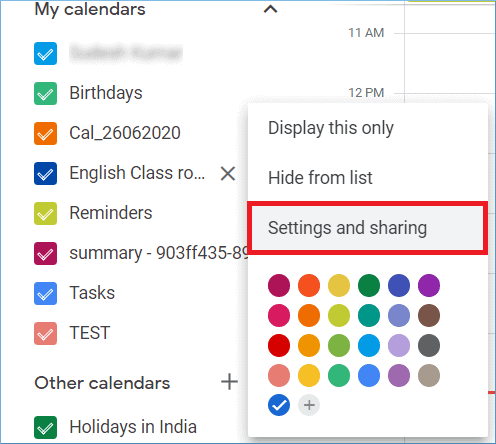
- There may be multiple calendars that you have created a different calendar based on your business requirements. Choose any calendar and click the three dots against it. Then click Settings and sharing.
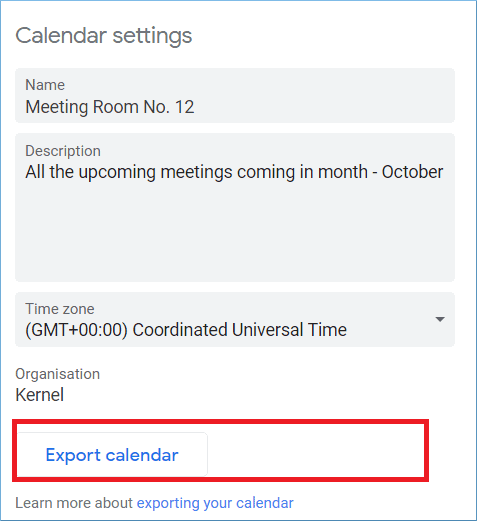
- In the Calendar settings, you can provide a new name, description, and Time zone. Then click Export calendar.
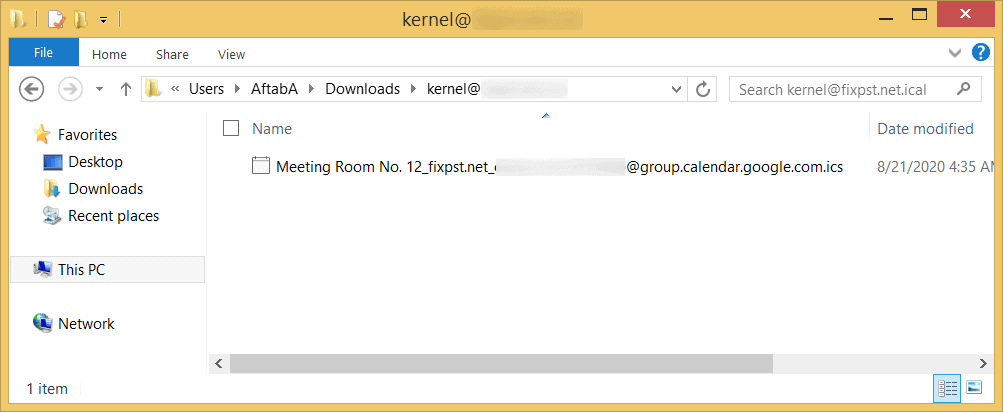
- A new file in .ics format is created, with your calendar details.
Import ICS file to Office 365 account
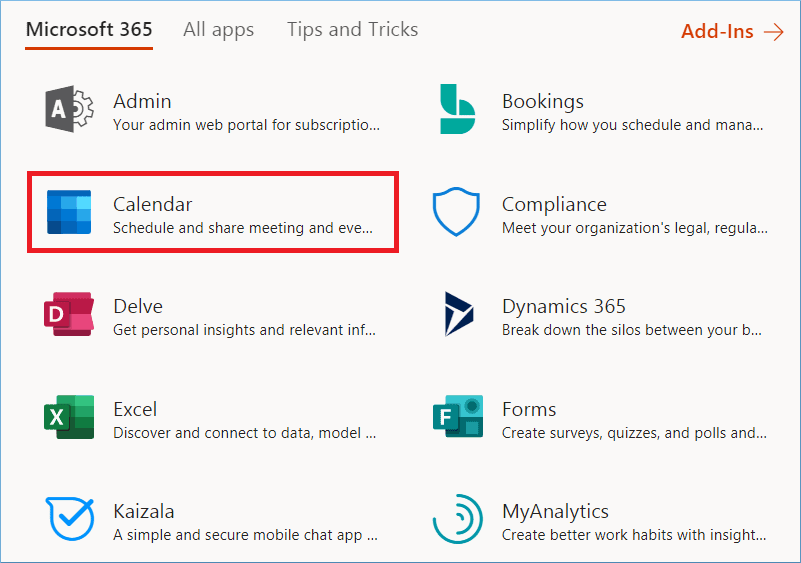
- Log in to the Office 365 account and open all the apps. In the list, you can see the Calendar app; click it.
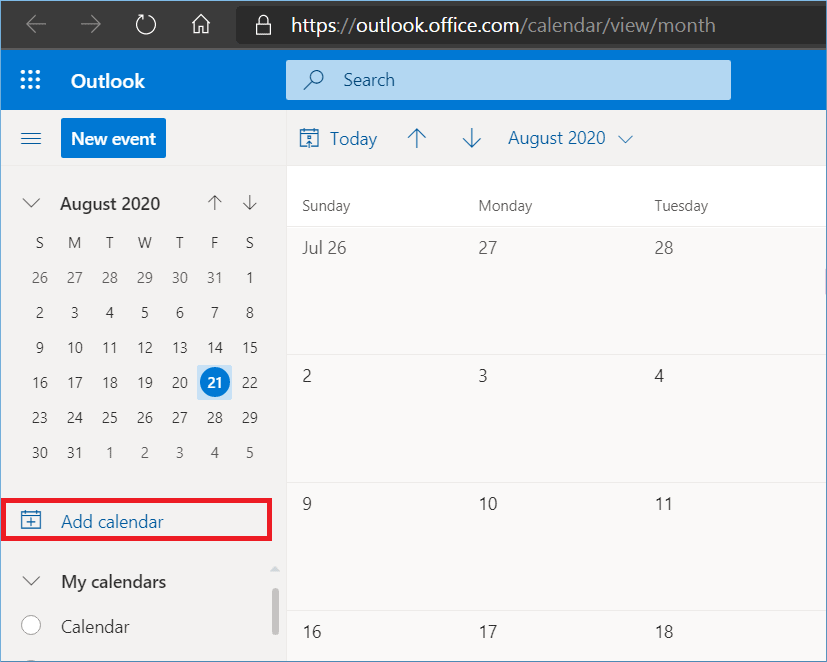
- Click the option to add the calendar.
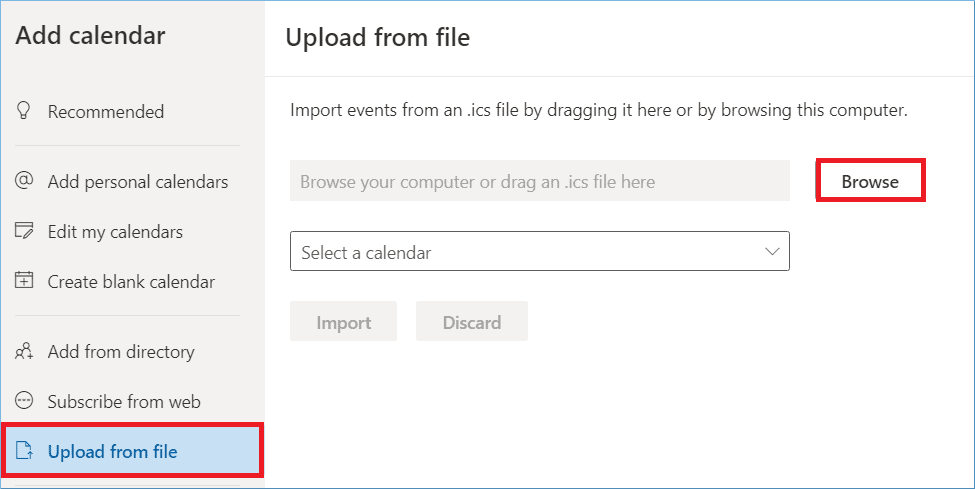
- Choose the option to Upload from file and then click the Browse button to select the ICS file.
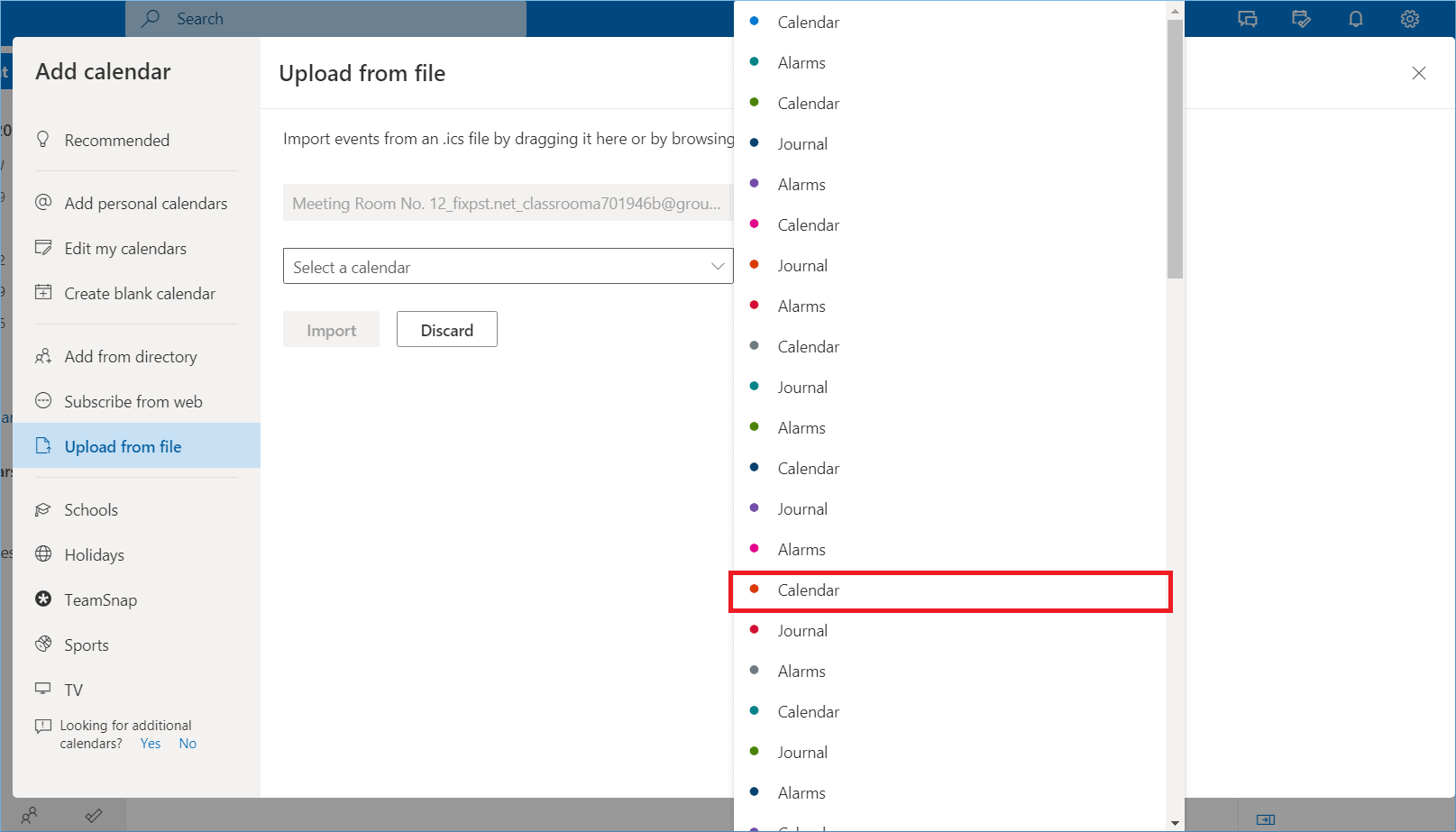
- In the dropdown, you can choose a suitable color icon for your calendar/appointment for easy recognition.
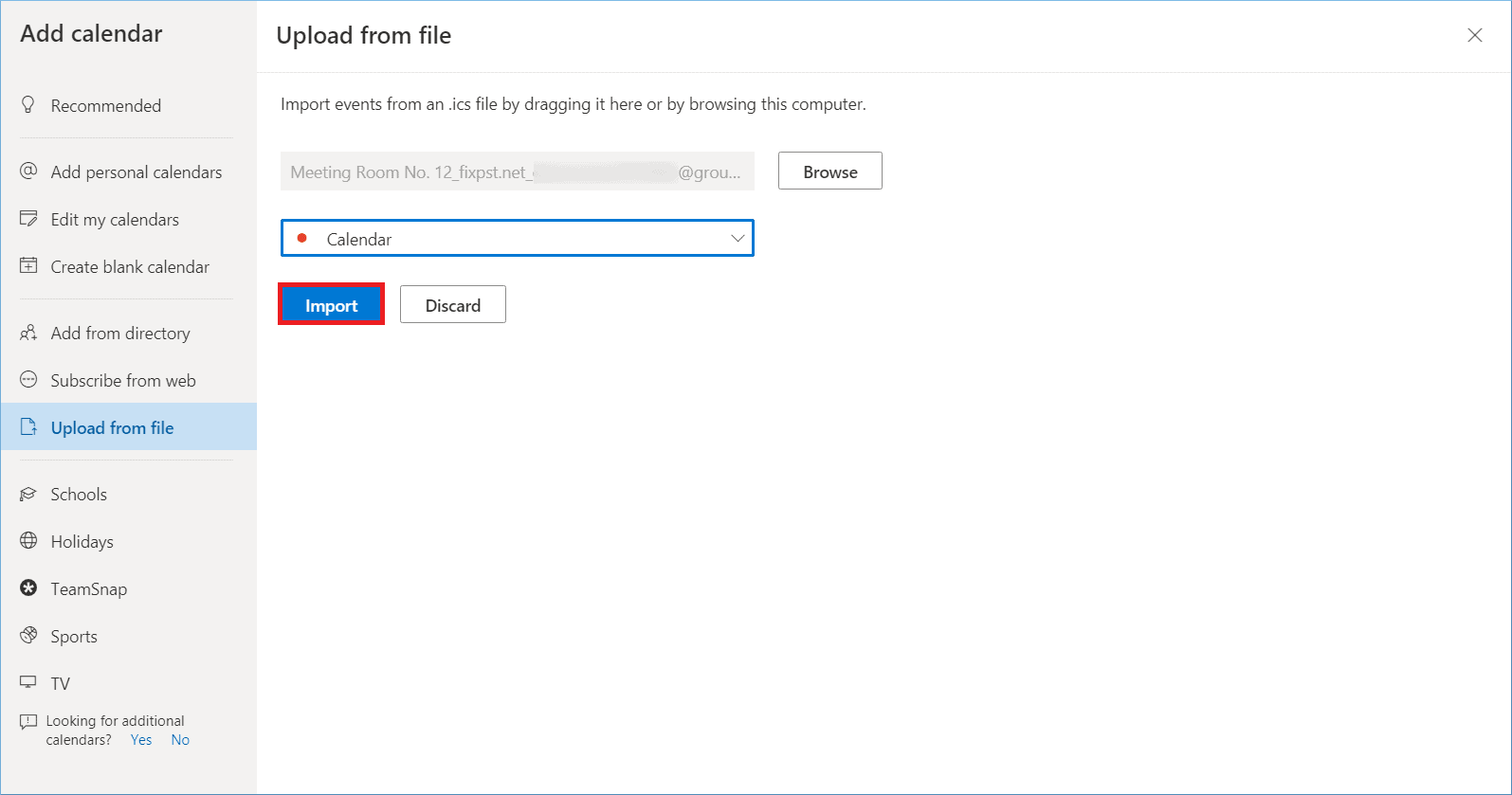
- Finally, click the Import button.
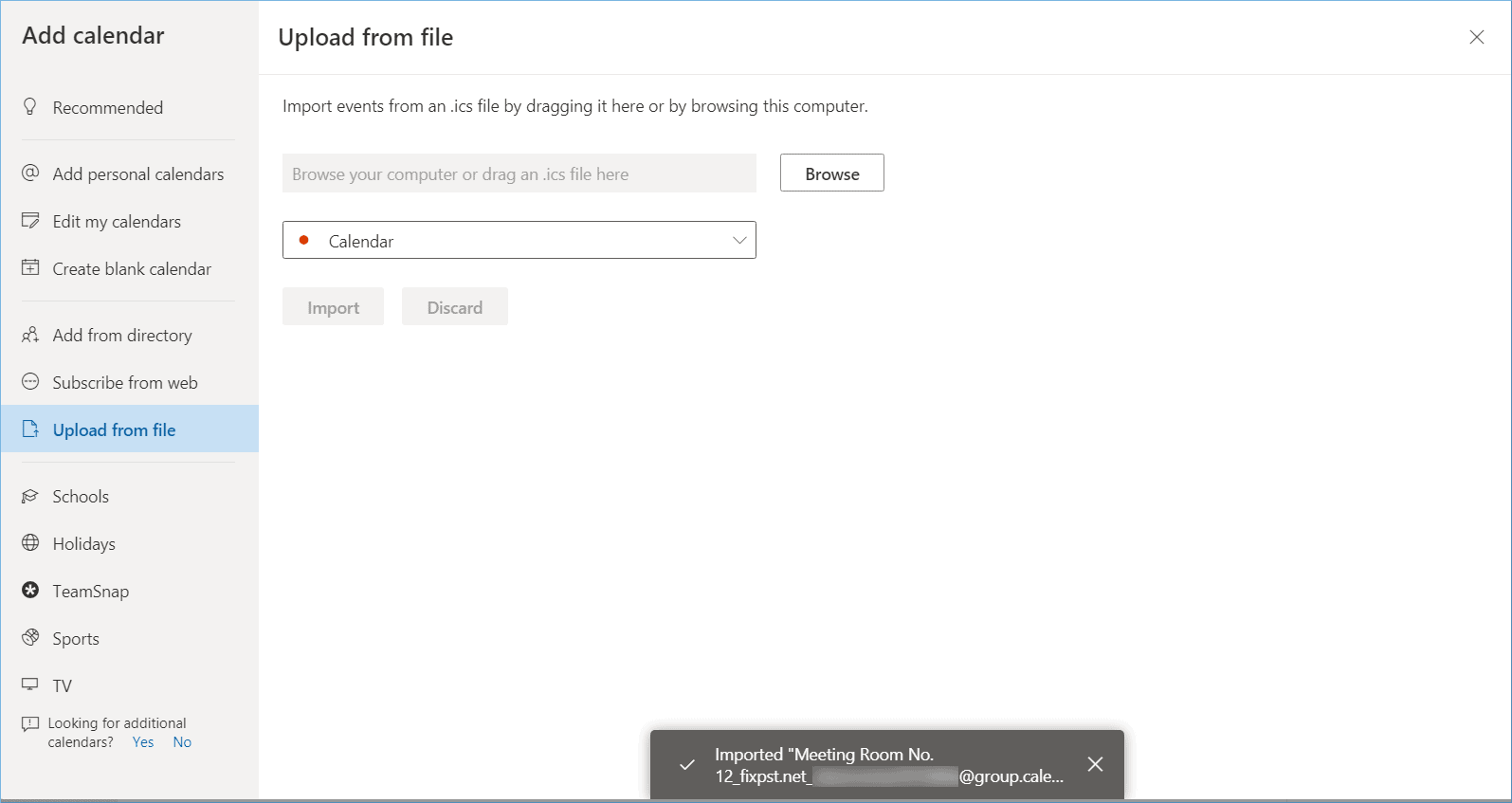
- The calendar is imported into your account.
Limitations of manual migration
- Only a single calendar from the G Suite account can be migrated at a time. If there are multiple calendars in your account, then you will have to migrate them separately.
- You can migrate only a single account’s calendar to other individual accounts.
- The settings of the calendar cannot be changed.
- You cannot filter the content of the calendar.
- There are chances of issues when the ICS is imported to the wrong account.
Automated Migration Using Kernel Google Workspace to Office 365
To get total control over the data migrate from G Suite to Office 365, you should use Kernel Google Workspace to Office 365 to migrate the unlimited number of mailboxes, including all their content. Allow you to apply filters to make sure only the selected calendar or other G Suite data is migrated. The tool allows quick data migration with features like batch migration, allowing you to run migration in multiple batches.
Advantages of Kernel Google Workspace to Office 365
- Migrates data from multiple mailboxes quickly
- Facilitates automated migration with CSV file
- Easy and user-friendly interface to perform the migration
- Migrate to individual Office 365 folder, mailbox, and group
- Provides advanced filtering options
- Can migrate Calendar/Appointments separately
- Migrate G Suite Contacts to Office 365 in Bulk
Follow the steps below to migrate Calendar/Appointments from G Suite to Office 365:
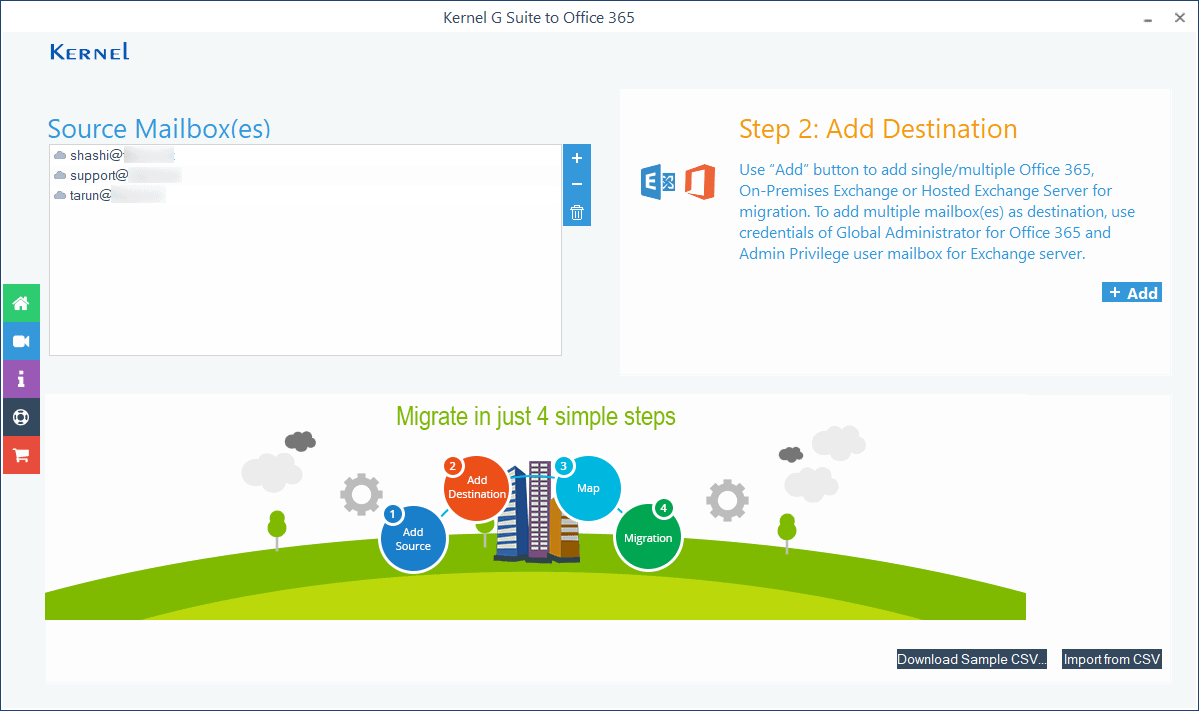
- Start Kernel Google Workspace to Office 365 tool and click the Add button in the Add Source section.
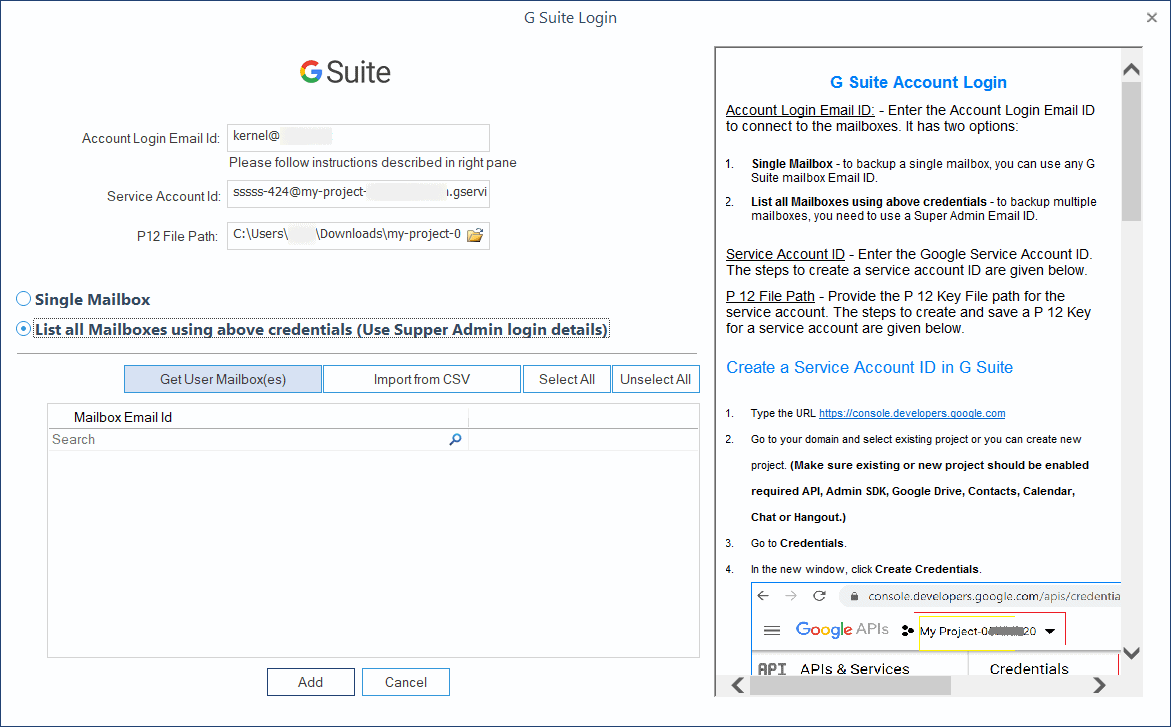
- Please input the email ID of the super Administrator, its service account, and the P 12 key. As you want to migrate the calendar of multiple accounts, choose the second option to list all mailboxes using the above credentials. Click Get User Mailbox(es).
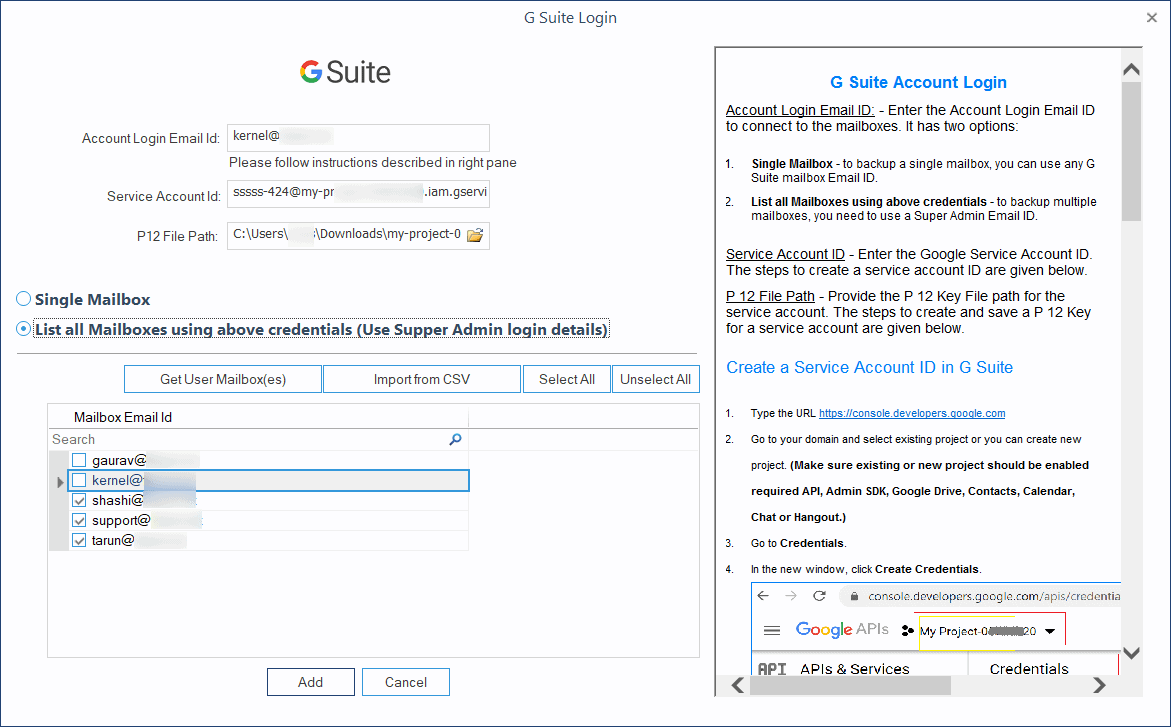
- Choose such an account whose calendar you require to migrate. Then click the Add button.
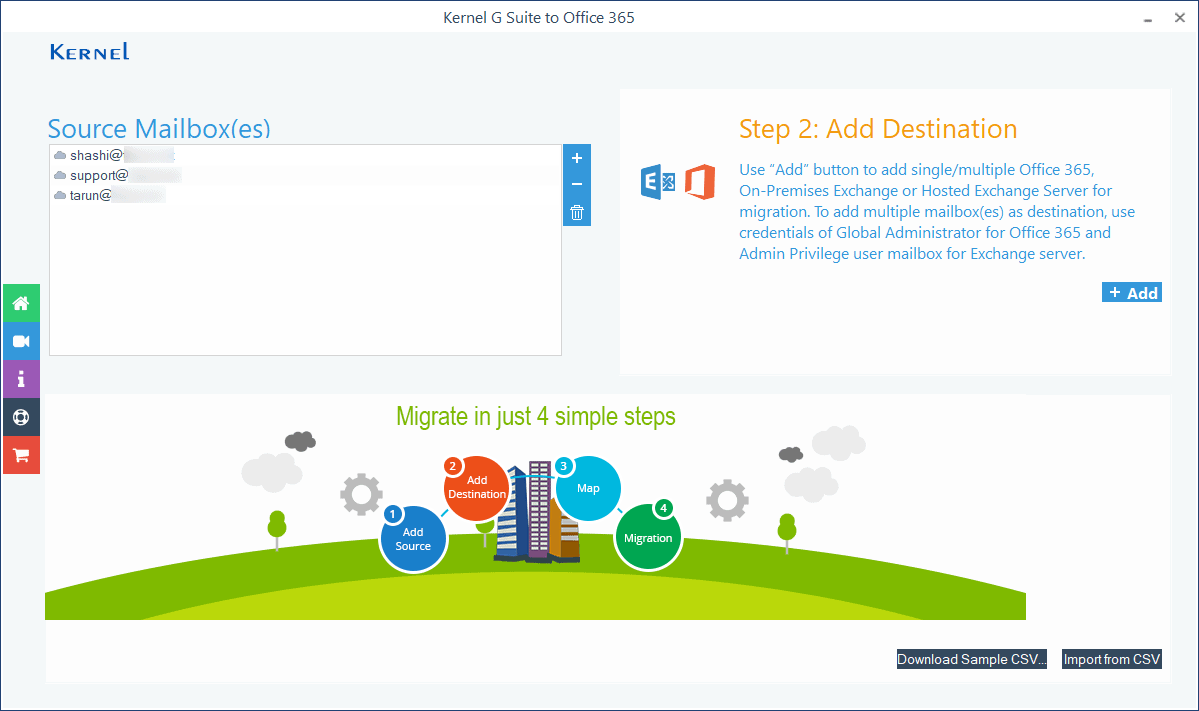
- In the Add Destination section, click the Add button.
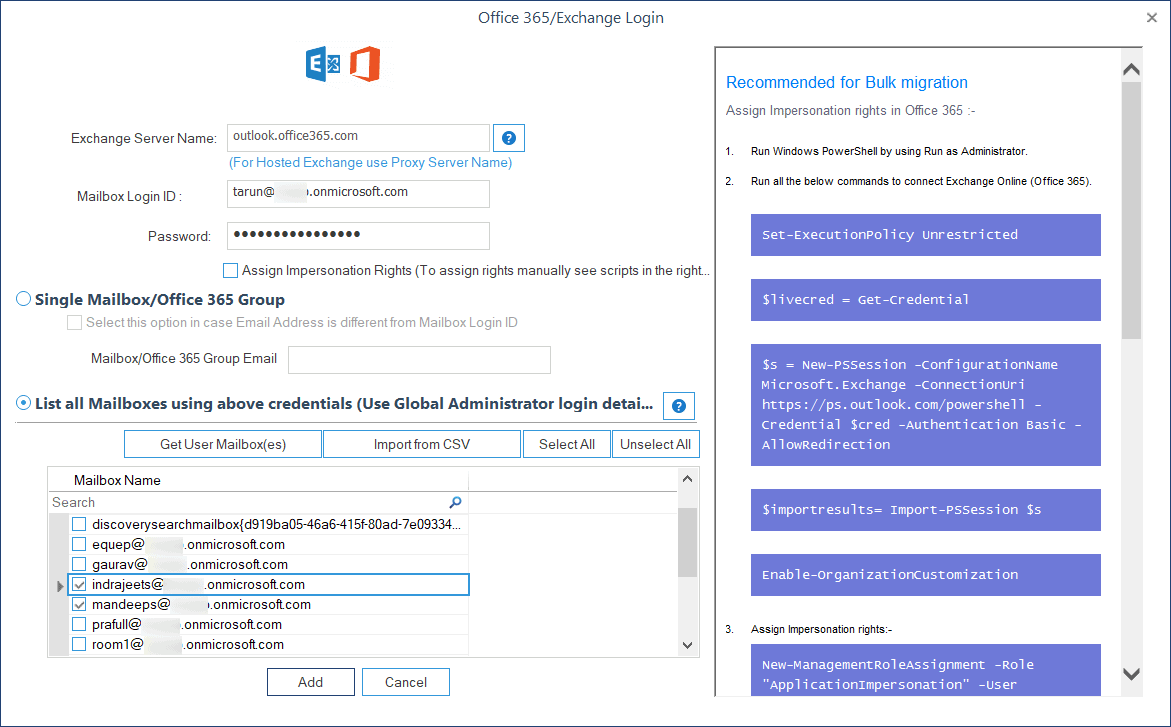
- Input the Office 365 Administrator credentials and go to the second option to list all mailboxes using the above credentials and click Get User Mailbox(es).
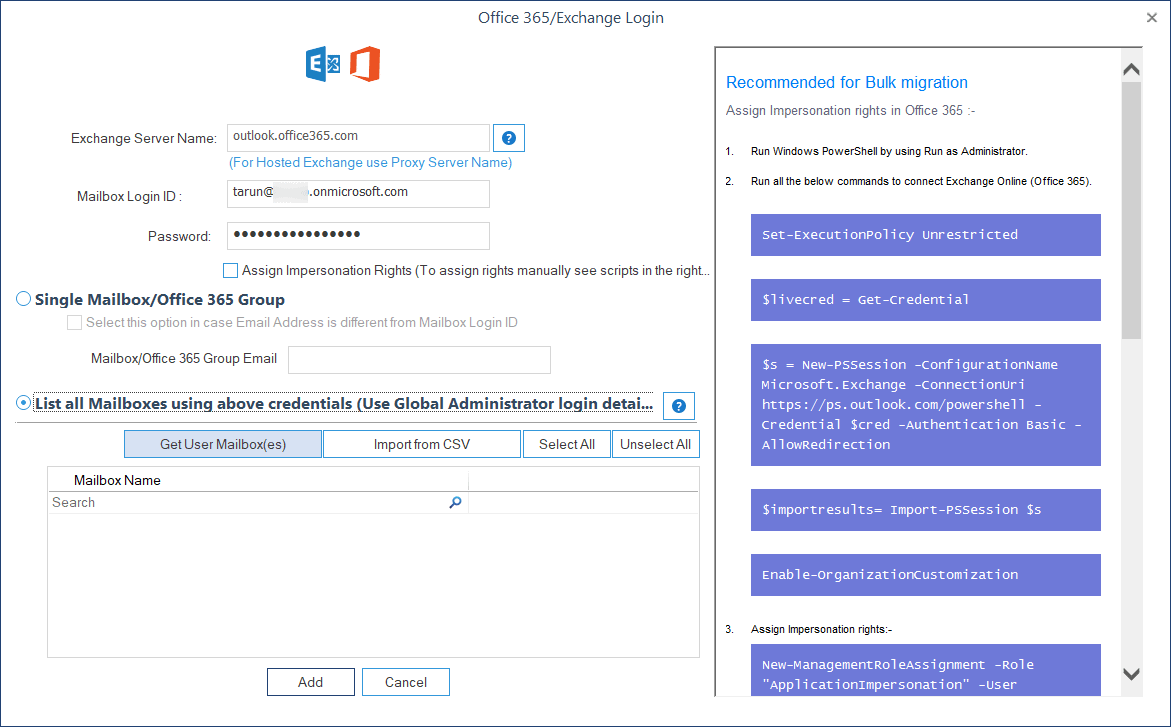
- Choose multiple Office 365 accounts and click the Add button.
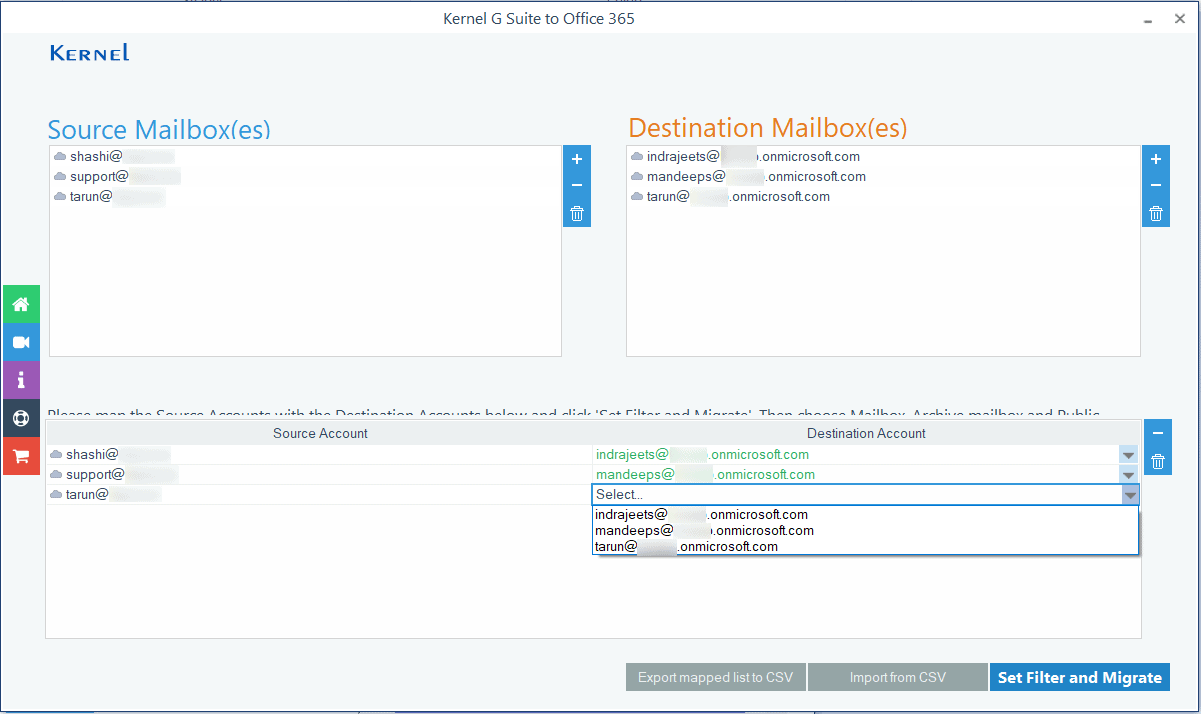
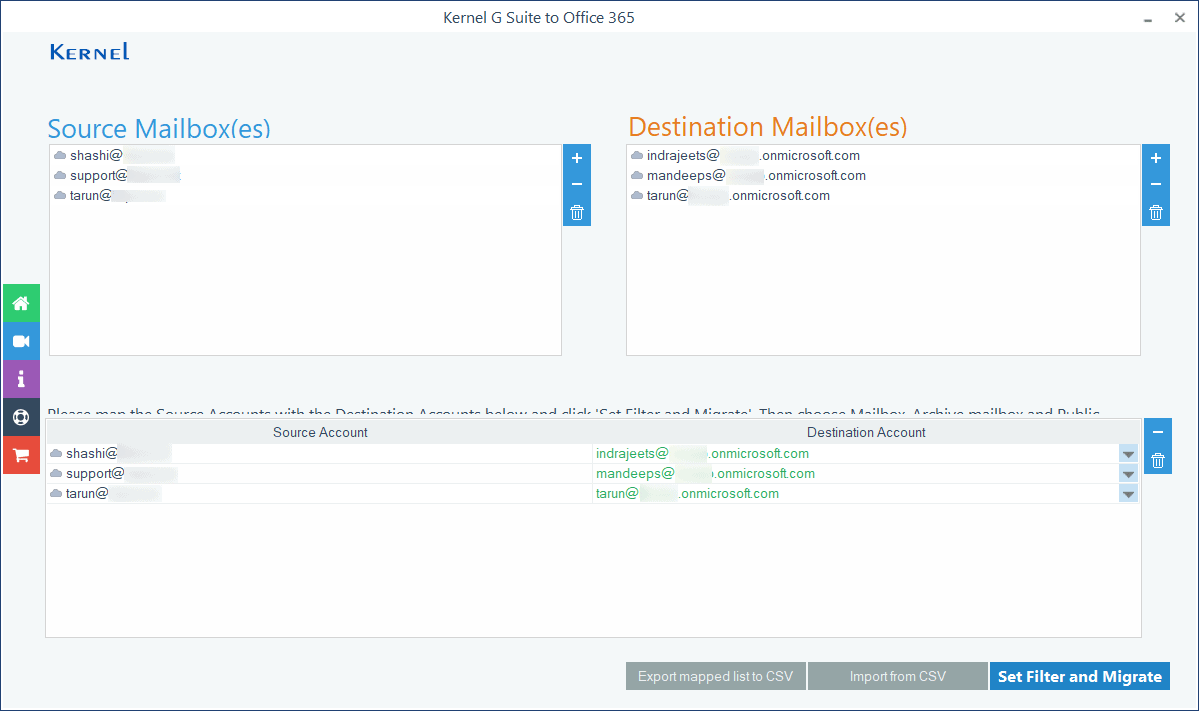
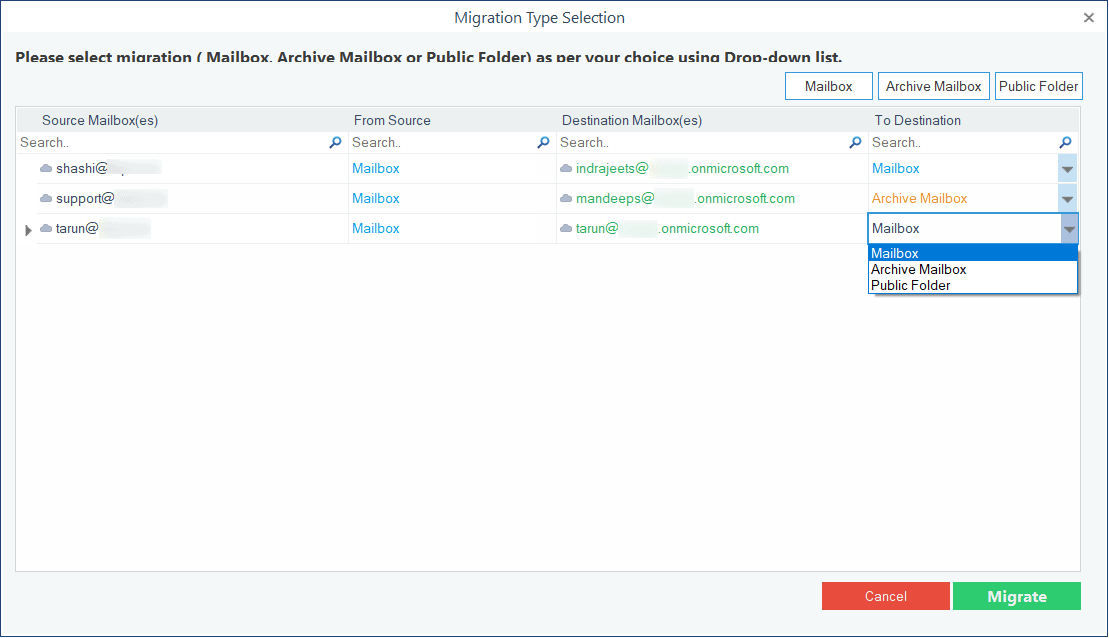
- A precise mapping is required between source and destination accounts for efficient migration. For this, use the dropdown menu on the destination side.
- Click Set Filter and Migrate option.
- Each account will have a dropdown menu where you can select between primary mailbox, public folder, or archive mailbox. Then click Migrate.
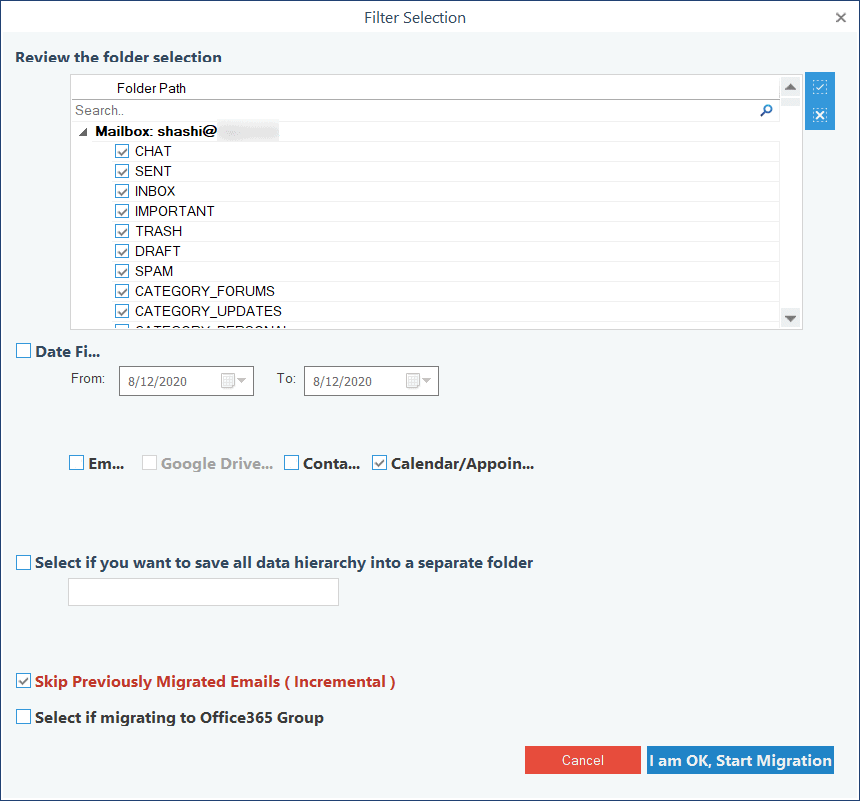
- On the Filter page, you should choose your options – you should click the checkbox in front of Calendar/Appointments and uncheck the others. If you want to migrate to other mailbox items, then you can also select them. Then click I am OK, Start Migration.
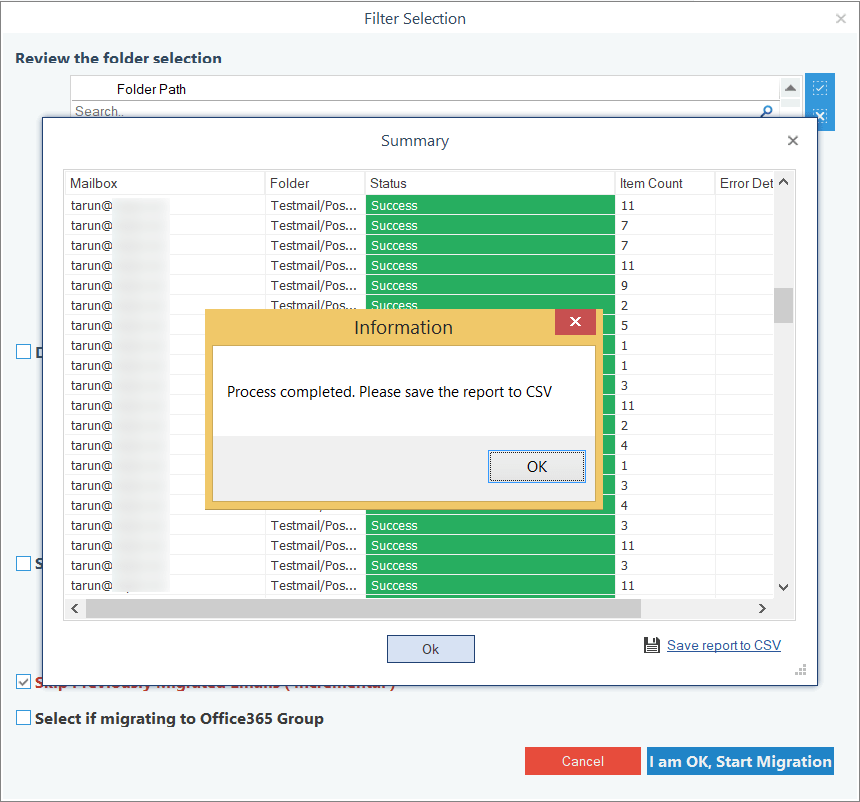
- All the selected items are migrated successfully, and the process is complete. Click OK.
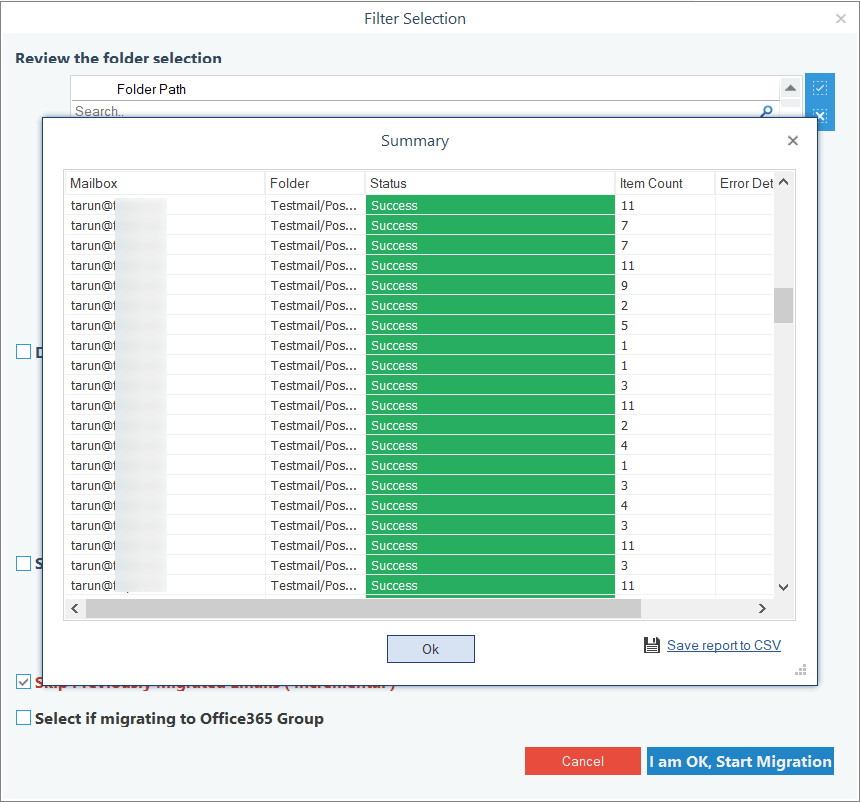
- Save your migration report in CSV format. Finally, click OK.
Conclusion
When your G Suite appointments are essential in Office 365, you should use Kernel Google Workspace to Office 365 migration tool that will allow you to migrate all your data, including Calendar/Appointments, safely and securely. You only require purchasing a new Office 365 subscription plan and migrating Calendar data to Office 365 is an easy job with this solution. It will help your business to start working on Office 365 quickly.