Read time: 7 minutes
Summary: Your Microsoft 365 keeps crashing due to conflicting applications, antivirus programs, corrupt installation files, outdated software, or interference from improper add-ins. To fix it out, do follow the troubleshooting tips, reboot the device, reinstall Microsoft 365, update Microsoft 365 and OS, disable add-ins, and perform Office 365 repair, respectively.
Does your Microsoft 365 fail to launch properly, close without warning, or freeze repeatedly? This issue might be disturbing and can disrupt your work. However, it is a sign of underlying software conflicts, damaged program files, or system-related issues.
Now, you don’t have to just accept the ongoing situation or ignore Microsoft 365 issues. You must know the root cause to prevent recurring interruptions. Here, you’ll get signs, error messages, possible reasons, effective troubleshooting tips along with manual stepwise ways to fix ‘Microsoft Office 365 keeps crashing’ issue.
Signs to Identify Microsoft 365 Keeps Crashing Issue
When Microsoft 365 Office 365 keeps freezing, some recurring signs you can recognize. A few signs are as follows:
- Microsoft 365 apps close unexpectedly with no error message.
- Sometimes they freeze and become unresponsive.
- The application crashes immediately just after you launch or open a specific file.
- Repetitive crashes occur after installing a recent update, add-in, or third-party software.
- Error messages such as “Microsoft 365 has stopped working” or “An unexpected error occurred” pop up.
Common Error Messages May Occur When Office 365 Freezes Randomly
Here are some error messages that may occur when Microsoft 365 freezes randomly:
| Error | Meaning |
|---|---|
| Microsoft 365 has stopped working | Damaged files |
| Application Error 0xc0000005 | Memory conflict |
| Outlook not responding | Add-ins/Profile issue |
| Unexpected Error Occurred | Corruption |
If you notice any of these symptoms or error messages regularly when working with Microsoft 365, then you must know the reasons why Microsoft Office 365 keeps freezing.
Underlying Factors for Microsoft Office 365 Keeps Crashing Issue
Once you know the problem, now look over the reasons for the Microsoft Office 365 keeps freezing issue.
- Unstable internet or server.
- Outdated Office installation.
- Corrupted add-ins in Outlook.
- Interrupted installation setup.
- Interference with antivirus software.
- Expired Microsoft 365 trial version.
- Unnecessarily running background apps.
Check If Hardware Problems are Causing Office Crashes
Software issues are not always the root cause for Office 365 freezing issues. Check your hardware. They could be the culprit for Microsoft Office 365 keeps crashing issue:
- RAM shortages
- CPU spikes
- GPU driver conflicts
- Disk corruption
- SSD health
- Overheating
Some Troubleshooting Tips to Fix Office 365 Keeps Crashing Issue
Before you go through manual stepwise ways, follow the quick troubleshooting tips that may fix Office 365 keeps freezing issue:
- Check for internet and server outages first and make them stable if they are not.
- Restart your system and try to open the Office 365 application again.
- Make sure that your SSD health is good, no disk corruption or heating issue, or RAM shortage.
- Do check that your existing Microsoft 365 trial period is over. If you have a paid plan, then it is not needed.
- Launch the Office 365 application in safe mode (Windows Key + R > Outlook /safe> Run).
- Delete Office cache data: (Windows+R>%localappdata%\Microsoft\Office\16.0\OfficeFileCache).
- Update your Microsoft 365 setup via any Office application like Word, Excel, Outlook, etc.
These tips are enough to fix ‘Office 365 crashes when opening’ issue. Still, your Microsoft 365 keeps crashing; follow the manual methods given below one by one.
Related: Tips for Your Data is Secure in Office 365
How to Fix Microsoft 365 Keeps Crashing Issue
Here are some ways to resolve Microsoft Office 365 keeps crashing problems. Try them out one by one to find the best fix for yourself:
Way 1: Repair Microsoft 365 Suite
To fix the Microsoft 365 keeps crashing issue, repair the Microsoft 365 setup. It fixes glitches or bugs if they are barriers to a smooth process. To repair Microsoft 365 suite, follow these steps:
- Go to Settings and click Apps.
- Select and right-click on Microsoft 365 suite. Tap on Modify.
- Choose Online Repair, then tap Repair. Wait for some time.
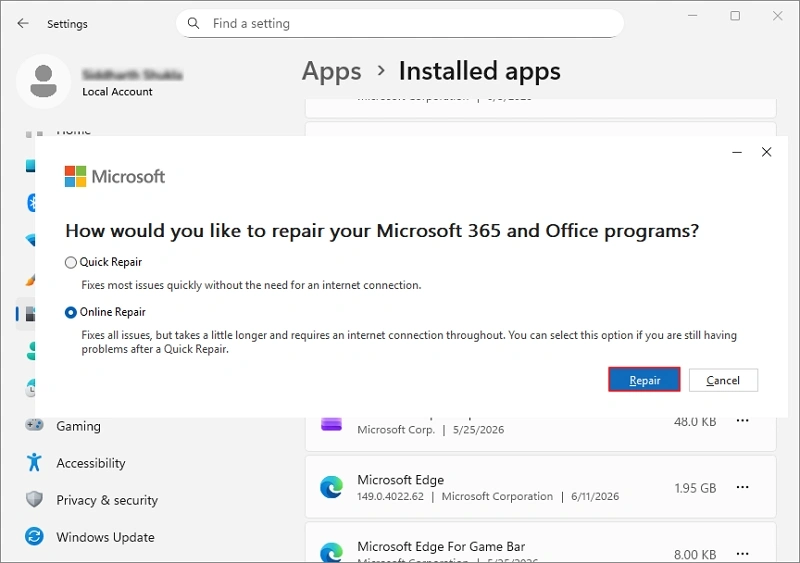
After the repair, open the application to check for the Microsoft 365 keeps crashing issue.
Way 2: Disable Security Software or Antivirus Program for the System
Disabling security programs & antivirus software temporarily can also fix “Microsoft Office 365 freezing” issue. Here are the steps to disable them:
- Go to Settings > Privacy & Security, & then tap on Windows Security.
- Select Virus & Threat Protection and click Manage providers.
- Turn the toggle Real-time protection off and click Yes to confirm.
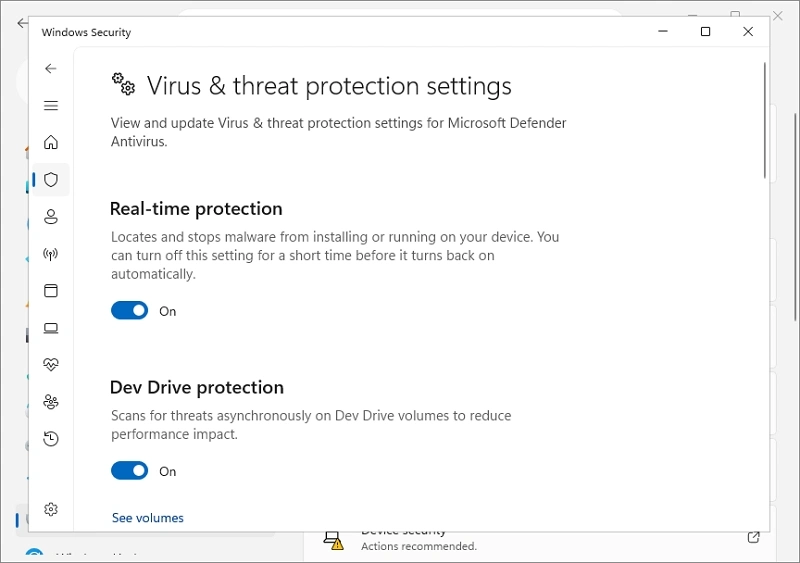
- After that, re-enable the antivirus software if the application reports no crashes.
Way 3: Reinstall Microsoft 365 Suite
If the above methods don’t help you to fix the issue, remove corrupted installation files and reinstall the new Microsoft 365. For that, follow the steps below:
- Go to Settings > Apps, then select Microsoft 365.
- Right-click on it and tap on Uninstall.
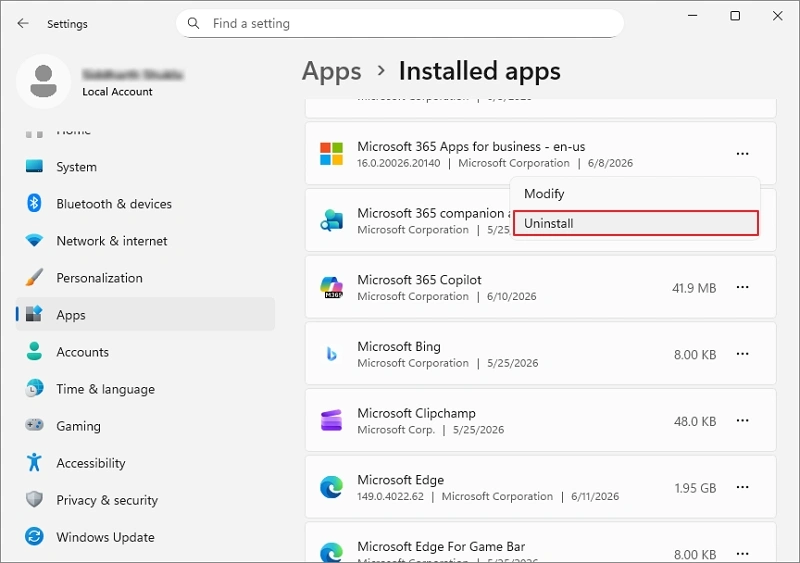
- Restart your computer and download the latest installer from your Microsoft account.
- Install that, sign in, & verify that the crash issue has been resolved.
More to Know: How to Troubleshoot Office 365 Connectivity Issues?
How to Prevent ‘Office 365 Keeps Crashing’ Issue in Future
Preventive practices are also important to minimize the risk of ‘Microsoft keeps crashing’ issue again. Some practices you can follow:
- Regularly update your Microsoft 365 and Windows OS.
- Install add-ins only from credible sources.
- Remove the unnecessary and outdated third-party applications.
- Make sure that device drivers as well as graphics drivers are up to date.
- Review your Office installation and repair carefully without disruption.
- Most importantly, keep backups of your Microsoft 365 data for protection against unexpected crashes or Microsoft 365 issues.
How to backup your Microsoft 365 data to keep safe & easy data access?
Besides the smooth working of Microsoft 365, your business data is extremely important. Apart from native ways, Kernel Office 365 Backup tool also helps you to backup entire mailbox data having emails, contacts, calendars, and more, directly to local storage. With this, your Microsoft 365 data remains protected and readily recoverable even if a crash or other unexpected issue occurs.
Final Say
When your Microsoft 365 keeps crashing, productivity gets hampered, even though there are more chances for data inaccessibility. However, the troubleshooting tips and manual solutions mentioned here can put a stop to such issues. If you want to escape such issues in the future, you’ll need to follow the given maintenance practices, keep the system up to date, and have a safe Microsoft 365 backup.
Along with that, the Kernel Office 365 backup tool adds an extra layer of protection to keep data safe and easily recoverable when needed.
Frequently Asked Questions
A: After update, the new version may conflict with the add-ins or software versions.
A: Yes, antivirus software can be the reason for the Office 365 crash.
A: No reinstalling will not delete your local file, but the cloud data might be inaccessible.
A: Go to Settings, then Apps, right click on Microsoft 365 program, then choose Modify. Select Online Repair and then click Repair.