Read time: 8 minutes
Microsoft Outlook is a powerful email client, but like any other application, it can crash, freeze, or refuse to start. All these problems can occur due to conflicting extensions, faulty add-ons, or corrupted settings. That’s where Outlook Safe Mode comes in.
It is not a separate program or a complicated tool. It’s simply Outlook running in its most basic form. Let’s know more about Outlook Safe Mode and how you can open Outlook in Safe Mode.
What is Outlook Safe Mode?
Outlook Safe Mode is not meant for daily use; it’s a diagnostic tool, or we can say a troubleshooting startup state, where Outlook launches with minimal functionality. The title bar will display “Microsoft Outlook (Safe Mode)”. When you open Outlook in Safe Mode, all COM add-ins and Exchange Client extensions are disabled, customized toolbars, ribbon modification, and command bar settings are not loaded, and more. Importantly, Safe Mode does not delete emails, change settings, or modify your profile.
What are Differences Between Normal and Safe Mode in Outlook?
Here is the key difference between Normal and Safe Mode in Outlook:
|
Features |
Normal Outlook |
Safe Mode in Outlook |
|
Add-ins |
All are enabled |
All are disabled |
|
Customizations |
Save changes to your workspace |
Can’t save any customized settings |
|
Startup speed |
Normal |
Faster (less to load) |
|
Toolbars or ribbons |
Loaded |
Not loaded |
|
AutoCorrect or Templates |
Loaded |
Not loaded |
|
Functionality |
Fully functional application |
Limited access (diagnostic only) |
Why do Users Need to Open Outlook in Safe Mode?
These are the top reasons why users need to access Microsoft Outlook in Safe Mode:
- Microsoft Outlook crashes or closes immediately on startup.
- Outlook application freezes and shows “Not Responding” message.
- To test if add-ins are slowing down Outlook application.
- Facing errors like “Cannot start Microsoft Outlook”.
- Folders display incorrectly, and searches fail.
Things to Consider Before Opening Outlook in Safe Mode
Before you start with opening Outlook in Safe Mode, keep these points in mind:
- You won’t have access to all the features and add-ins of Outlook.
- Safe Mode only tells you where the problem is; it doesn’t fix the problem.
- Close all Microsoft Office applications before starting to avoid conflicts.
- Steps are the same for all Outlook versions, but menu names might vary slightly.
- Safe Mode is temporary. It doesn’t change any settings permanently.
How to Start Outlook in Safe Mode: Quick StepsStep 1: Press Windows+R keys to open Run wizard. Step 2: Type Outlook.exe /safe in Open dialogue box. Step 3: Then, press OK or hit Enter on keyboard. |
Manual Ways to Open Outlook in Safe Mode
There are a few easy methods to open MS Outlook in Safe Mode. Each of them is listed below with detail steps. Use whichever is convenient:
Method 1. Using CTRL Keys
This is a simple way to launch Outlook Safe Mode. Follow the steps to do so:
Step 1: Press CTRL keys on your keyboard, then double-click on Outlook to launch it.
Step 2: Keep pressing the CTRL keys until you receive message saying “You’re holding down the CTRL key. Do you want to start Outlook in safe mode?”.
Step 3: Click Yes to launch Outlook.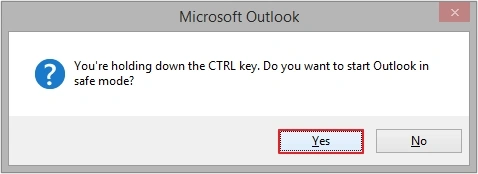
Method 2. Using Command Prompt
Here is how to open Outlook in Safe Mode using Command Prompt:
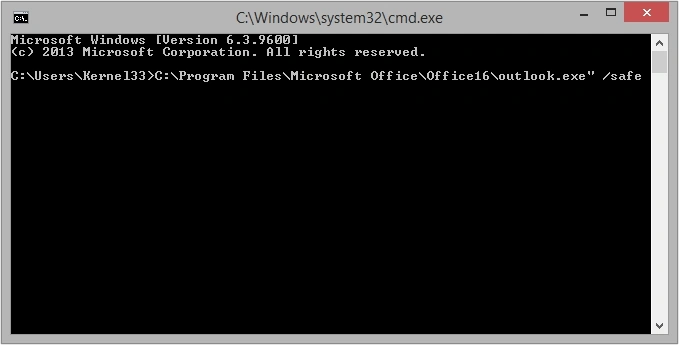
Step 1: Launch Command Prompt and enter location of Outlook program file.
Step 2: Type /safe (with a space before the slash) after the location.
Note: Here are the commands to launch different versions of Outlook in safe mode.
|
Outlook version |
Location |
|
|
For Outlook 2019 and 2016 |
32-bit |
“C:\Program Files (x86)\Microsoft Office\Office16\outlook.exe” /safe |
|
32-bit (alternative) |
“C:\Program Files (x86)\Microsoft Office\root\Office16\outlook.exe” /safe |
|
|
64-bit |
C:\Program Files\Microsoft Office\Office16\outlook.exe” /safe |
|
|
For Outlook 2013 |
32-bit |
C:\Program Files (x86)\Microsoft Office\Office15\outlook.exe” /safe |
|
64-bit |
C:\Program Files\Microsoft Office\Office15\outlook.exe” /safe |
|
|
For Outlook 2010 |
32-bit |
C:\Program Files (x86)\Microsoft Office\Office14\outlook.exe” /safe |
|
64-bit |
C:\Program Files\Microsoft Office\Office14\outlook.exe” /safe |
|
|
For Outlook 2007 |
32-bit |
C:\Program Files (x86)\Microsoft Office\Office12\outlook.exe” /safe |
|
64-bit |
C:\Program Files\Microsoft Office\Office12\outlook.exe” /safe |
|
Method 3. Using Shortcut Keys
You can even create a desktop shortcut key to access Outlook in Safe Mode. It can be done with the simple steps listed below:
Step 1: Right-click on your desktop (empty area), then click New >Shortcut.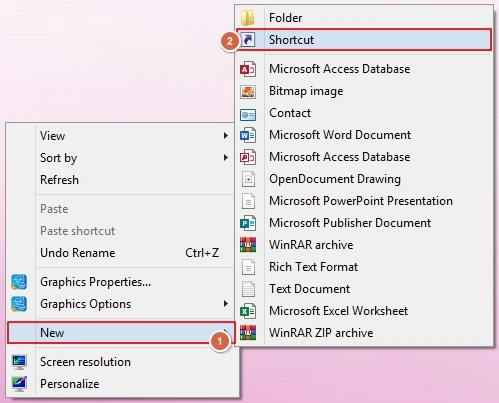
Step 2: Type the location where your Outlook application is installed with /safe (with a space before the slash) next to it, then click Next.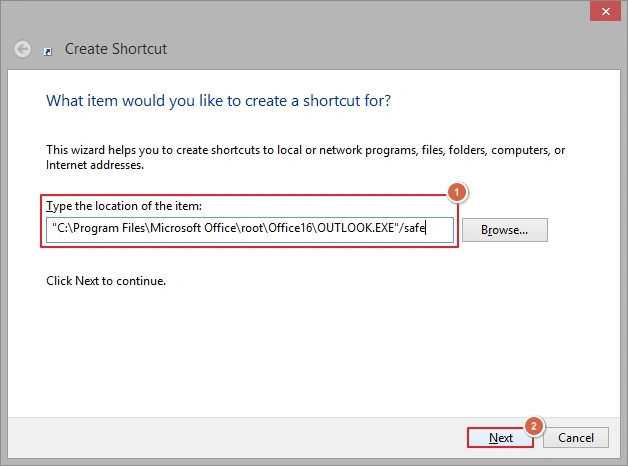
Step 3: Provide a name to the shortcut, then click Finish.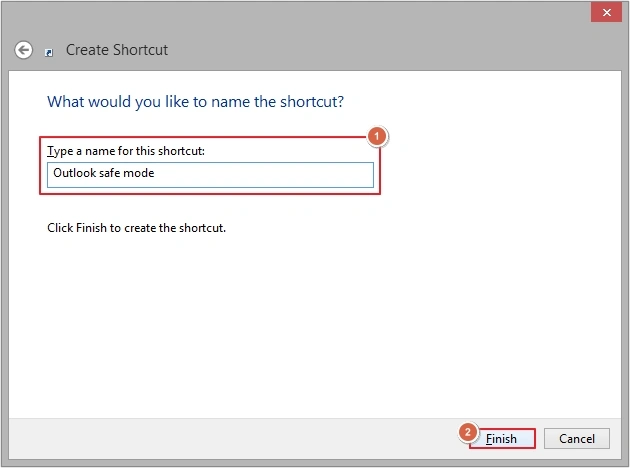
Step 4: A shortcut of Outlook’s safe mode will be saved to your desktop.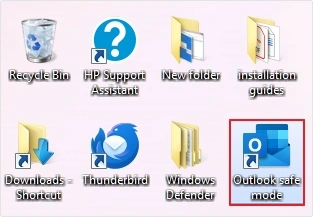
How to exit Safe mode and return to Normal mode in Outlook?
Exiting Outlook Safe Mode is simple, just close the Outlook and reopen it normally. Make sure you are not using ‘/safe’ or holding ‘CTRL’ keys while launching Outlook. In this way, Outlook should start in normal mode with all add-ins.
Troubleshooting Issues with Outlook Safe Mode
When you try opening Outlook in Safe Mode, you might face some issues with it. Here are some commonly faced issues with their solutions:
Problem 1. /safe command not recognized
Solution: You typed something wrong or there must be unnecessary space.
Problem 2. Outlook always opens in Safe Mode.
Solution: Disable faulty add-ins, then restart Outlook normally.
Problem 3. Outlook opens in Safe Mode, but you can’t find faulty add-ins.
Solution: Disable all the add-ins and restart Outlook, then enable them one-by-one.
Problem 4. Outlook won’t open even in Safe Mode.
Solution: Your Outlook Profile or data file may be corrupted. Run the Inbox Repair Tool to fix the issue. If the issue isn’t resolved, then your PST file might be severely corrupted or large in size.
To repair severely corrupted PST file, using an advanced Outlook PST Repair software is always the best choice. Kernel for Outlook PST Repair offers unique features with zero loss guaranteed. You can apply different filters like date filter, item type filter, folder name, subject, from, to, etc. to customize the entire repairing process and save selective data only. Further, it comes with a free trial which allows you to convert 25 items per folder without paying anything.
Wrapping Up
Whenever there is a problem with your Microsoft Outlook application, opening Outlook in Safe Mode helps. It takes 10 seconds to open and immediately tells what the problem is. I personally prefer opening Outlook in Safe Mode with the Run command. Moreover, if Outlook doesn’t open in Safe Mode, then it might be because of corruption in PST or Outlook Profile which can easily be resolved using our recommended tool within a few clicks.
Frequently Asked Questions
A: No. Safe Mode is read-only for diagnostics. It does not delete your emails and settings.
A: The Outlook window title bar will say “Microsoft Outlook (Safe Mode)”.
A: No, Safe Mode only bypasses add-ins. To fix PST file, use ScanPST.exe (Inbox Repair Tool) or an advanced PST Repair software.
A: To access Microsoft Outlook in Safe Mode in Windows 11, simply press Windows+R keys, type Outlook.safe or Outlook.exe /safe, and hit Enter.
A: Hold CTRL keys while opening the application or use the Run command to access Outlook in Safe Mode on Windows 10.