Read time: 7 minutes
Opera Mail is known for being a lightweight and open-source email platform that delivers lightning-fast speed. With this email client, you can efficiently manage multiple user accounts along with easy access to archive PST file data. Since Opera Mail has an upper hand with its offerings in many terms when compared with Outlook, users are switching to it from Outlook. However, it doesn’t allow you open PST files directly, for which you need proper methods to bulk import PST to Opera Mail on Windows PC.
Let’s go through this step-by-step guide to learn about the process, but before that, find out the reasons to import PST files to Opera Mail.
Why Import PST to Opera Mail: Outlook vs Opera Mail
When you are switching from Outlook, you are minimizing the dependency of your business on Microsoft 365 products. Opera Mail allows access even to the archived PST file data with management of multiple accounts in one place. Here are the benefits associated with the process to import Outlook emails to Opera Mail:
|
Factors |
Outlook PST |
Opera Mail |
| Resources | Outlook is considered to be the resource intensive application that keep its resource occupied. | A lightweight software and less resource intensive. |
| Fast speed | Outlook can be unresponsive and slow down when there are thousands of emails. | Works well and effortlessly handle even large amount of data. |
| Interface | Bit complex interface with so many menu ribbons with a lot of options. | Simple and clean user interface. |
| Installation | Available as a desktop application. | Works without installation, simply signing in using a web browser. |
| Email organization | Follows traditional folder structure. | Include labels and filters for efficient organization. |
How to Import Outlook PST to Opera Mail– Manual Way
Follow the detailed step-by-step process as explained below and move your PST emails to Opera Mail:
Step 1: Open Outlook, go to File tab, and click Add Account.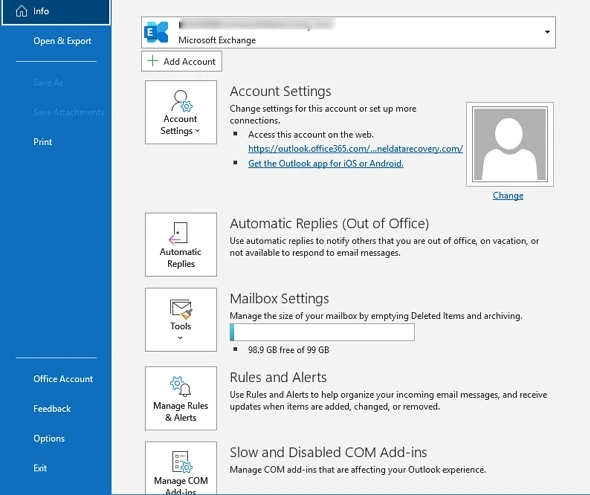
Step 2: Input your email address and tap on Connect.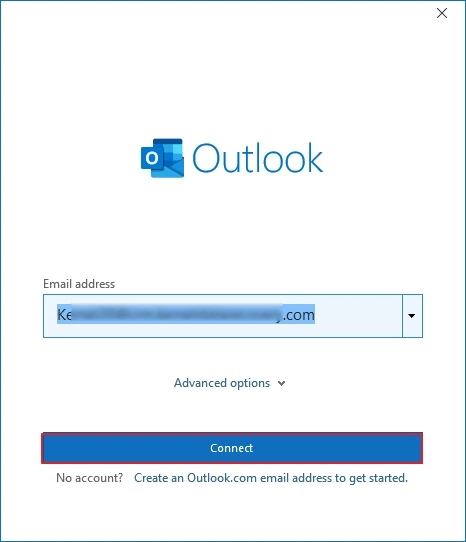
Step 3: Provide the Password and click Connect to add the account.
Step 4: After configuring the account, create a new mailbox folder.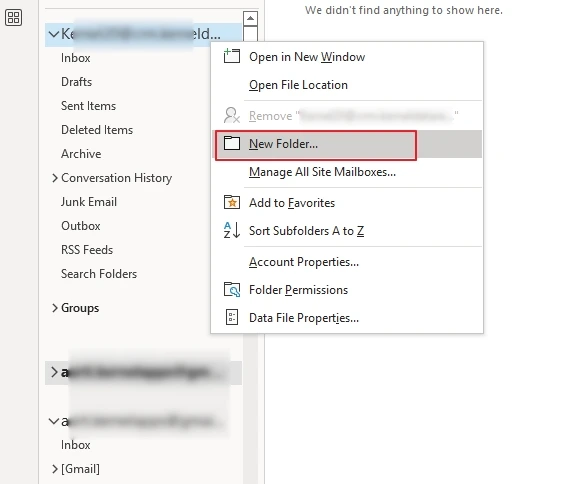
Step 5: Send the emails from desired PST to the new folder.
Step 6: Open Opera Mail and select Mail. Click Next.
Step 7: Provide a user name and email and hit the Next button.
Step 8: Enter login name, password, choose IMAP, and Finish.
The Outlook email account is now configured in Opera Mail. You can access your emails stored in the PST file.
Limitations of the manual process:
- No direct support to import Outlook PST files.
- Manual methods do not assure preserving metadata.
- Manual import is technically complex and time-consuming.
- Do not allow import of contacts and calendars.
Transfer PST to Opera Mail Without Outlook – Professional Way
To avoid the drawbacks of the manual process and get fast and error-free import PST to Opera Mail on Windows, we recommend you opt for an advanced PST to MBOX Converter tool. Since Opera Mail supports MBOX files, first run Kernel PST to MBOX Converter to convert the desired PST files to MBOX format. The tool helps you to convert single or multiple PST files. It simplifies the file conversion process even without Outlook installed on your PC. Once the file is converted, save it to the desired location on your PC.
Some prominent features of the tool include:
- Export emails, contacts, calendars, etc., from PST to MBOX.
- Support bulk PST to MBOX conversion without installing Outlook.
- Easy search to find PST files from your local system.
- Also allows saving converted PST to PDF, HTML, EML, etc.
- Provide a preview of the data before file conversion.
Step-by-step process to convert PST files to MBOX format:
Step 1: Launch the tool and click on Add Source.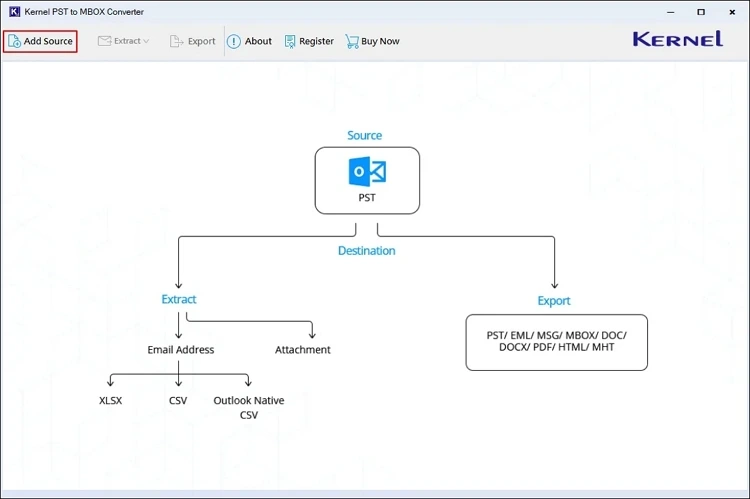
Step 2: Click on Browse to choose required PST files.
Step 3: Select PST files and click Open and then Add Files.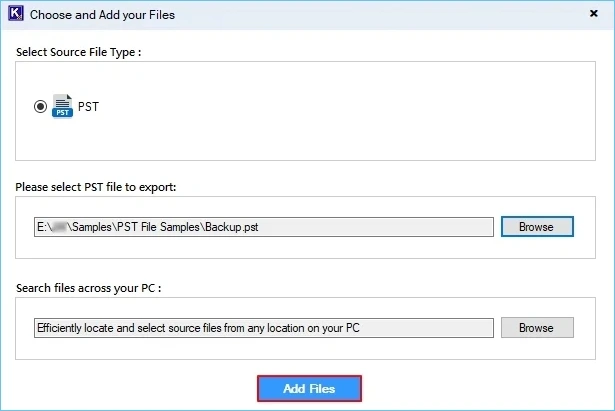
Step 4: Now, select any specific email or the entire folder and click Export.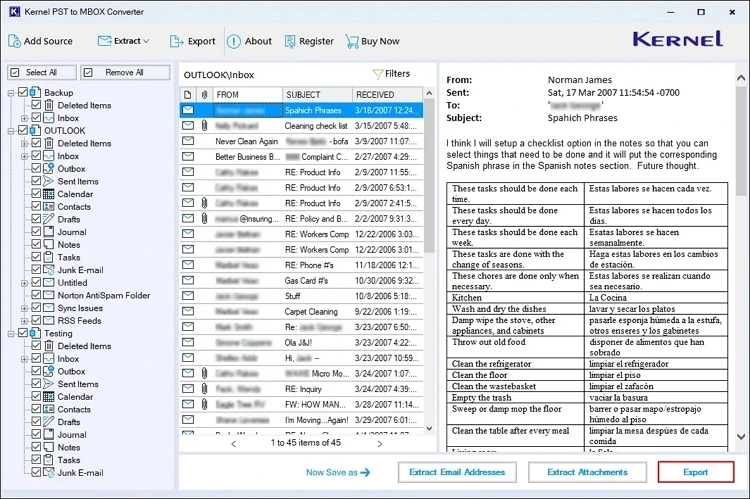
Step 5: Select the output type as MBOX and apply export options and filters.
Step 6: Now, click on Browse to choose a destination path for export.
Step 7: Select a preferred saving location and click OK. Click Export.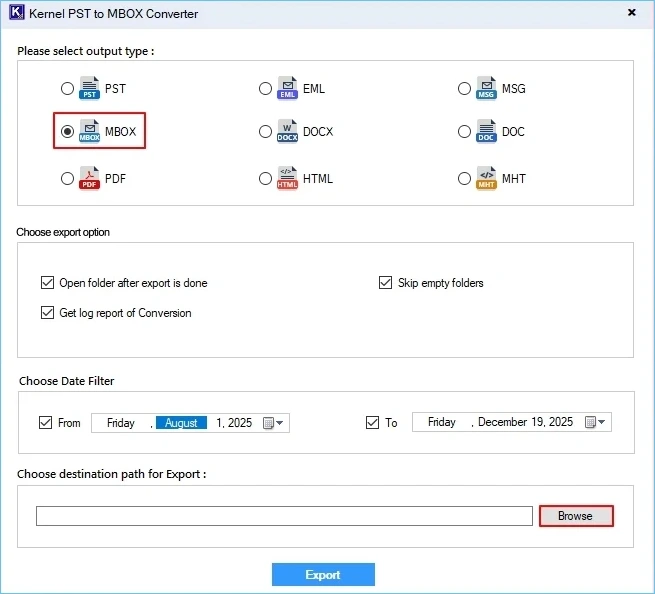
Note: Once you have the file, use the following method, as explained, to access the PST file data in Opera Mail on Windows without using the Outlook application:
Step 1: Launch your web browser and open Opera Mail.
Step 2: Click Menu and then go to Settings.
Step 3: Select All Settings and then tap on Import/Export.
Step 4: Tap on Import Mail and select to import from a file.
Step 5: Select the MBOX file created above using the PST.
Step 6: Click Import to retrieve all the emails in Opera Mail account.
Conclusion
Importing bulk PST to Opera Mail on Windows using the manual methods can be tricky and cause data loss. Also, the process is quite lengthy and involves technical understanding, which is lacking in the newbie and non-tech users. To access all your emails from PST in Opera Mail, it will be helpful if you convert PST to MBOX first and then import the resultant file into Opera Mail. The best solution for this is the recommended professional tool, which simplifies the conversion of all emails without errors.
Frequently Asked Questions
A: Moving emails from Outlook PST to Opera Mail has several associated advantages, like fast performance, a friendly interface, and open-source nature of the platform.
A: Yes, to move PST to Opera Mail mailbox using Outlook, you need to sign into the Outlook account and move the desired data to a new folder within the mailbox. Now, go to Opera Mail and configure the Outlook account in Opera Mail. It will provide you with access to the emails.
A: Yes. To import emails from a PST file to PDF, you can use a trusted Outlook PST Converter tool that simplifies the process, supporting zero hassles.