Read time: 10 minutes
User Query “Hi, I work as a project manager in my current organization and most of the time I have to organize meetings and client calls. Such calls often include several members, such as a project lead, technical master, and often IT admins. It becomes quite hectic for me to email everyone again and again and interrupt them by inquiring about their availability. To avoid this inconvenience, I used the Calendar Visibility feature of Outlook, which allowed checking Someone’s Calendar in Outlook 365 without hassles.”
Establishing coordination between different departments, teams, or even within a single team is complex, especially when there is no access to the schedules. Fortunately, Microsoft Outlook 365 provides access to shared calendars for enhanced collaboration.
Learning how to check someone’s calendar in Outlook provides you with an easy way to improve productivity without disturbing others. With the proper understanding of the reasons, tips, and best practices, you can access other users’ calendars in Outlook and find the best suitable meeting schedules.
Kernel Import PST to Office 365 is an automated solution that can import Outlook PST files to the Office 365 with complete data integrity.
Real-Time Scenarios for Checking Someone’s Calendar in Outlook 365
Here are some actual life situations when you might need to access calendar of other users in your Outlook account:
- Easy collaboration on projects with the shared calendars in Outlook 365.
- Coordinating event planning after checking everyone’s availability in Outlook.
- Efficient planning and tracking of project deadlines using Outlook 365 Calendar.
- Managing conference room bookings and other shared resources within the organization.
- Better team communication with transparency and visibility through calendar sharing.
- Run a quick call, in case of urgent issues or escalations that require immediate attention.
- Allow managers to track the presence or absence of team members to assign tasks accordingly.
Explained: Permission Settings for Outlook Calendars
Check out the breakdown of permission hierarchy and access levels before you check someone’s calendar in Outlook 365:
Permissions |
Descriptions |
|
Owner |
Create, edit, read, and delete all items and subfolders. |
|
Editor |
Create, edit, read, and delete all items stored in the shared folder |
|
Author |
User has access to create and read items and edit / delete the items created by the respective user |
|
Contributor |
User can create items in the folder |
|
Reviewer |
User can read all the data items in the folder |
|
FreeBusyTimeOnly |
User can see the Free or Busy time status in the calendar |
|
None |
User is assigned no permissions |
According to the permission level assigned, you can access the calendar items and perform actions.
How to Check Someone’s Calendar in Outlook 365 | Step-by-Step Guide
This section explains methods to view calendar on different versions of Outlook, including Outlook Classic, New Outlook, Outlook 365, along with manual viewing (Office 365 and Exchange accounts) and scheduling meetings without opening the calendar.
Method 1: Open someone’s calendar in Outlook Classic
Check out the given steps and view calendar events of other users in Outlook Classic:
Step 1: Launch the Outlook desktop and go to calendars.
Step 2: Select Open Calendar and click on “From Address Book.”
Step 3: Use the Search panel to find the username and click OK.
This will list the calendars on the left panel of your screen.
Method 2: Access other person’s calendar in New Outlook
With the steps provided below, you can open and view someone’s calendar in New Outlook:
Step 1: Open the New Outlook desktop application.
Step 2: Click on Calendar and then Add Calendar.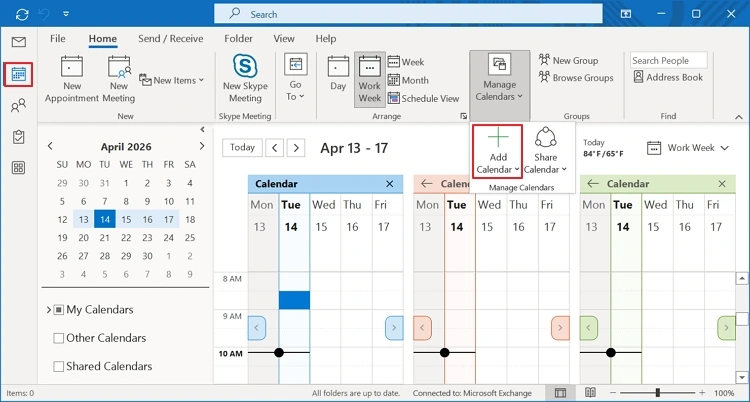
Step 3: Tap on the Add from directory option.
Step 4: Select the desired user and view their calendar list.
Method 3: View someone’s calendar in Outlook Web App
New Outlook and Outlook Web app are quite same in terms of the user interface. To access the shared calendars in OWA, use the following process:
Step 1: Open OWA on your browser and click on the Calendar icon.
Step 2: Select Add Calendar and select Add from directory.
Step 3: Find the user and select to proceed. Click Add to finish.
Method 4: Manually accessing other’s calendar
To do this, here are the simple steps:
Step 1: In Outlook, go to Calendar and select Open Shared Calendar.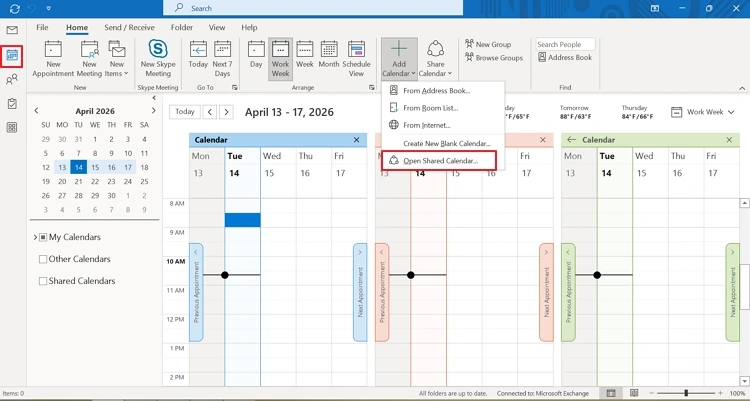
Step 2: Enter the username or email address. Click OK to complete.
Method 5: Access another user’s calendar and schedule meeting
Watch out the steps below to schedule a meeting using Outlook Calendar:
Step 1: Open Calendar in Outlook application.
Step 2: Select New Event to open the Scheduling Assistant.
Step 3: Enter the email address of the participants to view availability.
Step 4: Select OK to create a meeting schedule.
How to access someone’s calendar in Outlook for Mac?
Just like Windows OS, you can also access calendars of other users on Mac OS. Simply follow the provided instructions:
Step 1: Launch Outlook for Mac on your device.
Step 2: Select Calendar and then Open Shared Calendar.
Step 3: Enter the username or email address to search for the desired user.
Step 4: Select the user and then click Open.
It will show you the calendars from other users in your account.
How to open another person’s calendar on mobile phones?
You can check out other person’s Outlook Calendar on your mobile devices using the steps as explained here:
Step 1: Open Outlook on your device go to Calendars from the bottom menu.
Step 2: From top left, select Calendar and tap on Add Shared Calendar.
Step 3: Use the name or email address to find the shared calendar.
Step 4: Select Add and you can view the calendar.
How to view someone’s calendar in bulk | Professional tool
The best way to access someone’s calendar in Outlook in bulk is using an expert-recommended tool like Kernel Import PST to Office 365. With this Import PST to Office 365, you can import multiple calendars from a single or bulk PST file and access them in Office 365.
Here is the brief process to access Outlook calendar in bulk:
Step 1: From the home screen, click on Add in the Add Source pane and provide the path to the source PST file.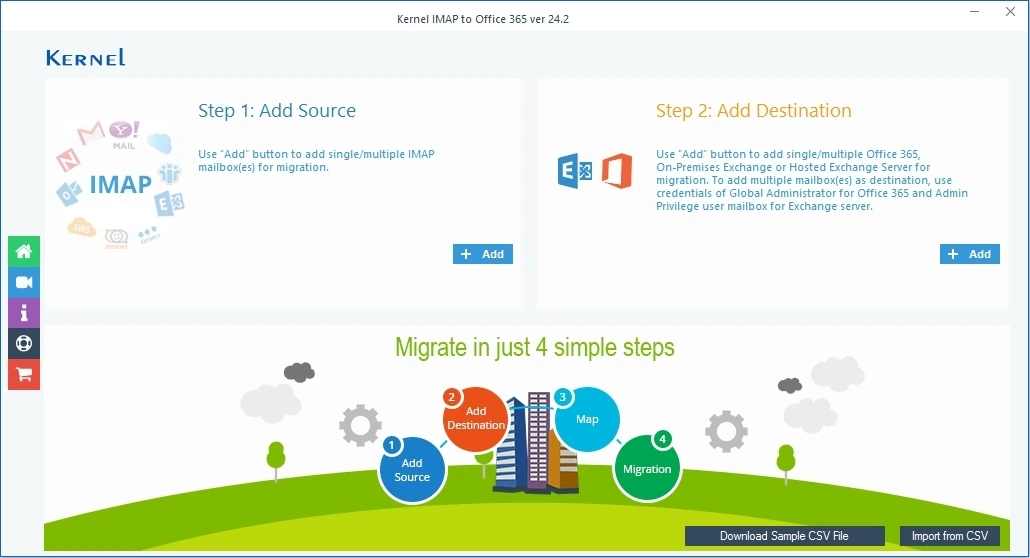
Step 2: Click on Add in the Add Destination pane and enter the required credentials.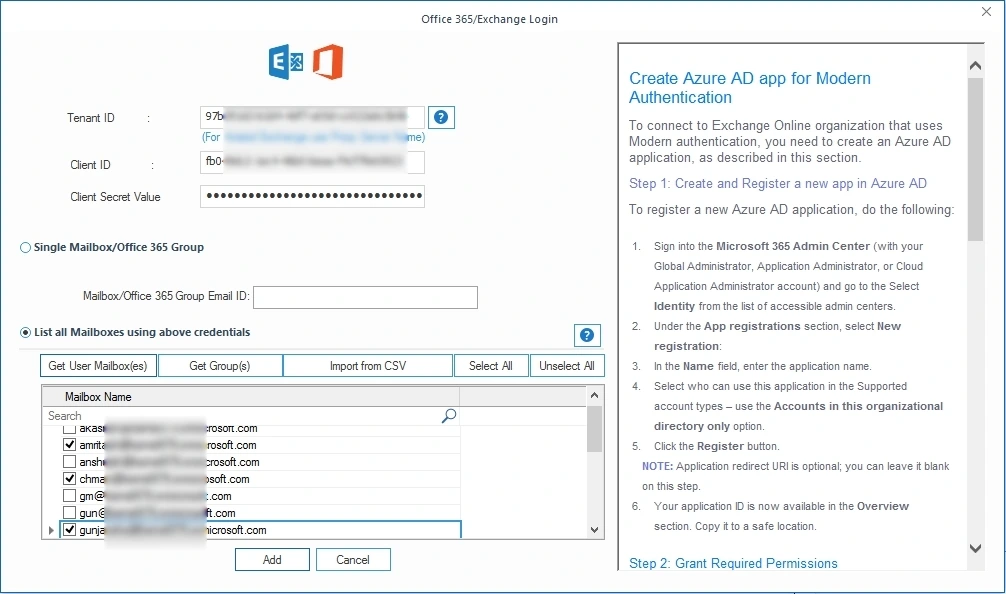
Step 3: Select to migrate single or multiple mailboxes and tap on Get User Mailbox (es). Select the mailboxes and click Add.
Step 4: Map the source PST file to the destination mailbox. Click Set Filter and Migrate.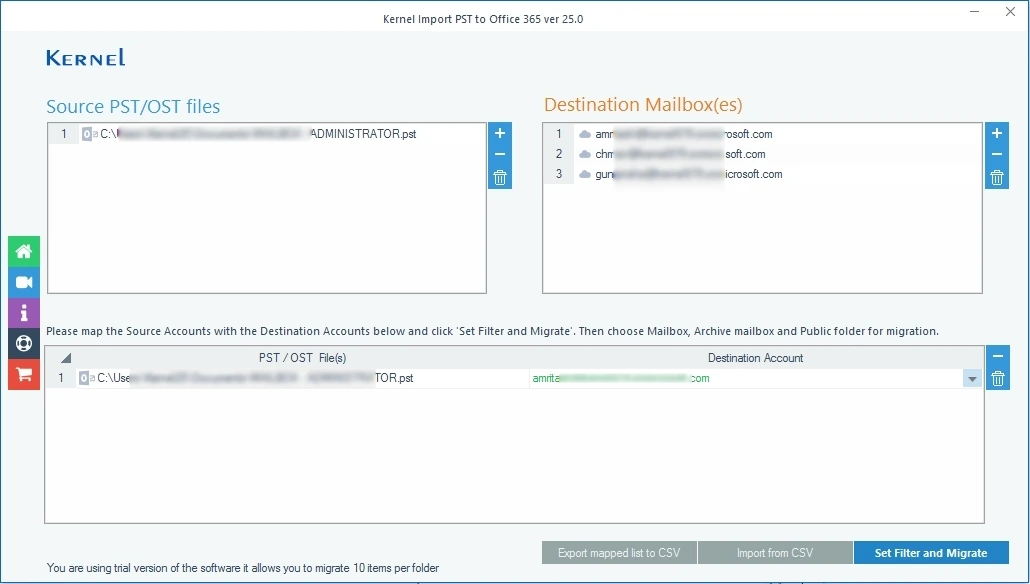
Step 5: Review the folders selection (check calendar), apply the suitable filters, and tap I am OK, Start Migration.
Note: You can also select the Calendar/Appointment from Item Type Filter option.
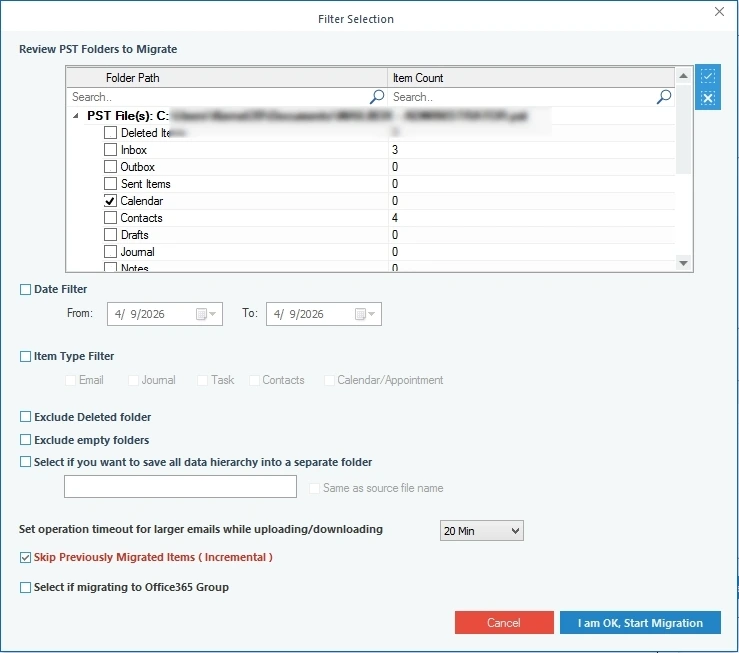
The tool will begin processing the import. In this way, you move offline calendar items into live Outlook 365 accounts. After that, you can easily access someone’s calendar in Outlook 365.
How to set up Calendar notifications and reminders in Outlook?
To set up notifications in OWA and New Outlook, follow these steps:
Step 1: Go to the settings icon (gear), click on General, and select Notifications.
Step 2: Expand the calendar section and select to turn on the toggle button.
Step 3: Select how you want to view reminders.
Step 4: Now, go to Settings, then Calendar and Events and invitations.
It will enable you to receive the notifications in your email account.
How to troubleshoot Calendar access issues in Outlook 365?
When you try to open shared calendar in Outlook, you might encounter issues arising from sharing errors, syncing bugs, etc. Let’s check out some common issues and their respective solutions to access someone else’s calendar in Outlook:
Error 1: Shared calendar not syncing
There can be issues in syncing shared calendars in Outlook due to outdated sharing configurations, cache data errors, and many more. To resolve this, go to Outlook and click on File tab and follow the instructions below:
Step 1: Go to Account Settings > Account Settings.
Step 2: Select More Settings and click Advanced.
Step 3: Make sure “Turn on shared calendar improvements” checkbox is selected.
Another solution you can try is to remove the calendar and re-add it to check that you can access it easily.
Error 2: Do not have sufficient permissions
The error symbolizes that the user does not have access to perform the requested action (editing, deleting, or viewing) within the shared calendars. You can get permissions using the following steps:
Step 1: In Outlook, go to Properties and click on Permissions.
Step 2: Establish that the user is assigned with Editor or Delegate access.
Note: Whenever sharing calendar with peers within an organization, pick their email address from the Global Address List.
Error 3: Cross-premises sharing issues
When you’re sharing calendars, there can be external or cross-premises sharing issues, restricting access to checking someone’s calendar in Outlook. To avoid the error:
- Reshare the access to the calendar in Outlook using OWA.
- Use free/ busy availability using PowerShell if you can’t acquire full access.
- Remove and then re-add the shared calendar to refresh the syncing.
Error 4: General syncing errors
If there were changes made within the calendar and you cannot view them, there are issues in syncing calendar, which is due to outdated cache data or incorrect permissions.
- Regularly clean offline data items and then re-sync them.
- Enable Background App Refresh for Outlook in mobile device settings.
Author’s Verdict
By now, you must’ve understood the following key points:
- Sharing calendars’ access provides an easy means for better collaboration.
- With Outlook, sharing calendars is easier across major platforms.
- While there can be minor glitches, solving them is easy.
- Accessing bulk calendars requires the use of tools like Import PST to Office 365.
Common user queries
A: To get access to someone’s calendar in Outlook 365, you can create an email to the targeted user asking for access using the Share Calendar option.
A: Follow the steps below:
1: Open Outlook and go to Calendar View > Open Calendar.
2: Select From Address Book option at the top.
3: Search to select the name of the targeted user. Click OK.
A: Tips for effective calendar management in Outlook 365 are as follow:
1: Use Scheduling Assistant when you’re creating events or meetings to see the availability of the participants.
2: Handle recurring meetings efficiently by setting up an end date for them to avoid conflicts.
3: Use color codes to differentiate your appointments and schedules based on their categories.