

Read time: 7 minutes
I am an everyday SharePoint user with so many files and documents accumulating for upload to the SharePoint sites on a regular basis. A couple of months back, I had over 100,000 documents to move to SharePoint, which was obviously not possible with manual upload-download or a simple drag-and-drop method. Then one fine day, I saw one of our developers syncing the File Explorer with SharePoint. That incident left me with a few proven methods to sync SharePoint with the file server.
Check out the expert-recommended methods I learned from the developers, which are the perfect answer to queries like how to add SharePoint to file explorer. However, before that, let’s discuss its benefits.
Benefits of SharePoint to File Explorer Synchronization
Before moving ahead, make sure you check out some listed benefits of adding your SharePoint folder to your PC to move data from File explorer to SharePoint or vice versa:
- Quick access: Allows users to access their SharePoint documents on their PC without opening SharePoint folder on the browser.
- Offline viewing: With SharePoint added to File Explorer, you can view, open, and work on documents even without an internet connection.
- Backup copy: When you add SharePoint to File Explorer, you are actually creating a backup of SharePoint sites and documents.
- Better collaboration: Having files both in offline and online modes simplifies collaboration with access to version history and file management without browser.
- Smooth integration: Simplify opening documents and lists using the native or local desktop applications.
How to Add SharePoint Folder to File Explorer?
File Explorer is an essential utility in a Windows PC that allows browsing and opening documents, files, and folders very easy. Since Windows users are quite familiar with the File Explorer interface, adding SharePoint to it will support quick access to files rather than navigating through the sites. Three popular methods that help with this include:
Method 1: Pin to Quick Access by Linking SharePoint to File Explorer
Quick Access or favorites section of the File Explorer can provide access to the SharePoint document library locally:
- Go to the browser (Chrome, Edge, or Internet Explorer only), browse the SharePoint site you want to add, and open SharePoint folder.
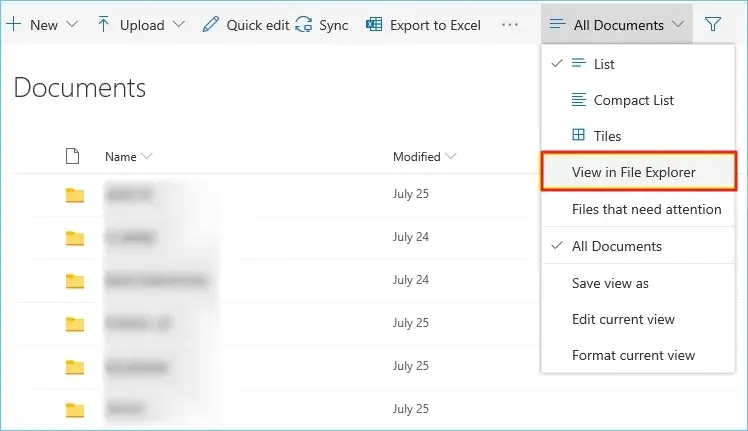
- Click on the Views dropdown list and select “View in File Explorer.”
- Go to File Explorer and right-click on “Quick Access.”
- Select “Pin current folder to Quick Access”.
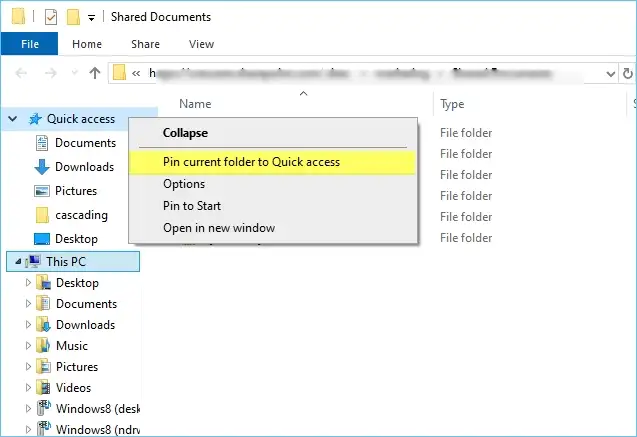
There is a direct link to the SharePoint library in the File Explorer on your PC from now on. Simply opening the File Explorer will provide you access to SharePoint documents.
Method 2: How to Sync SharePoint to File Explorer?
To add SharePoint to File Explorer with this method, you need to use OneDrive and SharePoint synchronization. After this, the users can access their files and folders from SharePoint.
- Open SharePoint and login using your credentials on the browser.
- Find the Document library and then click Sync.
- On prompted, open OneDrive application and log in to it.
This will sync all your SharePoint files with OneDrive, which can be easily accessed within the File Explorer.
Method 3: Map your SharePoint Library as a NAS Drive
When you map a SharePoint library as a network drive, you can open, access, read, and manage documents from the file system. Follow the given steps:
- Open File Explorer on your PC, right-click on “This PC,” and select Map Network Drive.
- Choose the Drive and enter the URL of SharePoint library in the folder field.
- Mark the checkbox “Reconnect at sign-in” and “Connect using different credentials.”
- Tap Finish and, as prompted, provide the Office 365 login credentials.
Best Practice: Professional Tool to Add SharePoint to File Explorer
With Kernel SharePoint Backup tool, one can easily access the SharePoint documents within the local storage. It allows you to save the desired data from the folders within added SharePoint sites or tenants. The SharePoint Backup tool supports backup from all major SharePoint Servers, including SharePoint Online, 2019, 2016, 2013, etc. You can also provide the file saving location within the local storage according to your preferences.
Quick steps to add your SharePoint folder to File Explorer
Step 1: Go to the source pane, and right-click on SharePoint (On-premises/ Online) > Add New SharePoint site.
Step 2: Enter the Project name and required credentials. Click Ok to connect.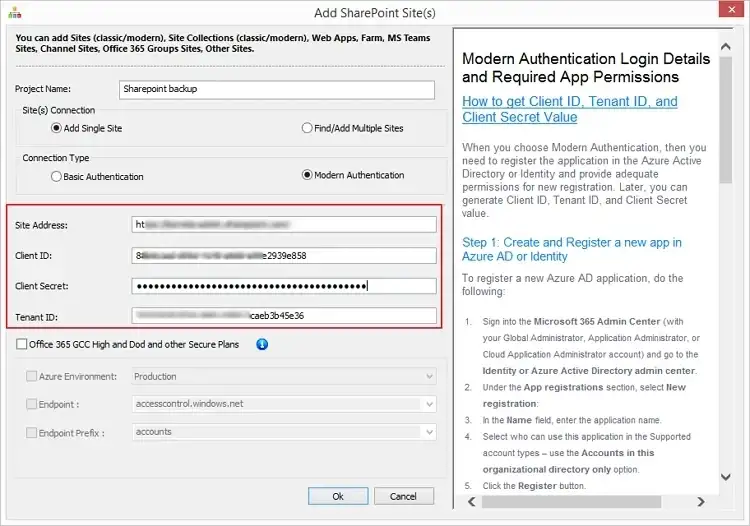
Step 3: Expand the project name in the source to see the hierarchical structure of the site.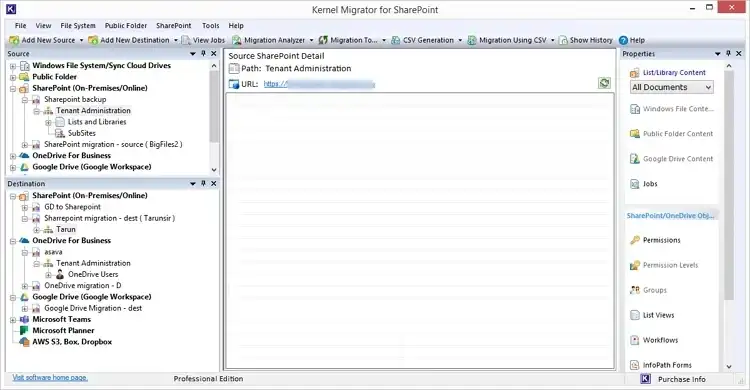
Step 4: Right-click on Tenant Administration to select Download a Copy.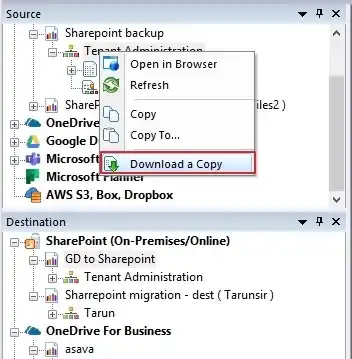
Step 5: Click Browse to provide a path from your local or network computer.
Step 6: Choose the necessary options and apply filters for precise backup. Click Ok.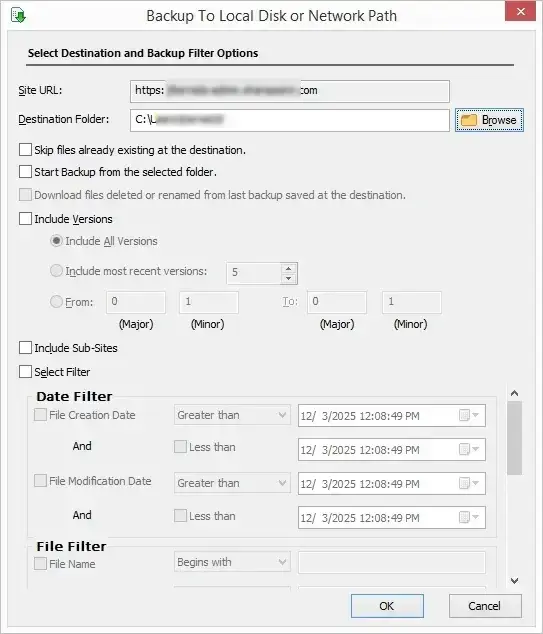
Step 7: Checkout the real-time progress of the SharePoint Online backup and once the process is complete, the tool will show you the backup details.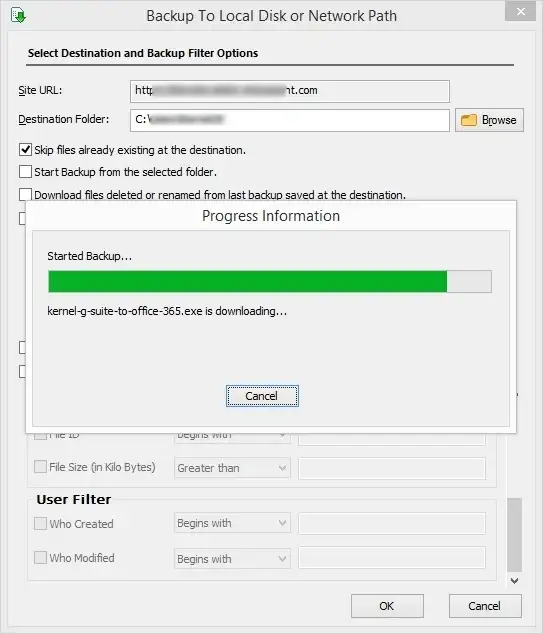
Step 8: Click Open Location to view the backup file.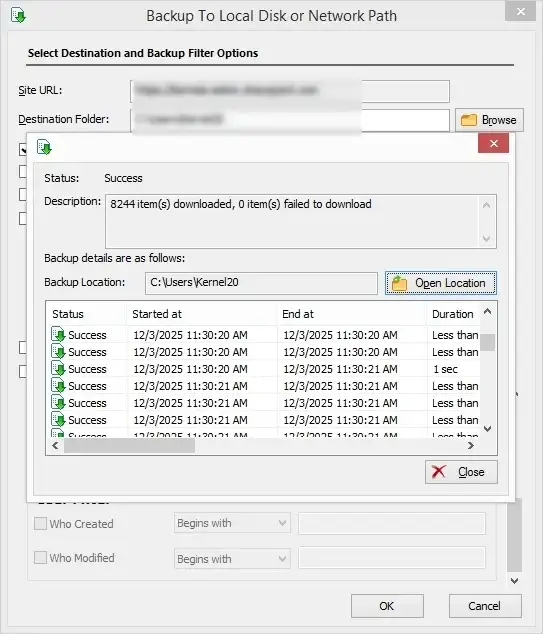
Common Challenges: How to Add SharePoint to File Explorer?
- Internet connectivity can be a bigger issue when you try to add a SharePoint site.
- Without the required permissions to SharePoint site, you might face issues.
- Using the wrong authentication method can result in process failure.
- Antivirus and firewall settings of your PC can disrupt the SharePoint access.
- Browser cookies and cache files can often cause interruptions.
Finally, it is Clear that
Using the manual solutions can provide you with the answers to your queries, like how to add a SharePoint folder to File Explorer. However, the expert-recommended solution: Kernel SharePoint Backup tool allows you to simply download multiple data from SharePoint to local storage. It is incorporated with features like site collection backup, incremental backup, saving selective data, etc., to help with easy offline data access. To start with, you can use the free trial version of the tool and understand the supported functionality.
FAQs
A- If you want to remove the SharePoint site or folder from your File Explorer:
Open File Explorer and go to the pinned SharePoint site. Now, right-click on the SharePoint folder and select Unpin from Quick Access.
A- Yes, to add SharePoint, you need to be assigned with all the necessary permissions, such as a Site member with Edit and View access.
A- The recommended size limit should be less than 250 GB per file when you add a SharePoint folder to File Explorer.
A- To add the SharePoint drive, the best method would be to use the OneDrive sync. In this method, you’ll first sync SharePoint to OneDrive. Now, login your OneDrive account on the desktop app and access the data from local folder.



![How to Restore SharePoint Content Database? [Top 3 Methods]](https://www.nucleustechnologies.com/blog/wp-content/uploads/2019/08/recover-lost-sp-2016-database.jpg)
