Read time: 7 minutes
Query – Our organization is using the Yahoo email client to collaborate with our teammates, clients, individuals, and many more. All of them send their sales audits, presentations, and Work departures via email. Suddenly, when our IT admin checked our Inbox, he found there were many emails missing from our Inbox. We are in a tense state and have tried many methods to recover them, but don’t know what to do next to recover those emails.
We saw multiple queries on Yahoo emails disappeared from inbox issue over the internet. That’s why we thought to cover this topic with why users are facing it and 100% reliable solutions to fix Yahoo emails disappeared from inbox issue.
Yahoo is one of the leading email clients nowadays. Many organizations use this email client to communicate with their clients, partners, stakeholders, and individuals. Multiple times, users or admins face the fact that their emails are not showing in the inbox folder, and that’s why they get depressed and stressed.
Before starting to fix this issue, let’s know the prime reasons for this issue. So, you can be aware of this issue next time.
Why Yahoo emails disappeared from inbox?
Some of the possible reasons behind this issue are listed below:
Accidental deletion or moving: You may have accidentally deleted an email or moved it to another folder, like Trash or Spam.
Solution: Check your Spam, Trash, and Archive folders. If you find the emails, select them and move them back to your inbox.
Misconfigured filters: Filters you have set up might be automatically sorting and moving emails to other folders.
Solution: Go to your Yahoo Mail settings and review your “Filters” or “Rules” to see if any are incorrectly sorting your messages.
Third-party apps: An app or program that accesses your Yahoo account could be causing emails to be moved or deleted.
Solution: Check out the settings for any third-party email apps you use or contact the support team of that specific application.
Syncing issues: Problems with syncing across different devices can cause emails to appear missing.
Solution: Try logging out and back into your Yahoo account on all devices, or check for any sync error messages.
Account inactivity: Accounts that haven’t been used for a long time can be marked inactive and have their contents permanently deleted.
Solution: If your account has been inactive for over 12 months, the data is likely to be permanently lost. Try recovering your account through the Yahoo Help Center.
Server issues or outdated app: Temporary server problems or bugs from an outdated Yahoo Mail app can also cause this.
Solution: Wait for the issue to be resolved or check for and install any available updates for the Yahoo Mail app.
Account compromise: If a hacker has accessed your account, they may have deleted your emails.
Solution: Change your Yahoo password immediately and contact the Yahoo Help Center for assistance.
The above-discussed are some possible reasons why Yahoo Mail doesn’t show all the emails. Now, let’s find out the solutions to come out of this issue.
Best methods to resolve Yahoo emails disappeared from inbox issue
There are many manual methods to fix this issue, but most of them are not working properly and don’t offer guaranteed results. Here we are mentioning the top working solutions that help you fix Yahoo emails disappeared from inbox issue. Let’s discuss each of the methods:
Method 1: Restore Yahoo emails using spam folder
Occasionally, your emails will automatically go to the spam folder because Yahoo will identify the email as spam. Now, let’s go through a step-by-step guide to mark your email as not spam: –
- Login to your Yahoo Email Account.
- Now, open the spam folder and select emails.
- Finally, click on the Not Spam option.
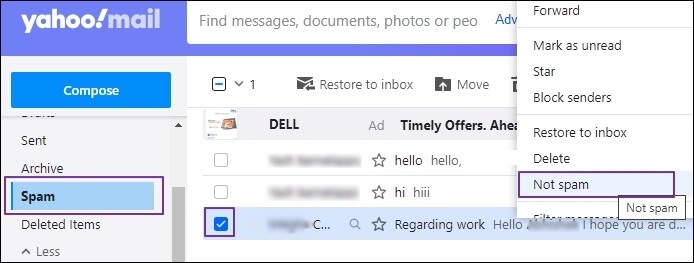
These steps are easy to use and help restore all your Yahoo emails to the inbox folder. If the emails are not in the spam folder, you can try the following methods.
Method 2: Restore emails from the deleted folder
If you have deleted your email, it will go to the deleted folder. In that case, you can easily restore your emails from the deleted folder by going through these steps:
- Login to your Yahoo Mail Account.
- Go to the Trash Folder.
- Select the emails you want to recover to your inbox.
- Finally, click the Restore to Inbox option.
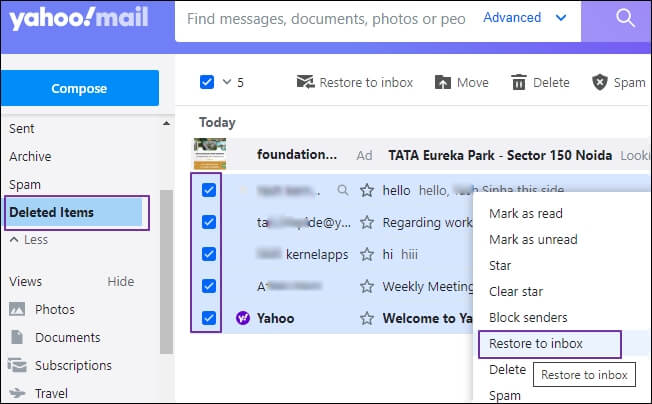
Note: Yahoo keeps deleted emails only for 7 days in the trash folder. After that, all the emails are deleted permanently, and you can’t revert them using a manual solution.
Method 3 – Request Yahoo mail center to restore disappeared mails
You can also submit a request to Yahoo support to retrieve disappeared emails. To send a request in Yahoo Help Center, follow the steps below:
- Go to the Yahoo Help Center.
- Click on Mail from the top bar.
- Click on the option ‘Recover lost or deleted emails.’
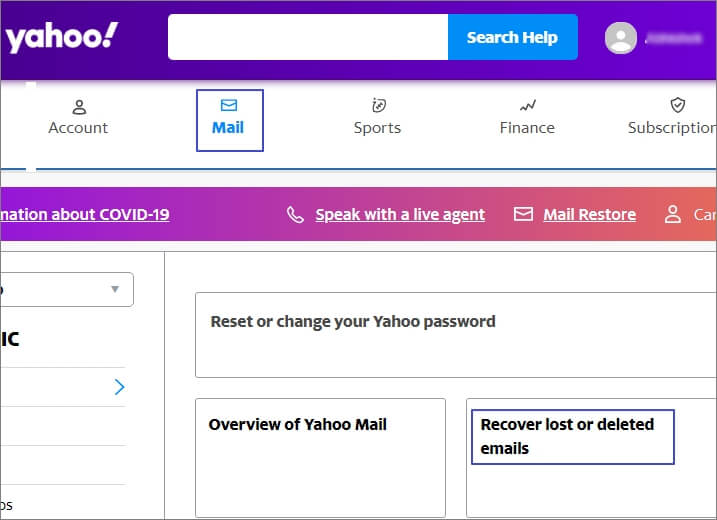
- Next, click on Send a Restore Request option.
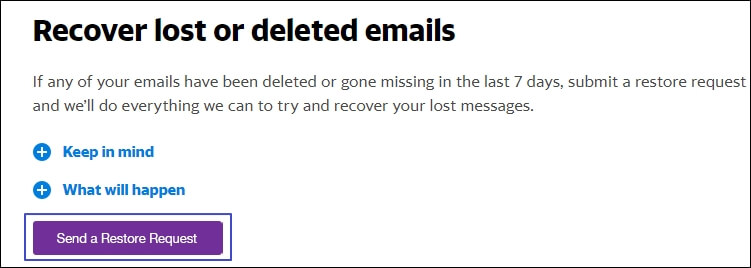
- Provide all the necessary details and wait for their response.
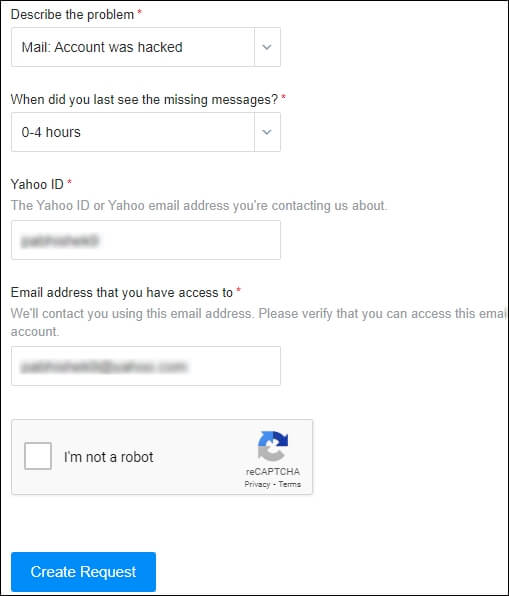
These are some solutions that can be used to restore disappeared Yahoo emails. Apart from these solutions, also check your Yahoo mail settings and internet connection.
But if you don’t want to face this issue in the future, we suggest you backup Yahoo emails to a local drive using an automated tool. So that you never lose your essential data.
An Automated tool to secure Yahoo emails from disappearing and data loss
The best way to come out of such issues is to backup and save all the emails to the hard drive using a third-party tool. There are several automated tools that you can use to backup IMAP emails on the hard disk. Kernel IMAP Backup tool is one of the best tools which quickly backs up your Yahoo emails and secures them from any data loss. The IMAP Mail backup software comes with several advanced features to make the backup process easy and effective.
The tool also allows incremental backup, backup reports, filtering unwanted emails based on folder selection, data range filter, etc. You can also schedule the backup process on a daily or weekly basis. Overall, it’s a great tool to backup and restore Yahoo emails with all the attachments.
How to Backup Yahoo Emails using the Tool?
Step 1: Download, install, and launch the Kernel IMAP Backup tool.
Step 2: Click on IMAP Backup tile.
Step 3: In the following window, enter Yahoo credentials and click Add.
Step 4: Verify your Yahoo mail ID and click Set Filter and Migrate.
Step 5: Apply multiple filters to backup selective emails and click I am OK, Start Migration.
Step 6: Select the output file and PST and click OK.
Step 7: Select a desired location to save backed-up file.
Step 8: The software will start backing up Yahoo mailbox in PST file.
Step 9: After backing up data, save the detailed backup report in a CSV file.
Conclusion
Undoubtedly, an issue like disappearing Yahoo emails from the Inbox is very stressful for every user. As many users have failed to fix this issue, we have covered all the possible solutions to address this issue. We also mentioned the reasons which help you easily resolve the issue. These methods will help you quickly restore Yahoo emails to your inbox folder.
But as we know, “Precaution is better than cure”, I will suggest using the IMAP Backup tool to safeguard your emails on a local drive. To better understand the tool, download its free trial version.