Read time: 8 minutes
User Query:
I’m getting “Sorry this video is not available” error whenever I try to play a YouTube Short or a video. I’ve tried playing it on different browsers or devices, but I’m seeing the same error everywhere. This started when I renewed a gifted membership and completed 2FA through Safari on my iPad. I’ve tried the common fixes like clearing out cache, updating my browser, and checking my internet, but nothing has worked. What do I do now? – iplaytheuke
When YouTube shows the “This video isn’t available anymore” error every time you try playing a video across devices and browsers, it may seem like the video is gone for good. This doesn’t indicate why playback failed; rather, there’s something that’s causing this failure. Like the user above, there may be an issue with your browser settings or your YouTube account. We will discuss the relevant reasons behind the YouTube video unavailable error, efficient ways to resolve this error, and best ways to prevent it in the future.
What is YouTube’s “This video is unavailable” error about?
Many users complain of facing this video is unavailable error when they try to play a video on YouTube. This happens when the video you’re trying to watch has become unavailable for general viewing either by the uploader or by YouTube itself.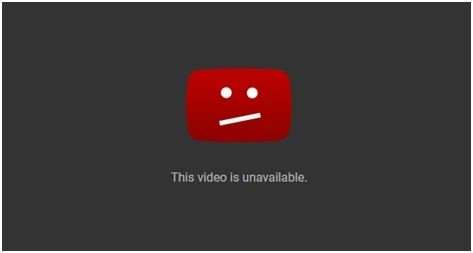
Sometimes this error occurs due to minor issues with browser settings, network connection, or even account-specific restrictions. In this case, every video is affected in a similar manner on YouTube. However, if you’re facing this issue with only one video on YouTube, then there’s a chance that this video might’ve been removed either by YouTube or by the original uploader.
Why is YouTube displaying “Sorry this video is not available” error?
YouTube video unavailable error can occur for different reasons for each user. We talk about each reason in detail below:
- Uploader deleted the video or made it private.
- Video is restricted because of age or regional restrictions.
- Browser or YouTube application is outdated.
- Accumulated cache or cookies are interfering with video playback.
- VPN or unstable internet connection can also stop video from playing properly.
- YouTube site is down, and that’s why videos aren’t playing properly.
- Issue with your YouTube account can be a reason why your video won’t play properly.
Solutions for “This video is not available” message on YouTube
There are multiple workarounds that can help users fix an error like the “This video is not available” message.
These solutions depend on the reasons that can be responsible for the issue. If you are not sure about the reason, you can follow a trial-and-error method to get access to the YouTube video again. Check the following solutions to fix the video not playing issue.
Note: For the demonstration, we have used the Microsoft Edge browser. Users can find similar settings in Mozilla Firefox, Google Chrome, or any other browser.
1. Refresh the web browser
First, check the current internet connection, network speed, and refresh the web page a few times. If it doesn’t help, close the currently opened web browser for viewing the video and then restart the web browser. Then try opening the YouTube video again. Other options are reinstalling the current web browser and using another web browser for running the YouTube video.
2. Clear the cache
The corrupted cached files on your device can obstruct the functioning of the web browser, leading to an error like “This video is not available” on YouTube. These files store temporary data on devices, which can be cleared to fix YouTube video not playing issue. Perform these steps to clear the cache:
- Launch your web browser, click on 3 dots on the top right, and click on Settings.
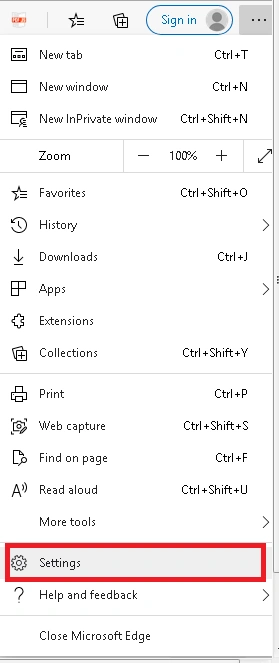
- Then select the Privacy, search, and services option from the left panel.
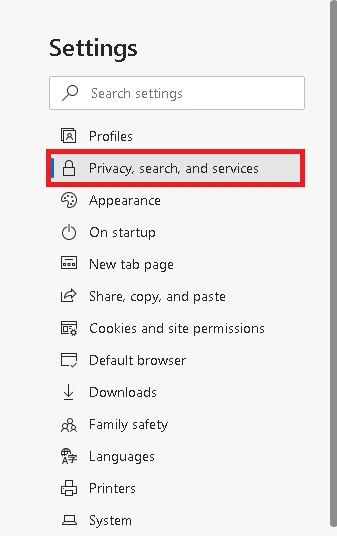
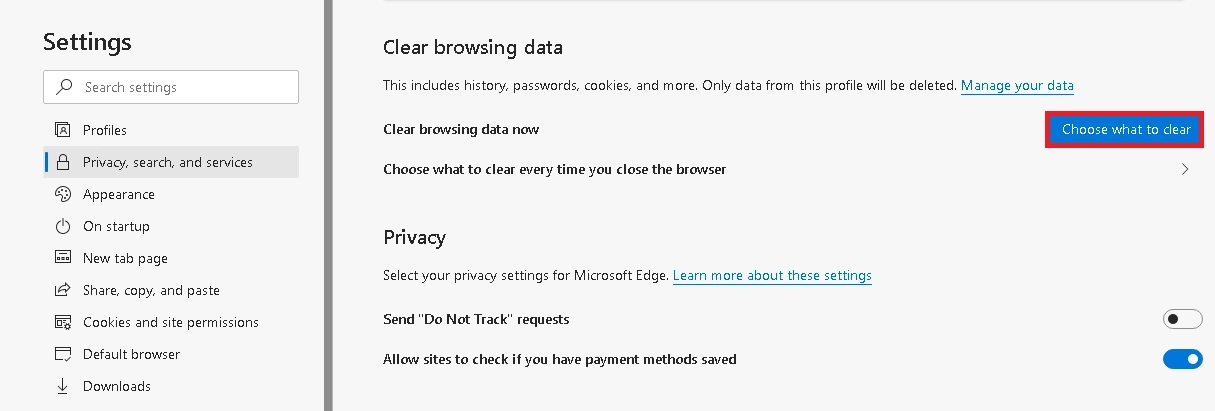
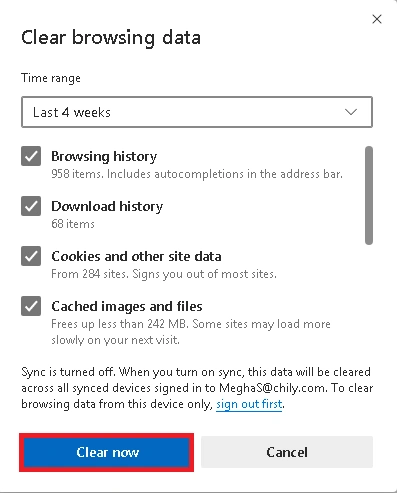
- Now, move to the right panel and scroll to the Clear browsing data section. Next, click on Choose what to clear option and then select from the given options.
- Click on Clear now to clear the cache.
3. Try disabling or removing the extensions
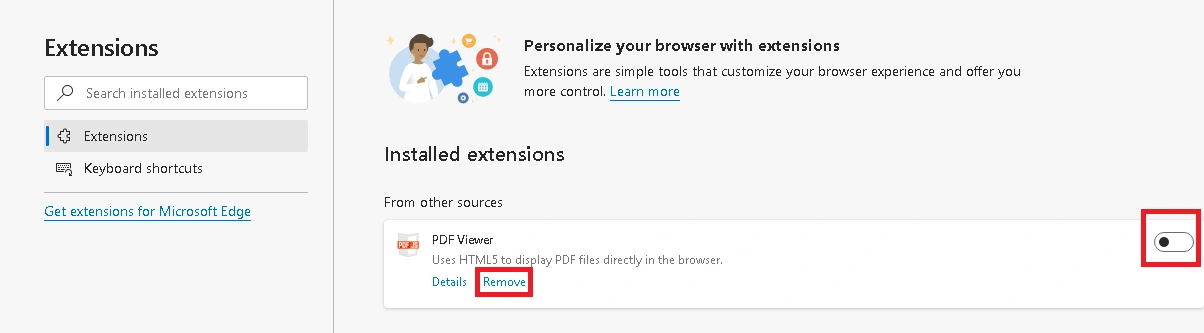
Some faulty extensions in your web browser can create issues when running online videos, including YouTube videos. So, you need to identify those extensions and disable/remove them. If you have recently installed any extension and the problem started after that, that is a cause for concern. Here is the process to disable the problematic extension.
- Click on the 3 dots on the top right of your web browser.
- Then click on the Extensions option from the drop-down list.
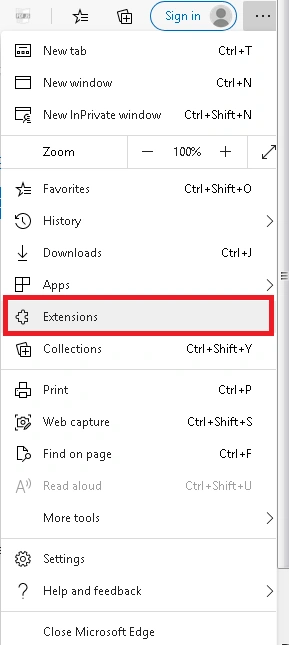
- Go to the Installed Extensions section, and against the desired extension, toggle off the switch to disable it. Or you can directly click on the Remove option underneath it to Remove that particular extension.
4. Disable the hardware acceleration (if enabled on your system)
The hardware acceleration feature on the system uses the CPU to render videos. But it can affect CPU performance and create problems like the “The video is not available” message on YouTube. So, you should disable the hardware acceleration feature on your browser.
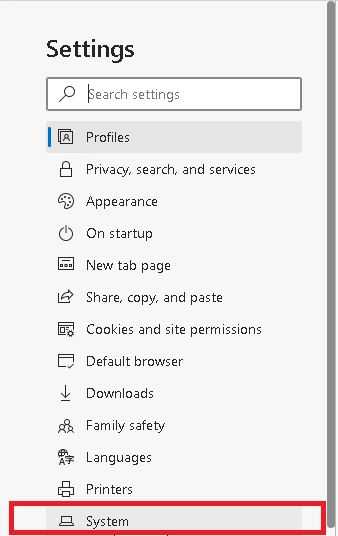
- Click on the browser Settings option.
- Then, click on the System option from the left panel.
- On the right panel, toggle off the switch against Use hardware acceleration when available.
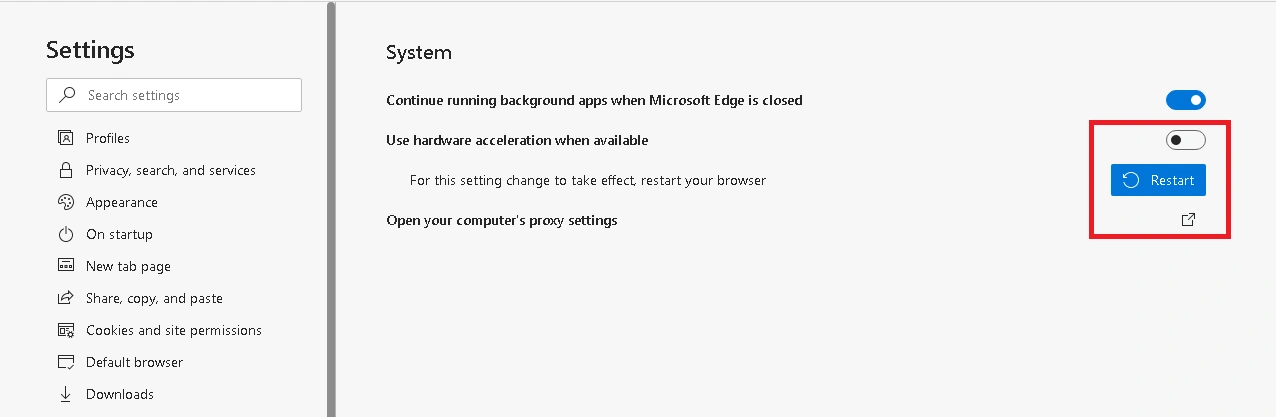
- Click on the Restart option to restart the web browser and make the setting change to take effect.
5. Check if video is deleted or made private by the uploader
Sometimes YouTube displays the “Sorry this video is not available” error because the video is either unavailable in your country/region or it has been deleted by the original uploader. Another option is that the original uploader may have made the video private, which would make it unavailable for general viewing. Also, one other reason why this error happens is that the video file is age restricted. Check if any of this is the reason by opening the YouTube video in Incognito window once. If the issue persists, then the problem is with the uploaded video itself.
6. Try the default web browser settings
If the users have modified the web browser settings randomly for different requirements, it is possible that the new combination of the browser settings is not suitable for online videos. So, it is advised to switch back to the default web browser settings and then run the YouTube video.
To reset the default settings of your web browser, follow these steps.
- Open the browser settings.
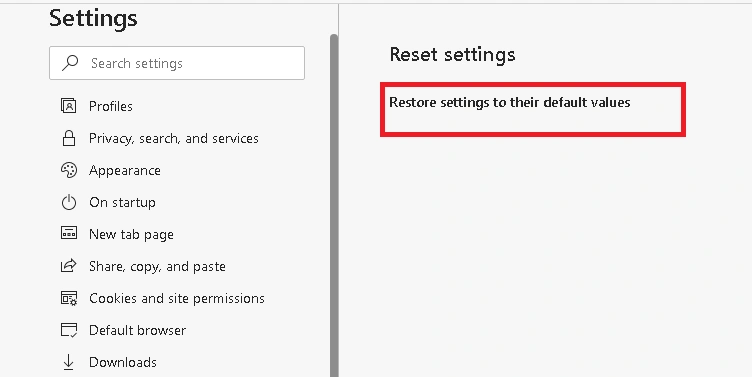
- Go to the Reset settings section and click on it.
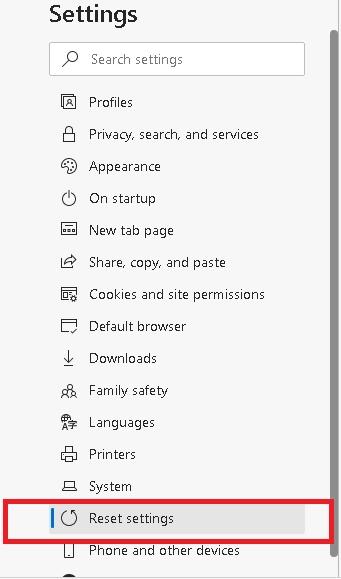
- Next, click on the option Restore settings to their default values.
- Confirm this operation and wait until the resetting process is completed.
7. Use a VPN
If you encounter the “This video is not available” error message on YouTube, it may be due to geo-restrictions set by the content uploader or your location. In this case, using a VPN (Virtual Private Network) can help bypass these restrictions and enable you to view the content.
A VPN encrypts your internet connection and changes your IP address and provides you with access to content from different regions. It’s crucial to choose a reputable VPN provider and connect to a server in a region where the content is available.
8. Try changing the video quality
To fix the “This video is not available” error on YouTube, try changing the video quality settings. If you are experiencing this issue, there may be a problem with the video’s original resolution. Lowering the video quality options can often resolve this error and allow you to watch the video.
To change the video quality, click the gear icon in the video player and select a lower resolution option. If this doesn’t work, try restarting your device.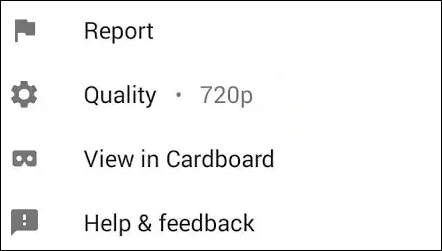
9. Uninstall and reinstall the browser
If none of the above methods have worked out for you, then an unidentified issue in the web browser could be behind all the trouble. A simple method to resolve this is to uninstall the browser. After a while, reinstall it and start fresh.
What if YouTube shows the “This video is not available in your country” error?
If a user faces “This video is not available in your country” error, it’s usually because of region or country-specific restrictions to comply with local laws. The original uploader may have uploaded the video with certain settings or certain regions may have differing regulations. Hence, this is a content availability limitation, not a video playback issue.
Can general browser troubleshooting fix this issue?
No, usually regional limitations related to video playback don’t get resolved by just clearing out cookies, disabling extensions, or by updating the browser. Having YouTube Premium doesn’t help either when trying to play videos that are available in specific regions. Among the various benefits offered with this service, bypassing local laws isn’t one of them.
Does VPN help?
VPN won’t help much either. A VPN can only change the network location, but it won’t automatically make the restricted video available. The availability of a YouTube video depends on the uploader’s regional settings and licensing rights.
Final words
YouTube’s “This video is not available” error is usually caused either by problematic plugins or conflicting browser settings. But sometimes the issue lies with the video itself. Some videos on YouTube are age-restricted or unavailable in certain countries or regions. Verify if the problem lies with your browser, YouTube, your device, or with the video itself. It’ll help you pinpoint the issue and fix it promptly. If you find out that you’re dealing with a corrupt video file instead of a plugin or availability issue, then you should repair the damaged file with trusted video repair tool. One such tool that can help repair corrupted video files is Kernel Video Repair. Understand the main reason behind this error and then fix it quickly.
People also ask
A. If you can view YouTube videos when you’re signed out but not when using your account, then the problem might be linked to your YouTube account. The issue can be related to account settings or the current login session instead of your network connection.
A. Usually signing into your YouTube account on a different device doesn’t make your videos unavailable. However, if the problem started after the sign-in attempt, check if the error shows up on another device or in the same browser.
A. Check if the livestream is unavailable for you only or other viewers as well. Try playing any other livestream to check if it’s a YouTube specific issue or if it’s unavailable. If the livestream chat can be loaded but not the video, you must check another browser or account to see if this problem is limited to your playback session.