Read time: 4 minutes
Microsoft Windows Server includes several new services as a series of actions that the setup is executing during the installation of Exchange Server 2016 or Exchange Server 2019. A service is a background process that the Windows Service Control Manager can initiate when the server first starts up. Executable files called services are made to function autonomously and without administrator oversight. Service may be run in a console or graphical user interface (GUI).
Each service has a role in the server to perform a pre-defined function, and you should also note that the service becomes active when its associated features start to work.
Microsoft Exchange Transport has an SMTP server for email communication, and it is crucial to keep the mailbox active to receive new emails accurately.
How to check the health of Exchange Transport service?
For on-premises Exchange Server, you can check the health and status of its transport service using the cmdlets. Paste the command given below in the PowerShell cmdlet:
The list will show that the transport service is running perfectly. However, when you download and install a cumulative update for a new version of the Exchange Server, the service should start normally. But if there’s any issue with the Transport Service, it does not start and shows that it is initiating only. There may be another error that is “unable to initialize the Microsoft Exchange information Service.”
Recently, an Exchange Server user mentioned in the Microsoft forum that they had updated their Exchange version, but all services were resumed without any issue, excluding the Transport Service. 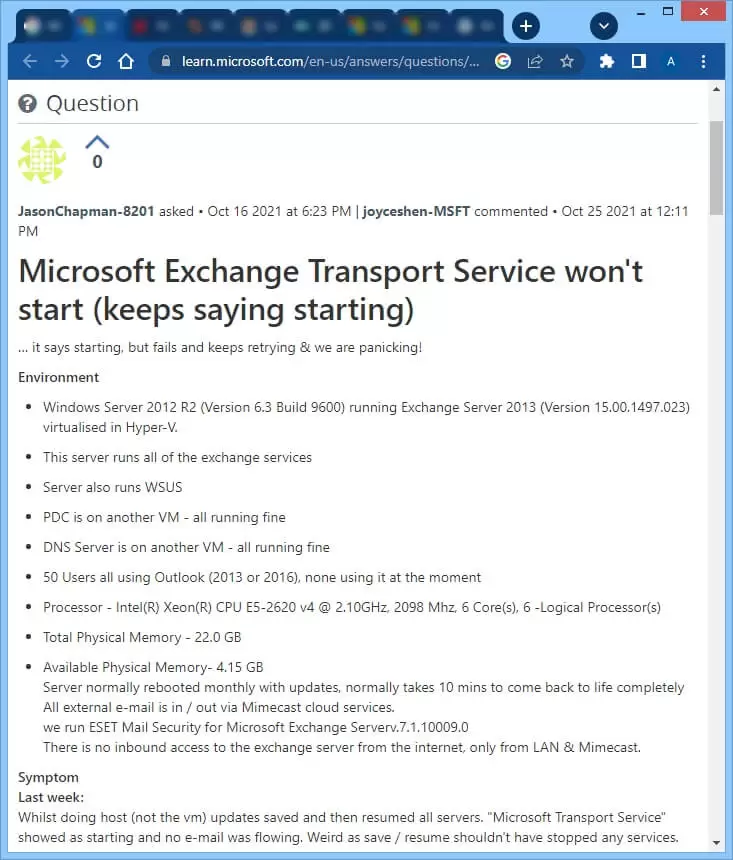
The event log showed the error message the following:
The worker process with process ID 20024 is not responding and will be forced to shut down.
There are certain reasons behind the Exchange Transport service error. It’s important to know the reasons before attempting Exchange Database recovery.
Reasons behind Exchange Transport service error
There are the following scenarios in the Exchange that results in the inactivation of the Transport Server-
- Replaying log files for a big information store database takes a lot of time in the SenderReputation database. This might be a sign of a faulty SenderReputation database. This situation might result in the logging of MSExchangeTransport Event ID 14001 every five minutes. A SenderReputation database event for successful log file replaying is also never shown.
- On a PC where the local computer account does not have the Internet access, you install an Exchange Update Rollup package. The Update Rollup packages’ binary files are digitally signed. In order to validate the packages, the computer must carry out certificate validation tests. The certificate verification check will have to time out if the local computer account does not have a direct connection to the Internet. This problem could arise if the computer utilizes an authenticating proxy server for Internet access or if the default gateway on the PC blocks Internet access.
- The usage of an email client does not consider the universal message size limitations. Earlier versions of Outlook, such as 2003 SP1, may fall under this category. In this case, the processing of overly big messages might be caused by an email client that is unaware of the global message size limitations.
- You had installed the Exchange Server on a domain controller.
- The computer has a slower disk subsystem.
- There is an obsolete version of antivirus present in the computer.
Methods to resolve Microsoft Exchange transport service won’t start error
You can use one or multiple resolutions that will activate the transport service again.
- You might require increasing the diagnostics logging for the component startup sequence during the startup process of the Exchange Transport service. You can increase it in the Registry Editor. Follow the steps below to increase it:
- Open Registry Editor in the Run application and locate the following subkey:
HKEY_LOCAL_MACHINE\SYSTEM\Current Control set\Services\MSExchangeTransport\diagnostics
- Change the REG_DWORD value to 7 for the following keys.
A. Smtpreceive
B. Smtpsend
C. DSN
D. Components
E. Remote Delivery
F. Categorizer
- Open Registry Editor in the Run application and locate the following subkey:
- Check your Exchange 2010 servers’ Application log and System log for relevant activities. For instance, occurrences that take place before and after this one might reveal further details regarding the underlying reason for this problem.
- The Exchange Transport Service depends on a number of different services to function properly. Verify that all the services related to the Exchange Transport Service are functioning as they should.
- Check the System log to check if there is a problem with one or more hard drives or if the server is running out of disc space.
- Disable any antivirus software temporarily to see whether the starting time of MSExchangeTransport is sped up. If the starting time has decreased, ask the antivirus provider for a software update. But, make sure to use the Exchange Server data loss prevention techniques
Automated tool to resolve Exchange Transport service won’t start error
Errors in Exchange Transport Service most commonly occur due to insufficient disk space or corruption in the database files. It’s important to repair EDB files right away before it affects workflow and productivity. MVPs and countless business professionals recommend the best way to recover EDB data is to save it in a portable file format such as PST.
Using a reliable EDB to PST converter tool for this task is the best way for a safe and quick conversion, without losing any data. Kernel EDB to PST is the perfect choice to recover EDB file data and save it to PST format, in the original layout and formatting. With a beginner-friendly interface, this tool simplifies EDB conversion for users with little to no knowledge of Exchange Server. Apart from this, users also get the option to split large EDB files into multiple smaller PSTs for better data management.
Conclusion
By applying the above-mentioned resolutions, you can try to remove the Transport Service-related errors in Exchange Server. However, if there is corruption in the database due to improper updates or changes, then any resolution will not remove the error. So, you can use professional database repair software and reset the mailbox again. Exchange Database Recovery should be the priority of every user in case of corruption in an Exchange Database file (EDB). Recover data from EDB files and save it in a format like PST for better access with a reliable EDB to PST Converter tool. The software will help you with every performance-related issue.
Frequently asked questions
Ans. The simple steps to restart Microsoft Exchange Transport Service are:
1. Press Win + R on your keyboard and type services.msc in the Run dialogue box.
2. Scroll down and find Microsoft Exchange Transport.
3. Right-click on it and select Restart from the list.
4. Wait for it to restart and see if it’s working properly now.
Ans. Microsoft Exchange Transport queue is a temporary location where mailbox messages are stored that are waiting to be sent or processed. Users can check their Exchange Mailbox’s Transport queue by running the Get-Queue Command in Exchange Management Shell.
Ans. Keep a check on event viewer logs, service status, and queue lengths to check the status of Exchange Transport Service.