


Read time: 6 minutes
“The last time I used Outlook in Cached Exchange Mode, it failed to sync with the Exchange Server because of which I lost some changes that I made. My colleague suggested to delete my OST file that’s causing issues. I’m confused!! Is it safe to delete Outlook OST file or not?”
Whenever Outlook becomes slow or fails to synchronize with the Exchange Server, the most common users receive is to delete the OST file. But is it okay to delete OST file in Outlook? This is a question that many users search the answer for. Well to answer this question, yes, in most cases it’s completely safe to delete OST file and it doesn’t automatically delete the stored emails. We’re going to help you understand the complete process to delete Outlook OST files without losing any emails.
Why Do Users Delete their OST Files?
Users are compelled to delete their OST files in many cases, like:
- Synchronization errors: Often, users face synchronization issues with Exchange mailbox that affects Outlook’s functionality. The most common cause of this is the corruption of local cache file. Deleting and rebuilding the OST file helps the server to sync all the data again.
- Free-up space: OST file can take up a lot of space over time, as data gets accumulated in it. This can overload the memory space of Outlook and cause it to crash and freeze mid-function. Deleting oversized OST files help free up essential space and improve functionality of Outlook.
- Corruption in OST file: A corrupt OST file can crash Outlook and make all the data inaccessible. Once the corrupt OST file is deleted, users can rebuild it by synchronizing all the data again with the Exchange server.
When is it Safe to Delete Outlook OST Files?
Before deciding on the decision to delete the OST file, users must understand the specific scenarios when it is safe to delete these files and when there’s a chance of data loss.
| Specific Situation | Is it safe to delete the file? | What happens after deletion? |
|---|---|---|
| OST file is large in size | Yes | OST file with a smaller cache file is created. |
| Synchronization issues | Yes | Deleting and rebuilding OST file fixes the cache issues. |
| OST file corruption | Yes | A fresh OST file is created, and mailbox data is synced again. |
| Search index isn’t working properly | Yes | Outlook rebuilds both OST and search index again. |
| Shifting to another device | Yes | Outlook downloads a new copy in the new device from the server. |
When Should You Avoid Deleting OST Files?
Even though deleting an OST file is generally considered safe, there are some scenarios where it’s not recommended. Let’s have a look at them:
- OST file is orphaned: If your Exchange mailbox is disabled or deleted permanently, then you may lose access to your mailbox data permanently once you delete the OST file.
- Outlook hasn’t synchronized fully: If you delete the OST file before it has fully synchronized with the Exchange Server, then it can permanently delete all the work you’ve done in the offline mode.
- During Exchange outage: If the Exchange Server is facing an outage, then Outlook will not be able to rebuild the deleted OST file. Thus, it’s better if you avoid deleting any OST file during this time.
- Loss of unarchived local data: When Outlook rebuilds a deleted OST file, only the data that’s stored on the server is synced with the new file. Any local data that wasn’t synced or archived beforehand gets deleted permanently.
How Does Deletion Work for Different Types of OST Files?
Deletion works for different types of OST in different ways. We’ve explained how with this table below:
| Type of OST File | Risk Level |
|---|---|
| Exchange OST | Very Low |
| Microsoft 365 OST | Very Low |
| IMAP OST | Low |
| Outlook.com OST | Low |
Things to Keep in Mind Before Deleting OST Files
Before you move forward with the process to delete Outlook OST files, there are some things that you should keep in mind.
- Make sure that all instances of Outlook are closed.
- You can easily access Outlook application and Outlook Web Access (OWA).
- Outlook has finished the synchronization process.
- Verify that you are deleting an OST file, not a PST file.
How to Delete Outlook OST Files Safely?
Deleting Outlook OST files is not a tough job. But it should be done carefully. Make sure your internet connection is stable and check that you’re connected with the Exchange Server. After this, follow the steps below:
- Close Outlook application and go to the below mentioned location in your File Explorer.
- For Outlook 2013, 2016, and 2019: C:\Users\username\AppData\Local\Microsoft\Outlook
- For Outlook 2010: My Documents\Outlook Files for Windows XP, and Documents\ Outlook File
- For Outlook 2007: C:\Users\username\AppData\Local\Microsoft\Outlook
- Right-click on the OST file that you want to delete and click on the Delete option from the list.
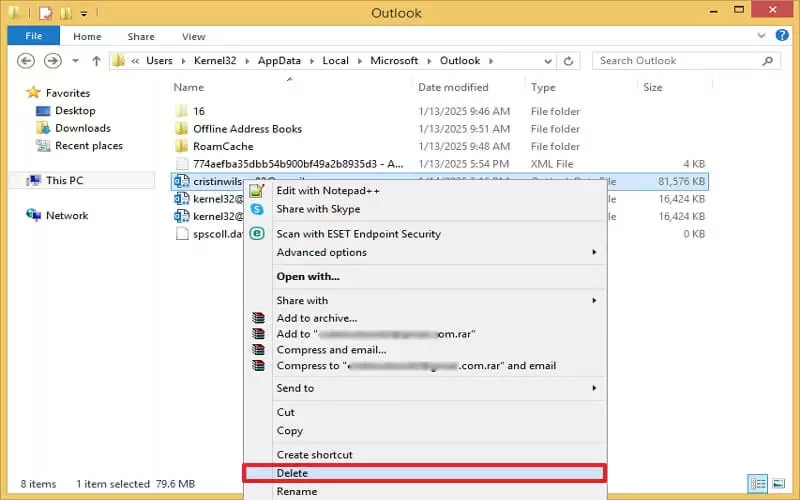
Note: These paths will work for Windows Vista, Windows 7, Windows 8, Windows 10, and Windows 10.
Follow the steps to recreate new OST file in Outlook:
- Close all instances of Outlook running in the background and rename the current OST file.
- Open Outlook again and you’ll see the error “The file C: \Exchange directory\file name.ost could not be found” on the screen. Click OK.
- Now select Offline Folder File Settings option and click on OK to change the file path and file name.
- You’ll see another error message saying “The file C: \Exchange directory\file name.ost could not be found. Do you want to create it?”.
- Click Yes to move forward.
- In the tools section, select the Synchronize-All folders
- The new OST file will get synchronized with the Exchange Server.
Preserve OST File Data Before Deleting the File
Outlook may fail to recreate the OST file if your Exchange mailbox is not available anymore, the mailbox is having trouble synchronizing with the server, or if there’s corruption in the OST file. In such situations, it’s important that you first recover the OST data before deleting it. This helps to avoid losing complete access to your mailbox information.
Before deleting OST file completely, you must recover all the data with the help of Kernel OST to PST Converter. It helps to export OST data to PST format and save all the mailbox information to the location of your choice.
Final Insights
In most cases, it’s safe to delete Outlook OST files in Outlook unless it’s orphaned or unsynchronized with the Exchange Server. In this guide, we’ve explained when it’s safe to delete OST files and when you should avoid it. You must check before deleting the file that all changes are saved and synced properly and that there’s no outage. Remember to take a backup of your data to avoid essential information.
People Also Ask
No, deleting an OST file doesn’t delete the emails from the Exchange mailbox if the mailbox data is synchronized properly.
Deleting OST file removes the local offline cache that’s stored on your system. It doesn’t delete the mailbox data and Outlook rebuilds the OST file again if the mailbox is active.
It generally takes around a few seconds to over 30 minutes for Outlook to recreate an OST file after deletion. The time for rebuilding primarily depends on how big your mailbox is and how well your Exchange Server and internet is working.
Yes deleted OST data can be recovered if you’ve deleted server-based data that can be re-synced once Outlook connects to the Exchange Server. However, if your data wasn’t synced to the server, then it can get tricky to recover the deleted information.
Maybe you’ve legacy files stored on your system or Outlook may have created some duplicate OST files during a reboot because of synchronization issues.




![Different Easy Methods to Backup OST Files [2026]](https://www.nucleustechnologies.com/blog/wp-content/uploads/2021/07/backup-ost-file.jpg)
