Read time: 8 minutes
Have you ever experienced a sudden system crash, leaving you in a panic about losing all your important files & folders? We’ve all been there – and that’s why it’s crucial to have a backup plan in place.
Storing your files and folders within the offline storage comes with more risk than ease in data preservation. With files saved on your local computers, there is a consistent risk of system crashes, virus intrusions, accidental deletion, and even more. This is why industry experts now recommend keeping your data within the cloud storage platforms like OneDrive, Google Drive, etc. Uploading your files to OneDrive provides an extra layer of protection for your files and allows easy access from any device with an internet connection.
Checkout our guide to go through the process of OneDrive migration to efficiently backup Windows folders to OneDrive in just a few steps.
Why do you need to move Windows folders to OneDrive?
Let’s first dive into the reasons that explain why you should put your data in OneDrive:
- Protect your files against drive failure and data loss.
- Provide access to the data from anywhere and on any device with OneDrive account signed in.
- Keep your data secured and accessible even if your PC has been migrated or changed.
- Makes data sharing easy, just with a single accessible link rather than sending multiple emails.
How to backup Windows files and folders to OneDrive?
This section provides assistance on various methods to move Windows files to OneDrive:
Method 1: Drag & Drop using browser
With the simple drag and drop of files through your web browser, you can backup file server to OneDrive. Here are the steps:
Step 1: Open your web browser and sign in to the OneDrive account to which you want to backup files.
Step 2: Go to the file explorer and open the destination where the desired files and folders are stored.
Step 3: Select the files or folders and drag them all, then drop them into the OneDrive account within the browser.
Step 4: Once the files are uploaded to OneDrive account, it will show a message of successful upload.
Method 2: Using the Save As option
With the Save As option available in all Microsoft 365 apps like Word, Excel, PowerPoint, etc., you can backup documents to OneDrive. Follow the given steps:
Step 1: Open the document in relevant Office app.
Note: In this method, we are considering the case of Word document for understanding the process.
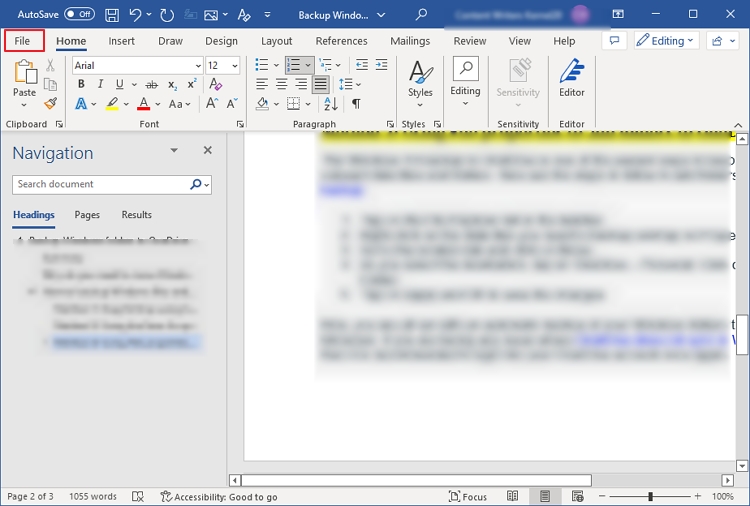
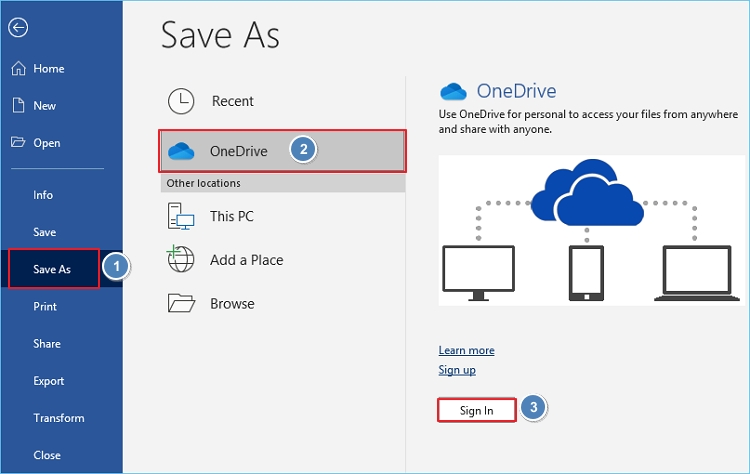
Step 2: Go to the File tab and then click Save As option.
Step 3: Select OneDrive from Save As destinations.
Step 4: Tap on Sign In to add the desired storage account.
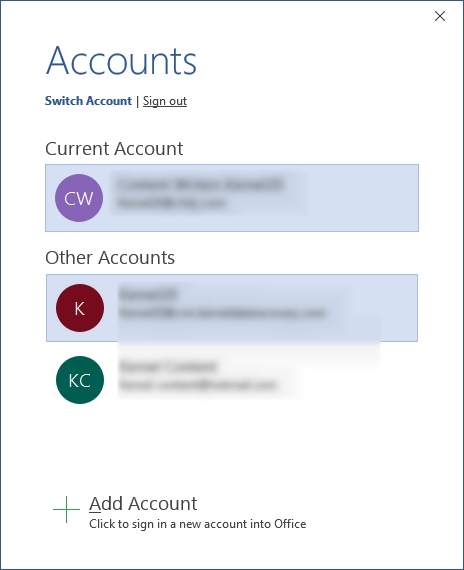
Step 5: Select from the available OneDrive accounts or click on Add Account.
Step 6: Enter the email address of the account then password to sign in.
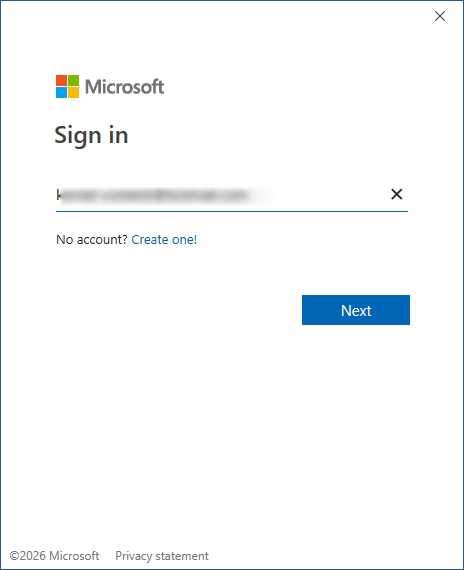
Step 7: Click Save and your files will be stored within the OneDrive user account.
Method 3: Using File properties to add folders to OneDrive
The Windows 10 backup to OneDrive is one of the easiest ways to keep a copy of your relevant data files and folders. Here are the steps to follow to add folders to OneDrive backup.
Step 1: Tap on the File Explorer tab in the taskbar.
Step 2: Right-click on the data files you need to backup and tap on Properties. 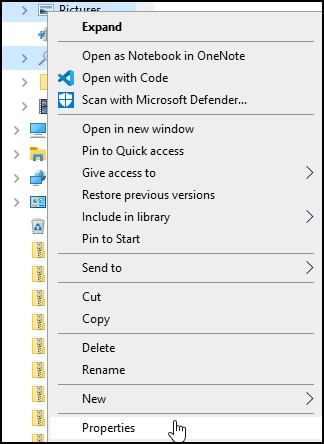
Step 3: Go to the location tab and click on Move. 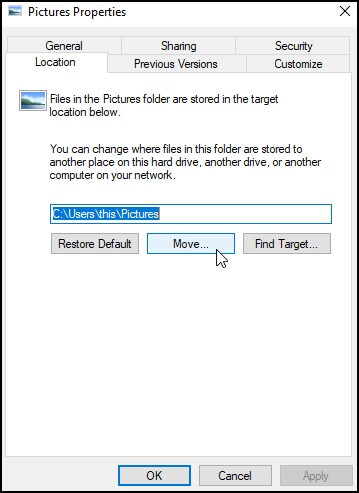
Step 4: As you select the destination, tap on OneDrive – Personal. Click on Select Folder. 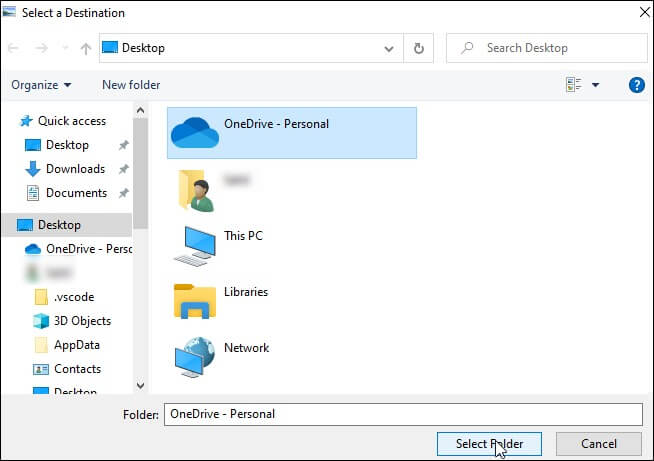
Step 5: Tap on Apply and OK to save the changes. 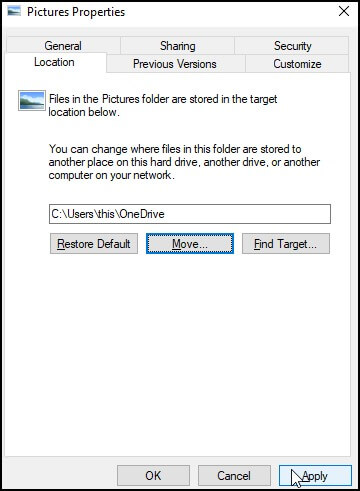
Now, you are all set with an automatic backup of your Windows folders to OneDrive. Moreover, if you are facing any issue where OneDrive does not sync in Windows 10 then it is recommended to sign into your OneDrive account once again.
Method 4: Sync File Explorer to OneDrive
Another efficient method to backup file explorer to OneDrive is using the OneDrive sync app. Follow the process below to secure data:
Step 1: Open OneDrive for desktop application and sign in to it using your Microsoft account.
Step 2: Now, open File Explorer and tap on OneDrive folder from the left pane.
Step 3: Simply select the files and then copy-paste or drag-drop them to OneDrive folder.
File synchronization will begin in the background. Once the sync is complete, your files will be accessible within OneDrive.
Using a professional backup and migration solution
Manually backing up Windows folders to OneDrive can be prone to error at times. But, with the right tool, it can be done in no time. Kernel OneDrive Migration Tool is a professional & reliable solution that allows users to move or backup Windows 10 to OneDrive data to any desired destination.
With this tool, one can perform OneDrive for Business migrations & even migrate Google Drive for Business data to OneDrive. Also, it can also backup OneDrive for Business to a File System & supports different Microsoft 365 plans.
Furthermore, users can easily manage their OneDrive data, guaranteeing that they never lose important files or documents. What’s more, this solution also enables users to recover permanently deleted data from OneDrive, providing added peace of mind knowing that their valuable data is always secure.
Conclusion
Windows folder backup to OneDrive is a great way to save your data in a secure environment. It allows you to easily add folders & files store for easy accessibility whenever needed. Moreover, if you want a flawless migration experience with security & ease of use, Kernel OneDrive Migration Tool is the best choice.
It guarantees swift migration without any data loss & provides advanced features to make sure that all your essential content is moved with zero modifications. With this insightful knowledge about how to backup Windows folders on OneDrive, you can safely store your crucial data & add folders to OneDrive backup within no time.
FAQs
A. OneDrive sync & backup serve different purposes. Syncing facilitates keeping the same files in multiple locations & allows for easy access and edits. Backup copies the files to another location to prevent loss in case of deletion & corruption at the source.
A. OneDrive is not the ideal solution for backups, as it is primarily intended for file synchronization & access from anywhere, rather than for protecting against data loss. OneDrive can recover some deleted files & unintended changes; it is not recommended to rely on it solely for backup purposes.