Read time: 8 minutes
Roundcube is an open-source, web-based email client provided through cPanel and used to send, receive, and store information in the form of emails like any other email client does. Being a web-based email client application, it can be accessed from anywhere, which makes it vulnerable to malware attacks and phishing. But a desktop email client helps you to send or receive emails without worrying about spying.
That’s why, many users are switching from Roundcube to Outlook. In this guide, we will look at the ways to easily backup Roundcube emails to PST file.
Why Backup Roundcube Emails?
- Protect your email from accidental deletion, server issues, or unexpected mailbox errors.
- To keep a mailbox copy before the migration.
- Save valuable business conversations for future reference.
- Free up your mailbox space without the risk of losing essential data.
- When you want to switch email clients from Webmail to Outlook.
Things to Know Before You Start
- Roundcube stores all your emails on the mail server.
- Manual Webmail export saves one email at a time in EML format.
- You can export Webmail to PST using Outlook.
- Make sure to create enough disk space before email backup.
- Verify mailbox access before data export.
How to Export Roundcube Emails into PST?
There is no direct method to export Roundcube emails into PST. However, you can accomplish this task using the multi-step native methods.
Method 1: Save Roundcube Emails Manually
You can save Roundcube Emails using the Roundcube mail itself and get all mailbox data in an EML file. Here are the steps to export Roundcube emails into EML file:
- Login to your Roundcube web-based email application by entering details like username and password.
- From the Roundcube email interface, choose the email that you want to backup and click on the More option in the top right corner of your screen.
- Then, select the Export option from the drop-down list.
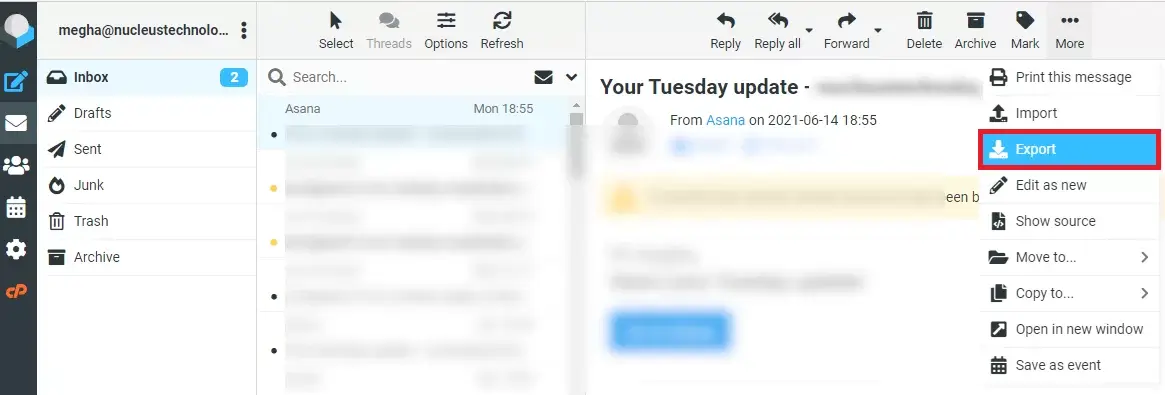
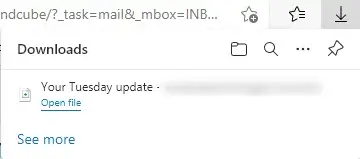
- The download process will start for the selected email and will be completed in a few moments. After the download is completed, it can be accessed in the default Downloads folder on the system in the EML file format.
- To backup other emails in the EML file format, repeat the same procedure for each email.
Method 2: Save Roundcube Email in PST Using Outlook
Roundcube follows standard login protocols, but you can change it to IMAP and setup your Roundcube IMAP-enabled account in Outlook. With this, you can synchronize all your emails in Outlook and export them in PST. Let’s understand this method in detail with a three-part guide:
Part 1: Enable IMAP in Roundcube
Here are some essential mail server details that you should know before setting up IMAP in Roundcube.
| Email Settings | Port Details |
|---|---|
|
Roundcube IMAP Incoming mail server: imap.mail.com (where the domain is the mail) |
993 requires SSL 143, non-secure |
|
Roundcube POP3 Incoming mail server: pop.mail.com |
995 requires SSL 110, non-secure |
|
Roundcube SMTP Outgoing mail server: smtp.mail.com |
465 requires SSL 587, non-secure |
Part 2: Setup Roundcube Account in Outlook
After enabling IMAP in your Roundcube account. Its time to setup your account in Outlook.
Step 1: Open Outlook on your system and click File.
Step 2: Click on Add Account under Account Information tab.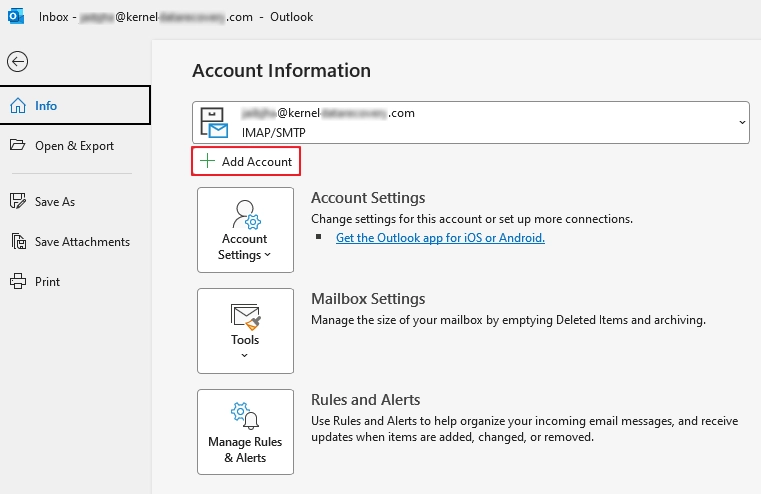
Step 3: Enter the email address and check the Let me set up my account manually option. Click Connect.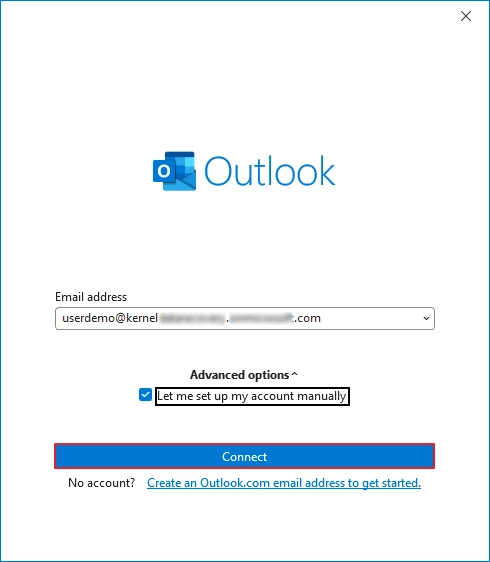
Step 4: In the Advanced Setup wizard, select IMAP.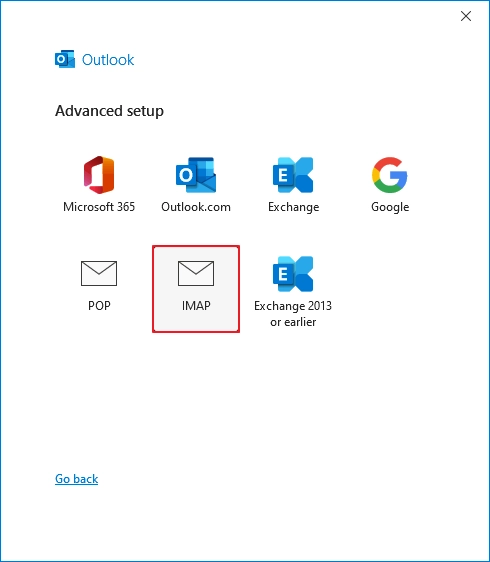
Step 5: In the IMAP Account Settings, enter Roundcube IMAP Server details and click Next.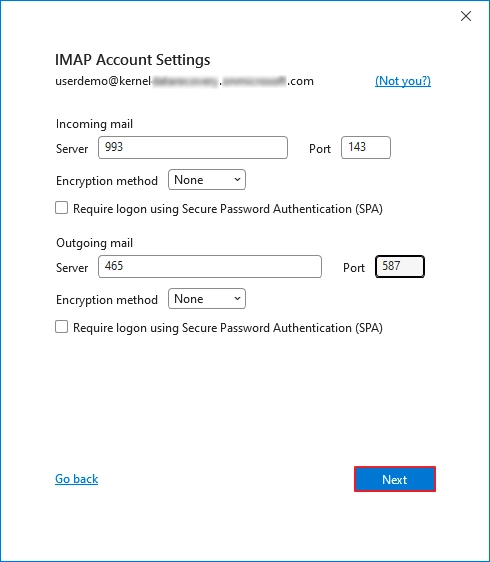
Step 6: Enter the Roundcube account password and click Connect.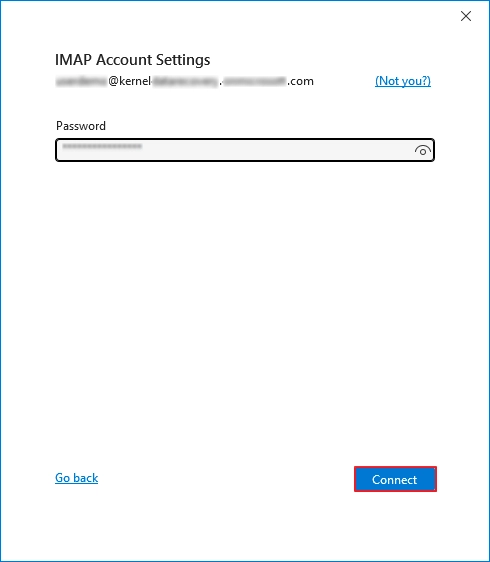
Part 3: Export Roundcube Mailbox in PST file
After adding your mailbox, Outlook will take some time to sync your mailbox. After that, access your emails and save Roundcube email in PST using Import/Export option.
Step 1: Open Outlook and click on File.
Step 2: Go to the Open & Export section and click Import/Export.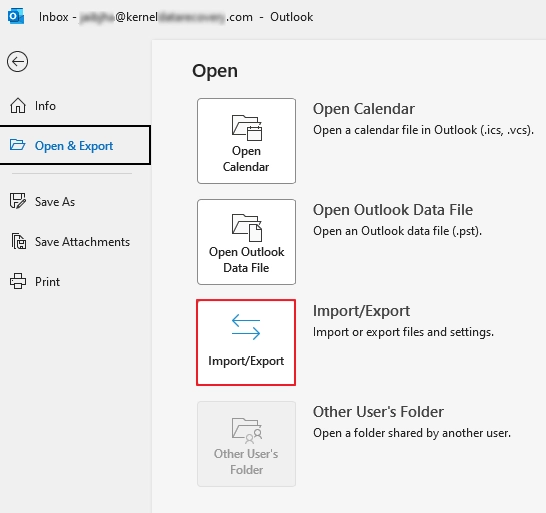
Step 3: Click on Export to a file and click Next.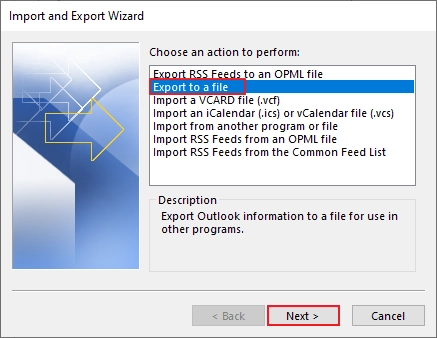
Step 4: Select Outlook Data File (.pst) and click Next.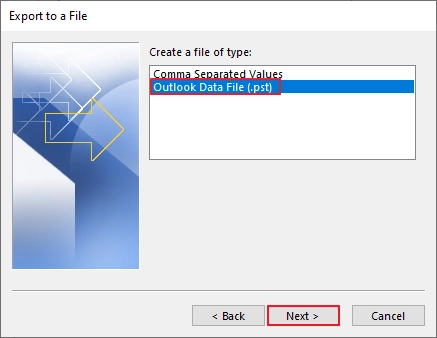
Step 5: Select your Roundcube mailbox and click Next.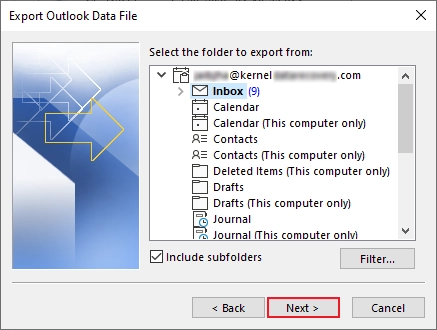
Step 6: Browse and select a preferred saving location and click Finish to backup Roundcube emails to PST.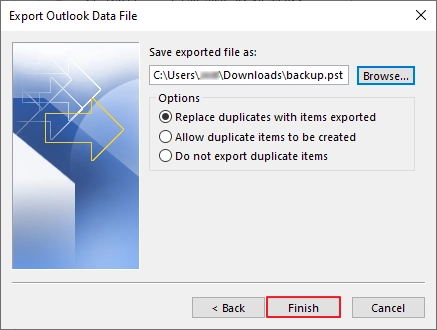
How to Export Roundcube Emails to PST in Bulk?
The built-in export option and the IMAP method are good choices for individuals, but if you are an IT admin managing large-scale data exports, then they might create some diffculties and are also time-consuming. For a fast and easy Roundcube mail backup, you can try Kernel IMAP Backup and Restore software. It allows you to add IMAP-enabled Roundcube account and export bulk data in PST. With multiple filters and export options, the software makes the entire process easy for admins.
Final Words
Roundcube email backups have become necessary for businesses and individuals when switching email client to Outlook. Even after the unavailability of a direct method, there are a few workarounds available, which we discussed above. If you have limited data for export or in bulk roundcube emails use any of the given methods. You can try any of the mentioned methods based on your availability and requirements.
Frequently Asked Questions
A. No, you cannot backup bulk emails using Roundcube’s mail export feature.
A. No. Roundcube exports emails only in EML format. However, you can convert those EML files to PST using an EML to PST converter tool.
A. No, manual methods are not reliable for exporting large mailboxes.