Read time: 8 minutes
OneDrive is great for syncing and collaborating with others, but it is not a permanent backup solution. If you delete a file by mistake, you lose access to your Microsoft account, or get hit by a virus or malware, that file will be gone forever until you have a backup of your data.
Backup OneDrive to external hard drive and save it from data disasters. It gives you independence from internet outages, account issues, and cloud service changes.
Why Export OneDrive to External Hard Drive?
Backing up your OneDrive data is beneficial in multiple ways. Here are the most prominent reasons why users need to export OneDrive to external hard drive:
- Anytime offline data accessibility: Download OneDrive to external drive for easy offline data accessibility when you are not connected to an active internet connection or have an unstable connection.
- Prevent loss from accidental deletion: In case you deleted your files from OneDrive and forgot to retrieve them within the retention period (30 days for free accounts and 93 days for school and work accounts), it will be permanently deleted.
- Intentional data removal by employee: Sometimes, employees, out of rage, delete the important files from the OneDrive, and as a result, organizations have to face all the consequences.
- Ransomware protection: If your OneDrive account got hit by ransomware, it will encrypt all of your cloud files. In such a scenario, an offline backup of data can only save you from loss.
How to Backup OneDrive to External Hard Drive Manually?
There are two free manual methods which you can use to backup OneDrive to external hard drive. We will discuss the step-by-step process for each method. Perform the method carefully for success:
Method 1. Download Files From Web & Move to External Drive
This method involves using OneDrive web to download files and then manually move them to the external hard drive. Here are the steps to do so:
- Log into your OneDrive account on onedrive.live.com.
- Select the file(s) you want to download, then click Download.
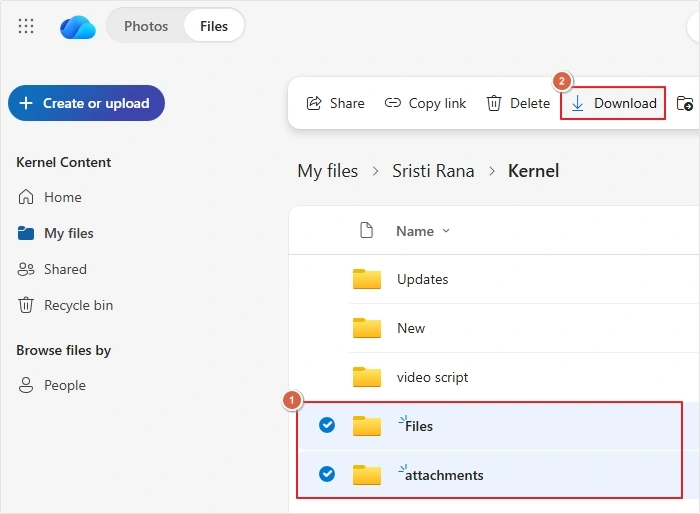
- All the files will be saved on your local system.
- Connect the external hard drive and move all the data manually into it.
Method 2. Using ‘Always Keep on This Device’ Feature
OneDrive files on demand feature offers Always keep on this device option, which lets you access your cloud data through File Explorer without downloading them. Below are the steps to download OneDrive to external drive with Always keep on this device feature:
- Login to the OneDrive on desktop application.
- Open File Explorer and go to the OneDrive folder.
- Now, select the folder you want to backup and right-click on it.
- Select the Always keep on this device option and wait until it turns green.
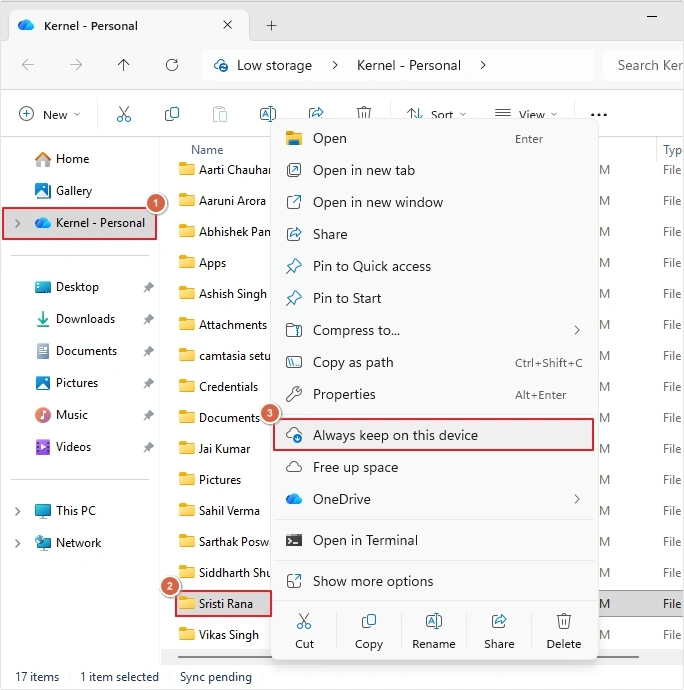
- Open another File Explorer wizard and open your external hard drive.
- Now, copy (CTRL+C) all the data you want to backup and paste (CTRL+V) it in the external hard drive.
Method 3. Directly Syncing External Drive Via OneDrive Desktop App
If you want your external hard drive to act as your active OneDrive folder, you can do so by changing the default location. Here is how you can do it:
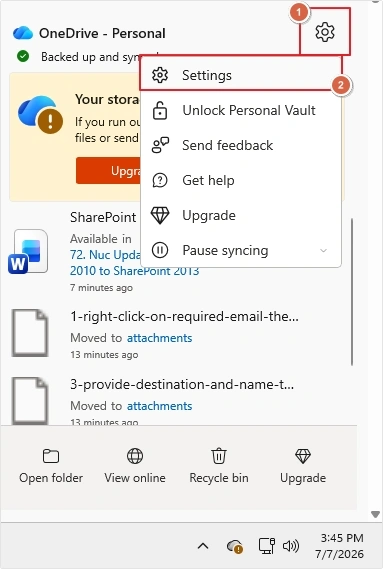
- Locate OneDrive icon on your task bar and click on it.
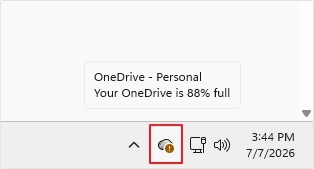
- Click on the Gear icon and click Settings.
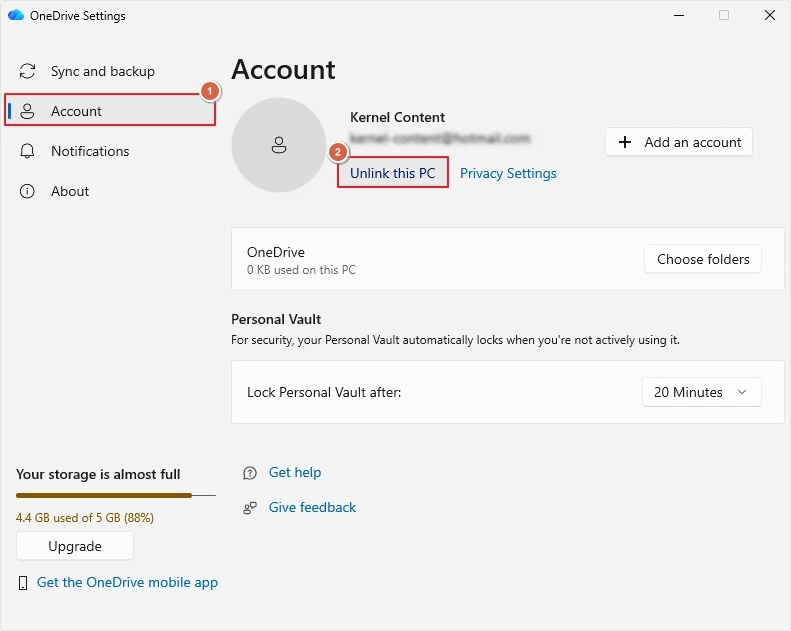
- Go to Account and click Unlink this PC.
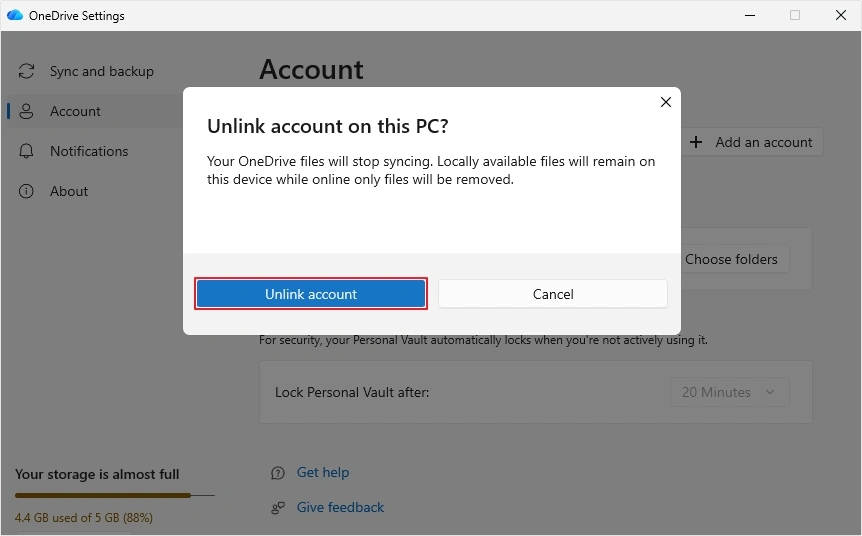
- Click on the Unlink account
- Again open OneDrive desktop application and log into your account.
- In the Set up your OneDrive folder wizard, click on Choose location to change OneDrive folder location.
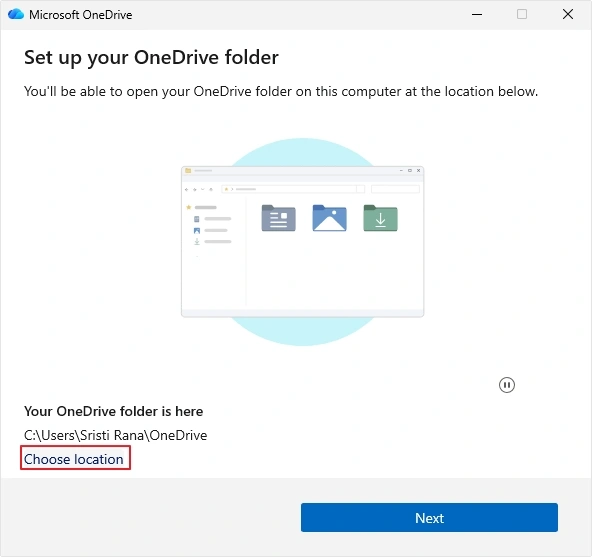
- Select external hard drive as the final destination and follow the on screen instructions.
Backup Approach That Doesn’t Leave Gaps
Organizations with a large OneDrive mailbox face problems in performing manual methods. Thus, to backup extensive data, choose Kernel OneDrive Backup tool that is capable of backing up all your data with precision. This software fits perfectly in this case. It gives you the freedom to directly connect your OneDrive account and backup all the data directly to the external hard drive. Some other benefits of the software are:
- Backup bulk data without any file size restrictions.
- Use the specialized filters to back up selective data only.
- Maintains original folder hierarchy throughout the conversion.
- Avoid data duplicity by performing an incremental data backup.
- The demo version allows converting 5 items per folder up to 20 MB.
Final Say
Backing up OneDrive data to an external hard drive gives you proper control over your data. Further, it proves to be a true savior in case of data loss or errors. Use the methods provided in this blog to backup OneDrive to external hard drive. After backing up your data to an external hard drive, you can free up space on OneDrive by removing it from there.
Frequently Asked Questions
Yes, you can backup OneDrive to external hard drive either by manually copying it or by directly moving the OneDrive sync folder to the external drive.
Connect your external hard drive to your PC, then open File Explorer and copy all your photos from OneDrive and paste them into the external drive, or you can drag and drop them.
First, connect your external hard drive to your PC, then open OneDrive and copy the required data. Now open the File Explorer, then navigate to the external drive and paste the data into it.