Can I back up my Bluehost account to my local system? Yes, you can back up Bluehost account data, including websites, databases, and emails, directly from the Bluehost portal and save them locally. Moving forward in this blog, we will discuss all the native methods to safely back up Bluehost data without deleting your existing files or emails from the server. Before we begin with the backup solutions, let’s see what we will be backing up in this blog.
What Data Can I Back Up from Bluehost?
A Bluehost account user can back up and download the following data:
- Websites:
Core website files (HTML, PHP, CSS, etc.), folders, plugins, themes, and more. - Databases:
MySQL databases containing your website data and more. - Emails:
Back up specific emails or save individual folders from Bluehost.
The fastest way to back up Bluehost emails, along with all emails, attachments, and folders, in a single operation is to use the professional Kernel IMAP Backup and Restore tool.
Does Bluehost Automatically Back Up Websites?
Yes. Bluehost offers native backup options and also supports plugins for automatic backups. Based on your hosting plan, you get daily, weekly, and monthly backups for your websites and databases. However, there are a few limitations:
- Emails are not part of automatic backups.
- For using plugins or backing up large websites or databases, you have to purchase subscriptions.
- Based on your subscription plan, older backups may be overwritten, leaving you with only one backup file.
If your websites get daily or weekly updates, automatic backup options are great for you. Those who only make changes to their website once every few months can go with the manual free Bluehost backup options.
Moreover, as per the Bluehost user agreement, they have clearly stated that only the subscriber (you) is responsible for the data backup. Bluehost is not liable for any data loss. This increases the importance of manual data backup.
How to Backup Bluehost Website Data?
Using cPanel, you can download an exact copy of your website’s data along with settings and configurations to your local system. To back up your website hosted on the Bluehost platform, follow the steps given below:
- Login to the Bluehost account. From the navigation menu on the left, select Websites.
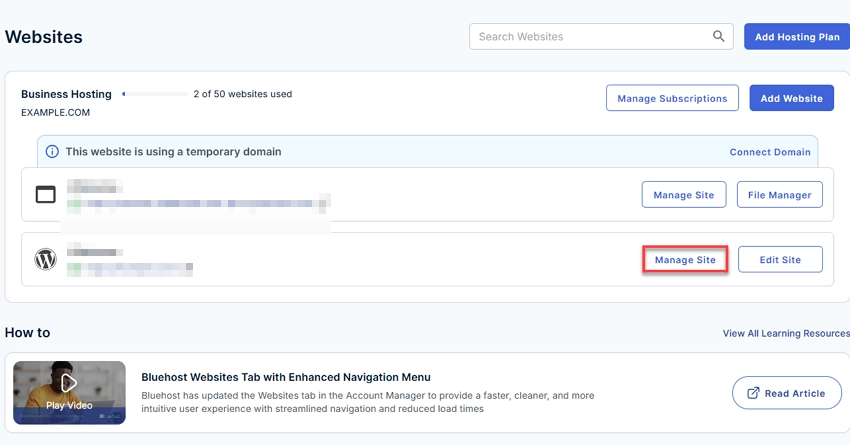
- On the right side, all your websites will be displayed. Here, find the website that you want to back up and click the Manage Site button next to the website address.
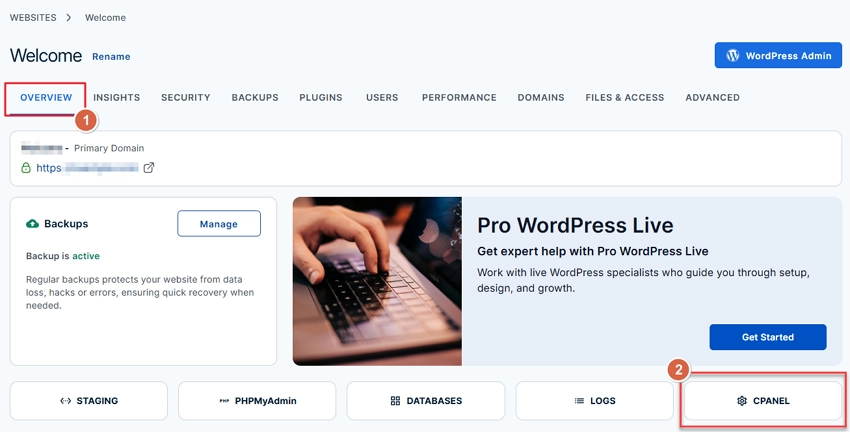
- Make sure the Overview tab is selected. Then, click on the CPANEL button.
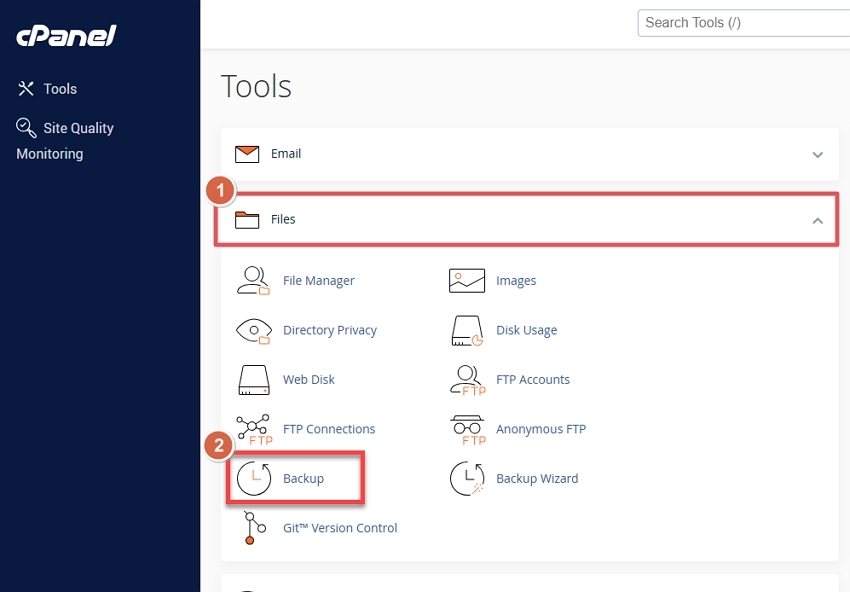
- In the cPanel window, click and expand Files, and select the Backup option.
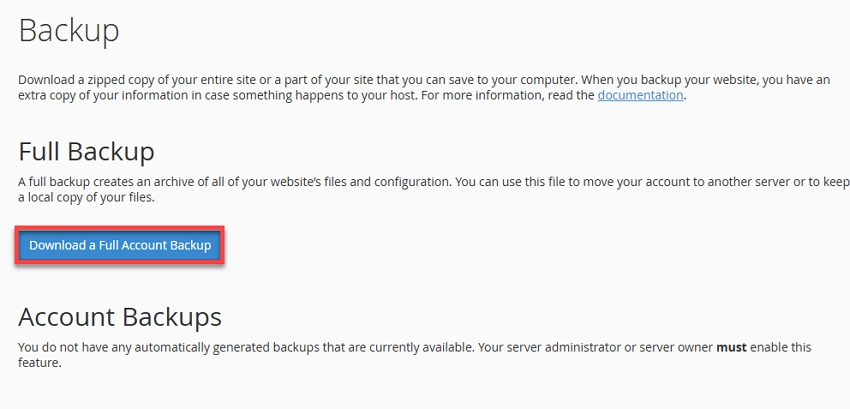
- Click the Download a Full Account Backup button.
- For the Backup Destination dropdown, select the Home Directory. Provide an email address in the Email Address field to receive notifications when the backup is complete. Finally, click Generate Backup.
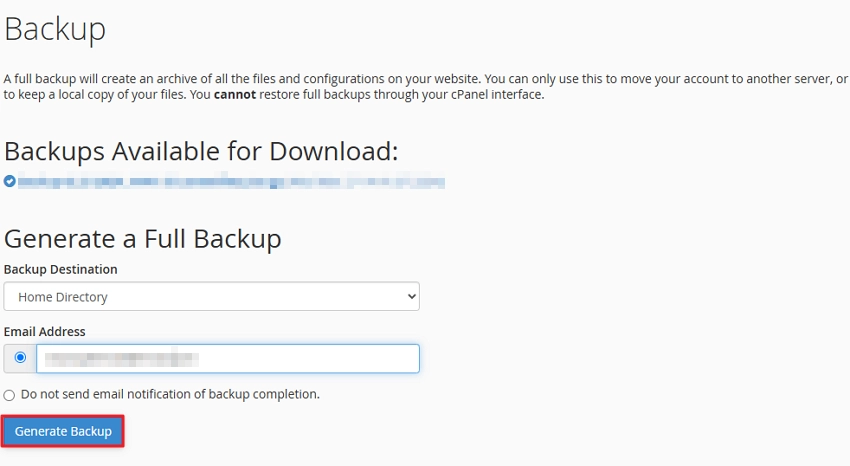
When you receive the email that the backup is completed, return to the backup page again and click on the download link under the Backups Available for Download. An archived file will be saved on your system.
How to Back Up Individual Files and Folders of a Website?
For those who do not want to save the complete website, you can download your website files and folders individually. You can save a single or multiple files of your website from cPanel File Manager to your system using the followings steps:
- Login to your Bluehost account. Click the Websites option from the left-navigation menu.
- Click the Manage Site button for the website whose files you want to download.
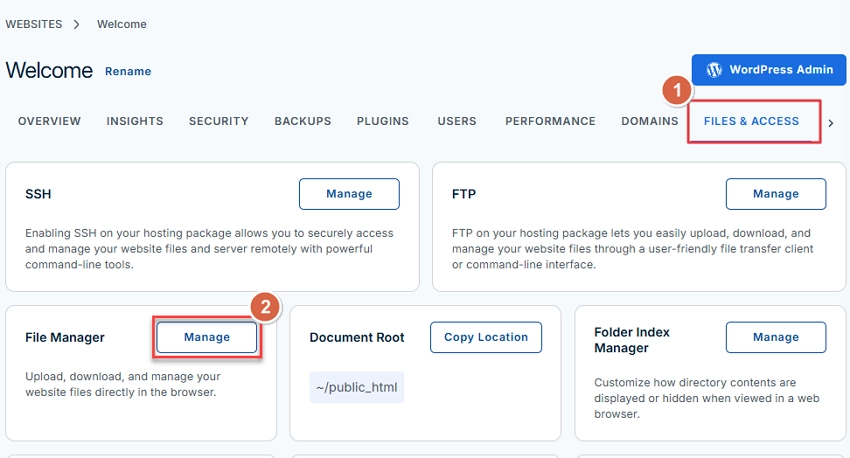
- Select the FILES & ACCESS tab. In the File Manager tab, click the Manage button.
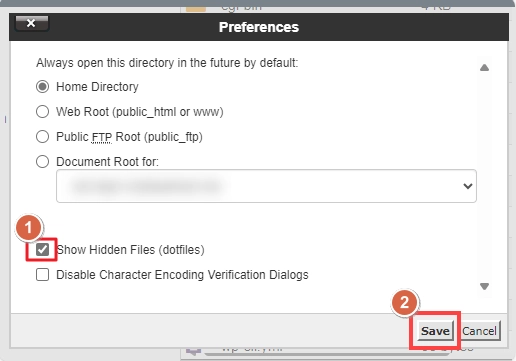
- In the File Manager, click the Settings button in the top-right corner. Choose the Show Hidden Files (dotfiles) option and click Save. This will display all the hidden files in the File Manager.
- From the menu on the left, open the folder whose data you want to back up.
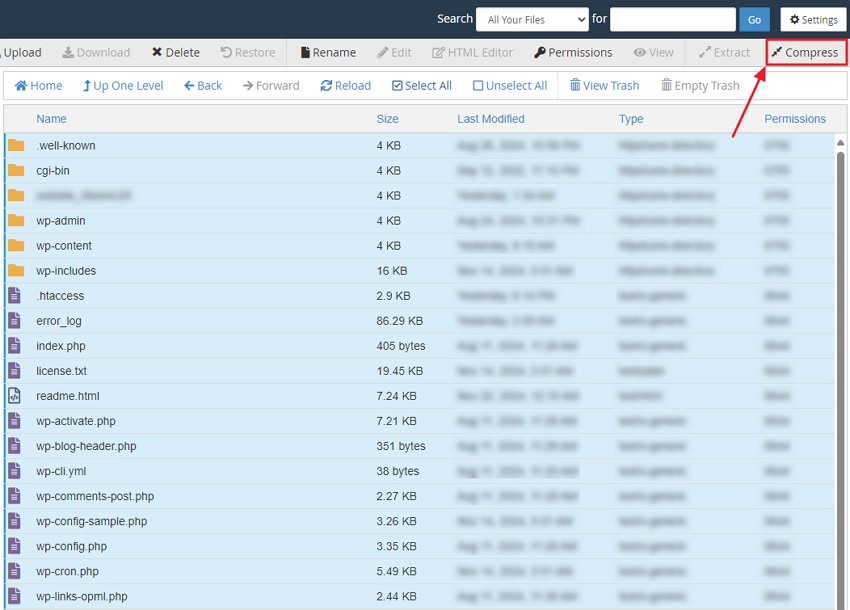
- Select the files you want to back up one by one or click the Select All button (at the top) to select all the items from the folder at once. Then, click Compress at the top-right.
- Choose a compression type and click the Compress Files button.
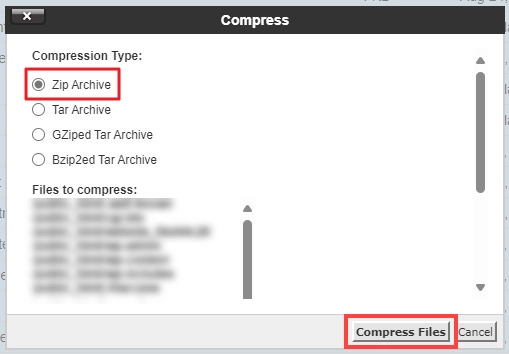
- A .zip will be created in the File Manager. Download the .zip file to your local hard disk.
How to Backup Bluehost Database?
Bluehost allows you to export the database from Bluehost account and save it in SQL format. Let’s see the steps to back up Bluehost database.
- Login to the Bluehost account. From the navigation menu on the left, select Websites.
- Click the Manage Site button for the website whose database you want to back up.
- In the Overview tab, click the PHPMyAdmin button.
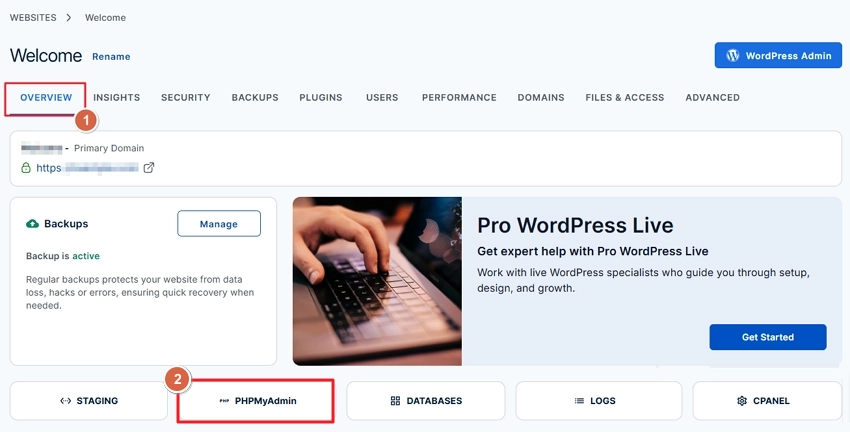
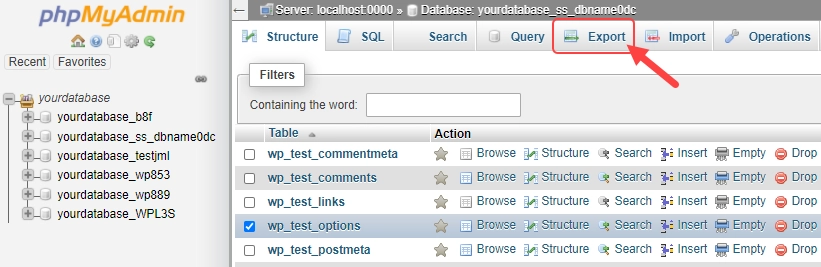
- Select the database that you want to back up from the left pane. Then, click Export.
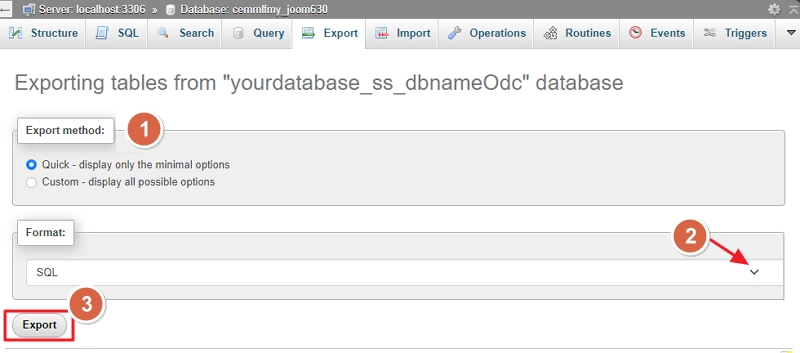
- Choose the export method, output format, and click Export.
How to BackUp Bluehost Emails?
The final data component to backup is your mailbox. Bluehost relies on Roundcube to manage the emails. Therefore, we have to back up Bluehost emails using the Roundcube interface. The steps to back up your specific emails or particular folders from Roundcube are given below.
Save an individual email as EML
- Access your Roundcube webmail from the Bluehost portal.
- Select the email you want to save and click the three-dot (…) icon.
- Choose Download (.eml) from the dropdown. The email will be downloaded to the default download location of your web browser.
Back up multiple emails
- Access the Roundcube portal, as you did above.
- Select all the emails that you want to save.
- Click the three-dot (…) icon and choose the Download (.eml) option.
- A .zip file containing all your emails in EML format will be downloaded.
Back up a particular email folder
- Again, go to the Roundcube webmail interface.
- Switch to the folder that you want to download.
- Click on the gear icon in the folders list footer.
- From the Folder actions, select the Download folder option.
- The entire folder, along with the emails inside it, will be downloaded as a .zip file.
You have to download all the folders from the Roundcube webmail one by one. This is because Roundcube does not allow you to download multiple folders together.
How to Backup Bluehost Emails in Bulk?
Downloading each email individually is time-consuming. A faster way to download the complete Bluehost mailbox at once is to configure your Bluehost email account in Outlook and backup Roundcube emails to a PST file. In addition to Outlook, you can use any email client that support IMAP account to backup Bluehost emails.
Alternatively, if you want the ability to save emails from particular senders or based on a specific date range, you should use a professional IMAP backup tool. Kernel IMAP Backup and Restore software allows you to download all the Bluehost emails from Roundcube in a single operation. The tool allows you to.
- Save emails in PST, EML, MSG, and multiple other formats.
- Download emails in bulk along with their folders.
- Offers multiple filters, like date range, folder selection, and more.
- Supports incremental backup to only save only new emails.
- Works in major versions of Windows and macOS.
Best Practices to Backup Bluehost Account Data Error-Free
To make sure you do not get any issues during or after the Bluehost backup, follow these practices:
- Do not download all the data at once:
Large backup runs for longer durations. Sometimes, a backup that takes too long to complete may suspend or fail due to server timeout issues. To avoid it, perform backups in small batches. - Have sufficient storage:
Depending on your data, the backup size can reach 100+GB. Therefore, before you begin to back up Bluehost account data, analyze the size of the data and ensure your local hard drive has enough space available to accommodate the backup. - Disable plugins:
When you back up Bluehost WordPress site, certain plugins may interfere with the process. So, disable all the plugins that are not essential for your website and then backup the WordPress site. After the backup, enable the plugins again. - Repair corrupt database:
Only backup healthy databases. In case your database shows signs of damage, the backup may fail. Therefore, repair corrupt SQL database before taking its backup.
Final Verdict
I hope by now you have a clear understanding of how you can independently back up Bluehost account data. To perform the methods we discussed in this article, you do not need to setup any external plugins or software. Website and database backups can be done directly from the Bluehost portal. However, for Bluehost email backup, I recommend you use a professional IMAP backup tool, as Roundcube does not allow downloading the complete mailbox in one go.
Frequently Asked Questions
You can use the Bluehost portal and download the websites, databases, and emails to your local system without paying any fees.
Yes. Bluehost offers multiple backup services and plugins to automate the backup of a WordPress site. Popular options include CodeGuard and Jetpack.
1. Log in to Bluehost portal and select the Websites option from the left navigation pane.
2. Click the Manage Site button for the website that you want to restore.
3. Go to the BACKUPS tab. Click the Restore Website button.
4. Choose the date, backup file, and confirm the restore.
Yes. Log in to Bluehost and use the cPanel interface to back up your complete website along with configurations. When the backup is completed, download it from the server.