Read time: 11 minutes
Google offers a native desktop application called Drive for Desktop. This application is available for both Windows and Mac OS. With this native tool, you can synchronize or back up any folder (single or multiple) from a local hard disk (HDD) to the Google Cloud environment.
When we sync folder with Google Drive, all nested folders and files in the selected folder are uploaded to a Google Drive account. Furthermore, any modification made to the offline folder on the computer will be mirrored in the online Drive’s copy as well.
Note: Google Drive for Desktop is not available for the Linux operating system (OS).
Sync Folder to Google Drive: Why Do It?
Synchronizing an offline folder from a PC with cloud storage serves various benefits, like:
- Access data from a synced folder from any system with internet.
- Helpful in team collaboration. Share a complete folder with different users to work on the same files.
- The users often choose to upload files to Google Drive and then remove the files from HDD to save space.
Now, let’s discuss the different methods to sync any offline folder with Google Drive. However, before trying out the methods in the next sections, make sure you have a stable internet connection and enough storage space on the Drive.
How to Sync Folder with Google Drive on Windows OS?
If you are currently using the Microsoft Windows OS, follow these steps to sync any folder with G Drive.
- Download the Drive for Desktop application from the official Drive download page.
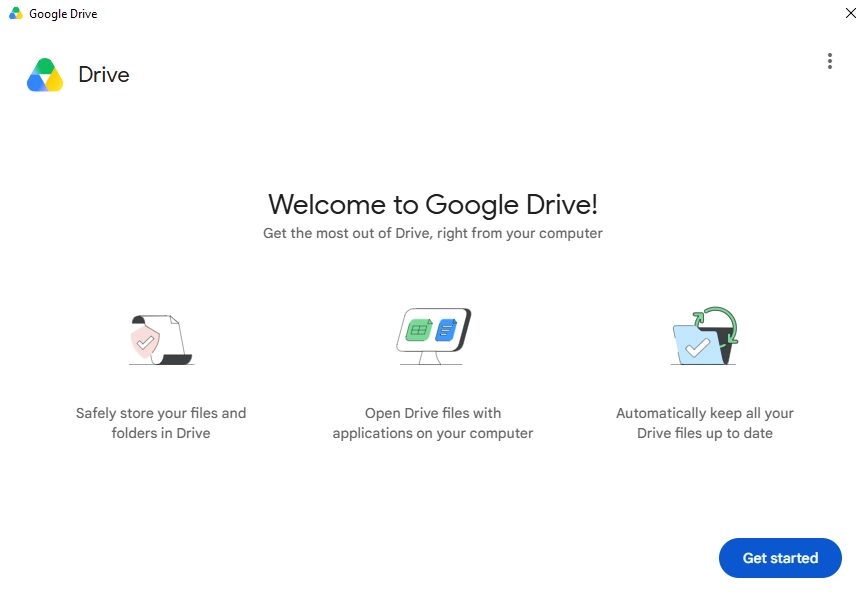
- Install the application and open it. Click on Get started.
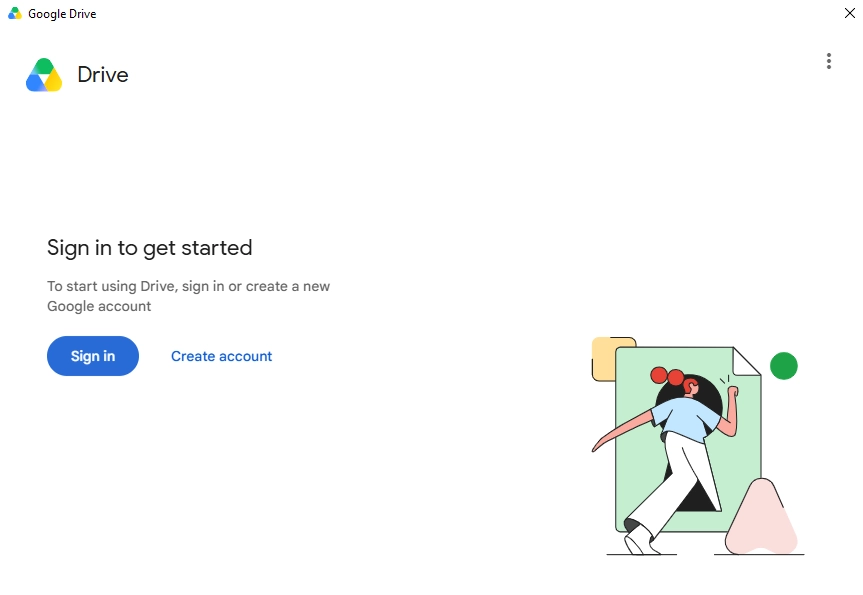
- Now, click on the Sign in option to connect to the Google account associated with the Drive.
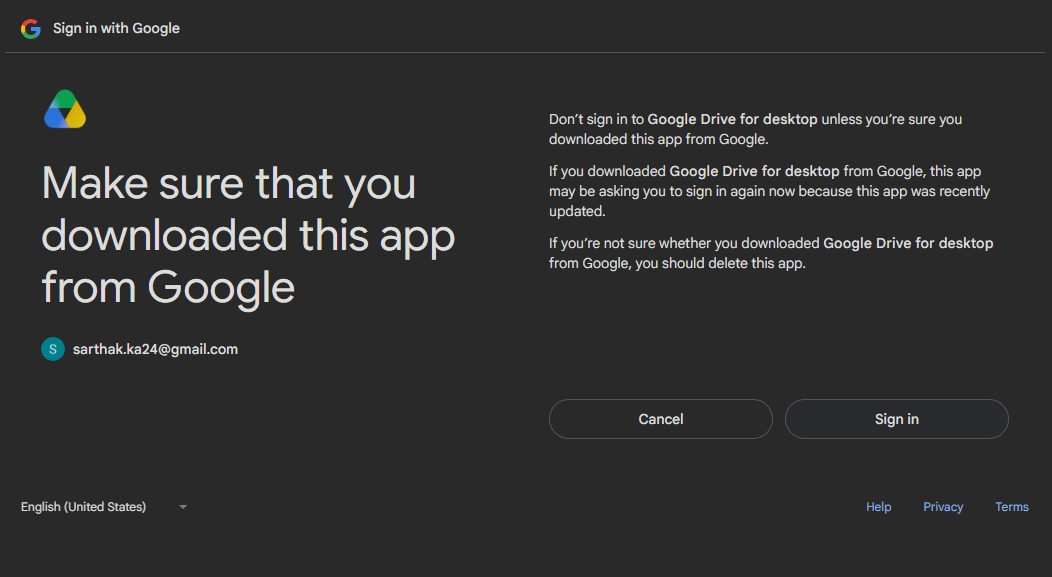
- An internet browser will open. When asked, add your Google account to the browser. If already logged in, select the Google account.
- Confirm the sign in request. After successful login, go back to the Drive for Desktop application.
- Click the Add folder button, select the folder to sync, and click Open.
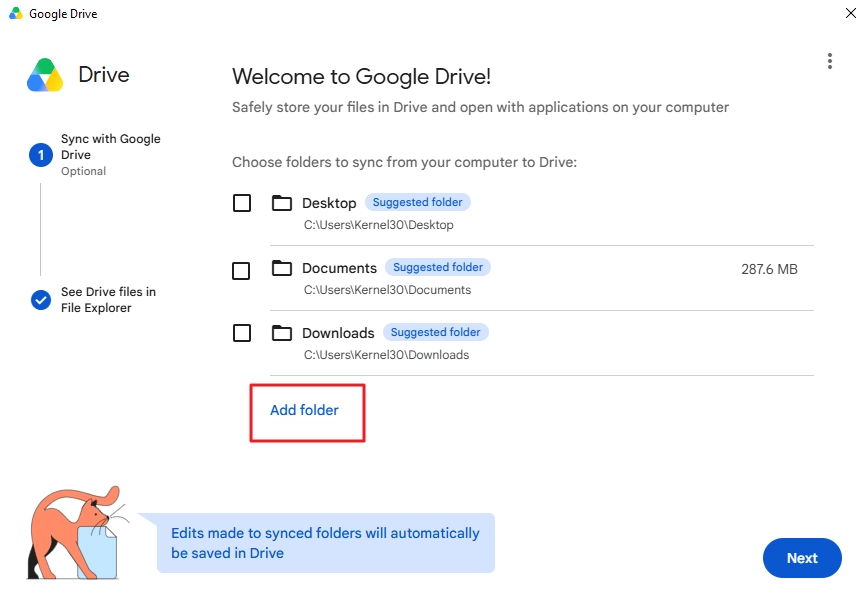
- The selected folder will be listed. Click Next to sync folder with Google Drive.
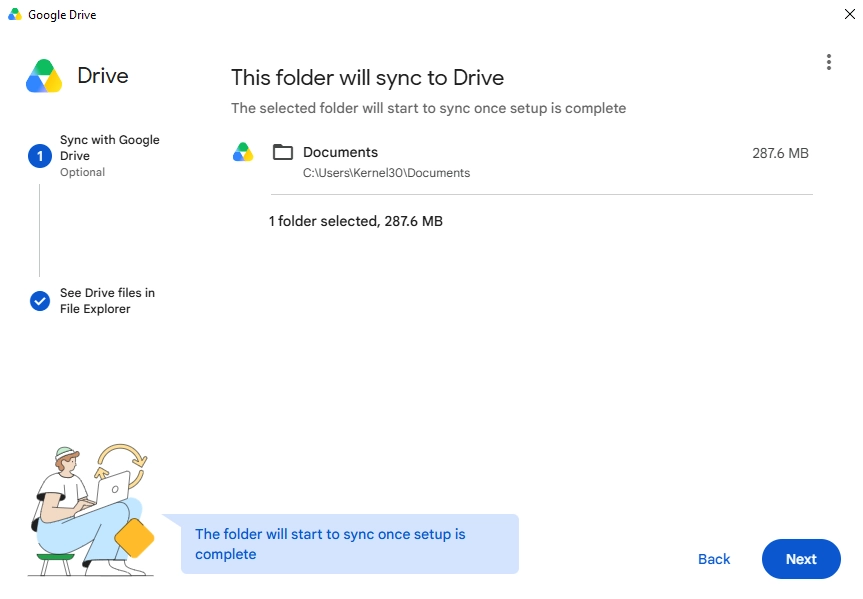
- The Google Drive for Desktop application will ask to save Drive files locally, click Skip.
- The application will begin with the local folder synchronization.
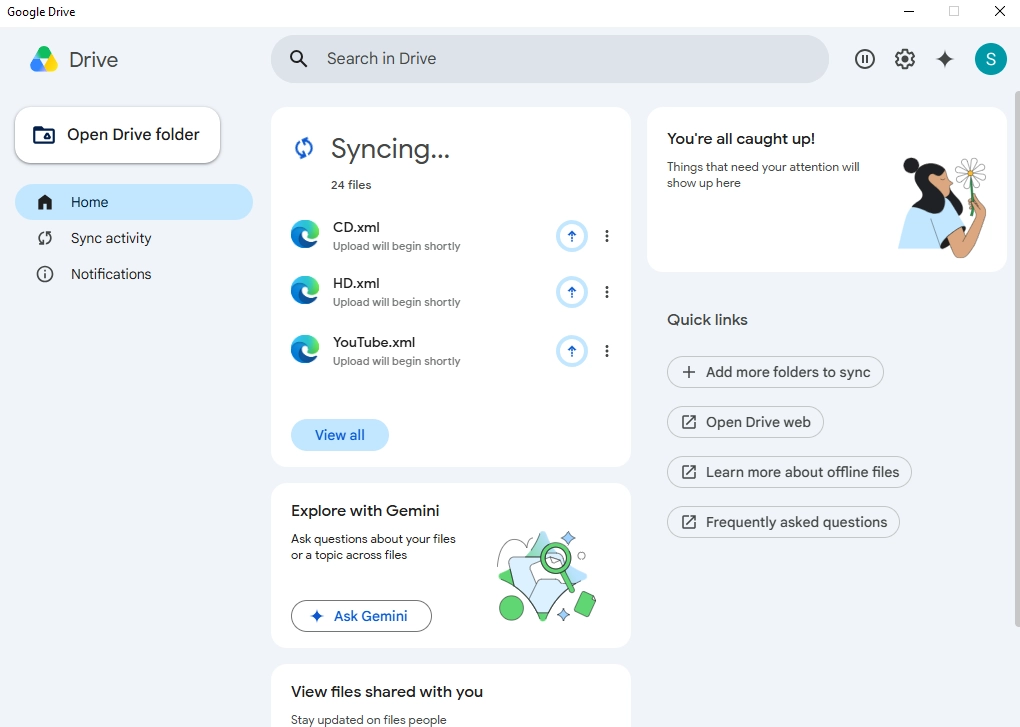
In addition to the above steps, users can also try these two tricks to sync a specific folder with Google Drive.
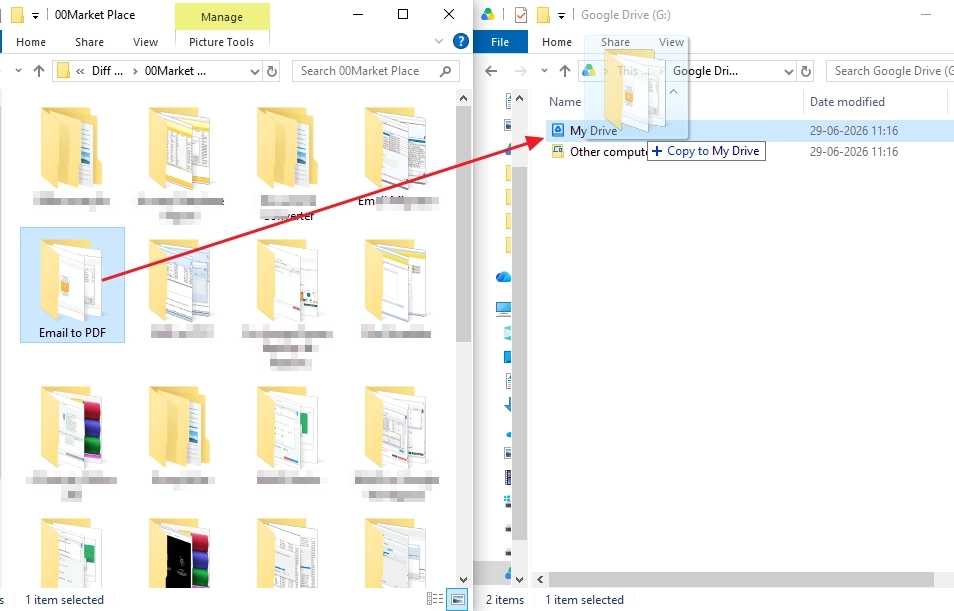
Drag & Drop
- Go to This PC and double-click the Google Drive disk volume icon.
- Inside it, there will be a My Drive folder.
- In a new Windows File Explorer window, go to the location where the folder (to be synced) is located.
- Drag the selected offline folder to the My Drive folder.
Sync Folder with Right-Click
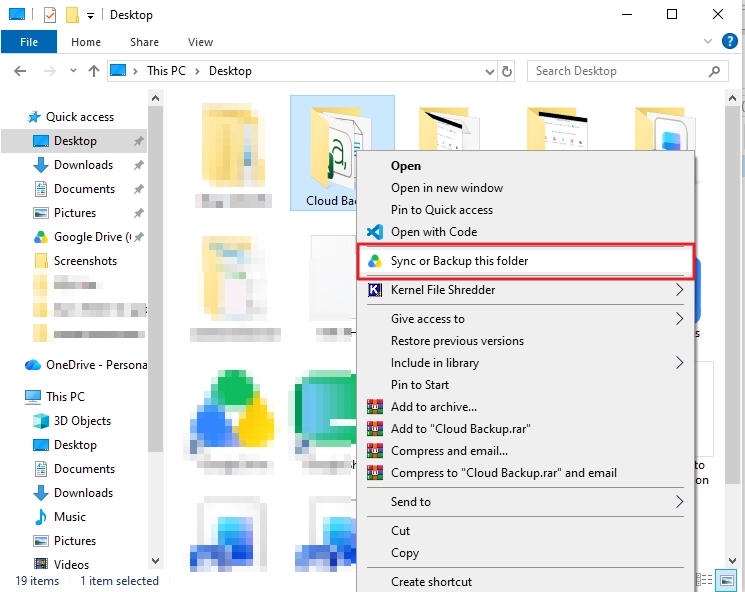
- Go to the location where the folder is saved.
- Right-click on it and select the option Sync or Backup this folder.
- Drive for Desktop app will open, click Done.
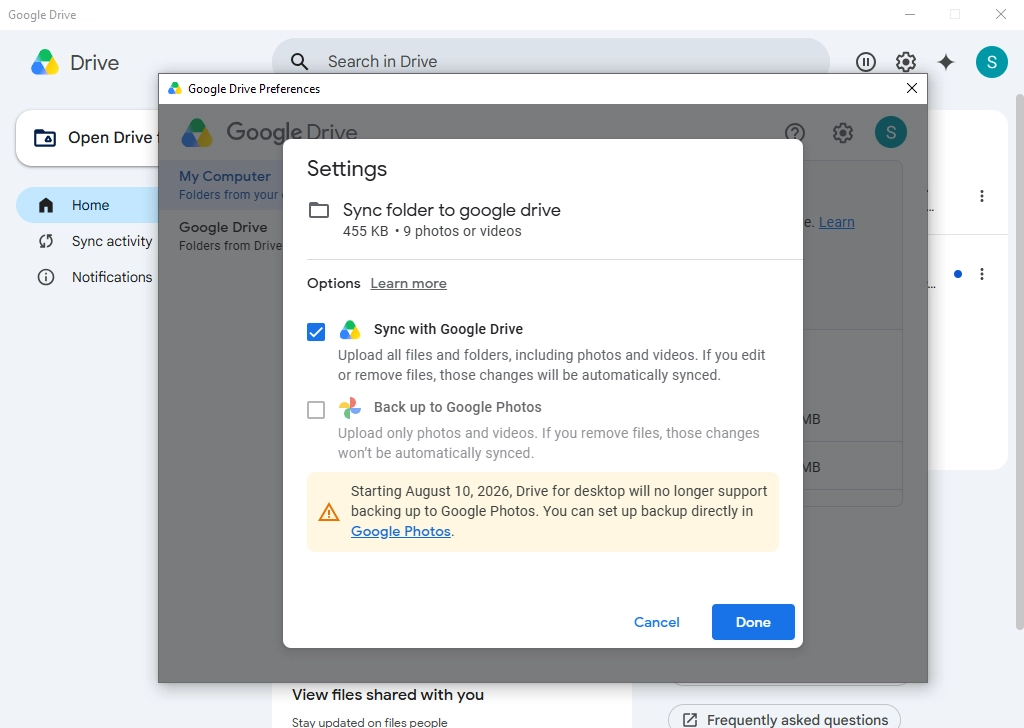
- Finally, click Save to start the synchronization of the local folder with Drive.
How to Sync Folder with Google Drive on Mac OS?
If you are currently on Mac OS, use the following steps to sync folders.
- Go to the official download page and download the Google Drive for Desktop app for macOS.
- Install the application on the system.
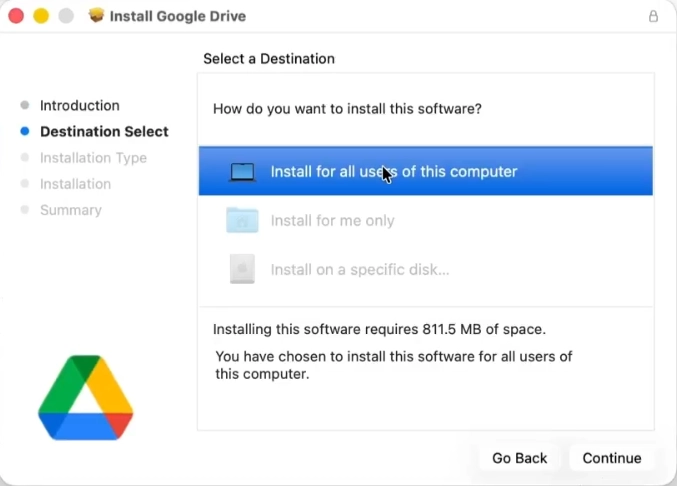
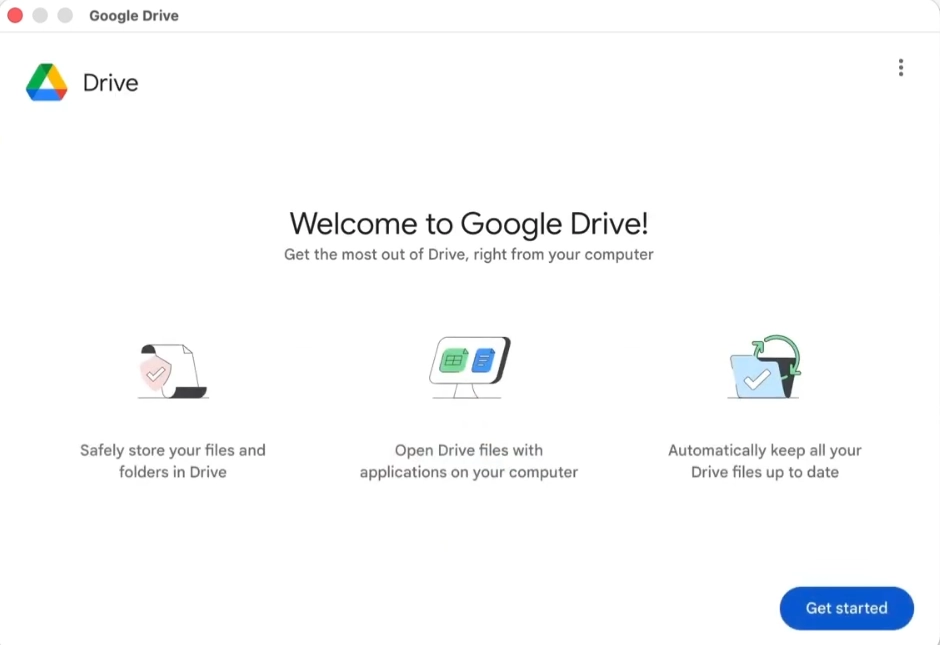
- Open the tool and click on the Get Started button.
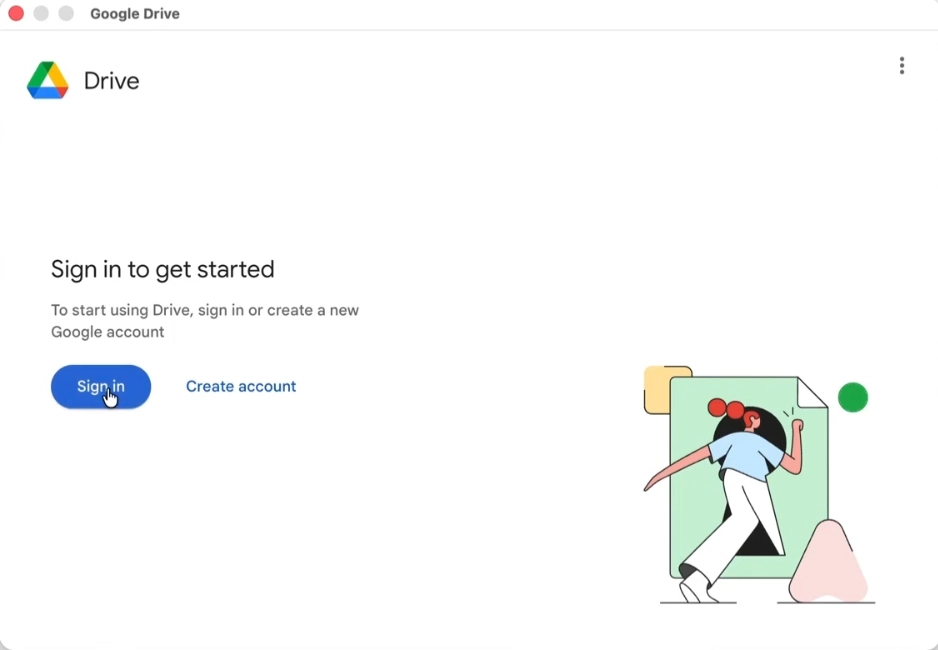
- Click on the Sign in button to connect the Google Drive application to the Google account.
- The internet browser will open. Add the Drive account. However, if a Google account is already added, select the user to log in.
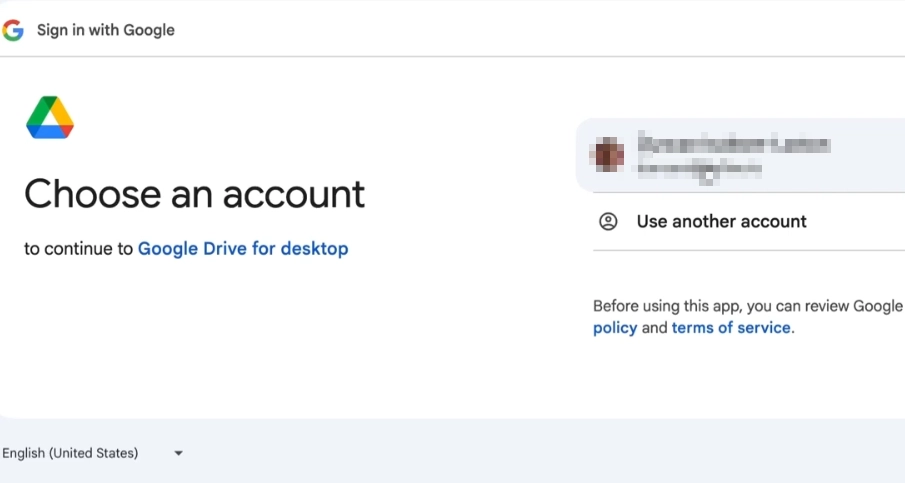
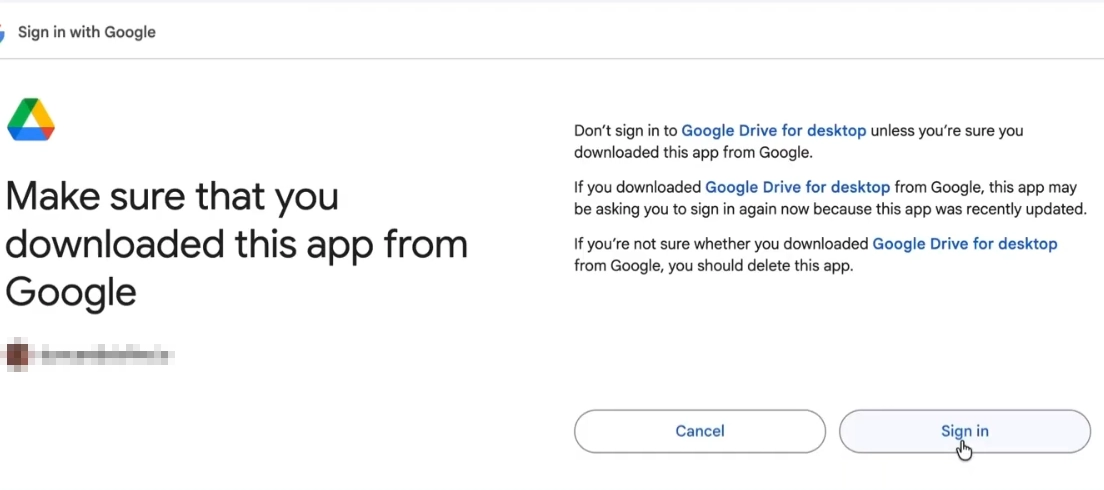
- Confirm the user sign in request.
- Drive for Desktop tool will open upon successful login. Click Next to continue.
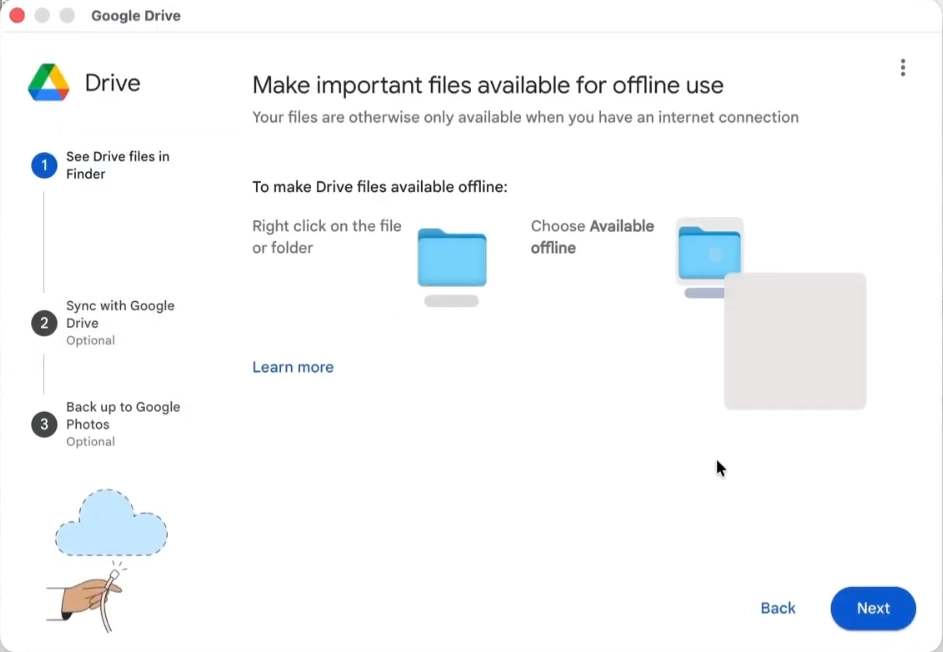
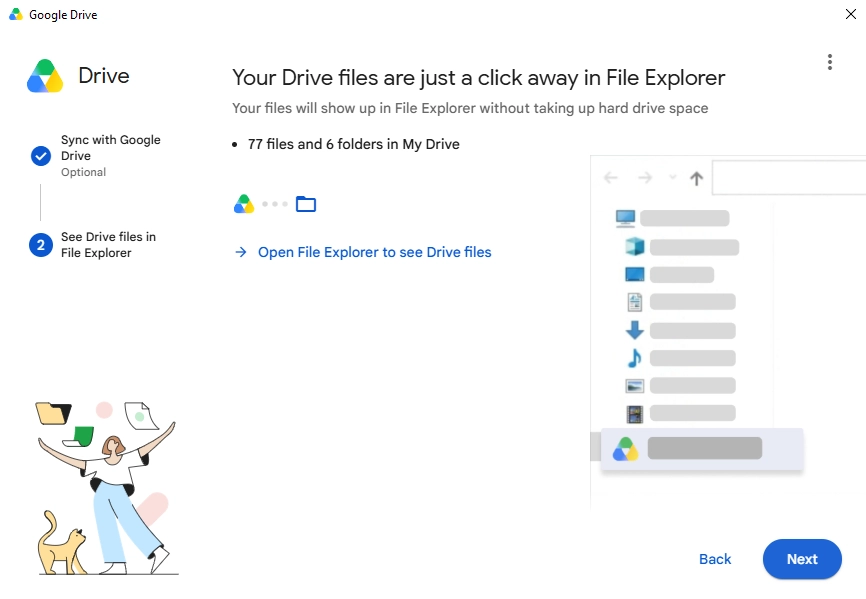
- Again, click Next to choose the folder for synchronization.
- Choose the specific folder to sync with Google Drive by clicking on the Add folder button.
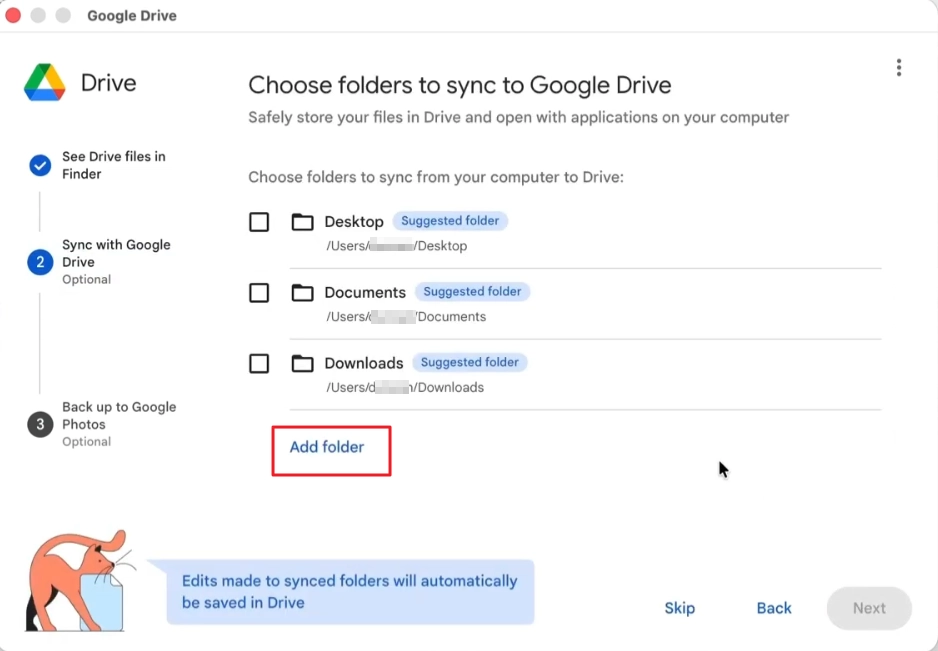
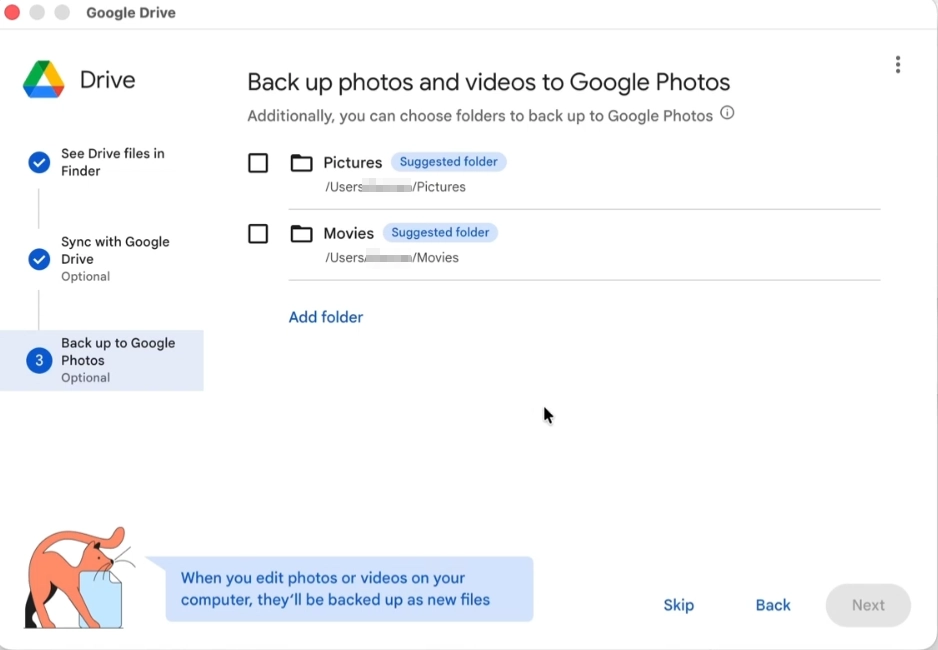
- When the tool asks to backup photos and videos, click Skip.
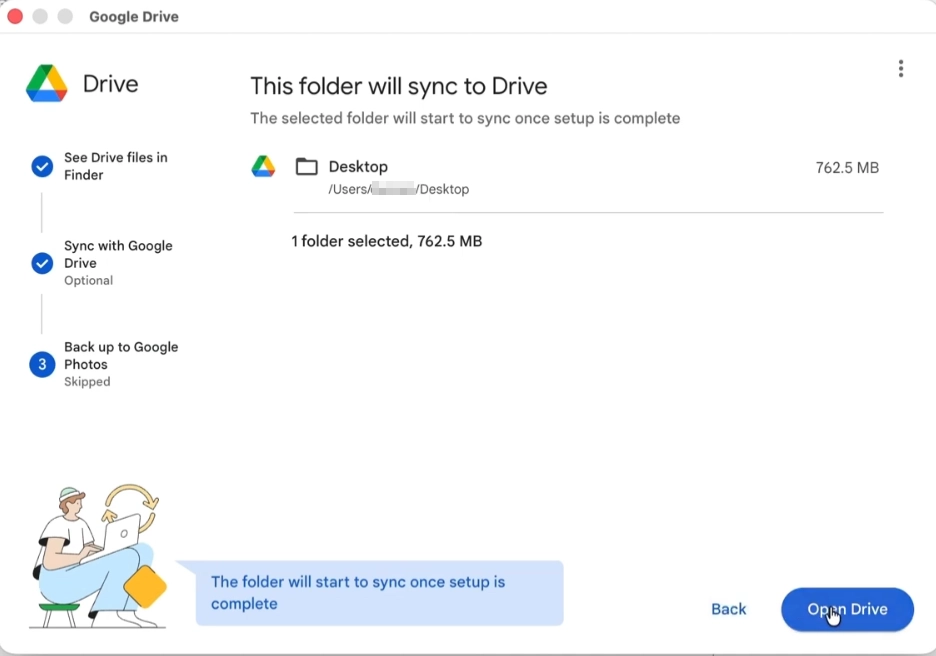
- The tool lists the selected folder for synchronization; click the Open Drive button to sync folder to Google Drive.
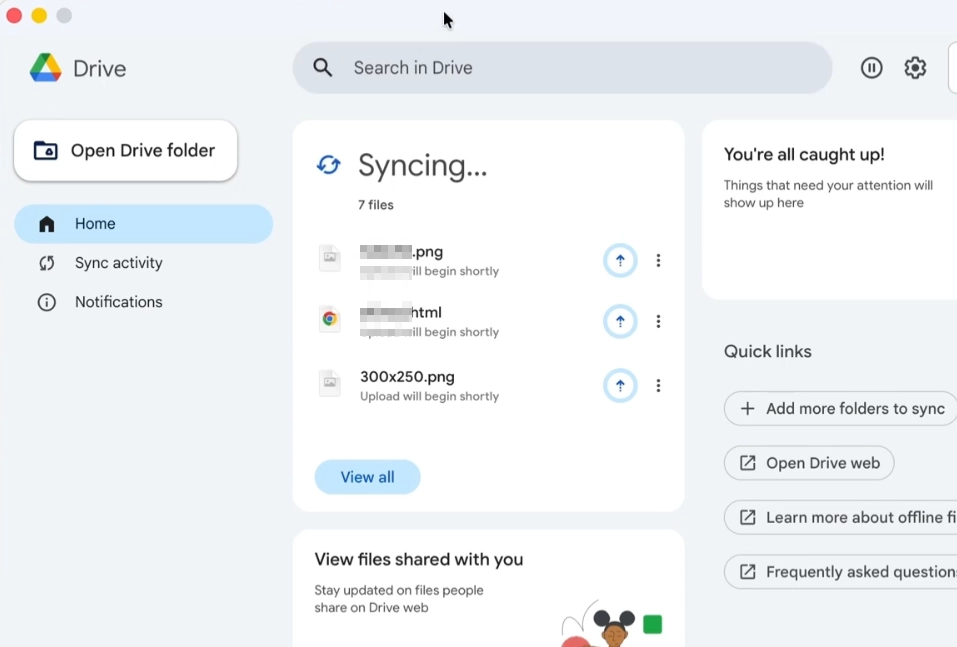
- The Google Drive for Desktop application will begin to sync folder with Google Drive.
How to Sync Google Drive with PC?
In addition to folder synchronization, Google Drive for Desktop also allows you to save a copy of folders & files (stored on the Google Drive server) to a local PC. However, be careful when deleting the saved copy. This copy is a two-way synced file. If the offline file version is deleted, the file will be deleted from both locations (online and offline). To sync Google Drive with PC, do this:
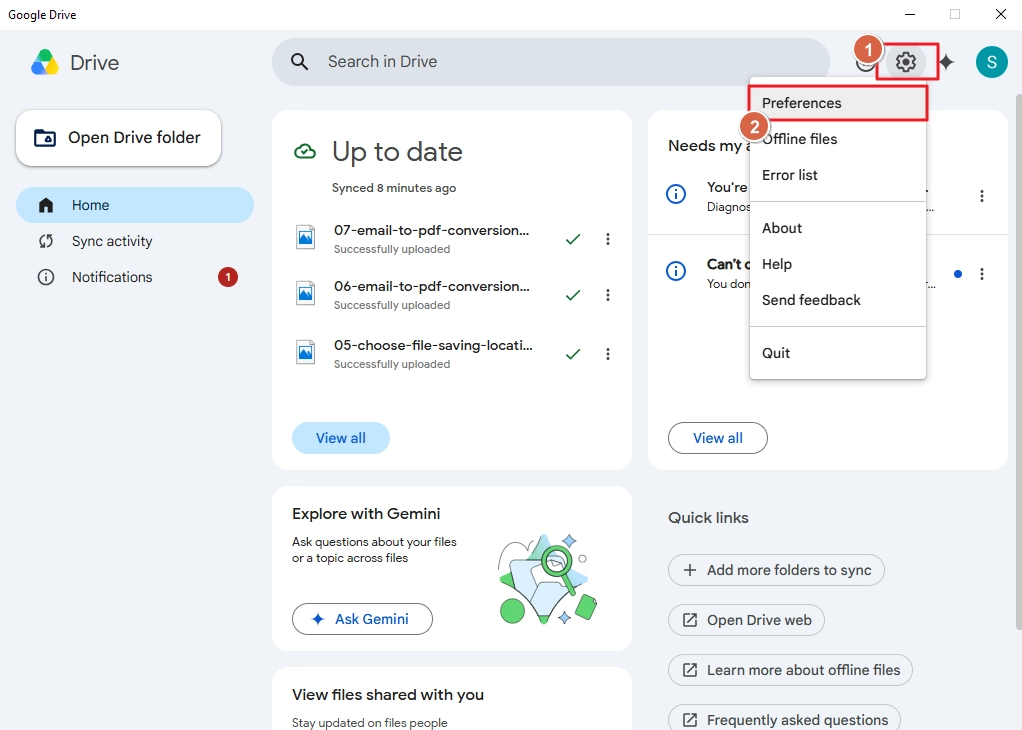
- Open Drive for Desktop. Click on the setting icon and select the Preferences option.
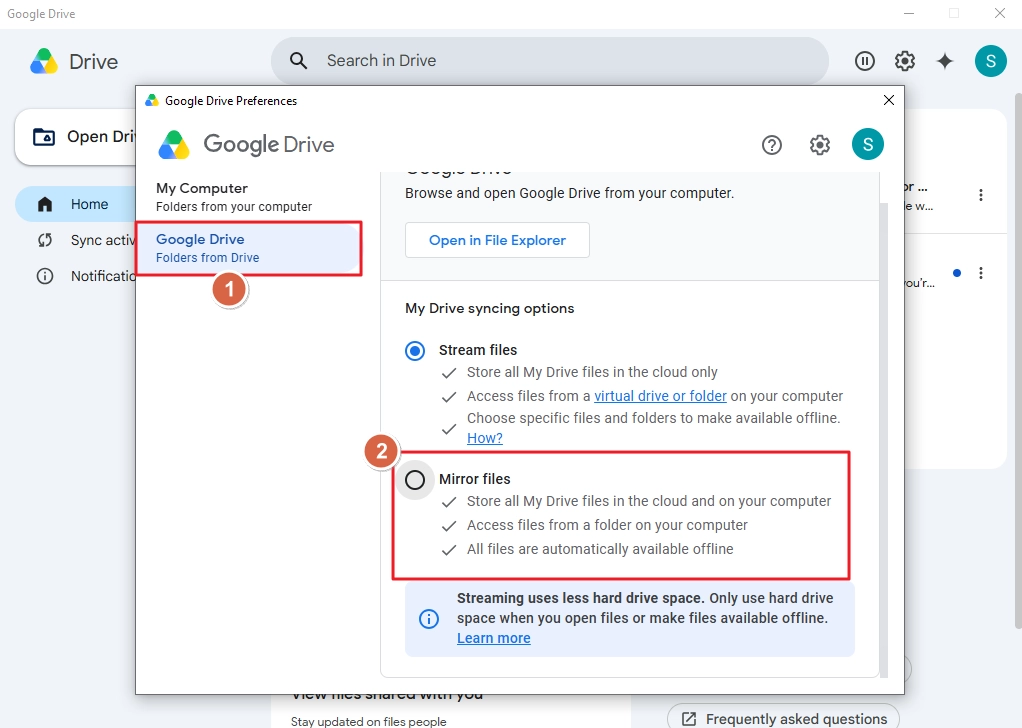
- Select the Google Drive option and choose the Mirror files option.
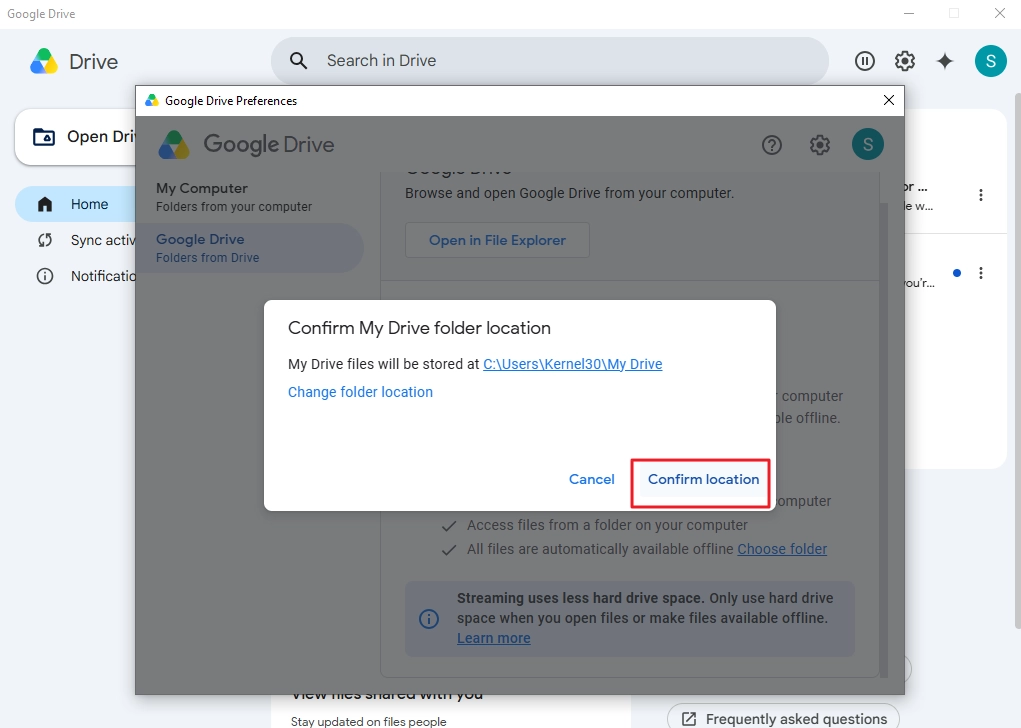
- The application will ask you to confirm the location where the cloud files will be saved. If the location is acceptable, click Confirm location otherwise, change it by clicking on Change folder location.
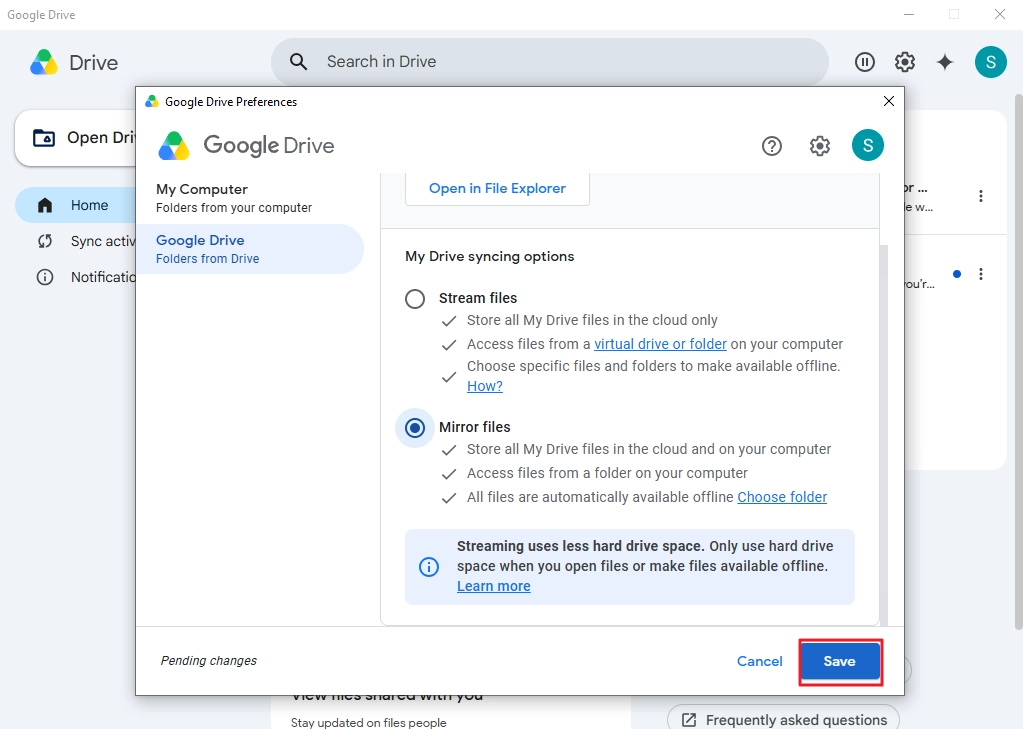
- Finally, click Save, and the tool will begin to sync Google Drive with PC.
Note: If the tool asks to restart, do it.
Common Errors and Solutions when you Sync Folder with Google Drive?
Accidentally Deleted Synced Files: If you accidentally delete a synced file from PC, do not panic. The file is not lost. It just moved to the Trash folder on Google Drive. You have 30 days to recover a deleted file from Google Drive.
Folder Sync Fails Due to Permission Issues: To check permissions do this:
On Windows:
- Right-click on the file or folder.
- Click Properties.
- Check the “Security” tab.
On Mac OS::
- Right-click on the file or folder.
- Select Get Info.
- Check the “Sharing and Permissions” section.
If required permissions are not assigned, assign them, and then do the folder synchronization again.
Video File Processing Error: Sometimes when you try to open a video file directly from the Google Drive folder, you get “Video is still processing in Google Drive error”. To fix it, check your internet speed and clear your browser cache.
File Corruption: When you are syncing Google Drive with a PC, events like virus attacks can corrupt your cloud data. To prevent data loss in such a situation, make sure to back up your Drive data. Before syncing, either download each file/folder manually or use a professional G Suite backup tool like Kernel for Google Workspace Backup and Restore for bulk downloads.
Unlock Instant File Accessibility: Sync Folder to Google Drive
Currently, the option to sync folder with Google Drive is only available for Windows and macOS. Use the steps discussed above to easily set up folder synchronization between PC and Google Drive. However, if you are a smartphone user (Android & iPhone) or currently working on a Linux OS PC, you must manually upload folders to Google Drive or try a third-party tool to sync folders.
Moreover, make sure to back up the Google Drive data, check storage, and assign Read/Write permissions before you begin the synchronization.
Frequently Asked Questions
A. There is no native method for direct Drive to Drive synchronization. The closest thing possible is to migrate Google Drive to another Google Drive account.
A. To remove your Google account from the application, do this:
1. Open the Drive for Desktop application.
2. Click on the setting button (gear icon) and click on the option Preferences.
3. In the Google Drive Preferences window, click the gear icon.
4. Click on the Disconnect account button.
A. To pause an active folder to Google Drive sync, open the Drive for Desktop tool and click the pause icon (right next to the search bar). You can click on the same icon again to resume the sync folder to Google Drive process.