Read time: 7 minutes
Google Tasks can help you organize your daily work, personal reminders, and project activities. These tasks contain all your critical information about your work. For many reasons, users are switching from G Suite to Microsoft 365. That’s why they need to access their Google Tasks in Office 365 to continue their workflow.
To add Google Tasks in Outlook, you need to initiate a Google Workspace to Microsoft 365 migration. But one common challenge during this transition involves task migration. Unlike emails or contacts, Google Tasks does not offer a direct export option for Outlook. That’s why we came up with a guide to import Google Tasks into Outlook.
Can You Import Google Tasks to Outlook?
Yes, but there is no direct Import button that transfers Google Tasks into Outlook.
Google stores Tasks separately from emails and calendars. Outlook also saves tasks in its own format. Because of this difference, users must first export Google Tasks data and then convert it into an Outlook-compatible format before import.
For organizations that plan a G Suite to Microsoft 365 migration, professional migration software completes this process with far less effort.
Why Add Google Tasks to Outlook?
Many users prefer Outlook instead of G Suite because of its centralized system and robust features; that’s why users are importing their Google Tasks into Outlook:
- To manage all your tasks data in one Outlook application.
- You can easily improve productivity with Microsoft Planner integration.
- Store all your reminders alongside Outlook emails.
- You don’t need to switch your application to access Tasks.
- It supports business collaboration within Microsoft 365.
How to Add Google Tasks Manually
You can easily export Google Tasks data using Google Takeout. Let’s start exporting your tasks data:
Steps to Export Tasks Data using Google Takeout
The manual process requires several stages because Google and Outlook use different task formats.
Stepwise Guide to Export Google Tasks Data
Step 1: Go to Google Takeout and sign in using your Google credentials.
Step 2: Click on Deselect All.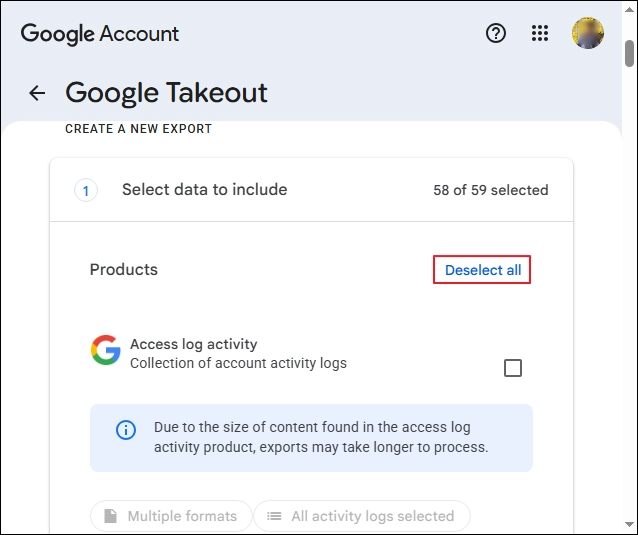
Step 3: Check the Tasks box and scroll down to click Next Step.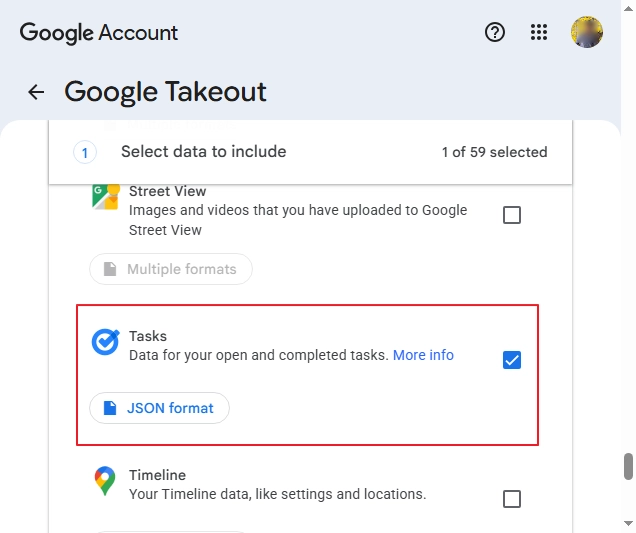
Step 4: Select the file type, frequency, destination, and click Create Export.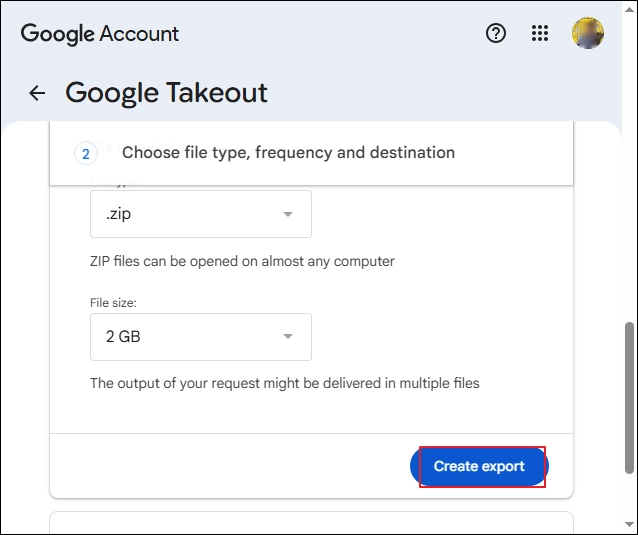
That’s all now; access all your Tasks in a JSON file-supported third-party application. However, if you want to add Google Tasks in Outlook. You need third-party software that will convert your JSON file to Outlook supported PST file. After that, you need to import PST file to Outlook.
This method is complex because of its lengthy process or indirect approach. That’s why professionals recommend a professional Google Workspace to Microsoft 365 Migration tool to migrate all your Google Tasks to Outlook without any manual work.
Professional Solution to Add Google Tasks to Outlook
If you want a faster and more reliable way to move your Google Tasks to Microsoft 365, Kernel Google Workspace to Office 365 Migration Tool can make data transfer easy for you. It can easily transfer your Google Tasks directly to Office 365 without the lengthy manual process. With its mailbox folder selection tab, you can migrate data as per your choice. Save your precious time by controlling your entire migration in just a few steps.
How to Import Google Tasks in Outlook Using This Software?
Here is a step-by-step guide to add Google Tasks in Outlook using this tool:
Step 1 : Download, install, and launch the Kernel Google Workspace to Office 365 Migration tool.
Step 2 : Select Mailbox Migration.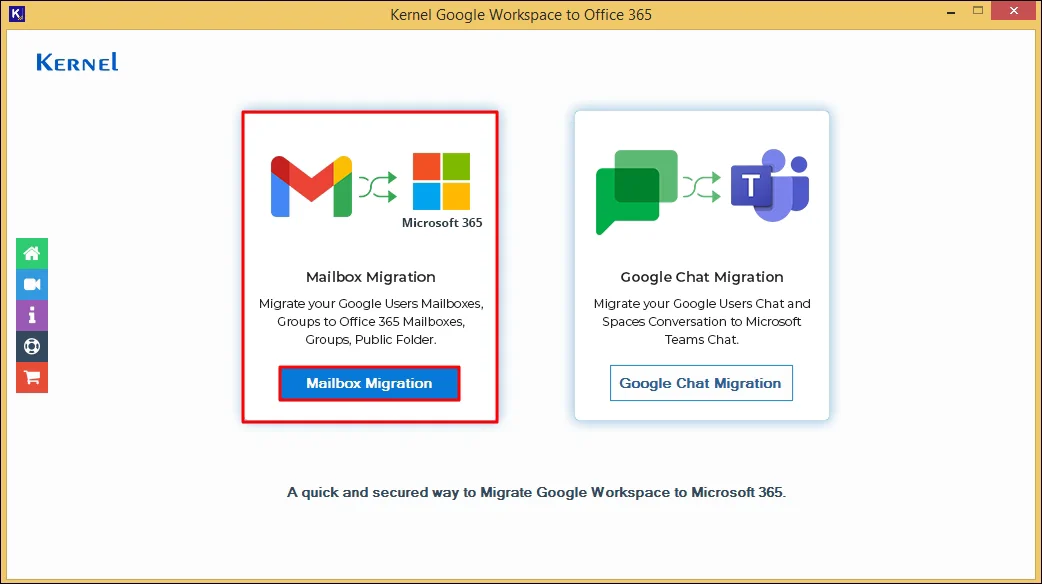
Step 3 : Enter the Google Workspace credentials and add necessary users.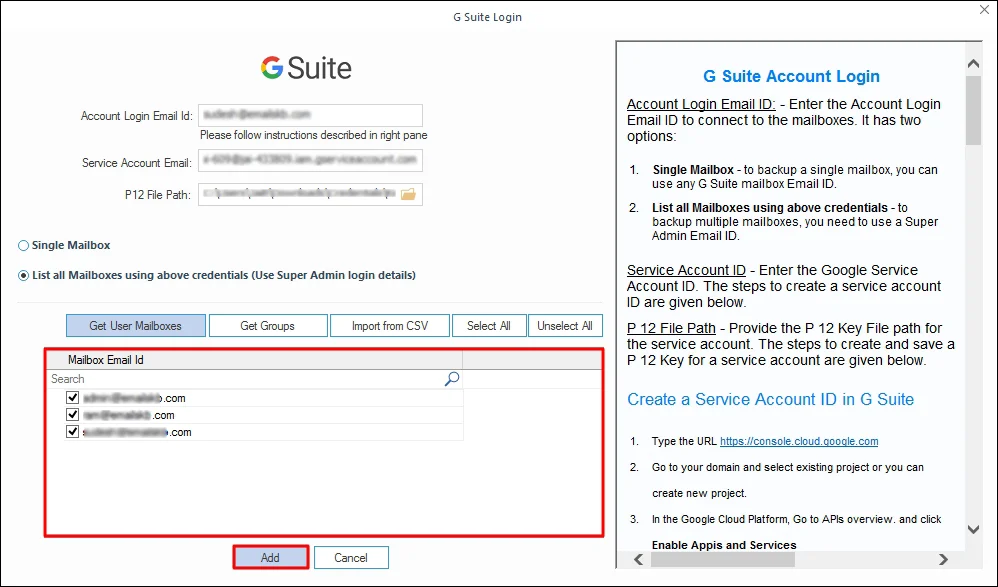
Step 4 : Put in the Office 365 credentials and add necessary users.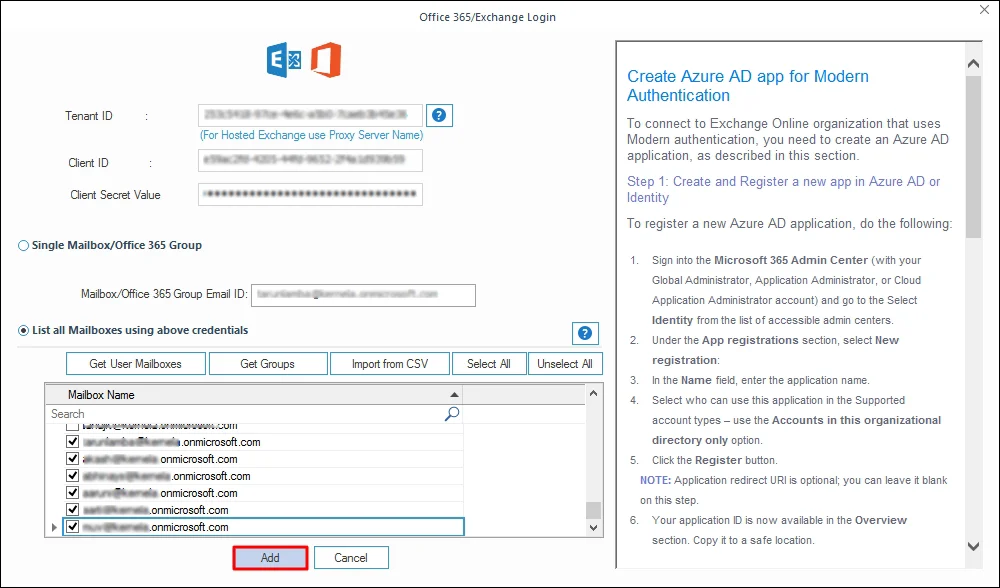
Step 5: Map the source and destination users’ mailboxes and click Set Filter and Migrate.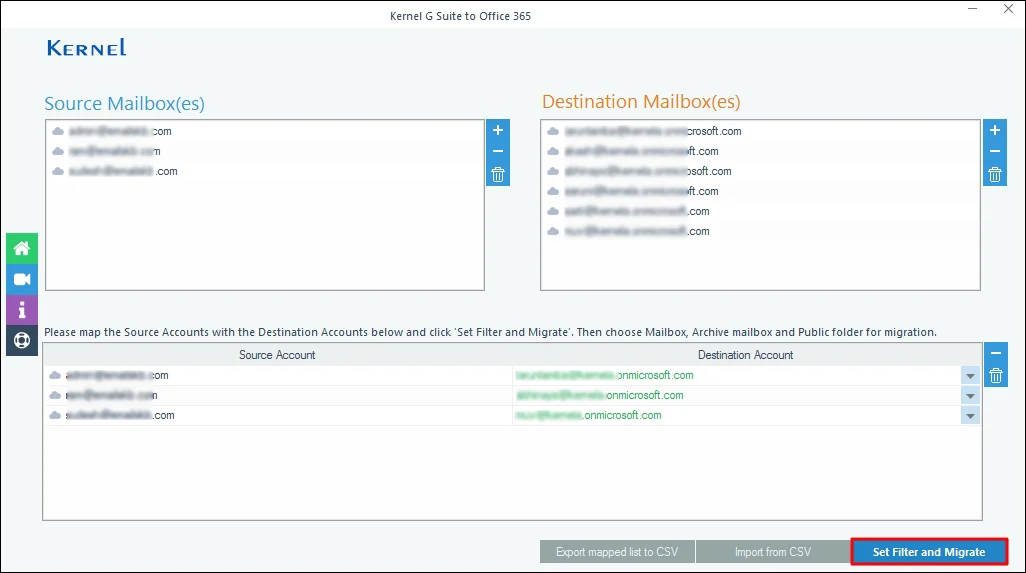
Step 6: Select your destination mailbox where you want to migrate your source data. Click Migrate.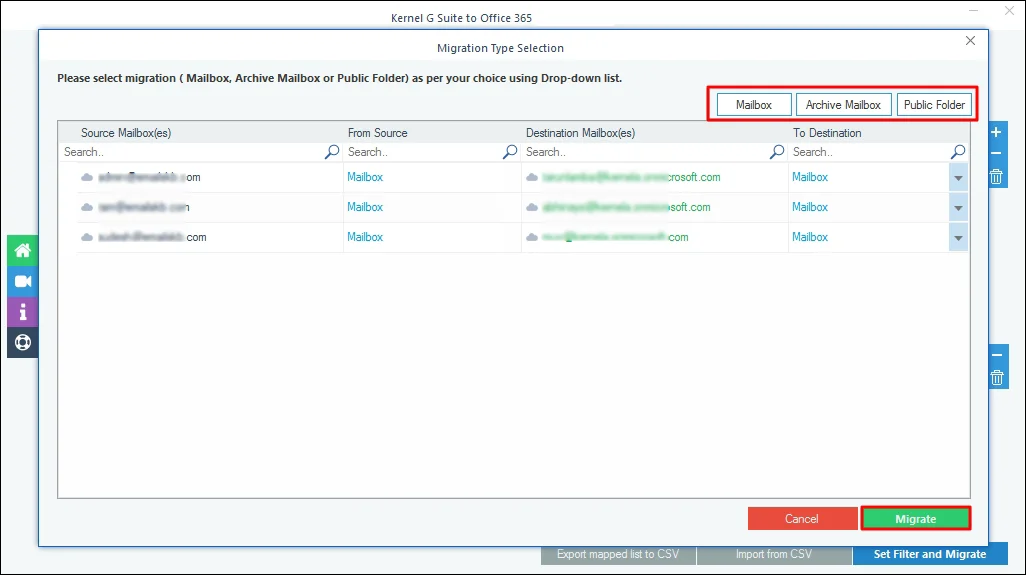
Step 7 : Select your Tasks in the Review section and apply necessary filters for selective data migration. Click I am OK, Start Migration.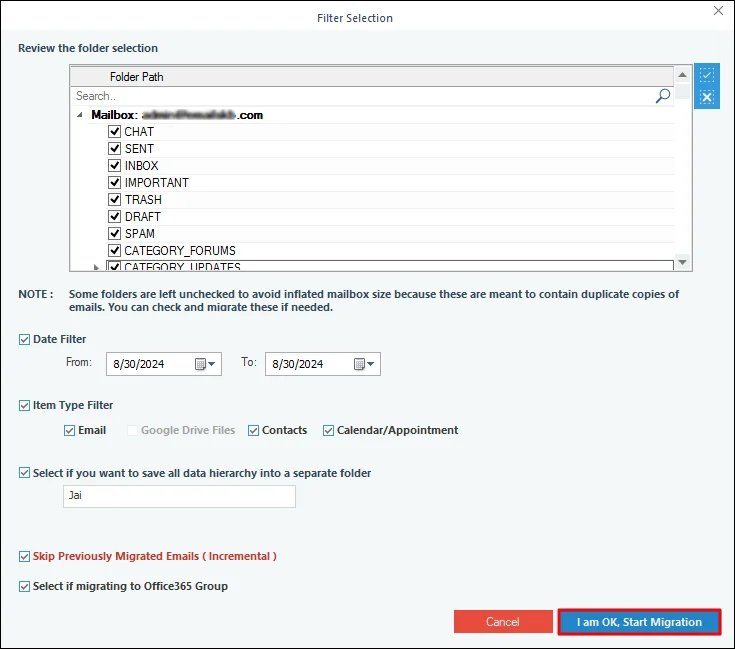
Step 8: The software will start importing Google Tasks into the Microsoft 365 account.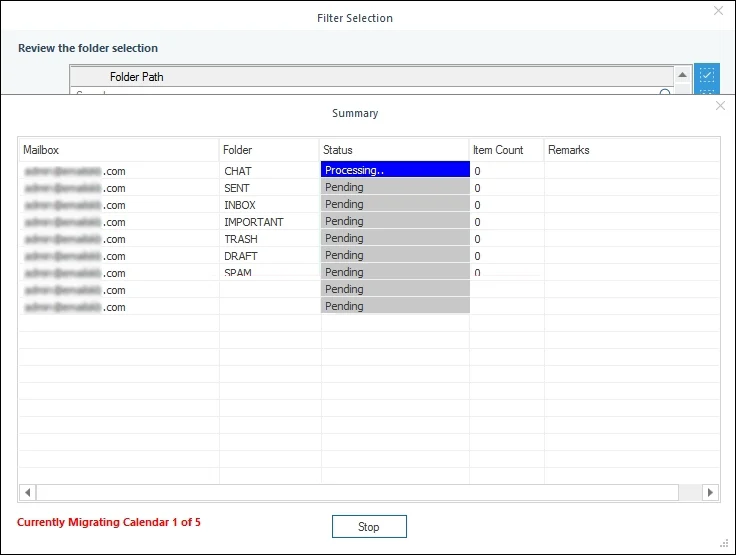
Step 9 : After a successful import process, click OK. You can also download a detailed import report in CSV file.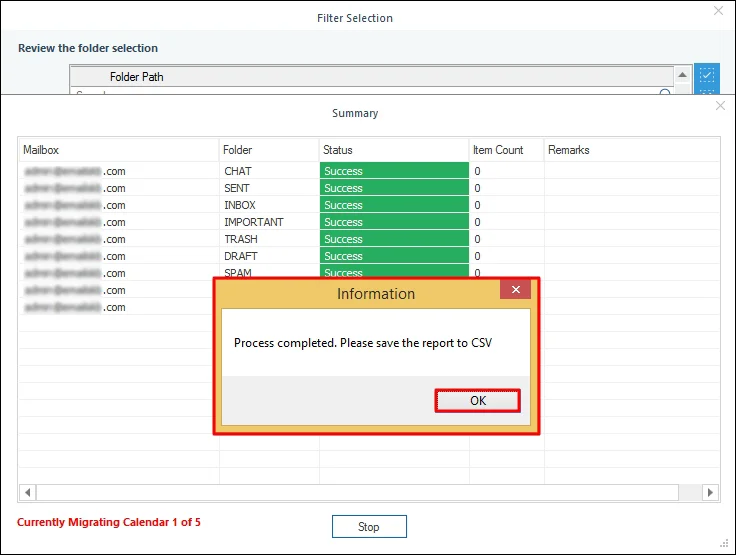
Final Thoughts
You cannot add Google Tasks to Outlook because the manual approach leads you to export JSON file from Google Takeout. But Outlook doesn’t support JSON file. That’s why we recommend you use reliable G Suite to Microsoft 365 migration tool. It can easily add your all Google Workspace mailbox data in Office 365.
Frequently Asked Questions
Neither Google Workspace nor Office 365 supports direct Tasks migration feature. So, you need an automated tool to transfer your Google Tasks to Office 365.
Yes, Google Takeout exports Google Tasks in a JSON file to your local system.


![How to Transfer Google Docs to Office 365? [Top Methods]](https://www.nucleustechnologies.com/blog/wp-content/uploads/2026/03/migrate-google-docs-to-o365-fatured.webp)