

Every user uses their photos and stores them in Google Drive for safety, backup, and online presence needs. There are multiple times when you need to share photos in Google Drive. But as Google Drive is a cloud platform, many users don’t know how to share photos in Google Drive.
Thus, we have come up with all the working manual methods to share pictures on Google Drive. But before jumping directly to the manual methods, let’s know why you need to share your Google Drive pictures with anyone else.
Why Share Photos in Google Drive?
Here are some prime reasons why you need to share photos in Google Drive:
- By sharing your pictures through Google Drive, you can retain the original image without pixelation.
- On WhatsApp and other social media apps, there is a size restriction. But Google Drive does not have any size restrictions.
- You can share your images with anyone and allow them to edit or view accordingly.
- With just a single link, multiple users can access your Google Drive photos.
- Access your photos from anywhere on a computer, Android, iPhone, and more.
Checklist Before Migrating Pictures on Google Drive
- Sign in to your Google account.
- Make sure the photos are already in Drive.
- Rename files such as IMG_4567 to something clear, like Goa-Trip-Beach.jpg.
Easy Methods to Share Photos in Google Drive
Check out all the reliable methods to share pictures on Google Drive. Follow the steps carefully.
Method 1: Share with an Email Invite
Google drive allows users to share their images manually. Go through the below steps to share pictures on Google Drive:
Step 1: Open drive.google.com and sign in.
Step 2: Right-click the photo and choose Share.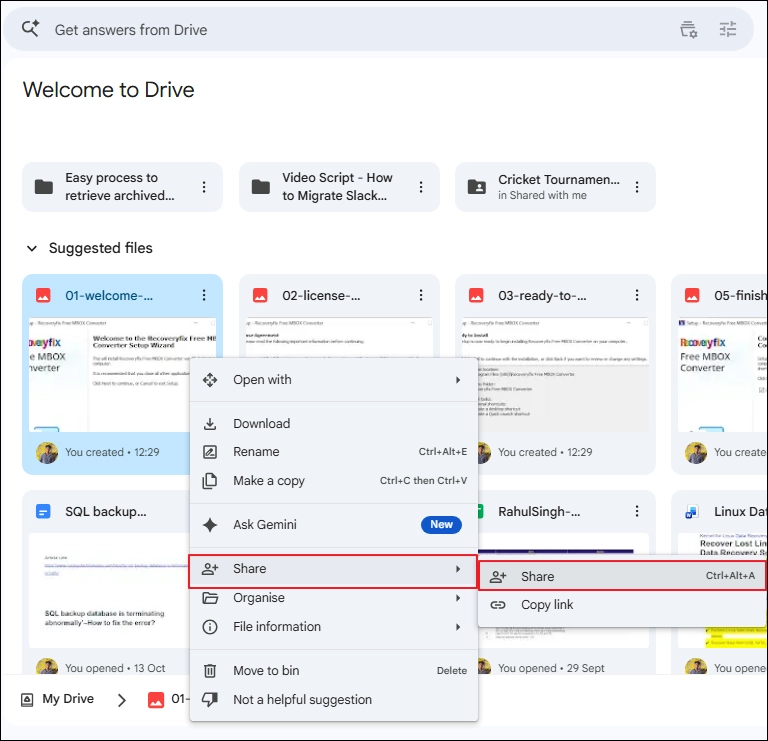
Step 3: Type the person’s email in Add people and groups. Give them access as Viewer, Commenter, or Editor accordingly. Finally, click Send.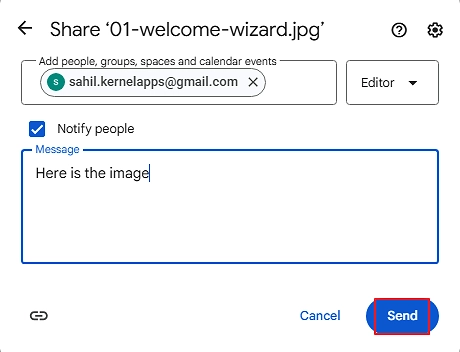
The person receives an email with a button that opens the photo.
Method 2: Share With a Link
With Google Drive, you can send individual images via link. Just follow the simple steps to share photos in Google Drive via link:
Simply right-click the photo and select Share > Copy Link.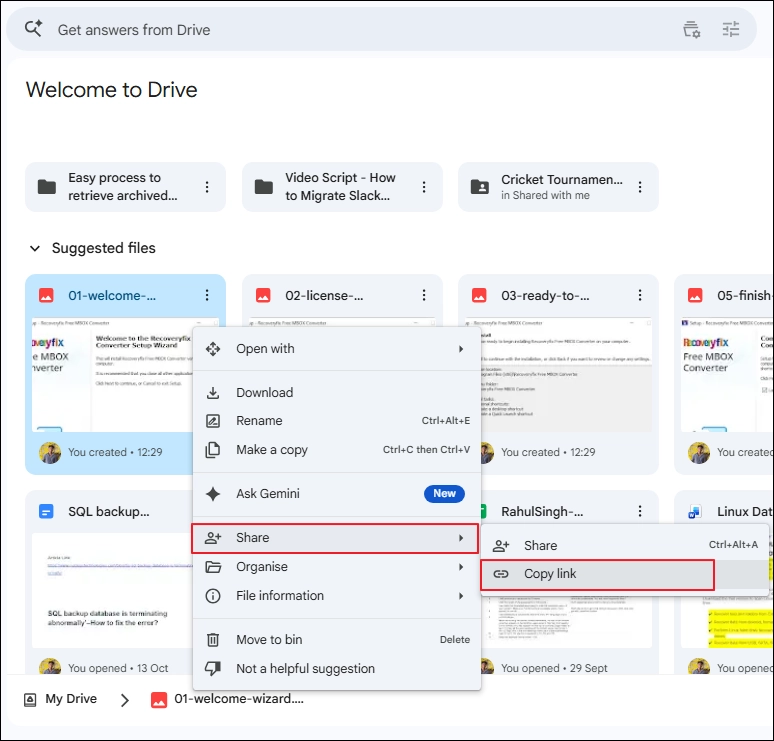
Paste the link into WhatsApp, email, or any chat to the recipient to share photos in Google Drive.
Method 3: Share Several Photos at Once
You can also send multiple Google Drive photos via a link and email address.
Step 1: Open Google Drive, tap the Ctrl key, and select all the necessary photos.
Step 2: Right-click on any image and click on Share.
Step 3: Select Copy URL to send images using a URL or Share to share a photo in Google Drive via email.
Method 4: Share an Entire Folder
If you have bulk images, then move them into a specific folder and try to share the entire folder. It will help you organize all the images into a specific folder in the recipient’s Google Drive.
Step 1: Open Google Drive, click on New > New Folder, and give it a name.
Step 2: Select all the photos and drag-and-drop them into the created folder.
Step 3: Right-click the folder and choose Share > Share.
Step 4: Add users and a group email address, and share pictures on Google Drive.
How to Send Pictures in Google Drive Using Phone
If you don’t have access to a personal computer or laptop, you can use your smartphone to share Photos in Google Drive.
How to Share Pictures on Google Drive Using an Android Smartphone?
Step 1: Open the Google Drive app.
Step 2: Tap the three dots next to the photo.
Step 3: Tap Share, enter an email, choose a role, and tap Send.
How to Send Photos in Google Drive Using iPhone or iPad?
Step 1: Open the Google Drive app.
Step 2: Tap the three dots beside the photo.
Step 3: Tap Share, type an email, pick a role, and tap Send.
What to Know Before Sharing Photos in Google Drive
Sharing works well for viewing, but it has multiple drawbacks when you need more than that, like:
- Sharing only gives access; the photos stay in your account and are not moved.
- You remain the owner, so deleting a file removes it for everyone you shared with.
- Every original photo uses your Drive storage, which is just 15 GB on free accounts.
- Anyone holding a shared link can open your photos, and forwarding it is easy.
- Moving a full photo library between accounts means slow manual downloading and re-uploading.
- Work or school admins may block sharing outside the organization, and ownership transfers are limited.
From One Drive to Another: Transfer Photos Without the Hassle
Sharing bulk photos in Google Drive by manual method is tedious and time-consuming. Thus, it is best to opt for a reliable Google Drive Migration tool to share bulk photos from one Google Drive account to another account. In this case, Kernel Google Drive Migration can make your photo transition easy and secure. It helps you migrate Google Drive data to another account with the original folder hierarchy. It even preserves all the folders, subfolders, and image hierarchy the same as the source in the target account.
Why Choose Kernel Google Drive Migration Tool?
- Share photos from My Drive, Shared Drive, and Shared with me folders.
- Keeps read, comment, and edit permissions as the source.
- Transfers selected data only, using date, file type, user, and folder filters.
- Preserves your folder structure, file names, and created and modified dates.
- Migrates multiple user accounts at once, without any size limitations.
- Skips files already at the destination with incremental migration.
Conclusion
Sharing photos in Google Drive is simple once you are familiar with Google Drive. If you are not, we hope this article solved all your questions. With the above manual methods, you can even grant permission to other recipients to open, edit, and view your images. However, granting permission doesn’t mean that your file has been shared. For complete photo sharing, review the sharing settings and folder hierarchy, so your recipients can find and open your photos easily.
People Also Ask
A. Yes, make sure to turn on Anyone with the link option. Now, every user can open and download the photos without signing in.
A. No, Google Drive shares the original file, so downloading gives the person the full-quality picture.
A. Sharing a photo gives access to a single file whereas sharing a folder gives them access to everything inside it, including photos you add later.
A. If you give Editor access to the recipient, then they can delete your photos. Viewer and Commenter roles cannot modify or delete files.
A. Open the Share window on the photo or folder. The People with access list shows everyone and their role.