

Are you trying to save Google Chats to PDF, but fail to find that one export to PDF button in Google Chat? Do not try too hard to look for it, it just doesn’t exist. Instead, you have to rely on some workaround methods to save your chats.
In this blog, we will cover the best possible methods to safely export the Google Chat communication to your device. We will not be telling you to take screenshots of the chats, but real working ways to download your chats to PDF.
Can We Export Google Chat to PDF?
Yes, you can. Google does not offer a direct way to export chats, but that does not mean it is impossible. There are a few ways you could try. Your messages on Google Chat can be exported in PDF form by using:
- Print to PDF: Using a browser, you can quickly and easily save any message visible on your screen to your local system.
- Copy and paste: Another way to save Google chats to PDF is to copy all the messages to a text editor that allows saving the data in PDF, like Google Docs.
- Google Takeout: Can save complete chats to JSON and then convert the JSON to PDF.
- Professional backup tool: The easiest way to export Google Chat to PDF, especially when you have lots of conversations or users.
In the next section, we will discuss all these methods in detail. But before that, let us tell you what to expect and what not to expect when saving Google Chats.
Things to Know Before We Start
- During export, the text of your messages, names of the senders, and the time they were sent will be saved. But do not expect the fonts and styling of the messages to be exactly the same.
- Short chats can be easily saved through free methods. But longer ones or old chats will take longer to be exported.
- Takeout will give you all the data, but you’ll need another tool for conversion.
- Manually saving the chats will destroy the chat layout and message chronological order.
- No images, videos, or files will be included. Only links will be preserved along with the messages.
- Deleted messages cannot be exported. If messages are lost, try to retrieve the deleted Google Chat/Hangouts messages , and then export them.
- Takeout exports the messages in JSON format, which cannot be read directly. You have to convert it to PDF with a tool later.
How To Export Google Chat to PDF?
Here are the 4 most popular methods to save Google Chats to PDF. Whether you are saving the chats as proof of communication or implementing data security in GWS when a user leaves the organization , the methods below will help you.
Method 1 – Print to PDF (Best for Short or Visible Chat Conversations)
The method involves the use of the printing function in your browser. It will save the screen data. It’s free and fast as it requires no software installation.
- Log in to Google Chat
- Open the chat conversation you want to save. Scroll up slowly to load older messages.
- Press Ctrl + P (Windows/Linux) or Cmd + P (Mac).
- A print configuration screen will open. Here, make sure to choose PDF as the saving option or destination.
- Optional – You may explore other print settings options to customize the output PDF if required.
- When you are done, save the PDF.
While this method might be great when you need to save small chats, saving old chats with longer chat history will require multiple attempts. If you have to create multiple PDFs, make sure to rename them accordingly.
Method 2 – Copy & Paste (Best for Text Only)
This is the easiest way to export Google Chat to PDF for free when your requirement is to only save specific messages from a chat. It does not include any side menus, profile pictures and bubble text.
- Select the text you wish to save.
- Press Ctrl + C (Windows) or Cmd + C (Mac).
- Now open Google Docs or MS Word and paste your text. (Ctrl + V / Cmd + V)
- When you’re done copying & pasting all the messages, export them as a PDF. In Google Docs, click File > Download > PDF Document (.pdf) . In Word, click File > Save As and then select PDF.
Method 3 – Google Takeout
Google’s official data export tool is the right choice if you wish to save your entire chat conversation history. Mostly, it is used to back up Gmail emails . But it also allows you to save the raw data of your chats. This is a good choice if you want to save Google chats to PDF and the chat is very long, though it is a little complicated.
- Log in to Google Takeout with the same Google account you used in Google Chat.
- By default, all the components of Google will be selected. Click Deselect all .
- Then, check the box for Google Chat. Remember, Google Takeout uses JSON to save messages.
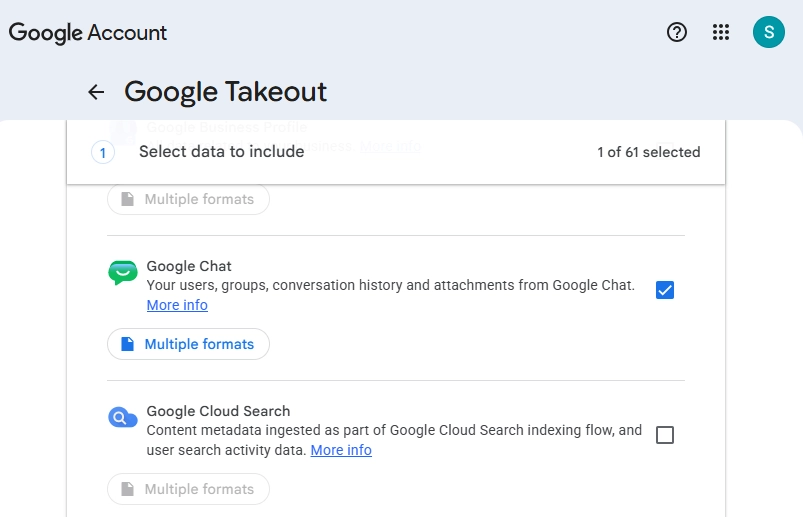
- Then, configure the export and click Create export.
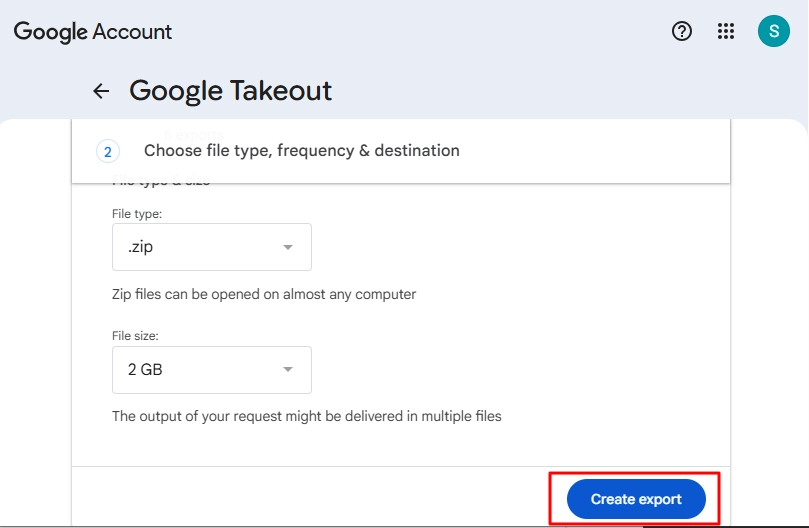
- Once the messages are ready to download, you will receive a notification to save them in a compressed file.
- After downloading the messages, unzip the file. You will get messages in JSON format. You have to convert all the JSON files to PDF.
Method 4 – Professional Tool to Save Google Chats to PDF
If you only have a couple of conversations to save, using the manual methods is fine. Google Takeout helps with bulk export, but it is a long process and comes with the headache of file conversion. A simpler way that allows you to instantly export Google Chat to PDF in bulk is using a professional Google Chat export tool .
Kernel Google Chat Export has been created to back up selective or complete chats for single or multiple users. This means you won’t have to worry about backing up each conversation separately. A few reasons to prefer this tool are:
- Saves time: Back up multiple accounts and conversations.
- Easy to use: Simple steps to follow.
- Safer than copying and pasting: Reduces chances of missing messages and keeps conversations in order.
- Great for businesses: Admins can keep their backups organized.
Step 1: Download, install, and open the tool. Click Next.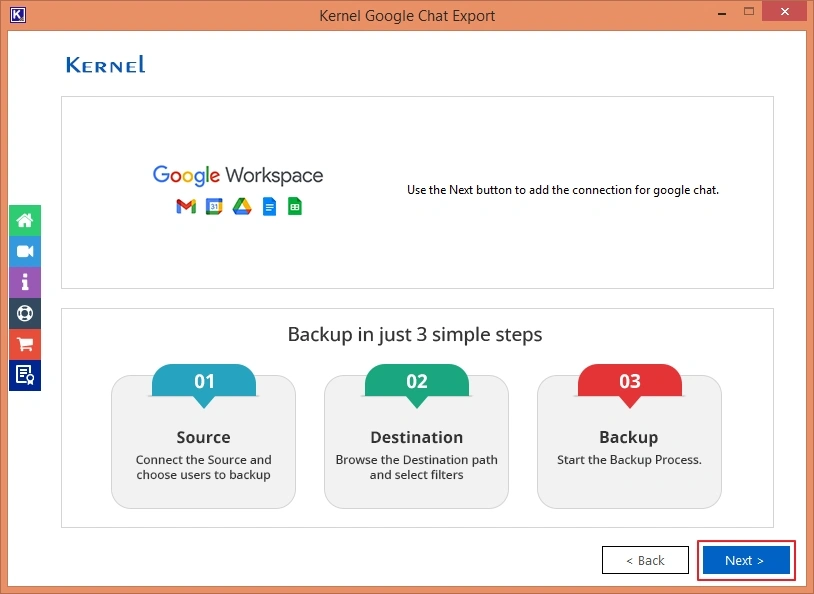
Step 2: Enter the credentials to connect the tool to your Google account. If you do not have the login credentials, use the built-in help guide in the tool to create them. Tap on Next.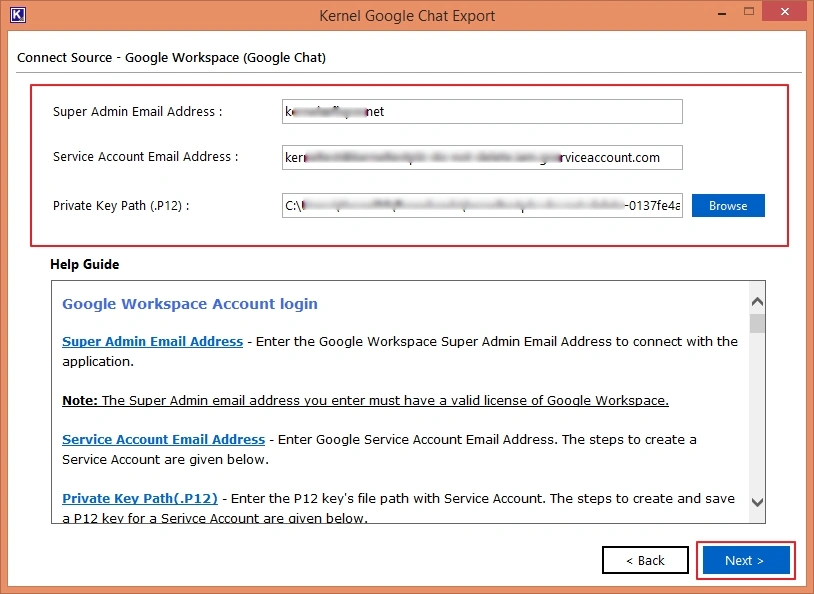
Step 3: Select the user whose chat you want to export. If there are multiple users, use the search feature to find and select user(s). Hit Next.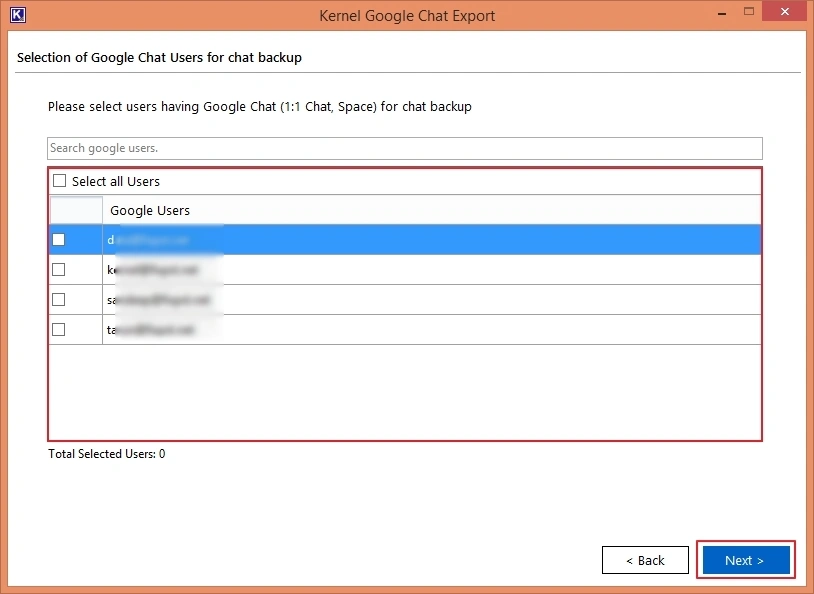
Step 4: Apply filters as per your convenience and use Browse to save the PDF files in your desired location. 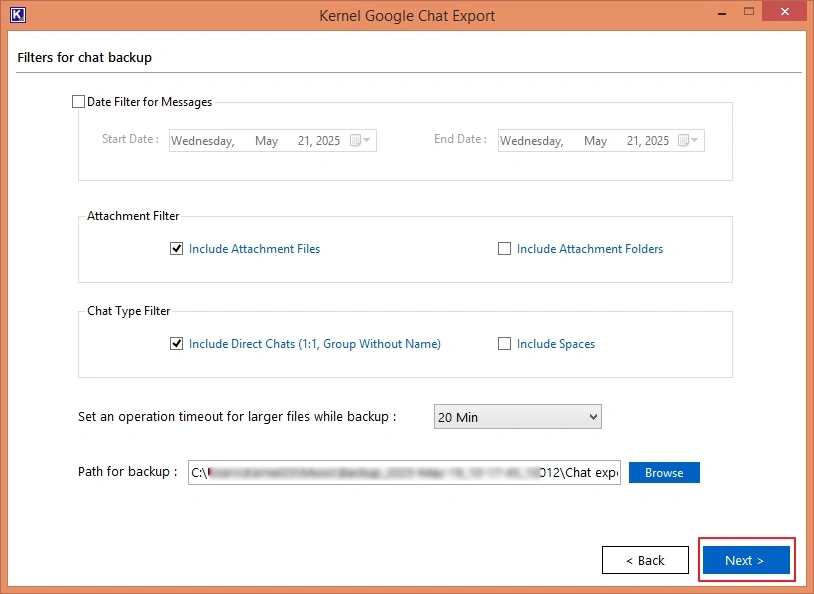
Step 5: Choose the option Save as PDF. Tap on Click to start backup.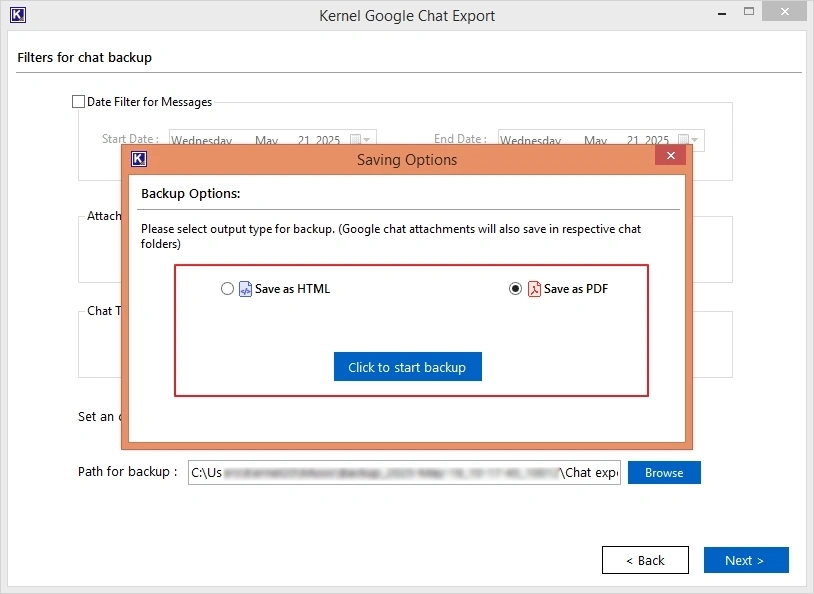
Step 6: Chat export will begin.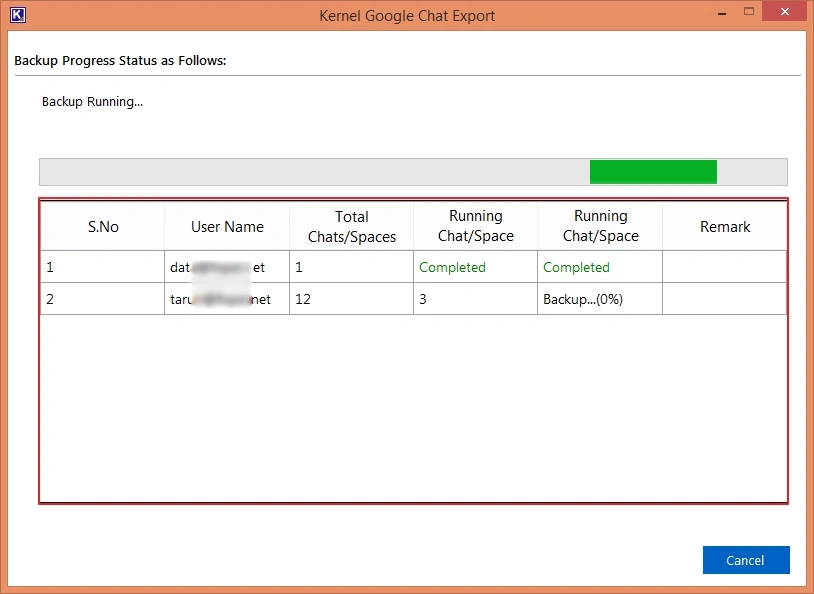
Tips to Export Google Chat to PDF
While exporting the chats, follow these tips to get better output while safely downloading the messages.
- Use the right export method based on how much content you need to export. For small chats, you can use the print or copy and paste options. For exporting a long period of messages, use Takeout or a tool.
- Ensure your chat is scrolled to the top so that you can see all the old messages. Google Chat only shows older messages as you scroll down. You can also zoom out in your browser to 50% to fit more information.
- Before deleting any content, ensure that your PDF is correct by opening it. Check that the names, dates, and messages are in the right order. Always avoid deleting your original chat without confirming that everything has been copied.
- Often, chats will include personal or business data. Save into a secure folder and always follow your company’s data guidelines.
Final Say
There isn’t a one-size-fits-all method here. For small chats that you only need today, printing from the browser is quick. Copy and paste can be useful if you want just the text. If you want the full history, then Google Takeout can be used to get the raw data. However, you will have to do some extra steps to make it readable.
If you want to export Google Chat to PDF free for your whole team or to securely save years of conversations, then manual methods won’t be the best option. Using a bulk backup tool like Kernel Google Chat Export will provide you with a quicker and more secure option. Choose the best method for your needs; try it on one chat and you can confidently repeat the process.
Frequently Asked Questions
A. No. There is no direct option to export to PDF in Google Chat. For saving, open your chat in your browser and ensure you have scrolled to the top. Then, press Ctrl + P (or Cmd + P for Mac). Select Save as PDF and press Save. If you have a long chat, then use Google Takeout or a backup tool.
A. Not usually. The print and copy & paste option will only save text. Attachments and images will likely just show as links or file names. If you need to save the files, then download them from the chat or use a backup tool that saves attachments.
A. There isn’t any option to export or print messages from the Google Chat mobile app. The easiest way to do this is to open Google Chat on your desktop browser.